
Location-wise Payment allows you to enable, restrict, and control payment methods per store/warehouse location. This ensures customers see only the payment methods that apply to their selected location.
Before You Begin
You must add payment methods in WooCommerce and assign them to specific locations before enabling Location-wise Payment.
Below is the complete process explained.
Step 1 — Add Payment Methods in WooCommerce
To create or manage global payment gateways:
- Go to WooCommerce → Settings → Payments
- Enable available payment methods.
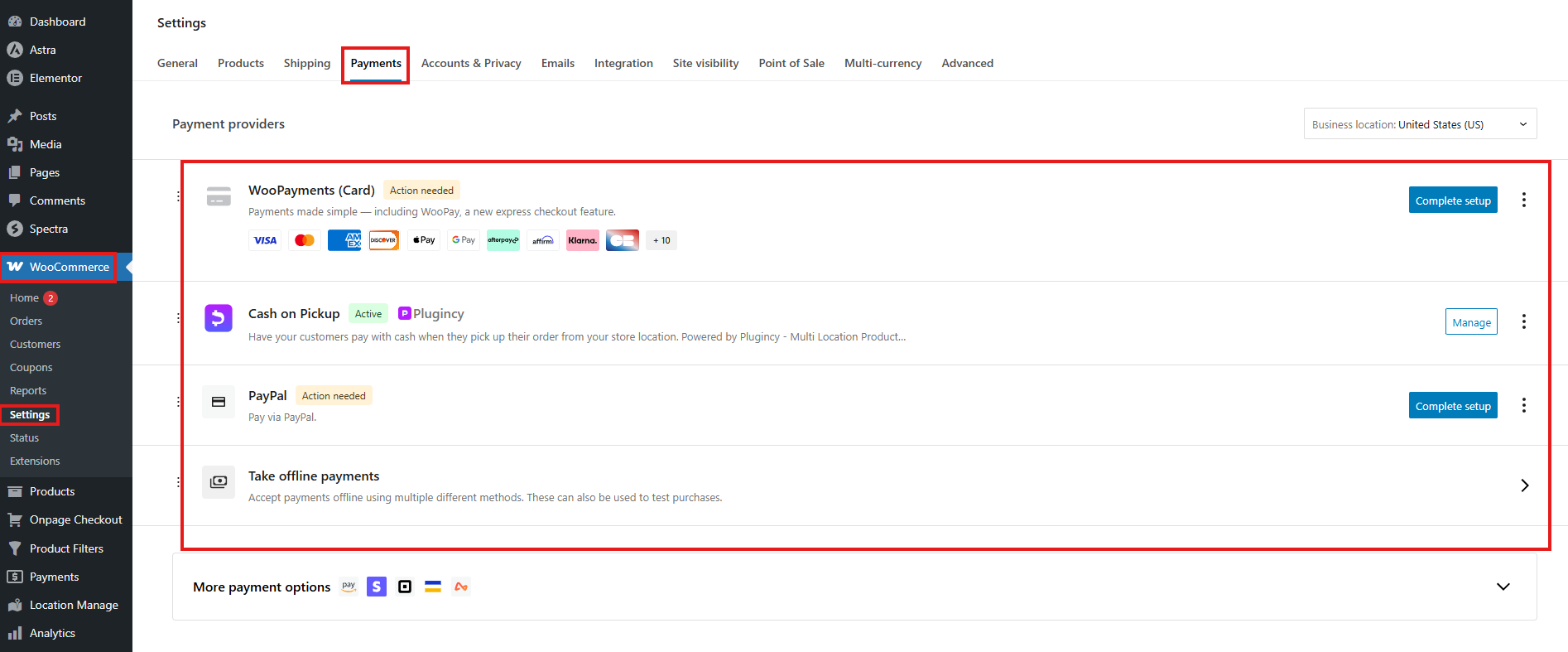
- Click Manage on any method to configure settings like:
- Title
- Description
- Instructions
- Restrictions
- API credentials (if applicable)
- Save changes.
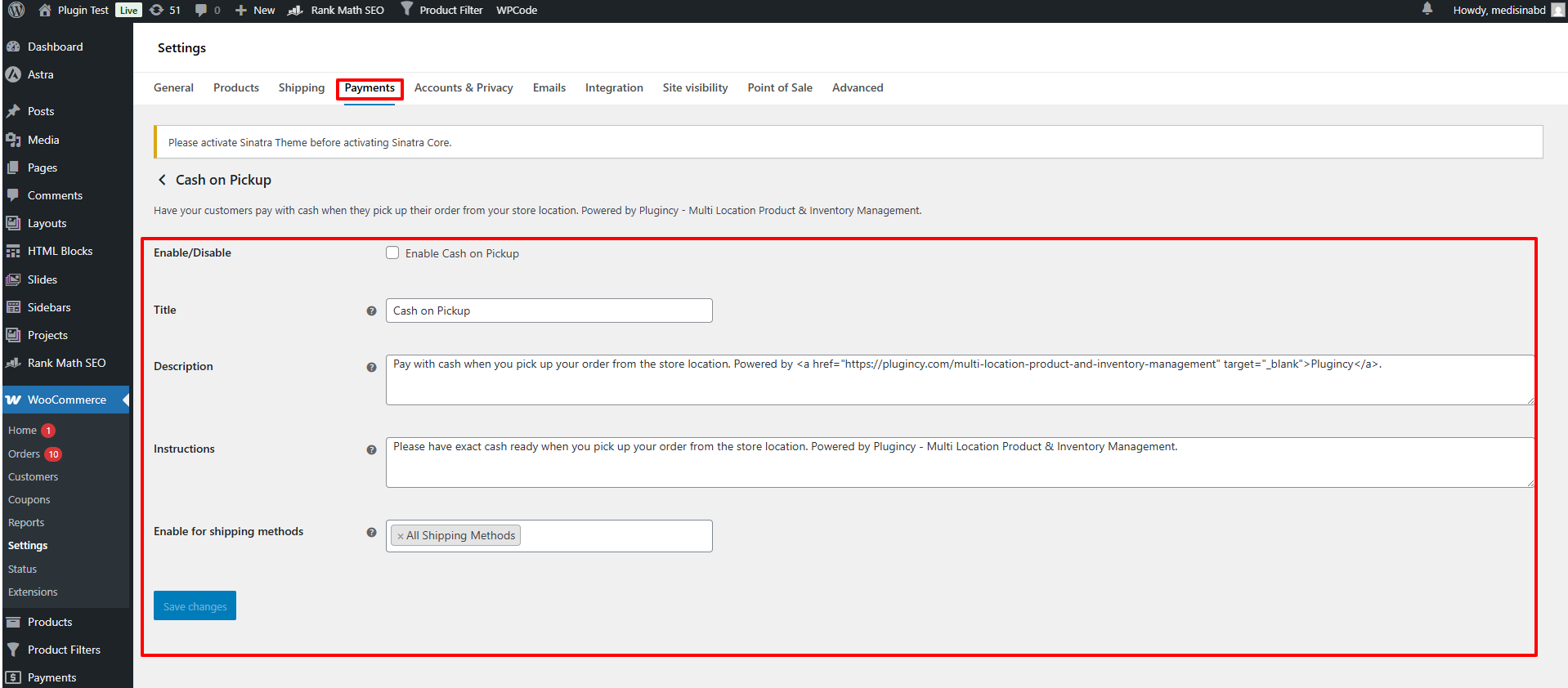
These payment methods become available for assignment per location.
Step 2 — Assign Payment Methods to Locations
After adding payment methods to WooCommerce, assign them to specific store/warehouse locations:
- Go to Location Manage → Locations
- Click Add New Location or Edit an existing location
- Scroll to the Payment Methods section
- You will see a list of WooCommerce payment gateways
- Check the boxes for payment methods you want available for this location
Examples:
- Location A may allow Cash on Delivery + Credit Card
- Location B may allow Bank Transfer only

These assignments determine what the customer sees during checkout.
Step 3 — Enable Location-Wise Payment Filtering
Now activate location-specific payment behavior.
- Go to Location Manage → Settings
- Open Location Wise Everything → Payments
- Locate the toggle:
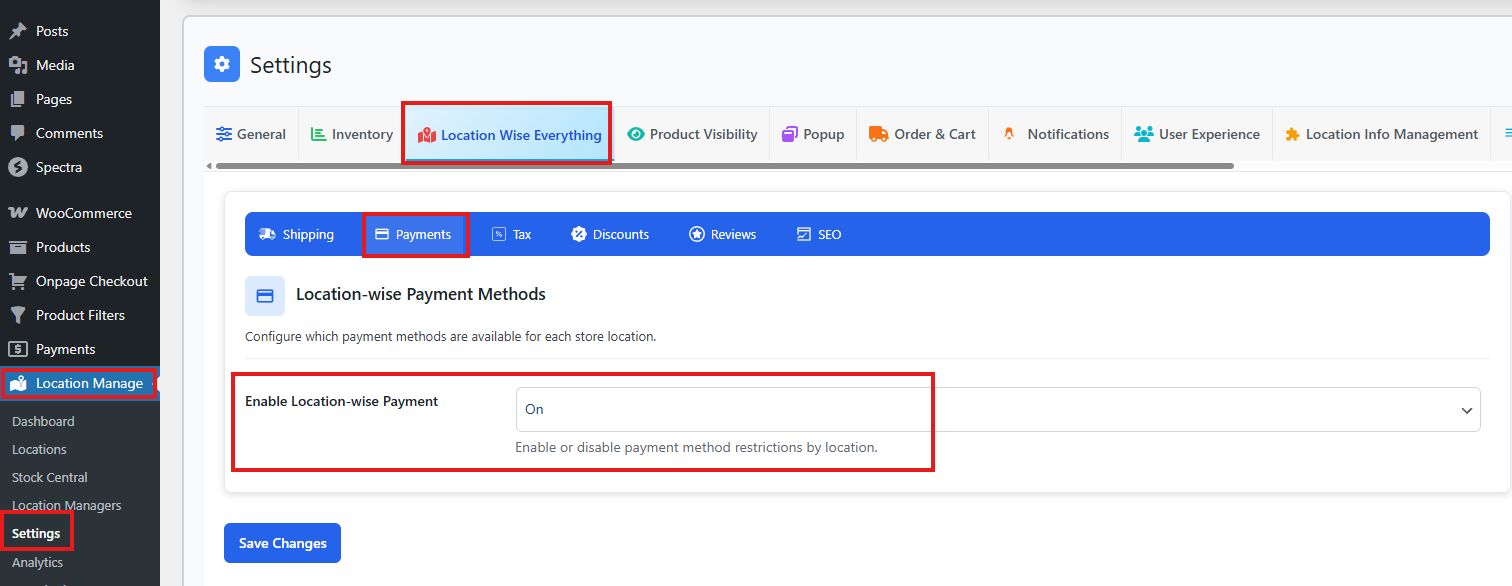
Enable Location-Wise Payment — On/Off
- ON: Only payment methods assigned to the active location will be shown.
- OFF: All active WooCommerce payment methods will appear regardless of location.
How Location-Wise Payment Works on Checkout
Once enabled:
- Customer selects a location (store/warehouse)
- Checkout instantly updates to show only allowed payment methods
- If customer switches location, payment methods update automatically
- Prevents customers from selecting unavailable or region-specific gateways
Example Scenarios
Scenario 1: Pickup Store vs Warehouse
Location A — Pickup Store
- Cash on Delivery: ✔
- Bank Transfer: ✘
- Card Payment: ✔
Location B — Warehouse
- Cash on Delivery: ✘
- Bank Transfer: ✔
- Card Payment: ✔
Checkout adapts based on selected location.
Scenario 2: Region-Based Payment Restrictions
Location C (Country A)
✔ PayPal
✔ Stripe
✘ Local Bank Transfer
Location D (Country B)
✔ Local Bank Transfer
✘ PayPal
Location-wise rules ensure compliance without confusing the customer.
Why Use Location-Wise Payment?
✔ Operational Efficiency
- Manage payment availability based on store capability
- Restrict COD only to local pickup or nearby delivery zones
✔ Better User Experience
- Customers see only valid payment options
- Reduces cart abandonment caused by failed or invalid gateways
✔ Compliance & Regional Control
- Support local gateways per region
- Prevent unsupported payment methods in certain countries
Best Practices
- Assign payment methods to each location immediately after adding them
- Use COD only for local stores with in-person pickups
- Test checkout flow after changing location settings
- Disable unnecessary gateways to avoid user confusion
- Make sure API-based gateways (Stripe/PayPal) are configured correctly before assigning
Summary
| Feature | Description |
|---|---|
| Add Payment Methods | WooCommerce → Settings → Payments |
| Assign to Locations | Location Manage → Locations → Payment Methods |
| Enable Filtering | Settings → Location Wise Everything → Payments |
| Customer Behavior | Payment methods shown depend on selected location |