
The Business Hours & Availability feature lets you define opening and closing hours for each location and control whether customers can place orders based on those hours. This is especially useful for physical stores, pickup hubs, warehouses, or service-based locations.
Configure Business Hours for a Location
You can configure business hours while creating a new location or editing an existing one.
Steps to Configure Business Hours
- Go to Location Manage → Locations
- Click Add New Location or Edit an existing location
- Scroll to the Business Hours section
- Select the correct Timezone
- For each day (Monday–Sunday), choose one of the following:
- Closed
- 24 Hours
- Custom hours (e.g.
09:00 AM – 06:00 PM)
- Save or update the location
Each location can have its own unique business hours.

Enable Business Hours & Availability Display
After setting business hours, you must enable the related options from settings.
Steps to Enable Hours & Availability
- Go to Location Manage → Settings
- Open the Location Info Management tab
- Find the Location Hours & Availability panel
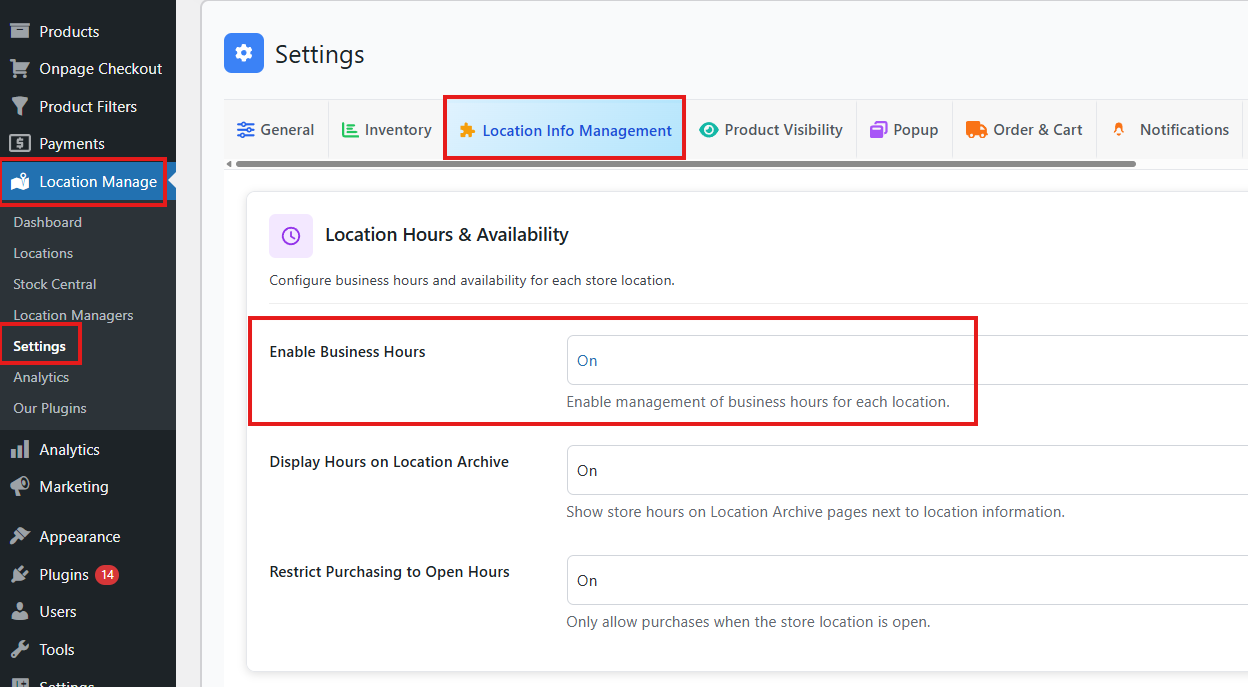
Configure the following options:
Enable Business Hours
- ON
- Enables management of business hours for each location

Display Hours on Location Archive
- ON
- Displays store business hours on the Location Archive Page, next to location information

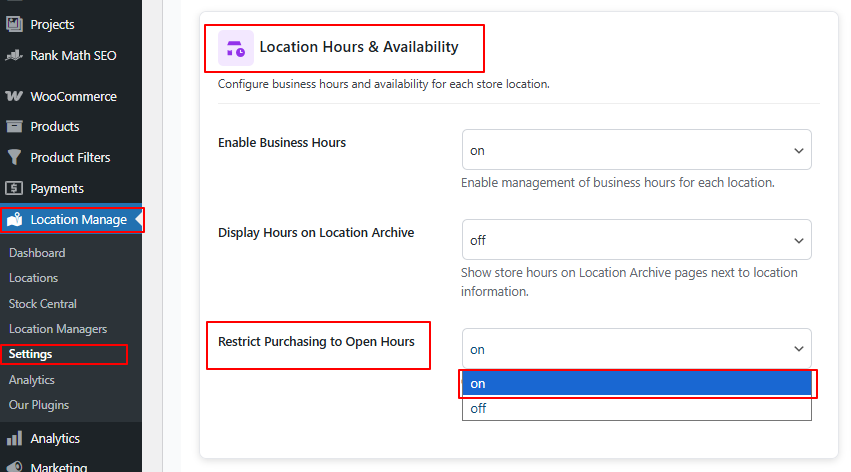
Restrict Purchasing to Open Hours
- ON
- Customers can place orders only when the selected location is open
- If the store is closed:
- Add to Cart is disabled
- Customers see availability status instead
View Business Hours & Availability on the Frontend
- Go to Location Manage → Locations
- Click View on any location
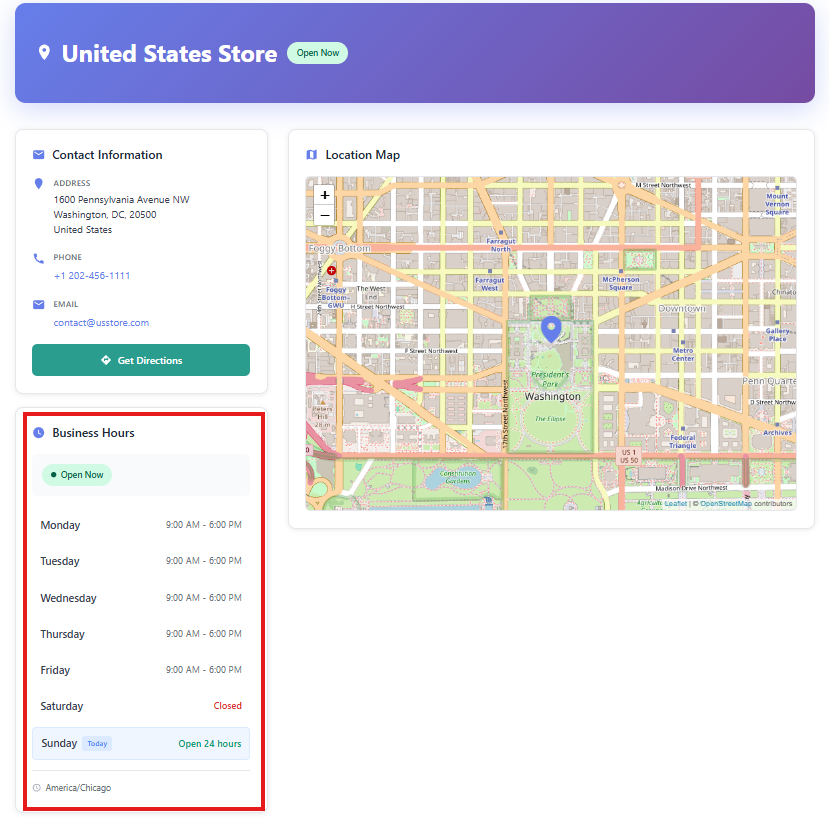
- On the Location Archive Page, you will see:
- Business hours
- Open / Closed availability status
- Purchase availability based on current time and timezone
How Availability Works
- Availability is calculated using:
- Location timezone
- Configured daily business hours
- Status updates automatically:
- Open → Purchases allowed
- Closed → Purchases restricted (if enabled)
Best Practices
- Always set the correct timezone for each location
- Use Restrict Purchasing to Open Hours for pickup-only or physical stores
- Display hours on archive pages to reduce customer confusion
- Test availability by changing system time or checking outside business hours
With Location-Based Business Hours & Availability, you can clearly communicate store schedules, prevent orders when locations are closed, and provide a more accurate, location-aware shopping experience for your customers.