
The Location Manager feature allows you to create dedicated managers for each store/warehouse location. These managers can be assigned specific permissions and receive location-based notifications, including inventory alerts, order alerts, and webhook/Telegram notifications.
This ensures each location operates independently while maintaining centralized control.
How to Add a New Location Manager
- Go to Location Manage → Location Managers
- Click Add New Location Manager
- A popup window will appear with configuration options
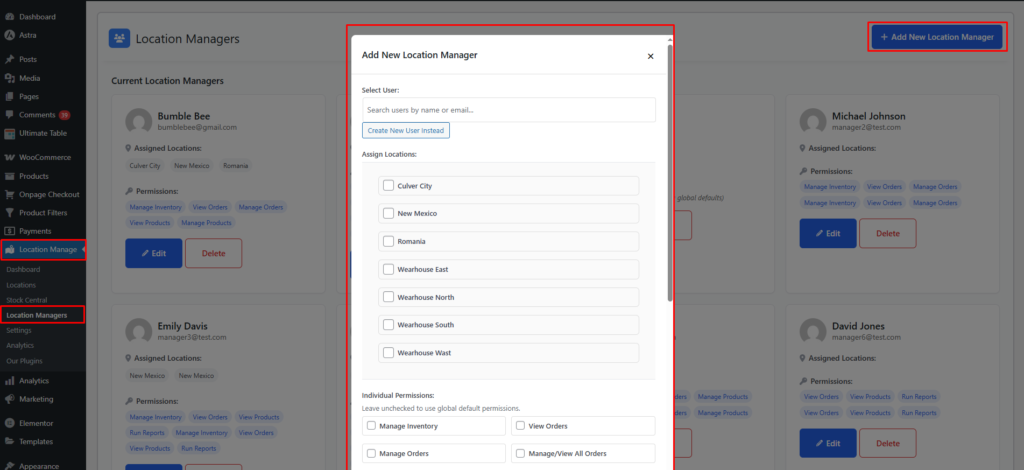
Step 1 — Select or Create a User
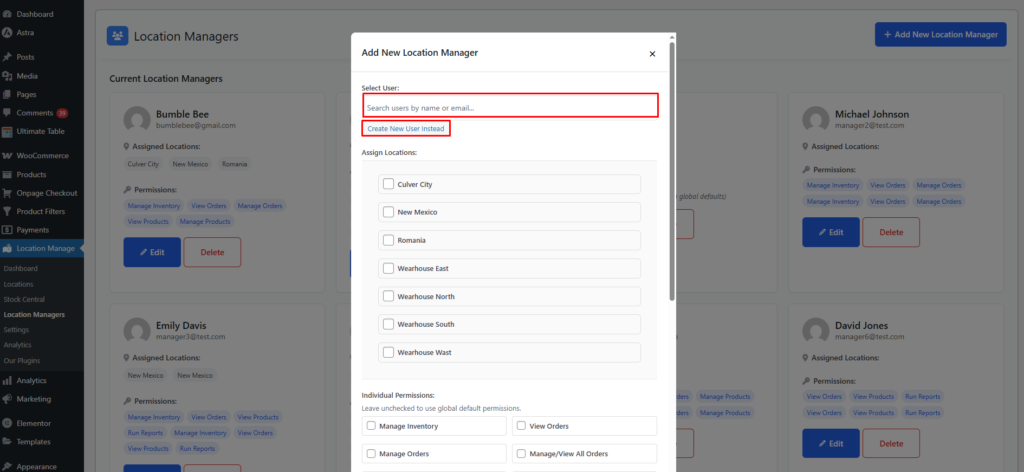
You can either assign an existing WordPress user or create a new one.
Select User
- Search by name or email
- Choose the user you want to assign as a location manager
Create New User Instead
If the user does not exist, you can create them directly from the popup:
Fields include:
- Username
- First Name
- Last Name
- Password
This will automatically generate a new WordPress user and assign them location manager capabilities.
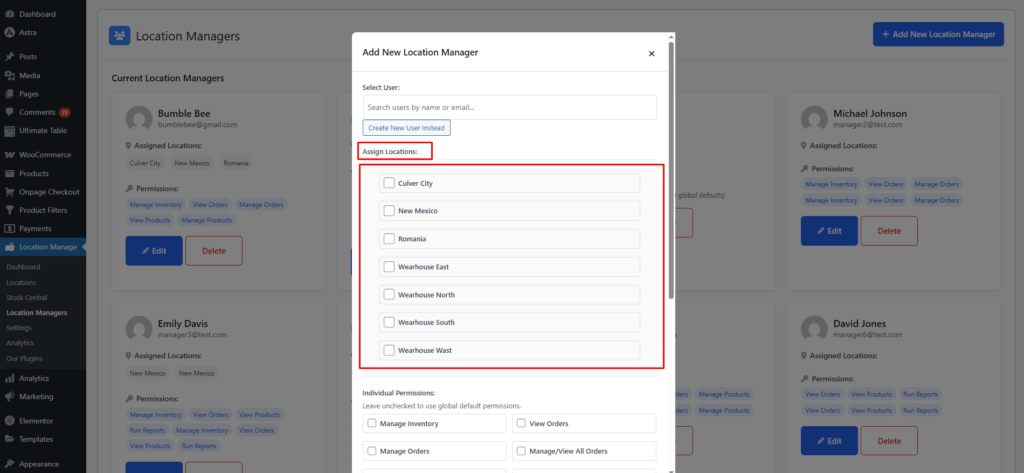
Step 2 — Assign Locations
Next, choose which location(s) this manager is responsible for.
- You can assign one or multiple locations
- The manager will only have access to data related to assigned locations
This includes access to:
- Location-specific inventory
- Orders from that location
- Products available at that location
- Reports for that location
- Notifications for that location
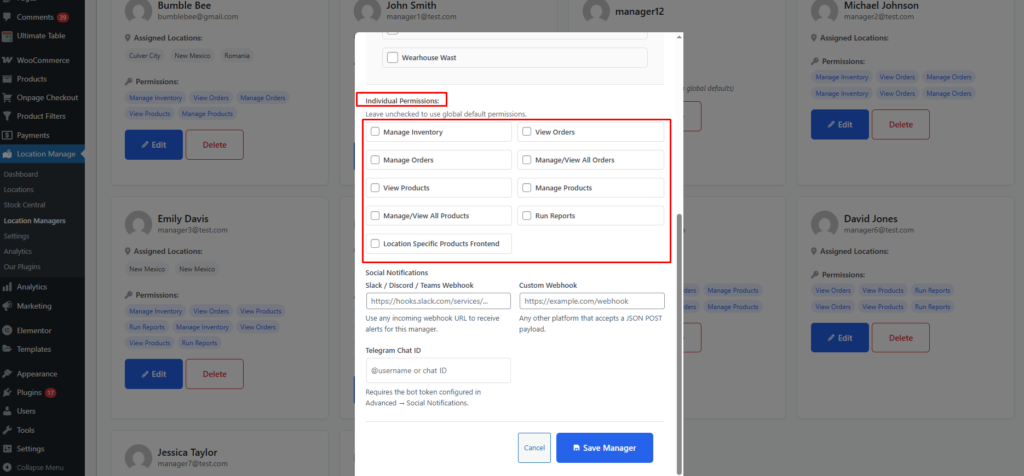
Step 3 — Set Individual Permissions (Optional)
If you leave permissions unchecked, the manager will inherit global default permissions.
If you want specific permissions for the manager, select from the list below:
Individual Permissions Options
- Manage Inventory
Allows updating stock quantities, transfers, and adjustments. - View Orders
Grants read-only access to location-based orders. - Manage Orders
Lets managers update, process, or fulfill orders. - Manage/View All Orders
If disabled manager can only get notification & view assigned location orders. - View Products
See product listings assigned to their locations. - Manage Products
Edit product data, pricing, location assignments, etc. - Manage/View All Products
If disabled manager can only view assigned location based products - Run Reports
Access sales, stock, and performance analytics for their assigned locations. - Location Specific Products Frontend
If Enabled manager can only able to see products based on assigned location in frontend as well.
This flexibility allows you to create warehouse-only managers, store supervisors, or hybrid managers.
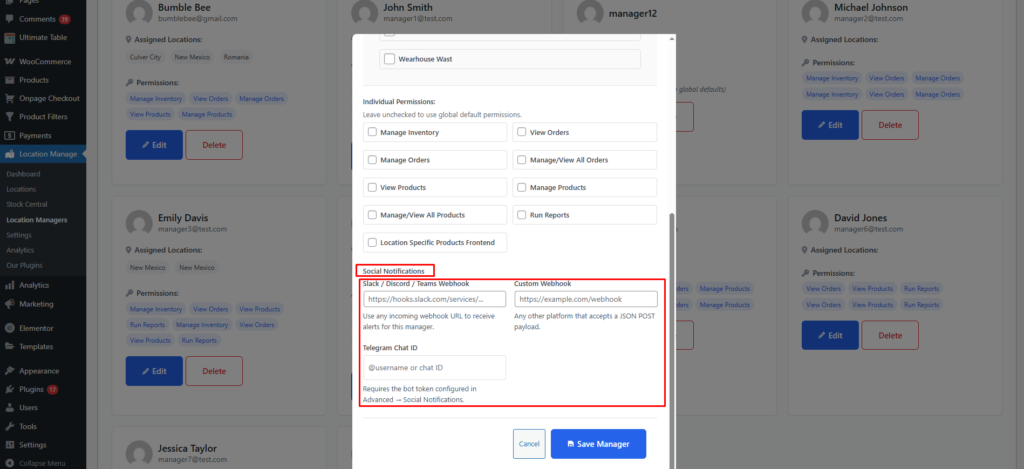
Step 4 — Configure Social Notifications (Optional)
Each location manager can receive alerts through different channels.
Slack / Discord / Teams Webhook
Enter an incoming webhook URL such as:
https://hooks.slack.com/services/...
This enables:
- New order alerts
- Low stock alerts
- Out of stock alerts
- Manager updates
- Custom alerts based on configured events
Custom Webhook
Enter any webhook URL:
https://example.com/webhook
Useful for platforms like:
- Zapier
- Make (Integromat)
- Custom dashboards
- Third-party logistics systems
This receives JSON POST payloads containing:
- Order details
- Stock alerts
- Location metadata
Telegram Chat ID
Enter:
@username or Chat ID
Requirements:
- Bot token must be configured under Settings → Notifications → Social Notifications
With this, the manager can receive:
- Low stock alerts
- Out of stock alerts
- New order updates
- Restocked notifications
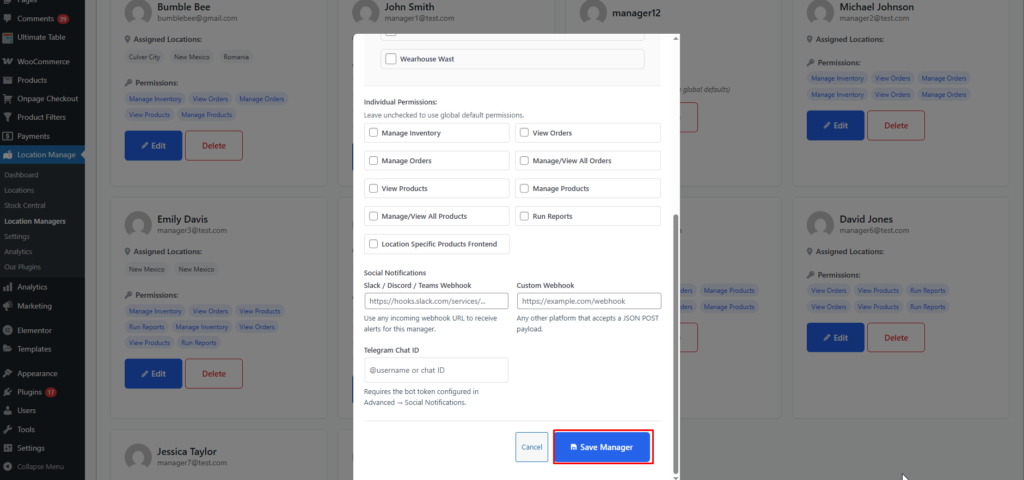
Step 5 — Save Manager
Click Save Manager.
The new location manager will now:
- Have a WordPress user account
- Be assigned to one or more locations
- Receive location-specific notifications (if configured)
- Gain access only to assigned features and permissions
Permission Control Summary
| Permission | What It Allows |
|---|---|
| Manage Inventory | Adjust stock levels per location |
| View Orders | Read-only order access |
| Manage Orders | Process and fulfill orders |
| View Products | See assigned product listings |
| Manage Products | Edit and update products |
| Run Reports | Access analytics per location |
Notification Summary
Location managers can receive alerts for:
- New orders
- Low stock
- Out of stock
- Restocked items
- Refunds
- Cancelled orders
- Failed payments
- Manager updates
- Store performance digest
Channels supported:
| Channel | Method |
|---|---|
| Slack | Webhook URL |
| Discord | Webhook URL |
| Microsoft Teams | Webhook URL |
| Custom system | Custom webhook |
| Telegram | Chat ID + Bot token |
| Standard WooCommerce email notifications |
Benefits of Using Location Managers
- Decentralized control: Each store/warehouse operates independently.
- Increased security: Managers access only what they need — nothing more.
- Flexible workflow: Perfect for multi-store owners, regional supervisors, or warehouse staff.
- Real-time notifications: Managers stay informed about important events instantly.