
The Location Selection Popup allows customers to choose their preferred store/location before viewing location-based stock, price, and availability. This popup is fully customizable from the plugin settings.
Where to Configure
Go to:
WordPress Admin → Location Manage → Settings → Popup
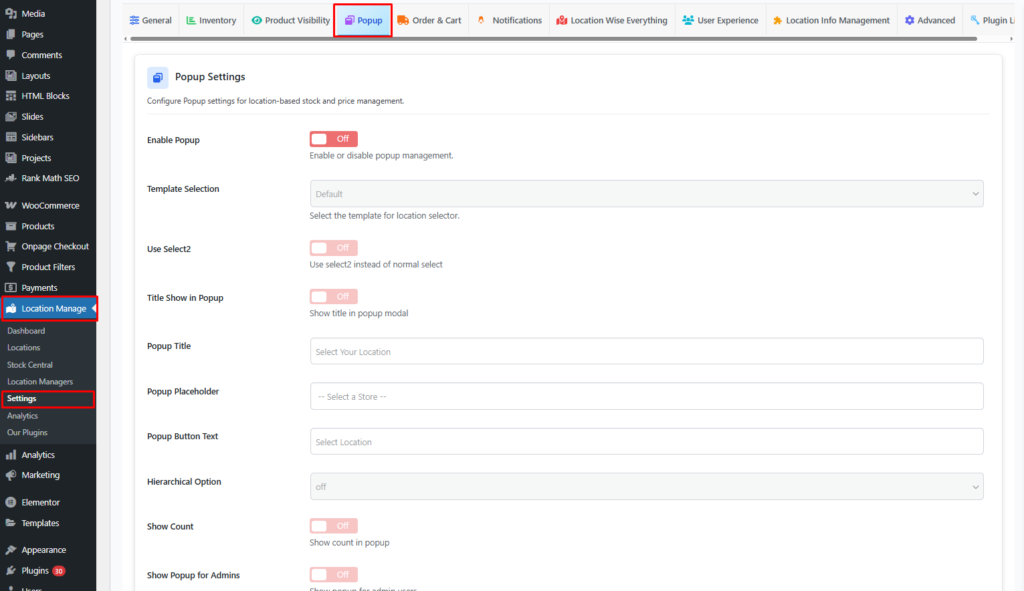
Popup Settings
Popup Settings Panel
Configure popup behavior and appearance for location-based stock and price management.
Available Options
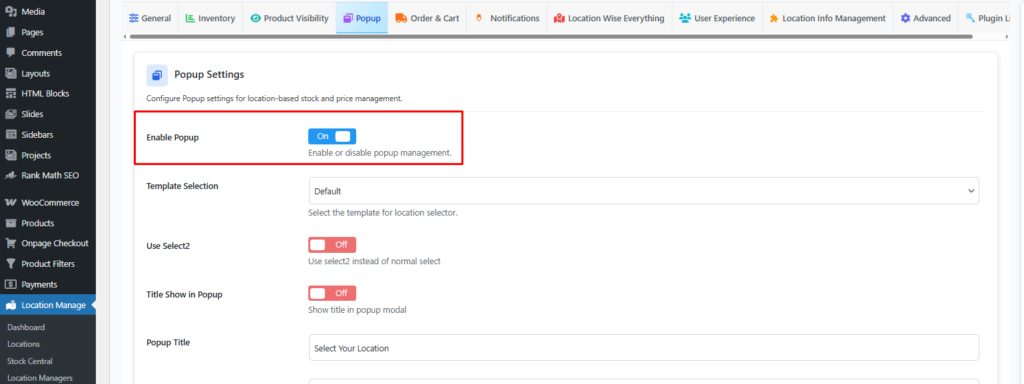
1️⃣ Enable Popup
On / Off
- Enable or disable the location selection popup entirely.
- When enabled, customers are prompted to select a location based on your display rules.
2️⃣ Template Selection
Choose the visual layout for the location selector popup.
Available templates:
- Default
- Modern
- Modern Simple
- Classic
- Tabs
- Compact
- Grid
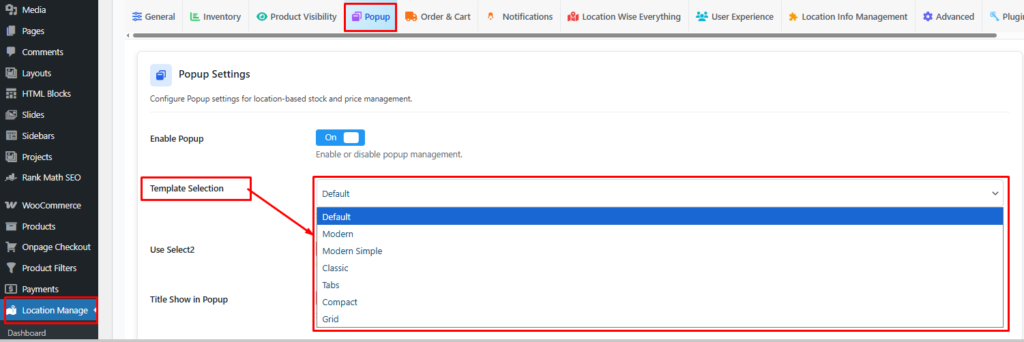
Each template controls how locations are visually presented inside the popup.
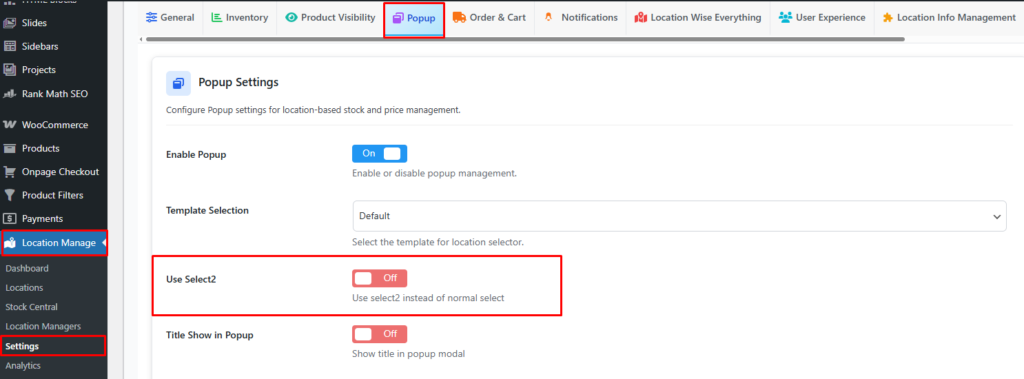
3️⃣ Use Select2
Off / On
- When enabled, uses Select2 instead of the normal HTML select.
- Improves usability for stores with many locations (searchable dropdown).
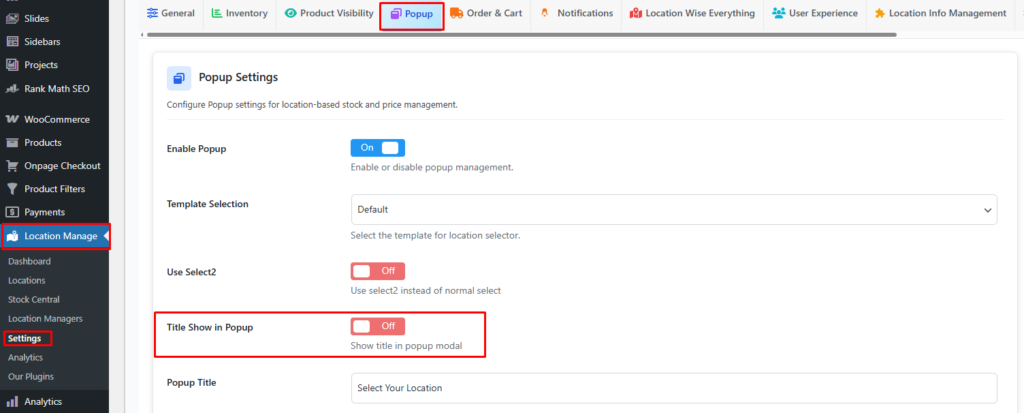
4️⃣ Title Show in Popup
Off / On
- Show or hide the popup title inside the modal.
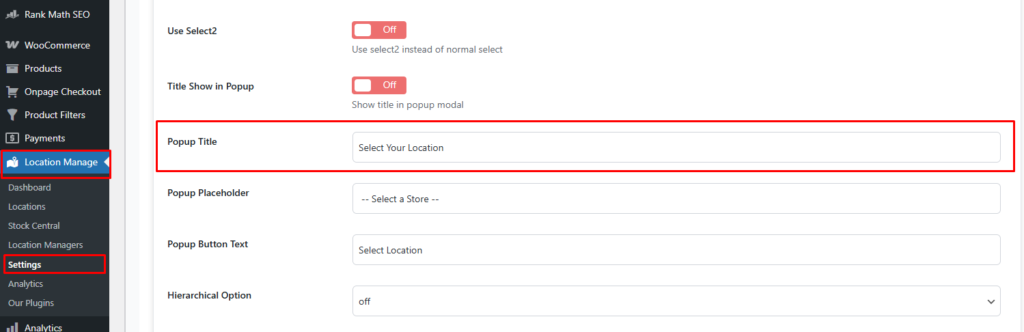
5️⃣ Popup Title
Default: Select Your Location
- Custom title text displayed at the top of the popup (when title is enabled).
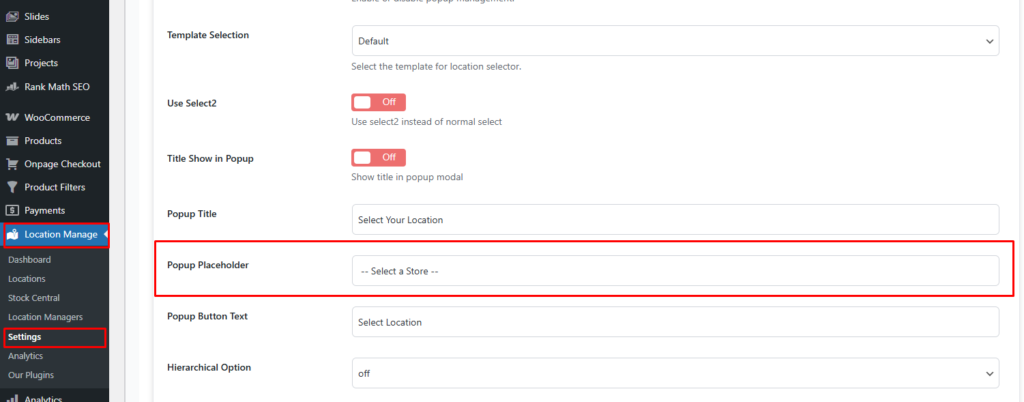
6️⃣ Popup Placeholder
Default:
-- Select a Store --
- Placeholder text shown inside the location selector.
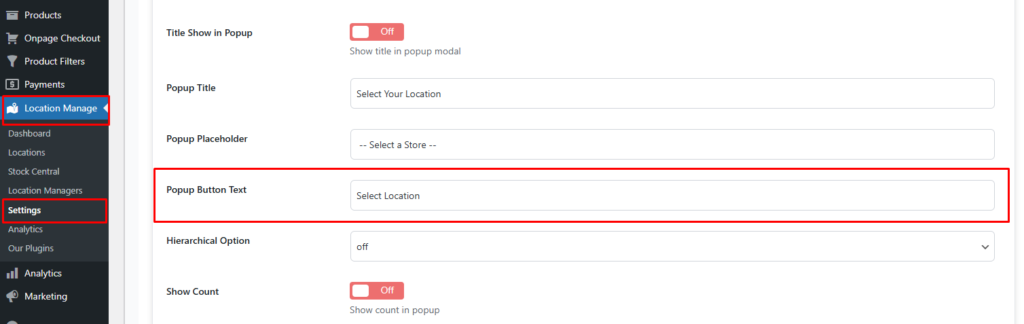
7️⃣ Popup Button Text
Default: Select Location
- Text displayed on the popup confirmation button.
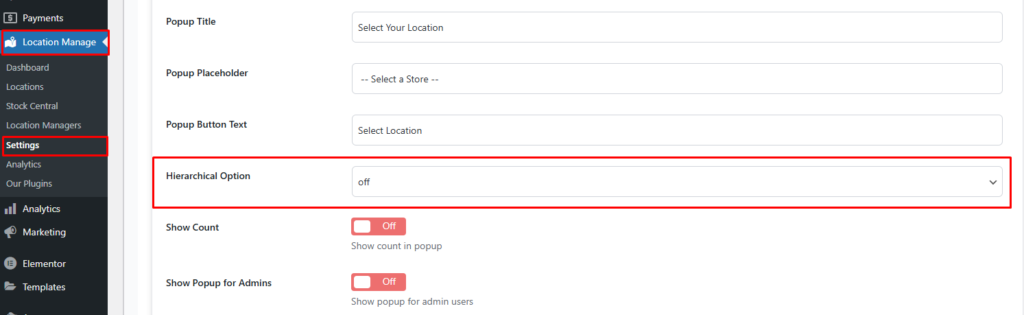
8️⃣Hierarchical Option
Off / On
Hierarchical Option Allows you to create parent–child relationships between locations for better organization and structure.
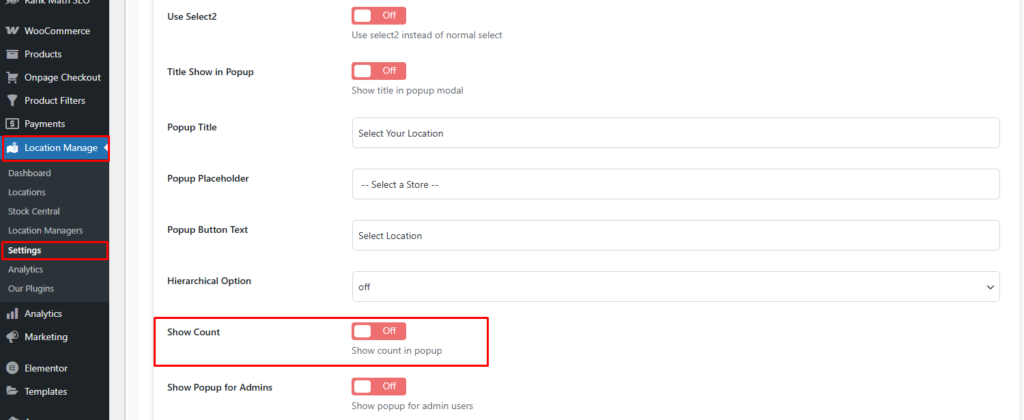
8️⃣ Show Count
Off / On
- Show product count or availability count for each location (based on plugin configuration).
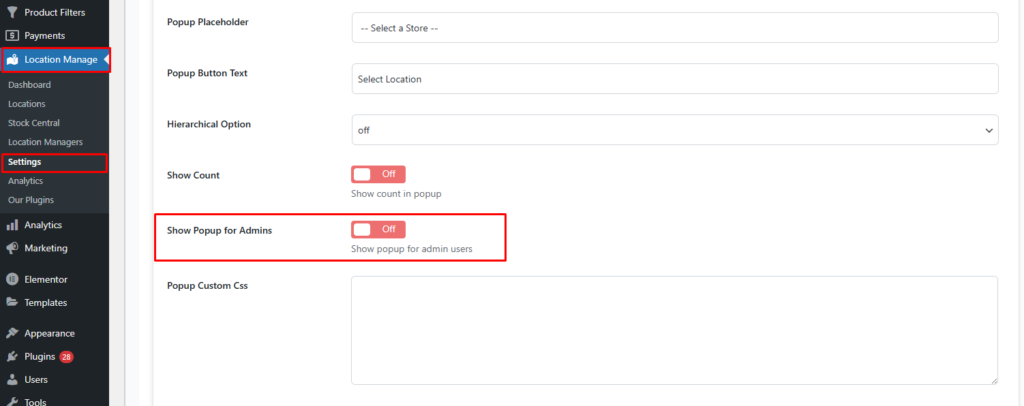
9️⃣ Show Popup for Admins
Off / On
- When enabled, the popup is also shown to admin users on the frontend.
- Useful for testing or reviewing user experience.
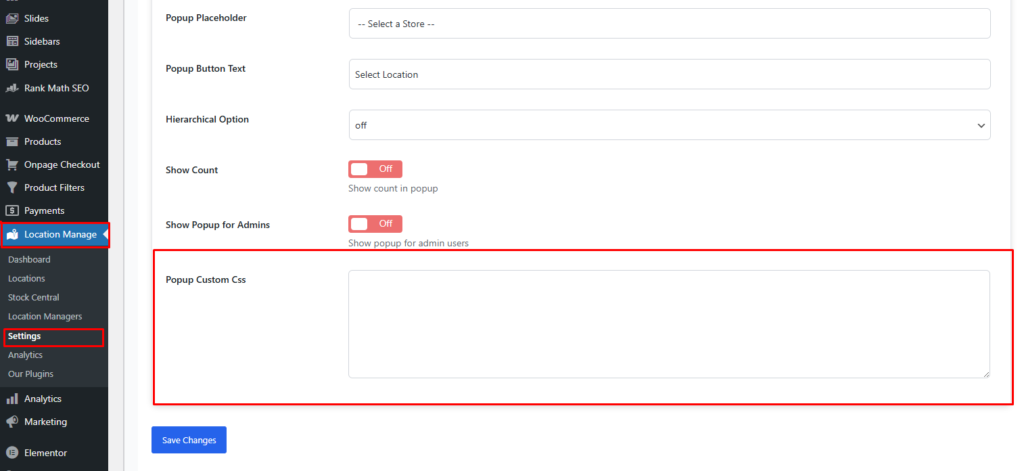
🔟 Popup Custom CSS
- Add custom CSS styles specifically for the popup.
- Useful for branding, spacing, colors, or layout adjustments.
Example:
.mulopimfwc-location-popup {
    border-radius: 8px;
}
How the Popup Works (Frontend)
- Popup appears based on your location rules (first visit, forced selection, etc.).
- User selects a location
- Clicks Select Location
- Selected location is saved (session / cookie, depending on settings)
- All stock, pricing, and availability update accordingly
Best Use Cases
- Force location selection before browsing
- Multi-store pickup systems
- Location-based pricing models
- Multi-warehouse inventory control
Notes & Behavior
- Popup respects:
- Location visibility rules
- Stock availability
- User role settings
- If popup is disabled, users can still select locations via other enabled selectors (product page, cart, etc.).
Summary
The Location Selection Popup ensures customers always interact with accurate, location-based product data, while giving you full control over its design, behavior, and visibility.