
The Import & Export Settings section allows you to back up, migrate, and manage location-based product data efficiently.
How to Access Import & Export Settings
To configure this feature:
- Go to Location Manage →Settings →Advanced
- Find the Import & Export Settings panel
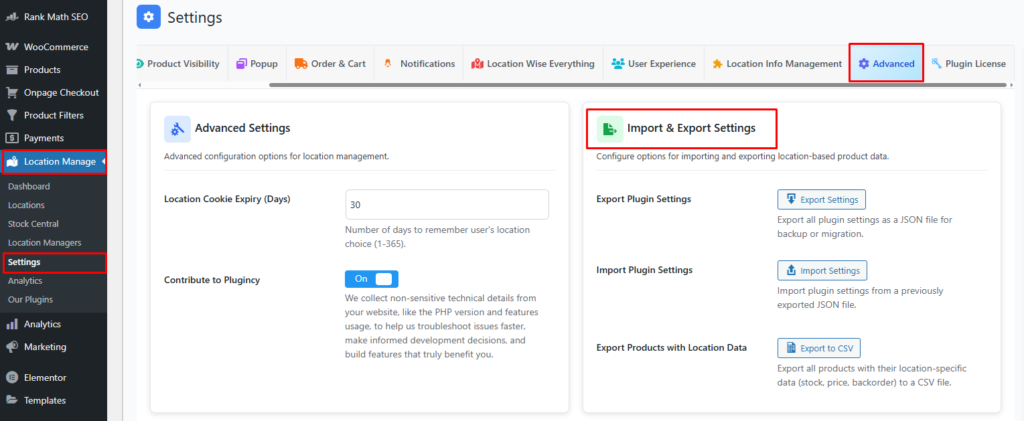
Export Plugin Settings
Action: Export Settings
Description:
Exports all plugin configuration settings into a JSON file.
Use Cases:
- Backup before making major changes
- Migrate settings to another website
- Restore configuration after reinstalling the plugin

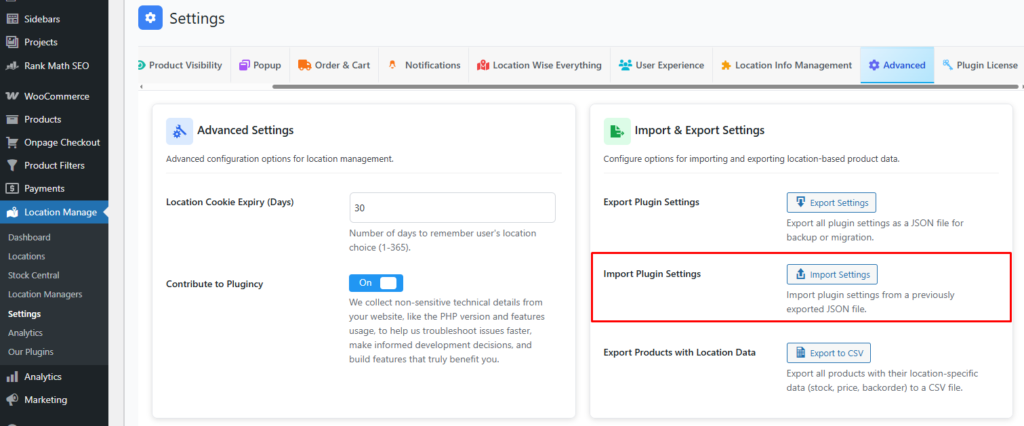
Import Plugin Settings
Action: Import Settings
Description:
Imports plugin configuration from a previously exported JSON file.
Behavior:
- Replaces existing plugin settings
- Applies all configuration options instantly
Note:
Ensure the JSON file was generated by the same plugin version for best compatibility.
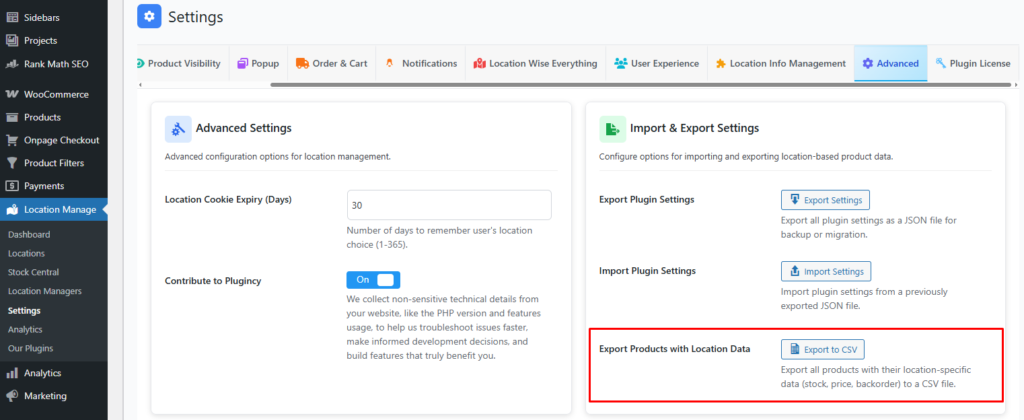
Export Products with Location Data
Action: Export to CSV
Description:
Exports all products along with their location-specific data, including:
- Stock quantity
- Regular and sale prices
- Backorder status
Use Cases:
- Inventory audits
- Bulk editing in spreadsheet software
- Syncing data with WMS, POS, or ERP systems
Recommendation
- Always export settings before importing new ones
- Keep regular backups of CSV exports for inventory tracking
- Verify imported settings in a staging environment when possible