
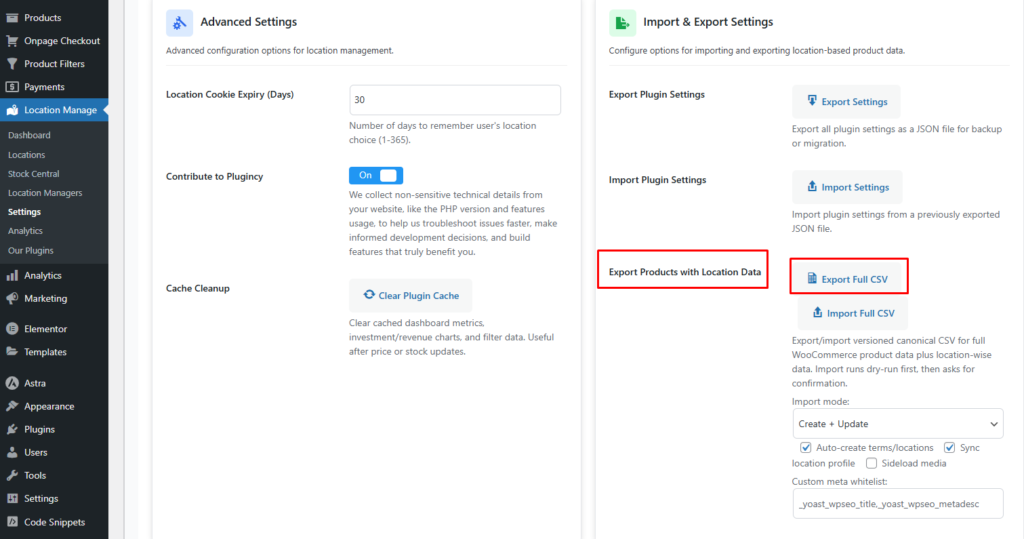
Export Products with Location Data
Exports a Full CSV containing:
- Standard WooCommerce product fields (title, SKU, price, stock, categories, etc.)
- Extra location-wise fields (stock per location, price per location, activation, and other location-related data)
Steps
- Click Export Full CSV
- Save the file to your computer
Import Products with Location Data
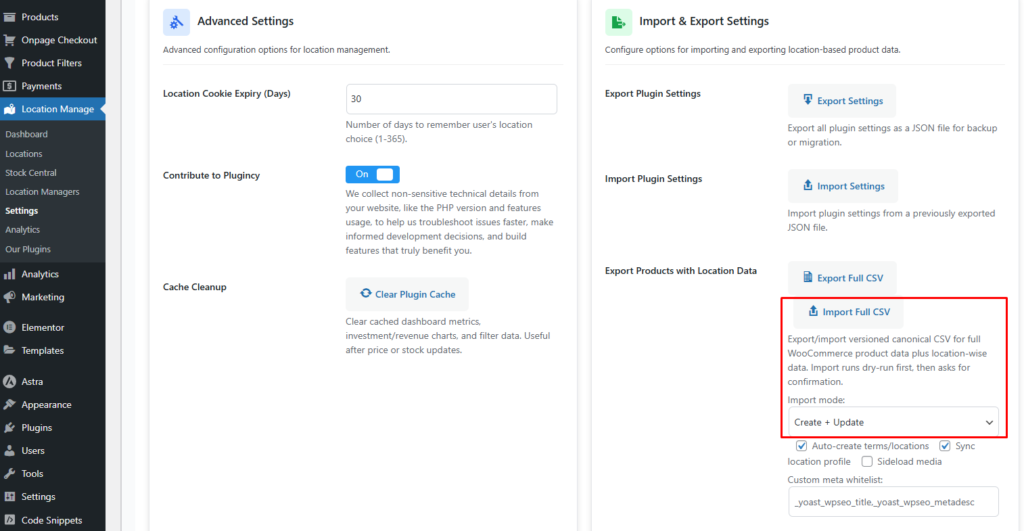
Imports the same canonical CSV back into WooCommerce, including location-wise data.
Safety check (Dry Run)
Import always runs a dry run first, which means:
- It checks what will be created or updated
- It shows warnings or errors
- It does not apply changes until you confirm
Steps
- Click Import Full CSV
- Upload your CSV
- Review the dry run results
- Confirm to apply the import
Import Mode
Create + Update
- Creates new products if they do not exist
- Updates existing products
Use this for new sites, migrations, or when your CSV includes new products.
Update Only
- Updates existing products only
- Does not create new products
Use this for safer updates like changing stock, price, or location values.
Import Options
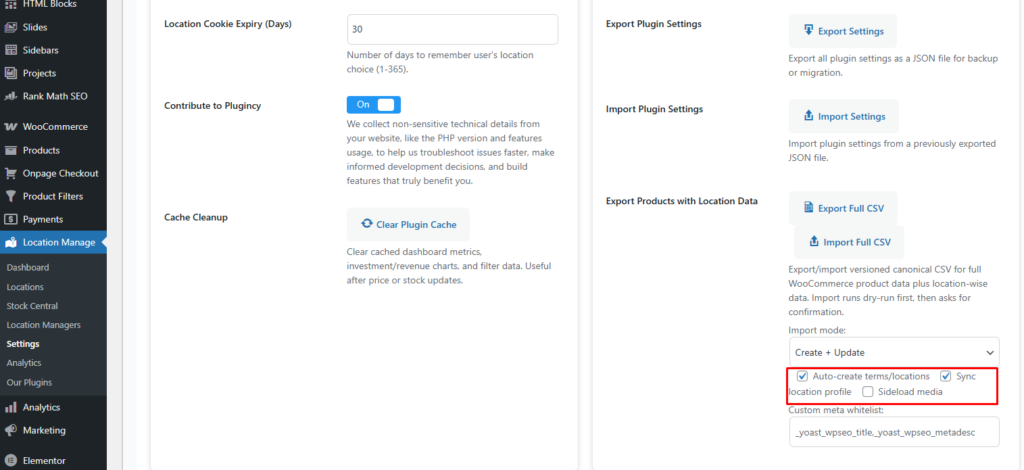
Auto-create terms/locations
If enabled, the importer can create missing:
- Categories
- Tags
- Brands
- Attributes
- Locations (if they are not already created)
Use this when your CSV includes new categories or new locations.
Sync location profile
If enabled, it can also update location profile details (only if included in the CSV), such as location name or other profile data.
Use this when you want both product data and location profile data updated together.
Sideload media
If enabled, the importer can download product images from URLs in the CSV and add them to your Media Library.
Use this when you are importing products into a new site and want images included.
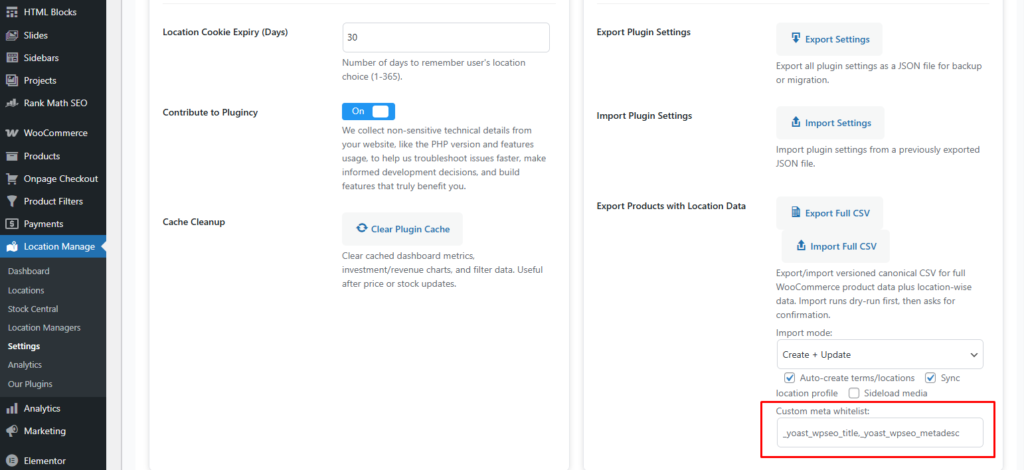
Custom meta whitelist
Some plugins store extra fields in product meta (custom fields). The whitelist decides which meta keys are allowed to import.
Example whitelist
_yoast_wpseo_title,_yoast_wpseo_metadesc
This means only these SEO fields will be imported for Yoast:
- SEO Title
- Meta Description
Why it matters
- Keeps imports clean
- Avoids importing unwanted meta from other plugins
- Prevents conflicts
Use Export/Import Full CSV to move or bulk update WooCommerce products with location wise stock and pricing. Imports always start with a dry run for safety. Choose Create + Update for new products too, or Update Only for safer updates. Use the meta whitelist to allow only needed custom fields like Yoast SEO title and meta description.
Stock Central Migration
Stock Central Migration also lets you export and import a canonical CSV for moving full product data, along with location-based inventory. It is designed for safe migration between sites and supports a dry run check before applying changes.
You can access it from Stock Central by clicking Import/Export.
How to Access
- Go to Stock Central
- Click Import/Export
- You will see the Stock Central Migration screen with two tabs:
- Export
- Import
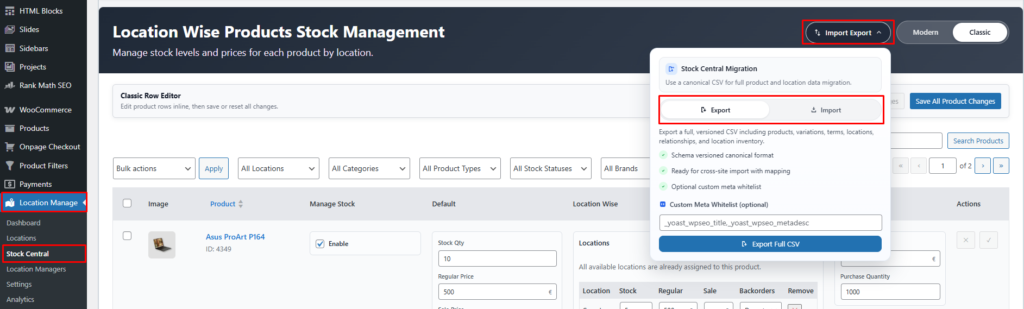
Export
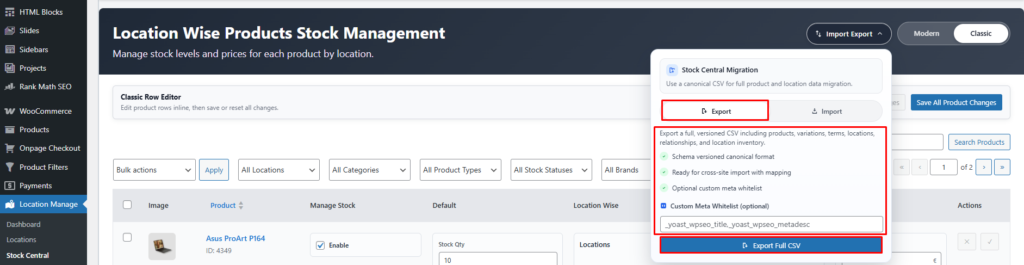
Export creates a full, versioned CSV that can include:
- Products
- Variations
- Terms (categories, tags, brands, attributes)
- Locations
- Relationships (which product belongs to which term/location)
- Location inventory (stock and price by location)
Export benefits
- Schema versioned canonical format
The file structure is consistent and supports future updates. - Cross-site import is ready with mapping
The file is built for moving data to another site cleanly. - Optional custom meta whitelist
You can choose which extra meta fields should be included.
Custom Meta Whitelist (optional)
Some plugins store extra data in product meta fields. The whitelist controls which meta keys are allowed in export/import.
Example
_yoast_wpseo_title,_yoast_wpseo_metadesc
This includes Yoast SEO fields:
- SEO Title
- Meta Description
If you do not need extra custom fields, leave the whitelist empty for a cleaner export.
Export steps
- Open the Export tab
- (Optional) Add meta keys in Custom Meta Whitelist
- Click Export Full CSV
- Save the file to your computer
Import
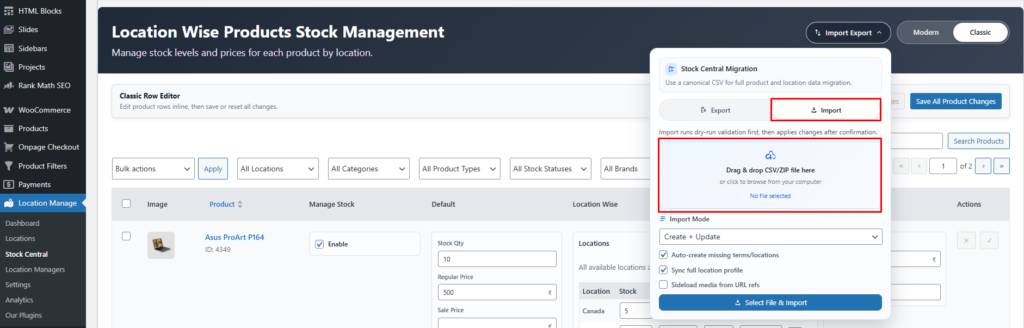
Import takes the canonical CSV (or ZIP) and moves the data into your site.
Dry run safety check
Import always runs a dry run validation first:
- It checks the file and data structure
- It shows what will be created or updated
- Nothing is applied until you confirm
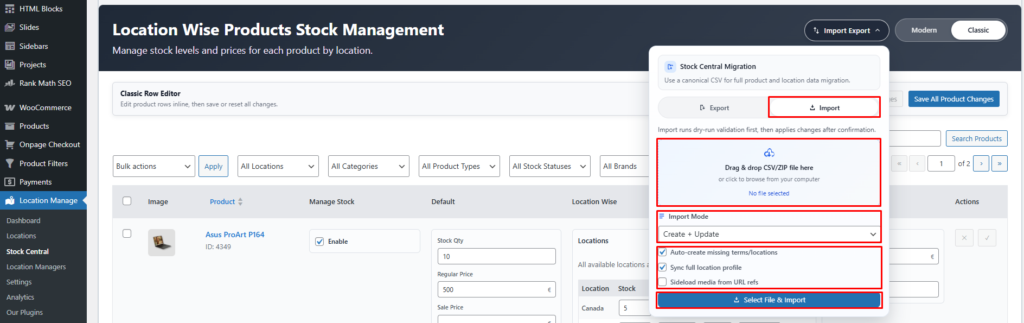
Upload file
You can upload by:
- Drag and drop the CSV/ZIP file into the upload area
or - Click to browse and select the file from your computer
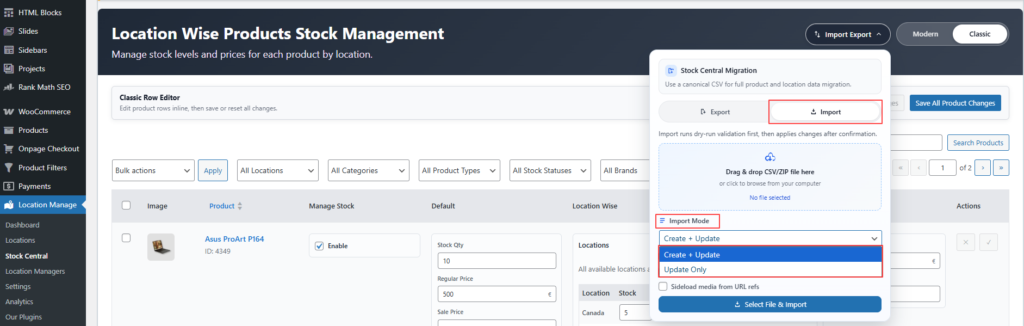
Import Mode
Create + Update
- Creates new products if they do not exist
- Updates existing products
Use this for new sites, migrations, or when your CSV includes new products.
Update Only
- Updates existing products only
- Does not create new products
Use this for safer updates like changing stock, price, or location values.
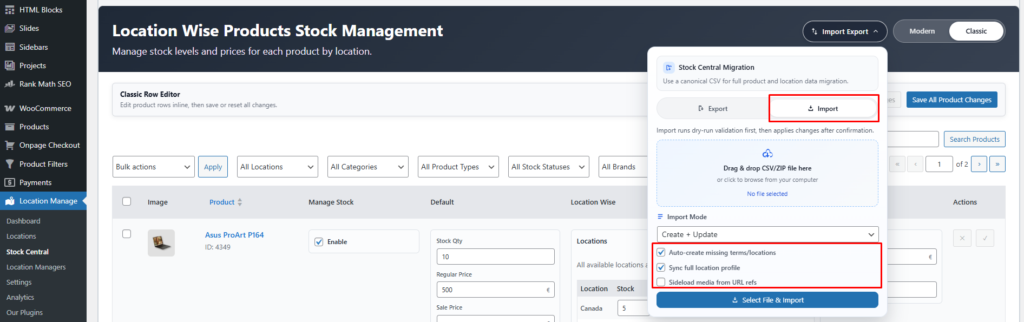
Import options
Auto create missing terms/locations
When enabled, the importer will create missing:
- Categories, tags, brands, attributes
- Locations
Use this when importing into a fresh site.
Sync full location profile
When enabled, the importer also updates full location profile details (if included), such as:
- Location name
- Address, contact info, and other profile fields
Use this when you want a full location setup copied, not only inventory.
Sideload media from URL refs
When enabled, images referenced by URLs in the file will be downloaded and added to your Media Library.
Use this when:
- You are moving to a new site
- You want product images included
Keep it off if you already have images and want faster imports.
Import steps
- Open the Import tab
- Upload the CSV or ZIP file
- Choose Import Mode
- Select the import options you want
- Click Select File & Import
- Review the dry run results
- Confirm to apply changes
Stock Central Migration is a safe way to move products and location-based inventory between sites. Export creates a versioned canonical CSV that includes products, variations, terms, locations, and inventory. Import starts with a dry run check, then applies changes only after confirmation. You can auto create missing terms and locations, sync full location profiles, sideload media, and include only selected custom fields using the custom meta whitelist.