
The Location-Based Out-of-Stock Product Display feature lets you control how products that are out of stock at the selected location appear in your store. This ensures customers clearly understand availability per location, while you maintain full control over visibility and presentation.
Configure Out-of-Stock Display Settings
Follow these steps to manage how out-of-stock products behave:
- Go to Location Manage → Settings
- Open the Product Visibility
- Locate the Out of Stock Product Display panel
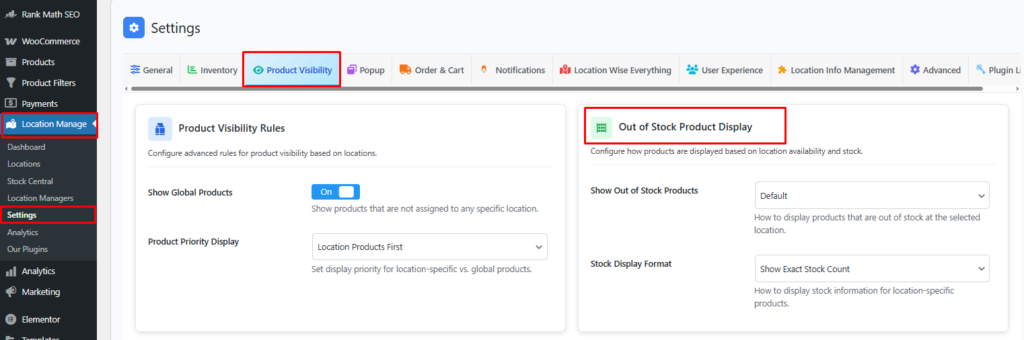
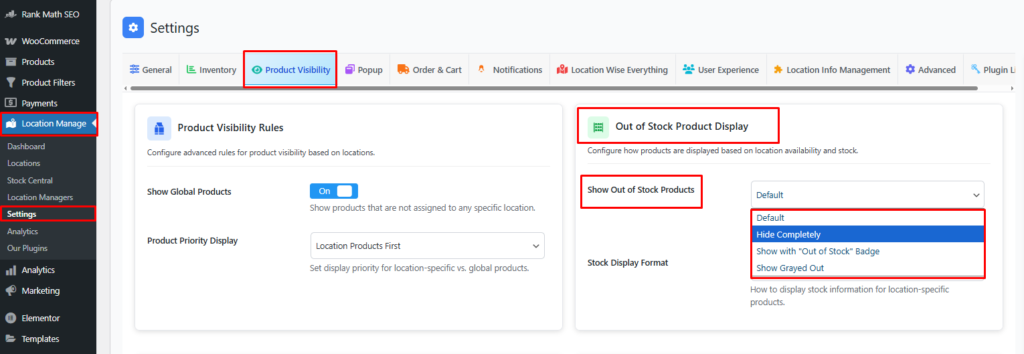
Show Out of Stock Products
Choose how products that are out of stock at the selected location should be displayed.
Display Options
- Default
Uses WooCommerce’s default out-of-stock behavior. - Hide Completely
Completely removes out-of-stock products from shop, category, and product listings for the selected location. - Show with “Out of Stock” Badge
Displays the product with a clear Out of Stock label, helping customers understand availability at a glance. - Show Grayed Out
Shows the product in a disabled/greyed-out style to indicate it’s unavailable at the selected location.
🔎 All behaviors apply per location, not globally.
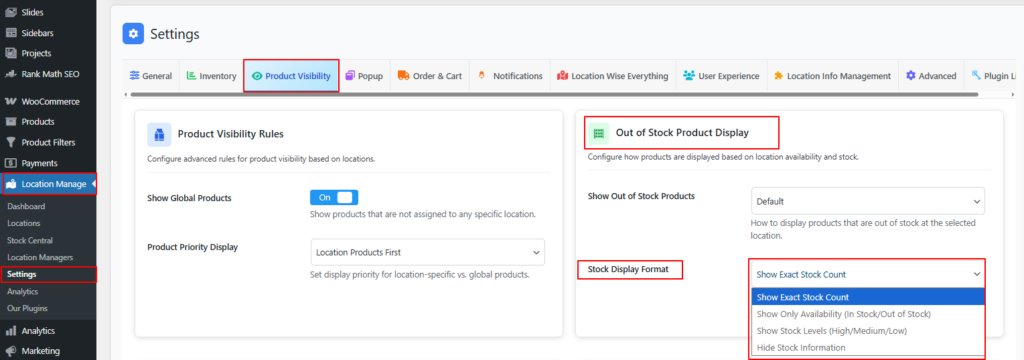
Stock Display Format
Show Exact Stock Count
- Displays the exact available stock quantity for the selected location
- Helps customers understand limited availability and urgency
This setting affects location-specific inventory only.
Save & Test
- Click Save Changes
- Select a location on the frontend
- Visit:
- Shop page
- Category pages
- Product listings
- Verify that:
- Out-of-stock products follow the selected display rule
- Stock count (if enabled) reflects the selected location
How It Works on the Frontend
- Stock status is calculated per location
- A product may be:
- In stock at one location
- Out of stock at another
- Display rules change dynamically when the user switches locations
Best Practices
- Use Hide Completely for strict inventory control
- Use Out of Stock Badge for transparency
- Use Grayed Out to keep products discoverable without confusion
- Enable Exact Stock Count for low-stock or high-demand items
- Test with multiple locations to confirm correct behavior
With Location-Based Out-of-Stock Product Display, you can clearly communicate availability, reduce customer frustration, and create a cleaner, more accurate shopping experience based on each customer’s selected location.