
Managing Location-Based Inventory lets you control stock quantities per store, warehouse, or pickup location, while maintaining accurate total inventory across your WooCommerce store. This ensures customers always see correct availability based on the selected location, reducing overselling and fulfillment issues.
You can manage location-based inventory in two reliable ways depending on your workflow.
Method 1: Manage Location-Based Inventory from the Product Edit Page
This method is ideal when configuring inventory for individual products.
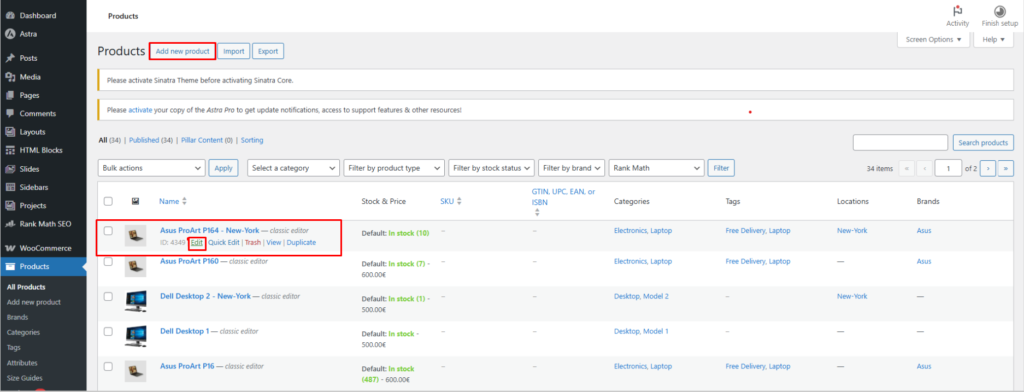
Step 1: Create or Edit a Product
- Go to WooCommerce → Products
- Click Add New or Edit an existing product
Step 2: Assign Store Locations
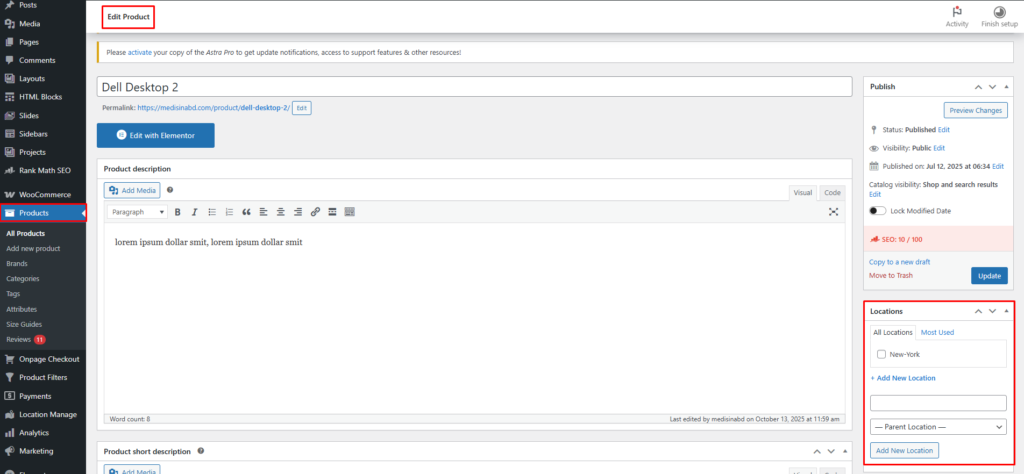
- On the right-hand sidebar, locate the Location panel
- Select one or more locations where this product will be available
Only the selected locations can hold inventory for this product.
Step 3: Configure Purchase & Global Inventory Data
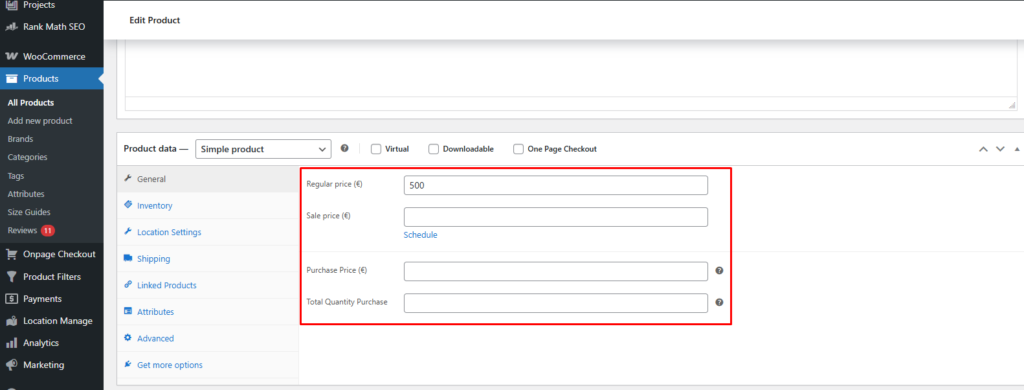
General Tab
- Purchase Price
Cost price of the product. - Total Quantity Purchase
Total quantity purchased across all locations.
These values help track investment, cost, and profit.
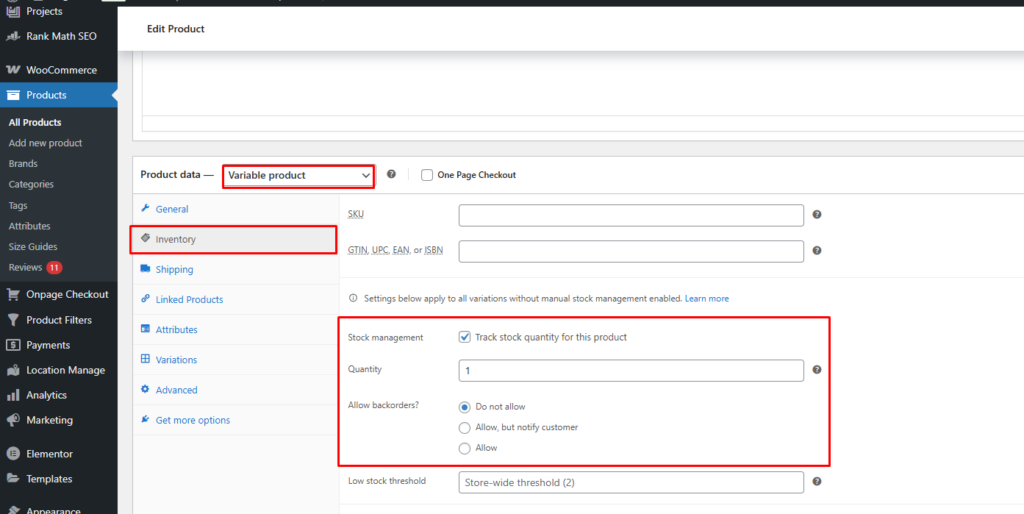
Inventory Tab
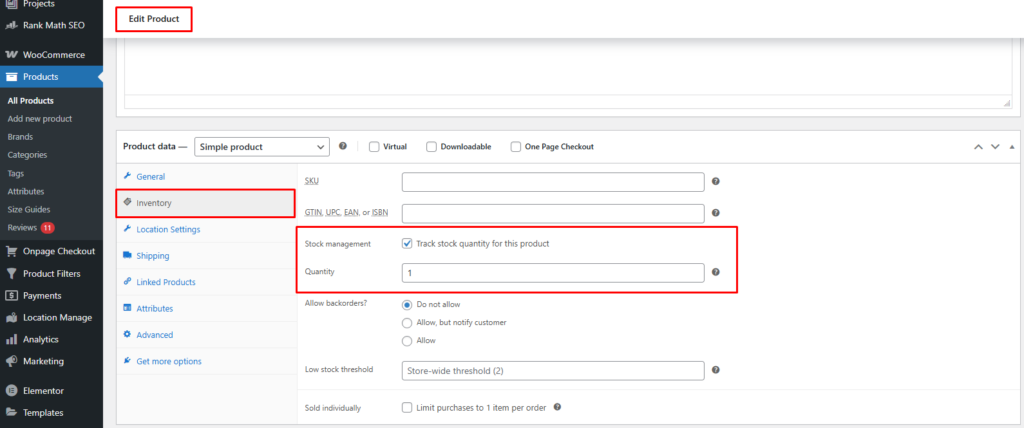
- Enable Manage stock
- Set Quantity
⚠️ Important Rule
The Quantity value cannot be greater than Total Quantity Purchase.
This quantity represents the maximum stock that can be distributed across all locations.
Step 4: Configure Location-Wise Inventory
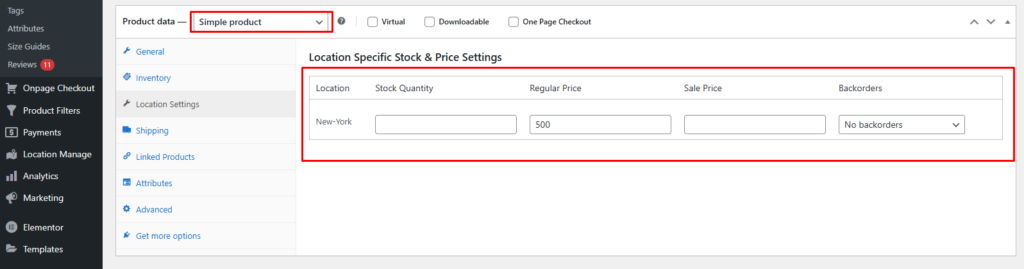
For Simple Products
- Open the Location Settings tab (after the Inventory tab)
For Variable Products
- Location-based inventory settings appear inside each variation
For each assigned location, configure:
- Stock Quantity
- Backorders (Do not allow / Allow / Allow with notification)
⚠️ Critical Inventory Rule
The sum of all location stock quantities must not exceed the Inventory Quantity value set in the Inventory tab.
Step 5: Save & Verify
- Click Publish or Update
- Visit the Single Product Page
- Switch locations to verify:
- Location-based stock availability
- Correct in-stock / out-of-stock status
- Backorder behavior per location
Method 2: Manage Location-Based Inventory from Stock Central
This method is best for centralized control, bulk updates, and faster inventory management.
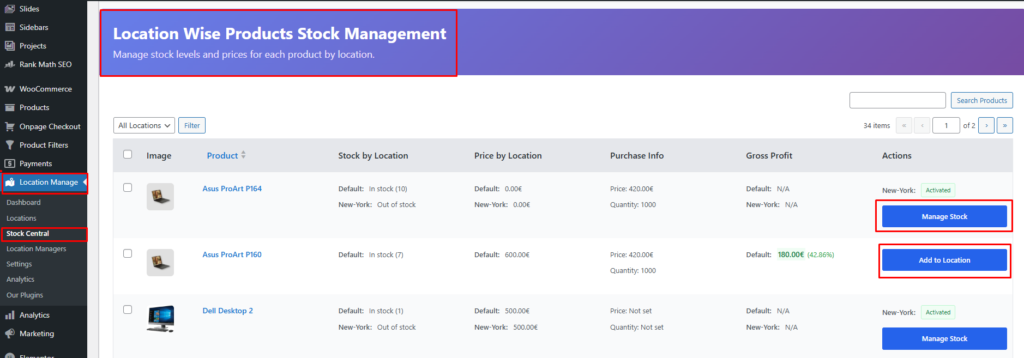
Step 1: Open Stock Central
- Go to Location Manager → Stock Central
- Find the product you want to manage
- Click Add Location / Manage Location
Step 2: Assign Locations
- In the popup window, click the ➕ (plus) icon
- Select the locations you want to assign to the product
- Assigned locations will appear in a tabbed layout
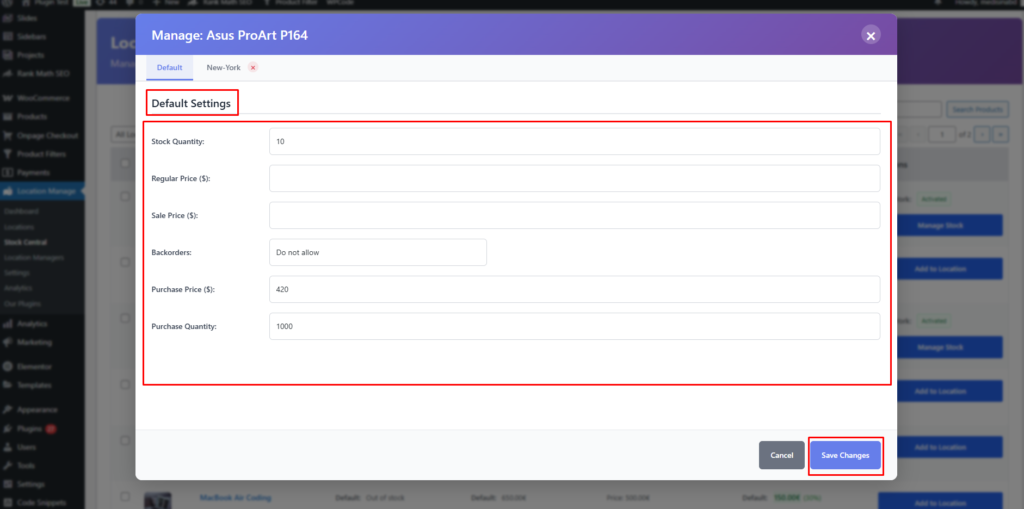
Step 3: Configure Default Inventory Settings
Set the global/default inventory values:
- Purchase Quantity
- Stock Quantity
- Backorders
These values act as baseline inventory rules for all locations.
Step 4: Configure Inventory per Location
Click on a specific location tab (for example: New York) and set:
- Stock Quantity
- Backorders
Each location can maintain independent stock levels and backorder rules.

Step 5: Save Changes
- Click Save Changes
- Inventory updates will apply immediately across your store
How Location-Based Inventory Works on the Frontend
- Stock availability updates dynamically based on:
- User-selected location
- Automatically assigned location (if enabled)
- Customers only see inventory available for their chosen location
- Backorders are enforced per location
- Fully compatible with:
- Simple products
- Variable products
- Location-based pricing
Best Practices for Location-Based Inventory Management
- Always define Purchase Quantity first
- Never allow total location stock to exceed global inventory quantity
- Use Stock Central for managing multiple locations efficiently
- Review backorder rules carefully for each location
- Test stock availability by switching locations on the product page
By properly managing Location-Based Inventory, you gain full control over multi-warehouse stock distribution, prevent overselling, and deliver a more accurate and reliable shopping experience for your customers.