
Location-Based Shipping allows you to provide different shipping options and costs depending on the product’s assigned store/warehouse location. This ensures accurate fulfillment, optimized shipping fees, and proper routing for multi-location inventory.
Step 1: Add Shipping Methods in WooCommerce
Before configuring location-based shipping, you must create shipping zones and methods in WooCommerce.
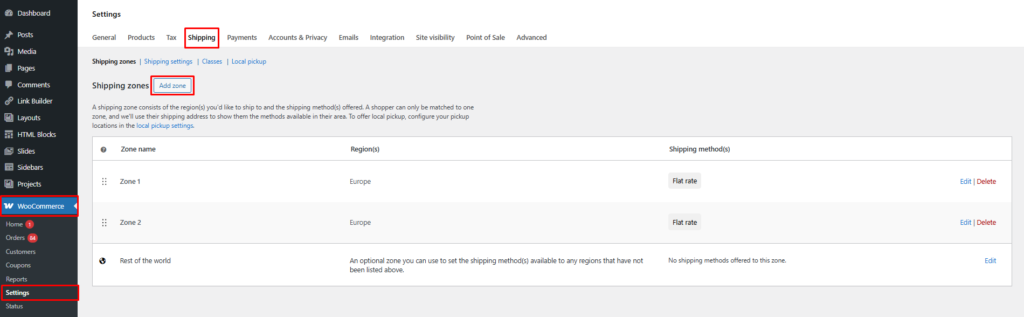
- Go to WooCommerce → Settings → Shipping
- Click Add Shipping Zone
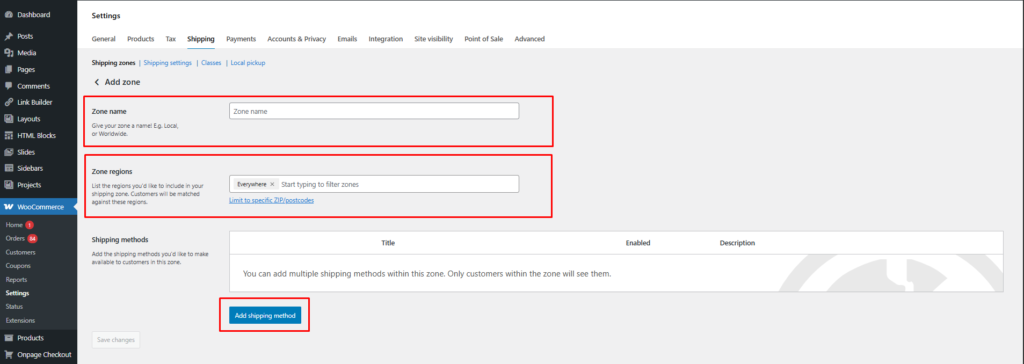
- Enter:
- Zone Name
- Region(s)
- Click Add Shipping Method
- Choose methods such as:
- Flat Rate
- Free Shipping
- Local Pickup
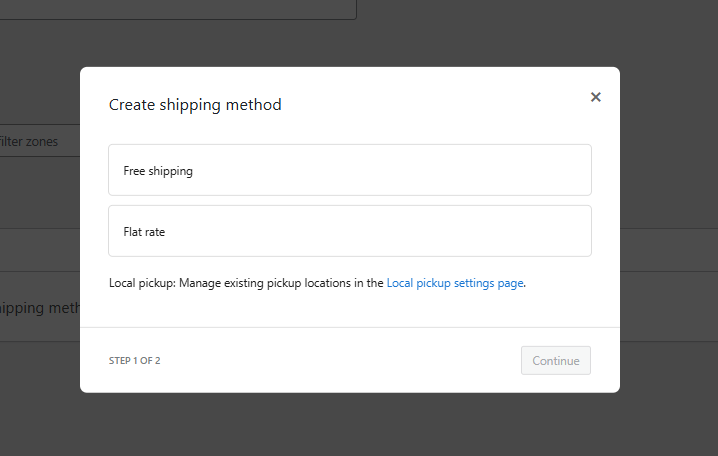
Adjust the cost and settings per method
You can repeat this for multiple shipping zones.
Step 2: Assign Shipping Methods to Each Location
Once shipping zones and methods are created:
- Go to Location Manage → Locations
- Click Add New Location or edit an existing location
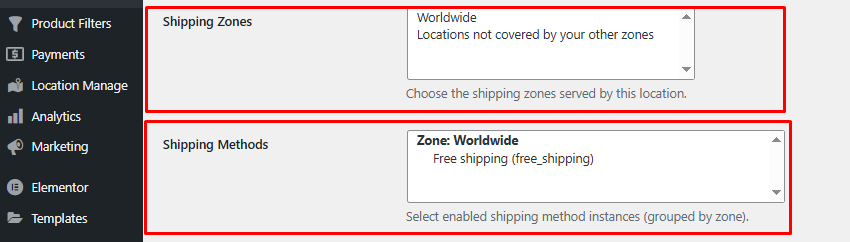
- Scroll to the Shipping Zones & Shipping Methods section
- Assign:
- Which shipping zones this location serves
- Which shipping method instances belong to this location
This allows each location/warehouse to have its own shipping rules.

Step 3: Configure Location-Based Shipping Behavior
Now activate location-wise shipping logic.
- Go to Location Manage → Settings
- Open Location Wise Everything → Shipping
- Find the Location-Based Shipping panel
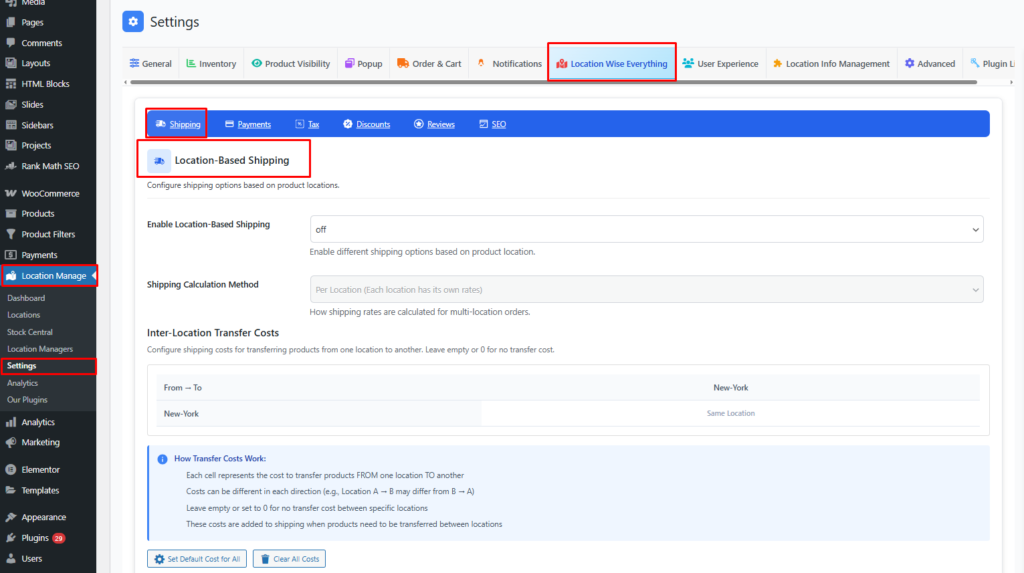
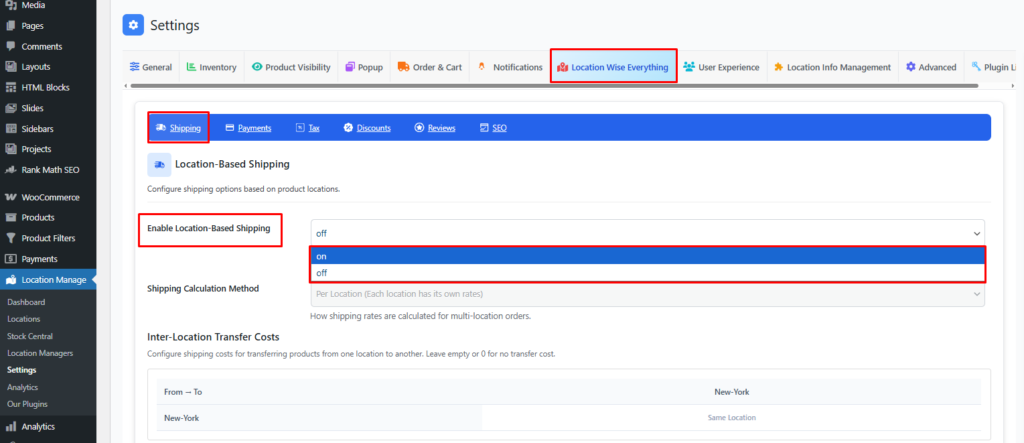
Enable Location-Based Shipping — ON/OFF
- ON
WooCommerce uses shipping options based on product location. - OFF
Shipping behaves as normal WooCommerce (not location-specific).
Shipping Calculation Method Options
There are two powerful modes depending on your fulfillment strategy:
1. Per Location
(Each location has its own rates)
- If the cart contains products from multiple locations:
- Each location shows its own shipping options
- Customers may see multiple shipping charges
- Backend calculates shipping separately per location
Example:
If cart includes products from Location A and Location B:
Shipping from Location A → Flat Rate $5
Shipping from Location B → Free Shipping
Perfect for multi-warehouse stores where items ship separately.
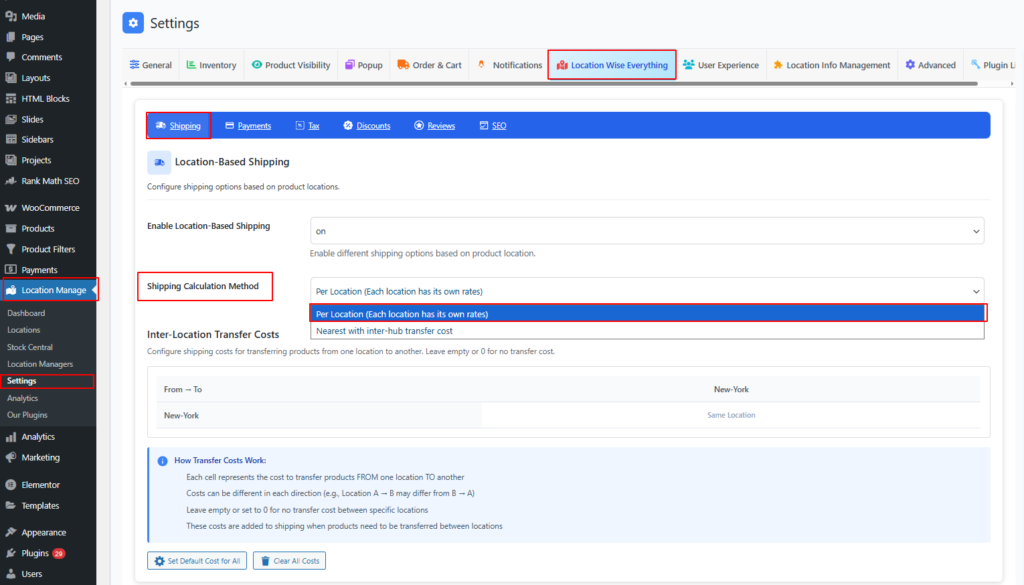
2. Nearest with Inter-Hub Transfer Cost
This mode finds the nearest available location to the customer and applies:
- Base shipping rate from nearest location
- Extra inter-hub transfer cost for items sourced from other locations
This simulates internal logistics movement between warehouses.

Inter-Hub Transfer Cost Configuration
If using Nearest with Inter-Hub Transfer:
- Go to the Inter-Location Transfer Costs panel
- Set transfer cost values between each location pair
Example:
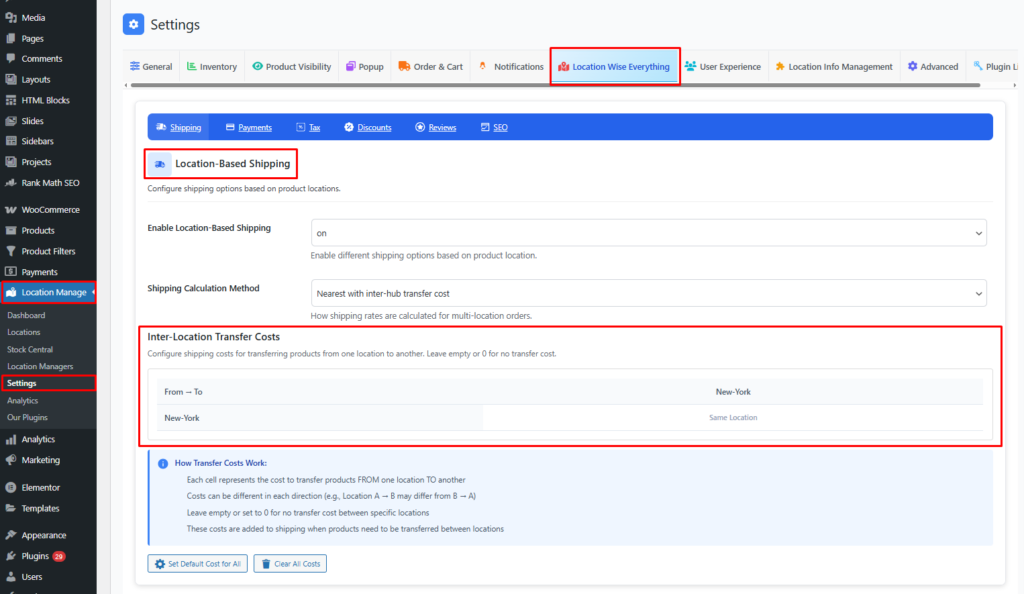
Location A → Location B: $3
Location B → Location C: $5
Location A → Location C: $7
These costs are added automatically when products must move between hubs to fulfill a single order.
When to Use Each Method
Use Per Location when:
✔ Orders are shipped separately per warehouse
✔ Each location has different couriers or pricing
✔ You want accurate, location-specific shipping totals
Use Nearest with Transfer Cost when:
✔ You want to centralize shipping for customers
✔ You allow warehouses to move products internally
✔ You want a single shipping charge + internal logistics fee
Frontend Behavior
After enabling location-based shipping:
- Customers select a location
- Cart shipping options update depending on:
- Assigned warehouse
- Selected calculation method
- Shipping zones and method availability
- For multi-location carts:
- Either multiple shipping blocks appear (Per Location)
- Or a merged rate with transfer cost (Nearest with transfer)
Best Practices
- Always create WooCommerce shipping methods before assigning them to locations
- Use clear naming for shipping zones (e.g., “East Hub Shipping”)
- Test with multi-location carts to ensure expected calculations
- Use Per Location for maximum transparency
- Use Nearest with Transfer for simplified customer experience
With Location-Based Shipping Configuration, your WooCommerce store becomes fully logistics-aware—ensuring consistent shipping rates, smarter routing, and optimized multi-warehouse operations.