
The plugin provides multiple ways to export location-based data in CSV format, depending on whether you need dashboard metrics, analytics insights, or raw product/location data.
This ensures full flexibility for reporting, backups, and external analysis.
1️⃣ Export CSV from Dashboard
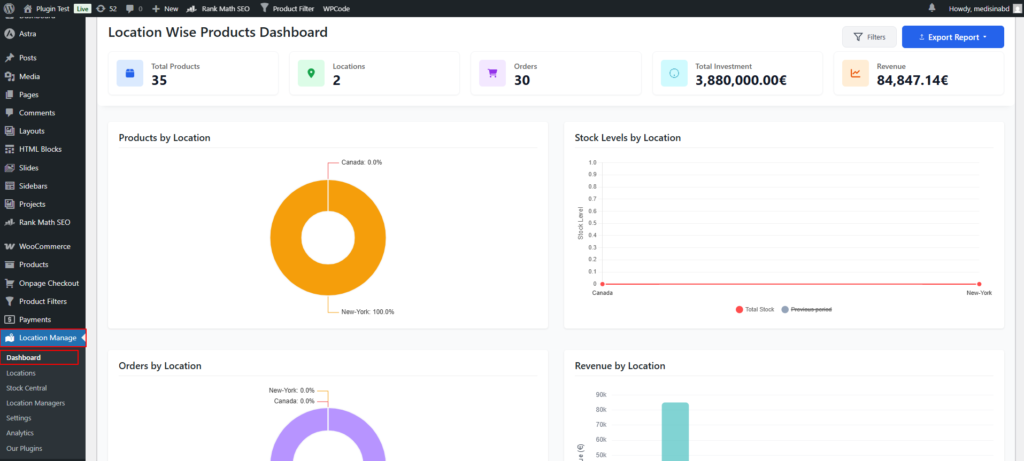
Where to Export
Go to:
WordPress Admin → Location Manage → Dashboard
How to Export
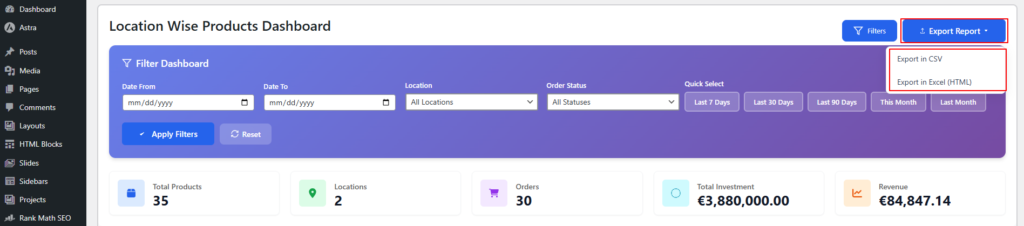
- Apply filters (date range, location, order status)

- Click Export Report
- Choose Export in CSV
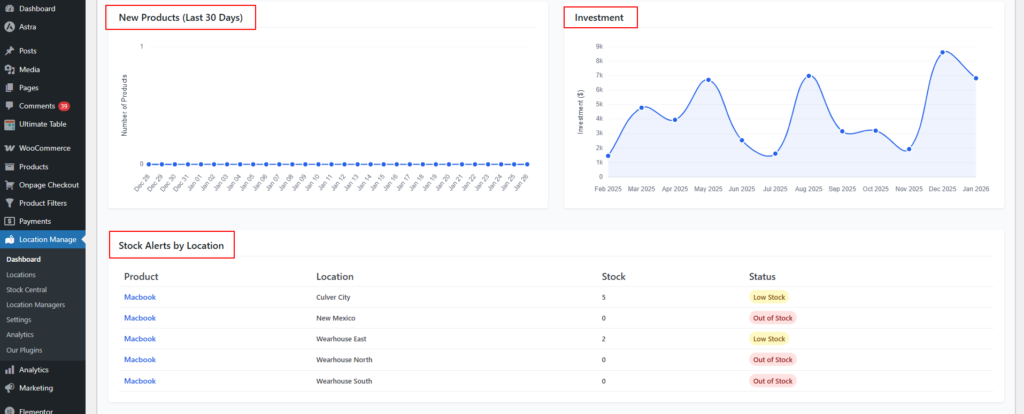
What’s Included
- Location-wise products
- Stock levels by location
- Orders by location
- Revenue by location

- New Products (Last 30 Days)
- Investment
- Stock Alerts by Location
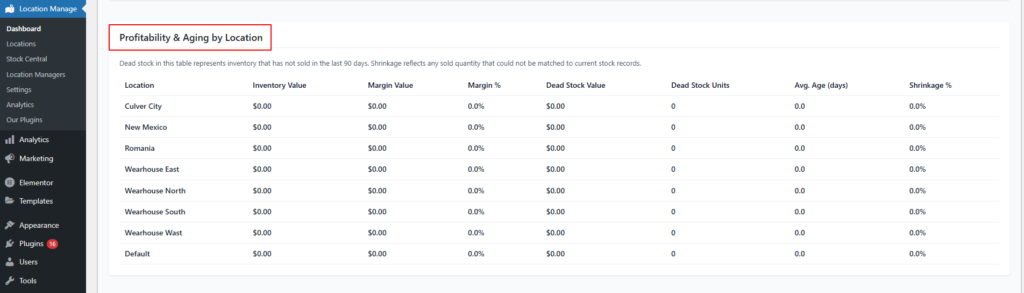
Profitability & Aging by Location
2️⃣ Export CSV from Analytics
Where to Export
Go to:
WordPress Admin → Location Manage → Analytics
How to Export
- Select the analytics view
- Click Export All Data
- Download the CSV file
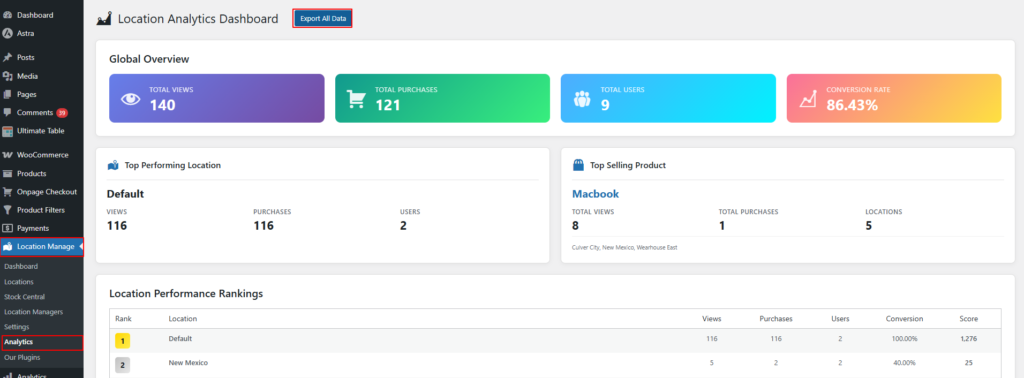
What’s Included
- Location-wise analytics data
- Unique users
- Total sessions
- Product views
- Purchases
- Product popularity per location
📌 Best for customer behavior analysis and performance tracking.
3️⃣ Location-Wise Export (Raw Product Data)
Where to Export
Go to:
WordPress Admin → Location Manage → Settings → Advanced
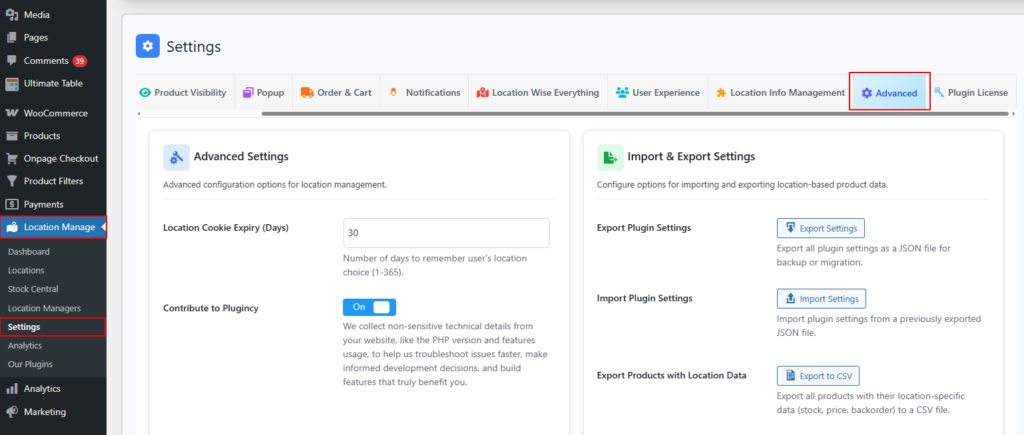
Import & Export Settings Panel
Export Plugin Settings
Export Settings (JSON)
- Exports all plugin settings
- Useful for:
- Backup
- Migration to another site
- File format: JSON

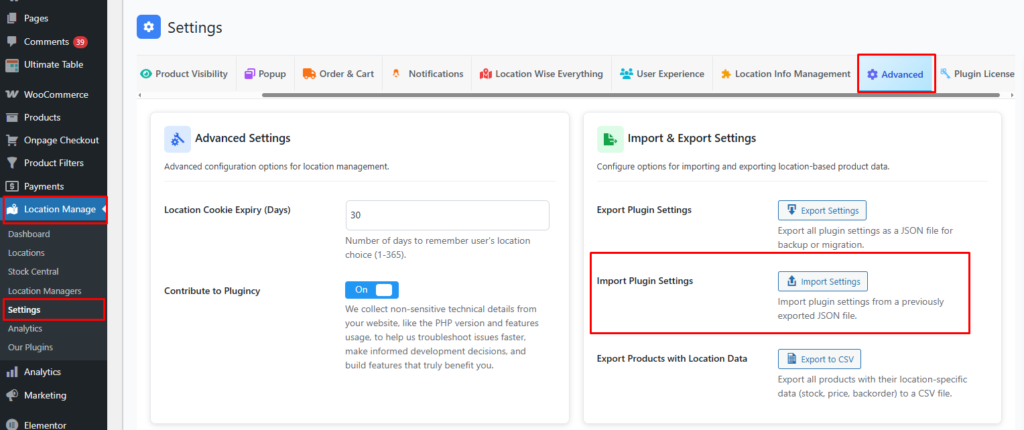
Import Plugin Settings
Import Settings
- Import settings from a previously exported JSON file
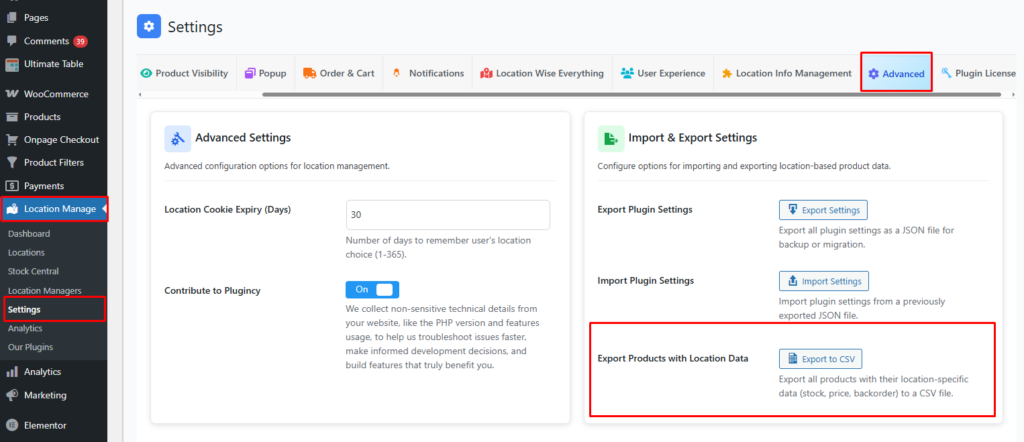
Export Products with Location Data
Export to CSV
- Exports all products with full location-specific data, including:
- Stock quantity per location
- Regular & sale price per location
- Backorder settings
- Location assignments
📌 Best for:
- Bulk editing
- External inventory systems
- Auditing location data
- Re-import workflows
Choosing the Right Export Method
| Export Source | Best For |
|---|---|
| Dashboard → CSV | Business & stock reports |
| Analytics → Export All Data | Customer & performance analytics |
| Settings → Advanced → CSV | Raw product + location data |
| Settings → Advanced → JSON | Backup & migration |
Notes & Best Practices
- Always apply filters before exporting from Dashboard or Analytics
- Use CSV for spreadsheets, accounting, and integrations
- Use JSON only for plugin settings backup
- Large catalogs may take longer to export—avoid frequent exports on high-traffic sites
Summary
The Location-Based CSV Export system gives you complete control over your data—whether you need visual reports, analytics insights, or raw location-specific product data—all exportable with just a few clicks.