
Location-based discounts allow you to apply, restrict, or modify coupon behavior depending on the store/warehouse location a customer has selected. This is extremely useful when running location-specific promotions, store-level sales, or regional discount rules.
Before using these settings, you must first create or edit coupons in WooCommerce.
Step 1 — Add or Edit Coupons in WooCommerce
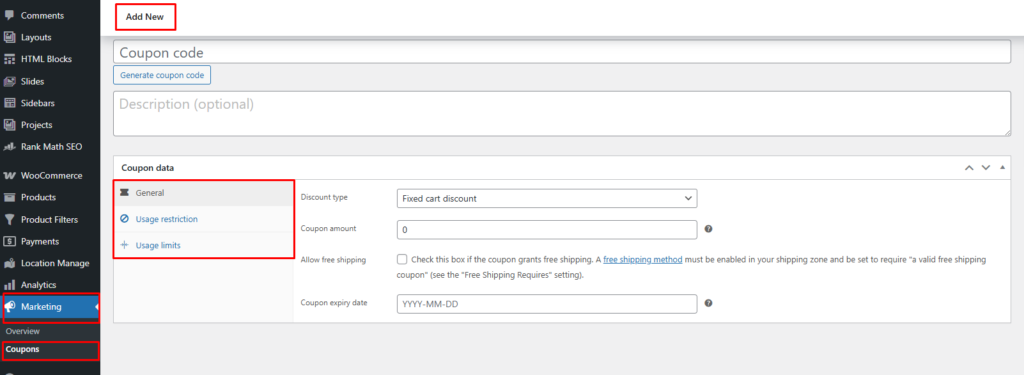
- Go to Marketing → Coupons
Coupon Settings Requirement:
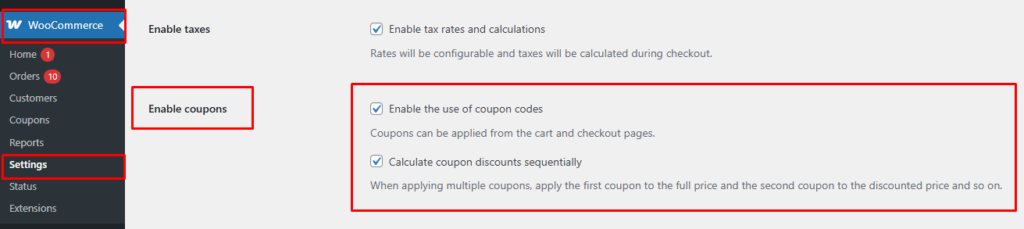
If the Coupons option is not visible in the Marketing menu, go to WooCommerce → Settings → General and enable the following options:
- Enable the use of coupon codes
- Calculate coupon discounts sequentially
After enabling these settings, the Coupons menu will appear and function correctly.
- Click Add Coupon or edit an existing one
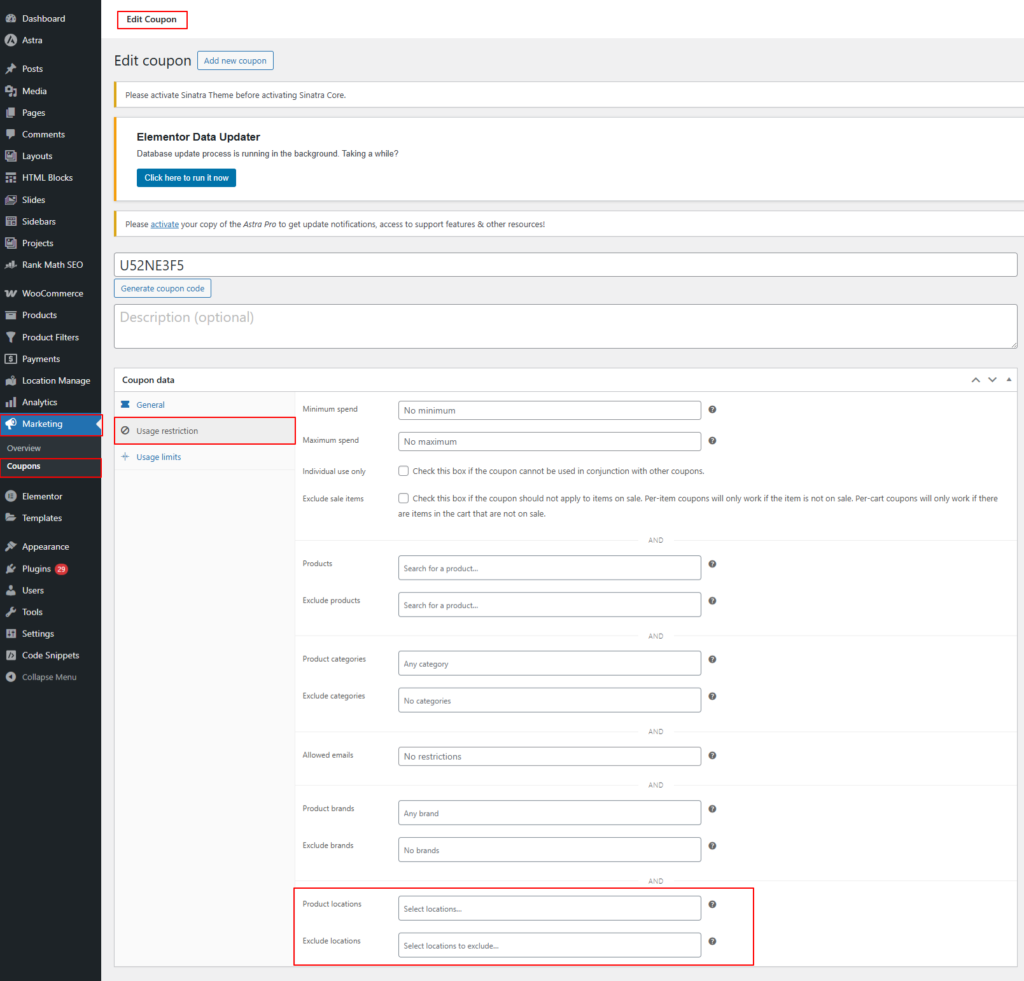
- Scroll to Usage Restriction
You will see two important fields for location-based control:
Product Locations
Select the store/warehouse locations where the coupon is allowed.
Exclude Locations
Select the locations where the coupon should not apply.
These fields let you create:
- Location-specific promotions
- Warehouse clearance sales
- Region-based coupon rules
- Pickup-only discounts
Step 2 — Enable Location-Based Discount Controls
Now activate location-aware coupon functionality.
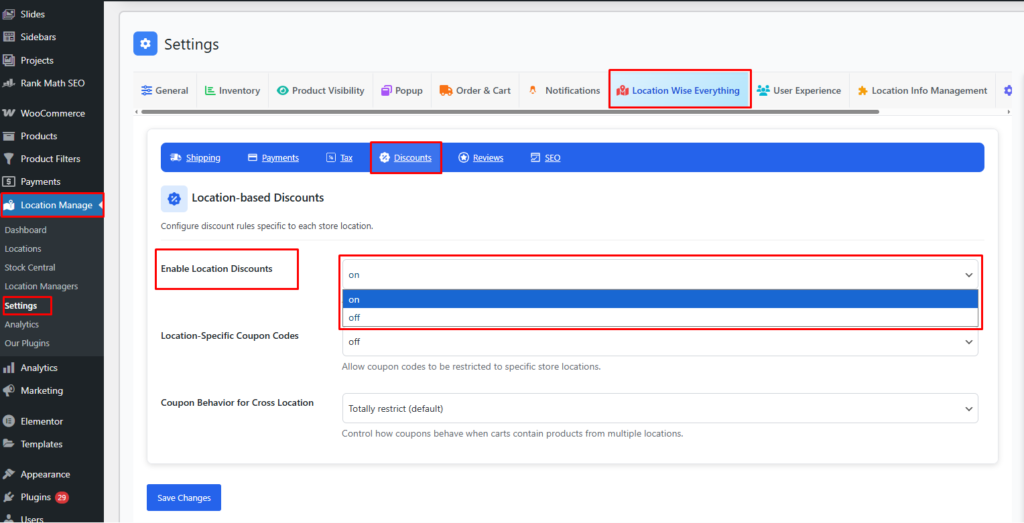
- Go to Location Manage → Settings
- Open Location Wise Everything → Discounts
Here you will find the following settings:
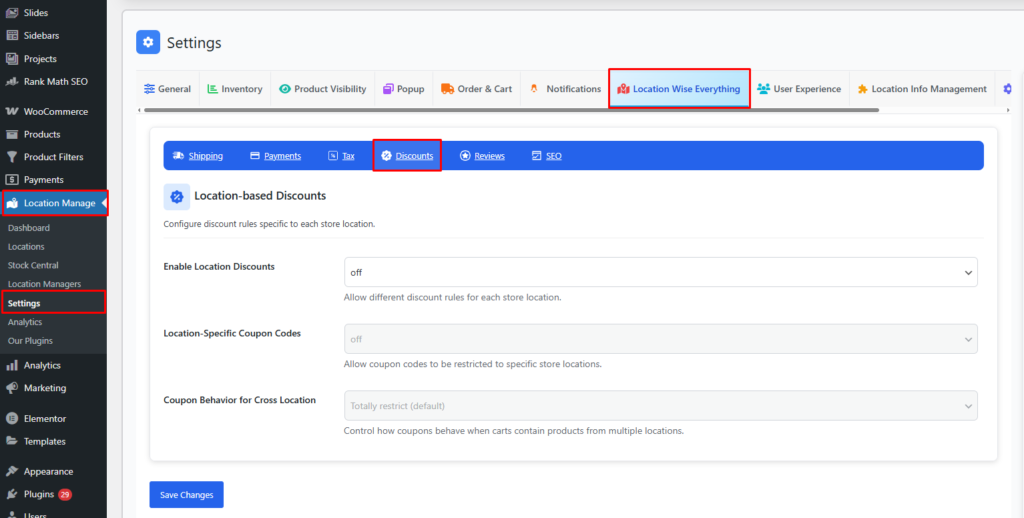
Enable Location Discounts — ON/OFF
- ON
Enables location-specific discount rules throughout the store. - OFF
Discounts behave as normal WooCommerce coupons (no location filtering).
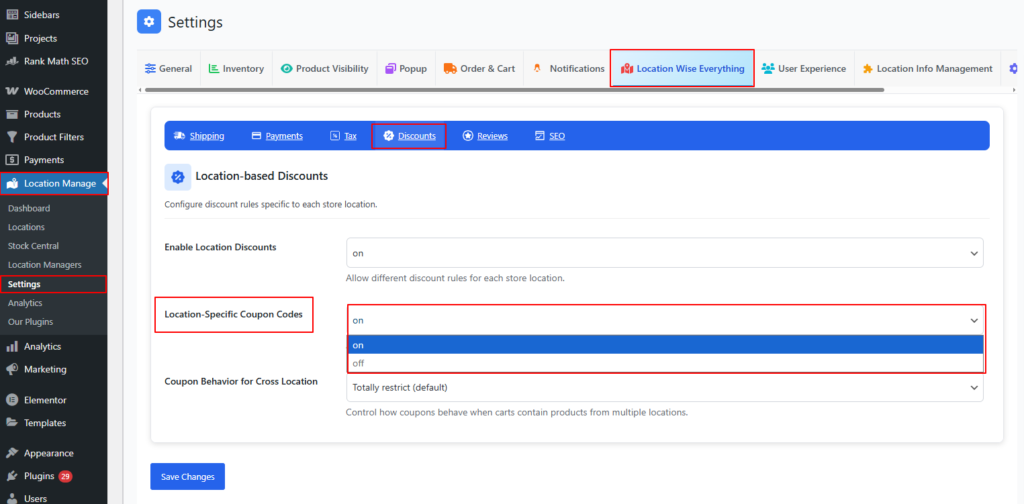
Location-Specific Coupon Codes — ON/OFF
- ON
Allows coupon codes to be restricted to specific store locations.
Coupon will only apply if:- The customer’s selected location is allowed
- And the product in the cart matches the location restrictions
- OFF
Coupon applies globally without location-based checks.
Step 3 — Configure Coupon Behavior for Mixed-Location Carts
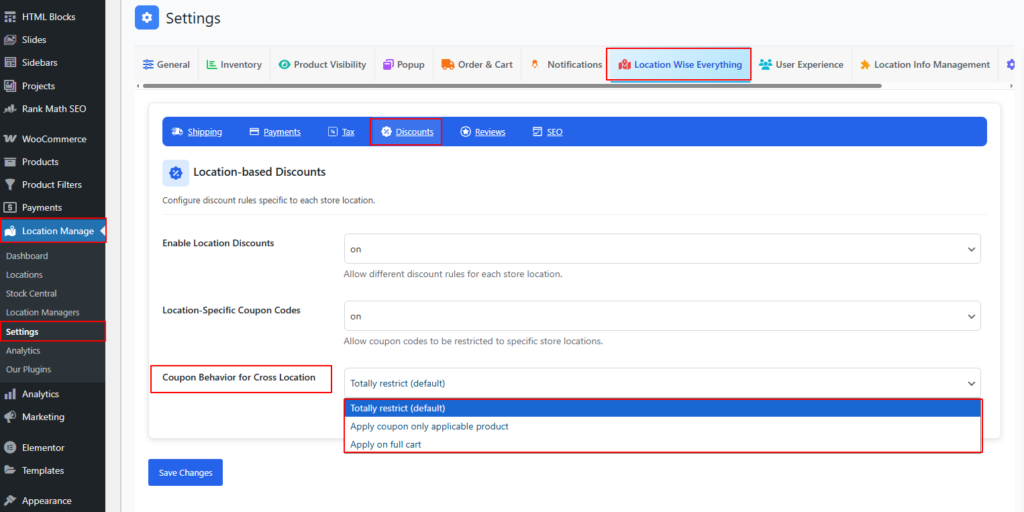
When customers add products from multiple store locations into the same cart, you need to decide what should happen with coupon application:
Coupon Behavior for Cross Location
Options include:
1. Totally restrict (default)
- Coupon will not apply if the cart contains products from multiple locations
- Customer must use a cart with items from one location only
This ensures strict location-based promotion control.
2. Apply coupon only to applicable products
- Coupon applies only to products belonging to allowed locations
- Other items remain unaffected
- Discount is calculated and applied per eligible product row
This allows flexible and fair discount usage.
3. Apply on full cart
- Coupon applies to the entire cart, regardless of item location
- Even if some products come from excluded locations
Use this when you want simple, cart-wide discounts independent of location logic.
Example Use Cases
Example 1 — Store-Specific Promotion
Coupon: NY10
Allowed Location: New York Store
Behavior:
- Only applies if user selects New York and products belong to that location
Example 2 — Clearance Sale in One Warehouse
Coupon applies only to products from a specific warehouse, even if others are also in the cart.
Set:
- Apply coupon only applicable products
Example 3 — Global Sitewide Sale
You want coupon to apply regardless of product location.
Set:
- Apply on full cart
Best Practices
- Use Location-Specific Coupons for targeted promotions
- Apply Totally restrict for strict fulfillment-based discounting
- Use Only applicable products for mixed carts with partial discounts
- Test coupon behavior across different locations to ensure expected results
- Always configure allowed/excluded locations when creating coupons
With Location-Based Discounts & Coupons, your WooCommerce store can run intelligent, location-aware promotions that align with warehouse stock, regional sales strategies, and customer targeting — all while maintaining complete flexibility and control.