
Location-Based Taxes Management allows you to apply different tax rates based on store/warehouse location, giving you full control over regional tax regulations, local tax rules, and multi-location fulfillment scenarios.
Before configuring this feature, you must:
Step 1 — Add Tax Rates in WooCommerce
To add tax rates globally:
- Go to WooCommerce → Settings → Tax
- Enable taxes (if not already enabled)
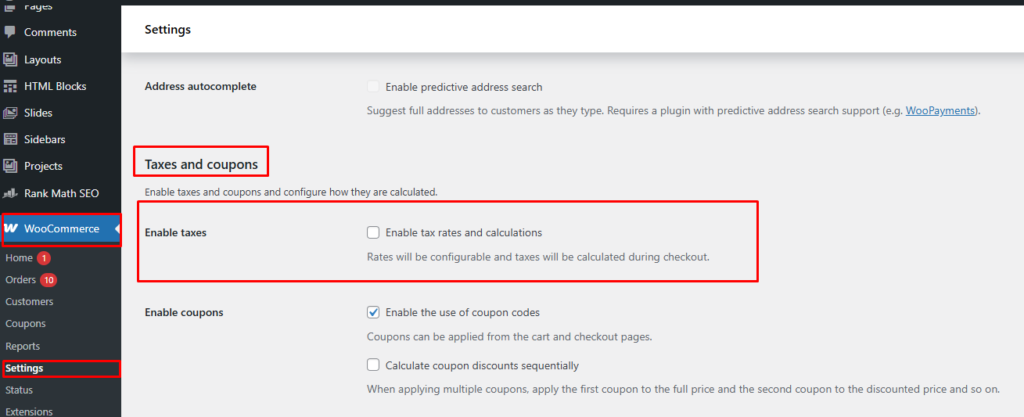
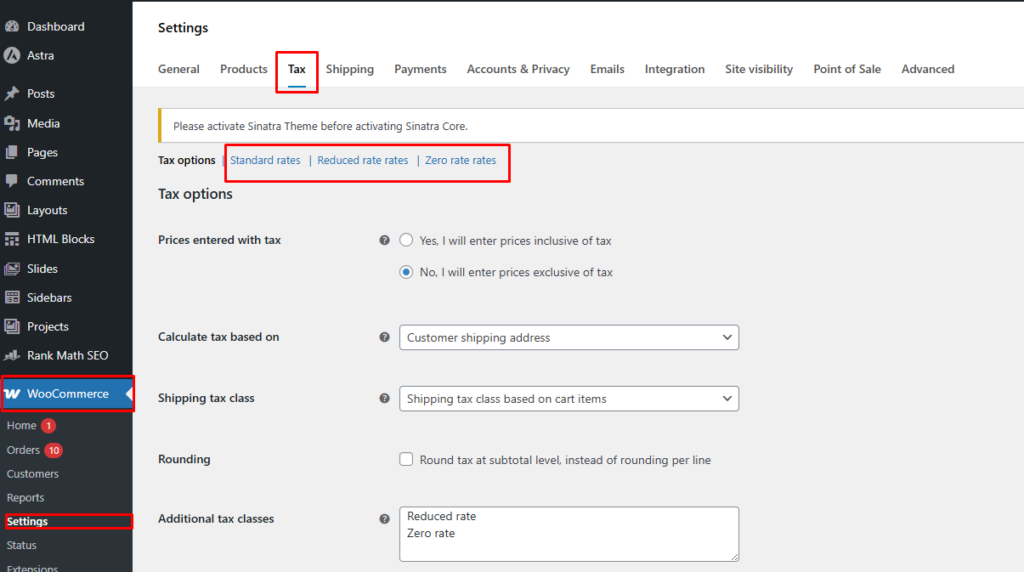
- Open:
- Standard Rates
- Reduced Rates
- Zero Rates
- Add tax rules such as:
- Country code
- State code
- Postcode
- Rate (%)
- Tax name (e.g., VAT, GST, Sales Tax)
- Priority and compound settings
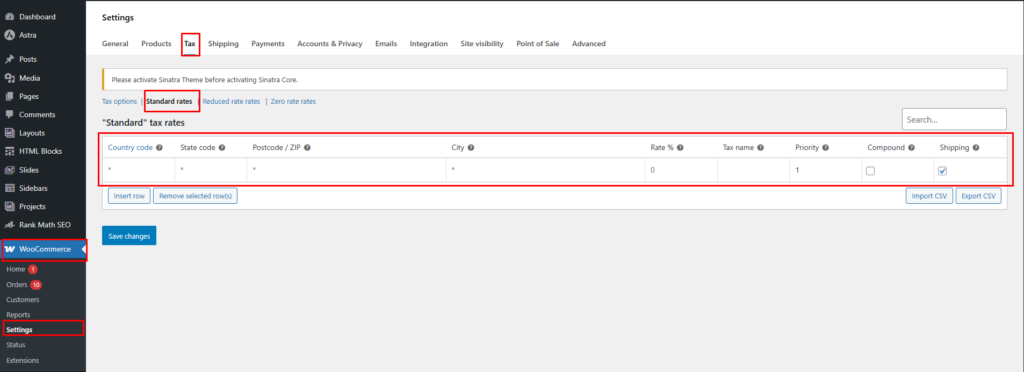
These tax rates become available to assign to different store locations.
Step 2 — Assign Taxes to Each Location
Once tax rates exist, assign them to specific store locations:
- Go to Location Manage → Locations
- Edit or Add New Location
- Scroll to Tax Class / Tax Settings
- Select the tax class applicable for that location (e.g., Standard, Reduced)
- Save changes

Each location now has its own tax behavior and rate rules.
Step 3 — Configure Location-Based Taxes
Now enable location-wise tax logic.
- Go to Location Manage → Settings
- Open Location Wise Everything → Tax
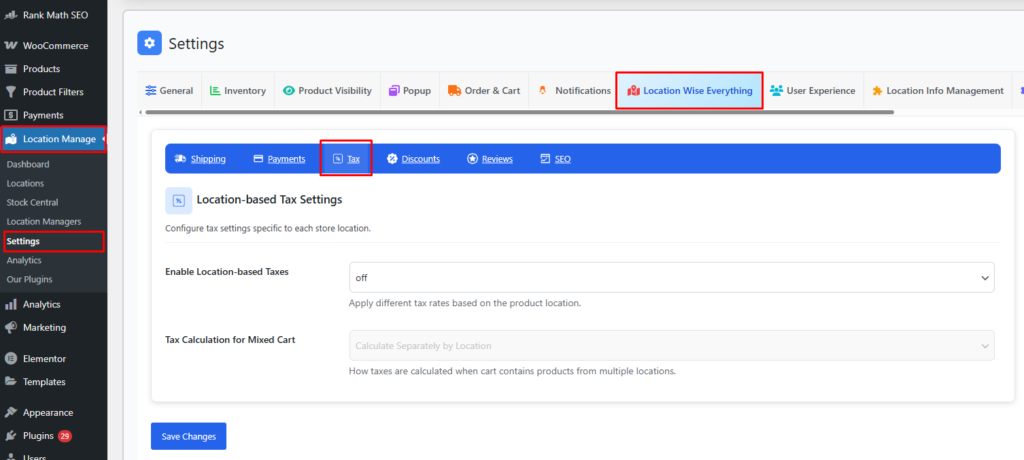
Enable Location-based Taxes — ON/OFF
- ON
Taxes are applied based on product location and assigned tax classes. - OFF
WooCommerce uses global/default tax settings for all locations.

Tax Calculation for Mixed-Location Carts
When the cart contains products from multiple locations, you can choose how taxes should be calculated.
Inside the Tax settings, choose:
Tax Calculation for Mixed Cart Options
1. Calculate Separately by Location
Recommended for multi-warehouse stores
- Each location’s products are taxed using its own tax rate
- Total tax is the sum of each location’s tax calculation
- Useful for fulfilling orders from multiple regions with different tax rules
2. Based on Shipping Location
Tax calculated based on customer’s shipping address
- All products use tax rules based on the shipping destination
- Common for regional sales tax systems (USA, Canada)
3. Based on Billing Location
Tax tied to the customer’s billing address
- Often required for digital goods (VAT regulations in EU)
- Useful when billing address is the legal basis for taxation
4. Based on Store Location
Tax applied based on the primary store location
- All items use the tax rate of the selected store/warehouse
- Works well when:
- Taxes are uniform at the store level
- You want centralization and simplicity
Example Scenarios
Example 1: Multi-Warehouse Order
Cart contains:
- Product A (Location 1 — 10% tax)
- Product B (Location 2 — 7% tax)
If Calculate Separately by Location is selected:
Tax on A = 10%
Tax on B = 7%
Total tax = combined tax values
Example 2: Regional Delivery
User ships to California (8.25% tax)
If Based on Shipping Location is selected:
All products apply 8.25% tax
Example 3: Digital Goods (Billing-Based)
Customer billing address = Germany (19% VAT)
If Based on Billing Location is selected:
All digital products apply 19% VAT
Example 4: Store-Controlled Tax
Store Location = New York (8.875% tax)
If Based on Store Location is selected:
Entire cart uses 8.875% tax rate
Benefits of Location-Based Tax Control
✔ Compliance with regional laws
Different warehouses support different regions and tax rules.
✔ Accurate multi-location fulfillment
Each warehouse can have its own assigned tax class.
✔ Flexible calculation options
Mixed-cart logic ensures transparency and accuracy.
✔ Seamless checkout experience
Customers see the correct tax based on your chosen rules.
Best Practices
- Always assign correct tax class per location
- Use “Calculate Separately by Location” for multi-hub shipping
- Use shipping-based tax calculation for physical deliveries
- Use billing-based calculation for digital or legal compliance regions
- Test checkout with different location selections to confirm tax behavior
Location-Based Tax Management gives you complete control over how taxes are calculated and displayed across multiple warehouses—ensuring accuracy, compliance, and a smooth customer checkout experience.