

Is your WooCommerce price filter slow loading and making your store feel laggy when users try to filter products? This is a common issue in growing WooCommerce stores where filtering by price takes too long or delays the product results. A slow filter directly affects how users interact with your store.
In many cases, this appears as WooCommerce filter slow performance or delayed AJAX updates, especially when dealing with large product catalogs or multiple variations. The problem is usually linked to database queries, caching setup, or server limitations rather than a single error. In this guide, you’ll learn the exact causes and how to fix them step by step.
Quick Answer
WooCommerce price filters usually become slow due to heavy database queries, large product catalogs, and too many product variations. Poor indexing, inefficient AJAX filtering, and incorrect caching setup can also delay results. Optimizing database performance, reducing variation complexity, and using proper caching and AJAX filtering can significantly improve speed.
Quick Fixes
Start with these quick actions to improve filter speed without deep technical work:
- Enable AJAX filtering: Ensure your price filter updates results instantly instead of reloading the entire page.
- Reduce product variations: Limit unnecessary variation combinations to decrease query load.
- Clear all cache layers: Remove browser, plugin, server, and CDN cache to avoid outdated responses.
- Disable heavy or unused plugins: Extra plugins can slow down filter processing and create conflicts.
- Use a lightweight theme: Switch to a performance-friendly theme to reduce frontend load.
Quick fixes help eliminate common performance bottlenecks before moving into deeper optimization steps.
What “Price Filter Slow Loading” Actually Means
Before fixing the issue, it’s important to understand what “slow loading” really means in this context. In most cases, the price filter is not broken, it simply takes too long to process and return results.

Sometimes users select a price range and wait several seconds before products update. This delay usually happens because WooCommerce is running complex database queries in the background. The larger your product catalog, the longer these queries can take.
In other cases, instead of updating instantly, the entire page reloads. This is often seen as WooCommerce filter slow performance, where the filtering process feels heavy and interrupts the browsing experience.
There are also situations where the filter works fine on small stores but becomes slow as the number of products, variations, and attributes increases. This indicates that the issue is related to scalability and system performance rather than a simple configuration error.
Understanding how the issue behaves helps you identify whether the problem is related to database performance, filtering logic, or overall store scalability.
Common Scenarios Where Price Filters Become Slow
Before applying fixes, it’s important to recognize how this issue appears in real situations. These scenarios will help you quickly identify what’s happening in your store and choose the right solution.
Delay After Selecting Price Range
Users choose a price range, but products take several seconds to update. This usually indicates heavy database queries or missing indexing, especially in stores with large catalogs.
Full Page Reload Instead of Instant Update
Instead of updating results dynamically, the entire page reloads. This slows down the experience and often means AJAX filtering is not properly enabled or configured.
Slow Performance on Large Stores
Filtering works fine on small stores but becomes slow when the number of products increases. This points to scalability issues related to database performance and query complexity.
Filters Lag More on Mobile Devices
Price filtering may feel slower on mobile due to heavier scripts, UI rendering delays, or limited device performance compared to desktop environments.
Multiple Filters Cause Significant Delay
When users apply multiple filters (price, category, attributes), the system becomes slower. This happens because each additional filter increases query complexity.
Identifying the exact scenario helps you understand whether the slowdown is caused by database load, filtering method, or overall store performance.
What Causes WooCommerce Price Filter Slow Loading?
Now that you’ve seen the common scenarios, let’s break down the real causes behind slow price filtering. These are grouped by system level so you can pinpoint the exact bottleneck.
Heavy Database Queries
Price filtering relies on product meta queries (min/max price). On large catalogs, these queries scan huge datasets and become slow without proper indexing or lookup tables.
Missing or Outdated Indexing
If product lookup tables are not updated, WooCommerce cannot query prices efficiently. This forces full scans instead of fast indexed lookups.
Too Many Product Variations
Each variation adds extra rows and conditions to queries. Large variation sets (size, color, etc.) significantly increase query time and slow down filters.
Inefficient AJAX Implementation
If AJAX is not properly configured, filters may still trigger heavy operations or even fall back to full page reloads, increasing perceived latency.
Cache Misconfiguration
Caching dynamic filter requests can either:
- Return outdated results, or
- Block real-time queries
Both scenarios hurt performance and accuracy.
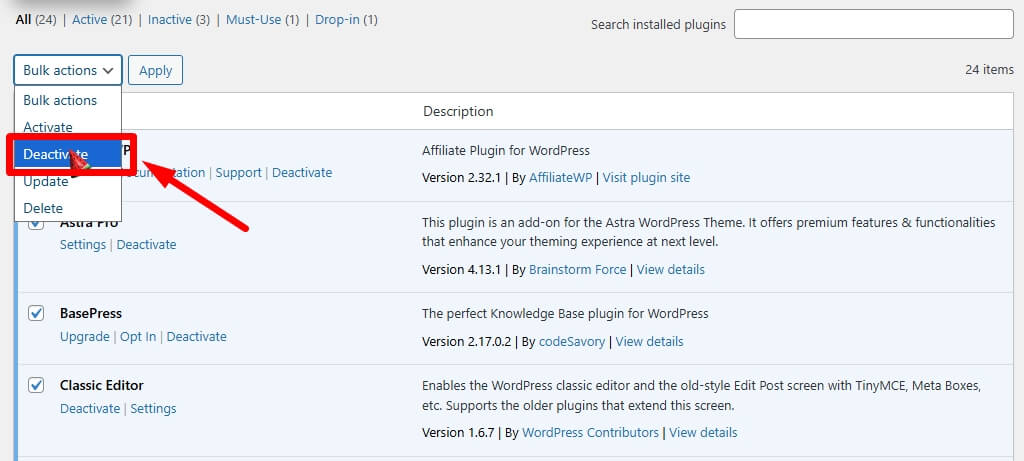
Plugin Conflicts
Multiple filter/search/SEO plugins can override queries or add extra processing layers, making each filter request slower.
Theme & Frontend Overhead
Heavy themes add scripts and complex DOM updates. Even if the backend is fast, the frontend can delay rendering filtered results.
Server & Hosting Limitations
Low CPU, insufficient RAM, or slow I/O can bottleneck query execution. Large stores need stronger hosting to process filter requests quickly.
Identifying the exact system layer—database, indexing, frontend, or server—helps you fix the root cause instead of applying random optimizations.
Fix WooCommerce Price Filter Slow Loading (Quick + Advanced Solutions)
If your WooCommerce price filter loads slowly, you need to improve both the store setup and the technical performance layer. Start with the quick checks, then move into deeper optimization if the issue continues.
Phase 1: Quick Fixes (Fast Checks)
- Enable AJAX filtering: Make sure filtering updates only the product grid instead of reloading the full page.
- Reduce product variation load: Remove unnecessary variation combinations because too many options increase query pressure.
- Clear all cache layers: Clear browser, plugin, server, and CDN cache so the filter can load updated results.
- Disable unnecessary plugins: Turn off unused or heavy plugins that may add extra scripts or query conflicts.
- Test with a lightweight theme: Temporarily switch themes to check whether frontend scripts are slowing the filter.
Phase 2: Step-by-Step Performance Fixes
If your WooCommerce price filter is still slow after basic fixes, the issue is usually deeper. It often comes from how your database, server, and filtering logic handle large product data. Below are the most important areas you need to review and optimize.
1. Database Performance & Query Handling
Price filtering depends heavily on database queries. When users select a price range, WooCommerce scans product data, and if the database is not optimized, this process becomes slow.
What to focus on:
- Clean unnecessary data (old revisions, transients)
- Optimize database tables regularly
- Avoid excessive product meta queries
Where to check:
- Hosting panel (phpMyAdmin)
- WooCommerce → Status → Tools
A poorly optimized database is one of the biggest reasons for slow filters.
2. Product Lookup Tables & Indexing
WooCommerce uses lookup tables to speed up filtering. If these are outdated or not regenerated, filtering becomes inefficient.
What to focus on:
- Ensure lookup tables are updated
- Rebuild product indexes after major changes
Where to check:
- WooCommerce → Status → Tools → Regenerate product lookup tables
Without proper indexing, WooCommerce runs heavier queries, which slows everything down.

3. Query Complexity & Filter Load
Every filter adds more conditions to the database query. When users combine price, category, attributes, and ratings, the query becomes complex.
What to focus on:
- Limit the number of active filters
- Avoid loading too many attributes at once
- Simplify filter logic where possible
Where to check:
- Filter plugin settings
- Shop page filter layout
Complex queries are a major hidden performance issue.
4. Caching Strategy (Correct vs Wrong)
Caching can either improve or break filter performance depending on configuration.
What to focus on:
- Cache static pages only
- Avoid caching dynamic filter requests
- Ensure real-time filtering is preserved
Where to check:
- Cache plugin (LiteSpeed, WP Rocket)
- CDN settings (Cloudflare)
Important:
Wrong caching often causes:
- Slow responses
- Outdated results
- Broken filters
5. Object Caching & Server Memory
Object caching stores frequently used query results in memory, reducing repeated database calls.
What to focus on:
- Enable Redis or Memcached
- Reduce database load
Where to check:
- Hosting dashboard
- Redis plugin (if supported)
This is one of the most powerful performance improvements for large stores.
6. Product Variations & Data Structure
Variation-heavy products increase database complexity significantly. Each variation adds more data for filtering.
What to focus on:
- Remove unused variations
- Combine unnecessary options
- Use attributes efficiently
Where to check:
- Products → Variations
Stores with too many variations often experience slow filtering.
7. Server & Hosting Performance
Even with perfect optimization, a weak server will slow down filtering.
What to focus on:
- CPU and RAM capacity
- Database processing speed
- PHP performance
Where to check:
- Hosting dashboard
- Server response time
Real insight:
If your store has 1000+ products, shared hosting may not be enough.
8. Theme & Frontend Performance
Sometimes the backend is fast, but the frontend slows everything down.
What to focus on:
- Heavy JavaScript
- Poor AJAX implementation
- DOM rendering delays
Where to check:
- Test with a default theme
- Use browser DevTools (Network tab)
9. Plugin Conflicts & Overload
Multiple plugins can interfere with filtering and increase load time.
What to focus on:
- Remove unnecessary plugins
- Identify heavy plugins
- Avoid overlapping functionality
Where to check:
- Plugins → Installed Plugins
- Disable one by one and test
10. Monitoring & Performance Debugging
Instead of guessing, identify the exact bottleneck.
What to use:
- Query Monitor plugin
- Hosting performance tools
What to check:
- Slow database queries
- Heavy scripts
- Plugin impact
Why This Issue Affects Your Store?
After understanding the technical side, it’s important to look at the real impact. A slow price filter is not just a performance issue, it directly affects how users interact with your store and how much you sell.
Slower Product Discovery
Price filters are one of the most used tools for browsing products. When they respond slowly, users struggle to narrow down options quickly, which reduces overall engagement.
Higher Bounce Rate
If users apply a filter and have to wait, many will leave before results appear. Even a few seconds of delay can significantly increase bounce rate, especially on mobile devices.

Reduced Conversion Rate
A smooth filtering experience helps users find products faster and make decisions. Slow filters interrupt this flow, leading to fewer completed purchases.
Poor User Experience
Users expect instant results when interacting with filters. Delays create frustration and make the store feel unoptimized or unreliable.
Negative Impact on Mobile Users
Mobile users are more sensitive to delays due to slower networks and devices. A slow filter experience on mobile can result in a higher drop-off rate.
Lower Customer Trust
If filtering feels slow or inconsistent, users may assume the store is not well maintained, which can reduce trust and repeat visits.
Many store owners focus on design and products but ignore performance. In reality, improving filter speed can significantly increase conversions because users can find products faster and more easily.
A fast and responsive price filter improves user experience, boosts conversions, and ensures smoother product discovery across your WooCommerce store.
Default WooCommerce Price Filter vs Optimized Filtering System
After fixing the issue, it’s important to understand why the default WooCommerce price filter often becomes slow. While it works for small stores, it struggles with performance as your catalog grows. Comparing both approaches will help you choose the right setup.
Key Differences
| Feature | Default WooCommerce Price Filter | Optimized Filtering System |
| Query Handling | Basic meta queries | Optimized indexed queries |
| Speed | Slows down with large catalogs | Consistent and fast |
| AJAX Support | Limited or theme-dependent | Fully AJAX-based |
| Handling Variations | Poor with many variations | Optimized for large datasets |
| Scalability | Not ideal for large stores | Built for growth |
| User Experience | Delayed response | Instant filtering |
Why Default Price Filter Becomes Slow
WooCommerce’s default filter relies on basic database queries that scan product meta data. As the number of products, attributes, and variations increases, these queries become heavier and slower.
It also lacks advanced optimization like smart indexing and efficient AJAX handling, which makes it less suitable for stores with growing inventories.
What an Optimized Filtering System Improves
An optimized filtering system improves both backend performance and frontend experience. It processes queries more efficiently, reduces database load, and delivers instant results without reloading the page.
This results in faster filtering, smoother browsing, and better overall usability.
Recommended Solution
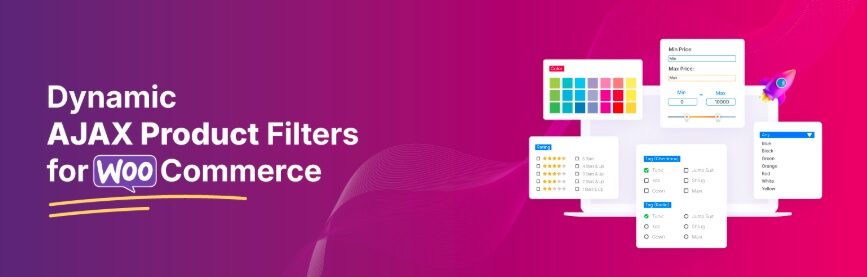
If you want faster and more reliable price filtering, using an optimized filtering system is highly recommended. 👉 Dynamic AJAX Product Filters for WooCommerce
Why This Helps
- Uses efficient AJAX filtering for instant updates
- Reduces database load with optimized queries
- Works smoothly with large product catalogs
- Improves user experience across all devices
Which Option Should You Choose?
- If You Have a Small Store: Default WooCommerce filtering may be enough if your product range is limited and performance is stable.
- If Your Store Is Growing: As your catalog expands, filter performance becomes more important. An optimized system helps maintain speed and accuracy.
- If You Want Better Conversions: Fast filtering improves product discovery and helps users make quicker purchase decisions, leading to higher conversions.
Upgrading to an optimized filtering system ensures better performance, improved user experience, and scalability as your WooCommerce store grows.
FAQ
Here are the most common questions users ask about slow WooCommerce price filters. These are structured to match real search queries and improve AI Overview visibility.
Why is my WooCommerce price filter slow?
This usually happens due to heavy database queries, large product catalogs, too many variations, or poor indexing. Cache misconfiguration and weak hosting can also slow down filter performance.
How can I speed up WooCommerce price filtering?
Start by enabling AJAX filtering, optimizing your database, reducing product variations, and using object caching like Redis. Upgrading hosting can also significantly improve performance.
Does product variation affect filter speed?
Yes, products with many variations increase query complexity. The more variations you have, the slower your price filter can become, especially in large stores.
Does caching improve or slow down filters?
Caching helps performance when used correctly, but if dynamic filter requests are cached, it can cause delays or show outdated results. Proper cache configuration is essential.
What is the best way to optimize WooCommerce filters?
Use lookup tables, enable object caching, reduce query complexity, and ensure your server environment is optimized. Combining these improvements gives the best results.
Can hosting affect WooCommerce filter speed?
Yes, hosting plays a major role. Stores with large catalogs need better CPU, RAM, and database performance to handle filtering efficiently.
Should I use AJAX filters in WooCommerce?
Yes, AJAX filters improve user experience by updating results instantly without reloading the page, making filtering faster and smoother.
Final Thoughts
The WooCommerce price filter slow loading issue is mainly a performance and scalability problem rather than a simple error. It often comes from database load, query complexity, and server limitations.
Fixing this issue requires a combination of database optimization, proper caching, and efficient filtering methods. Once optimized, your store will feel faster, smoother, and more user-friendly.
Optimizing price filter performance ensures faster browsing, better user experience, and improved conversions for your WooCommerce store.
