

Location-wise pricing for WooCommerce means setting different product prices based on customer location or fulfillment location. Stores use it to show different prices by country, city, branch, warehouse, or pickup point when local costs, taxes, or fulfillment conditions are not the same everywhere.
It helps customers see the right price earlier and helps stores keep pricing more consistent from the product page to checkout. This guide explains how location-wise pricing for WooCommerce works, where it is most useful, and what to check so pricing, inventory, and fulfillment stay aligned.
Quick Steps to Set Up Location-Wise Pricing for WooCommerce
Setting up location-wise pricing in WooCommerce usually involves creating the right locations first, assigning products to those locations, and applying separate price values where needed. The main goal is to keep pricing accurate across product pages, cart behavior, and location-based fulfillment.
- Create the locations you want to use for pricing
- Install and activate the location-based pricing plugin
- Assign products to the correct branches or warehouses
- Set separate regular and sale prices by location
- Match stock and pricing with the same location logic
- Test location switching on product and cart pages
How Location-Wise Pricing Works in WooCommerce?
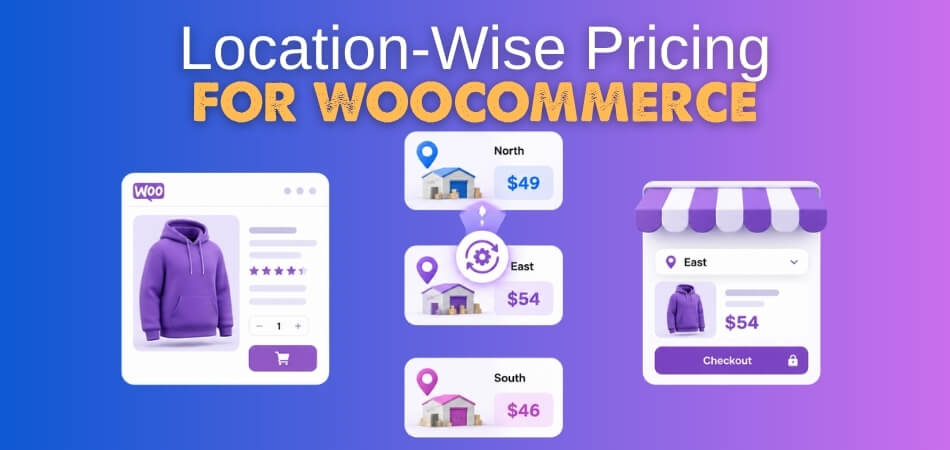
Different prices are assigned to different branches, warehouses, pickup points, cities, or delivery regions inside the same store. When a shopper selects a location, or when the store detects it automatically, WooCommerce displays the price tied to that specific place instead of using one standard price everywhere.
It usually follows a simple process.
- Store owners set separate price rules for each location.
- Each branch or fulfillment point can have its own product price.
- Customers select a location, or the store identifies it automatically.
- Product pages update to show the price for that location.
- Cart and checkout continue with the same matched price.
- Price consistency improves when stock and fulfillment rules follow the same location logic.
Different Ways to Apply Location-Based Pricing
Stores do not always need one flat pricing structure across every selling area. WooCommerce pricing can be adjusted at different location levels depending on how the business operates, how orders are fulfilled, and how local pricing needs are managed.
Common approaches include:
- Country-Based Pricing: Useful when prices need to vary across national markets.
- State Or Region Pricing: Works well when provinces, states, or wider service zones follow different price levels.
- City-Level Pricing: Helps stores respond to local demand, urban costs, or city-specific selling conditions.
- Branch-Wise Pricing: Gives each physical store or branch its own product pricing setup.
- Warehouse-Based Pricing: Supports pricing differences tied to the fulfillment source handling the order.
- Pickup Point Pricing: Allows collection hubs or pickup locations to follow separate product prices.

What to Check Before Using Location-Based Pricing
Location-wise pricing for WooCommerce works best when the right price can stay consistent from the product page to checkout. Before applying different prices by branch, warehouse, city, or region, it helps to confirm that the store can detect, display, and maintain those price rules without creating confusion later.
Check these points first:
- Location Detection: Make sure the store can identify the right customer or fulfillment location accurately.
- Manual Switching: Let customers change location if the detected one is not correct.
- Price Consistency: Keep the same location-based price across product page, cart, and checkout.
- Tax Behavior: Decide whether tax rules should change along with the price.
- Discount Logic: Confirm how coupons, offers, and promotions should work by location.
- Inventory Alignment: Keep pricing and stock rules tied to the same location logic.
- Cache Control: Prevent cached pages from showing the wrong price to the wrong shopper.
- User Experience: Make location-based price changes easy for customers to understand.
Methods to Set Up Location-Wise Pricing in WooCommerce
Stores can handle location-based pricing in WooCommerce through several setup methods, depending on how pricing rules are managed and how much control the business needs. Some methods work directly inside WooCommerce, while others rely on custom logic or external systems.
The main methods include:
- Plugin-Based Method: A dedicated WooCommerce inventory management plugin manages location detection, pricing rules, and price display inside the store.
- Custom Code Method: Prices change through custom functions, hooks, or conditional rules added to the WooCommerce setup.
- Hybrid Method: A plugin handles the core pricing structure, while custom code supports special rules or exceptions.
Limitations of the Default WooCommerce Method
WooCommerce does not include true location-wise pricing as a built-in feature. By default, a product usually follows one main price across the store, which makes it hard to manage different prices by branch, warehouse, city, or pickup point without extra customization.
Common limitations include:
- Uses one main price for each product by default.
- Does not support true branch-wise pricing natively.
- Cannot assign separate prices by warehouse out of the box.
- Lacks built-in city or region-based product pricing.
- Does not switch prices automatically based on the selected location.
- Makes location-based cart and checkout consistency harder.
- Increases manual work as locations and products grow.
- Creates more room for pricing mismatch and customer confusion.
Why the Plugin Method Is the Most Practical Option
The plugin method is the most practical way to set up location-wise pricing in WooCommerce because it lets stores manage different prices by location without building custom pricing logic from scratch. It gives store owners a more direct way to handle branch-wise, warehouse-wise, regional, or pickup-based pricing inside WooCommerce itself.
For most stores, that means less manual work, easier updates, and better consistency across the product page, cart, and checkout. It is usually the best fit for businesses that want location-based pricing to stay manageable as products, locations, and pricing rules grow.
Setting Up Location-Wise Pricing With a Plugin (Step by Step)
Using a dedicated plugin like multi locations inventory management for WooCommerce makes it easier to manage pricing by branch, warehouse, pickup point, or service region from one WooCommerce store. Follow these steps to set up location-wise pricing in your store more easily.
Step 1: Install the Plugin
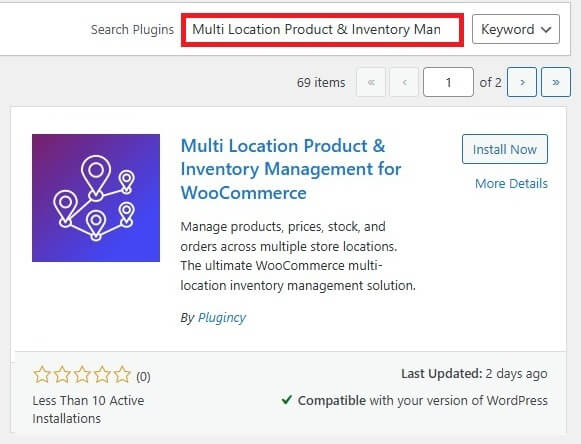
- For the free version:
- Go to Plugins → Add New
- Search for Multi Location Product & Inventory Management for WooCommerce
- Install it, and activate it.
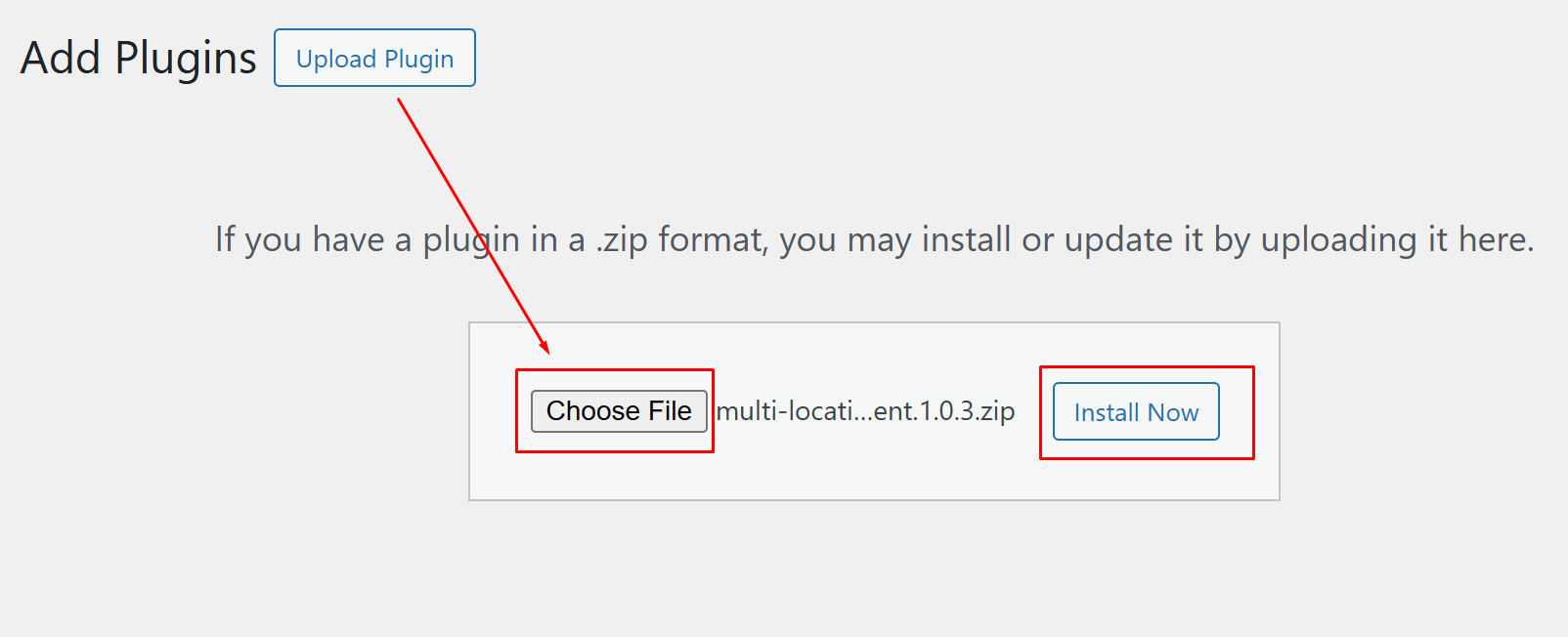
For the Pro version:
- Download the Pro ZIP file from your Plugincy account.
- Keep the license key ready.
- Go to Plugins → Add New → Upload Plugin.
- Upload the ZIP file and activate the plugin.
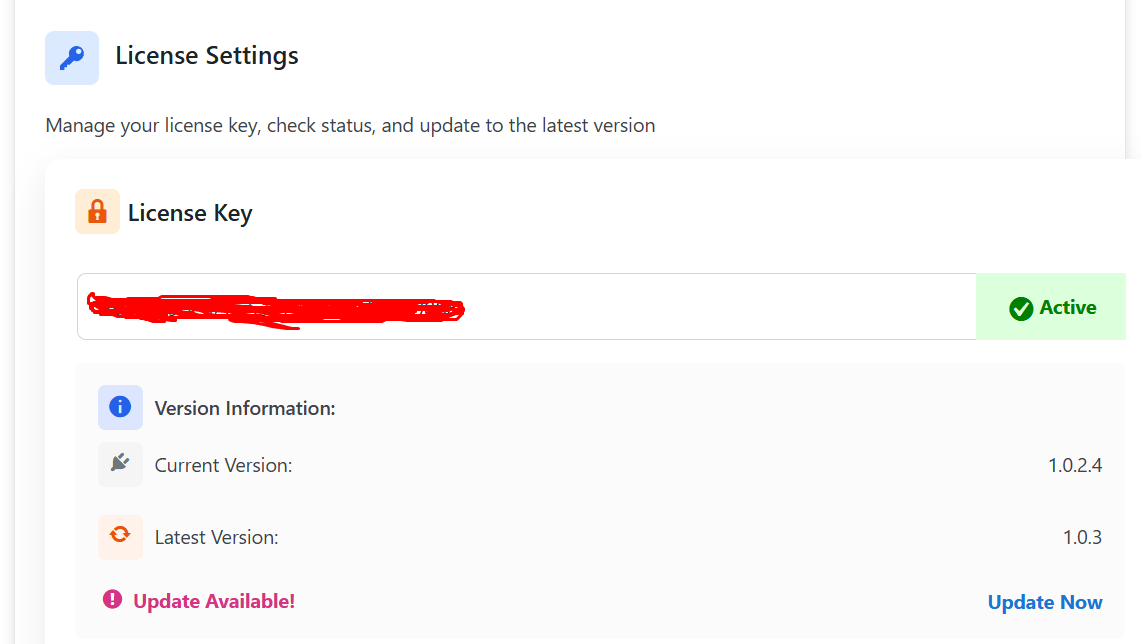
- Open Location Manage → Plugin License.
- Enter the license key and activate it.
Step 2: Create Your Locations
Open the plugin’s location management area and start adding the locations you want to use for pricing, stock, and fulfillment. These can be branches, warehouses, pickup points, or service regions.
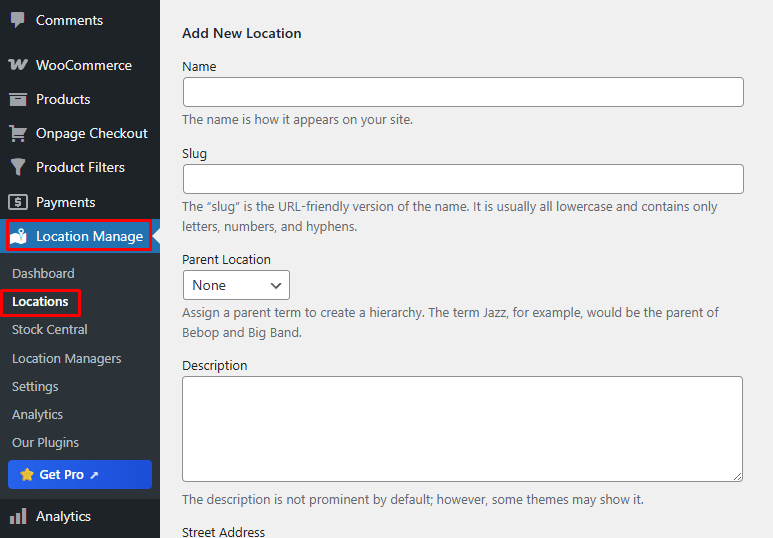
Use this flow for each location:
- Open the location management section.
- Click to add a new location.
- Enter the location details.
- Save the location.
- Repeat for every additional location.
Step 3: Set Up Pricing from the Product Edit Page
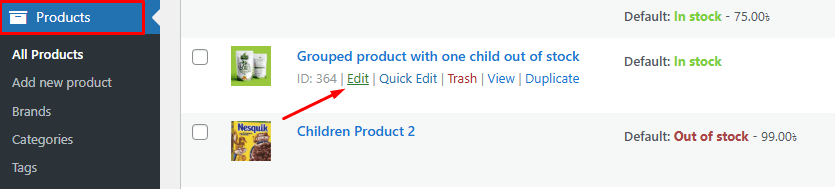
Start by going to Products, then create a new product or edit an existing one.
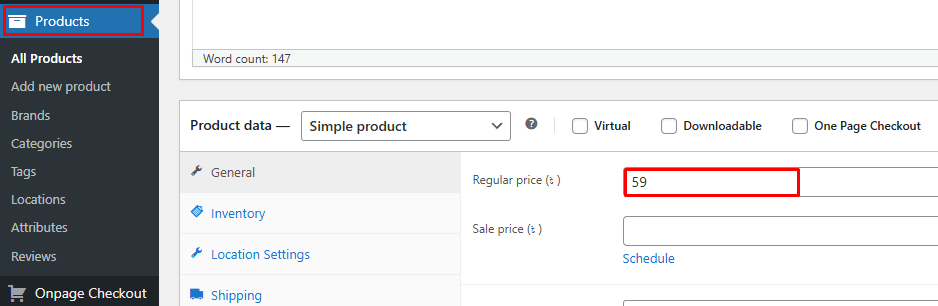
In Product Data → General, enter the base product values before moving into location-specific pricing.
Step 4: Assign Product Locations
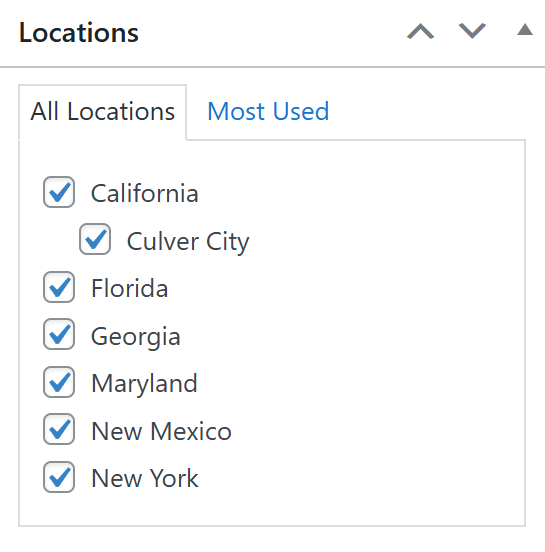
After the base pricing is set, find the Location panel on the right side of the product edit screen. Select one or more locations for that product, because the location-based pricing rules apply only to the locations assigned there.
Step 5: Enable Inventory and Add Location-Based Pricing
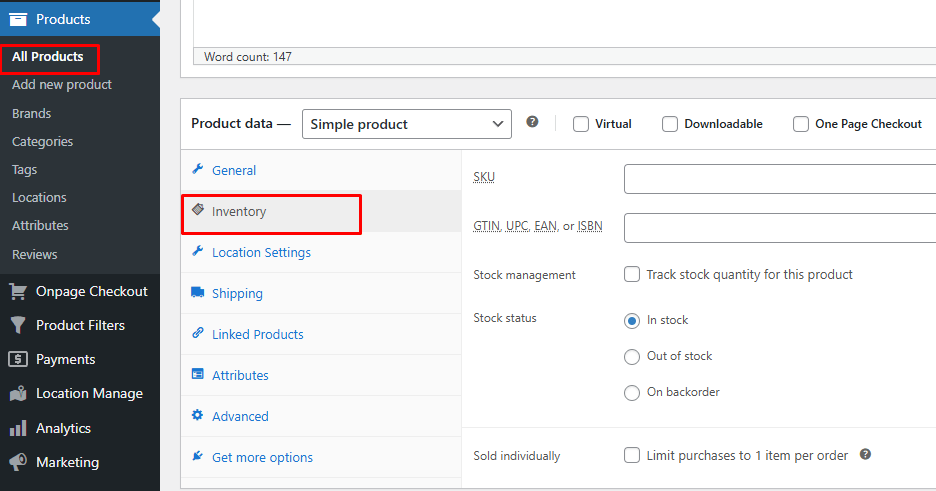
Next, open Product Data → Inventory and enable stock management. Set the inventory quantity before moving into the location-specific fields.
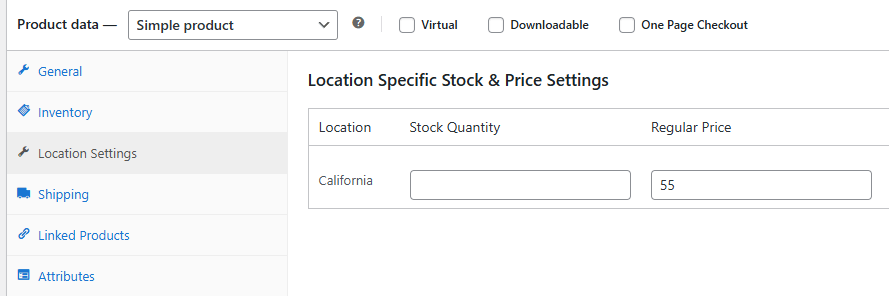
Then open Location Settings and enter the regular price, sale price, stock quantity, and backorder settings for each assigned location.
Finish the product-level setup with these checks:
- Click Publish or Update.
- Visit the product page on the frontend.
- Switch locations.
- Confirm that location-specific pricing and availability display correctly.
Step 6: Set Up Pricing from Stock Central
Go to Location Manager → Stock Central
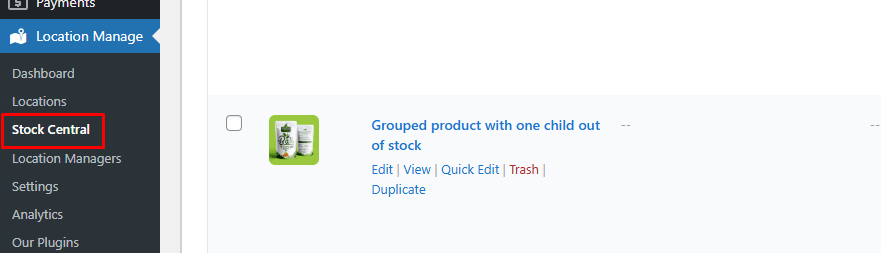
Find the product you want to manage, and click Manage Stock on the right.
Then follow this flow:
- Click the plus icon in the popup.
- Assign the locations you want to use.
- Enter the default values first.
- Add purchase price, purchase quantity, regular price, sale price, and backorder settings.
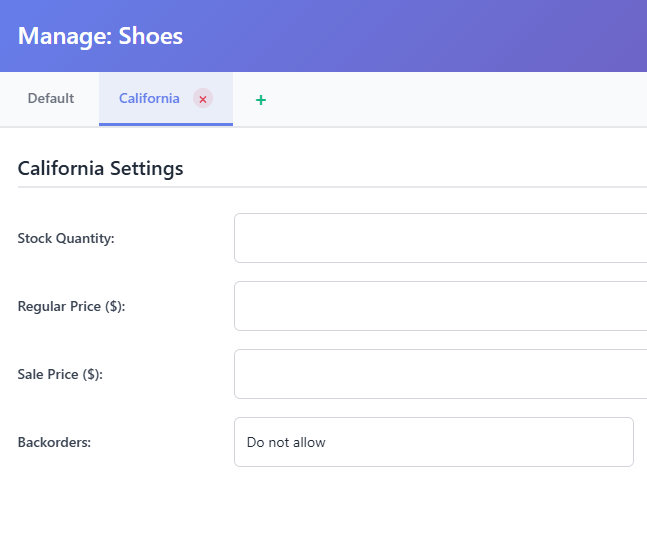
- Open each location tab one by one.
- Enter the location-based regular price, sale price, stock quantity, and backorder settings.
- Click Save Changes.
Check the frontend to confirm the location-based pricing is showing correctly
What to Test After Setting Up Location-Wise Pricing?
Once the setup is complete, testing should focus on whether the pricing logic stays stable under real store conditions. The goal is not just to see a different price by location, but to confirm that location-based pricing behaves reliably when customers browse, switch locations, and move toward purchase.
That usually means checking a few practical areas.
- Location Switching: Confirm the price changes correctly when customers move from one location to another.
- Variation Behavior: Check whether variable products follow the correct location-based price for each option.
- Promotion Rules: Review whether offers, sale prices, or promotional pricing behave correctly across different locations.
- Tax Output: Make sure the displayed and applied tax stays accurate for each location-specific price.
- User State: Compare the pricing experience for guest users and logged-in customers.
- Storefront Consistency: Review whether category pages, product pages, and quick-view areas all reflect the same location logic.
- Mobile Behavior: Test the same pricing flow on mobile devices to catch display or selection issues.
- Edge Cases: Recheck low-stock items, restricted products, and products assigned to multiple locations.
Common Use Cases for Location-Wise Pricing in WooCommerce
Location-wise pricing in WooCommerce is most useful when the same product cannot follow one fixed price across every selling or fulfillment point. Stores often use it when local costs, delivery structure, branch pricing, or regional demand make one universal price harder to maintain.
| Use Case | How Location-Wise Pricing Helps |
| Multi-Branch Retail Stores | Each branch can follow its own product pricing based on local operating conditions. |
| Warehouse-Based Fulfillment | Prices can reflect the warehouse or stock point handling the order. |
| Local Pickup Businesses | Pickup locations can use different prices from delivery-based orders. |
| City Or Region-Based Pricing | Stores can adjust prices for different cities, states, or service regions. |
| Different Local Costs | Product pricing can match branch-level costs, supply conditions, or local overhead. |
| Location-Specific Promotions | Stores can run different sale prices or offers by branch, region, or pickup point. |
| Franchise Or Outlet Networks | Each outlet can maintain its own pricing structure inside the same WooCommerce store. |
| Multi-Location Grocery Or Delivery Stores | Pricing can stay aligned with local stock, delivery reach, and area-based selling conditions. |
Tips for Managing Location-Wise Pricing More Effectively
Managing different prices across branches, warehouses, pickup points, or service regions works best when the rules stay simple and easy to follow. Once multiple locations are involved, small pricing mistakes can spread quickly unless the store keeps pricing logic organized from the start. These practical habits make it easier.
- Keep Location Rules Clear: Use a pricing structure that makes it easy to track which price belongs to which location.
- Avoid Overlapping Logic: Do not let pricing, stock, and fulfillment follow different location rules for the same product.
- Update Prices Carefully: Recheck each affected location whenever regular prices, sale prices, or offers are changed.
- Test Real Store Paths: Review product page, cart, and checkout after switching locations to confirm pricing stays consistent.
- Review Promotions By Location: Make sure discounts and sale pricing behave correctly in every assigned location.
- Keep Inventory In Sync: Align stock and pricing with the same branch, warehouse, or pickup logic whenever possible.
- Recheck New Locations: Test pricing again whenever a new store, warehouse, or service area is added.
- Make Changes Easy To Understand: Help customers understand why prices may differ when another location is selected.
Frequently Asked Questions
Even after the setup and strategy are clear, store owners often still have a few practical questions about how location-based pricing works in day-to-day selling. These FAQs focus on the questions that usually come up once the main setup is already understood.
Can Different Locations Use Different Sale Prices For The Same Product?
Yes. A product can follow different sale pricing by location, just like it can follow different regular pricing, as long as the pricing setup supports separate values for each assigned location.
Can Customers See Price Changes Before They Reach Checkout?
Yes. In a proper setup, the location-based price should update earlier in the shopping journey so customers can see the correct price before they move toward checkout.
Is Location-Wise Pricing Useful Only For Physical Stores?
No. It can also work well for delivery-based stores, regional businesses, pickup-based operations, and any WooCommerce setup where pricing needs to vary by service area.
Can One Product Be Priced Differently Across Multiple Selling Points?
Yes. That is one of the main reasons stores use this pricing model. The same product can carry separate prices across branches, regions, warehouses, or pickup points.
Does Location-Based Pricing Need Ongoing Review?
Yes. Pricing by location should be reviewed regularly as new branches, changing costs, promotions, or service areas affect how prices need to be managed over time.
Final Thoughts
Location-Wise pricing for WooCommerce works best when pricing follows the same logic customers experience across the whole buying journey. When the right price appears for the right branch, warehouse, pickup point, or service area, the store feels clearer, more reliable, and easier to shop.
That is why the real value goes beyond changing numbers by location. A good setup helps pricing stay consistent with inventory, fulfillment, and checkout, so customers see a price that actually matches how the order will be handled.
