

You have 50 products sitting in your New York warehouse, but WooCommerce is showing out of stock — or the opposite, stock has run out but your site still shows in stock. This confusion stems from WooCommerce’s own built-in limitations. It was never designed to track inventory across multiple physical locations. And once your operation grows beyond a single fulfillment point, the default stock management setup starts breaking in ways that are surprisingly hard to diagnose.
Why does WooCommerce show wrong stock for a location? The short answer: WooCommerce has no native multi-location inventory support. It deducts stock from a single global pool, with no concept of warehouse-level or location-level availability. When an order comes in, there’s no mechanism telling the system which location fulfilled it — so the global count drops, but individual location stock stays out of sync. Plugin misconfiguration makes this worse. If location mapping is set up incorrectly, stock deductions hit the wrong warehouse entirely. For WooCommerce variable products, the problem compounds — variation-level stock can show as out of stock for a specific location even when physical inventory exists. The symptoms are predictable: overselling, incorrect warehouse deduction, and stock status per location that contradicts what’s actually on the shelf. The fix involves adding a dedicated multi-location inventory plugin, setting up correct location mapping, and ensuring stock sync runs reliably — whether through scheduled sync, WP-Cron, or real-time WooCommerce hooks.
This article covers all three in one place. You’ll get a clear breakdown of the root causes behind wrong location-based stock, the warning signs to watch for before overselling becomes a real problem, and a step-by-step fix you can actually follow — whether you’re managing two warehouses or twenty.
Why Does WooCommerce Show Wrong Location-Based Stock?
If your store is showing 50 units in stock when the New York warehouse actually has 12, or marking a product available when a specific location is completely sold out, the root cause almost always falls into one of three buckets. Here’s what’s actually going on.
WooCommerce Has No Native Multi-Location Support
WooCommerce was built around a single inventory count per product (or per variation, for variable products). That’s it. There’s no concept of “warehouse A has 20 units, warehouse B has 8” baked into core.
When you look at a product’s stock settings in WooCommerce stock management, you’ll see one field: Stock quantity. One number. One truth. If you’re running two warehouses or three pickup points, WooCommerce has no native mechanism to track those separately — it can’t show location-specific stock because it doesn’t store location-specific stock anywhere.
This isn’t a bug. It’s just a gap in what WooCommerce was designed to handle. The problem starts when store owners assume it works like a proper multi-location inventory system and set stock numbers accordingly — then wonder why customers in one city see “In Stock” on a product that’s been sitting empty in their local warehouse for a week.
Stock Is Deducted from a Single Global Pool
Even if you’ve added a multi-location plugin, the deduction behavior matters enormously. By default, WooCommerce reduces stock from a global stock pool when an order is placed. It fires woocommerce_reduce_order_stock, which decrements whatever number is stored against the product ID — with zero awareness of which location fulfilled that order.
So here’s the scenario that breaks things: your New York warehouse has 5 units, your Chittagong location has 30. Global total: 35. A customer in New York orders 4 units. WooCommerce deducts 4 from 35, leaving 31 total — but the New York warehouse is now effectively down to 1, and nothing in core updates that per-location figure. The next customer in New York sees “In Stock” and orders 3 more. Overselling. Wrong stock. Angry customer.
The woocommerce_product_get_stock_quantity filter is where plugins can intercept and return a location-specific number instead of the global one — but only if your setup actually hooks into that and maps orders to a specific order fulfillment location. If that mapping is missing or broken, you’re back to the global pool problem.
Variation-level stock (WooCommerce variable products with stock managed per variation) adds another layer. Each variation has its own global quantity, but still no location dimension. Multiply that across a product with 10 size/color combinations and three warehouses, and the mismatch potential is significant.
Plugin Misconfiguration and Incorrect Location Mapping
This is where most live stores actually go wrong. You’ve installed a multi-location inventory plugin, set up your locations, and assigned products — but the stock display is still off. Nine times out of ten, the problem is a configuration gap, not a code bug.
Common misconfiguration patterns:
Location mapping isn’t applied to products. The plugin knows your locations exist, but individual products haven’t been assigned to them. The plugin falls back to WooCommerce’s global stock, which then shows the wrong number.
Stock sync ran once and stopped. If your plugin relies on WP-Cron for scheduled sync between an external warehouse system (or a POS), and WP-Cron is misfiring (common on low-traffic sites), the stock values go stale. You might be looking at inventory data that’s 6 hours old.
Transient cache is serving an outdated stock status. WooCommerce caching — particularly transient cache stored in wp_options — can hold a stock status per location long after the actual quantity changed. A product gets restocked in the New York warehouse, but the transient says “Out of Stock” and that’s what the front end displays. Running WC_Cache_Helper::invalidate_cache_group('products') or simply clearing transients flushes this.
The plugin is configured but not hooked into order deduction. Some multi-location plugins track per-location stock in their own tables but don’t intercept WooCommerce’s native stock deduction. So orders reduce the WooCommerce global figure, not the per-location figure — and the two get out of sync fast.
If you’re using a dedicated multi-location plugin like Multi-Location Product & Inventory Management for WooCommerce by Plugincy, the free version handles per-location stock quantities and stock status per location natively — but you still need to actually assign products to their correct locations and make sure the location selector is active so the plugin knows which location to read stock from. Skipping the product assignment step is the single most common setup mistake, and it’ll give you wrong stock figures every time.
WooCommerce doesn’t know what a “location” is unless something explicitly teaches it. When the teaching is incomplete — wrong location mapping, stale cache, missed product assignment, or a sync that stopped running — the numbers you see are simply not the numbers in your warehouse.
Warning Signs That You Have a Stock Mismatch
Stock mismatches rarely announce themselves cleanly. What you usually get is a pattern of small frustrations that, taken together, point to the same root cause.
Here are the clearest signals to watch for.
Customers Are Ordering Products You Don’t Actually Have
This is the one that stings. An order comes in for a product your New York warehouse ran out of two days ago — but WooCommerce happily accepted it. No backorder flag, no out-of-stock block. Just a fulfilled-looking order you can’t actually ship.
If this is happening more than once a month, your stock numbers and your actual warehouse stock have drifted apart. The system thinks inventory exists where it doesn’t.
Your Stock Numbers Jump Around Without Any Sales
Log into WooCommerce and check a product’s stock. Come back an hour later — same product, different number. No orders in between. That’s not normal behavior.
This usually traces back to a scheduled sync that pulled numbers from an external source, a WP-Cron job that ran a stock recalculation, or a transient cache that expired and rebuilt with stale data. The stock display is flickering between real and cached values.
Location A Shows Stock, But Location B Is Empty — Even Though You Just Transferred Stock
You physically moved 50 units from your Chittagong warehouse to the New York warehouse. WooCommerce still shows 0 for New York. This is almost always a location mapping problem — either the transfer wasn’t recorded against the right location in your multi-location plugin, or the global stock pool absorbed the quantity without attributing it to any specific location.
Some multi-location setups maintain a single shared count across all warehouses. If yours does that, individual location figures will always be wrong — because the system has no concept of where stock lives.
Variation-Level Stock Doesn’t Match What You See in the Product Editor
Open a WooCommerce variable product. The parent product page might show “In Stock” while a specific variation — say, size L in blue — is actually sitting at zero. Or the reverse: a variation shows stock at the product level but reads as unavailable on the front end.
This mismatch between variation-level stock and the parent stock display happens when WooCommerce stock management is toggled inconsistently. If you’ve enabled stock tracking at the product level but not the variation level (or vice versa), the numbers won’t agree. Each variation needs its own stock quantity field enabled — and if you’re managing inventory across multiple locations, each variation also needs its own per-location stock entry.
The Low-Stock Threshold Is Triggering at the Wrong Time
You’re getting low-stock email alerts for products that have plenty of inventory — or worse, no alert at all when stock actually hits zero. Either the low-stock threshold is set globally and ignoring location-specific quantities, or the threshold is evaluating the combined stock across all locations instead of checking each warehouse separately.
If your New York location has 2 units and your Chittagong location has 80, a global threshold of 10 won’t fire — because the combined count is 82. But your New York location is practically empty.
Orders Are Being Fulfilled from the Wrong Location
You check a completed order and notice it was assigned to a warehouse that didn’t have the stock. Or stock was deducted from the wrong location — inventory dropped in Chittagong, but the customer was supposed to receive from New York. This breaks your physical stock counts immediately, and the numbers compound incorrectly with every order.
This is one of the harder symptoms to catch because WooCommerce’s native order view doesn’t always surface the fulfillment location clearly. If your store handles order fulfillment location routing, you need a plugin that records and displays that assignment explicitly — otherwise you’re comparing receipts against warehouse counts manually, which is error-prone.
The Admin Stock Figure Differs from What Customers See
You look at the product in WP Admin: 15 in stock. A customer visits the product page: shows “Only 3 left.” Or it shows out-of-stock entirely. This is a WooCommerce caching issue — the front end is serving a cached stock status that no longer matches the live database value.
This becomes especially common when a caching plugin is set to cache product pages aggressively, or when WooCommerce’s own transient cache hasn’t been cleared after a stock update. The fix in this case isn’t a stock correction — it’s a cache flush followed by verifying your cache plugin’s exclusion rules for WooCommerce product pages.
If you’re seeing two or more of these at the same time, your store has a real stock sync problem — not just a one-off glitch. The next step is tracing which part of your setup is generating the bad numbers.
Why Is WooCommerce Showing Wrong Stock or Out of Stock for Variable Products?
Variable products are where stock confusion gets really messy. A product might show “In Stock” at the parent level while every single variation is actually depleted — or the opposite. If you’re running multiple locations on top of that, the mismatch compounds fast. Two configuration gaps cause most of these issues.
Variation-Level Stock Tracking Is Not Enabled
WooCommerce lets you manage stock at the parent product level or at the individual variation level. These are not the same thing, and mixing them up is extremely common.
When you set stock only on the parent (the “Simple” stock tab on a variable product), WooCommerce treats all variations as drawing from one shared number. That’s fine for simple setups. But if a customer adds “Size L – Blue” to cart and you later check inventory for “Size M – Red,” you might see a number that has nothing to do with actual physical stock for that specific variant.
Here’s what to check. Open any variable product in your WooCommerce admin. Go to Product data → Variations. Expand a variation. You’ll see a Manage stock? checkbox specifically for that variation. If it’s unchecked, that variation is inheriting stock from the parent — not tracking its own quantity.
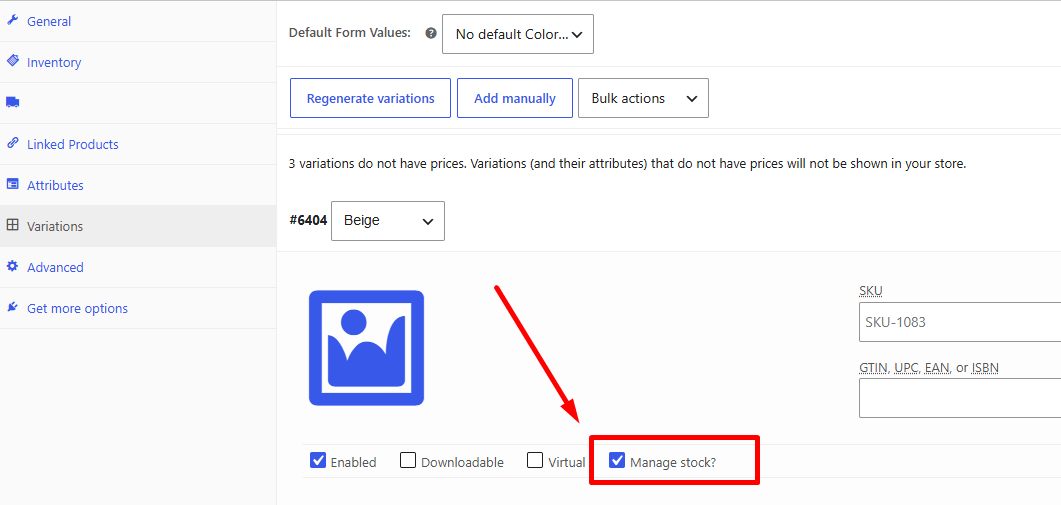
Enable it, enter the actual stock count for that variation, and save. Do this for every variation that should have its own tracked inventory.
If you have dozens of variations across hundreds of products, that’s tedious by hand. You can batch this with a CSV import through WooCommerce’s built-in importer, mapping the stock_quantity column per variation row.
One thing to double-check: the global WooCommerce → Settings → Products → Inventory → Manage stock option must be on. If it’s off at the site level, per-variation stock tracking silently does nothing.
No Location Assignment Set at the Variation Level
This one bites multi-location stores hard. You’ve got stock tracking enabled — but your location plugin still shows the wrong number, or zero, for a specific warehouse.
The reason is almost always this: the location was assigned at the parent product level, not at the variation level. Your plugin dutifully checks “what stock does the New York warehouse have for this variation?” and finds nothing, because the variation was never mapped to that location.
The fix depends on how your plugin handles location assignment. In most multi-location plugins, the location mapping screen exists at both the product level and the variation level — and they’re separate configurations. Assigning a product to a location does not automatically assign all its variations.
Go into your multi-location plugin’s settings for that product. Look for a variation-specific location panel — it’s usually inside the variation expand/collapse area, alongside the stock quantity field. Assign the variation to the correct location and enter the location-specific stock quantity there.
If you’re using Multi-Location Product & Inventory Management for WooCommerce by Plugincy, this works in the free version. Inside each variation on the product edit screen, you’ll find a location assignment control and a per-location stock field. Assign the variation to the relevant location (say, your New York warehouse), enter the stock count, and save. The plugin then tracks that variation’s inventory per location separately from other locations and from the parent product’s global count.
One related issue: some store owners assign a variation to a location but leave the stock quantity field blank. Blank isn’t zero — different plugins handle null values differently. Some treat it as unlimited, some treat it as zero. Always enter an explicit number.
Also worth checking: if your location plugin has a “fallback to global stock” setting, it may be masking the real problem. The location panel shows zero because no location stock is set, but the plugin falls back to WooCommerce’s global count and displays that instead. The product looks fine on the front end — until an order comes in and stock deducts from the wrong pool entirely.
Why Is Stock Quantity Not Updating?
Stock showing wrong is one thing. Stock refusing to change — even after you’ve edited it manually, processed an order, or run a sync — is a different headache entirely. There are three main culprits here, and they’re easy to miss because they look unrelated on the surface.
Conflict Between Manual Stock Adjustments and Automatic Deduction
This is probably the most common source of confusion. You update the stock count by hand in the product editor, then an order comes in, and the number goes… somewhere unexpected.
Here’s what’s happening. WooCommerce deducts stock automatically via the woocommerce_reduce_order_stock action when an order is placed. If you’re also manually adjusting stock at the same time — or if a separate plugin is adjusting stock on its own schedule — those two writes can conflict. The last write wins. Sometimes that means your manual edit gets overwritten. Sometimes it means the automatic deduction runs on stale data and produces a wrong final number.
This gets worse with multi-location inventory. If you have a New York warehouse and a Chittagong warehouse both feeding stock into WooCommerce, and only one location’s count is supposed to drop after an order, but your setup is still using a global stock pool instead of location-specific deduction, every order pulls from the shared total. So location A looks understocked while location B is untouched — neither count is accurate.
The fix:
- Pick one method for stock management and stick to it. Either let WooCommerce auto-deduct and stop editing manually mid-operation, or disable auto-deduction and own the process yourself.
- If you’re running multi-location stock, make sure each location has its own stock quantity field — not a shared total. WooCommerce core doesn’t support this natively; you need a plugin or custom meta to handle per-location stock fields. The free version of Multi-Location Product & Inventory Management for WooCommerce by Plugincy does this — each product/variation gets a separate quantity per location, and deduction hits only the fulfilling location’s count.
- Check your order meta. Go to a recent order, open it in the admin, and look for any custom meta fields showing a location assignment. If that field is empty or set to the wrong location, that’s your deduction routing wrong.
For developers: if you need to see exactly what’s running on stock reduction, hook into the action temporarily:
add_action( 'woocommerce_reduce_order_stock', function( $order ) {
    foreach ( $order->get_items() as $item ) {
        error_log( 'Stock reduced for product: ' . $item->get_product_id() . ' | Order: ' . $order->get_id() );
    }
}, 10, 1 );
That log will tell you whether deduction is firing at all, and on which products.
Caching and Transients Are Blocking Stock Refresh
You change stock. You refresh the page. Same number. You clear your browser cache. Same number. Maddening.
WooCommerce stores stock data in transients — temporary database entries that expire on a schedule. If that transient hasn’t expired yet, WooCommerce may serve the cached value instead of the live database count. This is intentional for performance. It’s just unhelpful when you’re actively debugging a stock problem.
Hosting-level page caching compounds this. Managed WordPress hosts like Kinsta, WP Engine, or SiteGround cache entire pages. Your customer sees the product page from cache — with the old stock count — even after the real number has changed in the database.
Quick fixes in order of what to try first:
- Clear WooCommerce transients. Go to WooCommerce → Status → Tools → Clear transients. Do this after any manual stock change.
- Clear your host’s page cache. Most hosts have a cache-clearing button in their dashboard or a plugin. Use it.
- Clear object cache. If you’re running Redis or Memcached, flushing the object cache is a separate step from clearing transients. Use WP-CLI:
wp cache flush. - Check if a caching plugin is aggressively caching WooCommerce pages. Cart, checkout, and product pages with dynamic stock should have cache exclusion rules. Most caching plugins have a WooCommerce mode that handles this — check whether yours is configured correctly.
An AJAX filter plugin loading product data asynchronously can also serve stale stock from its own cache layer. If stock looks wrong on filtered results but correct on the direct product page, that’s usually the cause. Check the plugin’s cache settings specifically.
One important distinction: transient-based caching is normal WooCommerce behavior. You shouldn’t disable it globally — that tanks performance. The goal is to make sure writes (stock changes, order deductions) properly invalidate the relevant transients. If that’s breaking down, check whether any custom code or plugin is bypassing wc_delete_product_transients() after modifying stock.
WP-Cron or Scheduled Sync Failures
If your multi-location inventory setup relies on a scheduled sync — pulling stock counts from a warehouse system, a POS, or an external database — and WP-Cron is broken, your stock numbers simply won’t update on schedule.
WP-Cron isn’t a real cron job. It only fires when someone visits your site. Low-traffic stores can go hours without a visit, meaning scheduled tasks don’t run on time. This is a well-known limitation. On a busy site it’s usually fine. On a quieter site, or after a traffic drop, syncs can fall badly behind.
How to check: Go to WooCommerce → Status → Scheduled Actions (if you’re using Action Scheduler, which most serious plugins do). Look for any failed or stuck jobs. A “pending” job that’s been sitting for several hours is a red flag.
If you see failures:
- Check whether WP-Cron is disabled. Open
wp-config.phpand look fordefine('DISABLE_WP_CRON', true);. If that’s there, WP-Cron is off. That’s fine, but you must have a real server-side cron job set up as a replacement. If neither is running, no scheduled task fires. - Set up a real cron job via cPanel or your host’s control panel. Point it at
wp-cron.phpevery 5 minutes. This is more reliable than relying on visitor traffic to trigger tasks. - Look at your server’s PHP timeout settings. If a sync job takes longer than the allowed execution time, it dies mid-run and marks itself failed. Your stock ends up partially updated — which is often worse than not updating at all.
For stores managing stock across multiple physical locations, a failed sync means one location’s count drifts from reality while others stay accurate. The New York warehouse might be correct; the Chittagong count might be three days stale. Customers ordering for Chittagong delivery see incorrect availability.
Short version: don’t trust WP-Cron for anything mission-critical without a real server cron backing it up. Check your Action Scheduler logs regularly. Failed jobs there are almost always where a mysterious stock freeze originates.
How to Maintain Accurate Location-Based Stock in WooCommerce
Getting the configuration right from the start saves you from chasing phantom stock discrepancies later. These steps follow the logical order you’d use to set up a clean multi-location inventory system — skipping any of them is usually where the problems begin.
Step 1 — Define Each Location Separately
Every warehouse, retail branch, or pickup point needs its own distinct record in your system. WooCommerce doesn’t have this natively. Its default stock management treats your entire inventory as a single global pool — there’s no concept of “this unit is in New York warehouse, that unit is in Chittagong.”
So your first job is to create the locations before you touch any product settings.
If you’re using a dedicated multi-location plugin, open its location management panel and add each location individually. Give each one a clear name, an identifier you’ll recognize later, and set its status to active. Don’t reuse one location record for two physical sites — that’s the exact kind of shortcut that produces wrong stock numbers downstream.
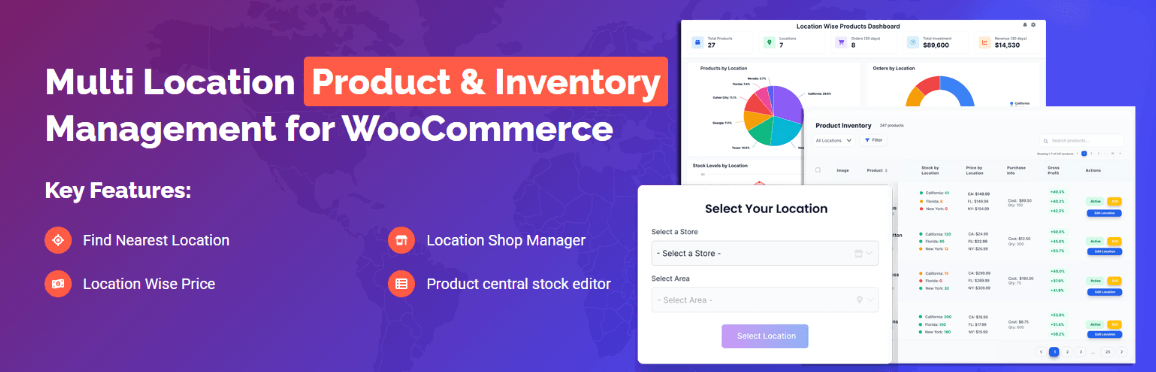
With Multi-Location Product & Inventory Management for WooCommerce by Plugincy (free version), you can create unlimited locations and organize them in a parent-child hierarchy if you have regional groupings — for example, a “New York” parent with “New York Warehouse” and “New York Showroom” as children. You can also disable a location without deleting it, which is useful for seasonal sites or temporarily closed branches.
One location per physical site. No exceptions.
Step 2 — Assign Products and Variations to Each Location
Creating locations doesn’t automatically make your products available there. You have to explicitly assign which products (and which variations, for variable products) exist at each location.
Open the product edit screen. Your multi-location plugin should add a location panel — usually below the standard WooCommerce inventory tab. Select the locations where this product is stocked. For variable products, you typically assign at the variation level, not just the parent product. A size “Large” might exist in your New York warehouse but not your Sylhet branch — that distinction lives at the variation level.
If you have a large catalog, doing this one product at a time is painful. Look for a bulk assignment tool in your plugin’s admin area. The free version of Multi-Location Product & Inventory Management for WooCommerce includes bulk product assignment, so you can push a batch of products to a location without opening each product individually.
Don’t assume “assigned to the store” means “in stock there.” Assignment and stock quantity are two separate things — covered in the next step.
Step 3 — Set Individual Stock Quantities per Location
This is the step most store owners miss when they first configure multi-location inventory. They set a global WooCommerce stock quantity, then wonder why the location-specific numbers are wrong. The answer is simple: they never set location-specific quantities at all.
For each product-location combination, you need to enter the actual physical count at that site. If you have 40 units of a product — 30 in New York and 10 in Sylhet — those numbers need to be recorded separately against each location. Not as a combined 40 at both.
In the product or variation edit screen, your plugin should show a quantity field per assigned location. Enter the real count. If you’re starting fresh and have a spreadsheet of current stock, most multi-location plugins support import — the free version of Multi-Location Product & Inventory Management for WooCommerce handles inventory per product-location combination, and the pro version adds bulk import/export via CSV or spreadsheet for large catalogs.
A few things to double-check here:
- Make sure WooCommerce’s own stock management is enabled at the product level (
woocommerce_manage_stock). If it’s off, the plugin has nothing to sync against. - For variable products, enable stock management at the variation level, not just the parent. Parent-level stock tracking on variable products causes a lot of the wrong-count bugs you’ll encounter.
- Confirm your plugin is deducting from the location’s stock on order, not from the WooCommerce global pool. These are different things, and a misconfigured plugin can decrement both — which is how you end up with quantities that drop twice as fast as expected.
Step 4 — Route Order Fulfillment to the Correct Location
Accurate stock counts are useless if orders are deducted from the wrong location. This is one of the most common sources of stock mismatches in multi-location setups.
When an order comes in, your system needs to know which location is fulfilling it. There are a few ways this gets decided:
- Customer selection — the customer picks a store or pickup point during browsing or checkout.
- Admin assignment — someone on your team manually assigns the fulfillment location in the order edit screen.
- Automatic routing — the plugin assigns a location based on rules like stock availability or proximity.
Whatever method you use, the key is that stock deduction happens only from the fulfilling location. If a New York customer orders a product and it ships from New York warehouse, New York’s count drops — Sylhet’s stays the same.
In the free version of Multi-Location Product & Inventory Management for WooCommerce, each order gets a location assignment, and you can filter orders by fulfillment location from the admin. The pro version adds more flexible automatic routing — including nearest-location assignment, mixed-location carts, and order splitting when a cart contains items from multiple locations.
If you’re on a custom or code-based setup, the hook you want is woocommerce_reduce_order_stock. That’s where WooCommerce triggers stock reduction — you’d attach your location-routing logic there to redirect the deduction to the correct location’s meta instead of the global quantity.
add_action( 'woocommerce_reduce_order_stock', function( $order ) {
    // $order->get_items() — iterate, get location meta per item,
    // then update location-specific stock post meta instead of global _stock
} );
That’s the developer path. For most store owners, letting the plugin handle this through its order assignment interface is the right call.
Step 5 — Configure Low-Stock Thresholds and Stock Status per Location
WooCommerce has a global low-stock threshold in WooCommerce → Settings → Products → Inventory. That threshold triggers alerts and status changes based on the total stock count — it has no idea which location is running low.
If you’re managing inventory across locations, you need thresholds that fire per location. Otherwise you might have 2 units left in New York and 50 in Sylhet, and the global threshold stays silent because the combined count is still above the limit.
Your multi-location plugin should let you set a low-stock threshold for each location separately. In Multi-Location Product & Inventory Management for WooCommerce (free version), low-stock thresholds are location-aware — so you can define different minimum counts per location and get alerts specific to that site. The pro version extends this with configurable low-stock and out-of-stock notification emails routed to the relevant location manager.
Beyond thresholds, check your stock status settings per location:
- In stock / Out of stock / Backorder — these statuses should reflect each location’s actual availability, not a global rollup.
- If a product is out of stock at one location but available at another, it shouldn’t show as globally out of stock unless all assigned locations are empty.
- Make sure “out of stock visibility” in WooCommerce settings isn’t hiding products that are genuinely available at some locations — this is a common conflict when location-based availability rules interact with WooCommerce’s default hide-out-of-stock option.
Test each location’s status independently after setup. Add a product to cart while your test customer has a specific location selected, verify the correct location’s stock count drops, and confirm the threshold alert fires when you bring that location’s count below the configured minimum. That’s the only way to know the configuration is actually working end to end.
Solving Multi-Location Inventory with a Dedicated Plugin
Native WooCommerce stock management was built around a single global pool. There’s no built-in concept of “this product has 12 units in New York warehouse and 4 units in Chittagong.” If you’re running multiple locations, you need a plugin that actually understands location-aware inventory — not just a workaround.
Here’s what’s available.
Plugincy’s Multi-Location Product & Inventory Management (Free)
[Multi-Location Product & Inventory Management for WooCommerce](https://wordpress.org/plugins/multi-location-product-and-inventory-management/) by Plugincy is a free plugin built specifically for this problem. It replaces the global stock pool with per-location inventory tracking, which is exactly the root cause of most wrong-stock issues covered in this article.
What it actually does in the free version:
- Each product (and each variation, for variable products) gets its own stock quantity per location. A product assigned to your New York warehouse and your Sylhet pickup point holds separate counts for each — changing one doesn’t touch the other.
- Customers can select their preferred location using a dropdown, list, button, or popup selector. The catalog then filters to show only products available at that location.
- Stock status per location is tracked independently — so one location can show “in stock” while another shows “out of stock” for the same product, without either being wrong.
- Low-stock thresholds work at the location level. You’re not watching a blended number that hides a stockout at one specific warehouse.
- Order location assignment records which location is fulfilling each order, so stock deduction happens against the right location’s count — not a shared global figure.
- Cart validation checks whether items are actually available at the customer’s selected location before checkout goes through.
Setup is straightforward. Install the plugin, go to the plugin’s location management area in your WordPress admin, and create your locations — add address, business hours, and any other details you need. Then open a product and assign it to one or more locations, entering the stock quantity for each. Add the location selector shortcode to a page or widget area so customers can pick their store. That’s the core of it.
For variable products specifically, inventory assignment works at the variation level. Each variation can have its own quantity per location — useful when your New York warehouse has size M but ran out of size XL, while your Khulna location still has both.
The free version covers the fundamental problem: separate stock quantities per location, location-aware stock status, and order-level location assignment. If that’s all you need, you won’t hit a paywall.
The Pro version adds things like location-specific pricing, inter-location stock transfers, automatic location detection by IP, order splitting when a cart spans multiple locations, and detailed location performance reports. Those are useful for larger operations, but most stores running two or three locations can get accurate stock tracking working entirely on the free tier.
Other Notable Plugin Alternatives
A few other plugins take different approaches to multi-location inventory. None of them are identical in scope, so the right choice depends on your setup.
ATUM Inventory Management for WooCommerce is a well-known free plugin with a centralized stock control view. Its core product handles single-location inventory well — the “multi-inventory” feature (separate stock pools by location or channel) is a paid add-on called ATUM Multi-Inventory, not part of the free version. Worth knowing before you commit to it expecting multi-warehouse support out of the box.
WooCommerce itself added a basic “pickup locations” feature in newer versions, tied to its local pickup shipping option. It’s not a full inventory-per-location system — it doesn’t give you separate stock counts per location or location-filtered catalogs. More of a fulfillment routing tool than a stock management one.
If your needs are primarily on the order management and warehouse fulfillment side rather than storefront-facing location filtering and per-location stock tracking, some store owners use a WMS (warehouse management system) connected via the WooCommerce REST API. That’s a heavier integration path and usually involves custom development to map location-specific stock back into WooCommerce correctly.
For most WooCommerce stores with two to five physical locations needing accurate per-location stock, a dedicated plugin is the practical path. The key things to verify before installing any option: does it track stock separately per location (not just route orders differently), does it handle variable product variations at the location level, and does it integrate with WooCommerce’s native stock deduction flow rather than running a parallel system that can fall out of sync.
How to Find Locations in WooCommerce — for Both Orders and Products
Out of the box, WooCommerce doesn’t have a “location” field the way a dedicated multi-location system does. Stock lives in one global pool. Orders record a shipping address, not a fulfillment warehouse. So when someone asks “how do I find which location an order came from?” or “where can I see stock per location?”, the answer depends entirely on how your setup is built.
Here’s how to track down location data in both places.
Finding Location Data on Orders
If you’re running native WooCommerce with no multi-location plugin, the closest thing to a fulfillment location is the shipping address on the order. Go to WooCommerce → Orders, open any order, and look at the “Shipping” section on the right. That’s the customer’s address — not your warehouse.
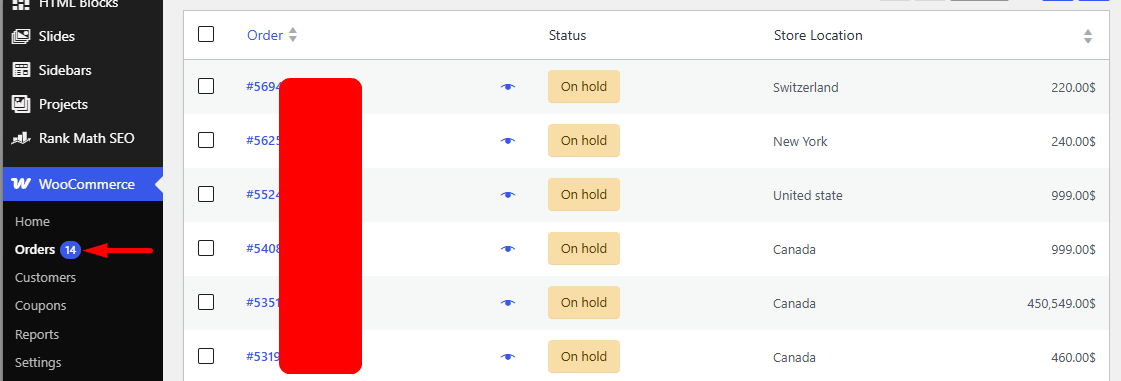
That’s the gap. WooCommerce doesn’t natively record which warehouse picked, packed, or shipped the order.
If your store uses a multi-location plugin that assigns fulfillment locations at checkout, the location data gets stored as order meta. To find it:
- Open the order in WooCommerce → Orders
- Scroll down to the Custom Fields metabox (you may need to enable it via Screen Options)
- Look for a meta key like
_fulfillment_location,_order_location, or whatever key your plugin uses — the exact name varies by plugin
If you don’t see a custom fields box, your plugin might display this in its own metabox instead. Check for a panel labeled something like “Location”, “Fulfillment”, or “Warehouse” lower on the order screen.
You can also filter orders by location. In WooCommerce → Orders, look for a location dropdown in the filter bar — most multi-location plugins add one. If yours does, you can pull up all orders assigned to your New York warehouse or any other location in seconds.
If you need to pull this programmatically, the meta is readable with standard WordPress functions:
$location_id = get_post_meta( $order_id, '_fulfillment_location', true );Replace _fulfillment_location with the actual meta key your plugin writes. You can find that by using a plugin like Meta Box or simply checking the database’s wp_postmeta table for the order ID.
Finding Stock Per Location on Products
Again — standard WooCommerce shows one stock number per product (or per variation, for variable products). There’s no native per-location breakdown.
If you’ve assigned location-level stock through a multi-location plugin, here’s where to find it:
- Go to Products → All Products and open the product
- Look for a Locations or Inventory by Location tab/panel in the product data section — your plugin adds this
- Each location should show its own stock quantity, stock status, and optionally a low-stock threshold
For variable products, you’ll need to go one level deeper. Open the Variations tab, expand the specific variation, and find the location-level fields there. Variation-level stock per location is the most granular you can get — and it’s also where mismatches are most common.
If you’re using Multi-Location Product & Inventory Management for WooCommerce by Plugincy, the free version includes a Stock Central view — a centralized admin screen where you can review inventory across all your locations without opening products one by one. That’s genuinely useful when you’re trying to audit where a stock discrepancy is coming from.
When There’s No Location Data at All
Sometimes you’ll open an order or a product and find nothing — no location meta, no per-location stock fields. That usually means one of three things:
- The multi-location plugin wasn’t active when the order was placed
- The product was never assigned to any location
- Location assignment is configured but stock deduction isn’t mapped correctly, so the order processed through the global stock pool instead
In the first two cases, the data simply isn’t there. Going forward, make sure every product has an explicit location assignment before it goes live. For the third case, check your plugin’s order fulfillment settings — specifically whether it’s set to deduct stock from the assigned fulfillment location or from global WooCommerce stock. Those are two different things, and mixing them is a common source of wrong stock counts.
Key Practices to Prevent Overselling and Keep Stock in Sync
Fixing a stock mismatch once is good. Making sure it doesn’t come back is the actual goal.
These practices aren’t complex — most take five minutes to set up — but skipping them is exactly how stores end up selling products they can’t ship.
Turn On WooCommerce’s Built-In Stock Management (and Actually Configure It)
This sounds obvious, but it gets missed more often than you’d think. Go to WooCommerce → Settings → Products → Inventory and confirm that “Enable stock management” is checked. Without it, WooCommerce doesn’t track quantity at all — every order goes through regardless of what’s actually on the shelf.
While you’re there, set a low-stock threshold. Something like 5 units gives you a warning before you hit zero, not after you’ve oversold. Enable the “Hold stock (minutes)” option too — this reserves inventory during checkout so two customers can’t purchase the same last unit simultaneously. Thirty to sixty minutes is a reasonable window for most stores.
For variable products, stock management needs to be enabled at the variation level, not just the parent product. A parent product set to “manage stock” with quantity 10 doesn’t do what you think it does if your variations each need their own counts. Open each variation and confirm “Manage stock?” is checked there individually.
Use Location-Specific Stock Deduction, Not a Global Pool
This is where most multi-location stock problems originate. If your setup pulls from a single global stock number and then tries to figure out which location to deduct from afterward, you’ll get mismatches constantly. The New York warehouse shows 8 units. The Chittagong location shows 8 units. They’re both reading the same number — and neither is accurate once an order ships.
The fix is proper per-location inventory where deduction happens at the fulfillment location, not from a shared pool. Multi-Location Product & Inventory Management for WooCommerce by Plugincy handles this in the free version — you assign stock quantities separately per product-location combination, and when an order is fulfilled from a specific location, only that location’s stock decreases. The other locations are untouched.
If you’re using a different multi-location plugin, check its settings for a “fulfill from selected location” or “location-specific deduction” option. If that option doesn’t exist, the plugin is probably still working from a global pool and routing orders on top of it — which is a band-aid, not a fix.
Fix Your WP-Cron and Scheduled Sync Timing
If your stock syncs on a schedule — say, every 15 minutes from a WMS or external inventory system — there’s always a gap. Orders placed in that window can oversell.
First, verify WP-Cron is actually running. A lot of stores on aggressive caching setups or hosting that disables WP-Cron don’t realize scheduled tasks are silently failing. Install a simple cron monitor or check your server logs. If WP-Cron is unreliable, replace it with a real server cron job:
# In cPanel or via SSH — runs WordPress cron every 5 minutes
*/5 * * * * php /var/www/html/wp-cron.php > /dev/null 2>&1
Shorter sync intervals reduce the oversell window, but they don’t eliminate it. Pair any scheduled sync with WooCommerce’s stock hold feature (mentioned above) so at least the checkout process itself has a lock on inventory during purchase.
Clear Transient Cache After Every Stock Update
WooCommerce caches stock data in transients. If you manually update stock, import via CSV, or push changes from an external system, the displayed quantity on the frontend may lag behind by hours unless the transient is explicitly cleared.
You can force this with a direct database query on the wp_options table, or programmatically:
// Hook into stock updates to clear the product transient
add_action( 'woocommerce_product_set_stock', function( $product ) {
    wc_delete_product_transients( $product->get_id() );
} );
That hook fires whenever set_stock_quantity() is called, which covers most update paths. For location-aware stock changes, you may need to clear transients at the location-product level too — check whether your multi-location plugin exposes a cache maintenance tool for this. The Multi-Location Product & Inventory Management plugin (Plugincy) includes cache/transient clearing tools specifically for location inventory and config changes.
If you’re on a server-level caching layer (LiteSpeed, Nginx FastCGI, WP Rocket, etc.), a plugin-level transient clear isn’t enough on its own. You need to exclude stock-related URLs from full-page cache or set very short TTLs for product pages.
Audit Location Mapping Before You Go Live — and After Every Change
Location mapping errors are quiet. No error is thrown, no warning appears — the product just deducts from the wrong place. This typically happens after:
- A location is renamed or reorganized in your plugin’s settings
- A product is bulk-assigned to locations without checking existing assignments
- A variation is added to a product that already has location stock configured
Make it a habit to spot-check location assignments after any bulk operation. Open a handful of affected products and verify the per-location stock values look correct. It takes three minutes and catches problems before they reach customers.
For large catalogs, use your plugin’s inventory export feature (if available) to pull a spreadsheet. Scan for locations with unexpected zeros, identical quantities across all locations (usually a sign of global pool bleed-through), or variations missing location assignments entirely.
Set Up Low-Stock Alerts Per Location, Not Just Globally
WooCommerce’s default low-stock email fires on a global threshold. If you have 50 units total across four locations but one location is at zero, the alert won’t trigger — the global count looks fine.
With per-location low-stock thresholds, you get alerted when a specific location drops below the level you’ve set, even if overall stock is healthy. This matters most for a high-traffic location like a New York warehouse serving most of your local orders — you want to know when that location needs restocking, not just when the total hits some abstract floor.
The free version of Multi-Location Product & Inventory Management for WooCommerce supports location-aware low-stock monitoring and per-location stock status (in-stock, out-of-stock, backorder) independently of other locations. The PRO version adds configurable low-stock and out-of-stock notification alerts routed per location, which is useful if different location managers need separate email alerts for their own warehouse.
Don’t Skip the Cart Validation Step
Stock can be accurate at the point someone adds a product to their cart and still be wrong by the time they hit “Place Order.” This is especially true in multi-location setups where the cart location might change between browsing and checkout — or where a second customer buys the last unit while the first customer is still on the checkout page.
Enable WooCommerce’s stock validation at checkout. It’s on by default, but plugins or theme customizations sometimes disable woocommerce_check_cart_items. Make sure nothing in your stack is hooking into that and bypassing it.
In a multi-location context, you also want cart-level location validation — meaning if a customer selected a location when they added items, the cart should confirm those items are still available at that location before the order goes through. That’s a behavior native WooCommerce doesn’t handle on its own, which is one place a dedicated multi-location plugin earns its keep.
FAQ — Common Questions About WooCommerce Location Stock
Does WooCommerce support multi-location stock natively?
No. Out of the box, WooCommerce tracks one global stock number per product (or per variation). There’s no built-in concept of “50 units in New York warehouse, 30 units in Chittagong.” To get true per-location stock, you need a dedicated plugin.
Why does WooCommerce show a product as in stock when my warehouse is empty?
Almost always one of three things: the product is drawing from a global stock pool that includes another location’s inventory, the stock number was never location-mapped in the first place, or a transient cache is serving stale data. Check whether the stock figure on the product edit screen matches what’s physically in that specific warehouse — if they don’t match, the global total is bleeding over.
Can a plugin misconfiguration cause wrong stock numbers?
Yes, easily. If your multi-location plugin is set to pull from a global fallback when a location has no assigned stock, it’ll show combined inventory as if it all belongs to one place. Always check your plugin’s fallback or “unassigned stock” setting first. That one toggle causes more confusion than almost any other configuration mistake.
Why does the New York warehouse show correct stock in admin but the wrong number on the front end?
WooCommerce caching. The storefront might be serving a cached product page that hasn’t picked up the latest stock figure. This gets worse when a caching plugin (or server-level caching like Redis) has a long TTL. Purge the cache after any stock update and test again. If the problem recurs on a schedule, check whether WP-Cron is running properly — a broken scheduled sync can mean stock figures only update sporadically.
My variable product shows stock for the parent but not per variation. What’s wrong?
WooCommerce stock management can be set at the parent level or the variation level — but not both, effectively. If the parent product has “Manage stock” turned on, variation-level stock gets ignored. Go to each variation and make sure stock management is enabled at the variation level, then clear the parent-level stock field. For location-specific variation stock, you need a plugin that supports variation-level stock per location — not just parent-level totals.
Does stock deduct from the right location when an order comes in?
With native WooCommerce, no. It deducts from the single global stock pool regardless of where the order was meant to be fulfilled. If you’re running multiple warehouses, that means your New York warehouse stock drops even when the order is being shipped from Sylhet. A multi-location plugin that supports location-specific stock deduction fixes this — stock only decreases from the warehouse that’s actually fulfilling the order.
The free version of Multi-Location Product & Inventory Management for WooCommerce by Plugincy handles location-specific stock per product and variation. The pro version goes further and ties stock deduction to the specific fulfillment location assigned to each order, so the right warehouse inventory moves — not just the global number.
How do I know which location is assigned to an order?
In a standard WooCommerce setup, there’s no location field on orders at all. You’d need your multi-location plugin to write that data to order metadata. Once it does, you can filter orders by fulfillment location from the admin order list — which also makes it practical to route orders to the right warehouse staff without manually sorting through every order.
Will WooCommerce automatically sync stock between locations?
No. WooCommerce doesn’t know locations exist, so there’s no native sync. Any stock transfer between locations — say, moving 20 units from your New York warehouse to a pickup point — has to either be done manually or handled by a plugin with inter-location transfer support. That’s typically a pro-tier feature in most dedicated inventory plugins.
My low-stock alerts are firing for the wrong location. Why?
Because the low-stock threshold in native WooCommerce is global. It watches the total stock number, not any per-location figure. So if your global count is 40 but Location A has 2 units left, no alert fires. To get location-aware low-stock monitoring — alerts that trigger when a specific warehouse hits a threshold — you need a plugin that sets and watches thresholds at the location level.
Can I fix location stock issues with code instead of a plugin?
For simple cases, yes. You can use woocommerce_product_get_stock_quantity to filter what stock quantity gets returned, or woocommerce_reduce_order_stock to intercept where the deduction happens. But this gets complicated fast once you have multiple locations, variable products, and order routing logic. Custom code also breaks on WooCommerce updates if you’re not maintaining it. For most store owners, a plugin is the practical path. Code is really only worth it if you have a developer maintaining a custom integration with an existing WMS or ERP.
Does overselling prevention still work with location-based stock?
Only if your multi-location setup is properly configured. If two locations share a global pool and both sell simultaneously, WooCommerce’s native overselling prevention guards the combined number — not each location’s share. The result: Location A sells 10 units it doesn’t physically have, while Location B sits on surplus. Per-location stock with separate quantities per warehouse is what actually prevents this. Without it, “overselling prevention” is protecting a number that doesn’t reflect reality on the ground.
Conclusion — Start Managing Location-Based Stock the Right Way
Location-based stock errors don’t usually come from one dramatic failure. They creep in. A transient cache that’s a bit too long. A global stock pool counting inventory from three warehouses when the customer only ever sees one. An order that deducted from the wrong location because fulfillment mapping was never configured. Small gaps that add up to customers buying stock you can’t actually ship from their nearest warehouse.
The good news? Every cause covered in this article is fixable.
Start with the basics. Make sure WooCommerce stock management is actually enabled under WooCommerce → Settings → Products → Inventory. Check that your low-stock threshold isn’t interfering with stock status display. If you’re running variable products, verify that stock is set at the variation level, not just the parent — WooCommerce reads them separately, and a parent set to “In Stock” overrides out-of-stock variations if you’re not careful.
If WP-Cron is your sync trigger, test it. A stuck scheduled sync is one of the most common reasons stock numbers go stale. Clear transient cache after any significant stock update. If you’re using a caching plugin, make sure cart and product pages are excluded from full-page caching.
For single-location stores, native WooCommerce handles stock fine. But if you’re running multiple warehouses — a New York warehouse alongside a pickup point in Chittagong, a fulfillment hub feeding three storefronts — native WooCommerce isn’t built for that. It has one global stock pool. It doesn’t know which location is fulfilling which order. That’s not a configuration problem you can tweak your way around.
That’s where a dedicated plugin matters. Multi-Location Product & Inventory Management for WooCommerce by Plugincy handles this at the structure level — separate stock quantities per location, stock status per location, variation-level inventory by location, and order location assignment so deductions come from the right warehouse. The free version covers the core inventory separation most multi-location stores actually need: per-location stock, low-stock thresholds per location, location-aware product availability, and a Stock Central view to review everything from one screen. You don’t need to pay to fix the fundamental problem of a global stock pool giving customers wrong numbers.
If you need location-specific stock deduction tied to automatic order routing, or inter-location stock transfers, that’s where the pro version adds genuine value. But start with free — it solves more than most store owners expect.
One last thing. Accurate stock is downstream of good process. Even the best plugin can’t compensate for a team that manually adjusts stock in multiple places, or warehouse staff updating a spreadsheet that never syncs. Lock down who edits stock, where, and when. Use location assignment consistently. Review your Stock Central view regularly, not just when a customer complains.
Wrong stock for a location isn’t just a technical bug. It’s a fulfillment risk. Fix the configuration, use the right tools for your store’s structure, and you stop overselling before it becomes a customer service problem.
