

Your store shows items in stock — but they’re not actually available. Or stock exists, but no one can buy it. This is phantom stock, and abandoned carts are the leading cause. It’s a quiet problem that compounds fast: a customer adds a product to their cart, never checks out, and that unit stays locked in limbo. Meanwhile, real buyers hit a wall, your overselling risk climbs, and your inventory accuracy figures become meaningless.
This isn’t purely a user experience issue. Ghost inventory directly costs you revenue. When stock reservation holds units against carts that will never convert, you get stockouts for active buyers and phantom availability for everyone else. On high-traffic days — think flash sales or seasonal spikes — the damage accelerates. And the problem isn’t unique to one platform. WooCommerce, Shopify, and Magento each handle cart hold duration and stock reservation differently, which means the fix looks different depending on where you’re running your store.
The root usually sits in how the platform manages session expiry and checkout timeout logic. WooCommerce, for example, relies on WP-Cron to clean up stale sessions in the wp_woocommerce_sessions table — and WP-Cron is notoriously unreliable under real traffic. Orphaned carts pile up, stock never releases, and your SKU-level sync with any connected WMS or ERP starts reporting numbers that don’t reflect reality.
Quick Answer: What is phantom stock from abandoned carts and how do you fix it? Phantom stock is inventory that appears available in your system but cannot actually be purchased — or stock that’s invisible to buyers even though units exist. Abandoned and orphaned carts are the primary cause. When a shopper adds an item to their cart but never completes checkout, many platforms hold that stock in reserve. If the auto-release timer fails or never triggers, those units stay locked indefinitely. The result is ghost inventory: real stock that looks unavailable, or reserved stock that inflates your available count.
The core fix involves three things: setting a reliable cart hold duration with a hard checkout timeout, ensuring your auto-release mechanism actually fires (not just a cron job that misfires under load), and running periodic SKU-level sync between your storefront and any upstream WMS or ERP. On WooCommerce, this often means auditing WP-Cron reliability and clearing stale records from wp_woocommerce_sessions. On Shopify and Magento, it means reviewing stock reservation architecture and per-location stock rules. A stock buffer also helps absorb the gap while fixes propagate.
What Is Phantom Stock — and How Abandoned Carts Create It
Phantom stock is exactly what it sounds like: inventory that shows as available in your system but can’t actually be sold. It’s a ghost number. A customer sees “3 in stock,” adds one to their cart, and the system says “2 in stock” — but that item sitting in someone’s abandoned cart from three hours ago was never returned. Now your stock count is wrong, and every downstream decision — purchasing, fulfillment, ads — is built on a lie.
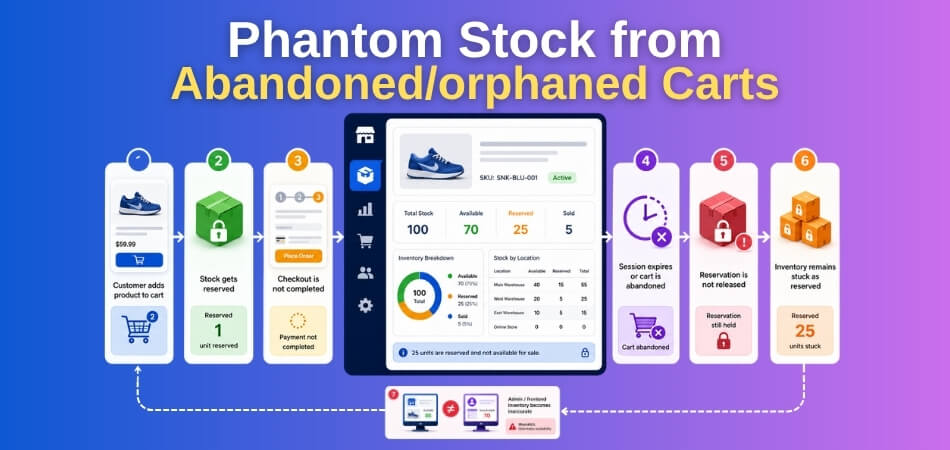
Understanding how this happens requires knowing the mechanics underneath the cart.
How Stock Reservation Logic Works
When a customer adds a product to their cart in WooCommerce, stock isn’t reduced immediately by default. The actual stock number only drops when an order is placed and payment confirmed. That’s the native behavior.
But plugins change this. A lot of stores use stock reservation — meaning the moment a product hits the cart (or checkout), the system temporarily holds that unit and subtracts it from available inventory. The logic makes sense in principle: if two customers want the last unit, you don’t want both to reach checkout thinking it’s theirs.
The problem is the hold. Stock reservation without a reliable auto-release timer is a trap.
WooCommerce’s built-in behavior has a “Hold Stock (minutes)” setting under WooCommerce → Settings → Products → Inventory. The default is 60 minutes. During that window, unpaid orders hold stock. When the window expires, WP-Cron fires a cleanup job — wc_cancel_unpaid_orders — that cancels those pending orders and releases stock.
But WP-Cron only runs when someone visits your site. Low-traffic stores, misconfigured servers, or hosts that block WP-Cron entirely can mean that cleanup job never fires on schedule. Stock stays locked. Hours pass. Days, in some cases.
So even the native system can create phantom stock when WP-Cron misfires.
Third-party checkout and reservation plugins often add their own reservation layer — sometimes on top of WooCommerce’s, sometimes bypassing it. If that plugin has its own cart hold duration logic and it doesn’t release stock correctly on cart expiry or session expiry, you’re compounding the problem.
The Difference Between Abandoned Carts and Orphaned Carts
These terms get used interchangeably. They’re not the same thing.
An abandoned cart is a conscious (or at least trackable) behavior. A customer browsed, added items, started checkout, and left. The session still exists — there’s a record in wp_woocommerce_sessions or in your cart recovery plugin’s database. The cart is gone from the customer’s perspective, but it’s alive in yours. These carts are recoverable. They also hold stock if reservation is active.
An orphaned cart is messier. It’s a cart that has no active session tied to it, no associated customer, no pending order — but the stock reservation still exists somewhere in your database or inventory system. This happens when:
- A session expires server-side but the stock hold doesn’t release.
- A payment gateway redirect breaks mid-flow and the order never fully formed.
- A checkout timeout occurs — the customer’s tab timed out, the session died, but no cleanup hook fired.
- A WMS or ERP picked up a reservation signal but never received a cancellation.
Orphaned carts are the nastier source of phantom stock because they’re invisible. There’s no email to send, no cart to recover. They just sit there locking inventory with nothing attached to them.
In WooCommerce specifically, you can surface orphaned session data with a direct SQL query against wp_woocommerce_sessions — comparing session timestamps against your hold stock duration. Anything beyond that threshold with no associated order is a candidate for release.
SELECT session_key, session_expiry
FROM wp_woocommerce_sessions
WHERE session_expiry < UNIX_TIMESTAMP(NOW() - INTERVAL 2 HOUR);
That’s a starting point for identifying stale sessions — not a one-click fix, but it tells you the scope of the problem.
The Complete Phantom Stock Creation Flow (Diagram-Style Breakdown)
Here’s how phantom stock actually forms, step by step. Walk through this once and you’ll see where the breaks happen.
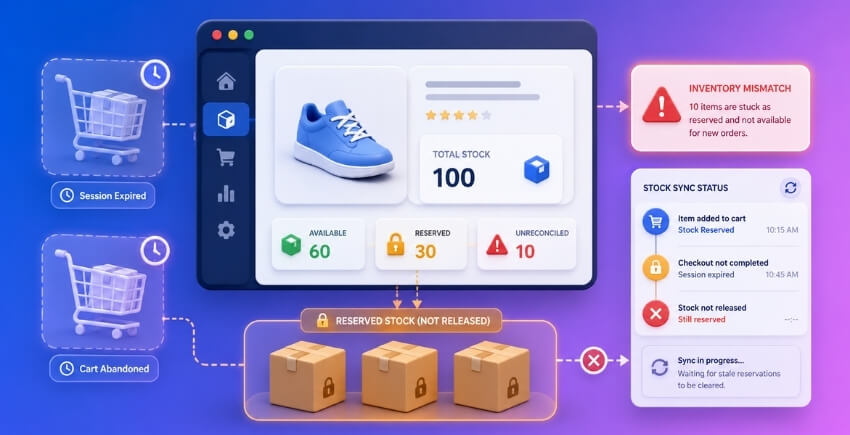
Step 1 — Customer adds item to cart Stock reservation kicks in (either WooCommerce’s built-in hold or a plugin’s reservation layer). Available inventory drops by 1 at the SKU level. If you’re running multi-location inventory, this deduction might happen at the per-location stock level, not the global total — creating location-specific phantom stock that’s even harder to spot.
Step 2 — Customer reaches checkout (or doesn’t) Two paths split here. Path A: customer completes purchase → order is created → stock is properly reduced → no phantom stock. Path B: customer abandons at cart or checkout page → session stays alive → stock hold remains active.
Step 3 — Session expiry window begins The clock starts. WooCommerce’s checkout timeout is whatever you’ve set in “Hold Stock” settings. Standard is 60 minutes. Your reservation plugin might have its own separate timer — sometimes shorter, sometimes longer, sometimes broken entirely.
Step 4 — Cleanup job should fire wc_cancel_unpaid_orders should run via WP-Cron at the end of the hold window. If it runs correctly, the pending order cancels, stock releases, phantom stock doesn’t happen. If WP-Cron is unreliable — and it often is on shared hosting — this step simply doesn’t execute on time.
Step 5 — Orphaned cart state The session eventually dies (PHP session expiry, server-side cleanup, whatever). But the stock hasn’t been released because the cleanup job never completed. Now you have a dead session with no cart, no order, no customer — and inventory that’s still locked. This is the orphaned cart state.
Step 6 — Phantom stock is now live Your product page shows reduced stock. Your WMS or ERP (if synced) reflects that number. SKU-level sync has already pushed the wrong figure downstream. Customers see false scarcity — or worse, a real stockout that isn’t real. You might reorder product you don’t need. Or you might actually oversell because a different customer eventually buys the last “available” unit while the phantom-held unit is never returned.
Step 7 — Compounding across locations If you’re running multi-location inventory, phantom stock doesn’t just inflate at the store level — it inflates per-location. A warehouse shows 0 units. The other shows 2. But one of those 2 is a phantom from a checkout session that died four days ago. No real-time inventory sync with your ERP catches this because the hold was never formally released — it just faded.
The fix starts with understanding this flow. Each break point — the hold timer, WP-Cron reliability, session expiry handling, ERP sync frequency — is where a solution has to be applied. The next sections cover exactly that.
How Phantom Stock Damages Your Business
Overselling and Stockouts — Danger from Both Directions
Phantom stock doesn’t just sit quietly in your database. It actively hurts you in two opposite ways, and both can happen on the same day.
The first problem is overselling. If a cart is holding a reservation on your last 3 units and WooCommerce hasn’t released that hold yet, a new customer can still complete a purchase — especially if your stock reservation logic is inconsistent or your Auto-Release Timer is misconfigured. Now you’ve sold stock you can’t fulfill. You’re issuing apology emails, processing refunds, and eating the cost of expedited shipping to cover the gap. Do that a few times and the financial hit is real.
The second problem is stockouts on paper. A product shows as out of stock when it genuinely isn’t — because ghost inventory is sitting in expired sessions. Real buyers bounce. You lose the sale. The item eventually releases back, but the customer you just lost isn’t coming back to check.
Multi-location setups make this worse. If you’re running per-location stock and an Orphaned Cart at your London warehouse is holding the last 2 units of a SKU, your Manchester location might show as fully available while London shows nothing. Your WMS or ERP is pulling that data and making fulfillment decisions based on it. That’s how a Per-Location Stock problem becomes a logistics problem.
Neither outcome is acceptable. And the frustrating part is that both are preventable with the right Cart Hold Duration settings and a functioning Session Expiry cleanup routine.
Impact on Inventory Accuracy and Reporting
Bad stock data doesn’t stay in the cart. It bleeds into every report you run.
Your inventory accuracy rate — that percentage that tells you how closely your system stock matches your physical stock — tanks when phantom reservations are counted as committed inventory. If you’re running SQL queries against wp_woocommerce_sessions to audit reserved quantities, those abandoned session records distort the numbers. A product might show 0 available in your dashboard while you physically have 12 on the shelf.
That breaks your reorder planning. If your ERP or WMS treats ghost inventory as real committed stock, it delays purchase orders for items you actually need. By the time the system “realizes” the stock was never sold, you’ve already got a stockout in your warehouse and a supplier lead time you can’t close.
Reporting suffers too. Conversion rates look lower than they are. Your best-selling SKUs appear to have lower sell-through rates. If you’re doing SKU-level Sync between WooCommerce and an external system, every sync cycle is potentially writing incorrect data downstream. Cleaning it up after the fact is painful — and sometimes you don’t catch it until a physical stock count exposes the discrepancy.
This is especially visible in WooCommerce stores that rely on WP-Cron for session cleanup. WP-Cron only fires on page load — so on a slow day, expired sessions sit around for hours, and your Inventory Accuracy numbers look worse than they actually should be.
One thing worth doing immediately: run this query against your database and look at how many sessions are older than 24 hours with no corresponding order:
SELECT COUNT(*)
FROM wp_woocommerce_sessions
WHERE session_expiry < UNIX_TIMESTAMP(NOW());
If that number is in the hundreds or thousands, your Stock Reservation Architecture has a cleanup problem — and your reporting is reflecting it.
Customer Experience Damage and Trust Loss
Customers don’t know what phantom stock is. They just know something felt wrong.
The most common experience: a shopper adds an item to cart, gets distracted, comes back 20 minutes later, and the item is gone — even though the same item shows available when a friend searches for it. That’s a Checkout Timeout or Session Expiry collision, and it’s confusing in a way that feels like the site is broken.
Worse is when it goes the other direction. A customer completes checkout, gets a confirmation email, and then receives a follow-up saying the item is out of stock. That’s the Overselling scenario — and it’s the kind of thing that earns a one-star review, a chargeback dispute, and a social media post about how your store “took money for something they didn’t have.”
Trust is slow to build and fast to lose. A single bad experience like that is often permanent. The customer doesn’t come back. They tell people.
There’s also a subtler version: products that cycle in and out of availability unpredictably because ghost reservations are being held and released inconsistently. Customers notice. You’ll see it in support tickets: “I keep checking this product and it says out of stock, then it’s back, then it’s gone again.” That inconsistency signals to shoppers that your store isn’t reliable — even if your actual stock levels are fine.
The real cost of phantom stock isn’t just the refund on one order. It’s the five customers who quietly left and never told you why.
Cart Hold Duration — How Long Should Stock Stay Reserved?
Getting the hold time right is one of the least glamorous parts of inventory management. But it’s also where phantom stock problems start. Reserve stock for too long, and real buyers can’t purchase. Release it too early, and a customer completing checkout finds the item gone.
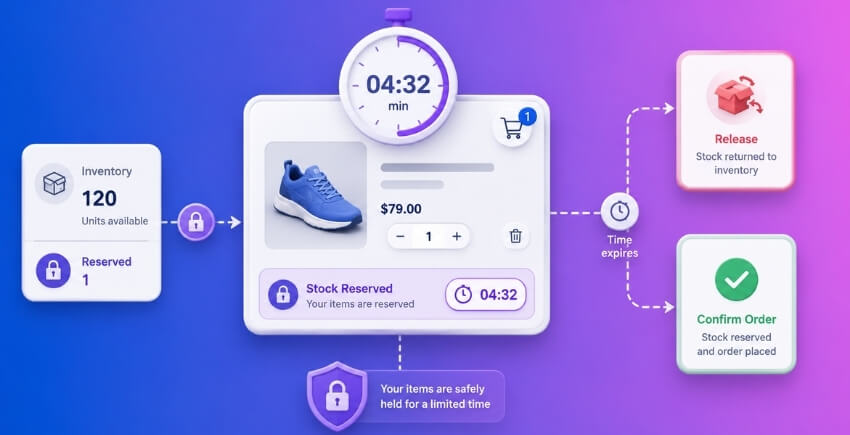
There’s no universal answer. But there are sensible defaults — and a few principles that hold across platforms.
Industry Benchmarks and Platform Defaults
Most platforms pick a number somewhere between 10 and 60 minutes for cart-based stock holds. Here’s where the major ones actually land:
WooCommerce doesn’t reserve stock at the cart stage by default. Stock only gets held once an order is placed and sits in Pending Payment status. That hold lasts for 60 minutes by default — controlled by the “Hold Stock (minutes)” setting under WooCommerce → Settings → Products → Inventory. After that, WP-Cron fires woocommerce_cancel_unpaid_orders, cancels the order, and releases the stock. But because WP-Cron is traffic-dependent, that 60-minute window is often closer to 65–75 minutes in practice on lower-traffic sites.
Shopify reserves inventory the moment a customer reaches the checkout (not just the cart). The default hold is 10 minutes for most payment methods, extending to 3 days for bank transfer or manual payment options. Shopify’s inventory reservation system is tight and mostly reliable — but that 10-minute window catches people out on slower connections or distracted sessions.
Magento (Adobe Commerce) uses quote lifetime to manage this. The default quote expiry is 30 days, but actual stock reservation at checkout depends on how your reservation system is configured. Magento 2 introduced a dedicated inventory reservation table (inventory_reservation) that’s more granular than WooCommerce’s approach — but misconfigured cleanup cron jobs are a common source of stale reservations.
As a rough industry benchmark: 15–30 minutes is the most widely used range for high-demand products. 60 minutes is acceptable for most general retail. Anything over 2 hours is unusual and creates real phantom stock risk.
Hold Time by Product Type — High-Demand vs Low-Demand SKUs
A flat hold time applied across your entire catalog is a blunt instrument. A limited-edition sneaker drop and a slow-moving industrial part don’t deserve the same treatment.
High-demand SKUs — limited stock, fast turnover, seasonal spikes — need short holds. 10–15 minutes is defensible. Beyond that, you’re locking out real buyers while someone’s cart sits idle. If your product can sell out in an hour, a 60-minute hold is a liability.
Low-demand SKUs — steady movers, made-to-order, or products with deep stock — can handle longer holds without meaningful risk. 30–60 minutes is fine. Nobody’s racing you to the checkout on a replacement gasket for a 2003 boiler.
A few practical approaches:
- Category-level hold times: Some WooCommerce plugins and ERP integrations allow you to set different checkout timeout rules by category or SKU. If you’re managing this through a WMS or ERP with SKU-level sync, push these rules at the product level rather than globally.
- Stock buffer as a proxy: If you can’t set per-SKU hold times, a stock buffer is a reasonable workaround. Reserve 1–2 units below actual stock as a safety margin. It doesn’t shorten the hold — but it reduces the blast radius when holds overlap with real purchases.
- Magento’s per-SKU reservation management: Adobe Commerce lets you configure stock reservation behavior at the source level, which gives you more control than WooCommerce’s single global setting.
For multi-location operations, this gets more specific. If you’re managing per-location stock — say, the same SKU held across three warehouses — the hold needs to be location-specific, not just SKU-specific. Otherwise you’re potentially blocking stock at Location A while Location B has units available. This is where per-location stock architecture matters.
How Checkout Timeout and Session Expiry Connect to Stock Hold Duration
These two things — checkout timeout and session expiry — are often treated as the same setting. They’re not, and conflating them creates real inventory problems.
Checkout timeout is how long a user gets to complete payment once they’ve started the checkout process. Session expiry is how long WordPress (or your platform) keeps a visitor’s session data alive — including their cart.
In WooCommerce, sessions are stored in the wp_woocommerce_sessions table. By default, a session lasts 48 hours for guests. That session holds cart data. But WooCommerce’s stock hold — the pending order timer — is only 60 minutes. So you can have a situation where a guest’s cart session lives for 2 days but the stock reservation from their abandoned pending order evaporated after an hour. The cart looks valid. The stock hold is gone.
That mismatch is exactly how orphaned carts generate phantom stock signals. The session is alive, the cart shows items, but the inventory hold was released hours ago.
The fix isn’t to extend the stock hold to match the session. That would lock stock for 48 hours — a disaster on popular SKUs. The right approach:
- Shorten session expiry for guests if your product type warrants it. You can filter
woocommerce_session_expirationandwoocommerce_session_expiringto reduce guest session lifetime. Something like 2–4 hours is reasonable for high-demand products.
- Set your stock hold timer to match your actual checkout flow. If your checkout — including payment processing — can realistically take 20 minutes, a 30-minute hold has a safety buffer. A 60-minute hold on fast-moving stock is too generous.
- On Shopify, the checkout timeout and reservation are tightly coupled at the platform level, so you have less control. The practical lever is redirecting customers back to checkout quickly via cart abandonment emails — before the reservation window closes.
- On Magento, audit your
inventory_reservationcleanup cron. Stale reservations from sessions that expired without a corresponding compensation (stock release) are a known issue, particularly after upgrades. Runningbin/magento inventory:reservation:list-inconsistencieswill surface orphaned reservations you can then clear withinventory:reservation:create-compensations.
The core principle: your stock hold duration should be slightly longer than your real checkout window, and significantly shorter than your session expiry. When those two values drift apart — which they do on default WooCommerce installations — phantom stock is the predictable result.
How to Auto-Release Stock from Abandoned Carts
Stock that’s locked inside a dead cart doesn’t free itself. You need a deliberate mechanism to identify those carts, decide they’ve expired, and release whatever stock they were holding. There are three ways that happens — timers, session cleanup, and scheduled jobs — and they often work together.
How an Auto-Release Timer Works
The core idea is simple: when a customer adds a product to their cart, you start a clock. If they complete the purchase, the clock stops and the stock deduction becomes permanent. If the cart goes cold — no checkout, no activity — the timer runs out and the reservation is released.
This is called a Cart Hold Duration timer or Auto-Release Timer, and it’s the first line of defense against phantom stock.
In practice, the timer is tied to the cart session. Every WooCommerce session gets a timestamp. Your release logic compares that timestamp against a threshold you define — say, 60 or 90 minutes — and any session older than that threshold gets flagged for cleanup.
WooCommerce doesn’t reserve stock at the cart stage by default. It only reduces stock when an order is placed. So if you’re running native WooCommerce without any reservation layer, you don’t technically have timers to configure — the phantom stock problem there usually comes from held orders (like pending payment orders that never convert), not from cart sessions.
If you’ve added a stock reservation plugin on top of WooCommerce, the timer lives inside that plugin’s settings. The concept is the same across platforms: Shopify’s checkout reserves stock during an active checkout session (typically for 10 minutes on standard plans, longer on Shopify Plus). Magento has a configurable reservation_clearance cron and a cataloginventory/options/hold_stock setting that controls how long stock stays reserved against a quote.
The key decision is how long your timer should run. Too short and you frustrate real customers mid-checkout. Too long and your inventory stays locked inside carts that clearly aren’t converting. Most stores land somewhere between 30 and 90 minutes for the initial hold, with a final cleanup sweep at 24 hours.
One thing that trips people up: an auto-release timer only works if something actually executes it. A timer you set in a plugin does nothing if the job that fires the cleanup never runs. That’s where cron comes in — more on that below.
Using Session Expiry for Cart Cleanup
Session expiry is a slightly different lever. It’s not about when to release stock specifically — it’s about when to treat a cart as dead.
WooCommerce stores cart data in the wp_woocommerce_sessions table. Each session has an session_expiry value (a Unix timestamp). By default, WooCommerce sets sessions to expire after 48 hours for guests and longer for logged-in customers. When a session expires, the cart data inside it becomes stale.
The problem: expiry and cleanup are two different things. A session can be expired but still sitting in the database, and if your stock reservation is tied to that session, the stock stays locked until the session row is actually deleted.
WooCommerce runs a cleanup on wp_woocommerce_sessions via its own scheduled job — woocommerce_cleanup_sessions — which fires once a day. It removes sessions where session_expiry is in the past. That’s your automatic backstop for orphaned cart data. But once a day is slow. If a customer abandons a cart at 9am and your cleanup runs at 2am, that stock is unavailable for nearly 17 hours.
If you’re comfortable with code, you can tighten the session expiry window:
add_filter( 'woocommerce_session_expiring', function() {
    return 60 * 60 * 2; // Session marked as expiring after 2 hours
} );

add_filter( 'woocommerce_session_expiration', function() {
    return 60 * 60 * 4; // Session fully expires after 4 hours
} );
Add that to your theme’s functions.php or a site-specific plugin. This doesn’t release stock directly — it just tightens how long a guest cart session lives before it’s eligible for cleanup. Your stock release logic (whether native or via a plugin) still needs to act on those expired sessions.
For Shopify, session expiry is platform-managed. You don’t have database access, but Shopify automatically releases checkout-reserved stock when the checkout session times out. Your job there is making sure your inventory app syncs that release back to your external WMS or ERP quickly — because Shopify’s internal count updates fast, but connected systems lag.
On Magento, the cataloginventory/options/hold_stock flag and the sales_clean_quotes cron both play into this. Magento calls abandoned carts “quotes,” and a quote past its updated_at threshold (controlled by Admin → Stores → Configuration → Sales → Orders → Delete Pending Orders settings) can be cleared by the cleanup cron.
Clearing Orphaned Carts with Scheduled Jobs and Cron
Orphaned carts are the harder problem. A regular abandoned cart belongs to an active session — it eventually expires. An orphaned cart is one where the session is gone but the cart data (and potentially the stock reservation) survived. This happens when sessions are deleted manually, when a plugin clears sessions aggressively, or when a server restart wipes PHP sessions without triggering WooCommerce’s own cleanup hooks.
Scheduled jobs are how you sweep these up.
In WooCommerce, this runs through WP-Cron. WP-Cron is WordPress’s pseudo-cron — it fires on page loads, not on a real system clock. If your store has low traffic at 3am, your scheduled cleanup might not fire until the first visitor of the day shows up. For a busy store that’s usually fine. For a low-traffic store with expensive or limited stock, it’s a real problem.
The fix: replace WP-Cron with a real server cron job.
- Disable WP-Cron in
wp-config.php:
define( 'DISABLE_WP_CRON', true );- Add a real cron via your server’s crontab (runs every 15 minutes):
*/15 * * * * wget -q -O - https://yourdomain.com/wp-cron.php?doing_wp_cron > /dev/null 2>&1Now WooCommerce’s woocommerce_cleanup_sessions job actually fires on schedule, not whenever traffic happens to hit your site.
Beyond the default cleanup, you can register a custom scheduled job to handle stock specifically. Here’s a minimal example that finds expired sessions and releases any stock held against them:
add_action( 'init', function() {
    if ( ! wp_next_scheduled( 'release_expired_cart_stock' ) ) {
        wp_schedule_event( time(), 'hourly', 'release_expired_cart_stock' );
    }
} );

add_action( 'release_expired_cart_stock', function() {
    global $wpdb;
    $expired = $wpdb->get_col(
        "SELECT session_key FROM {$wpdb->prefix}woocommerce_sessions
         WHERE session_expiry < UNIX_TIMESTAMP()"
    );
    foreach ( $expired as $session_key ) {
        // Your stock release logic here — depends on how your reservation plugin stores holds
        do_action( 'woocommerce_cart_stock_released', $session_key );
    }
} );
That’s a skeleton, not a drop-in solution. What goes inside the loop depends entirely on how your reservation layer stores its holds — in post meta, a custom table, or order line items. Check your reservation plugin’s documentation for the right hook or function to call.
In Magento, stock cleanup runs via bin/magento cron:run. The relevant job group is sales — it handles quote expiry and stock release. If your Magento cron isn’t configured, none of the auto-release logic fires. Check it with:
bin/magento cron:statusA common production mistake on Magento is running the cron infrequently — once every 30 minutes or longer. For stores with fast-moving SKUs, tighten that to every 5 minutes and make sure the cataloginventory cleanup
Platform-Specific Fixes — WooCommerce, Shopify, and Magento
Each platform handles stock reservation differently, which means phantom stock from abandoned and orphaned carts shows up in different ways — and needs different fixes. Here’s what actually works on each one.
Fixing Phantom Stock in WooCommerce
WooCommerce is the most flexible of the three, which is both a strength and a problem. Out of the box, it doesn’t reserve stock at cart add. It only reduces stock when an order is placed (or when payment is pending, depending on your settings). That sounds fine in theory, but orphaned sessions and stuck “pending payment” orders are where things fall apart.
Step 1: Check your “Hold Stock” setting
Go to WooCommerce → Settings → Products → Inventory. You’ll see a “Hold stock (minutes)” field. This is your checkout timeout — the window during which a pending order holds stock before WooCommerce auto-cancels it and releases the inventory.
The default is 60 minutes. That’s too long for most stores. Set it to 15–25 minutes for digital or fast-moving stock. If you sell custom or made-to-order items, you might want longer — but anything over 60 minutes is a phantom stock waiting to happen.
[SCREENSHOT: WooCommerce inventory settings screen showing the Hold Stock field]
Step 2: Fix stuck “Pending Payment” orders
Even with the timer set, WP-Cron has to actually run to trigger the auto-cancel. If your site gets low traffic, WP-Cron may not fire on time. Check this:
- Install a real cron solution. Add
define('DISABLE_WP_CRON', true);towp-config.phpand set up a real server cron job to hitwp-cron.phpevery 5 minutes. - Alternatively, use a plugin like Action Scheduler’s built-in queue (already included in WooCommerce) and verify jobs aren’t backing up. Go to WooCommerce → Status → Scheduled Actions and check for failed or pending
woocommerce_cancel_unpaid_orderjobs.
If you see a pile of failed scheduled actions, that’s your culprit.
Step 3: Clean out orphaned sessions
Old, dead sessions clog the wp_woocommerce_sessions table and can confuse stock counts if your reservation logic has any custom modifications. Run this SQL to see how bad it is:
SELECT COUNT(*) FROM wp_woocommerce_sessions
WHERE session_expiry < UNIX_TIMESTAMP(NOW());
WooCommerce has a built-in cleanup that runs via cron, but again — if WP-Cron is unreliable, expired sessions pile up. You can force cleanup manually:
// Run via WP-CLI or a one-time admin action
WC()->session->cleanup_sessions();
Or just go to WooCommerce → Status → Tools and run the “Clear WooCommerce transients” and “Clear expired sessions” tools.
Step 4: For multi-location stores
If you’re running stock across multiple warehouses or pickup locations, per-location stock accuracy matters even more. A phantom stock problem at one location can cause overselling at that location while another has perfectly good available inventory going untouched.
The free version of Multi-Location Product & Inventory Management for WooCommerce by Plugincy handles separate stock quantities per location — so when stock is deducted, it comes only from the fulfilling location, not a global pool. That separation alone prevents the most common cross-location phantom stock scenarios. The pro version adds cart-level location switching and location-restricted purchasing (so a customer can’t check out from a location that’s closed or out of stock), which closes the loop further.
Step 5: Audit regularly with a stock buffer
For high-velocity SKUs, set a stock buffer of 1–3 units in WooCommerce → Product → Inventory → Low stock threshold. It won’t stop phantom stock, but it acts as a safety net while you fix the underlying session and cron issues.
Fixing Phantom Stock in Shopify
Shopify manages stock reservation differently depending on which checkout you’re using. With the legacy checkout, stock wasn’t reserved at cart add — it was only reserved once a customer reached checkout. With Shopify’s newer checkout (used by Shopify Plus and, increasingly, standard plans), there’s a proper checkout reservation that holds stock for a defined window.
Understand what Shopify actually reserves
Shopify does not reduce inventory when an item is added to a cart. Inventory only decrements when an order is created. During checkout, Shopify’s checkout reservation holds the item for a limited time — typically around 10 minutes for standard plans, configurable on Plus. If the customer abandons at checkout, the hold releases automatically when the reservation expires.
The phantom stock issue on Shopify usually isn’t checkout — it’s the cart stage. Items sitting in carts (before checkout is initiated) hold zero reservation. A product can show 3 units available while 50 customers have it in their carts.
Fix 1: Set realistic inventory buffers
Go to your product → Inventory and enable “Continue selling when out of stock” selectively. For products where overselling is impossible to fulfill, keep it off. For most products, set a manual buffer by under-reporting your true stock quantity by 5–10% during peak periods.
It’s a blunt fix, but it works for stores that don’t have access to Plus-tier features.
Fix 2: Use Shopify’s checkout reservation (Plus)
On Shopify Plus, you can set a checkout timeout — the period stock stays held during an active checkout session. You’ll find this in Settings → Checkout → Checkout session expiry. Keep it short: 10–15 minutes is enough for most buyers to complete purchase. Anything longer is phantom inventory accumulating in abandoned checkouts.
Fix 3: Recover abandoned checkouts and release tied stock
Shopify’s abandoned checkout recovery emails (built into the marketing section) don’t release stock — they’re there to bring customers back. But if someone doesn’t return within your timeout window, Shopify should auto-release. Verify this is actually happening by checking your inventory counts before and after a batch of abandoned checkouts expire. If counts aren’t recovering, contact Shopify support — it can be a plan-tier limitation.
Fix 4: Real-time inventory sync for multi-channel
If you’re selling on Shopify and other channels simultaneously (Amazon, a physical POS, a wholesale portal), stock discrepancies between channels create phantom stock that Shopify itself can’t see. You need a real-time inventory sync layer — either a WMS or ERP with a direct Shopify connector, or a dedicated SKU-level sync tool that pushes inventory updates every few minutes rather than batching overnight.
Shopify’s native inventory API supports webhook-driven updates, which is the right architecture. Polling-based sync (checking every hour) is how phantom stock accumulates in multi-channel setups.
Fixing Phantom Stock in Magento
Magento (both Open Source and Commerce/Adobe Commerce) has one of the more sophisticated stock reservation architectures of any e-commerce platform — but that sophistication is also where things break.
How Magento’s stock reservation actually works
Since Magento 2.3, the inventory system (MSI — Multi-Source Inventory) uses a reservation table (inventory_reservation) to track quantities in a non-destructive way. When a customer adds to cart and starts checkout, Magento creates a reservation entry with a negative quantity (e.g. -1 for one unit held). When the order completes, a compensating positive entry is added. The net of those entries represents actual available stock.
The problem: if a checkout is abandoned, the negative reservation can remain if the cleanup process doesn’t fire correctly. You end up with ghost inventory — stock that looks unavailable because an old reservation is still sitting in that table.
Fix 1: Run the reservation cleanup
Magento ships with a CLI command for this:
bin/magento inventory:reservation:list-inconsistencies
bin/magento inventory:reservation:create-compensations
Run list-inconsistencies first to see what’s orphaned. Then run create-compensations to write the correcting entries. Schedule this as a daily cron job — don’t run it manually and forget about it.
Fix 2: Check your cron configuration
Magento’s inventory cleanup depends on cron_run: true and correctly configured cron groups. Go to **Stores → Configuration → Advanced
Phantom Stock Gets More Complex with WooCommerce Multi-Location Inventory — and How to Solve It
Single-warehouse stores have it relatively easy. One stock number per SKU, one place to check, one system to keep honest. Add multiple locations — warehouses, pickup points, regional stores — and phantom stock problems multiply fast. An abandoned cart at your Chicago warehouse doesn’t just tie up global stock. It ties up Chicago stock, which may already be thin while your Atlanta warehouse sits fully stocked. That’s a completely different failure mode.
What Additional Problems Arise with Multi-Location Stock Reservation
The core phantom stock problem — cart holds that never release — gets layered with per-location complications that most single-inventory fixes don’t address.
Location-level depletion without global shortage. A customer in Dallas adds your last 2 units of a SKU at the Dallas location to their cart, then walks away. Your global stock count still shows 8 (6 in Houston + 2 held in Dallas). The product page doesn’t flag a problem. Another Dallas customer tries to buy — nothing available locally. They get a bad experience even though Houston stock is fine.
Cart validation that ignores location. Standard WooCommerce cart holds reserve stock globally, with no concept of which location that stock lives at. If your multi-location setup tracks per-location quantities in custom meta fields, WooCommerce’s native hold mechanism doesn’t touch those fields. The hold happens at the global level, but the actual inventory deduction at checkout hits a specific location. Those two things can diverge badly.
WP-Cron release timers that don’t know about location. When stock auto-releases from an expired session, WooCommerce restores the global quantity. It won’t know to restore stock to Location A vs Location B. Without location-aware release logic, your per-location numbers drift over time — especially after a busy weekend of abandoned carts.
Session Expiry mismatches across fulfillment zones. If you’re running different checkout timeout rules for different regions (common in multi-site or multivendor setups), session expiry timing can conflict with how long a particular location’s stock stays held. A 30-minute cart hold makes sense for a warehouse that ships same-day. It’s too aggressive for a pickup location that only processes orders on Tuesdays.
WMS and ERP sync gaps. If you’re pushing per-location stock to an external WMS or ERP via SKU-level sync, a phantom hold that WooCommerce never properly releases leaves a ghost quantity locked in your external system too. Now you’ve got the problem in two places, and the next sync cycle might overwrite your manual fix.
The short version: multi-location inventory means per-location phantom stock, and most generic abandoned cart solutions don’t go deep enough to address it.
Reducing Phantom Stock with Per-Location Stock and Cart Validation (Free)
The practical starting point — especially if you want a no-code solution — is making sure your stock reservation actually understands locations at the product level, and that cart validation catches mismatches before checkout.
Use location-aware stock quantities, not just global totals. If you’re managing each warehouse separately, your inventory plugin needs to store and check stock per location, not just reduce from a global pool. Without this, you can’t meaningfully track where phantom stock is building up.
Multi-Location Product & Inventory Management for WooCommerce by Plugincy handles this in its free version. You assign products to specific locations, set separate stock quantities per product-location combination, and the plugin tracks stock status (in-stock, out-of-stock, backorder) independently at each location. Low-stock thresholds are also per-location, so you’ll actually know when Dallas is running thin even if Houston is healthy.
[SCREENSHOT: Product edit screen showing separate stock quantity fields for each assigned location]
The free version also includes cart location validation — it checks whether cart items are still available at the customer’s selected location before they proceed. If a customer had items held at a location that’s since gone out of stock (or they’ve switched locations), the cart flags the problem rather than letting them hit a dead end at checkout.
To get this working:
- Install [Multi-Location Product & Inventory Management for WooCommerce](https://wordpress.org/plugins/multi-location-product-and-inventory-management/) from WordPress.org — it’s free.
- Create your locations under the plugin’s location panel, set up parent/child structure if you have regional hierarchies.
- Assign products to locations and enter the stock quantity for each product-location pair. This is what separates per-location phantom stock from a global number that means nothing.
- Enable the location selector so customers pick their store or warehouse — their selection persists across browsing sessions.
- Leave cart validation active (it’s on by default). This catches location-stock mismatches before they become checkout errors.
This won’t fix your WP-Cron-based auto-release timing — that’s a separate layer. But it gives you accurate per-location stock numbers to work with, which is the prerequisite for everything else. You can’t release phantom stock from a location you’re not tracking.
For the WP-Cron side, the same logic from earlier in this article applies: set a reasonable cart hold duration, make sure wc_maybe_reduce_stock_levels is firing correctly, and confirm your cron jobs aren’t backed up. The difference in a multi-location setup is that you should also verify your fulfillment plugin logs which location stock was pulled from when a hold fires — so that if you need to manually reconcile, you’re not guessing.
Advanced Stock Visibility and Real-Time Monitoring (Pro)
Free tools get you accurate per-location stock and cart validation. But once you’re running more than a handful of locations, or dealing with high order volume, you need visibility that scales — and faster feedback when something’s drifting.
Real-time stock display across locations. The pro version of Multi-Location Product & Inventory Management for WooCommerce by Plugincy adds real-time dashboard monitoring — current inventory and order activity per location without manual refresh. If a location’s stock count suddenly drops without corresponding confirmed orders, that’s your signal that phantom holds are building up there.
Advanced Stock Central for bulk editing. In a multi-location setup, manually hunting through individual product pages to fix phantom stock discrepancies is slow and error-prone. The pro version’s Advanced Stock Central lets you edit stock quantities, status, and thresholds across all locations from one screen. When you identify a location where phantom stock has inflated the numbers, you can correct it in bulk rather than opening product after product.
Inter-location stock transfers. This is where multi-location inventory goes beyond just tracking. If Dallas is showing phantom stock from stale holds, and your real available units are in Houston, the pro version supports inter-location transfers with a transfer record — move stock between warehouses, keep the audit trail clean. This matters especially when you’re reconciling against a WMS or ERP that tracks inventory investment per location.
Inventory import/export for external sync. If you’re pushing data to an external system via REST API or CSV, the pro tier gives you an inventory REST API and webhook support for location and inventory events. That means external systems get notified when stock changes per location — reducing the window where your WMS holds a phantom quantity that WooCommerce has already corrected.
Location-specific stock alerts. Rather than global low-stock emails, you get alerts per location — and managers assigned to a specific location only see alerts relevant to their warehouse. That’s operationally a lot cleaner than flooding one inbox with noise from six warehouses.
If your multi-location setup is simple — two or three locations, moderate order volume, no external WMS — the free version’s per-location stock tracking and cart validation probably covers the phantom stock problem well enough. The pro features become genuinely valuable when you’re managing location managers, need real-time visibility without manual refreshes, or are syncing with external inventory systems that can’t tolerate stale data.
The goal in either case is the same: get your stock reservation to understand locations, catch abandoned cart holds at the location level, and release them accurately. Generic phantom stock fixes that only look at global totals will leave you chasing inventory discrepancies that seem to appear from nowhere — because from a single-inventory perspective, they do.
Manually Clearing Orphaned Cart Entries from the Database and Backend
Automated release timers handle most of the work, but they’re not perfect. WP-Cron can fall behind on low-traffic stores, sessions can accumulate faster than they’re cleaned, and sometimes you inherit a messy database from a previous developer or plugin setup. Knowing how to clear orphaned cart data manually — and how to schedule that cleanup properly — gives you a real safety net.
Where Orphaned Carts Live in the WooCommerce Database
WooCommerce stores active cart data in the wp_woocommerce_sessions table. Each row represents one customer session. The session_key column is usually the customer’s user ID (for logged-in users) or a hashed string (for guests). The session_value is a serialized blob containing the cart contents, applied coupons, chosen shipping, and anything else WooCommerce stashed during that visit. The session_expiry column is a Unix timestamp — once that timestamp passes, the session is technically expired, but the row doesn’t delete itself automatically.
That’s the problem. Expired rows sit in the table indefinitely unless something cleans them up. On a busy store, this table can grow to hundreds of thousands of rows. Each one potentially holds a stock reservation that was never released.
There’s also wp_options, where WooCommerce stores some transients and session-adjacent data. And if you’re running WooCommerce with the older file-based session handler or a custom session plugin, session data might live somewhere else entirely — check with whoever set up your store if you’re not sure.
To get a quick picture of how bad things are, run this in phpMyAdmin or your preferred SQL client:
SELECT COUNT(*) AS total_sessions,
       SUM(CASE WHEN session_expiry < UNIX_TIMESTAMP() THEN 1 ELSE 0 END) AS expired_sessions
FROM wp_woocommerce_sessions;
If expired_sessions is anywhere close to total_sessions, you’ve got a cleanup problem.
Cleaning Orphaned Sessions with SQL Queries
Before touching anything, take a full database backup. Seriously — one wrong DELETE with no WHERE clause and you’ve wiped active carts too.
To delete only the sessions that are already past their expiry time:
DELETE FROM wp_woocommerce_sessions
WHERE session_expiry < UNIX_TIMESTAMP();
That’s the safe version. It only removes rows that WooCommerce itself considers expired, so you’re not touching anything from a customer who’s actively shopping right now.
If you want to go further and remove sessions that have been inactive for, say, more than 48 hours regardless of the stored expiry timestamp (useful when session expiry values got corrupted or set far into the future), you can filter by the session_expiry value with a manual cutoff:
DELETE FROM wp_woocommerce_sessions
WHERE session_expiry < (UNIX_TIMESTAMP() - 172800);
The 172800 is 48 hours in seconds. Adjust to fit your cart hold duration — if you’ve set a 24-hour hold, use 86400.
One thing to understand: deleting the session row does not automatically trigger WooCommerce’s stock release hooks. WooCommerce releases stock when a cart is abandoned through the normal wc_maybe_increase_stock_levels() path. A raw SQL delete bypasses that entirely. So after a bulk session cleanup, you may need to run a stock recalculation manually — WooCommerce has a built-in tool under WooCommerce → Status → Tools → Update product stock status that can help reconcile things. For SKU-level accuracy, cross-check your actual inventory counts against what WooCommerce reports before and after.
Also clean up expired transients from wp_options while you’re at it. These can contribute to stale data:
DELETE FROM wp_options
WHERE option_name LIKE '_transient_timeout_%'
AND option_value < UNIX_TIMESTAMP();

DELETE FROM wp_options
WHERE option_name LIKE '_transient_%'
AND option_name NOT LIKE '_transient_timeout_%'
AND REPLACE(option_name, '_transient_', '_transient_timeout_') NOT IN (
    SELECT option_name FROM wp_options
);
Run both queries, in that order.
Scheduling Automated Cleanup with WP-Cron
Manual cleanup is fine as a one-time fix, but you need this running automatically. WooCommerce already registers a scheduled event for session cleanup — woocommerce_cleanup_sessions — which fires daily. The problem is WP-Cron only fires when someone visits the site. On a low-traffic store or during an overnight dead period, that event can queue up and never actually run.
The fix is to decouple WP-Cron from visitor traffic. Add this to your server’s crontab (via cPanel or SSH):
*/5 * * * * wget -q -O - https://yourstore.com/wp-cron.php?doing_wp_cron > /dev/null 2>&1Or use wp-cli, which is cleaner:
*/5 * * * * cd /path/to/wordpress && wp cron event run --due-now --allow-root > /dev/null 2>&1This triggers WP-Cron every five minutes regardless of traffic. That means woocommerce_cleanup_sessions actually runs on schedule instead of being held hostage to pageviews.
You can also register a custom cleanup job that runs more frequently than WooCommerce’s default daily interval. Add this to your theme’s functions.php or a site-specific plugin:
add_action( 'init', function() {
    if ( ! wp_next_scheduled( 'custom_session_cleanup' ) ) {
        wp_schedule_event( time(), 'hourly', 'custom_session_cleanup' );
    }
});

add_action( 'custom_session_cleanup', function() {
    global $wpdb;
    $wpdb->query(
        $wpdb->prepare(
            "DELETE FROM {$wpdb->prefix}woocommerce_sessions WHERE session_expiry < %d",
            time()
        )
    );
});
Hourly is usually enough. Running it more frequently on a high-traffic store is fine, but there’s no point hammering the database every minute for a store doing 50 orders a day.
One last thing: if your session table keeps ballooning even with cleanup running, the real problem is probably that new sessions are being created faster than old ones are deleted — often a symptom of bot traffic or a plugin generating sessions for every crawled page. Check your session growth rate over a 24-hour window and investigate the source if the numbers look disproportionate to your actual order volume.
Real-Time Inventory Sync and Stock Reservation Architecture
Fixing abandoned cart logic on a single WooCommerce store is straightforward enough. But the moment your inventory lives in more than one place — a warehouse, a WMS, an ERP, a third-party marketplace — the problem compounds fast. Phantom stock stops being a cart-timer issue and becomes a data synchronization problem. Those are very different beasts.
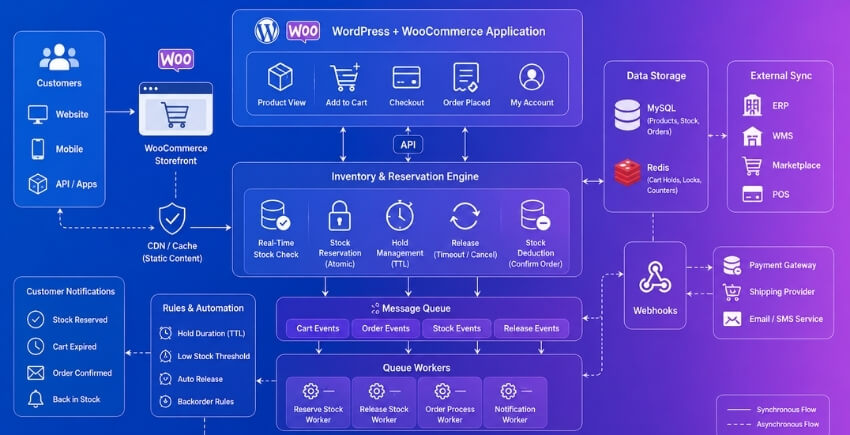
Why Real-Time Sync Is Necessary — and When It Fails
Here’s the core issue: most e-commerce platforms treat their own database as the source of truth for stock. But for stores connected to external systems, that assumption breaks down immediately.
Say your WooCommerce store shows 12 units of a SKU. Your ERP shows 8. A customer adds 3 to their cart, which reserves stock in WooCommerce — but the ERP hasn’t heard about it yet. Meanwhile, your wholesale team allocates 5 units directly in the ERP. Now you’ve got a collision. Neither system has the full picture.
Real-time sync matters because stock moves constantly. Sales, returns, manual adjustments, supplier receipts, warehouse picks — all of these change quantities in ways that don’t automatically reflect across disconnected systems.
Where sync fails most often:
- WP-Cron dependency. WooCommerce relies on WP-Cron to run scheduled tasks, including stock cleanup. WP-Cron only fires when someone visits your site. Low-traffic stores can go hours without a cron trigger. If your sync job runs via WP-Cron, it’s not actually real-time — it’s periodic at best, and broken at worst. Replace it with a system cron job:
/5 * php /var/www/html/wp-cron.php > /dev/null 2>&1
- API rate limits. Shopify’s REST API caps at 2 requests per second (leaky bucket model). Magento’s default API limits can throttle syncs under load. When your middleware hits a rate limit, it queues updates — and stale data fills the gap.
- Session expiry mismatches. If WooCommerce session expiry is set to 48 hours but your ERP releases holds after 30 minutes, you’ve got two systems disagreeing on whether stock is reserved. The ERP moves on; WooCommerce still holds it.
- Webhook failures. Webhooks are the standard mechanism for event-driven sync — a stock change fires a payload to your middleware, which updates downstream systems. But webhooks fail silently. If your endpoint is down or returns a non-200, Shopify retries a few times then stops. Magento does the same. You need dead-letter queues or failure logging to catch these.
The fix isn’t always adding more sync frequency. Sometimes it’s auditing what’s actually happening — checking webhook delivery logs, verifying cron is firing on schedule, and confirming which system wins when two updates conflict.
WMS and ERP Integration with SKU-Level Sync
A WMS (warehouse management system) and an ERP (enterprise resource planning system) need to be connected to your storefront at the SKU level. Not the product level — the SKU level. A product with 8 variations needs 8 independent stock figures flowing in both directions, not one aggregated number.
This sounds obvious. It’s surprisingly often wrong.
Common integration patterns:
Middleware/iPaaS: Tools like Celigo, Boomi, or custom-built Node/Python services act as the broker between your WMS/ERP and WooCommerce or Shopify. They receive events from one side and push updates to the other. This is the most flexible approach but also the most expensive to build and maintain.
Direct REST API sync: WooCommerce’s REST API (/wp-json/wc/v3/products/{id}/variations/{id}) accepts stock quantity updates directly. Shopify has its own Inventory API with location-aware endpoints. For lightweight setups — a single warehouse, moderate SKU count — scheduled batch updates via the API every few minutes can work, as long as you accept a small lag window.
ERP-native connectors: SAP, NetSuite, and similar platforms often have certified WooCommerce or Shopify connectors. These tend to be more reliable than hand-rolled integrations but impose their own sync schedules and data mapping constraints.
For SKU-level accuracy, three things need to be true:
- Every SKU in your storefront maps to exactly one SKU in your ERP/WMS. No fuzzy matching, no parent-product rollups.
- Stock reservations created in WooCommerce (when a customer adds to cart) are communicated to the ERP within seconds, not minutes. If the ERP doesn’t know about cart holds, it’ll allocate that stock elsewhere.
- The sync is bidirectional. Adjustments in the ERP — write-offs, returns, cycle counts — need to push back to the storefront immediately.
One practical step: add a stock_sync_log table or equivalent in your middleware that records every sync event with timestamp, SKU, source system, destination system, old quantity, and new quantity. When phantom stock appears, this log tells you exactly where the discrepancy started.
For WooCommerce multi-location setups specifically, stock sync gets more complex because you’re not managing one quantity per SKU — you’re managing per-location quantities. The Multi-Location Product & Inventory Management for WooCommerce by Plugincy plugin (pro version) includes a REST inventory API with webhook support, designed specifically for connecting external systems like WMS or ERP platforms to per-location stock data in WooCommerce. That means your warehouse management system can push a stock update to a specific location, rather than overwriting a single global quantity — which is what you actually need when you’re running multiple fulfillment points.
Using Stock Buffers to Prevent Overselling
A stock buffer is a simple concept: you don’t sell the last unit. You set a threshold — say, 2 or 3 units — and once stock drops to that number, the product shows as out of stock to customers, even though physical inventory still exists.
It’s a blunt instrument, but it works. And for stores where real-time sync has any lag at all, it’s close to essential.
Why buffers help with phantom stock specifically:
If your sync updates every 5 minutes, and 4 customers each add the same item to their cart within that window, you can sell the same units multiple times. A buffer absorbs that window. You’re essentially accepting that your displayed availability is slightly pessimistic in exchange for never overselling.
How to set it in WooCommerce:
There’s no native “stock buffer” setting in WooCommerce core. You handle it one of two ways:
Option 1 — Adjust stock quantity manually. If your actual stock is 50, enter 47 in WooCommerce. Crude, but effective for stable inventory. Falls apart fast when stock moves daily.
Option 2 — Use a filter hook:
add_filter( 'woocommerce_product_get_stock_quantity', function( $stock_quantity, $product ) {
    $buffer = 3;
    return max( 0, $stock_quantity - $buffer );
}, 10, 2 );
This applies a 3-unit buffer across all products without touching the actual stored quantity. You can make it conditional — apply it only to specific product categories, or only when stock falls below a certain threshold.
On Shopify, the equivalent is setting inventory policy to “stop selling when out of stock” and then keeping your Shopify quantity 2–3 units behind your actual WMS quantity. Some middleware tools let you configure this offset as part of the sync mapping.
Choosing the right buffer size:
There’s no universal number. A useful starting point:
- High-volume SKUs with fast sync (under 60 seconds): buffer of 1–2 units
- Moderate-volume SKUs with 5-minute sync intervals: buffer of 3–5 units
- Low-volume, slow sync, or marketplace-connected SKUs: buffer of 5–10% of typical stock level
The buffer should reflect your sync lag and your sales velocity. A SKU that sells 200 units a day needs a bigger buffer than one that sells 5.
One important note: buffers don’t replace proper cart hold logic or real-time sync. They’re a safety net, not the primary defense. If you’re relying heavily on buffers to avoid overselling, that’s a signal your sync architecture needs attention — not just a reason to keep padding the numbers.
Cart Abandonment Recovery Rate — Benchmarks and Context
Before you spend hours tightening your stock reservation logic, it helps to understand what you’re actually dealing with at scale. Cart abandonment isn’t a fringe problem — it’s the norm.
The widely cited industry average sits around 70–75% cart abandonment rate across e-commerce. Baymard Institute puts it at roughly 70.19% based on aggregated studies. That means for every 10 shoppers who add something to their cart, about 7 walk away without buying. On high-traffic stores, that number translates directly into a persistent phantom stock problem — items held, sessions expiring, stock never released cleanly.
How Recovery Rates Vary by Channel and Method
Not all recovery is equal. Here’s what the data actually looks like:
- Email recovery campaigns typically convert between 3–5% of abandoned carts. Top-performing sequences (three emails, timed over 24–72 hours) can push that closer to 8–10%.
- SMS recovery tends to outperform email on open rates but has a much smaller addressable audience — you need a phone number, and not everyone provides one.
- Push notifications are hit or miss. They recover a small slice but work best as a supplement, not a primary channel.
- Retargeting ads recapture a percentage too, but attribution is messy and the cost-per-recovery is often higher than email.
The honest takeaway: even an excellent recovery strategy won’t reclaim the majority of abandoned carts. Most of those sessions are gone. Which is exactly why your auto-release timer and stock reservation architecture need to be solid — you can’t afford to hold inventory indefinitely for customers who are never coming back.
Mobile vs. Desktop Abandonment
Mobile abandonment rates are consistently higher than desktop — often 85–90% vs. 65–70% for desktop. Part of this is genuine intent differences (browsing on mobile, buying on desktop later), but a significant chunk is friction. Long checkout forms, clunky payment flows, and slow page loads all contribute.
This matters for phantom stock because mobile sessions are shorter and more likely to expire mid-checkout. A customer on mobile who hits a slow checkout page and closes the tab has left a reserved SKU in limbo. If your checkout timeout is set to 60 minutes and your WP-Cron runs hourly, that stock could be locked for close to two hours from a session that lasted 45 seconds.
Reducing checkout friction on mobile directly reduces the rate of these abandoned-mid-checkout sessions. A faster, simpler checkout flow means fewer drop-offs at the point where stock is already reserved. One Page Quick Checkout for WooCommerce by Plugincy addresses this directly — the free version includes popup checkout and direct Buy Now flows that skip unnecessary cart steps, which cuts down on the mid-checkout abandonment that contributes most aggressively to orphaned cart inventory. If you want the full abandoned cart tracking and email recovery layer, that’s in the pro version, but the checkout simplification alone (free) is worth the install from a phantom stock reduction standpoint.
The Orphaned Cart Problem Within the Recovery Window
Here’s something that doesn’t get talked about enough: recovery emails and push notifications create a second wave of stock complexity. When you send a recovery email with a cart restore link, the customer clicks back in — and if they don’t complete the purchase, you now have a session that’s been refreshed, which can reset the cart expiry timer. Depending on how your platform handles session expiry, a single abandoned cart could get its hold duration extended multiple times through recovery attempts.
On WooCommerce, this is especially relevant. If you’re using a recovery plugin that restores the cart into a new session, the wp_woocommerce_sessions table gets a fresh entry with an updated expiry. That’s a new orphaned cart clock starting. Worth knowing when you’re configuring your auto-release timer — factor in that recovery traffic adds complexity to the cleanup cycle, not just conversions.
What Recovery Rate Should You Actually Expect?
If your store is seeing 4–6% cart recovery via email, you’re in normal territory. Above 8% is strong. Anything below 2% usually points to a problem with the recovery email itself — timing, subject line, or a broken restore link.
But the bigger number to track alongside recovery rate is inventory accuracy. A 6% recovery rate looks good on paper. If the other 94% of abandoned carts are creating phantom stock that causes overselling on your top SKUs, the recovery wins are getting eaten by fulfillment failures and customer service costs on the other end.
Track both. Recovery rate tells you how much revenue you’re recapturing. Inventory accuracy — specifically whether your available stock matches physical stock after a high-traffic period — tells you whether your stock reservation architecture is actually working.
A Note on “Orphaned” vs. “Abandoned”
These terms get used interchangeably but they’re not quite the same thing. An abandoned cart is one where the customer added items and left — there’s a recoverable session, potentially an email address, a chance to follow up. An orphaned cart is one where the session has already expired, the customer data is incomplete or gone, and the cart entry is essentially dead weight in your database. Both create phantom stock, but orphaned carts are the harder problem because there’s no recovery path — only cleanup.
Your recovery strategy should target abandoned carts (before session expiry). Your database maintenance and auto-release logic should handle orphaned carts (after expiry). Treating them as the same thing leads to either over-aggressive cleanup that kills live sessions, or under-aggressive cleanup that lets dead sessions hold stock for days.
Phantom Stock Prevention Checklist — Act Now
You’ve read how phantom stock forms, what it costs, and how the fixes work on each platform. This section is the quick-reference you keep open when auditing or setting up a store. Work through it top to bottom. Most items take under ten minutes to check.
Core Settings — Check These First
WooCommerce
- [ ] Stock management is on. WooCommerce → Settings → Products → Inventory → tick Enable stock management. Without this, nothing below matters.
- [ ] Hold stock timer is set. Same screen → Hold stock (minutes). Somewhere between 15 and 60 minutes is reasonable for most stores. Blank means stock is held forever.
- [ ] Low stock and out-of-stock notifications are configured. Set a recipient email. You want alerts before a customer hits an oversell.
- [ ] WP-Cron is actually running. The hold stock timer fires via WP-Cron. If your host disables it or traffic is very low, cron jobs can stall for hours. Confirm with a plugin like WP Crontrol, or replace WP-Cron with a real server cron.
Shopify
- [ ] Inventory tracking is on at the variant level. A product with tracking off will never trigger phantom stock — but it also won’t prevent overselling. Confirm per-SKU in the product editor.
- [ ] Cart reservation is understood. Shopify holds stock for 15 minutes at checkout, not in the cart. Know the difference. Don’t expect a cart sitting idle for an hour to have held stock.
Magento
- [ ] Backorders are set intentionally. Stores → Configuration → Catalog → Inventory → Backorders. If it’s set to “Allow Qty Below 0”, you’re intentionally allowing overselling. If it’s set that way by accident, fix it.
- [ ] Reservation cleanup cron is scheduled.
bin/magento inventory:reservation:list-inconsistenciesandbin/magento inventory:reservation:create-compensationsshould run regularly. Checkcrontab -lor your scheduler.
Cart and Session Cleanup
- [ ] Orphaned cart sessions are being cleared. In WooCommerce, check
wp_woocommerce_sessionsin your database. If row count is growing without bound, your session cleanup cron isn’t running. WooCommerce runswc_cleanup_sessions()automatically, but only if WP-Cron fires reliably. - [ ] Guest session expiry isn’t set too long. WooCommerce defaults to 48 hours for logged-out sessions. That’s fine. If you or a developer has increased this, stock tied to old guest carts stays reserved proportionally longer.
- [ ] You know the difference between abandoned carts and orphaned carts. Abandoned = customer left voluntarily, timer should release stock. Orphaned = cart entry persists in the database with no active session — these don’t self-release without explicit cleanup. Handle both separately.
Multi-Location and Warehouse Stores
If you’re running inventory across multiple warehouses, fulfillment centers, or physical locations, the checklist gets longer.
- [ ] Stock reservation is happening at the location level, not just site level. A global stock count hides the fact that your available units might all be in one warehouse while a customer is ordering for pickup at another.
- [ ] Per-location stock quantities are accurate. If you’re managing WooCommerce multi-location inventory, check that each product’s per-location quantity reflects reality — not a stale import or a transfer that wasn’t recorded.
- [ ] Cart location validation is active. When a customer switches locations mid-session, their cart items should revalidate against the new location’s stock. If that doesn’t happen automatically, you get phantom availability at the location level even when global stock looks fine.
- [ ] Low-stock thresholds are configured per location, not just globally. A threshold set at the global level can miss a stockout at a specific store.
If you’re using Multi-Location Product & Inventory Management for WooCommerce by Plugincy, the free version handles per-location stock quantities, location-specific stock status, cart location validation, and low-stock thresholds by location — cover those checklist items without writing custom code.
Sync and External Systems
- [ ] If you have a WMS or ERP connected, the sync is bidirectional. A one-way push from your ERP to WooCommerce won’t reflect stock reductions from online orders until the next sync cycle. That gap creates phantom stock.
- [ ] SKU-level sync is confirmed. Broad product-level sync misses variation stock. Confirm your integration maps at the SKU level, not just the parent product ID.
- [ ] Sync frequency matches your order volume. A nightly batch sync is fine for low-volume stores. If you’re doing 100+ orders a day, you need near-real-time or event-triggered updates — not a cron that runs at 2am.
- [ ] Sync failure alerts exist. A broken sync is silent by default. Set up a notification so you know within minutes, not days.
Oversell Protection
- [ ] Stock buffer is set on high-velocity SKUs. A buffer of 1–3 units on your fastest-moving products absorbs sync lag and race conditions. Not needed on everything, but worth it on anything that sells out within hours of a restock.
- [ ] Checkout timeout is enforced. If a customer sits on the checkout page for 30 minutes without completing the order, that stock should be released. Test this scenario on your store. Many stores have never tested it.
- [ ] You’ve run an inventory accuracy check recently. Pull a report comparing your WooCommerce stock counts against physical counts or your warehouse system. If numbers diverge by more than a few units, you have a phantom stock problem already in progress.
A Quick SQL Sanity Check (WooCommerce)
If you want a raw count of active cart sessions in your database:
SELECT COUNT(*)
FROM wp_woocommerce_sessions
WHERE session_expiry > UNIX_TIMESTAMP();
If that number is unexpectedly high — tens of thousands on a small store — your session table has grown out of control and WP-Cron isn’t keeping up. That’s not cosmetic. Those sessions are holding stock.
One Final Habit
Run through this checklist when you launch a store, again after any major plugin update, and any time you notice stock numbers looking wrong. Phantom stock isn’t usually a one-time fix. It comes back if the underlying settings drift — a hold timer that gets reset, a cron that stops firing after a server migration, a new integration that syncs one-way. Thirty minutes of audit every quarter is much cheaper than the customer service fallout from overselling.
FAQ — Common Questions About Phantom Stock and Abandoned Carts
What exactly is phantom stock?
Phantom stock (sometimes called ghost inventory) is stock that appears available in your system but isn’t actually purchasable — either because it’s tied up in abandoned carts, was never properly released after a failed order, or exists as a data error. A customer sees “In Stock,” tries to buy it, and either can’t complete checkout or you have to cancel the order afterward. Both outcomes hurt.
Does WooCommerce reserve stock when someone adds a product to their cart?
Not by default. WooCommerce only reduces stock when an order reaches Processing or Completed status — meaning a customer can sit with 5 units in their cart and nothing is actually held for them. Other customers can buy those same units.
Stock reservation (holding inventory the moment something enters the cart) requires either a plugin or custom code via hooks like woocommerce_add_to_cart.
What’s the difference between an abandoned cart and an orphaned cart?
An abandoned cart is one where the customer left without buying — common, expected, and recoverable. An orphaned cart is worse: it’s a cart that’s become detached from any active session or user, often because the session expired, the browser closed, or a failed payment left the order in limbo. The stock tied to it stays locked with nothing to release it. Both create phantom stock, but orphaned carts are harder to catch because there’s no active user to send a recovery email to.
How long does WooCommerce hold stock in a pending order before releasing it?
The default is 60 minutes. You can change this under WooCommerce → Settings → Products → Inventory → Hold Stock (minutes). Set it to 0 and WooCommerce won’t hold stock at all for pending orders. Set it too high and you’re creating phantom stock unnecessarily. Most stores land somewhere between 15 and 30 minutes depending on their average checkout completion time.
What’s a reasonable cart hold duration?
There’s no universal answer, but a practical benchmark: if your customers typically complete checkout in under 10 minutes, a 20–30 minute hold is plenty. High-ticket or B2B purchases where customers need approval? You might justify 60–90 minutes. The risk of going long is overselling. The risk of going too short is releasing stock mid-checkout from a real buyer. Test against your own checkout analytics.
Can phantom stock cause actual overselling?
Yes. If your stock reservation isn’t working properly — or you’re not reserving at cart stage at all — two customers can add the same last unit to their carts simultaneously. Whoever pays first gets the product. The other gets a problem. On low-stock SKUs, this happens more than most store owners realize, especially during flash sales or promo periods.
Why does Shopify handle this differently from WooCommerce?
Shopify uses a checkout-stage reservation model. Stock isn’t held at the cart — it’s reserved when the customer enters the checkout flow, for a set window (typically 10 minutes, though this varies by plan and payment method). That’s a more conservative approach that reduces phantom stock but means a cart full of items doesn’t lock anything until they click “Checkout.” WooCommerce’s model is more flexible but requires more configuration to behave safely.
What happens to orphaned cart sessions in WooCommerce’s database?
They pile up in the wp_woocommerce_sessions table. Each session stores cart data as serialized PHP, keyed to a session ID. When the session expires (default: 48 hours for guests, longer for logged-in users), WP-Cron is supposed to clean it up via the woocommerce_cleanup_sessions scheduled task. If WP-Cron isn’t running reliably — which is common on low-traffic or misconfigured servers — those sessions stick around. The cart data stays, and if stock was reserved in any way against those sessions, the stock doesn’t come back.
Run this to check your session table size:
SELECT COUNT(*) FROM wp_woocommerce_sessions;
SELECT SUM(LENGTH(session_value)) / 1024 / 1024 AS size_mb FROM wp_woocommerce_sessions;
Anything over 50,000 rows on a small-to-medium store deserves attention.
Does Magento reserve stock at cart or at checkout?
Magento (Adobe Commerce) reserves stock at the order placement stage by default — not at cart. However, Magento 2.3+ introduced an inventory reservation system tied to the Inventory Management module that creates reservations when an order is placed and compensates when it’s canceled or shipped. If you’re not using the full Inventory Management module, your reservation behavior may be different. Check your inventory_reservation table to see what’s actually being held.
How do I know if phantom stock is causing my inventory inaccuracies?
A few signals: your stock counts drift over time without matching actual sales, customers report adding items to cart that then disappear, or you’re regularly having to manually adjust stock after orders that didn’t complete. Run a comparison between your recorded sales quantity (from completed orders) and the stock reduction shown in WooCommerce — if those don’t match, something’s holding stock it shouldn’t be.
Does reducing cart abandonment actually fix phantom stock?
Partly. Fewer abandoned carts means fewer stuck reservations. But the root issue is reservation architecture — even a 5% abandonment rate can create phantom stock if your auto-release timer isn’t working. Fix both: reduce abandonment with a faster checkout flow, and fix your stock release mechanism so that when abandonment does happen, stock comes back automatically.
If you want to tackle the checkout side of it, One Page Quick Checkout for WooCommerce by Plugincy has a free cart recovery tracking dashboard that logs abandoned cart data (product, price, session) so you can at least see what’s being abandoned. The free version also includes direct checkout and popup checkout flows that cut the number of steps between intent and purchase — fewer steps means fewer drop-offs mid-session. Automated recovery emails with restore links are in the pro version if you want to go further, but the free tracking foundation is already useful for monitoring the problem.
Can a WMS or ERP integration make phantom stock worse?
It can, if the sync is one-directional or delayed. If your WooCommerce store pushes stock levels to your WMS but doesn’t pull updates back in real time, the two systems diverge. A cart hold in WooCommerce that never gets communicated to the ERP means the ERP still shows that unit as fully available. SKU-level sync needs to go both ways, and the sync frequency matters — a 15-minute polling interval is a long time during a sale.
Is phantom stock the same as a stockout?
No. A stockout is when you genuinely have zero units. Phantom stock is when your system thinks you have units but you don’t — or thinks you don’t have units when you actually do (a reverse phantom, which happens when released stock doesn’t get credited back). Stockouts are a supply problem. Phantom stock is a data accuracy problem. Both cause lost sales, but the fixes are completely different.
Does multi-location inventory make phantom stock harder to manage?
Significantly harder. With a single inventory pool, a phantom stock problem affects one number. With per-location stock, you can have phantom stock at one warehouse while another has real available units — and if your storefront isn’t showing per-location accuracy, customers see the aggregate and try to order from a location that’s effectively out. This is why per-location stock reservation and real-time display matter more as you add locations.
Conclusion — Fix Phantom Stock and Protect Both Revenue and Customer Trust
Phantom stock is a quiet killer. It doesn’t announce itself with error messages or failed deployments. It just sits there — invisible units that don’t exist, silently blocking real sales, misleading buyers, and slowly eroding the trust that keeps customers coming back.
The root cause is almost always the same: stock gets reserved when a cart is created, and nothing releases it when that cart is abandoned. Whether you’re running WooCommerce with WP-Cron delays, a Shopify store without a proper auto-release timer, or a Magento setup where checkout timeouts are misconfigured, the outcome is identical. Ghost inventory accumulates. Overselling follows. Stockouts confuse customers who can see a product listed but can’t actually buy it.
What this article has walked through isn’t theoretical. It’s a practical sequence:
- Set a realistic cart hold duration — somewhere in the 30-to-60-minute range for most stores, shorter for high-demand SKUs
- Make sure your platform’s auto-release mechanism actually fires — in WooCommerce that means confirming WP-Cron isn’t broken, or switching to a proper server cron
- Clean up your wp_woocommerce_sessions table and orphaned cart entries regularly, not just once
- Audit your stock reservation architecture — especially if you’re running multi-location inventory, where per-location stock can drift out of sync faster than you’d expect
- Connect your WMS or ERP through a proper real-time inventory sync layer, not a nightly batch job that’s already 12 hours stale by morning
If you’re operating across multiple warehouses or pickup locations, the complexity multiplies. Per-location stock figures need to stay accurate independently — an abandoned cart at your London warehouse shouldn’t tie up stock that your Manchester location could be selling right now. If you’re handling that with WooCommerce and need per-location stock tracking, order routing, and location-aware cart validation without custom development, Multi-Location Product & Inventory Management for WooCommerce by Plugincy handles all of that in the free version — separate stock quantities per location, cart validation against the selected location, and location-specific availability rules out of the box.
But the plugin choice is secondary. The primary fix is always procedural:
Know your cart-to-checkout conversion window. Set a release timer shorter than it. Verify it actually runs. Audit the database when something looks off.
That’s the whole framework. Everything else — plugins, SQL queries, ERP integrations — is just tooling to execute it reliably at scale.
The business case is simple too. Inventory accuracy directly affects both sides of your revenue. Too much phantom stock means stockouts that turn real buyers away. Too little buffer means you’re sending humans to check warehouse shelves because your numbers can’t be trusted. Neither is acceptable when the fix is this well-understood.
One more thing worth keeping in mind: stock reservation isn’t a set-and-forget config. Your cart hold duration that worked fine at 500 monthly orders may be completely wrong at 5,000. Your SKU mix changes. Your product launch traffic spikes don’t behave like your normal demand. Revisit these settings after major catalog changes or traffic events — not just once during initial setup.
Get the fundamentals right, and phantom stock stops being a chronic problem. It becomes an edge case you handle quickly when it appears — not a mystery that costs you revenue every week.
