

Order came in, payment went through — but WooCommerce stock is sitting exactly where it was. Is this a bug, or a settings problem you missed?
If you’re staring at a stock quantity that refused to move after a completed sale, you’re not alone. This is one of the most searched WooCommerce frustrations out there, and the good news is that in the vast majority of cases, the root cause is one of just four to six specific, fixable things. Nothing requires a developer. You just need to know where to look.
Quick answer: WooCommerce stock does not reduce after an order for four main reasons — (1) Stock Management is not enabled at the product or global level in WooCommerce Settings > Products > Inventory, fix it by turning on Manage Stock for the product; (2) the order sits in the wrong status, such as Pending Payment or On Hold rather than Processing or Completed, fix it by checking your Order Status flow and Hold Stock Timer settings; (3) a payment gateway delay is holding the order back, which happens with BACS or other manual payment gateways that don’t auto-confirm payment, fix it by either manually moving the order or adjusting gateway behavior; and (4) a plugin conflict or cache layer is interrupting the woocommerce_reduce_order_stock hook, fix it by testing in Safe Mode and flushing your Page Cache, Object Cache, and Transient Cache.
Below we will walk through every cause in detail, with exactly where to click to fix it.
Why Is WooCommerce Stock Not Decreasing? (Direct Answer)
Stock not going down after an order is almost always one of four things: stock management isn’t enabled for the product, the order landed in a status that doesn’t trigger a deduction, a plugin is interfering with the reduction process, or a cache layer is hiding the updated number from you.
WooCommerce reduces stock at a specific moment in the order flow — not at checkout, not at payment, but when an order reaches Processing or Completed status. If something interrupts that transition, the quantity sits unchanged.
The Four Core Reasons, Plain and Simple
1. Stock management is off. Every product in WooCommerce has its own Manage Stock checkbox inside the product editor. The global toggle in WooCommerce Settings > Products > Inventory enables inventory tracking site-wide, but it means nothing if the individual product-level setting is unchecked. Both have to be on. If Manage Stock is off at the product level, WooCommerce won’t touch the Stock Quantity field regardless of what the order does.
2. The order status never triggered a deduction. WooCommerce only reduces stock automatically when an order moves to Processing or Completed. Orders sitting in Pending Payment or On Hold don’t reduce stock by default — that’s intentional. The Hold Stock Timer in WooCommerce Inventory Settings temporarily reserves stock for pending orders, but that’s a soft hold, not a real deduction. Once the timer expires without payment, WooCommerce cancels the order and releases the hold. If your orders are staying stuck in Pending Payment, nothing gets deducted.
3. A payment gateway isn’t completing the order. Gateways like BACS (Direct Bank Transfer) and other manual payment methods intentionally leave orders in On Hold or Pending Payment because WooCommerce can’t confirm payment automatically. Stock reduction only fires when WooCommerce is confident the payment succeeded. With BACS, you have to manually move the order to Processing or Completed in the WordPress Admin Dashboard — only then does the deduction run.
4. Something is blocking the reduction hook. WooCommerce fires the woocommerce_reduce_order_stock hook to trigger the actual stock subtraction. A plugin conflict, a bad snippet in functions.php, or a Theme Function Conflict can intercept or suppress this hook entirely. When that happens, the order completes fine but the Stock Quantity never changes.
What Makes This Confusing
The symptom looks identical across all four causes — stock just doesn’t move. That’s why people jump straight to “it’s a bug” when half the time it’s a settings issue they can fix in two minutes.
Cache adds another layer of confusion. Page Cache, Object Cache, Transient Cache, and Hosting-Level Cache can all show you a stale stock number even after WooCommerce has already reduced it correctly. Before you assume stock isn’t decreasing, purge every cache layer and refresh. You might find WooCommerce did its job and you’re looking at a cached copy of old data.
One More Scenario: Multi-Location Stock
If you’re running multi-location or multi-warehouse inventory, the problem takes a different shape. WooCommerce’s native stock field is a single global number — it has no concept of which warehouse an order is being fulfilled from. If you’re managing Multi-Location Stock Management across several warehouses or pickup points, a deduction from the wrong location (or no location at all) can look like stock isn’t reducing when it actually deducted from somewhere you weren’t watching.
For stores with this setup, a dedicated plugin that handles per-location inventory is the right fix — not a workaround. Multi-Location Product & Inventory Management for WooCommerce by Plugincy handles exactly this: in the free version, each product-location combination holds its own Stock Quantity, so when an order is assigned to a location, only that location’s inventory decreases. You’re not chasing one global number across five warehouses anymore.
The short version: before you go hunting for a plugin conflict or calling your host, check the Manage Stock setting and check the order status. Those two things account for the majority of cases. Everything else — hook conflicts, cache, Payment Gateway Integration issues, multi-location mismatches — comes after.
Cause 1 — Stock Management Is Not Enabled
This is the most common reason, and the fix takes about 30 seconds. If WooCommerce doesn’t know you want it to track stock, it won’t touch it. There are two places this needs to be switched on — one global, one per-product. Both matter.
Enabling Manage Stock Globally in WooCommerce Settings
The global switch lives in your WordPress Admin Dashboard under WooCommerce → Settings → Products → Inventory.
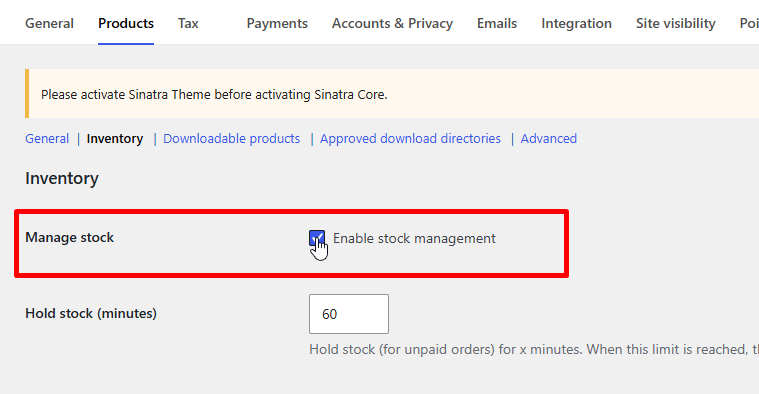
Look for the checkbox labeled Enable stock management. If that’s unchecked, WooCommerce is completely ignoring inventory across your entire store. It won’t reduce stock, it won’t show low-stock warnings, nothing. Check it, then hit Save changes.
While you’re on that screen, it’s worth confirming a couple of related fields are set sensibly — Hold Stock (minutes) controls how long WooCommerce reserves stock for unpaid orders before releasing it back. Leave it blank and stock is held indefinitely for pending orders. Set it to something like 60 if you don’t want stock tied up forever by customers who never complete payment.
Enabling Manage Stock at the Individual Product Level
Here’s where people get caught even after the global setting is on. Each product has its own Manage Stock toggle, and it defaults to off.
Go to the product in question. Open the Inventory tab inside the product data panel. You’ll see a checkbox labeled Manage stock?
If that’s unchecked, WooCommerce won’t track or reduce that product’s stock quantity — regardless of what the global setting says. Check it. A Stock Quantity field will appear. Enter the current stock number, make sure Stock Status is set to In stock, then save the product.
For variable products, this gets one layer deeper. Each variation can manage its own stock independently. If you’ve set stock at the variation level, the parent product’s manage-stock setting doesn’t automatically cascade down. You need to open each variation, check Manage stock? there too, and set the quantity per variation.
Quick checklist before moving on:
- Global stock management: WooCommerce → Settings → Products → Inventory → Enable stock management ✓
- Product-level manage stock checkbox: checked on the specific product’s Inventory tab ✓
- Stock Quantity field: a real number entered (not blank) ✓
- For variable products: each variation’s Manage stock checkbox: checked ✓
If both toggles aren’t on, nothing else in this article will matter. Get these right first, then see if stock reduces after the next test order.
Cause 2 — Incorrect Order Status (When Does Stock Deduction Actually Trigger?)
Order status is one of the most misunderstood parts of WooCommerce stock management. A lot of store owners see stock sitting at the same number after a sale and immediately assume something is broken. Often, nothing is broken. WooCommerce is just waiting for the right order status before it touches inventory.
Why Stock Decreases on Processing and Completed Statuses
WooCommerce reduces stock when an order moves into Processing or Completed status. That’s it. Those are the two triggers.
When a payment goes through — a credit card via Stripe, a PayPal transaction, any gateway that confirms payment instantly — WooCommerce flips the order to Processing automatically. At that exact moment, the woocommerce_reduce_order_stock hook fires, and stock quantities drop.
Completed status also triggers the deduction, but only if stock wasn’t already reduced at Processing. In practice, most orders reduce stock at Processing. Completed is the fallback for orders that skip the Processing step entirely — which is rare in standard WooCommerce setups.
So if your orders are reaching Processing or Completed and stock still isn’t moving, the order status is not your problem. Keep reading the other causes. But if your orders are stuck in a different status — that’s where to look.
Why Stock Does Not Decrease on Pending Payment and On Hold Statuses
Pending Payment means the customer placed the order but payment hasn’t been confirmed yet. WooCommerce deliberately holds off on reducing stock here. Deducting inventory for an order that may never get paid would give you inaccurate stock counts and potentially block real paying customers.
On Hold works similarly. The order exists, it’s acknowledged, but payment isn’t confirmed. WooCommerce holds the order open and waits.
This is the exact behavior you’ll see with BACS (Direct Bank Transfer) and other Manual Payment Gateways. When a customer pays by bank transfer, WooCommerce has no way to verify payment automatically — so the order lands on On Hold and stock does not reduce immediately.
This surprises a lot of store owners. The order looks real. The customer hit “Place Order.” But until you manually move that order to Processing or Completed inside the WordPress Admin Dashboard, inventory stays untouched.
The fix here is straightforward: once you verify the payment (you check your bank, you see the transfer), go to WooCommerce → Orders, open the order, and change its status to Processing or Completed. Stock reduces the moment you save that change.
If you want WooCommerce to reduce stock even on On Hold orders — some stores prefer this for reservation-style setups — you’d need a small code addition. Drop this in your functions.php or a site-specific plugin:
add_action( 'woocommerce_order_status_on-hold', 'reduce_stock_on_hold', 10, 1 );
function reduce_stock_on_hold( $order_id ) {
    $order = wc_get_order( $order_id );
    if ( $order && ! $order->get_data_store()->get_stock_reduced( $order ) ) {
        wc_reduce_stock_levels( $order_id );
    }
}
That said — think carefully before doing this. If the customer never pays and you cancel the order, you’ll need to restore stock manually or make sure your setup handles it. It’s a trade-off.
Hold Stock Timer — How It Works and How to Configure It
The Hold Stock Timer is a WooCommerce feature sitting in WooCommerce Settings → Products → Inventory. It’s easy to miss and it directly affects whether stock gets held or released.
Here’s what it does: when an order is in Pending Payment or On Hold, WooCommerce can hold that stock — treating it as reserved — for a set number of minutes. Once that timer expires, if the order hasn’t moved to Processing or Completed, WooCommerce cancels the order automatically and releases the reserved stock back.
The default value is 60 minutes. You can set it to any number, or leave it blank to disable the timer entirely.
To configure it:
- Go to WooCommerce → Settings → Products → Inventory
- Find the Hold Stock (minutes) field
- Enter a number (e.g.
120for two hours,4320for three days) or clear the field to disable automatic cancellation
For stores using bank transfer or other manual gateways, the default 60 minutes is often too short. A customer might take a day or two to complete their bank transfer. If WooCommerce cancels the order at the 60-minute mark, the customer’s payment may arrive after the order no longer exists — which creates a support headache.
Set this to something realistic for your payment window. If you accept BACS payments, 4320 minutes (three days) is a reasonable starting point. If you disable it entirely, just know that On Hold orders will accumulate indefinitely unless you manage them manually.
One thing to understand: the Hold Stock Timer doesn’t reduce stock. It reserves it temporarily and then either triggers cancellation (which releases stock) or lets the order sit until you act. Actual stock reduction still only happens when the order reaches Processing or Completed.
Cause 3 — Payment Gateway Delay or BACS / Manual Payment
Not every payment method triggers the same order flow. This is one of those causes that trips up a lot of store owners because the stock looks fine in WooCommerce, all the settings are correct — and yet inventory still doesn’t drop after a sale.
What Happens with BACS (Direct Bank Transfer) and Other Manual Gateways
When a customer pays by BACS (Direct Bank Transfer), check, or any other manual payment gateway, WooCommerce doesn’t receive an instant payment confirmation. There’s no automated signal saying “this payment went through.” So instead of moving the order straight to Processing, WooCommerce holds it at Pending Payment or On Hold.
Here’s the part that matters: WooCommerce only reduces stock when an order reaches Processing or Completed status. That’s it. If the order is sitting at Pending Payment or On Hold, stock won’t move.
With BACS specifically, the order goes to On Hold by default. WooCommerce does reduce stock for On Hold orders — but only if the Hold Stock timer is active and hasn’t expired. If you’ve disabled the Hold Stock Timer (found under WooCommerce > Settings > Products > Inventory), orders can sit at On Hold indefinitely with no stock deduction at all.
To verify this:
- Go to WordPress Admin Dashboard > WooCommerce > Settings > Products > Inventory
- Check the Hold Stock (minutes) field — if it’s blank or set to 0, the timer is disabled
- Set a reasonable value (60 minutes is a common default) to re-enable it
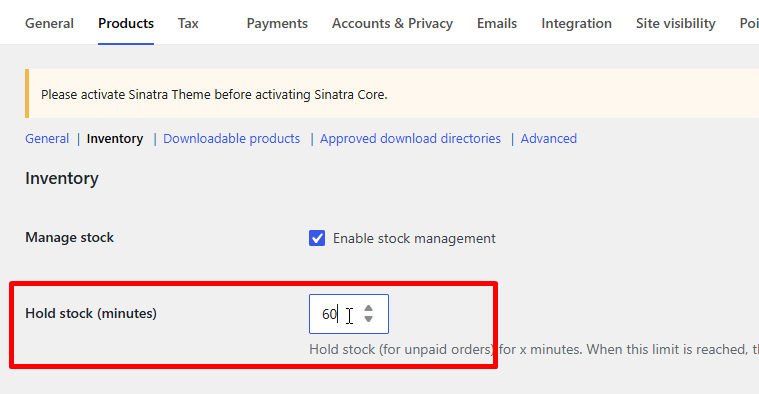
Once you manually mark a BACS order as Processing after confirming the bank transfer, WooCommerce will trigger stock reduction at that point — assuming everything else is configured correctly.
The same logic applies to cheque payments and any custom manual gateway. They’re all offline by nature. WooCommerce can’t auto-confirm them, so the order waits.
Orders Getting Stuck in Pending Because of Gateway Delay
This is slightly different from BACS. With online gateways — card payments, PayPal, Stripe — the expectation is that WooCommerce gets an instant payment confirmation via webhook or IPN, and the order moves to Processing automatically. Stock drops. Done.
But sometimes that handoff breaks.
If your Payment Gateway Integration is misconfigured, the webhook URL is wrong, or the gateway’s notification is delayed or blocked, the order never gets that status update. It stays at Pending Payment. No stock deduction happens.
Common reasons this occurs:
- The gateway’s IPN or webhook URL is incorrect in your gateway dashboard
- A security plugin or firewall is blocking incoming POST requests from the gateway
- The gateway is in test/sandbox mode and not properly processing live confirmations
- A server timeout cuts the response before WooCommerce can process it
Check this first: Go to WooCommerce > Orders and filter by Pending Payment. If you’re seeing completed sales stuck there — customers paid, money landed — then it’s almost certainly a gateway communication issue, not a WooCommerce stock setting problem.
The fix depends on your specific gateway, but the general steps are:
- Log into your payment gateway’s dashboard and verify the webhook/IPN URL matches your store’s endpoint (usually
https://yourstore.com/?wc-api=WC_Gateway_[GatewayName]) - Check your server error logs for failed incoming requests
- Temporarily disable any firewall or security rules that might be rejecting external POST calls
- Test with the gateway’s built-in webhook testing tool if available
Once the gateway correctly notifies WooCommerce, the order status updates to Processing and stock deducts as normal. If you’re manually processing orders in the meantime, you can also go into each stuck order in the WordPress Admin Dashboard and manually move it to Processing — that will trigger stock reduction immediately.
One thing worth knowing: the woocommerce_reduce_order_stock hook fires during this status transition. If a custom gateway or a piece of custom code is short-circuiting that transition — skipping Processing and jumping straight to Completed without going through the normal order flow — stock reduction can get missed entirely. That’s a less common scenario, but it happens with heavily customized checkout flows.
Cause 4 — Plugin Conflict
Plugin conflicts are one of the more frustrating causes of stock not reducing, because everything in WooCommerce looks correctly configured. Stock management is enabled. The order status is right. But stock still doesn’t move. A third-party plugin is almost always the culprit when that’s the case.
Plugins that touch the cart, checkout, orders, or inventory can interfere with WooCommerce’s stock deduction process in several ways — they might hook into the order flow at the wrong point, suppress the default stock reduction behavior, or override core functions entirely.
How to Identify a Plugin Conflict (Safe Mode and Deactivation Method)
There are two practical approaches: the deactivation method and WooCommerce Safe Mode (if you’re on WooCommerce 8.3+).
The Deactivation Method
This is the most reliable way to isolate a conflict. The steps are straightforward:
- Go to WordPress Admin Dashboard → Plugins → Installed Plugins
- Deactivate all plugins except WooCommerce
- Place a test order and check if stock reduces
- If it does, reactivate plugins one at a time, testing after each until the problem returns
- The last plugin you activated when the bug reappears is the conflict source
It sounds tedious. It is. But it’s definitive.
If you can’t deactivate everything on a live store, duplicate your site to a staging environment first. Most managed WordPress hosts offer this with one click.
WooCommerce Safe Mode
If you’re running a recent version of WooCommerce, you can use the built-in health check tool. Go to WooCommerce → Status → Tools and look for the option to enable Safe Mode. This lets WooCommerce temporarily disable third-party plugins and your active theme without affecting live visitors — you’re the only one who sees the “clean” version.
Run a test order in Safe Mode. If stock deducts correctly, you’ve confirmed a plugin or theme conflict without touching your live site.
What types of plugins cause this?
The usual suspects are:
- Inventory management plugins that add their own stock-reduction logic
- AJAX add-to-cart plugins that alter the order creation flow
- Checkout customization plugins that change how orders are submitted
- Order management plugins that manipulate order status transitions
- Any plugin that adds custom order statuses, because WooCommerce only reduces stock on specific statuses by default
Once you’ve identified the conflicting plugin, check its settings first. Many inventory-related plugins have their own stock management toggle — if both WooCommerce and the third-party plugin are trying to manage stock simultaneously, you’ll get unpredictable results. Disable stock management in one of them.
If the plugin doesn’t have a setting that resolves it, contact the plugin’s support. If it’s abandoned or unsupported, you may need to replace it.
What to Do When the woocommerce_reduce_order_stock Hook Is Being Overridden
WooCommerce triggers stock reduction by calling wc_reduce_stock_levels(), which fires via the woocommerce_reduce_order_stock action hook. If another plugin (or code in your functions.php) removes or replaces this hook, stock will never deduct — regardless of order status.
How to check if the hook is being removed
Search your theme’s functions.php and all active plugin files for:
remove_action( 'woocommerce_reduce_order_stock' )Also search for woocommerce_product_reduce_stock and wc_reduce_stock_levels — some plugins override the function directly rather than unhooked the action.
If you find a remove_action call targeting woocommerce_reduce_order_stock, that’s your problem. Remove that line (or the entire block if it was intentional custom logic that’s now stale).
If you need to re-attach the hook manually
If the hook was removed by a plugin you can’t edit, you can re-add it from your theme’s functions.php or a site-specific plugin:
add_action( 'woocommerce_order_status_processing', function( $order_id ) {
    $order = wc_get_order( $order_id );
    if ( $order && ! $order->get_data_store()->get_stock_reduced( $order ) ) {
        wc_reduce_stock_levels( $order_id );
    }
}, 10, 1 );
This checks whether stock has already been reduced for the order (to avoid double-deducting) and then calls wc_reduce_stock_levels() directly on the processing status transition.
A word of caution: custom code fixes layered on top of a broken plugin create technical debt. The cleaner solution is to find which plugin is removing the hook and fix or replace it. The code above is a workable temporary patch, not a permanent architecture.
One more thing to check
Some plugins filter woocommerce_can_reduce_order_stock and return false, which tells WooCommerce not to reduce stock for that order. Search your codebase for that filter as well. If a plugin is applying it broadly rather than selectively, every order will be affected.
Cause 5 — Caching Issues
Caching is one of those problems that looks like a WooCommerce bug but isn’t. Stock deducts correctly. The order goes through fine. But when you check the product page — or even the WordPress Admin Dashboard — the old stock number is still sitting there. That’s cache lying to you.
Page Cache and Object Cache — Why Stock Updates Are Not Showing
When a customer places an order, WooCommerce updates the Stock Quantity in the database immediately (assuming everything else is configured correctly). The deduction happens. The number in wp_postmeta changes. But what the browser — or even your admin screen — displays might be a cached version of the page from before that order existed.
There are a few layers where this can happen.
Page Cache stores a static HTML copy of your product pages. A shopper visits your store, and instead of WordPress building the page fresh from the database, the server just hands them the pre-built HTML file. Fast for performance. Bad for real-time stock numbers. If your cache hasn’t expired or been purged, a product could show “In Stock — 5 remaining” even after you’ve sold all 5.
Object Cache is different. It caches PHP objects and database query results in memory — usually via Redis or Memcached. WooCommerce uses WordPress’s object cache heavily. If your hosting has a persistent object cache enabled, things like Stock Status, transients, and product meta can get stuck in memory even after WooCommerce writes new values to the database. The write succeeds. The cache read returns the old value. You see stale stock.
Transient Cache is a layer inside WordPress itself — wp_options rows with expiry times. WooCommerce stores certain calculated values as transients. If a transient is still valid when you check stock, WordPress returns the cached value rather than re-querying.
The key thing to understand: none of this means your stock isn’t reducing. It means you’re not seeing the reduction. Check the actual database value (or temporarily disable cache) before assuming WooCommerce is broken.
How to Clear Hosting-Level Cache and Transient Cache
The steps depend on your stack, but here’s what to work through.
1. Clear your page cache plugin
If you’re using a caching plugin, find its “Purge All” or “Clear Cache” option and run it. Most have a button in the admin toolbar. After clearing, reload the product page and check the stock number directly in WooCommerce Settings > Products > Inventory or on the product edit screen.
2. Clear Hosting-Level Cache
Managed hosts (Kinsta, WP Engine, Flywheel, SiteGround, etc.) layer their own server-side cache on top of everything WordPress does. Your caching plugin won’t touch this.
- Kinsta: MyKinsta dashboard → your site → “Clear Cache”
- WP Engine: WP Engine bar in admin → “Purge All Caches”
- SiteGround: SG Optimizer plugin → Caching tab → “Flush Cache”
If you’re on a VPS or custom server with Nginx FastCGI cache or Varnish, you’ll need to purge those directly — either via your server panel or by flushing through the command line.
3. Flush Transient Cache
Go to WordPress Admin Dashboard and use a plugin like WP-Optimize or WP Sweep to delete expired transients — or all transients if you want a clean slate. You can also run this via WP-CLI:
wp transient delete --allThat clears the full transient cache in one shot.
4. Deal with Object Cache (Redis / Memcached)
If your host has persistent object caching enabled, you need to flush it separately. Via WP-CLI:
wp cache flushOr from your hosting dashboard — most managed hosts expose a “Flush Redis” or “Flush Object Cache” button. After flushing, WooCommerce will rebuild its cached data fresh from the database on the next request.
5. Verify the stock number is actually correct after clearing
Open the product in your admin, scroll to the Inventory tab, and check the Stock Quantity field directly. If it shows the right number after cache is cleared, caching was the entire issue. No further digging needed.
One practical note: if stock numbers are consistently showing stale data on the frontend, check whether your caching plugin has an option to exclude WooCommerce pages (cart, checkout, account pages are usually excluded by default, but product pages sometimes aren’t). Setting product pages to bypass cache — or at least to cache for a very short time — is usually the right long-term fix rather than manually purging after every order.
Cause 6 — Custom Code or Theme Function Conflict
Sometimes the problem isn’t a plugin at all. It’s a snippet someone added to functions.php six months ago, a theme’s built-in WooCommerce customization, or a helper function copied from a forum post. These sit quietly in your codebase and can silently intercept WooCommerce’s stock reduction process without triggering any visible error.
How Custom Code Breaks Stock Reduction
WooCommerce reduces stock by firing the woocommerce_reduce_order_stock hook. If any custom code removes that hook, returns early from a hooked function, or directly manipulates the order status flow before stock gets a chance to deduct — stock just won’t drop.
Common culprits:
- A
remove_actioncall targetingwoocommerce_reduce_order_stock - A custom order handler that skips WooCommerce’s native order processing pipeline
- Theme functions that modify order status on the fly and land on
pendingoron-holdinstead ofprocessing - A snippet that filters
woocommerce_payment_complete_order_statusand returns an unexpected status
The tricky part is that none of these throw a PHP error. The order completes, the customer gets a confirmation email, everything looks normal — except stock.
How to Check Your functions.php
Open your active theme’s functions.php (or your child theme’s version) and search for any of these strings:
woocommerce_reduce_order_stockwoocommerce_payment_complete_order_statuswoocommerce_order_statusremove_action
If you find a remove_action or remove_filter targeting any WooCommerce stock or order hook, that’s almost certainly your problem. Comment it out temporarily and place a test order.
Also check any custom plugins or mu-plugins in wp-content/mu-plugins/ — code placed there loads automatically and is easy to forget.
Check Your Theme
Some themes — particularly multipurpose ones — ship with their own WooCommerce integration files. These live inside a woocommerce/ folder inside the theme, or in a dedicated inc/woocommerce.php file. Open those and search for the same hook names above.
If you’re using a theme framework (like a parent theme with a child), check both.
Quickest test: temporarily switch to Storefront or Twenty Twenty-Four from the WordPress Admin Dashboard → Appearance → Themes. Place a test order. If stock deducts correctly, the problem is in your theme’s code.
The Fix
Once you’ve identified the offending snippet, you have two options:
Option 1 — Remove it. If you don’t know why it was added, delete it, test everything, and monitor for a few days.
Option 2 — Rewrite it properly. If the custom code had a real purpose (say, skipping stock reduction for a specific product type), the right approach is to use the hook correctly rather than removing core behavior entirely. Here’s what a correct conditional stock skip looks like if you genuinely need one:
add_action( 'woocommerce_reduce_order_stock', function( $order ) {
    // Only skip for a specific product category — example use case
    foreach ( $order->get_items() as $item ) {
        $product = $item->get_product();
        if ( $product && has_term( 'virtual-service', 'product_cat', $product->get_id() ) ) {
            return; // skip stock reduction for this category only
        }
    }
}, 5 );
That’s a developer path — most store owners should just remove the bad snippet and let WooCommerce handle stock natively.
Theme Function Conflict vs Plugin Conflict
These can look identical from the outside. The easiest way to separate them: deactivate all plugins and retest with your current theme. If stock still doesn’t reduce, the theme is the problem. If stock does reduce with no plugins, reactivate them one by one until it breaks again — that’s Cause 4 territory (plugin conflict), which was covered earlier.
If deactivating plugins and switching themes both fix the issue individually, you likely have two things fighting each other — a theme function and a plugin both hooking into the same part of the order flow.
Short answer: search your codebase for woocommerce_reduce_order_stock, remove anything that strips or bypasses it without a valid reason, and test with a real order. That resolves this cause in almost every case.
Stock Deduction Problems in a Multi-Location Store
Running a single WooCommerce store with one global stock count is straightforward. The moment you introduce multiple warehouses, pickup locations, or fulfilment points, stock deduction gets a lot more complicated — and a lot easier to misconfigure.
The core issue is this: WooCommerce has one stock field per product (or per variation). It has no built-in concept of “which location fulfilled this order.” So if you’re managing per-location inventory through a dedicated plugin, that plugin has to intercept the order and deduct from the right location’s stock — not just the global WooCommerce stock total. When that interception breaks down, you’ll see stock either not deducting at all, deducting from the wrong location, or deducting globally when it should be location-specific.
Why the Standard WooCommerce Stock Deduction Doesn’t Apply Here
Standard WooCommerce fires the woocommerce_reduce_order_stock hook when an order moves into Processing or Completed status. That hook reduces the product’s global stock quantity — the single number sitting in WooCommerce Settings > Products > Inventory.
A multi-location plugin stores per-location stock in its own database tables or custom post meta, completely separate from that global field. If your multi-location plugin doesn’t hook into the order flow at the right moment, that location-specific stock never gets touched. The global WooCommerce stock might reduce correctly, or it might not — depending on how your plugin is set up — but the per-location numbers will stay wrong either way.
Common Configuration Failures in Multi-Location Setups
Location not assigned to the product. This is the most frequent cause. Your multi-location plugin can only deduct from a location if the product is actually assigned to one. If a product exists in WooCommerce but has no location assignment in the plugin, the plugin has nothing to deduct from — so it skips it, or falls back to doing nothing.
Check your product’s location assignment panel. Every product that should have per-location inventory needs an explicit assignment and a stock quantity entered at the location level. Leaving that field blank or at zero will produce unexpected behaviour at checkout.
The wrong stock mode is active. Most multi-location plugins offer a choice: manage stock globally (WooCommerce’s own field) or manage it per-location through the plugin. If the plugin is installed but still set to defer to WooCommerce’s global stock, per-location deduction won’t happen. Find your plugin’s main settings page and confirm it’s actually in per-location inventory mode — not a hybrid or passthrough mode.
Order location assignment isn’t working. For a location-specific deduction to fire, the order needs to know which location it belongs to. That usually means the customer selected a location during browsing or checkout, and that selection got saved to the order. If the location selector isn’t showing up, isn’t saving, or the customer skipped it, the order arrives with no location attached — and the plugin can’t deduct from “unknown.”
Test this end-to-end: place a test order as a customer, select a specific location, then check the order in the WordPress Admin Dashboard to confirm the location is recorded in the order metadata.
Deduction only fires on certain order statuses. Some multi-location plugins follow WooCommerce’s own logic and only deduct on Processing or Completed. Others add their own hooks and can deduct earlier. Check your plugin’s documentation to confirm which order status actually triggers per-location stock deduction — it may not match what you’re expecting.
Diagnosing the Actual Break Point
Walk through this in order:
- Place a test order with a specific location selected. Note the location, the product, and the starting stock quantity at that location inside your plugin’s inventory view.
- Move the order to Processing from the WordPress Admin Dashboard. Check the location stock again immediately.
- If stock didn’t move, open the order and verify the location metadata is saved on the order. If it’s missing, the problem is upstream — the location selection isn’t being saved at checkout.
- If the location is saved but stock still didn’t deduct, the plugin’s deduction hook isn’t firing. This could be a plugin conflict, an outdated plugin version, or a misconfiguration in the plugin’s settings.
A quick way to isolate whether it’s a conflict: deactivate other plugins temporarily (especially anything touching orders, checkout, or stock) and retest. If deduction works with other plugins off, you have a conflict to track down.
Using Multi-Location Product & Inventory Management for WooCommerce (by Plugincy)
If you’re building a multi-location setup from scratch — or if your current solution isn’t handling per-location deduction reliably — Multi-Location Product & Inventory Management for WooCommerce by Plugincy handles this through a dedicated order location assignment system.
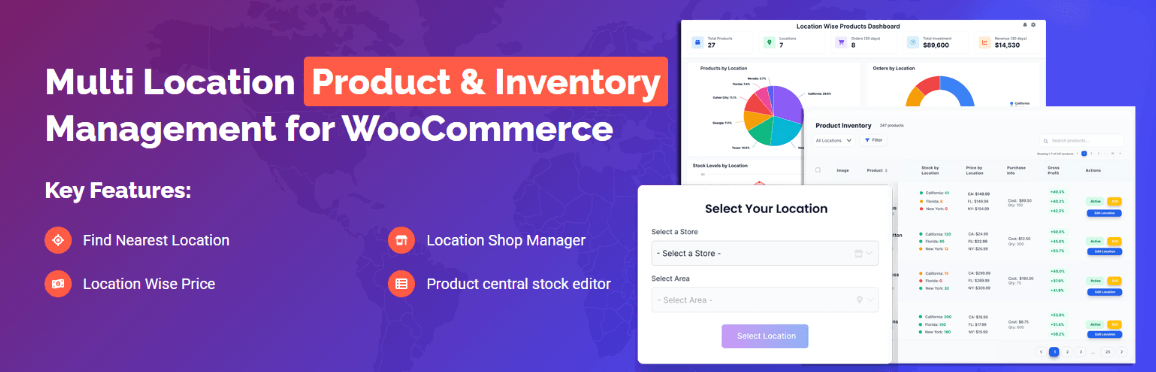
The free version covers the core deduction flow. Each product gets assigned to one or more locations with separate stock quantities. When a customer selects a location and places an order, that location is saved to the order. The plugin then handles deduction from that specific location’s inventory — not a shared global total.
Setup is straightforward:
- Install the plugin and go to its location management area to create your locations.
- Open each product and assign it to the relevant location(s), entering a stock quantity per location.
- Enable the location selector so customers can choose their store or pickup point during browsing.
- Place a test order and confirm the location appears in the order record.
If you need location-specific stock deduction tied to more complex fulfilment rules — like splitting a single cart across multiple locations or routing orders to the nearest stocked location — those are PRO features. Specifically, location-specific stock deduction tied to order splitting (where one cart becomes multiple child orders, each deducting from its own location) is a PRO capability. The PRO version also handles manual admin assignment overrides, so you can change which location fulfils an order after it’s placed and have the deduction adjust accordingly.
For most stores with defined pickup points or warehouse locations, the free version’s assignment and deduction flow is enough to get accurate per-location inventory.
One Thing Worth Checking Regardless of Plugin
Whatever multi-location plugin you’re using, make sure WooCommerce’s own Manage Stock setting is enabled at both the global level (WooCommerce Settings > Products > Inventory) and the individual product level. Some multi-location plugins rely on WooCommerce’s stock infrastructure and will silently fail to deduct if stock management is disabled at the product level — even though the plugin has its own stock fields on top.
It takes thirty seconds to check. Open the product, scroll to the Inventory tab, and confirm Manage Stock is ticked.
Diagnostic Checklist — A Quick Step-by-Step Troubleshooting Guide
Stock not reducing and you’re not sure where to start? Work through this in order. Each step takes two minutes or less. Stop when you find the culprit.
Step 1 — Confirm Stock Management Is Actually On
Go to WooCommerce Settings > Products > Inventory in your WordPress Admin Dashboard. Make sure Enable Stock Management is checked. Then open the specific product and confirm Manage Stock is ticked at the product level too. Both switches need to be on. If either is off, WooCommerce won’t touch the stock quantity regardless of anything else.
Step 2 — Check the Order Status
Open the order that just came through. What status does it show?
- Pending Payment or On Hold — stock hasn’t reduced yet. That’s normal for offline methods like BACS (Direct Bank Transfer).
- Processing or Completed — stock should have reduced. If it didn’t, keep going.
WooCommerce triggers stock deduction when an order moves to Processing or Completed. If your order is stuck at Pending Payment, check whether the Hold Stock Timer has expired or whether you need to manually move the order forward.
Step 3 — Check the Hold Stock Timer
Still in WooCommerce Settings > Products > Inventory, look at the Hold Stock (minutes) field. If this is set to something like 60, WooCommerce holds the reservation for that long — but if the customer never pays and the timer expires, the order cancels and stock returns to its original number. That’s not a bug; that’s the intended behavior. Set the timer to 0 to disable it, or adjust it to a realistic window for your payment flow.
Step 4 — Test With a Simple Payment Gateway
Create a test order using a direct payment method — cash on delivery or a manual gateway — not BACS or any gateway that requires async confirmation. Complete the order so it reaches Processing status. Check if stock drops.
If stock does drop in this test, your real problem is with the Payment Gateway Integration of your live gateway. It’s not sending the correct order status back to WooCommerce, so the woocommerce_reduce_order_stock hook never fires. Contact your gateway plugin’s support with that specific detail.
Step 5 — Rule Out a Plugin Conflict
Activate WordPress Safe Mode if your host supports it, or use the manual Plugin Deactivation Method: deactivate every plugin except WooCommerce, place a test order, and check stock. If stock reduces — one of your plugins is the problem. Re-activate them one at a time, placing a test order after each, until the issue comes back. That’s your conflict.
Common types of plugins that cause this: AJAX filter plugins, checkout customization plugins, custom order management tools. Don’t go looking for a specific name — just systematically eliminate each active plugin.
Step 6 — Clear All Cache Layers
This one gets missed more than it should. You need to clear four separate layers:
- Page Cache — through your caching plugin’s settings or hosting panel
- Object Cache — flush it from your caching plugin or via WP-CLI (
wp cache flush) - Transient Cache — use a plugin that lets you delete expired transients, or run
DELETE FROM wp_options WHERE option_name LIKE '%_transient_%'in your database - Hosting-Level Cache — log into your host’s control panel (cPanel, Kinsta, WP Engine dashboard, etc.) and flush the server cache from there
Then repeat your test order. Cached stock data is a surprisingly common reason the number looks wrong even when WooCommerce deducted it correctly.
Step 7 — Check functions.php and Custom Code
Open your theme’s functions.php or any custom code plugin you’re using. Search for these strings: woocommerce_reduce_order_stock, woocommerce_payment_complete, woocommerce_order_status_changed. Any custom code hooking into these could be interrupting the stock reduction process.
If you find something — especially a remove_action or return false on the reduce stock hook — that’s your Custom Code Conflict or Theme Function Conflict. Comment it out temporarily and retest.
Step 8 — Verify the Stock Quantity Itself
Go to the product and check the actual Stock Quantity field. If it’s blank (not zero, actually blank), WooCommerce can’t reduce what it doesn’t know about. Enter a real number, save, and retest. Also check Stock Status — if it’s manually set to “In Stock” with no quantity, WooCommerce may not be tracking numbers at all.
Step 9 — Multi-Location Store? Check Per-Location Stock
If you’re running stock across multiple warehouses or store locations, standard WooCommerce only holds a single global stock number. When an order comes in, the question isn’t just whether stock reduced — it’s which location’s stock reduced.
If you’re using a multi-location inventory plugin, check its own settings panel for per-location stock deduction rules. A misconfiguration there — like the order not being assigned to any location — means the location-level stock won’t move even if the global WooCommerce number does (or vice versa).
Multi-Location Product & Inventory Management for WooCommerce by Plugincy handles this directly: in the PRO version, location-specific stock deduction is automatic — when an order is fulfilled from a specific location, only that location’s stock gets reduced, not a generic global pool. If you’re seeing global stock drop but per-location numbers staying wrong, that’s the gap this solves.
Step 10 — Check WooCommerce System Status
Go to WooCommerce > Status > System Status. Look for anything flagged in red or yellow — outdated templates, PHP version warnings, or database update prompts. Run any pending WooCommerce database updates. An outdated database schema occasionally causes the WooCommerce Order Flow to behave unpredictably, including stock hooks not firing as expected.
Quick Reference Table
| What You Found | Likely Cause | Fix |
|---|---|---|
| Stock management off | Setting disabled | Enable in WooCommerce Inventory Settings |
| Order stuck at Pending | Normal BACS behavior | Process order manually or fix gateway |
| All plugins off = stock works | Plugin Conflict | Isolate with deactivation method |
| Stock looks wrong but orders correct | Cache issue | Flush all four cache layers |
| Stock quantity field is blank | No quantity set | Enter a real Stock Quantity |
| Per-location numbers not moving | Multi-location config | Review your plugin’s location assignment rules |
| Custom hook in functions.php | Custom Code Conflict | Remove or fix the conflicting code |
Work through each step before assuming it’s a WooCommerce bug. In most cases, one of these eight checks will surface the exact problem within ten minutes.
Frequently Asked Questions (FAQ)
Does WooCommerce reduce stock automatically, or do I have to do it manually?
Automatically — but only if stock management is enabled at the product level. Go to the product, open the Inventory tab, and make sure Manage Stock is checked. Without that, WooCommerce has nothing to track and won’t deduct anything, ever.
Which order statuses actually trigger stock deduction?
Two: Processing and Completed. That’s it. If an order sits in Pending Payment or On Hold, WooCommerce holds the stock (temporarily, via the Hold Stock Timer) but hasn’t permanently deducted it yet. The real deduction fires when the order moves into Processing or Completed.
My order went straight to Pending Payment and stock didn’t change. Is that a bug?
No. Pending Payment means WooCommerce is waiting for payment confirmation. With gateways like BACS (Direct Bank Transfer) or other manual payment methods, orders land in Pending or On Hold because no real-time payment signal arrives. Stock deducts when you (or the gateway) moves the order forward. If you’re using BACS regularly, you’ll need to manually update order statuses after confirming payment — or switch to a gateway that auto-confirms.
What is the Hold Stock Timer and should I change it?
It’s the setting under WooCommerce Settings > Products > Inventory that controls how long WooCommerce temporarily reserves stock for unpaid orders. Default is 60 minutes. After that, if the order hasn’t been paid and moved to Processing, WooCommerce cancels it and restores the stock. You can increase this if customers regularly take longer to pay, or set it to 0 to disable it entirely (not usually recommended).
I enabled Manage Stock but stock still won’t go down. What’s the fastest way to diagnose this?
Switch to a default theme (Storefront or Twenty Twenty-Four), place a test order, and watch the stock. If it deducts, your active theme has a conflict — probably in functions.php. If it still doesn’t deduct, go to Plugins > Add New and use the Plugin Deactivation Method: disable every non-WooCommerce plugin except a payment gateway and test again. Work back from there.
Could a caching plugin cause this problem?
Yes, though it’s indirect. Page Cache, Object Cache, Transient Cache, and Hosting-Level Cache won’t block WooCommerce from deducting stock on the server — but they can make it look like stock hasn’t changed because the admin page or frontend is showing stale data. Clear all cache layers, reload the stock screen, and check the actual database value. If the number in the database is correct, caching is your only issue.
I’m using a multi-location inventory setup and stock isn’t deducting from the right warehouse. What’s happening?
This is a separate problem from standard WooCommerce stock deduction. In a multi-location setup, WooCommerce’s native stock field is essentially one global number — it has no concept of “which location.” If your plugin isn’t properly intercepting the woocommerce_reduce_order_stock hook and routing the deduction to the correct location record, either the wrong location gets decremented or nothing happens at all.
If you’re running Multi-Location Product & Inventory Management for WooCommerce by Plugincy, the free version handles per-location stock quantities and deducts from the location assigned to the order. The pro version adds location-specific stock deduction automatically based on the fulfilling location, so each warehouse’s inventory is tracked independently. Check your plugin’s order assignment settings and confirm the order actually has a location attached before looking anywhere else.
Can custom code in functions.php block stock deduction?
Absolutely. Any code that hooks into woocommerce_reduce_order_stock with a return false or removes the default WooCommerce action can silently kill deduction. Same goes for hooks that change order status programmatically and skip the normal WooCommerce Order Flow. Comment out any custom snippets related to orders or inventory and test. If deduction comes back, you’ve found it.
Stock deducted twice — how does that happen?
Usually a duplicate hook. If a plugin or custom code fires the stock reduction logic and WooCommerce fires it too, you get double deductions. Check for any code calling wc_reduce_stock_levels() directly in functions.php or a plugin, while WooCommerce is also doing it natively. You only need one.
I fixed the underlying cause — will past orders self-correct?
No. WooCommerce doesn’t retroactively adjust stock for orders that already processed (or failed to process) incorrectly. You’ll need to manually correct the Stock Quantity field on affected products in the WordPress Admin Dashboard. Go to the product, update the number to reflect actual on-hand inventory, and save. From that point forward, new orders will deduct correctly.
Is there a WooCommerce setting that globally disables stock management?
Yes. Under WooCommerce Settings > Products > Inventory, there’s a checkbox labeled Enable stock management. If that’s unchecked, no product in your store will track inventory — regardless of individual product settings. That’s always the first thing to verify.
Conclusion — Fix Your Stock Problem Once and It Will Not Come Back
Stock not reducing after an order is almost never a mystery once you know where to look. It’s always one of the same handful of things: stock management isn’t enabled, the order landed in a status that doesn’t trigger deduction, a payment gateway like BACS is holding the order in Pending Payment, a plugin is hooking into woocommerce_reduce_order_stock and breaking the flow, cached data is masking the real numbers, or custom code in functions.php is interfering somewhere unexpected.
Work through those in order. Most people find their answer in the first two.
A few things worth keeping in your standard setup going forward:
- Always verify Manage Stock is on — at both the global level (WooCommerce Settings > Products > Inventory) and at the individual product level. It’s easy to miss the product-level toggle, especially after bulk importing.
- Know which statuses reduce stock. Processing and Completed do. Pending Payment and On Hold do not — not immediately. If your store takes a lot of BACS or manual payments, decide whether your Hold Stock Timer is set sensibly, or whether you want to write a small hook that shifts those orders earlier.
- Clear cache after every inventory-related settings change. Page cache, object cache, transients — all of it. A wrong stock count that returns after you fix it is almost always a cache issue, not a recurring bug.
- Test in safe mode when something still doesn’t add up. Disable all non-essential plugins, switch to a default theme temporarily, and run a real test order. If stock deducts correctly in that environment, you have a conflict, and you add plugins back one by one until it breaks again.
If you run a single WooCommerce store, these steps cover everything. The built-in WooCommerce Stock Management system handles deduction correctly when it’s configured correctly — you don’t need a third-party plugin for that.
Where things get genuinely complicated is multi-location inventory. If stock lives across several warehouses, pickup points, or retail branches, WooCommerce’s native system deducts from a single global count and has no concept of which location fulfilled the order. That’s not a bug — it’s just outside what WooCommerce was built for. If that’s your situation, the free version of Multi-Location Product & Inventory Management for WooCommerce by Plugincy handles per-location stock quantities, location-specific stock status, and order location assignment — so deductions come off the right location’s inventory, not a shared global number. The pro version adds location-specific stock deduction tied directly to the fulfilling location, inter-location transfers, and automatic location detection, if you need that level of control.
But for the vast majority of stores reading this — one location, one stock pool — the fix is simpler than it looks. Enable the setting, check the order status, clear the cache. That’s usually it.
Fix it properly once, document what the cause was, and you won’t be back here troubleshooting the same thing six months from now.
