

You have stock sitting in one warehouse, the order comes in from a customer across the country, and your WooCommerce store has already sold it — except that location’s inventory showed zero before the sale ever happened. Or the opposite: a product you physically ran out of weeks ago keeps accepting orders because the sync never pushed the update across. These aren’t edge cases. For any store running inventory across more than one physical location, fulfilment centre, or retail outlet, this kind of mismatch is practically a rite of passage.
The core reason it happens so often is straightforward: WooCommerce has no native multi-location inventory support. Out of the box, it tracks a single stock number per product — or per variation for a Variable Product — with no concept of location. Every sync you see between locations is being handled entirely by a third-party plugin, a custom integration against the WooCommerce REST API, or some combination of both. If any part of that setup has a misconfigured Sync Direction, a broken SKU mapping, a Location Mapping that was never completed, or a WP-Cron job that silently stopped firing, your stock figures drift apart fast. And once they drift, overselling follows.
This article walks through the full picture: the root causes behind WooCommerce stock not syncing between locations, how to diagnose the problem using your Error Log and WooCommerce System Status, manual fixes you can apply right now, and how to build something more reliable using Webhooks, Server Cron, and proper REST API Authentication. You’ll also get a clear-eyed look at which plugin features — from Two-Way Sync and Bulk Stock Sync to Dry-Run Mode and Stock Reservation — actually matter for multi-location operations, including options like Multi-Location Product & Inventory Management for WooCommerce by Plugincy, ATUM, and WooMultistore.
Quick Answer: WooCommerce Stock Not Syncing Between Locations WooCommerce stock sync breaks between locations for four main reasons: the Sync Direction is set to one-way when your setup requires Two-Way Sync, Location Mapping was skipped or misconfigured so the plugin doesn’t know which store corresponds to which warehouse, SKU or slug mismatches mean the same product isn’t being recognised across locations, or Variable Product attribute sync is disabled so stock updates on Product Variations never propagate.
To fix it immediately: open your sync plugin’s settings and correct the Sync Direction, then map each location individually rather than relying on a global default. Re-save all plugin settings to force a fresh configuration read, and explicitly enable sync for variable product attributes and each variation. If stock still drifts after those steps — especially under high order volume — you’re likely hitting a Race Condition that basic polling can’t handle. At that point, switch to event-driven syncing via Webhooks, move away from WP-Cron to a Server Cron job, or step up to a paid plugin tier with Chunked Processing, Cart Validation, and API Key Authentication built in.
Why WooCommerce Stock Sync Stops Working — The Root Causes
Stock sync failures rarely have one cause. Usually it’s a combination of small misconfigurations that compound each other until your inventory numbers are completely unreliable. Before you start changing settings at random, it helps to know exactly what breaks sync and why.
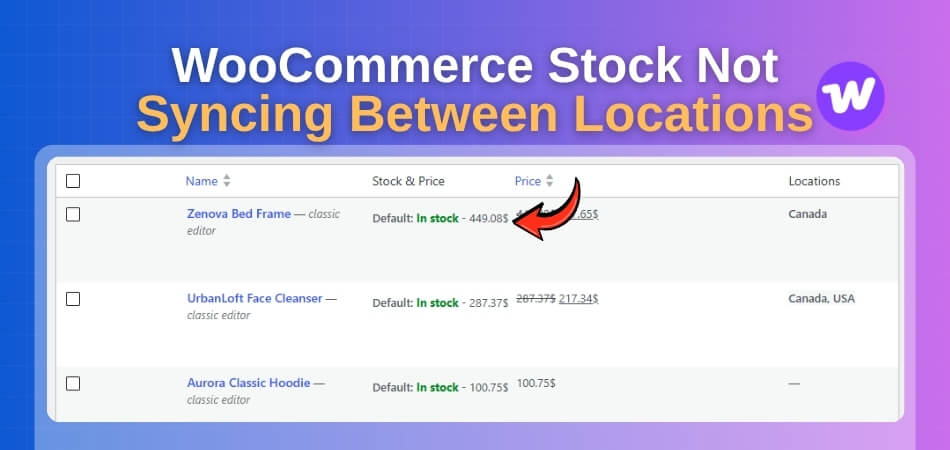
Sync Direction Configured Incorrectly (One-Way vs Two-Way)
This is probably the most common setup mistake. One-way sync pushes stock changes in a single direction — say, from your main WooCommerce store to a secondary location or connected system. Two-Way Sync goes both directions, so a sale at Location B reduces stock at Location A as well.
The problem? Most people leave the default setting without thinking about it. If your Sync Direction is set to one-way and a sale happens at the secondary location, that deduction never travels back to the source. You end up with Location A thinking it still has 10 units when 3 already sold from Location B.
Check your plugin’s sync settings carefully. Look for terms like “sync direction”, “push only”, or “bidirectional sync”. If you’re using WooMultistore, this is configured per-site connection under the sync rules panel. If you’re using a multi-location plugin that manages stock per location natively — rather than syncing between separate WooCommerce installs — the concept shifts slightly, but the underlying logic is the same: every location that can sell stock must be able to report back.
One more thing worth knowing: two-way sync does create Race Condition risk if two sales happen almost simultaneously at different locations. A stock level of 1 unit, sold at both locations within the same second, can result in Overselling. That’s a trade-off you need to manage — either with Stock Reservation logic or a short sync interval.
Missing or Incorrect Location Mapping
Location Mapping is how your plugin knows which “location” in your system corresponds to which WooCommerce product or warehouse entry. Get this wrong and stock updates go to the wrong place, or nowhere at all.
Common scenarios where mapping breaks:
- You added a new warehouse but never mapped it in the plugin’s location settings
- You renamed a location in WooCommerce but didn’t update the matching entry in your sync tool
- You’re using a physical POS system like Square for WooCommerce and the “location” concept in Square doesn’t match how your WooCommerce products are organized
With Square for WooCommerce specifically, each Square location syncs stock independently. If a product is mapped to “Downtown Store” in Square but your WooCommerce product shows no location assignment, the sync has nowhere to write. Inventory updates effectively vanish.
Open your plugin’s location panel and verify every active location has a complete, correct mapping. Pay attention to location IDs, not just display names — they’re what the sync process actually uses internally.
Variable Products and Product Variations Not Syncing Attributes
Variable Products are where sync setups fall apart the most often. When you have a Variable Product — say, a T-shirt in sizes S, M, L — each Product Variation is a separate inventory entity. Many sync configurations only catch the parent product and silently skip the variations.
The result is predictable: your parent product stock appears to update, but the individual variation stock stays stale. Customers can still add an out-of-stock size to their cart because the per-variation stock was never updated.
A few things to check:
- Confirm your sync plugin explicitly supports variation-level stock — not just parent-level
- Check whether “manage stock” is enabled on each individual variation (WooCommerce → Product → Variations tab), not just at the parent level
- If you’re using the WooCommerce REST API to push stock updates, make sure you’re hitting the variation endpoint (
/wp-json/wc/v3/products/{id}/variations/{variation_id}) and not just the parent product endpoint
Variation sync failures are also common when importing stock via CSV. If your spreadsheet uses the parent SKU without the variation’s own SKU, the import engine can’t target the right row.
SKU Mismatch or Duplicate SKU Problems
SKU is the primary identifier most sync systems use to match products across locations or connected stores. If a SKU doesn’t match exactly — different capitalisation, trailing space, extra character — the sync breaks silently. No error, just nothing happens.
Duplicate SKUs are worse. WooCommerce allows you to save two products with the same SKU (it’ll warn you, but it won’t stop you). When a sync process searches for “SKU-001” and finds two results, it either picks the wrong one or errors out entirely.
Run a quick audit:
// Check for duplicate SKUs via WP-CLI or a quick query
$args = [
    'post_type'  => 'product',
    'meta_key'   => '_sku',
    'meta_value' => 'YOUR-SKU-HERE',
    'fields'     => 'ids',
];
$products = get_posts( $args );
// If count($products) > 1, you have a duplicate
For a no-code approach, use a plugin from your whitelist or export your product list to CSV and sort by SKU column — duplicates become obvious instantly. Fix them before attempting any bulk sync operation.
Also remember: Product Variations have their own SKUs. A variation with a blank SKU is effectively invisible to external sync processes that rely on SKU matching.
HPOS (High-Performance Order Storage) Compatibility Issues
WooCommerce’s HPOS (High-Performance Order Storage) moves order data from wp_posts / wp_postmeta into dedicated custom tables. That’s a meaningful architecture change. Any plugin that reads or writes stock based on order data — using the old get_post_meta( $order_id, '_order_items', true ) pattern — will break silently when HPOS is active.
Sync plugins that haven’t updated their code to use WooCommerce’s wc_get_order() abstraction layer will still appear to function, but their stock deductions might lag behind or not fire at all.
How to check: Go to WooCommerce → Settings → Advanced → Features. If HPOS is enabled, cross-reference it against each sync plugin’s changelog or support page. Look for explicit “HPOS compatible” statements. If you can’t find one dated after mid-2023, assume it’s at risk.
Multi-Location Product & Inventory Management for WooCommerce by Plugincy includes HPOS compatibility as part of its free version — worth knowing if you’re evaluating options that need to stay compatible as WooCommerce continues retiring legacy order storage.
Temporarily switching HPOS to “compatibility mode” (which keeps both tables in sync) can help you isolate whether this is your problem. If sync starts working in compatibility mode, that confirms an HPOS conflict.
Plugin Conflicts or Stale Cache
Plugin conflicts cause sync failures in ways that are hard to trace because they don’t always produce visible errors. A caching plugin that aggressively caches REST API responses, for example, can return a stale stock count to your sync process. The sync thinks stock is 8 units, writes 8 units, and the actual deduction from a recent order never registers.
Common culprits:
- Caching plugins that cache WooCommerce endpoints or product queries without excluding
/wc/store/and/wc/v3/routes - AJAX filter plugins that store filtered product data in transients and don’t clear them on stock updates
- WPML combined with a sync plugin — if product translation IDs aren’t mapped correctly, stock updates hit the wrong language version of the product
To isolate a plugin conflict properly: disable all non-essential plugins except WooCommerce and your sync plugin. Trigger a test stock update. Re-enable plugins one at a time until the sync breaks. That’s the only reliable way to find it.
Also clear all WordPress transients (DELETE FROM wp_options WHERE option_name LIKE '%_transient_%') and check WooCommerce → Status → Logs for any stock-related errors after triggering a sync. WP-Cron failures can also masquerade as sync problems — if scheduled sync jobs are queued but WP-Cron isn’t firing, nothing processes. Replace WP-Cron with a Server Cron if your host allows it; the difference in reliability is significant.
How to Diagnose Stock Sync Problems in WooCommerce
Before you start changing settings or swapping plugins, you need to know exactly where the sync is breaking. Guessing costs time. These three checks will tell you what’s actually wrong
Checking WooCommerce System Status
Go to WooCommerce → Status. This screen is underused, but it catches a surprising number of sync issues in under two minutes.
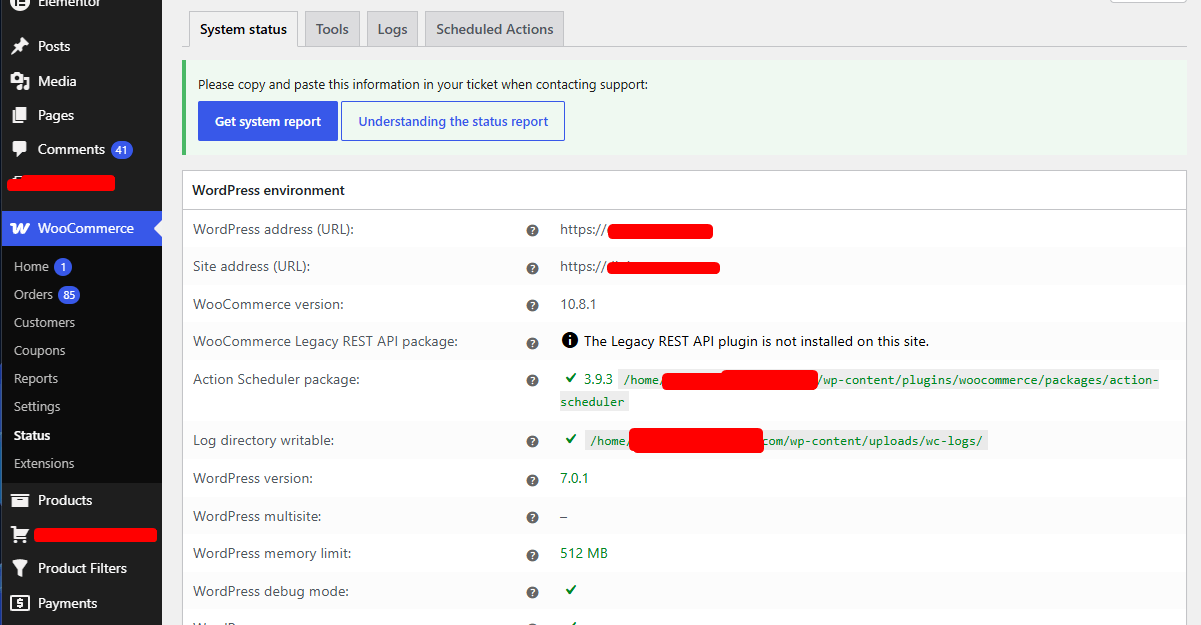
The things to look for specifically:
WP-Cron — If it’s disabled, scheduled sync jobs aren’t running at all. You’ll see it flagged in red if something’s off. A lot of hosts disable WP-Cron by default and expect you to set up a real Server Cron job instead. If your multi-location plugin or any sync tool relies on scheduled tasks (most do), a broken cron means sync only fires when someone visits the site — or not at all.
Database tables — Missing WooCommerce tables break stock writes silently. The status screen lists them and flags anything absent.
HPOS compatibility — If you’ve enabled High-Performance Order Storage and any plugin in your stack doesn’t declare HPOS compatibility, you’ll see it flagged here. This matters because non-compatible plugins often read order data from the old wp_posts table while WooCommerce writes it to the new orders table. Stock deductions can fall through the gap entirely.
Active plugins — The status page lists every active plugin and its version. Cross-reference this against your last known working sync date. A plugin update that coincided with sync breaking is worth investigating first.
Fix the red items before doing anything else. They’re flagged for a reason.
Finding Sync Failures in the Error Log
WooCommerce → Status → Logs. Change the dropdown to woocommerce or fatal-errors and look at entries from the time sync stopped working.
What you’re actually looking for:
ERRORorCRITICALlines involving stock, inventory, or your sync plugin’s namespacecURL error 28— that’s a timeout, which means an API call to an external system (Square for WooCommerce, a POS, a WMS) is failing or taking too long401 Unauthorizedor403 Forbidden— API Key Authentication has broken, either because keys were regenerated or permissions changed- PHP fatal errors that cut a sync job short mid-run — these are common when processing large catalogs without Chunked Processing
If the log is empty or very old, check whether logging is actually enabled. Go to WooCommerce → Settings → Advanced → Logging and make sure it’s on. Some hosts also suppress PHP errors by default — in that case, add define('WP_DEBUG_LOG', true); to wp-config.php and check /wp-content/debug.log directly.
One pattern worth knowing: a Race Condition between two sync processes writing to the same product at the same time won’t always throw a visible error. It’ll just leave stock at the wrong number. If your logs look clean but stock is still wrong, that’s a possible culprit — especially on high-traffic stores running sync on overlapping cron intervals.
Also check your sync plugin’s own log if it has one. Multi-location and inventory tools often maintain a separate log tab inside their own settings panel. Look there too — the WooCommerce log won’t catch internal plugin failures.
Verifying Stock Matching Using SKU and Slug
This one gets skipped constantly, and it’s responsible for a huge chunk of “sync isn’t working” reports that turn out to be “sync is working fine, but it’s updating the wrong product.”
Every sync process — whether you’re pushing stock from a POS, pulling from a warehouse system, or syncing across sites with something like WooMultistore — needs a consistent identifier to match products at both ends. SKU is the most reliable one. Slug works too but is more fragile (it changes if you rename a product).
Check these specifically:
Missing SKUs — Open Products → All Products and add the SKU column to your list view. Sort by it. Blank SKUs mean the sync system has nothing reliable to match on and will either skip the product or create duplicates. Every product and every Product Variation needs its own unique SKU.
Duplicate SKUs — WooCommerce doesn’t enforce uniqueness by default. If two products share a SKU, a stock update meant for one will hit whichever one the query returns first. Run this quick SQL check in phpMyAdmin or a plugin like Query Monitor:
SELECT meta_value, COUNT(*) as count
FROM wp_postmeta
WHERE meta_key = '_sku' AND meta_value != ''
GROUP BY meta_value
HAVING count > 1;
Any result here is a problem.
Variable Product variations — Parent products don’t hold stock themselves (unless you’ve set it up that way). Each variation needs its own SKU. A sync system updating SKU: RED-SHIRT won’t touch SKU: RED-SHIRT-M and SKU: RED-SHIRT-L separately unless those variation-level SKUs exist and are mapped correctly at the source.
Slug mismatches — If your sync uses product slugs for Location Mapping (matching a product to a specific location’s catalog), verify the slugs match exactly. A renamed product in WooCommerce changes its slug. The external system still holds the old one. Sync fails silently.
If you’re using Multi-Location Product & Inventory Management for WooCommerce by Plugincy, the free version lets you assign products and variations to specific locations with per-location stock quantities. Each combination is tracked independently — so if your SKUs are clean, you can quickly audit which product-location pairs are actually holding the right stock figures from the location dashboard, without digging through individual product screens.
The bottom line: clean SKUs are foundational. Fix them first, then re-run your sync. You’ll often find the “broken sync” was just updating products you couldn’t see.
Setting Up Multi-Location Stock Sync with a Plugin
Picking the wrong plugin here is expensive — not just in money, but in time spent migrating data later. So before you install anything, it’s worth knowing what separates a plugin that actually handles multi-location inventory from one that just relabels a single stock field.
What to Look for When Choosing a Plugin (Free vs Paid, HPOS Support, Two-Way Sync, Variation Support)
A few things matter more than anything else.
HPOS compatibility. WooCommerce’s High-Performance Order Storage rewrites how order data is stored. If your multi-location plugin still reads order stock from the old wp_postmeta table, you’ll get deduction failures silently — no errors, just wrong numbers. Check the plugin’s changelog or WooCommerce.com listing for explicit HPOS support before installing.
Variable Product and Variation-level inventory. This is where most lightweight plugins fall apart. Managing stock at the parent product level is easy. Tracking separate quantities per variation per location — say, size M at your Glasgow warehouse vs. size M at your London storefront — requires a completely different data structure. Confirm the plugin stores per-variation, per-location quantities, not just per-product.
Two-Way Sync and Sync Direction control. If you’re connecting an external POS or warehouse system, you need to know which system “wins” on conflict. A plugin that only pushes data one way — or doesn’t let you configure sync direction — will overwrite the wrong source eventually. Look for explicit Two-Way Sync support with configurable Sync Direction settings.
Free vs. paid. The honest answer: most free multi-location plugins handle basic location setup and product assignment. Advanced features — stock transfers between locations, automatic location detection, REST inventory API endpoints, Webhooks, inter-location pricing — are almost always paid. Don’t expect a full WMS replacement from a free tier. But a free plan can absolutely handle per-location stock quantities and location-aware cart validation for many stores.
One practical check: install the plugin in a staging environment, assign a Variable Product to two locations, set different stock quantities per variation, and put it through a test order. If the right location’s stock decrements, the fundamentals work. If it deducts from the wrong location or deducts globally — walk away.
Multi-Location Product & Inventory Management (by Plugincy) — What You Can Do on the Free Plan
Multi-Location Product & Inventory Management for WooCommerce by Plugincy is one of the more complete free options for stores that need genuine per-location inventory without immediately buying a PRO license.
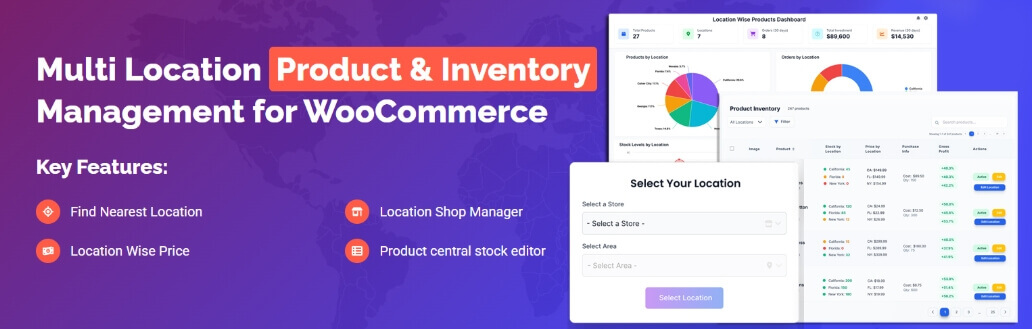
On the free plan, you can create unlimited locations — warehouses, storefronts, pickup points, service regions — and organize them in a parent/child hierarchy. Each location gets a full profile: address, contact info, business hours, operating details. You can enable or disable a location without deleting it, which is useful when a branch closes temporarily.
For inventory specifically, the free tier gives you separate stock quantities per product-location combination, including individual Product Variation stock by location. You also get stock status control (in-stock, out-of-stock, backorder) and low-stock thresholds per location — not just global WooCommerce thresholds.
On the customer side, a location selector lets shoppers pick their preferred store or pickup point. Their choice persists across browsing sessions, and the catalog filters to show only products available at that location. The free plan includes Cart Validation too — it checks that items in the cart are actually available at the selected location before checkout proceeds.
Order location assignment is included at no cost as well. Each order records which location fulfilled it, and you can filter orders by fulfillment location in the admin.
What’s behind the paid upgrade? Things like inter-location stock transfers with transfer records, automatic location detection by IP, store locator maps, location-specific pricing, REST inventory API access with API Key Authentication, Webhooks for connected systems, Bulk Stock Sync with Dry-Run Mode and Chunked Processing for large catalogs, and location manager roles with restricted access. Those are genuine PRO features — the free plan doesn’t include them.
For a store with two or three physical locations that wants to track stock separately and show customers accurate availability, the free plan covers the core workflow without any code.
Other Notable Stock Sync Plugins (ATUM, WooMultistore, Square for WooCommerce)
ATUM
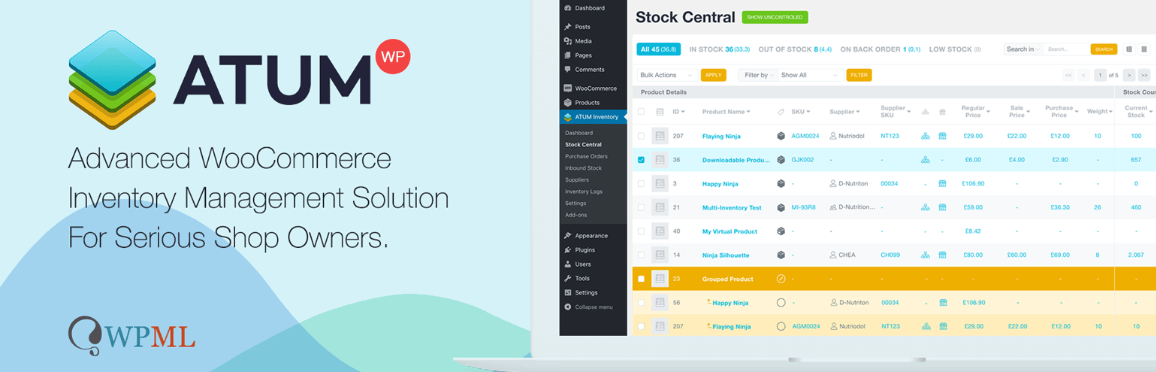
ATUM is a well-established inventory management plugin focused on purchase orders, supplier management, and a centralized Stock Central view. It handles stock tracking well for single-location stores and adds supplier-level purchase cost data.
Multi-location support — what ATUM calls “product locations” — is available, but the full multi-warehouse functionality with separate per-location quantities is part of its paid add-ons. If your primary need is purchase order management and supplier tracking rather than customer-facing location selection, ATUM is worth looking at. If you specifically need per-location customer stock visibility and cart routing, check exactly which features sit behind the paywall before committing.
WooMultistore
WooMultistore takes a different angle entirely. It’s built for syncing products, stock, and orders across multiple separate WooCommerce installations — not multiple locations within a single store. If you run three independent WooCommerce sites and want stock changes on one to propagate to the others, that’s where WooMultistore fits. It uses the WooCommerce REST API for cross-site sync and supports configurable Sync Direction. Location Mapping between sites is a key part of the setup — you tell it which product SKU on Site A corresponds to which SKU on Site B. For single-site, multi-location inventory, it’s not the right tool.
Square for WooCommerce

Square for WooCommerce is the official integration between WooCommerce and Square’s POS system. If you’re using Square in physical retail locations and WooCommerce online, this plugin syncs stock between the two. It handles SKU-based matching and supports Two-Way Sync — though in practice, the sync direction and conflict resolution rules need careful configuration to avoid Overselling. One known friction point: Variable Products with many Product Variations can hit sync delays because Square handles variations differently from WooCommerce’s attribute-based model. If your in-store POS is Square, this integration is the right starting point, not a generic multi-location inventory plugin.
The right choice depends on what you’re actually solving. Multiple locations inside one WooCommerce store — a dedicated per-location inventory plugin. Multiple separate WooCommerce sites — a cross-site sync tool like WooMultistore. A Square POS alongside an online store — the Square integration. These aren’t interchangeable, and using the wrong category of plugin is one of the most common reasons stock sync setups fail from day one.
Two-Way Synchronization Setup Guide
Getting sync to actually work in both directions takes more than flipping a toggle. The direction you choose, how you map locations, and how you handle variable products are three separate decisions — and getting any one of them wrong will silently break the other two.
Setting the Sync Direction Correctly — ‘Square → WooCommerce’ or ‘WooCommerce → Square’
The first thing to understand is that “two-way sync” doesn’t mean both systems update each other simultaneously with equal priority. That’s a race condition waiting to happen. What it actually means in practice is: each system can trigger an update to the other, but you still need a defined authority for conflict resolution — what happens when both sides change the same stock quantity within seconds of each other.
Square for WooCommerce (the official Square integration plugin) gives you three sync direction options in its settings: Square to WooCommerce, WooCommerce to Square, or bidirectional. Don’t just pick bidirectional because it sounds most complete. Think about where your source of truth actually lives.
If you run a physical till through Square and only use WooCommerce for online orders, Square should be the authority. Set the direction to Square → WooCommerce. Your in-person sales hit Square first, and WooCommerce inherits the corrected stock.
If online is your primary channel and Square is just a payment terminal, flip it. WooCommerce → Square keeps your web inventory in charge and pushes down to the POS.
True bidirectional makes sense when both channels move significant volume and neither can be demoted. But you need to accept that in a genuine conflict — a sale processed on both sides within the same sync window — one update will overwrite the other. Square for WooCommerce resolves this by timestamp, which is fine most of the time. Overselling risk goes up slightly; make sure Stock Reservation is enabled in WooCommerce so cart holds reduce available quantity before the order completes.
One practical step before you go live: use the plugin’s dry-run or preview mode if it has one, and run a test update on a single SKU from each side. Verify the change appears on the other end before you enable sync across your full catalog.
How to Map Each Location Separately
Location mapping is where most multi-location sync setups fall apart. The plugin needs to know which WooCommerce “location” corresponds to which physical Square location — and that pairing has to be explicit. It won’t guess.
In Square for WooCommerce, you do this inside the plugin’s Locations tab. Each Square location (identified by its Square location ID) gets mapped to a corresponding WooCommerce location. If you’re only using WooCommerce’s default single inventory, everything maps to the one default location. But if you’re managing separate warehouses or storefronts, you need a one-to-one mapping for each.
The common mistakes here:
- Mapping two WooCommerce locations to the same Square location. This creates duplicate stock deductions.
- Leaving a location unmapped. Stock from that location simply won’t sync — no error, no warning, just silent drift.
- Using the same API Key Authentication credentials across multiple mapped locations. Each location should authenticate independently if the integration supports it.
If your setup goes beyond a single Square–WooCommerce pair and you’re managing inventory across warehouses that don’t touch Square at all, you need a dedicated multi-location inventory plugin to handle the internal side. Multi-Location Product & Inventory Management for WooCommerce by Plugincy handles this — the free version lets you create unlimited locations, assign products to specific ones, and maintain separate stock quantities per location. That internal location structure can then be referenced when you configure external sync rules, so your warehouse stock doesn’t collide with your retail channel stock.
Once locations are mapped, test each one individually. Change stock at Location A, confirm it updates on the correct WooCommerce location — not Location B, not global stock. Then repeat for every mapped pairing.
Configuring Two-Way Sync for Variable Products and Variations
Variable products are the most fragile part of any sync setup. The reason is simple: sync tools match records by identifier, and with a Variable Product, the identifier needs to be the individual Product Variation, not the parent.
If your sync plugin is matching on the parent product’s SKU, every variation will either get ignored or have its stock overwritten with the parent-level quantity. Neither is correct.
What to check first: every variation needs its own unique SKU. Go to Product → Variations → each variation and confirm the SKU field is populated. Don’t rely on WooCommerce to auto-generate these — auto-generated variation IDs aren’t stable across sync operations the way a proper SKU is. Square also requires item variations to have a SKU assigned before it will track their inventory independently.
With the variation SKUs in place, the sync plugin uses the SKU as the matching key. A stock change for SKU SHIRT-RED-L on Square updates only the Red / Large variation in WooCommerce. It won’t touch SHIRT-RED-M or the parent product.
A few things to watch:
- Slug conflicts. If two variations have the same attribute combination but different slugs, some sync tools get confused and create duplicates rather than updating. Audit your variation slugs if you see phantom inventory entries appearing after a sync run.
- Location-specific variation stock. If a variation is only stocked at one location, make sure that location mapping is applied at the variation level, not inherited from the parent. Some plugins inherit the parent’s location assignments automatically; others require you to set them per variation. Check your plugin’s documentation — or just test it by assigning a variation to a single location and confirming a stock update on another location doesn’t affect it.
- Chunked Processing for large catalogs. If you have a product with 50+ variations, running a full sync on all of them at once can time out or create a Race Condition where two sync jobs update the same variation simultaneously. Plugins that support Chunked Processing handle this by batching updates in groups — typically 20–50 variations per pass. If your plugin doesn’t do this natively and you’re hitting timeouts, you may need to schedule sync via Server Cron rather than WP-Cron, which gets killed when the PHP execution limit is hit.
The Webhooks approach is cleaner than polling for variable products. Instead of pulling all variation stock on a schedule, a webhook fires the moment a specific variation’s stock changes on Square, and only that variation gets updated in WooCommerce. Fewer requests, less chance of conflict, faster reflection of actual inventory. Configure Webhook endpoints per variation SKU if your integration supports it — Square for WooCommerce does support this at the item-variation level.
Automatic Stock Sync with Cron Jobs and Webhooks
Polling-based sync only works if something actually triggers the poll. That’s where most multi-location setups quietly fall apart — not because the logic is wrong, but because the scheduler never fires on time.
WP-Cron Limitations and How to Replace It with a Server Cron
WP-Cron is fake cron. It doesn’t run on a schedule. It runs when someone visits your site, and WordPress checks whether any scheduled tasks are overdue. On a low-traffic store, that means a sync job scheduled for 2:00 AM might not actually run until 9:00 AM when the first customer lands on the homepage.
That delay matters. If a product sells out at Location A overnight and WP-Cron doesn’t fire until morning, you’re sitting on stale stock data for hours. Overselling becomes almost inevitable.
The fix is straightforward: disable WP-Cron and replace it with a real server cron.
First, open wp-config.php and add this line:
define( 'DISABLE_WP_CRON', true );Then set up a server-side cron job (via cPanel, SSH, or your host’s task scheduler) to call the WP-Cron URL every five minutes:
*/5 * * * * wget -q -O - https://yourdomain.com/wp-cron.php?doing_wp_cron > /dev/null 2>&1Or use curl if your server doesn’t have wget:
*/5 * * * * curl -s https://yourdomain.com/wp-cron.php?doing_wp_cron > /dev/null 2>&1Every five minutes is a reasonable interval for most inventory setups. High-volume stores running flash sales or managing perishable stock should go tighter — every one or two minutes.
One thing to confirm after switching: open WooCommerce → Status → Scheduled Actions (or use the WP Cron Control plugin temporarily) and verify your sync jobs are actually firing at the expected intervals. It’s common to set up Server Cron and assume it’s working without ever checking.
Also worth knowing — some managed hosts (Kinsta, WP Engine, certain Cloudways setups) handle this for you automatically and actually block direct access to wp-cron.php. Check your host’s documentation before manually configuring a cron call. Running both the server cron AND the built-in host scheduling can cause double-firing on sync jobs, which creates its own Race Condition problems.
Using Webhooks to Push Real-Time Inventory Events
Cron is pull-based. You check for changes on a schedule. Webhooks are push-based — when something happens, the system immediately tells the destination. That difference matters a lot for stock sync.
With webhooks, a stock change at one location fires an HTTP POST request to a listening endpoint almost instantly. No waiting for the next cron interval. No polling overhead. This is why real-time Two-Way Sync across locations generally requires webhooks, not cron alone.
WooCommerce has native webhook support under WooCommerce → Settings → Advanced → Webhooks. You can create webhooks for several order and product events. The most useful ones for stock sync are:
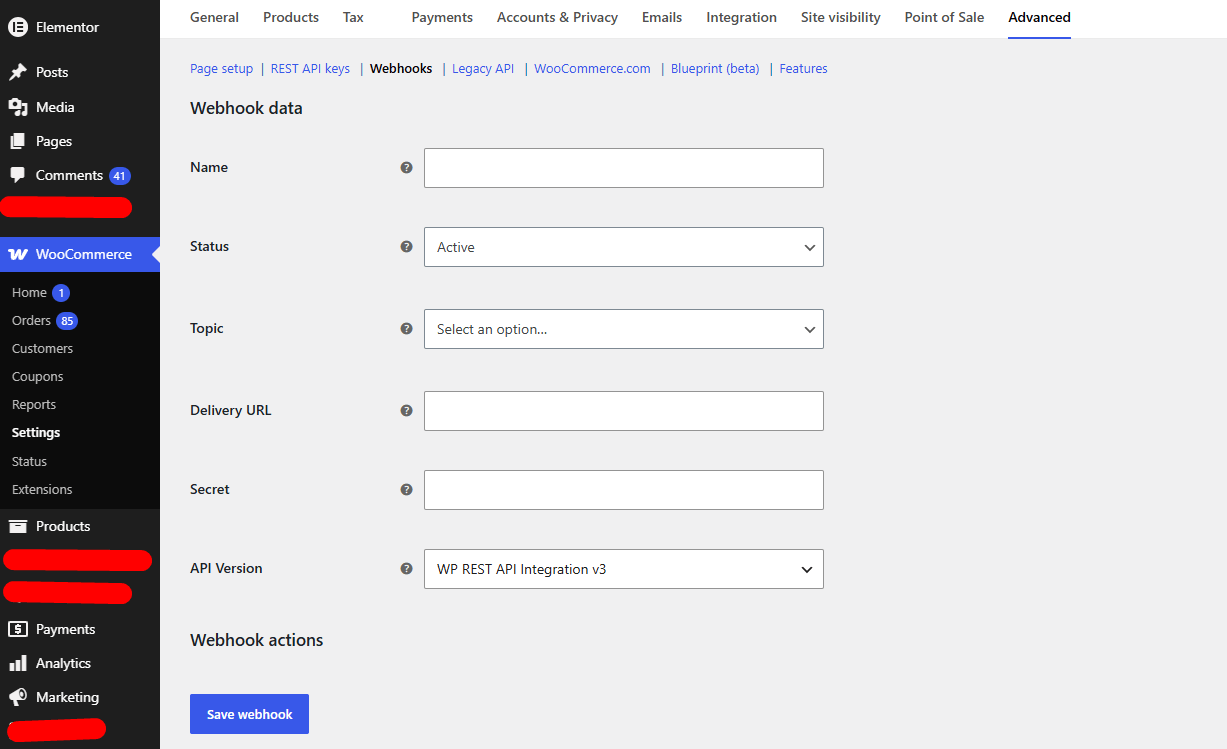
order.created— catches new purchases that need to decrement stockorder.updated— catches status changes (e.g. cancelled orders that should restore stock)product.updated— fires when a product’s stock quantity changes in the database
Each webhook sends a signed JSON payload to the URL you specify, with an HMAC-SHA256 signature in the X-WC-Webhook-Signature header. Your receiving endpoint should always validate that signature before processing anything — especially if you’re syncing across two live stores via the WooCommerce REST API.
The receiving endpoint needs to handle things quickly. WooCommerce expects a 200 OK response within a few seconds or it marks the delivery as failed and retries (up to five times by default). If your sync logic is slow — running a bulk update or querying multiple location tables — do the heavy lifting asynchronously. Acknowledge the webhook immediately, queue the work, process it separately.
One limitation to know: native WooCommerce webhooks don’t cover SKU-level changes or Product Variation stock individually in all versions. If you’re managing Variable Products with per-variation stock across locations, you may need to hook into woocommerce_variation_set_stock or use a plugin that extends webhook coverage to variation-level events.
For stores using HPOS (High-Performance Order Storage), make sure your webhook delivery is working correctly after migration. HPOS changes how order data is stored and some older sync integrations that read directly from wp_postmeta miss order events entirely. Check the WooCommerce System Status page for any HPOS compatibility warnings before relying on order-triggered webhooks for stock deduction.
Plugincy PRO Webhook and Automated Sync Workflow
If you’re already running Multi-Location Product & Inventory Management for WooCommerce by Plugincy and you’ve upgraded to PRO, the webhook and automation layer is built in — you don’t need to wire up custom endpoints or manually configure signature validation.
The PRO version includes a dedicated Webhooks feature that fires signed inventory and location events to connected systems automatically. When stock changes at a specific location — through a sale, a manual adjustment, or an inter-location stock transfer — the plugin dispatches a webhook payload with the relevant location ID, product/variation data, and updated quantities. Your external system (a WMS, ERP, POS, or a second WooCommerce store) receives that event in real time.
The workflow looks like this in practice:
- A sale comes in and gets routed to Location B (based on your Sync Direction and order assignment rules)
- The plugin deducts stock from Location B specifically, not from global inventory
- A signed webhook fires to your connected endpoint with the updated per-location stock figure
- Your external system receives the payload, validates the signature via API Key Authentication, and updates its own records
This is where the PRO tier earns its cost for multi-site or POS-connected setups. Without this layer, you’re manually reconciling inventory between systems — or relying on scheduled imports that always lag behind reality.
The REST Inventory API that comes with PRO also lets external systems push stock updates back in, completing the Two-Way Sync loop. Combined with the Chunked Processing on bulk imports, large inventory files don’t time out or corrupt mid-sync. And the Dry-Run Mode — available on bulk operations — lets you validate what a sync will do before it touches live stock data. That’s not a luxury feature; on a multi-location store with thousands of SKUs, it’s the difference between a controlled update and an inventory meltdown.
For stores not yet on PRO, the free version of the plugin still gives you per-location stock tracking, Cart Validation, and REST compatibility — solid groundwork that makes adding webhook-based automation later a much cleaner process.
Stock Sync via the WooCommerce REST API
The WooCommerce REST API doesn’t just expose product data for reading — it’s a fully functional write interface. If you’re connecting a warehouse management system, a POS terminal, or any external inventory tool to your store, the API is how you push and pull stock without touching the WordPress admin at all.
Basic Flow for Updating Stock Using REST API Endpoints
The endpoint you care about most is PUT /wp-json/wc/v3/products/{id}. For simple products, a stock update looks like this:
{
  "stock_quantity": 42,
  "manage_stock": true
}
For variable products, you target the variation directly: PUT /wp-json/wc/v3/products/{product_id}/variations/{variation_id}. Product Variation stock is completely separate from the parent Variable Product — a common mistake is updating the parent and wondering why the frontend doesn’t change.
A few things that bite people here:
manage_stockmust betrueat the variation level, not just the parent.- If you’re using a SKU-based lookup instead of an ID, use
GET /wp-json/wc/v3/products?sku=YOUR-SKUfirst to resolve the ID. - The API returns a 200 even if nothing changed. Always check the
stock_quantityin the response body, not just the status code.
With HPOS (High-Performance Order Storage) enabled, order stock deductions now write to custom tables rather than post meta. Stock updates via the REST API still work fine, but any custom code reading stock from _stock post meta directly will see stale data. Use wc_get_product() and ->get_stock_quantity() — not raw get_post_meta() calls — to stay compatible.
If you’re dealing with Race Conditions (two systems writing stock simultaneously), the API won’t protect you automatically. The last write wins. The safer pattern is to read current stock first, calculate the delta, then write — or use a queue on your external system’s end so writes serialize.
Integrating External Systems with Plugincy PRO’s REST Inventory API
The standard WooCommerce REST API knows nothing about locations. A stock update via PUT /wc/v3/products/{id} sets a single global quantity — there’s no location context, no warehouse routing, nothing. For multi-location stores, that’s a fundamental gap.
Multi-Location Product & Inventory Management for WooCommerce by Plugincy (PRO) includes a dedicated REST Inventory API that adds location-aware endpoints on top of your WooCommerce install. Instead of updating a single global stock number, you can read and write stock per product-location combination — so your external WMS can push a quantity to “Warehouse North” without disturbing the stock at “Downtown Pickup” at all.
The general flow for an external integration looks like this:
- Your external system authenticates using an API key (more on that below).
- It calls the plugin’s inventory endpoint with the product ID (or SKU), location identifier, and the new stock quantity.
- The plugin writes to the correct location-specific inventory record and — if configured — triggers any downstream location alerts or fulfillment updates.
This is the integration path for POS terminals, WMS platforms, and ERP systems that need to sync real inventory movements back to WooCommerce per location, rather than blasting a global number that overwrites everyone else’s data.
Two-Way Sync is also supported — meaning the external system can both push stock updates inbound and receive outbound inventory events via Webhooks when stock changes on the WooCommerce side. If a customer orders from Location B, your connected system gets notified with the location context attached, not just a generic order event.
The Bulk Stock Sync endpoint handles large updates efficiently using Chunked Processing — useful when you’re pushing hundreds of SKU/location combinations at once, rather than hammering the API with one request per product.
API Key Management and Authentication
WooCommerce’s built-in API keys (Consumer Key / Consumer Secret) use Basic Auth over HTTPS or OAuth 1.0a. You generate them under WooCommerce → Settings → Advanced → REST API. Scope them correctly — if a system only needs to write stock, give it “Read/Write” access to Products, not full store access.
A few hygiene points that matter in practice:
- One key per integration. Don’t share a single key between your POS system and your warehouse platform. If one gets compromised, you revoke it without breaking the other.
- Store keys in environment variables on your external system, never hardcoded in application code.
- Rotate keys periodically. WooCommerce makes this easy — generate a new pair, update your external system, then delete the old one.
The Plugincy PRO plugin’s API Key Management layer sits on top of this. It issues its own credentials specifically for the REST Inventory API, separate from your core WooCommerce API keys. You create and revoke these under the plugin’s admin panel. Each key can be scoped to specific locations — a useful boundary if you have location managers or third-party 3PLs who should only touch their own warehouse’s inventory.
If an API call fails, check the WooCommerce Error Log at WooCommerce → Status → Logs first. Authentication failures, malformed payloads, and rate limiting all show up there. The WooCommerce System Status page (/wp-admin/admin.php?page=wc-status) tells you whether your REST API is enabled and returning expected responses — run that check before assuming the problem is in your external system’s code.
Preventing Duplicate Stock and Overselling Problems
Overselling is one of the ugliest outcomes of broken stock sync. You process an order, the customer is happy, and then you realize the product was already sold at another location. Now you’re either cancelling orders or shipping from an empty shelf. Here’s how it happens — and how to stop it.
Why Overselling Happens (Race Conditions and Sync Delays)
A race condition is the core culprit. Two customers add the last unit to their carts at nearly the same time, from two different locations or storefronts. Both checkouts run simultaneously. WooCommerce checks stock before either transaction finishes writing, so both pass. You’ve now sold one item twice.
Sync delays make this worse. If your inventory system pushes stock updates every 15 minutes via WP-Cron, there’s a 15-minute window where location B is selling stock that location A already cleared. That window is all it takes.
A few specific scenarios trigger this most often:
- Variable Products with shared stock — if your Product Variation isn’t tracked per-location and instead pulls from a global SKU pool, any sync delay causes both locations to sell from the same number simultaneously.
- Webhook delivery failures — a Webhook that fires on order completion but times out or hits a 500 error silently fails. The receiving system never gets the stock reduction signal.
- HPOS conflicts with older sync plugins — plugins that read stock directly from
wp_postmetadon’t see HPOS order data correctly, so their stock deduction logic fires at the wrong time or not at all. - Server Cron vs WP-Cron — if you’re relying on WP-Cron to trigger sync and your site has low traffic, the cron simply doesn’t fire on schedule. A Server Cron is more reliable.
The result is always the same: both locations think they have stock, both sell it, and you’re oversold.
Configuring Location-Specific Stock Deduction
The fix here is straightforward in principle: stock must only be deducted from the location that’s actually fulfilling the order. Not from a global pool. Not from all locations simultaneously.
In native WooCommerce, stock deduction happens through woocommerce_reduce_order_stock. This works fine for a single warehouse, but it has no awareness of locations. When you add multi-location inventory, you need deduction to happen at the location level.
Check these settings first, regardless of which multi-location plugin you’re using:
- Open your multi-location plugin’s location panel and confirm each product is assigned to specific locations — not left unassigned or set to “all locations.”
- Verify that each location has its own stock quantity field populated. If every location shows the same number, that’s a global stock figure being mirrored, not separate per-location inventory.
- Check your order routing rules. If the plugin assigns a fulfillment location at checkout, stock deduction should reference that assigned location, not a combined total.
- Look at what happens to the Location Mapping when an order is placed manually from the WooCommerce admin. Some plugins skip location assignment for admin orders entirely, which quietly bypasses location-specific deduction.
If you’re using Multi-Location Product & Inventory Management for WooCommerce by Plugincy, the PRO version handles this directly through location-specific stock deduction — stock is only reduced from the fulfilling location when an order is placed, rather than from a shared total. The free version gives you per-location stock quantities and assignment, which is already a significant step up from untracked global stock, though the automated deduction from the fulfilling location specifically is a PRO feature.
For developers who need to hook into the deduction process manually:
add_action( 'woocommerce_reduce_order_stock', function( $order ) {
    $location_id = $order->get_meta( '_fulfillment_location_id' );
    if ( ! $location_id ) return;

    foreach ( $order->get_items() as $item ) {
        $product = $item->get_product();
        $sku     = $product->get_sku();
        // Deduct from location-specific stock stored in custom meta
        $meta_key    = '_stock_location_' . $location_id;
        $current     = (int) get_post_meta( $product->get_id(), $meta_key, true );
        $new_qty     = $current - $item->get_quantity();
        update_post_meta( $product->get_id(), $meta_key, max( 0, $new_qty ) );
    }
}, 10, 1 );
This is a stripped-down example — you’d need proper validation and error handling in production. But it shows the logic: read the order’s location assignment, find the matching stock field, reduce it.
Using Stock Reservation and Cart Validation to Prevent Overselling
Even with location-specific deduction, there’s still a window between “item added to cart” and “order completed.” That’s where Stock Reservation comes in.
Stock reservation temporarily holds inventory the moment a customer adds a product to their cart — before checkout, before payment. If the customer abandons the cart, the reservation expires and the stock is released. This is the same mechanism used by ticketing systems and airline booking.
WooCommerce doesn’t do this natively. By default, stock is only reduced when an order is placed. So two customers can hold the same last unit in their carts at the same time, and whichever checks out first wins — but WooCommerce has already shown both of them “in stock.”
To address this:
Option 1 — Cart Validation hooks. WooCommerce fires woocommerce_check_cart_items when the cart is loaded and woocommerce_add_to_cart_validation on each add-to-cart. You can attach real-time stock checks here that account for location-specific inventory. This doesn’t reserve stock, but it does catch situations where the item is already gone.
Option 2 — Plugin-level reservation. Some multi-location plugins include a Stock Reservation layer that writes a temporary hold to the database the moment an item enters the cart, tagged to a specific location. The hold has a TTL (often 10–15 minutes). This is the most reliable way to prevent the race condition window.
Cart Validation tied to location is a separate concern. If a customer selects location A, adds items to their cart, then switches to location B, the cart needs to re-validate. Items available at location A may be out of stock at location B. Without Cart Validation on location change, the customer can check out with items that don’t actually exist at their chosen location.
The free version of Multi-Location Product & Inventory Management for WooCommerce by Plugincy includes cart location validation — it checks whether cart items are valid for the customer’s selected location. So if someone switches locations mid-browse, their cart reflects what’s actually available. That alone prevents a meaningful category of overselling without any code.
A few practical rules that cut overselling regardless of your setup:
- Set WooCommerce to hold stock for a maximum of 60 minutes (WooCommerce → Settings → Products → Inventory → Hold stock). Pending orders that don’t convert release their reserved stock automatically.
- Enable “Out of stock” threshold notifications per location so you’re alerted before a location hits zero, not after.
- If you’re using Two-Way Sync with an external system, always define the Sync Direction clearly. Bidirectional sync without conflict resolution logic will overwrite the most recent stock figure with an older one — a classic cause of stock bouncing back after a sale.
- Run a Bulk Stock Sync after any manual stock adjustment. Don’t assume a single-product edit will propagate. Trigger the sync explicitly.
The combination of location-specific deduction at order time, cart-level validation on location change, and a stock hold period on pending orders covers most overselling scenarios without requiring complex infrastructure.
Stock Sync Issues on WPML and Multilingual Sites
Running WooCommerce in multiple languages adds a layer of complexity that breaks stock sync in ways that aren’t obvious at first. The problem isn’t usually the sync logic itself — it’s how WPML stores and links product data under the hood.
Product Translation and Stock Data Isolation Problems in WPML
WPML creates translated copies of your products as separate posts in the database. Each language version gets its own post ID. That’s where things get messy for stock.
WooCommerce stores stock quantity in _stock post meta, tied to a specific post ID. When WPML generates a translated product, it links it to the original via a translation group, but the stock meta is typically only written on the original product’s post ID — the one in your default language. The translated versions are supposed to inherit that data, but this doesn’t always work correctly, especially with Variable Products and Product Variations.
Here’s what actually goes wrong:
Variations lose their SKU mapping. When a Variable Product has translations, each translated variation gets its own post ID too. If your sync tool — whether that’s a REST API integration, a plugin, or a Webhook — targets the translated variation’s ID rather than the original, it writes stock to a post that isn’t actually controlling inventory. Nothing changes visibly. Stock stays wrong.
The _stock_status and _stock fields get duplicated. Some plugins write stock meta directly to all post IDs they can find for a given SKU. If WPML has created multiple posts with overlapping SKUs or slugs, you end up with conflicting values across post IDs. WooCommerce reads from the original; the sync wrote to the translation. Mismatch.
Race Conditions worsen under WPML. Because translated posts fire their own save_post hooks, a stock update on the original can trigger WPML to sync product data to translations — and if your stock sync is also running at that moment via WP-Cron or a Webhook, two processes write to the same meta at nearly the same time. One wins, one gets overwritten. The result looks like random, intermittent stock jumps.
WPML and HPOS don’t interact directly, but if you’re using High-Performance Order Storage and a sync plugin that queries order data to reconcile stock (common in multi-location setups), make sure the plugin is HPOS-compatible. An HPOS-unaware plugin might query the legacy wp_posts table for orders, miss HPOS-stored orders entirely, and calculate incorrect available stock.
To identify if WPML is the culprit, do this quick check: grab the post ID of a translated product (visible in the URL when you edit it in WP admin), then run a direct database query or use a plugin to inspect _stock meta for that post ID versus the original. If they differ — or if the translated post ID has no _stock entry at all — WPML is isolating the data.
Also check your SKU. If the translated product has a different SKU from the original (this happens when someone edits translations carelessly), any SKU-based sync will treat them as two separate products. They’ll sync independently. Stock on the original goes one direction; the translation goes another.
The Right Approach to Stock Sync on a Multilingual Site
The principle is straightforward: always sync to the original-language product, never to translations.
WPML has a setting under WPML → WooCommerce Multilingual → Products called “Synchronize stock.” Make sure this is enabled. When it’s on, WPML propagates stock changes from the original product to all its translations automatically. This means your sync job only needs to update the source product — WPML handles the rest.
If you’re using the WooCommerce REST API to push stock updates, always resolve to the original post ID before writing. You can do this programmatically:
// Get the original product ID regardless of language
$original_id = apply_filters( 'wpml_object_id', $product_id, 'product', true, $default_language );
$product = wc_get_product( $original_id );
$product->set_stock_quantity( $new_qty );
$product->save();
The wpml_object_id filter is the correct WPML API call here. Pass true as the third argument so it falls back to the original if no translation exists for that ID.
For Variable Products, do the same for each variation. Don’t assume the variation IDs you receive from an external system are the original-language IDs — especially if that external system scraped product data from a translated storefront page.
Location Mapping needs updating too. If you’re running a multi-location setup and using a plugin to manage per-location inventory, check whether your location configuration references product IDs directly. If it does, and those IDs happen to point to translated variants rather than originals, your location stock data won’t match what WooCommerce actually reads. The free version of Multi-Location Product & Inventory Management for WooCommerce by Plugincy stores location-specific stock against product assignments in a way that works with WooCommerce’s native stock system — so as long as WPML’s stock sync setting is active and you’re assigning locations to the original products, the per-location inventory should stay consistent across language versions.
For Cart Validation, watch this closely: if a customer browses in French, adds a translated product to the cart, and your Cart Validation logic checks stock by querying the translated post ID, it might read zero (because stock lives on the original). This produces false “out of stock” errors for multilingual customers. The fix is to always run cart stock checks through wc_get_product(), which resolves correctly via WPML when the integration is set up properly — not through raw get_post_meta() calls on whatever post ID landed in the cart item.
On the cron side: if you’re using Server Cron or WP-Cron to run a Bulk Stock Sync job, add a step at the start of that job that switches WPML’s active language to your default language before processing. Some sync plugins fire get_posts() or wc_get_products() queries that get language-filtered by WPML, which means they only see products in the current active language. Half your catalog becomes invisible to the sync. Set the language explicitly:
do_action( 'wpml_switch_language', $default_language );
// ... run your sync loop here
do_action( 'wpml_switch_language', null ); // restore
This is an easy thing to miss and a very common reason sync jobs silently skip translated-language products.
Finally, after any changes to your WPML configuration or sync setup, clear both your object cache and WPML’s own translation cache. Stale translation mappings can cause wpml_object_id to return wrong IDs for several minutes — long enough for a cron-triggered sync run to write stock to the wrong posts.
Large Catalogs and Performance — Keeping Sync Reliable on a Big Store
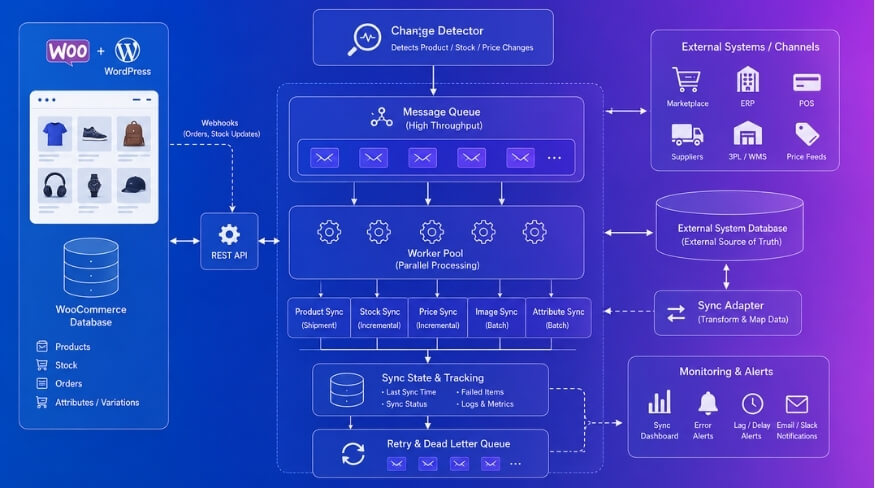
Once you cross a few hundred SKUs per location, stock sync stops being a simple background task. It becomes a resource problem. Timeouts creep in. Memory limits get hit mid-process. And when a sync dies halfway through, you’re left with a partially updated catalog and no clean way to know which records made it and which didn’t.
Here’s how to handle it properly.
Timeout and Memory Problems During Bulk Stock Sync
Most shared hosting environments set PHP’s max_execution_time at 30–60 seconds. A bulk sync touching 2,000 product variations across four locations can easily need five times that. When the server cuts the process off, it doesn’t roll back — it just stops. Half your stock numbers get updated. The other half don’t. That’s worse than no sync at all.
Memory is the second wall. WooCommerce loads product objects in memory as it processes them. With Variable Products that have 50+ variations each, memory per object climbs fast. Hit your memory_limit (often 256M on shared hosts) and PHP throws a fatal error, usually silently from a cron context where nobody’s watching.
Check your actual limits first. Go to WooCommerce → Status → System Status and look at the “PHP Memory Limit” and “PHP Max Execution Time” rows. If you’re under 512M and 120 seconds, you’re already at risk on large catalogs.
Practical fixes:
- Bump
memory_limitto at least 512M inphp.iniorwp-config.php(define('WP_MEMORY_LIMIT', '512M');). On managed WordPress hosts, this is usually a one-click setting or a support ticket. - If your sync runs via WP-Cron, replace it with Server Cron. WP-Cron only fires when someone visits the site, and it inherits the same request timeout as a browser visit. A proper Server Cron job running from the command line isn’t bound by that limit.
- Check whether your multi-location plugin batches its sync requests or tries to do everything in one pass. Single-pass bulk operations are the most common cause of timeout failures on large stores.
One concrete sign you’re hitting timeouts: the sync log shows records up to a certain SKU, then nothing. It didn’t error — it just ran out of time and stopped writing.
Safe Bulk Updates Using Chunked Processing and Dry-Run Mode
Chunked Processing is the correct architectural answer to the timeout problem. Instead of one massive request updating all 3,000 stock records, the process breaks into batches — say 50 or 100 products at a time — each handled as a separate job. If one chunk fails, only that chunk needs to retry. The rest of your catalog stays intact.
Not every sync plugin implements this. It’s worth checking before you run any large update.
If you’re using Multi-Location Product & Inventory Management for WooCommerce by Plugincy, the PRO version’s inventory import and export tooling handles large jobs with chunked upload processing, including pause, resume, and cancel controls. That matters on a real store — you can stop a running bulk job without corrupting anything, fix the source data, then continue. The free version handles per-product and variation-level stock editing fine, but for bulk CSV operations at scale, the PRO tooling is where that safety net lives.
Dry-Run Mode is equally important and often ignored. A dry run processes your data file and reports exactly what would change — which SKUs would update, which records would be skipped, which rows have errors — without touching a single stock quantity in the database. Always run dry first when doing a bulk update on a live store.
What to look for in a dry run report:
- SKUs that don’t match any product in your catalog (typos, deleted products)
- Variations that exist in your file but have no corresponding Product Variation in WooCommerce
- Stock quantities flagged as unusually large (data entry errors in the source file)
- Location mapping failures — your import file references a location slug that doesn’t exist in the system
Fix those before you run the real sync. Fixing a bad import after the fact means running a second bulk update to undo the first, which doubles your risk.
If you’re comfortable with code and building a custom sync via the WooCommerce REST API, process records in explicit batches and handle errors per-batch:
$batch_size = 50;
$chunks     = array_chunk( $stock_updates, $batch_size );

foreach ( $chunks as $chunk ) {
    $response = $client->post( 'products/batch', [ 'update' => $chunk ] );

    if ( is_wp_error( $response ) ) {
        error_log( 'Stock sync batch failed: ' . $response->get_error_message() );
        continue; // log and move on, don't abort the whole job
    }
}
Log failures per chunk, not as a single global failure. That way you know exactly which records need a retry.
When and How to Clear Cache Correctly After a Sync
This is the step that gets skipped most often, and it causes a specific frustrating symptom: your database has the correct stock quantity, but the product page still shows the old number. Customers see “In Stock” on something that just sold out. Or the reverse — “Out of Stock” on something you just restocked.
WooCommerce itself caches stock data in transients and object cache. Your hosting layer probably adds a page cache on top of that. After any bulk sync, you need to clear both layers in the right order.
Step 1: Clear WooCommerce’s own transients. Go to WooCommerce → Status → Tools → “Delete all WooCommerce transients”. This wipes cached stock statuses, product queries, and related computed data. Do this immediately after a sync completes.
Step 2: Clear your object cache — only if you’re running Redis or Memcached. If you’re on a plugin like W3 Total Cache or WP Rocket with object caching enabled, flush that separately. The WooCommerce transient clear won’t touch Redis.
Step 3: Clear page cache last. This is important — clear page cache after steps 1 and 2, not before. If you clear page cache first, WooCommerce will regenerate fresh page HTML pulling from stale object cache. You end up with a freshly cached wrong page.
If your multi-location plugin has its own location cache or location-specific transients — many do for performance — that needs to clear too. Multi-Location Product & Inventory Management for WooCommerce by Plugincy includes cache maintenance tools specifically for clearing inventory, product, and config caches after stock changes. Use that after any bulk location-stock update rather than relying on general plugin cleanup to catch it.
A few more practical notes:
- Don’t clear cache manually on every single sale. That’s what WooCommerce’s built-in stock deduction hooks handle automatically. Cache clearing is for bulk sync events — imports, API pushes, inter-location transfers.
- If you use Cloudflare or another CDN, purge cached product pages from the CDN dashboard too. A stale CDN-cached page will serve the old stock status even if your WordPress cache is perfectly clean.
- On very large stores, clear cache in sections rather than site-wide if your cache plugin supports it. Invalidating every cached page at once creates a performance spike as they all regenerate simultaneously under real traffic.
The rule of thumb: bulk sync touches the data layer → clear from the inside out (transients → object cache → page cache → CDN). Do it in that order every time.
Free vs Paid Stock Sync Solutions — Which One Is Right for You?
The honest answer: it depends on what “multiple locations” actually means for your store.
There’s a meaningful difference between syncing stock across separate WordPress sites, managing inventory across physical locations within one store, and doing backend warehouse operations. Free tools can handle some of these. Others genuinely need a paid solution to work without constant manual intervention.
What Free Gets You
Native WooCommerce has no multi-location stock management. Out of the box, you get one global stock number per SKU. That’s it. If you’re running a single warehouse and just need basic stock tracking, that’s fine. The moment you add a second location — a second warehouse, a retail pickup point, a regional depot — you’re already outside what core WooCommerce handles.
Free plugins exist, but the tradeoffs are real.
Stock Locations for WooCommerce by Fahad Mahmood is free on WordPress.org. It lets you assign stock to named locations and view per-location quantities. Useful for basic tracking. It won’t do customer-facing location selection, cart validation by location, or automatic order routing to the right fulfillment point.
Multi-Location Product & Inventory Management for WooCommerce by Plugincy is also free, and it covers considerably more ground at no cost. The free version gives you unlimited locations, per-location stock quantities for both simple and variable products (including individual Product Variation inventory), a customer-facing location selector, cart validation against the selected location, order location assignment, and a centralized stock view. That’s not a light feature set for a free tier. For a store with two or three locations that needs customers to pick a store and see what’s actually available there, the free version is a reasonable starting point.
Where Free Hits Its Ceiling
Free tiers tend to hold back the features that make multi-location stock sync actually run itself.
Inter-location stock transfers — moving inventory from a warehouse with surplus to a location that’s running low — are typically paid features. So is automated location detection based on customer IP, nearest-location routing, per-location pricing, and split-order fulfillment when a cart contains items from multiple locations.
REST inventory API access and Webhook support for connecting to external WMS, ERP, or POS systems? Also paid. That matters if you’re syncing WooCommerce with an external platform rather than managing everything inside WordPress.
For Plugincy PRO specifically, the paid tier adds things like inter-location stock transfers with transfer records, automatic location detection, order splitting with parent-child order relationships, per-location shipping methods, location manager roles with restricted access, and a full REST inventory API with API Key Authentication and signed Webhooks for external system integration. These aren’t features you’d miss until your operation actually needs them — but once you do need them, there’s no clean workaround in a free plan.
The Multi-Site Sync Category Is Different
Worth flagging clearly: WooMultistore and similar multi-site sync tools are solving a different problem. They sync stock between separate WordPress/WooCommerce installations — like franchises each running their own site. That’s Two-Way Sync across separate databases, not per-location inventory on one store. If you’re running one WooCommerce install with multiple physical locations, these aren’t the right category of tool.
Paid-Only Options
ATUM Inventory Management (by Stock Management Labs) is primarily a backend stock-operations tool — purchase orders, supplier tracking, Stock Central. Its multi-location capability is a paid add-on, not part of the free plugin. If your main need is backend warehouse management and you’re not doing customer-facing location selling, ATUM fits that niche. If you need customers to select a store and see location-specific availability, it’s not designed for that use case.
Other paid options in the direct multi-location category include MultiLoca by Techspawn, Multi Inventory Management by Addify, and Multi Warehouse Inventory by weLaunch. All are paid. None of them publish detailed feature-by-feature specs publicly, so compare against a trial or changelog before committing.
The Decision Framework
Ask yourself three questions:
- How many locations, and does the customer need to see them? If customers pick a store or see per-location availability on the front end, you need a plugin that handles customer-facing location logic — not just backend stock tracking.
- Do you need external sync? If stock numbers come from a POS, WMS, or ERP system outside WordPress, you need REST API access or Webhook support. That’s a paid feature on every option listed here.
- How much manual work are you willing to do? Free tools trade automation for cost. If your team manually updates stock after every sale across locations, that’s a time cost that compounds quickly as your catalog grows. Bulk Stock Sync, Chunked Processing for large catalogs, and Dry-Run Mode before a bulk update are the kinds of features that pay for themselves in avoided mistakes.
For most small stores with two to four locations, the free tier of a well-featured plugin covers the essentials. For anything involving external inventory systems, split-order fulfillment, or location-specific pricing, the paid route isn’t optional — it’s just the honest scope of what the problem requires.
Frequently Asked Questions (FAQ)
Why is my WooCommerce stock showing different numbers in different locations?
This almost always comes down to one of three things: stock is being updated at the global level but your location plugin is tracking it separately, a sync process failed silently midway, or two processes updated the same SKU at the same time and one overwrote the other (a classic Race Condition).
Check your Error Log first. Go to WooCommerce → Status → Logs and look for anything that fired around the time the mismatch started. Nine times out of ten, you’ll find a failed API call or a timeout.
Does WooCommerce support multi-location stock out of the box?
No. Core WooCommerce tracks one global stock quantity per product or Product Variation. There’s no native concept of a warehouse, branch, or pickup location. You need a plugin for that. The free version of Multi-Location Product & Inventory Management for WooCommerce by Plugincy handles per-location stock quantities, including for Variable Products, without any paid upgrade.
My stock synced fine for months. Why did it suddenly stop?
A few common triggers:
- A WooCommerce or PHP update changed how HPOS (High-Performance Order Storage) writes order data, breaking a plugin that expected the old
wp_postmetastructure - WP-Cron stopped running because traffic dropped and nothing triggered it — switch to a real Server Cron if you haven’t already
- An API Key used by your sync integration expired or got regenerated during a security audit
- A Webhook delivery started failing (check your Webhook logs under WooCommerce → Settings → Advanced → Webhooks)
Check all four before assuming the plugin is broken.
Can I sync stock between two separate WooCommerce stores?
Yes, but it’s a different problem from multi-location within one store. Tools like WooMultistore handle store-to-store sync. You’ll need to define a clear Sync Direction — which store is the source of truth — otherwise you’ll get conflicts. Two-Way Sync is possible but adds complexity; both stores can end up fighting over the same stock number if orders hit simultaneously.
What’s the difference between Two-Way Sync and one-way sync? Which should I use?
One-way sync is simpler and safer. One location (usually a central warehouse) owns the stock numbers and pushes them out. Everything else reads from it.
Two-Way Sync lets any location update stock and have that update reflected everywhere else. That sounds better, but it creates Race Conditions when two locations sell the last unit at the same time. If you go two-way, you need Stock Reservation at the cart level — so stock is held the moment something lands in a cart, not just when the order completes. Cart Validation on checkout is a second safety net, not the primary one.
For most stores, one-way sync is the right call unless you have a genuine operational reason for bidirectional updates.
Why do Variable Products cause more sync problems than simple products?
Each Product Variation has its own stock entry. A Variable Product with 40 size/color combinations means 40 separate stock records to sync. If your sync tool iterates through variations sequentially and the server times out on variation 23, variations 24–40 never update. You end up with a partial sync and no obvious error.
Use a plugin that supports Chunked Processing for large variation sets, and always check sync results at the variation level, not just the parent product.
My sync seems to run but stock numbers are still wrong. How do I confirm it’s actually doing anything?
Look at the actual stock quantity in the database, not just the product edit screen — cached page values can be stale. Use WooCommerce System Status to confirm object caching is running, then check whether your sync tool logs what it changed. If it doesn’t produce a proper sync log, you’re flying blind.
Also confirm your SKU values are consistent across locations. If the SKU on one end has a trailing space or a different case, Location Mapping will silently fail to match products.
Can I do a test sync without actually changing stock numbers?
If your plugin has a Dry-Run Mode, yes — run that first. It shows you what would change without touching live data. Not every plugin offers this. The PRO version of Multi-Location Product & Inventory Management for WooCommerce by Plugincy includes this for its import/export and bulk operations, along with snapshot and pause/resume support for large jobs. If your current tool doesn’t have dry-run, do your test sync against a staging copy of the database, not live.
How does HPOS affect stock sync?
HPOS moves order data out of wp_postmeta and into dedicated order tables. Any sync plugin that reads order stock deductions from wp_postmeta directly (instead of using WooCommerce’s own APIs) will either read stale data or nothing at all when HPOS is active. Check that your sync plugin explicitly states HPOS compatibility — don’t assume it’s fine just because it was working before you enabled HPOS.
Will stock sync work on a WPML site?
It gets complicated. WPML creates translated product copies, and depending on your setup, each language version may have its own product ID. A sync tool matching by post ID will treat them as different products. Match by SKU and Slug instead, and make sure your sync plugin is tested against WPML specifically. Test with one product in all languages before running a Bulk Stock Sync across your whole catalog.
How do I stop Overselling when stock sync has a delay?
Three things together:
- Enable Stock Reservation so stock is held at cart, not just at order
- Run Cart Validation on checkout to reject items that have gone out of stock since they were added
- Set a sync interval that’s short enough to matter — a 6-hour sync on a busy site is basically no sync at all
For high-traffic products, real-time stock checks via the WooCommerce REST API on the product page (not just at checkout) give you the earliest possible warning before a customer even adds to cart.
Is the WooCommerce REST API reliable enough for live stock sync?
For most stores, yes — with API Key Authentication and proper error handling. The main failure points are rate limiting (the REST API will reject requests if you hammer it), network timeouts on large catalogs, and missing retry logic on your end. If a sync call fails and your code doesn’t retry it, that stock update is just lost. Build in retries with exponential backoff, or use Webhooks so WooCommerce pushes changes to you instead of your system polling constantly.
Make Your Decision — Which Path Should You Take?
You’ve read through the diagnosis, the setup options, the sync mechanics, the performance considerations, and the tool comparisons. Now you actually have to decide what to do. Here’s a clear way to think about it.
If You’re Running a Single Store with No Real Location Complexity
Stop shopping for plugins. WooCommerce’s native stock management — with a reliable Server Cron replacing WP-Cron — handles most single-location scenarios fine. Your sync problems are almost certainly a cron issue, a Race Condition on high-traffic checkout, or a misconfigured Webhook. Fix those first. They’re free fixes.
Check your WooCommerce System Status page. Look at the Error Log. If WP-Cron is your scheduler, switch to a real server cron with a /5 * interval. That alone resolves a surprising number of “stock didn’t update” complaints.
If You’re Selling Across Multiple Physical Locations or Warehouses
This is where native WooCommerce genuinely falls short. It has no concept of per-location stock. Every order pulls from one global quantity, which means Overselling is almost inevitable once you’re fulfilling from more than one place.
You need a plugin that tracks stock per location — not just globally.
Your practical options:
- Multi-Location Product & Inventory Management for WooCommerce by Plugincy — the free version gives you per-location stock quantities for both simple products and every Product Variation inside a Variable Product, Cart Validation against the selected location, and order location assignment. That’s a serious feature set at no cost. The PRO version adds inter-location stock transfers, automatic location detection, order splitting across locations, per-location pricing, Webhooks for external systems, and a REST inventory API for WMS/ERP integration — the features you’d need if this is a real retail or warehouse operation.
- Stock Locations for WooCommerce by Fahad Mahmood — free, lightweight, straightforward per-location stock tracking
- Multi Inventory Management by Addify — paid, with more advanced routing options
- MultiLoca by Techspawn — paid option worth evaluating for mid-complexity setups
If you’re already using ATUM for backend operations (purchase orders, supplier tracking), note that its multi-location support is a paid add-on — it’s not included in the free version and the feature scope is oriented toward stock operations rather than customer-facing location selling.
WooMultistore and similar multi-site sync tools are a different category entirely. They’re for syncing stock between separate WordPress installs. If you have one WooCommerce store with multiple fulfillment points, those tools aren’t solving your problem.
If Your Sync Breaks Only Under Load
Your issue is almost certainly Chunked Processing, database lock contention, or a Stock Reservation gap. A proper multi-location plugin with Bulk Stock Sync and Dry-Run Mode helps here — you can validate a stock import before it touches live inventory. On the infrastructure side, the fix is usually server-level: proper Server Cron, object caching, and enough PHP workers to handle concurrent checkouts without triggering Race Conditions.
If You’re Integrating with an External System
You need Two-Way Sync with proper Sync Direction control, API Key Authentication, and either Webhooks or polling via the WooCommerce REST API. The SKU is your anchor — every product needs a unique SKU that matches between WooCommerce and your external system, or Location Mapping breaks down fast. This is a PRO-tier concern with most plugins, and it should be — building a reliable external sync on free tooling is fragile.
The Honest Bottom Line
If your situation is simple, the fix is probably free and already available. If you’re managing real multi-location inventory with staff, transfers, and customer-facing location selection, the free version of Multi-Location Product & Inventory Management for WooCommerce by Plugincy covers the core setup without spending anything — and the PRO version has a clear upgrade path when your operation outgrows it.
Don’t over-engineer it before you know what’s actually breaking. Diagnose first. Most stock sync problems come down to three things: cron not running, a missing SKU, or no per-location stock tracking at all. Fix the right layer and the rest usually follows.
