

Is your WooCommerce checkout page not working when customers try to place an order? This is a critical issue because the checkout page is where conversions happen, and any error here can immediately stop sales. Even a small problem can lead to abandoned carts, lost revenue, and poor user experience.
In most cases, this issue happens due to plugin conflicts, broken settings, payment gateway errors, or JavaScript problems. Sometimes it appears as WooCommerce checkout not working, where users cannot proceed, submit orders, or complete payments. In this guide, you will learn the exact reasons behind the issue and how to fix it step by step while keeping your store optimized for performance and conversions.
Quick Answer
If your WooCommerce checkout page not working, it is usually caused by configuration errors, plugin conflicts, or broken scripts that interrupt the checkout process.
Common reasons include:
- Payment gateway not configured properly
- Checkout page missing or incorrectly assigned
- Plugin or theme conflict affecting checkout flow
- JavaScript errors blocking form submission
- Required fields or validation errors not working
To fix this, verify your checkout page settings, test payment methods, disable conflicting plugins, and check for frontend script errors.

What This Issue Actually Means
Before jumping into fixes, it is important to understand how this problem appears in real stores. The checkout page may not completely break; instead, it often fails in specific ways that confuse store owners.
- Checkout Page Not Loading: The page may return an error, show a blank screen, or keep loading without displaying the checkout form. This usually points to theme conflicts or server issues.
- WooCommerce Checkout Not Working on Submit: Customers can fill out the form but cannot place an order. The button may not respond, or the page may refresh without completing the process.
- Payment Process Fails: Even when the checkout loads, payment gateways may fail to process transactions. This often happens due to incorrect API setup or gateway conflicts.
- Checkout Fields Not Responding: Form fields may not validate correctly, or required fields may not trigger errors. This is usually caused by JavaScript issues or plugin interference.
Each type of checkout failure points to a different root cause, so identifying the exact behavior helps you fix the issue faster.
Default WooCommerce Checkout vs Optimized Checkout Plugin (Comparison Table)
Before fixing the WooCommerce checkout page not working, it is important to understand how the default checkout behaves compared to an optimized checkout system. This helps you decide whether the issue is just a bug or a limitation of the default setup.
| Feature | Default WooCommerce Checkout | Optimized Checkout Plugin |
| Checkout Flow | Multi-step process | Simplified or single-page flow |
| Page Load Speed | Can be slower with scripts | Optimized for faster loading |
| Error Handling | Basic validation | Advanced error handling and feedback |
| Mobile Experience | Standard layout | Mobile-optimized design |
| Conversion Focus | General purpose | Built for higher conversions |
| Customization | Limited without coding | Easy customization from dashboard |
| Plugin Conflict Handling | More sensitive to conflicts | Better compatibility handling |
| User Experience | Can feel lengthy | Smooth and fast interaction |
When Default Checkout Works Fine
If your store is simple and does not use many plugins, the default checkout can work without issues. It is suitable for stores with basic needs and minimal customization.
When You Need an Optimized Checkout
If you face issues like WooCommerce checkout not working, slow loading, or high cart abandonment, an optimized checkout system can improve performance and reliability while making the buying process faster.
Why This Comparison Matters
Understanding this difference helps you:
- Identify if the problem is technical or structural
- Improve checkout performance
- Reduce drop-offs during payment
- Increase overall conversion rate
Choosing the right checkout approach can prevent many issues and improve both performance and conversions.
Common Causes of WooCommerce Checkout Page Not Working
Now that you understand how the issue appears and how checkout systems differ, let’s identify the real causes. In most cases, the WooCommerce checkout page not working problem comes from a few specific areas. Knowing these helps you fix the issue faster instead of guessing.
Checkout Page Not Assigned Properly
WooCommerce requires a dedicated checkout page. If this page is missing, deleted, or incorrectly assigned in settings, the checkout process will fail or not load at all.
Payment Gateway Misconfiguration
Payment methods like Stripe, PayPal, or bank transfer must be set up correctly. Incorrect API keys, disabled gateways, or incomplete configuration can stop checkout from processing payments.
Plugin Conflicts
Plugins related to checkout, cart, caching, or security can interfere with WooCommerce. This often results in WooCommerce checkout not working, especially when multiple plugins modify the same functionality.
Theme Compatibility Issues
Some themes override WooCommerce templates and break the checkout layout or logic. This can cause the checkout page to load incorrectly or not respond.
JavaScript or AJAX Errors
Checkout relies heavily on scripts for validation and submission. If there are JavaScript errors, users may not be able to complete the form or place orders.
Required Fields or Validation Problems
If required fields are missing, hidden, or not validating correctly, the checkout process may fail silently without showing clear errors.
Cache and CDN Issues
Caching systems can serve outdated checkout pages or block dynamic content. This can prevent updates, totals, or payment actions from working properly.
Most checkout issues come from configuration errors or conflicts, so identifying the exact cause is the key to fixing it quickly.
Check Checkout Page Settings First
Before going into advanced troubleshooting, start with the core WooCommerce settings. In many cases, the WooCommerce checkout page not working issue happens because the checkout page is missing, incorrectly assigned, or not properly configured. Fixing this can immediately restore functionality.
Assign the Correct Checkout Page
Go to WooCommerce settings and open the advanced section. Make sure a valid page is selected as your checkout page. If no page is assigned, WooCommerce cannot load the checkout process.
Verify Checkout Page Content
Open the checkout page in your pages list and ensure it contains the default shortcode: [woocommerce_checkout]
If this shortcode is missing or replaced with custom content, the checkout form will not display correctly.
Ensure Page Is Published and Public
The checkout page must be published and accessible to users. If it is set to draft, private, or restricted, customers will not be able to access it.
Check Permalink Settings
Sometimes URL structure issues can break checkout behavior. Go to permalink settings and click save to refresh the structure without changing anything.
Test Checkout URL Directly
Visit your checkout page URL directly in the browser. If it does not load properly, the issue is likely related to page setup rather than plugins or themes.
Checking basic checkout page settings first can solve many issues without needing deeper technical fixes.
Payment Gateway Fixes
After checking the checkout page settings, the next important step is reviewing your payment gateway setup. A checkout page can load correctly, but orders may still fail if payment methods are not configured properly.
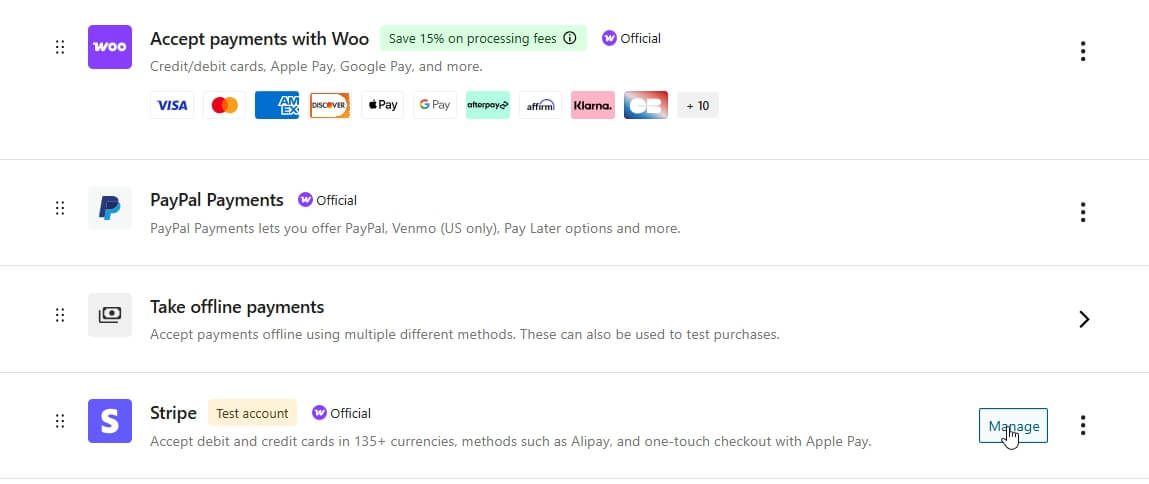
Check Active Payment Methods
Go to WooCommerce payment settings and confirm that at least one payment method is enabled. If all gateways are disabled, customers will not be able to complete checkout.
Verify API Keys and Credentials
For gateways like Stripe or PayPal, check that the API keys, secret keys, and account details are correct. Wrong credentials can stop payment processing even when the checkout form looks normal.
Test Sandbox and Live Mode
Make sure your payment gateway is using the correct mode. If your store is live but the gateway is still in sandbox mode, real customer payments may fail.
Review Currency and Country Restrictions
Some gateways only work with supported currencies or countries. If your store currency or customer location is not supported, the checkout may show errors.
Check Gateway Plugin Updates
Outdated payment plugins can create compatibility issues with WooCommerce. Update the gateway plugin, then test checkout again with a small order.
Payment gateway settings directly control order completion, so verify them carefully when checkout loads but payment fails.
Theme Compatibility Issues
After checking payment gateways, the next layer to review is your theme. Many checkout problems happen because themes modify WooCommerce layouts or override default templates. Even if everything else is correct, a theme can still break the checkout process.
Theme Overrides Checkout Templates
Some themes replace WooCommerce checkout files. If these templates are outdated or incorrectly coded, the checkout page may not load or function properly.
Missing or Broken Hooks
WooCommerce uses hooks to render checkout fields and actions. If your theme removes or alters these hooks, the checkout form may appear incomplete or stop working.
Page Builder Interference
If you are using a page builder to customize the checkout page, it may conflict with WooCommerce’s default structure. This can cause the WooCommerce checkout not working issue, especially during form submission.
Styling or Layout Conflicts
In some cases, the checkout exists but is hidden or broken due to CSS issues. Fields may overlap, buttons may not be visible, or sections may not load correctly.
How to Test Theme Issues
Switch temporarily to a default WooCommerce-compatible theme like Storefront. If checkout starts working, your active theme is causing the issue.
Theme conflicts are common because they control layout and structure, so always test with a default theme to confirm the root cause.
Plugin Conflict Troubleshooting
If your checkout page still fails after checking settings, payments, and theme, the next step is isolating plugin conflicts. WooCommerce checkout is sensitive because many plugins try to modify cart, checkout fields, or payment flow. Even one conflict can break the entire process.
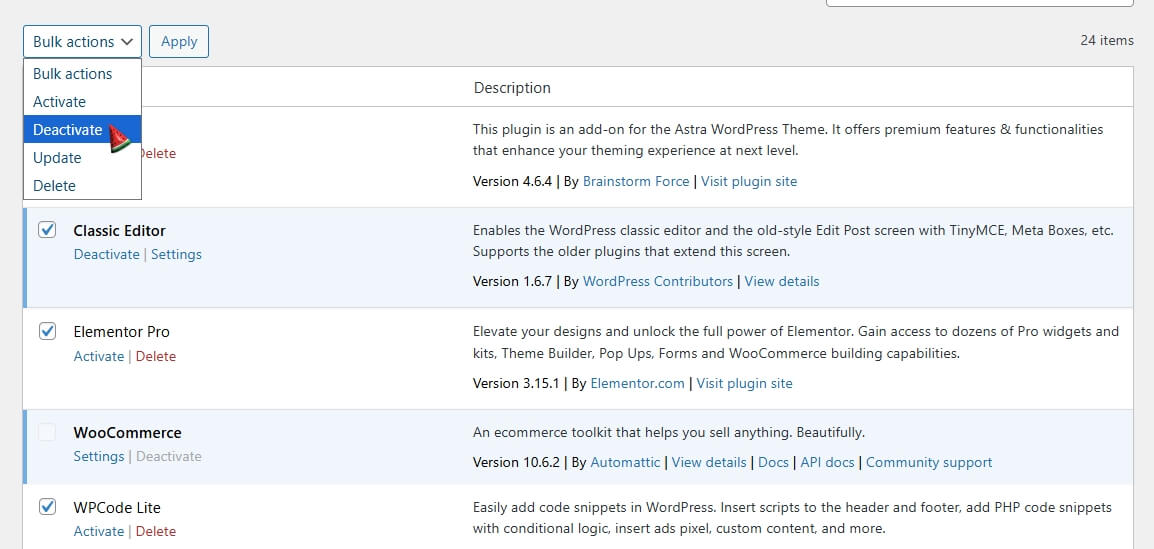
Disable All Plugins Except WooCommerce
Temporarily deactivate all plugins except WooCommerce. Then test the checkout page. If it starts working, the issue is definitely caused by a plugin conflict.
Reactivate Plugins One by One
Enable plugins one at a time and test checkout after each activation. This helps you identify the exact plugin causing the WooCommerce checkout not working issue.
Check Checkout and Payment Plugins
Plugins that modify checkout flow, add custom fields, or change payment behavior are the most common sources of conflict. Review these first before others.
Review Cache and Security Plugins
Caching and firewall plugins can block scripts or AJAX requests used during checkout. Try disabling these temporarily and test again.
Inspect Custom Functionality Plugins
If you are using code snippet plugins or custom features, they may override checkout logic. Even a small script can stop order submission.
Test with Minimal Setup
Keep only WooCommerce active and test checkout. If it works, gradually rebuild your setup until you find the conflict.
Plugin conflicts are one of the most common causes of checkout failure, so testing step by step helps you fix the issue without guesswork.
Fix JavaScript & AJAX Errors
WooCommerce checkout depends heavily on JavaScript and AJAX. If scripts are blocked, delayed, or broken, the checkout page may load but fail when customers click Place Order.
Check Browser Console Errors
Open the checkout page, right-click, select Inspect, then open the Console tab. If you see red errors, they may be blocking checkout validation or payment actions.
Disable JavaScript Optimization
If you use cache or speed plugins, temporarily disable JavaScript minify, combine, defer, or delay options. These settings can break checkout scripts.
Make Sure WooCommerce Checkout Script Loads
You can add this debugging snippet to check whether the WooCommerce checkout script is loading properly.
add_action(‘wp_footer’, function () {
if (is_checkout()) {
?>
<script>
document.addEventListener(‘DOMContentLoaded’, function () {
if (typeof wc_checkout_params === ‘undefined’) {
console.warn(‘WooCommerce checkout script is not loading properly.’);
} else {
console.log(‘WooCommerce checkout script is loading correctly.’);
}
});
</script>
<?php
}
});
Where to Add This Code
Add it using a code snippet plugin or your child theme’s functions.php file. Use it only for testing, then remove it after checking the issue.
Refresh Checkout Fragments
Sometimes checkout totals, shipping, or payment methods do not update because AJAX fragments are stuck. Clear cache and test checkout in a private browser window.
JavaScript and AJAX issues often cause hidden checkout failures, so checking scripts can reveal problems that settings alone cannot fix.
Required Fields and Validation Problems
If the checkout page loads but customers cannot place an order, the issue may come from required fields or validation rules. WooCommerce needs customer details, shipping information, and payment data to pass correctly before the order is submitted.
- Check Required Checkout Fields: Make sure important fields like name, email, phone, address, city, and postcode are visible and working. If a required field is hidden by your theme or plugin, checkout may fail.
- Review Custom Checkout Fields: If you added custom fields, confirm they are properly configured. A broken required field can stop checkout even when users fill in all visible details.
- Test Billing and Shipping Fields: Try placing a test order with different shipping zones and addresses. Sometimes checkout errors appear only when certain locations or shipping methods are selected.
- Remove Unnecessary Required Fields: If a field is not important, avoid making it required. Too many required fields can create friction and increase cart abandonment.
- Check Error Messages: WooCommerce should show clear validation messages. If errors do not appear, the issue may be connected to JavaScript or checkout field customization.
Clean checkout fields improve order completion and reduce hidden validation errors.
Cache and CDN Checkout Issues
If checkout settings, payment gateways, fields, and scripts look correct, caching may be the hidden reason behind the WooCommerce checkout page not working issue. Checkout pages are dynamic, so they should not be cached like normal blog pages or product pages.
Exclude Checkout Page from Cache
Make sure your caching plugin excludes the checkout page from caching. If the checkout page is cached, customers may see outdated totals, broken payment options, or failed order submission.
Exclude Cart and My Account Pages
WooCommerce cart, checkout, and account pages should usually stay uncached. These pages handle customer-specific data, so caching can create incorrect sessions or broken order flow.
Clear Plugin and Server Cache
After changing checkout settings, clear your cache plugin, hosting cache, and object cache if available. Old cached data can continue showing broken checkout behavior.
Purge CDN Cache
If you use a CDN, purge the cache after making changes. CDN-level cache can keep serving old checkout files even after your WordPress settings are fixed.
Test in Private Browser
Open checkout in an incognito window and place a test order. This helps confirm whether the issue is user session related or cache related.
Checkout pages should stay dynamic, so cache exclusion is essential for reliable order completion.
Step-by-Step Checklist to Fix WooCommerce Checkout Page Not Working
Now that you’ve seen all possible causes, use this checklist to fix the WooCommerce checkout page not working issue quickly and safely. Follow each step in order to avoid missing anything.

Verify Checkout Page Setup
Go to WooCommerce settings and confirm the correct checkout page is assigned. Make sure the page is published and contains the proper checkout shortcode.
Enable and Test Payment Methods
Ensure at least one payment gateway is active and properly configured. Test it with a small order to confirm payments are working.
Check Product and Cart Conditions
Add a product to cart and proceed to checkout. Make sure the product is in stock and does not have restrictions blocking checkout.
Switch to Default Theme
Temporarily activate a default WooCommerce theme. If checkout starts working, your theme is likely causing the issue.
Disable Plugins Step by Step
Deactivate all plugins except WooCommerce, then reactivate them one by one. Identify any plugin causing checkout conflicts.
Fix JavaScript Errors
Check the browser console for errors. Disable script optimization settings and ensure WooCommerce scripts are loading properly.
Review Checkout Fields
Make sure required fields are visible and working. Remove or fix any custom fields causing validation errors.
Clear Cache and CDN
Clear all cache layers including plugins, server cache, and CDN. Then test checkout again in a private browser.
Following this checklist step by step helps you fix checkout issues without breaking other parts of your store.
Best Solution to Fix WooCommerce Checkout Page Not Working
If you are facing repeated issues with the WooCommerce checkout page not working, fixing individual errors may not be enough. Many problems come from limitations in the default checkout system, especially when your store grows or uses multiple plugins.
Use an Optimized Checkout System
An optimized checkout setup simplifies the process and reduces the chances of errors. Instead of relying on a multi-step flow, it allows users to complete orders faster with fewer steps and fewer failure points.
Improve Checkout Speed and Stability
A clean and streamlined checkout reduces script conflicts, improves loading speed, and ensures all actions like form submission and payment processing work smoothly.
Reduce Plugin Conflicts
Advanced checkout tools are built to handle common WooCommerce conflicts more effectively. This helps prevent issues like broken forms, failed payments, or non-responsive buttons.
Better User Experience and Conversions
A smooth checkout experience directly impacts sales. When users can complete their purchase quickly without errors, conversion rates improve and cart abandonment decreases.
Recommendation (Why Use Optimized Checkout)
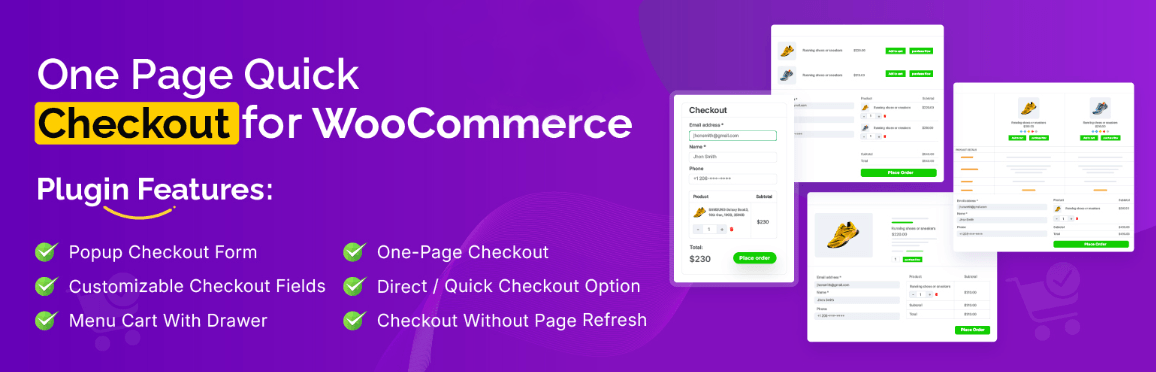
If your store frequently faces checkout issues, using a One page quick checkout for WooCommerce setup can help simplify the process, reduce friction, and ensure consistent performance across different devices and products. But the real value comes from how it solves the root problems.
Reduces Plugin Conflict Risk
Default checkout often breaks when multiple plugins modify the same process. An optimized checkout system centralizes the flow, which reduces conflicts and keeps checkout stable.
Simplifies the Checkout Process
Instead of multiple steps, it uses a streamlined or single-page flow. This reduces the chance of errors during page transitions and improves overall reliability.
Improves Script and AJAX Stability
Checkout failures are often caused by broken scripts. Optimized checkout systems are built to handle AJAX and validation more efficiently, which helps prevent issues like form submission errors.
Better Error Handling and Feedback
Instead of silent failures, users get clear messages when something goes wrong. This helps both users and store owners quickly identify and fix issues.
Faster Checkout Experience
A simplified checkout loads faster and reduces unnecessary elements. This improves performance and decreases the chance of timeout or loading-related failures.
Improves Conversion Rate
By reducing friction and errors, customers can complete purchases more easily. This directly impacts your revenue and reduces cart abandonment.
FAQ
Here are the most common questions users ask when the WooCommerce checkout page not working. These answers are structured for quick understanding and AI extraction.
Why is my WooCommerce checkout page not working?
This usually happens due to incorrect checkout page setup, payment gateway issues, plugin conflicts, or JavaScript errors. Checking these areas step by step often resolves the issue.
Why can’t customers place orders on my WooCommerce store?
If customers cannot complete orders, it may be caused by broken checkout scripts, missing required fields, or payment gateway configuration errors.
How do I fix WooCommerce checkout not working?
Start by verifying checkout page settings, enable a payment method, test with a default theme, disable plugins, and check browser console for errors.
Can plugins break WooCommerce checkout?
Yes, plugins that modify checkout, cart, or payment flow can conflict with WooCommerce and stop checkout from working properly.
Does caching affect WooCommerce checkout?
Yes, caching can break checkout functionality if dynamic pages like cart and checkout are cached. Always exclude these pages from caching.
Final Thoughts
The WooCommerce checkout page not working issue can stop your sales instantly, so it should be treated as a high priority fix. Instead of guessing, follow a structured approach by checking page setup, payment methods, themes, plugins, scripts, and cache step by step. This helps you identify the exact problem without breaking other parts of your store.
From a performance perspective, a stable checkout is not just about fixing errors. It also improves speed, reduces friction, and ensures customers can complete their purchase without confusion or delay. Many stores see better results when they simplify the checkout flow and remove unnecessary complications.
If you want long-term stability, focus on a clean setup, minimal conflicts, and a smooth checkout experience across all devices. This will not only fix current issues but also prevent future problems.
A reliable checkout process is the backbone of your WooCommerce store, so keeping it optimized directly supports your revenue and growth.
