
Social notifications let you send real-time alerts and digests from your store to external platforms such as Microsoft Teams, Slack, Discord, Telegram, or custom webhooks. This ensures your team stays informed without logging into WordPress.
Where to Configure
Go to:
WordPress Admin → Settings → Notifications
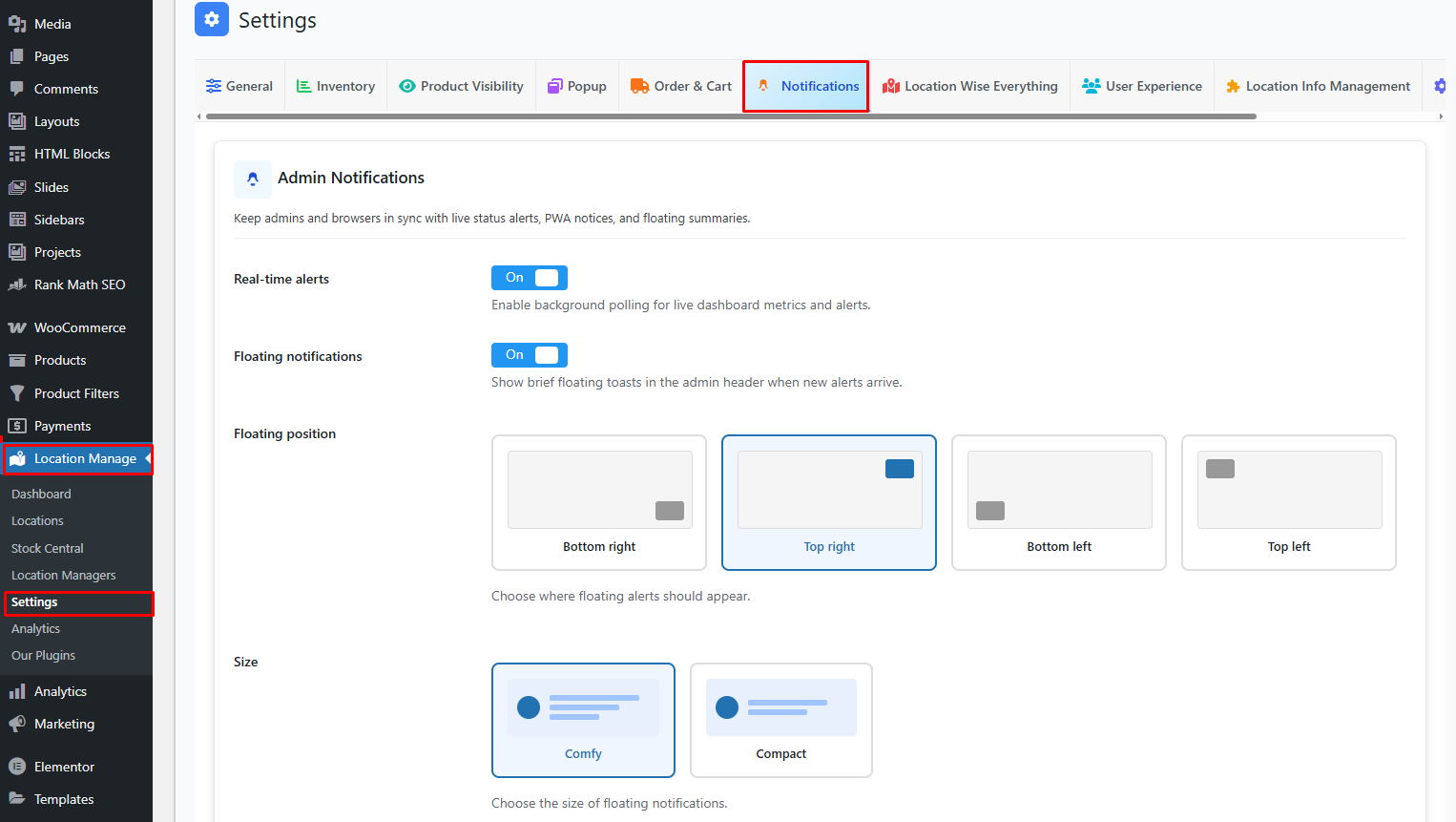
Social Notifications Panel
Social Notifications
Manage social/webhook alerts per platform. Add multiple destinations and test instantly.
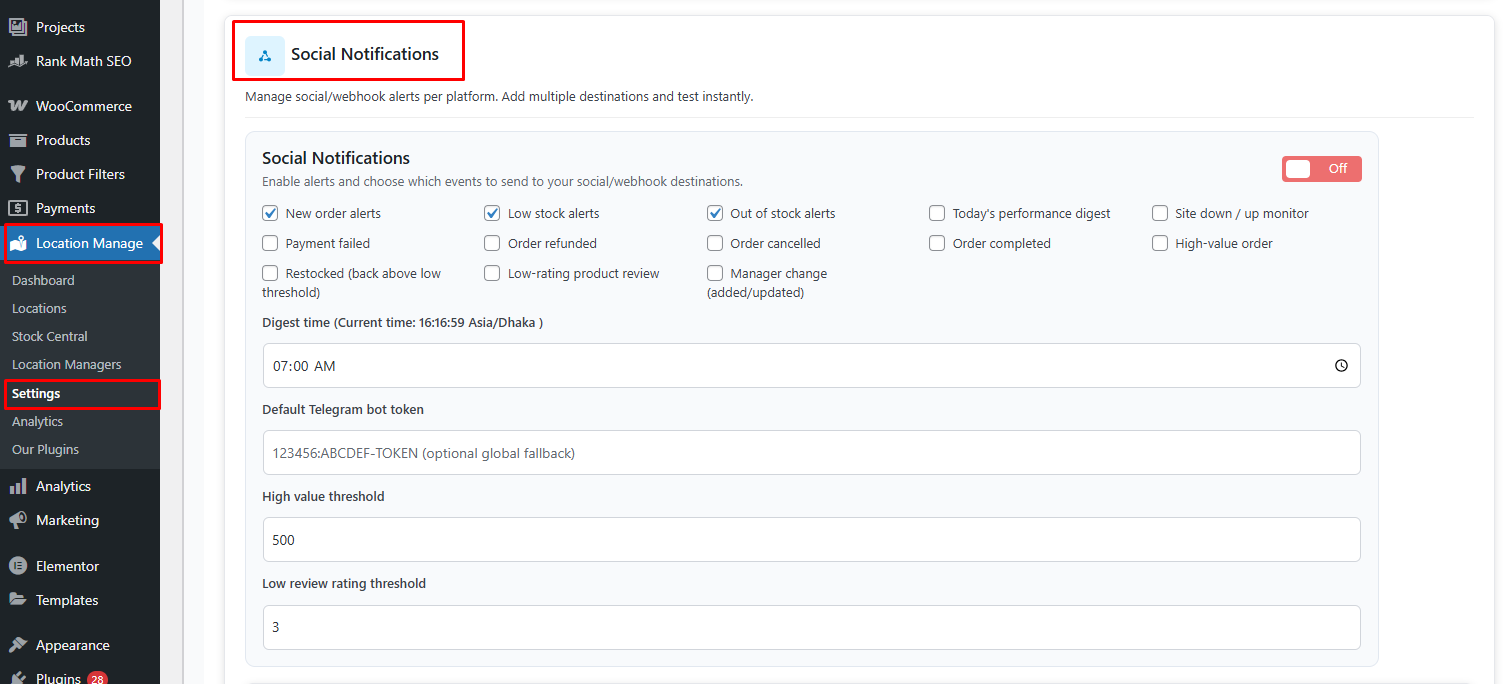
Enable Social Notifications
Turn on Social Notifications and select which events you want to send.
Available Events
- New order alerts
- Low stock alerts
- Out of stock alerts
- Today’s performance digest
- Site down / up monitor
- Payment failed
- Order refunded
- Order cancelled
- Order completed
- High-value order
- Restocked (back above low threshold)
- Low-rating product review
- Manager change (added / updated)
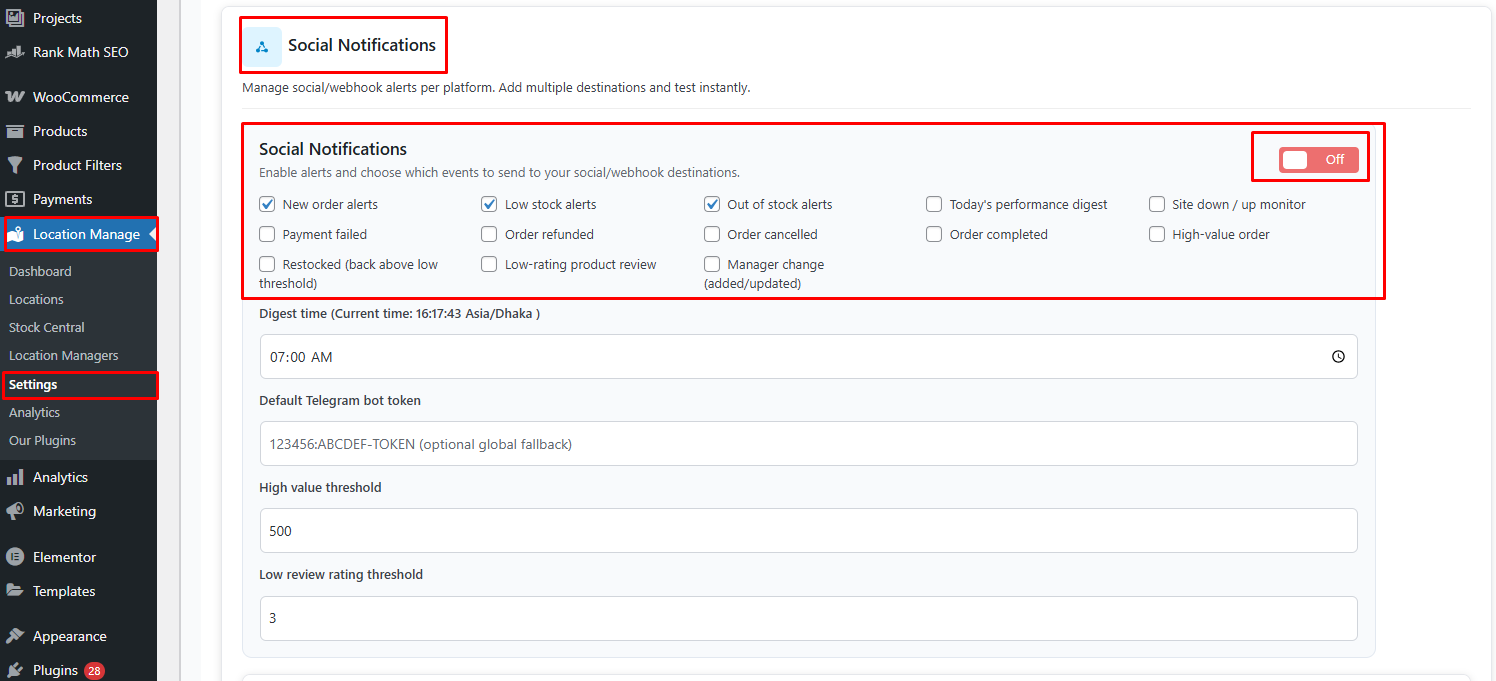
Global Settings
Digest Time
Example: 07:00 AM
(Current time is shown for reference)
- Time when the daily performance digest is sent
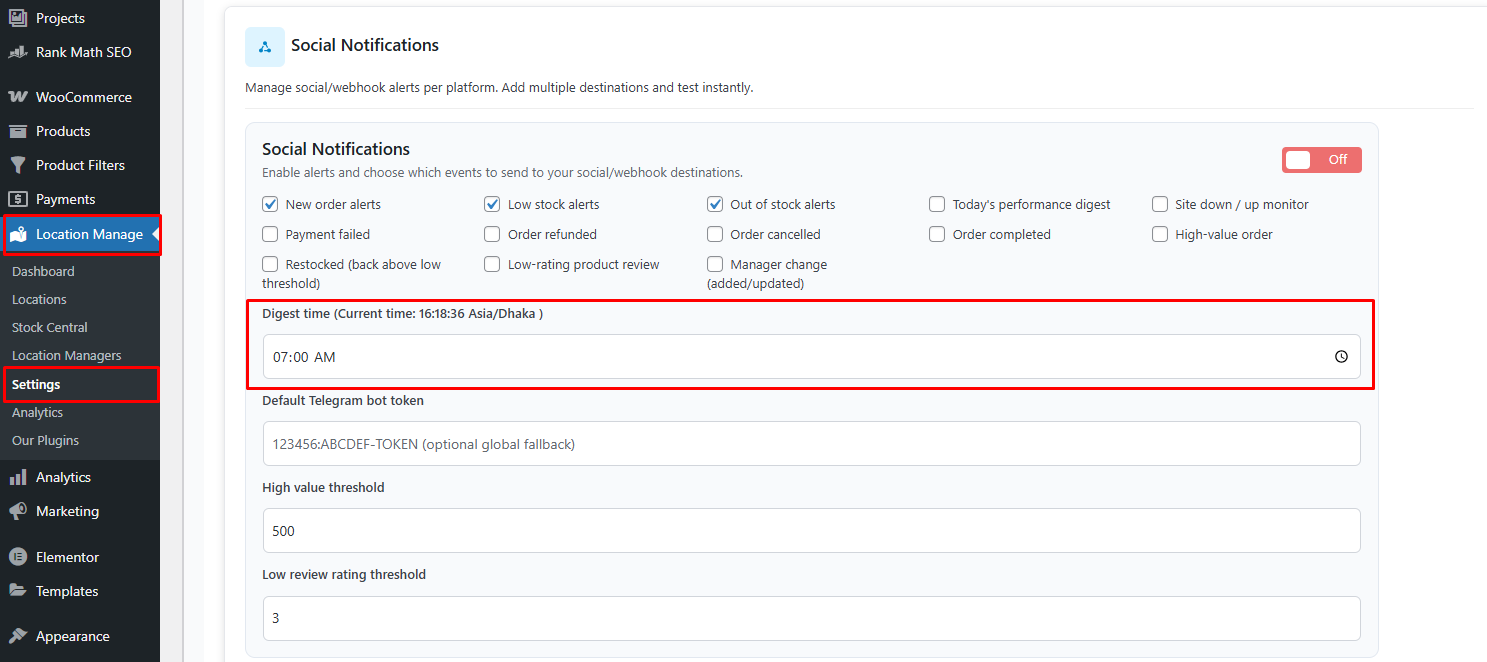
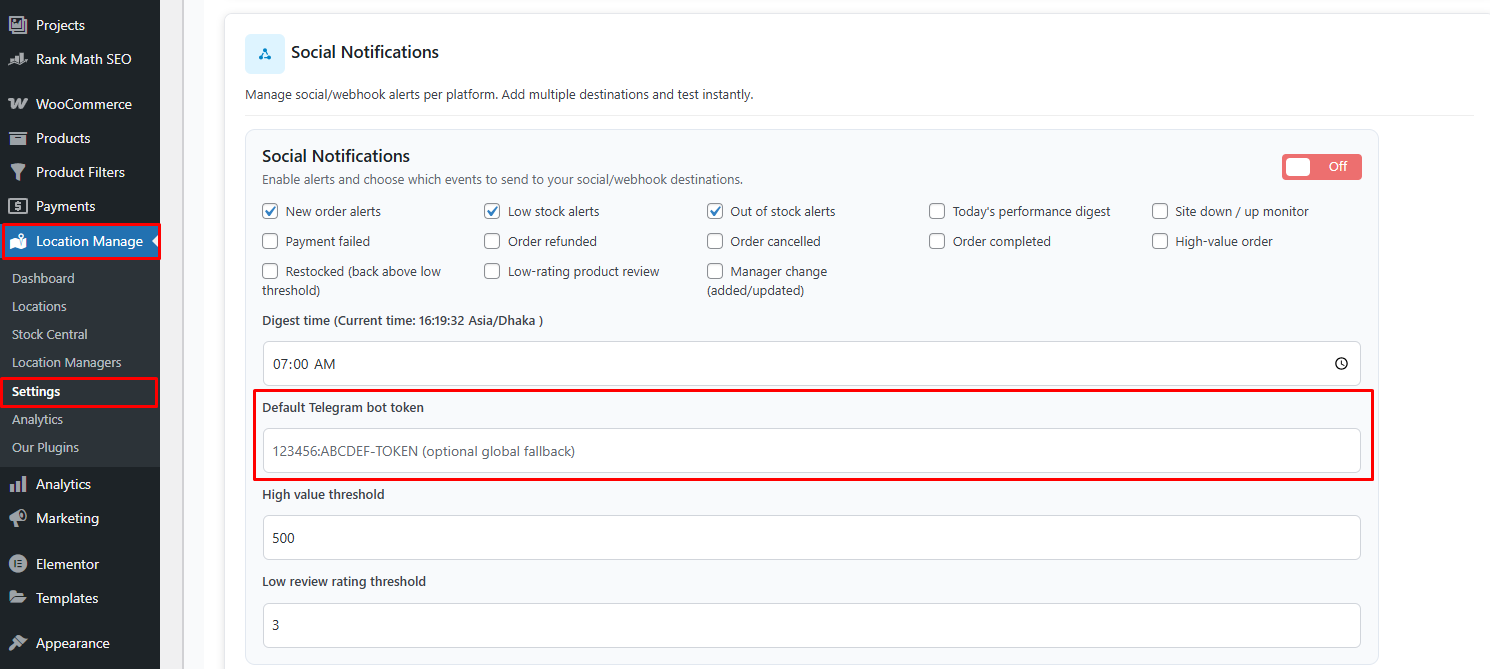
Default Telegram Bot Token
123456:ABCDEF-TOKEN
- Optional global fallback token for Telegram
- Can be overridden per Telegram channel
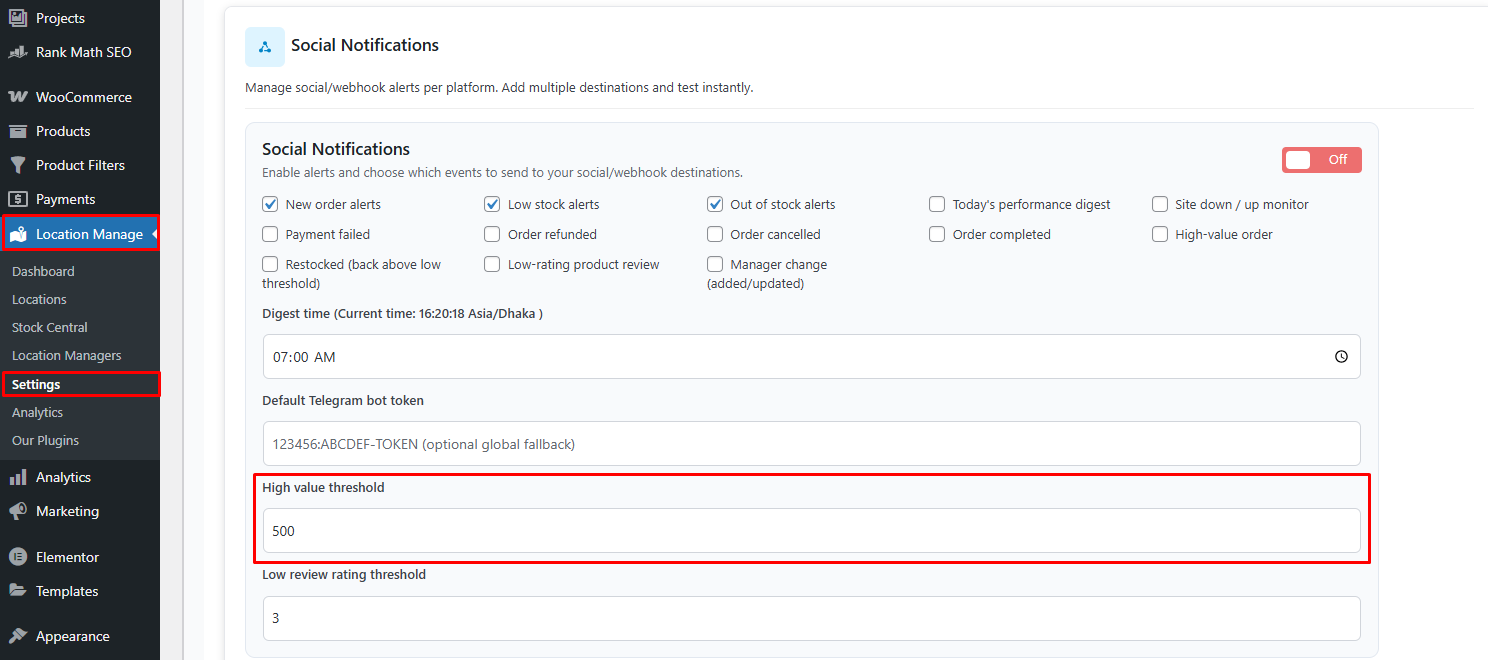
High-Value Order Threshold
Default: 500
- Orders equal to or above this amount trigger High-value order alerts
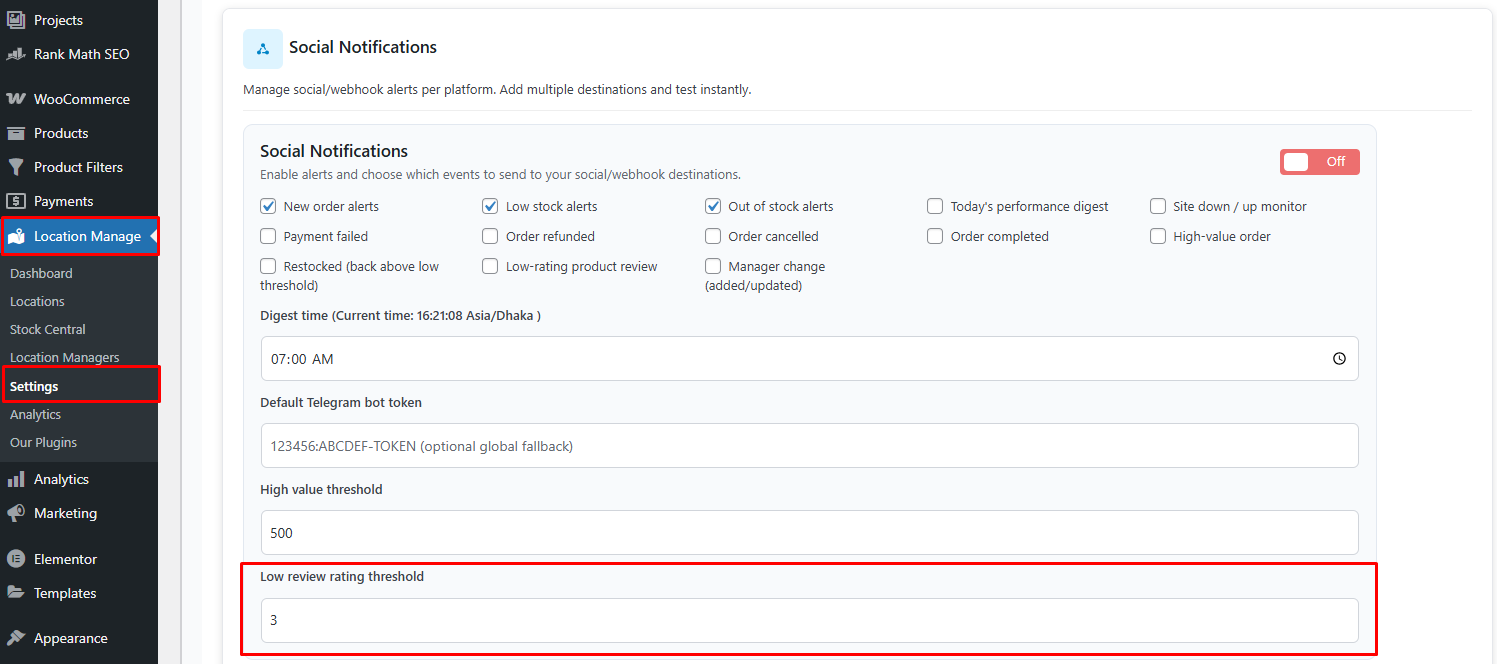
Low Review Rating Threshold
Default: 3
- Product reviews at or below this rating trigger alerts
Social Channels
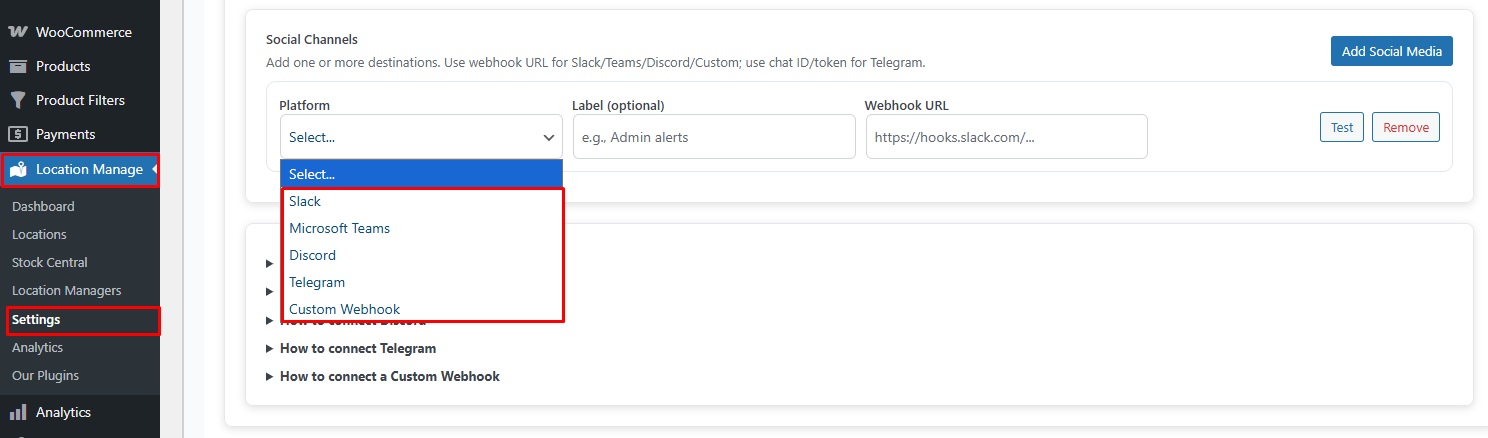
You can add one or more destinations.
Supported types:
- Microsoft Teams
- Slack
- Discord
- Telegram
- Custom Webhook (any HTTPS endpoint)
Click Add Social Media to create a new destination.
Platform Setup Guides
Microsoft Teams
- Open the target Teams channel
- Click More options (⋯) → Connectors / Apps
- Search Incoming Webhook and click Add / Create
- Name it (e.g. Store Alerts), optionally upload an icon
- Click Create and copy the Webhook URL
- Paste the URL into the Webhook URL field and save
- Enable desired events and click Test
📘 Reference: Microsoft Docs – Incoming Webhook
Slack
- Go to Settings & administration → Manage apps
- Search Incoming WebHooks and click Add
- Choose the channel and add the integration
- Copy the Webhook URL
- Paste it into the Webhook URL field and save
- Enable events and click Test
📘 Reference: Slack Docs – Incoming Webhooks
Discord
- Go to Server Settings → Integrations → Webhooks
- Click New Webhook
- Select the channel and copy the Webhook URL
- Paste it into the Webhook URL field and save
- Enable events and click Test
Telegram
- Create a bot via @BotFather and copy the Bot Token
- Start a chat with @userinfobot or add the bot to a group to get the Chat ID
- Enter:
- Chat ID
- Bot Token (or use the global token)
- Save settings
- Enable events and click Test
Custom Webhook
- Use any HTTPS endpoint that accepts a JSON POST payload
- The payload includes a
textfield containing the notification message - Paste the endpoint URL and save
- Enable events and click Test
Testing & Validation
- Each channel includes a Test button
- Sends a sample notification instantly
- Confirms:
- Connectivity
- Authentication
- Message formatting
Best Practices
- Use real-time alerts for critical events (orders, stock, downtime)
- Use daily digest for performance summaries
- Set realistic thresholds to avoid alert fatigue
- Add multiple channels for redundancy (e.g. Slack + Telegram)
Summary
| Feature | Benefit |
|---|---|
| Multi-platform support | Teams, Slack, Discord, Telegram |
| Real-time alerts | Instant operational awareness |
| Daily digest | Performance overview |
| Custom webhooks | Unlimited integrations |
| Test instantly | Easy validation |
Social Channel Realtime Notifications keep your entire team informed—wherever they work, in real time.