
Filter by Taxonomy
This feature allows you to filter products using a taxonomy based filter. A taxonomy helps organize products into meaningful groups so customers can easily narrow down what they are looking for.
What is Taxonomy?
A taxonomy is a system used to group and organize products.
In WooCommerce, some common taxonomies already exist, such as:
- Product Categories
- Product Tags
- Product Attributes
A custom taxonomy is one that you create yourself when you want to organize products in a different way.
For example, products can be grouped by:
- Material
- Brand
- Region
- Collection
If you sell items made from different materials, you may want to group them by Material.
Why Use Taxonomy?
Taxonomies help both store owners and customers.
Benefits
Better organization
Products are grouped in a structured way.
Easier filtering
Customers can filter products quickly.
Better browsing experience
Users can find products without scrolling through long lists.
Useful for large stores
Managing many products becomes easier.
Works with product filters
Custom taxonomies can appear inside filter forms.
How to Setup Using Code
Below is an example of creating a Material taxonomy for WooCommerce products.
You can add this code inside your theme’s functions.php file or inside a custom plugin.
function mlim_register_material_taxonomy() {
    $labels = array(
        'name'              => 'Materials',
        'singular_name'     => 'Material',
        'search_items'      => 'Search Materials',
        'all_items'         => 'All Materials',
        'edit_item'         => 'Edit Material',
        'update_item'       => 'Update Material',
        'add_new_item'      => 'Add New Material',
        'new_item_name'     => 'New Material Name',
        'menu_name'         => 'Materials',
    );    $args = array(
        'labels'            => $labels,
        'hierarchical'      => true,
        'show_ui'           => true,
        'show_admin_column' => true,
        'query_var'         => true,
        'rewrite'           => array('slug' => 'material'),
    );    register_taxonomy('product_material', array('product'), $args);
}
add_action('init', 'mlim_register_material_taxonomy');
What This Code Does
This code creates a new custom taxonomy for WooCommerce products.
Details
Taxonomy Keyproduct_material
Display Label
Material
Post Type
Products
After adding this code, a new option called Materials will appear in the Products section of your dashboard.
Multi Location Inventory Management and Location Taxonomy
The Multi Location Inventory Management Plugin uses a similar concept but focuses on Location taxonomy.
Instead of grouping products by material, the plugin groups products by location such as:
- warehouse
- store branch
- city
- delivery zone
This allows customers to filter products based on where they are available.
Once the Location taxonomy is available, it can be selected inside the plugin’s Custom Taxonomy Filters settings so it appears in the filter form.
Alternative Setup with ACF
If you prefer not to write code, you can create the taxonomy using the ACF plugin.
ACF allows you to register custom taxonomies directly from the dashboard.
Steps
- Go to WordPress Dashboard
- Click ACF
- Open Taxonomies
- Click Add New
Enter the details.
Example setup:
Plural Label
Materials
Singular Label
Material
Taxonomy Key
product_material
Post Type
Product
Save the taxonomy.
Now the Material taxonomy is created without writing any code.
How to Add Terms
After creating the taxonomy, you need to add terms.
Example Material terms:
- Cotton
- Leather
- Wool
- Polyester
Steps
- Go to Products
- Click Materials
- Enter the material name
- Click Add New
Repeat for all materials you want to use.
How to Assign Taxonomy to Products
Once the terms are created, you can assign them to products.
Steps
- Go to Products
- Edit a product
- Find the Materials section
- Select the material
- Click Update or Publish
Now the product is linked with that material.
How to Use It in the Filter Form
After assigning taxonomy terms to products, the taxonomy can be enabled in the filter settings.
Steps
- Open Product Filter
- Form ‘Form Manage‘ option, Find Custom Taxonomy Filters
- Select any Custom Taxonomy
- Save changes
Now customers can filter products based on the selected taxonomy.
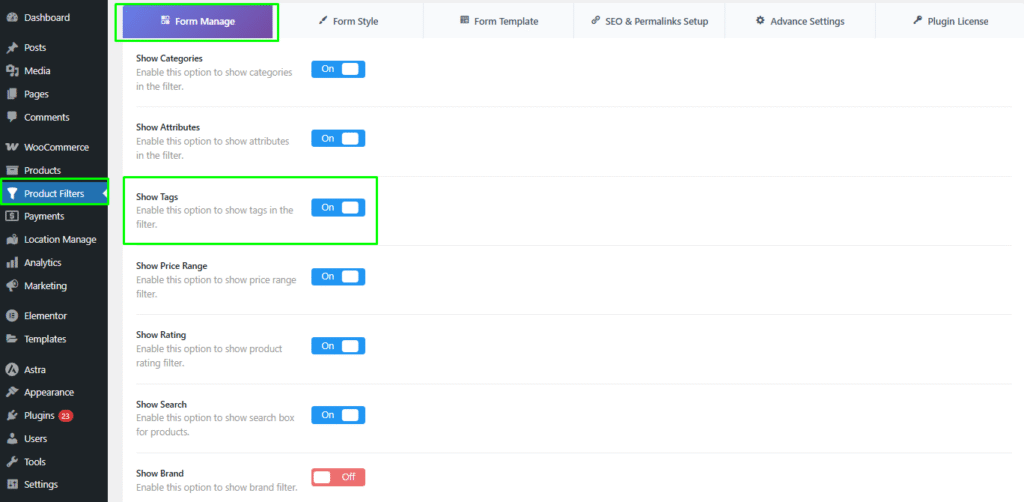
Step 3: Manage Tags in the Filter Widget Form
- Access Filter Settings:
- Go to Product Filters > Form Manage in your WordPress dashboard.
- Show Tags:
- In the settings, find the Show Tags option.
- Toggle this option on or off to control whether tags appear in the filter widget.
Step 4: Style/Design/Customize the Tags Widget
- Access Form Style Settings:
- Go to Product Filters > Form Style in your WordPress dashboard.
- Select Tags from Dropdown:
- From the Select Attribute dropdown menu, choose tags.
- Choose Tags Style Options:
- Select one of the style options:
- Checkbox
- Image
- Select
- Each option provides a different way for users to interact with the filter.
- Select one of the style options:
- Select Suboptions:
- Depending on the style option you choose (Checkbox, Image, or Select), select the appropriate suboptions to configure the appearance and behavior of the tags widget.
Optional Settings
The Optional Settings section allows you to control the appearance, behavior, and ordering of individual filter widgets.
Enable Minimization Option
Controls whether the filter widget can be collapsed.
- Disabled – Filter always stays expanded
- Enabled with Arrow – Toggle using an arrow icon
- Enabled without Arrow – Toggle without showing an icon
- Initially Minimized – Filter loads in collapsed state
Single Selection
Allows only one filter value to be selected at a time.
Show / Hide Number of Products
Displays the product count next to each filter term.
Max Height
Sets a maximum height for the filter list.
- Enter 0 to disable height restriction
- Useful for long lists with scrolling
Show / Hide Widget Title
Controls the visibility of the filter title on the frontend.
- Show – Display title
- Hide – Hide title
Widget Title
Set a custom title for the filter widget.
Order Values / Terms By
Controls how filter values are sorted.
- Default
- Alphabetically (A–Z)
- Numeric
- Month & Year
- Menu Order
- Product Count
Order Direction
Defines sorting order.
- Ascending
- Descending
Advanced Settings
The Advanced Settings section lets you fine-tune filter behavior, appearance, and user interaction, including term logic, search options, tooltips, and auto-suggestion.
CSS Class
Add a custom CSS class to the filter widget for custom styling or JavaScript targeting.
Operator (OR / AND)
Controls how multiple selected terms are applied:
- OR – Products matching any selected term
- AND – Products matching all selected terms
Include / Exclude Terms From Filters
Control which terms are displayed:
- None – Show all terms
- Include – Show only selected terms
- Exclude – Hide selected terms
Terms Search
Helps users quickly find filter options, especially useful for long term lists.
- Enable / Disable Terms Search – Show or hide the search field
- Terms Search Title & Placeholder – Set label and placeholder text
- Terms Search Position
- In title bar
- After title
- After all terms
- Layout
- Vertical
- Horizontal (Add Number of Columns)
Tooltip Settings
Provides additional information for filter terms.
- Enable / Disable Tooltip
- Tooltip Text – Set tooltip content
Show in Active / Chips Filter Widget
Displays selected filter terms in the Active Filters or Chips widget for easy visibility and removal.
Step 5: Save Changes
After customizing the category widget, make sure to click Save Changes to apply your changes.
Step 6: Display the Product Filter on Your Webpage
- Insert Filter Shortcode:
- Visit the page where you want to display the product filter.
- Add the shortcode
plugincy_filtersto the desired location (e.g., in a page or widget).
- Optional Product Shortcode:
- If you want to display products alongside the filters, you can also include the shortcode
products.
- If you want to display products alongside the filters, you can also include the shortcode
- Customize Sidebar or Page:
- You can add the filter shortcode to a sidebar widget or directly within a page’s content.
Mini Summary
A taxonomy is used to group products in a structured way. You can create a custom taxonomy like Material using code or the ACF plugin. After creating it, add material terms and assign them to products. In Multi Location Inventory Management, the same concept is used for Location taxonomy, which allows customers to filter products based on where they are available.