
This feature keeps admins and site users informed in real time with live alerts shown in the WordPress admin bar and as floating notifications (toast messages).
It is designed to surface important system, stock, and location-related updates instantly—without refreshing the page.
Notification in Admin Bar
When enabled, a notification icon appears in the top WordPress admin bar.
How it Works
- A notification bell/icon is shown in the admin bar
- Clicking the icon opens a dropdown list of notifications
- Notifications may include:
- Stock or location alerts
- System or status messages
- Plugin-related notices
This allows admins to quickly review updates from anywhere in the dashboard.
Floating Notifications
Floating notifications are small toast-style alerts that appear on the screen when new events occur.
Where to Configure
Go to:
Location Manager → Settings → Notifications
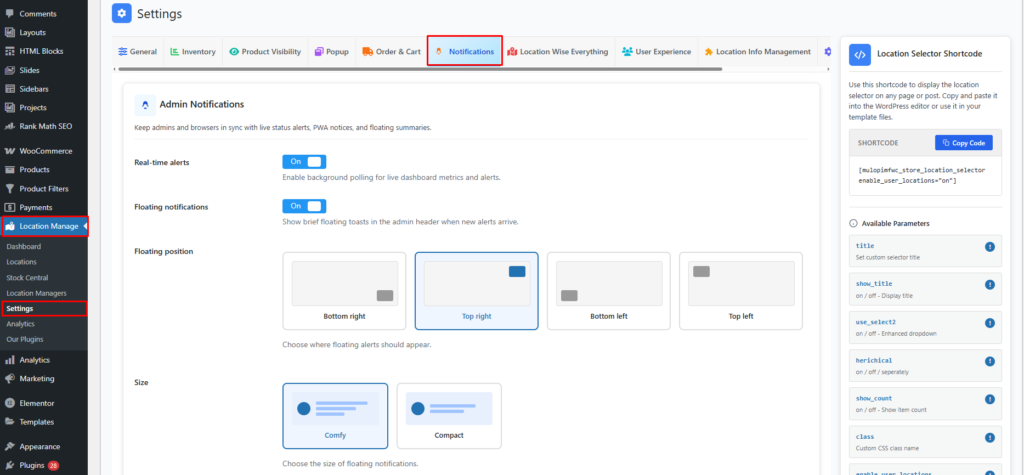
Admin Notifications Panel
Admin Notifications keep admins and browsers in sync with live status alerts, PWA notices, and floating summaries.
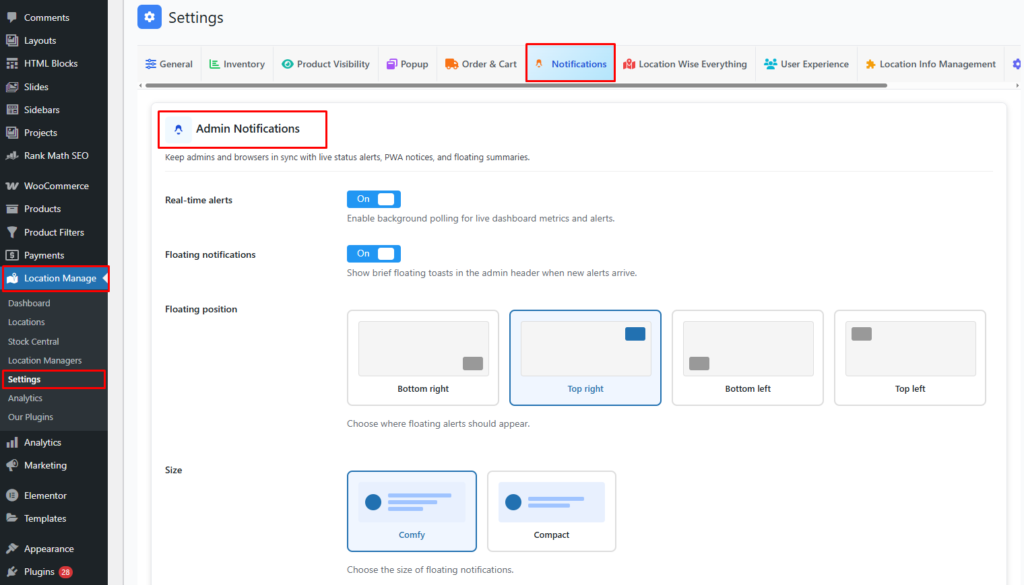
Available Settings
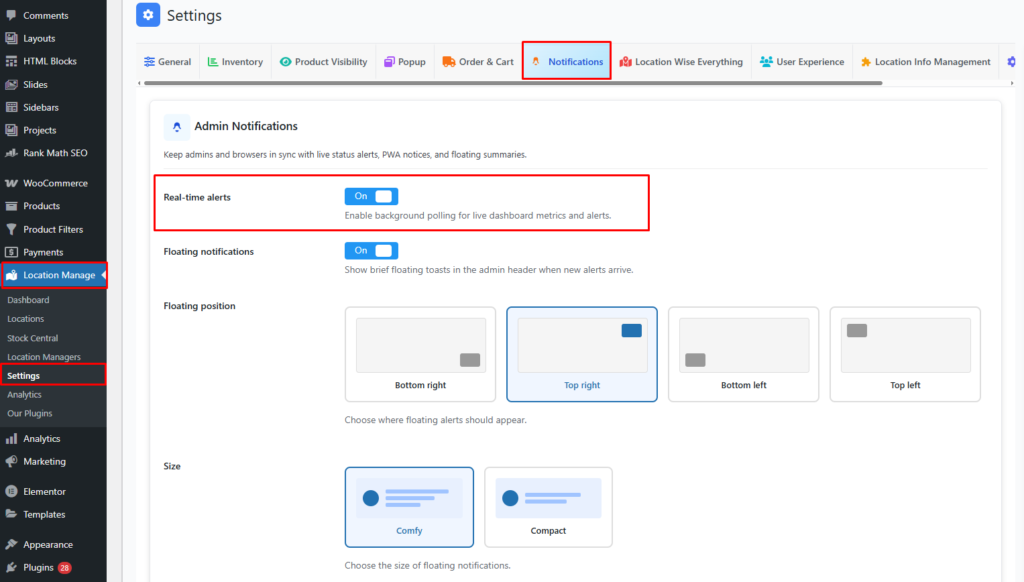
1️⃣ Real-time Alerts
On / Off
- Enables background polling for live dashboard metrics and alerts
- Keeps notifications updated automatically
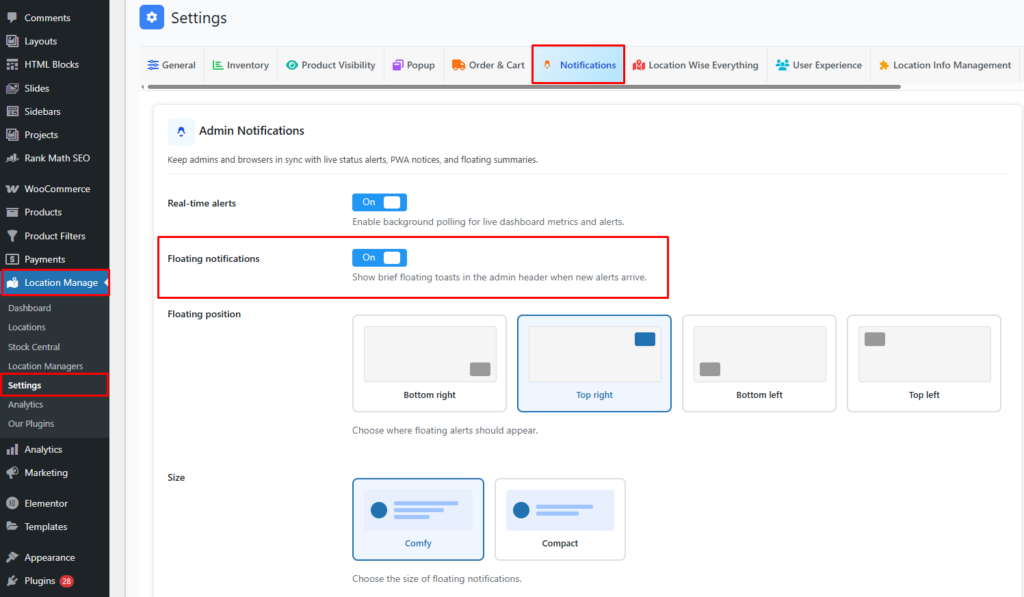
2️⃣ Floating Notifications
On / Off
- Shows brief floating toast notifications in the admin header when new alerts arrive
3️⃣ Floating Position
Choose where floating notifications appear:
- Bottom right
- Top right
- Bottom left
- Top left
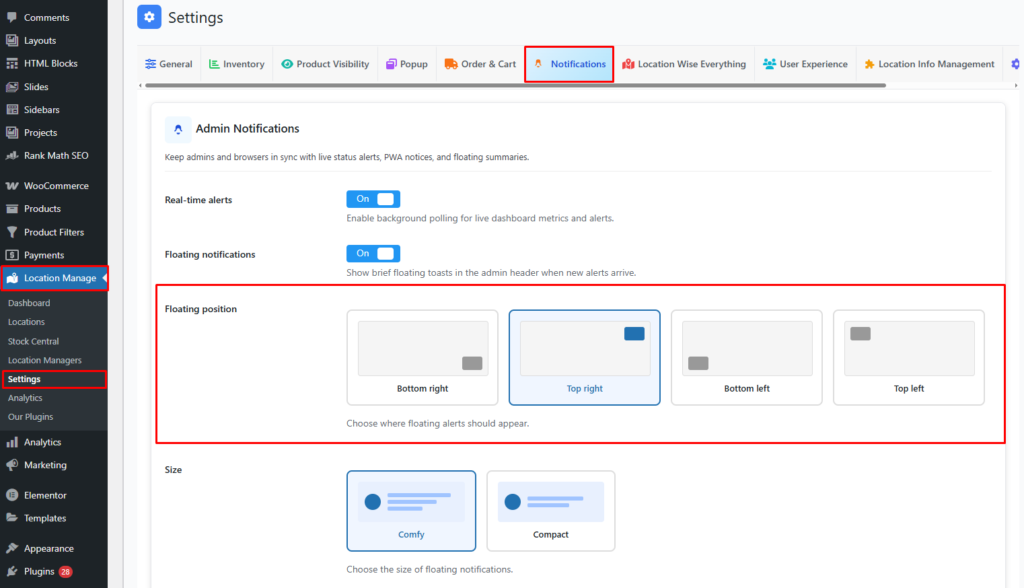
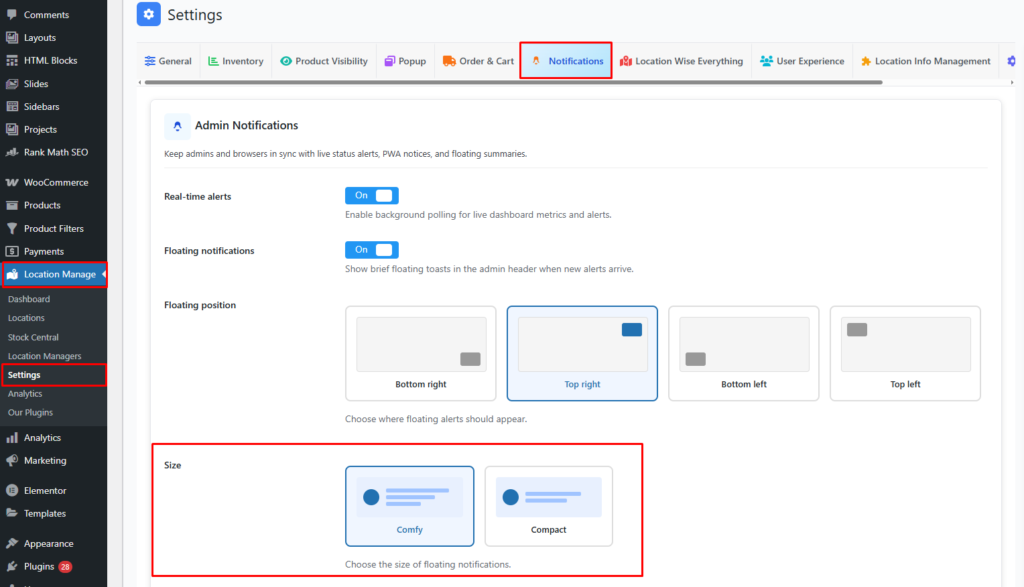
4️⃣ Size
Choose the size of floating notifications:
- Comfy
- Compact
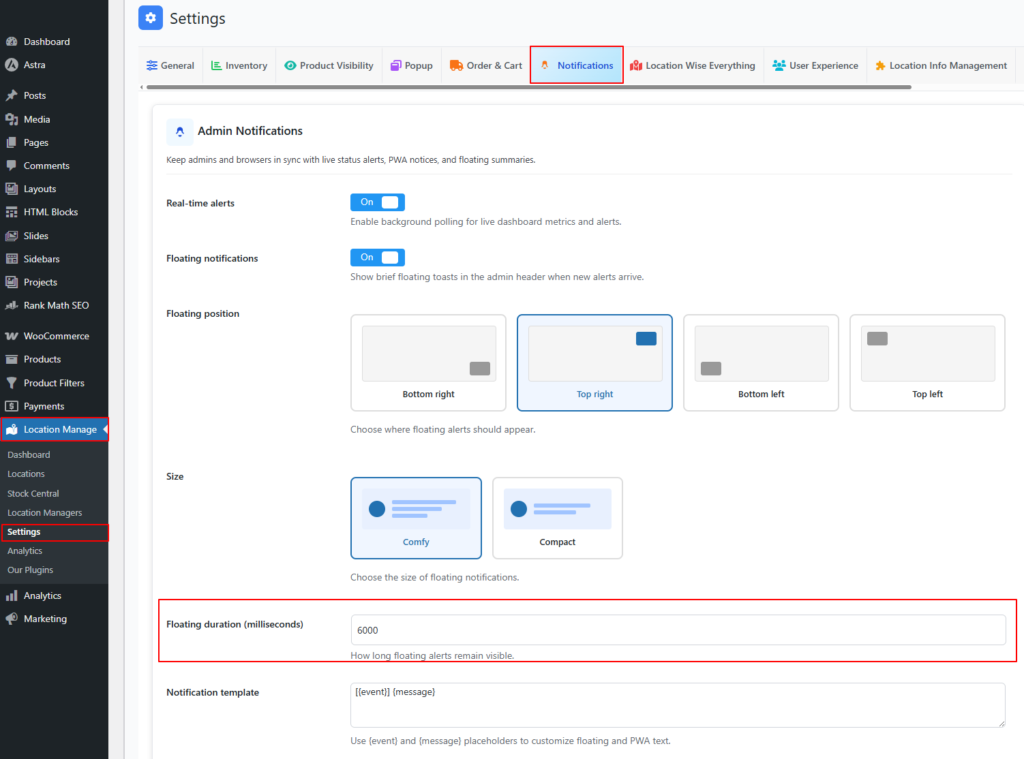
5️⃣ Floating Duration (milliseconds)
Default: 6000
- Controls how long floating alerts remain visible on screen
- Value is in milliseconds
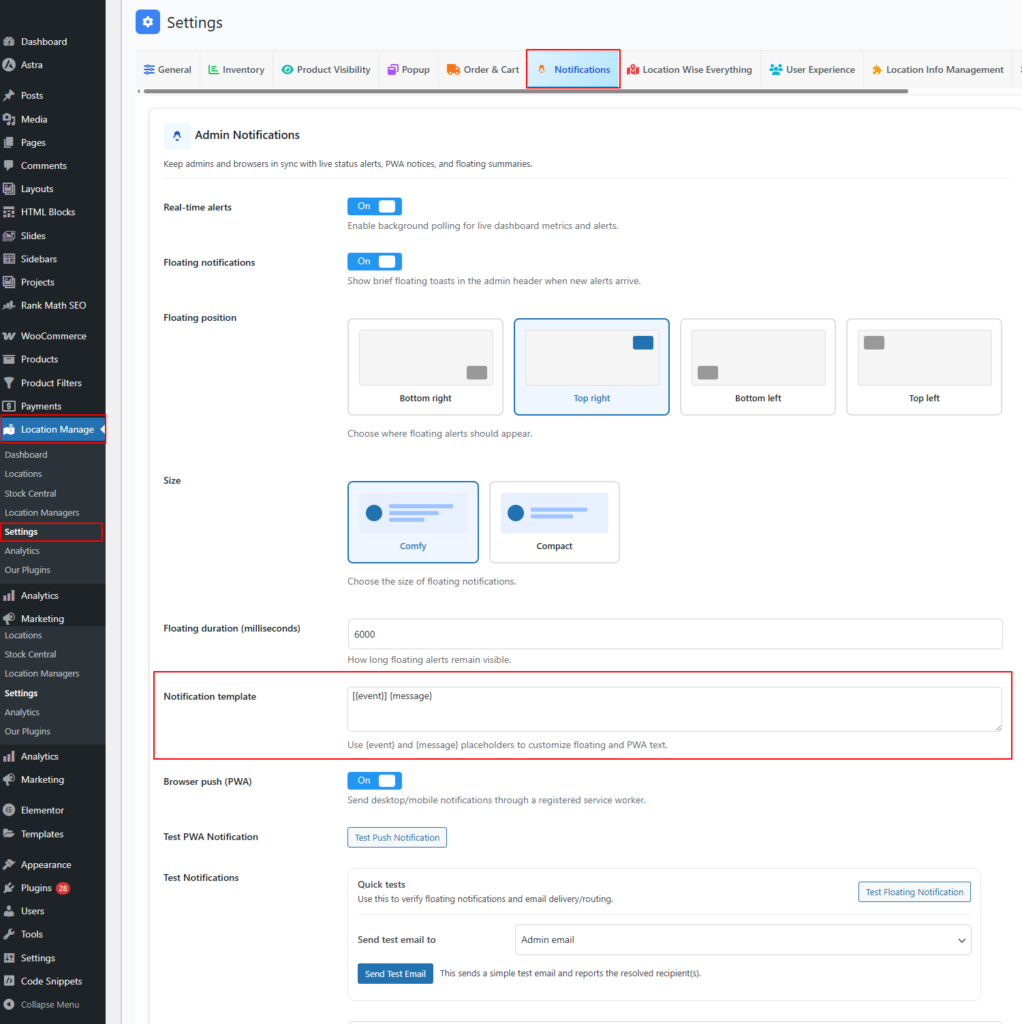
6️⃣ Notification Template
Default:
[{event}] {message}
- Customize the text shown in floating notifications and PWA alerts
- Available placeholders:
{event}– Notification event type{message}– Notification message content
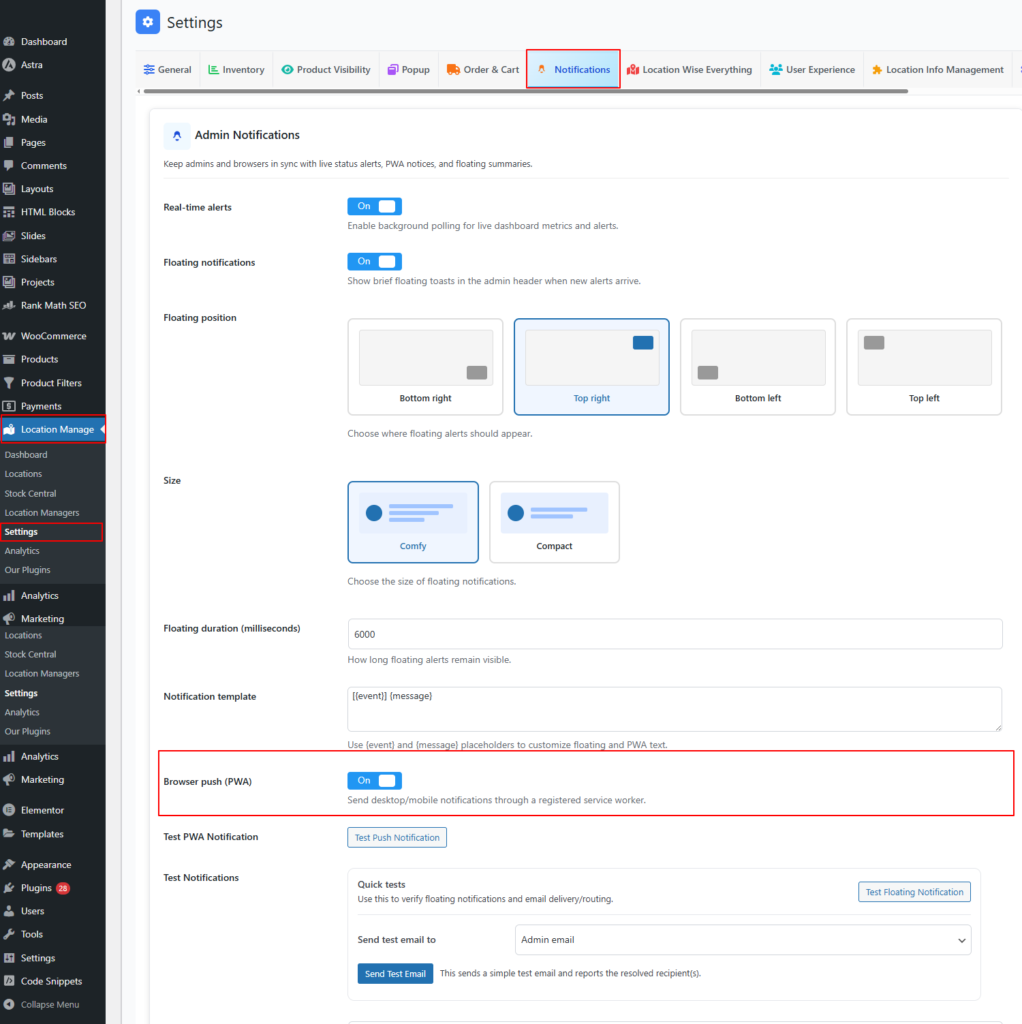
7️⃣ Browser Push (PWA)
Off / On
- Sends desktop or mobile notifications via a registered service worker
- Requires PWA support
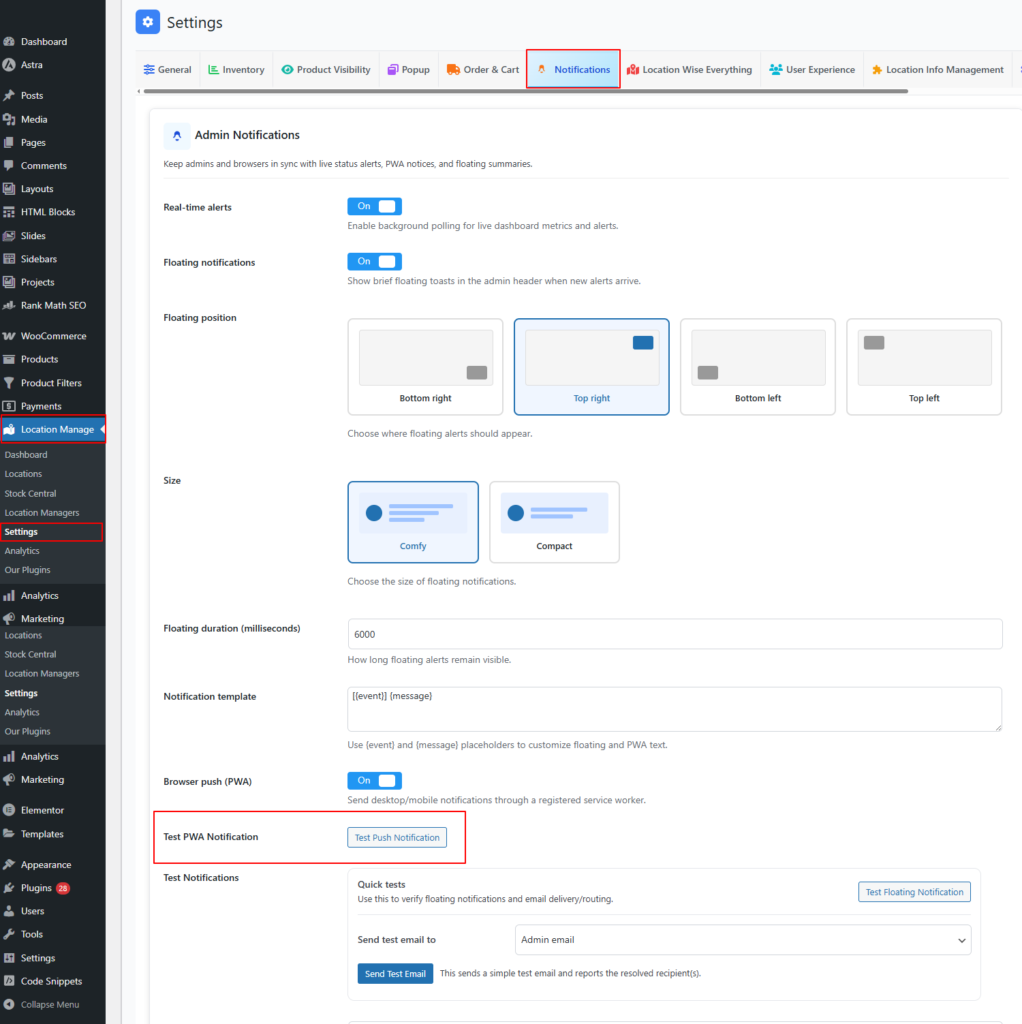
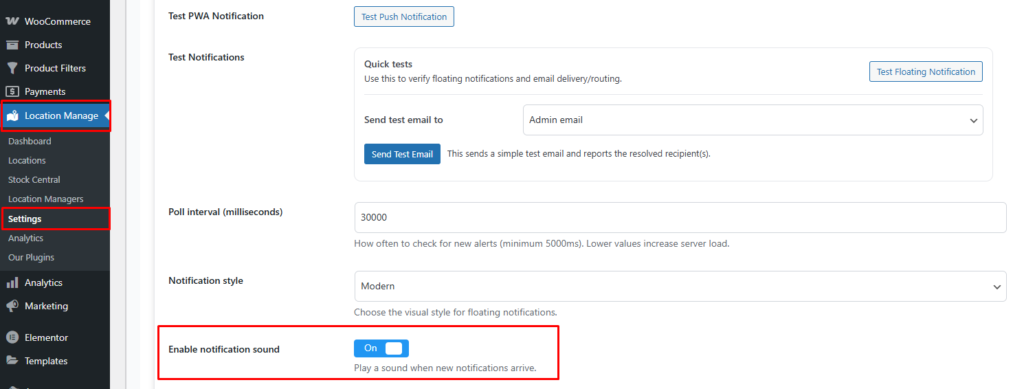
8️⃣ Test PWA Notification
- Test Push Notification button
- Sends a sample notification to verify browser push setup
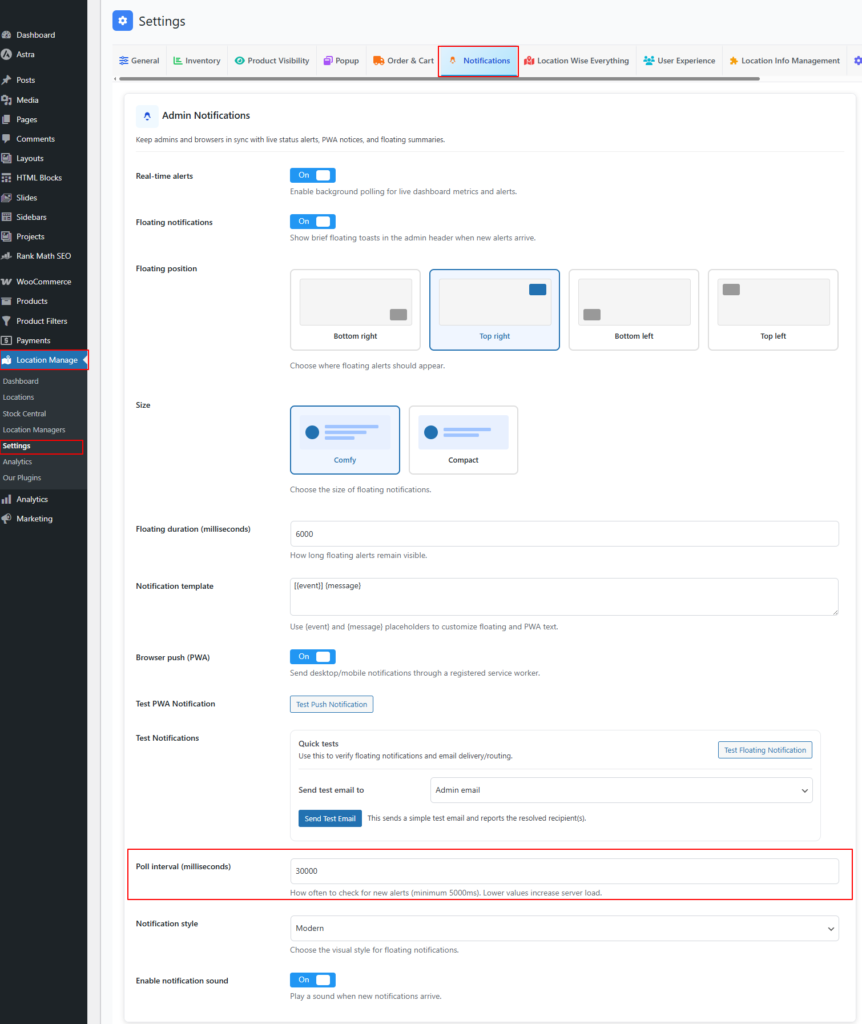
9️⃣ Poll Interval (milliseconds)
Default: 30000
- Controls how often the system checks for new alerts
- Minimum value:
5000 - ⚠️ Lower values increase server load
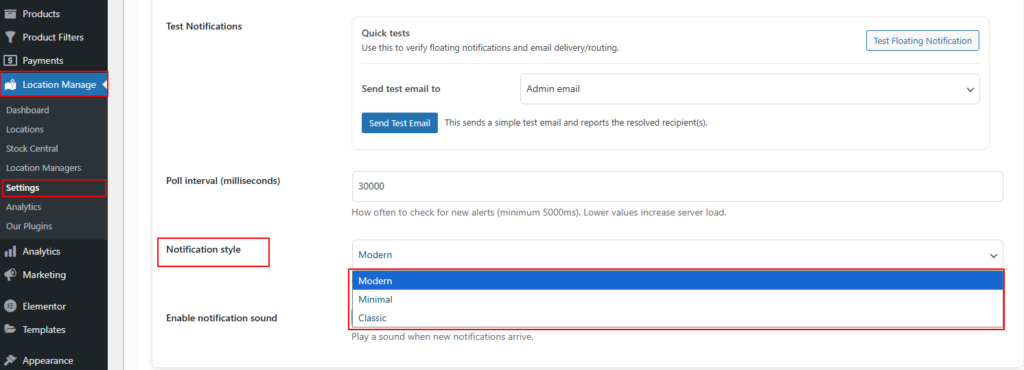
🔟 Notification Style
Choose the visual appearance of floating notifications:
- Modern
- Minimal
- Classic
1️⃣1️⃣ Enable Notification Sound
Off / On
- Plays a sound when a new notification arrives
How Notifications Are Used
- Live stock or location alerts
- Admin system notices
- Plugin or integration events
- Real-time operational feedback
Best Practices
- Use Real-time Alerts with a reasonable poll interval (e.g. 30 seconds)
- Enable Floating Notifications for quick visibility
- Keep sounds disabled in busy admin environments
- Use Browser Push only when PWA is properly configured
Summary
| Feature | Purpose |
|---|---|
| Admin Bar Notifications | Centralized dropdown for alerts |
| Floating Notifications | Instant toast-style alerts |
| Real-time Alerts | Live background updates |
| PWA Push | Desktop & mobile notifications |
The Floating Notification & Admin Bar Notification system ensures admins never miss important updates—keeping inventory, locations, and system events visible, timely, and actionable.