
PWA (Progressive Web App) notifications allow your site to send real-time alerts directly to user devices—including desktop and mobile—even when the browser is not actively open.
This is ideal for critical updates such as stock alerts, system events, and operational notices.
What Are PWA Notifications?
PWA notifications are browser-level push notifications delivered via a service worker.
They can appear on:
- Desktop (Windows, macOS, Linux)
- Mobile devices (Android, supported browsers on iOS)
These notifications work even when:
- The site tab is closed
- The user is not currently logged in (depending on browser rules)
Where to Configure
Go to:
WordPress Admin → Settings → Notifications
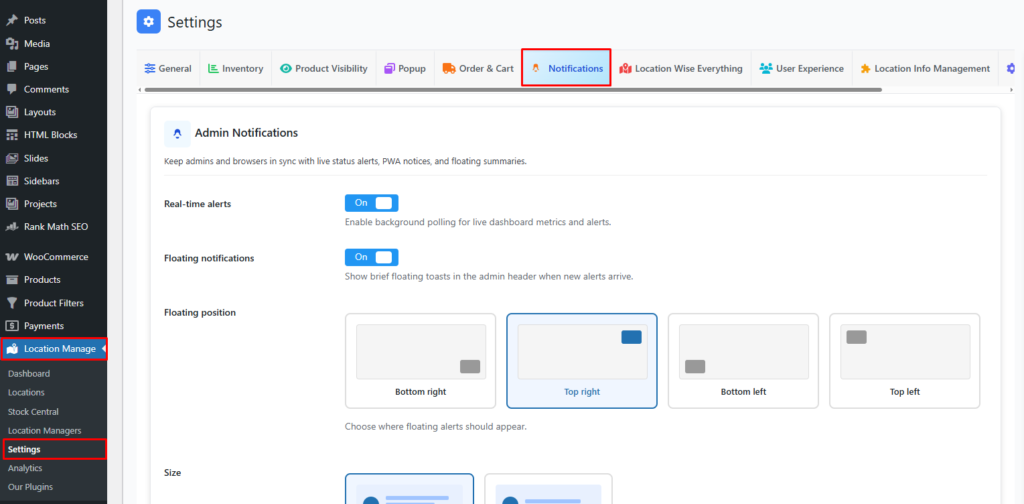
PWA Notification Settings
Browser Push (PWA)
Off / On
- Enable sending push notifications to desktop and mobile devices
- Requires a registered service worker and user permission
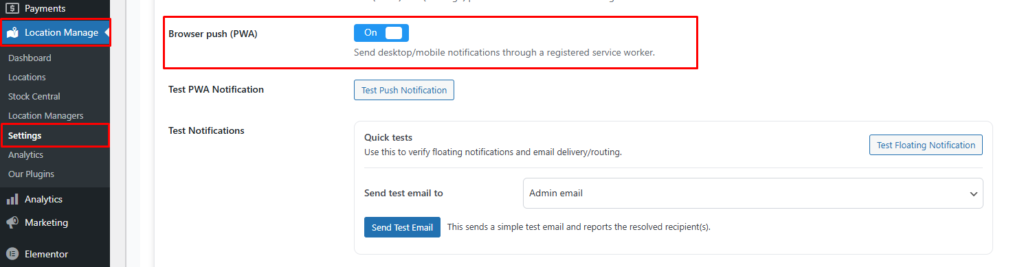
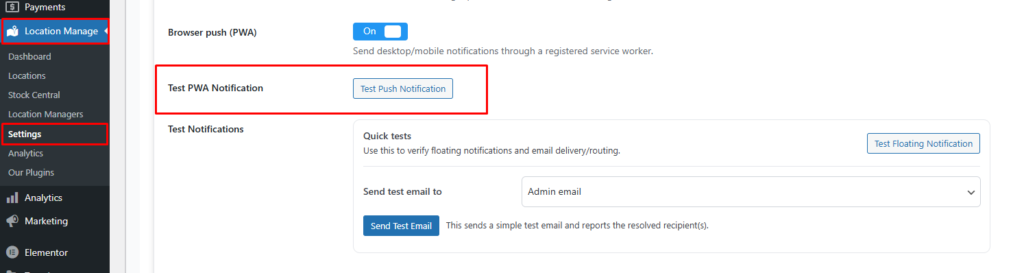
Test PWA Notification
Test Push Notification
- Sends a test notification to the current device
- Confirms that:
- Service worker is registered
- Browser permission is granted
- Push delivery is working
Notification Template
[{event}] {message}
- The same template is used for:
- Floating notifications
- PWA notifications
- Supported placeholders:
{event}{message}
How It Works
- Admin enables Browser Push (PWA)
- Browser asks the user for notification permission
- User allows notifications
- A service worker is registered
- When an event occurs:
- A push message is sent
- The device shows a system-level notification
Supported Events (Examples)
- Stock threshold alerts
- Location-based inventory changes
- Admin system notifications
- Plugin status updates
Device & Browser Support
| Platform | Support |
|---|---|
| Chrome (Desktop & Android) | ✅ Full |
| Edge | ✅ Full |
| Firefox | ✅ Full |
| Safari (macOS) | ⚠️ Limited |
| iOS (Safari / Chrome) | ⚠️ Limited / Progressive |
iOS support depends on OS version and browser capabilities.
Best Practices
- Use PWA notifications for important events only
- Avoid high-frequency alerts
- Combine with floating notifications for in-dashboard visibility
- Customize message templates for clarity
Troubleshooting Tips
- Ensure HTTPS is enabled (required for PWA)
- Confirm service worker registration
- Check browser notification permissions
- Use Test Push Notification to validate setup
Summary
| Feature | Description |
|---|---|
| PWA Notifications | Device-level push alerts |
| Works When Offline | ✅ (after registration) |
| Requires Permission | ✅ User opt-in |
| Custom Message Template | ✅ Supported |
PWA Notifications extend your notification system beyond the dashboard—keeping you informed anytime, anywhere, on any device.