
The WooCommerce Quick View feature allows customers to view product details in a convenient popup, enhancing their shopping experience. The Advanced Settings provide additional customization options to optimize this feature.
Step 1: Install the Plugin
Before configuring the Quick View Advanced Settings, ensure the plugin is installed. For detailed installation steps, please visit the [Installation Guide Documentation Page].
Step 2: Enable Quick View
If Quick View is not enabled, please enable it from the General Settings. Learn more about this by visiting the [General Settings Documentation].
Step 3: Navigate to Advanced Settings
- Log in to your WordPress admin dashboard.
- Go to Onpage Checkout in the sidebar.
- Click on Quick View and then select Advanced.
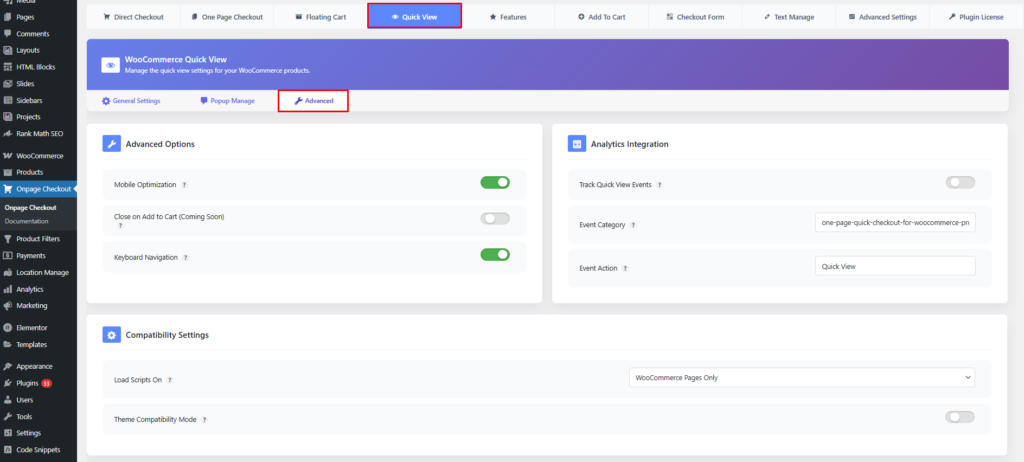
Configuration Options
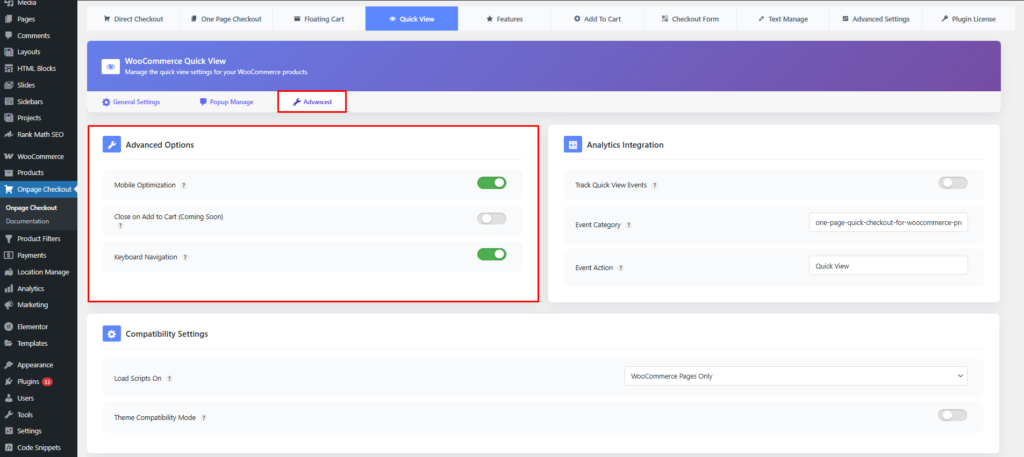
Advanced Options
- Mobile Optimization: When enabled, the quick view functionality will be optimized for mobile devices, ensuring a seamless experience for users on smartphones and tablets.
- Close on Add to Cart: When enabled, the quick view popup will automatically close after adding a product to the cart, streamlining the purchasing process.
- Keyboard Navigation: When enabled, customers can use keyboard arrows to navigate between products in quick view and press ESC to close the popup.
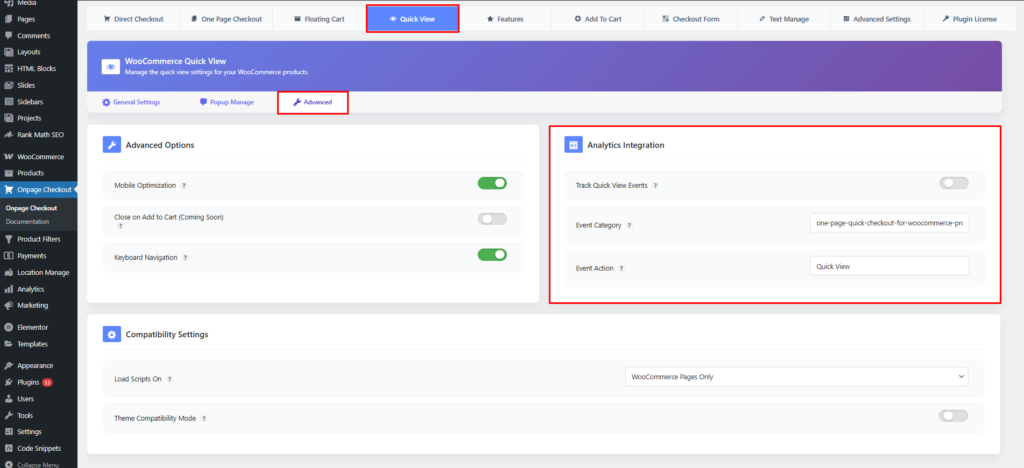
Analytics Integration
- Track Quick View Events: Track when customers use the quick view feature in Google Analytics or other analytics tools.
- Event Category: Set the event category name used for analytics tracking.
- Event Action: Define the event action name used for analytics tracking.
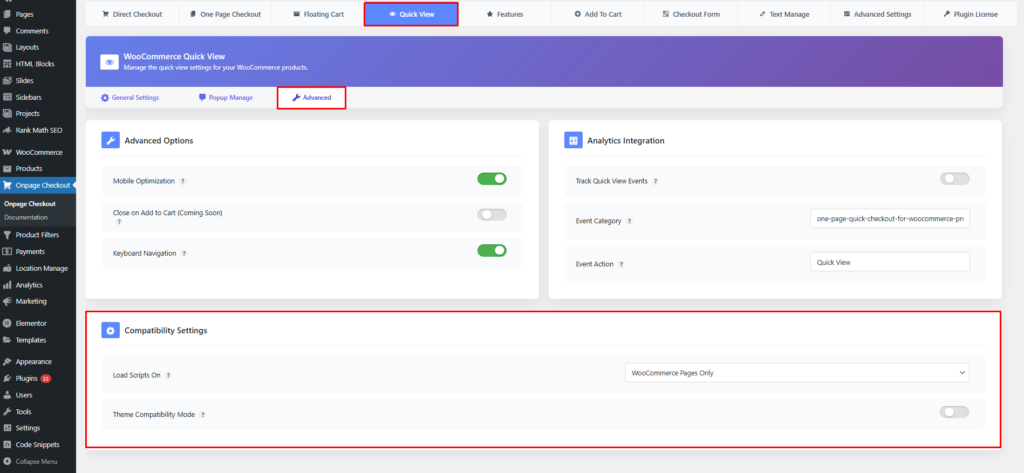
Compatibility Settings
These settings allow you to control where plugin assets are loaded and how the plugin behaves with different WordPress themes, ensuring optimal performance and compatibility.
Load Scripts On
This option controls where the plugin’s JavaScript and CSS files are loaded.
Available Options:
- All Pages
Loads plugin scripts on every page of the website. - WooCommerce Pages Only (Recommended)
Loads scripts only on WooCommerce-related pages such as Shop, Cart, Checkout, and Account pages. - Specific Pages Only
Loads scripts only on selected pages where One Page Quick Checkout is used.
Theme Compatibility Mode
This option improves compatibility with different WordPress and WooCommerce themes.
Documentation & Support
For detailed instructions on customizing the Quick View feature, please refer to our documentation.
Shortcode Reference
You can use the following shortcode to display the Quick View button anywhere on your site:
[plugincy_quick_view product_id="123" button_text="Quick Preview"]
This documentation provides a comprehensive guide for managing the WooCommerce Quick View Advanced Settings in the One Page Quick Checkout for WooCommerce. For further assistance, please refer to our support section or contact our support team.