

Category filters make it easy for people to quickly narrow down what they want without wasting time scrolling through endless products. If you are running a WooCommerce store, you might already be thinking about how do I set up sidebar category filters in WooCommerce.
Add sidebar category filters in WooCommerce by installing the Dynamic AJAX Product Filters plugin. Then, enable Show Categories, assign categories to products, style the filter in Form Style, and place it in your sidebar via Appearance > Widgets. Use shortcode [[plugincy_filters]] to display it on any page.
Do you want to know how to fully use these filters, customize them, and even fix problems if they don’t work as expected? If yes, keep reading this article because it explains everything you need to set up sidebar category filters in WooCommerce.
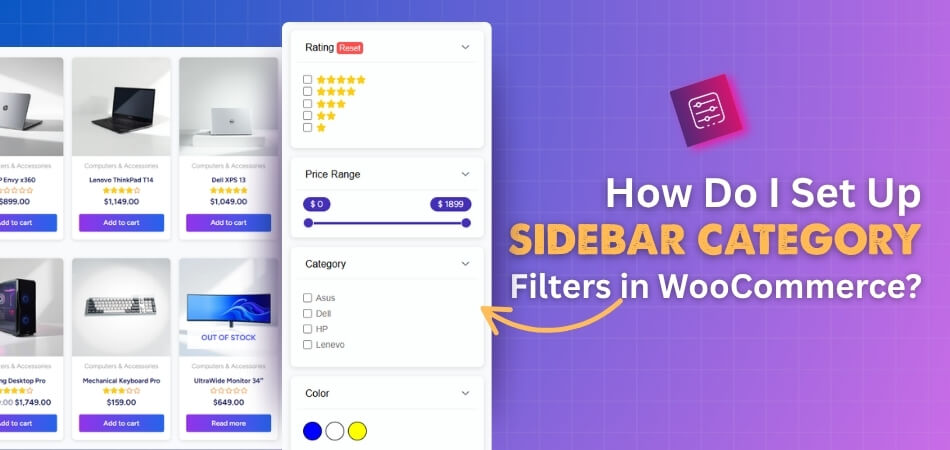
How Do I Set Up Sidebar Category Filters in WooCommerce?
Setting up sidebar category filters in WooCommerce is a simple way to make shopping easier for your visitors. It helps them find products faster by sorting items into clear groups. If you want to make your store more user-friendly, keep reading for the steps.
Plugin Installation
Before we start setting up category filters, we need to install a plugin that makes this process simple. The plugin we will use is Dynamic Ajax Product Filters for WooCommerce. This plugin is user-friendly and works without much coding knowledge. It also comes in both free and paid versions, so you can choose the one that fits your needs.
The free version gives you basic features, while the paid version unlocks more advanced options. Using this setup, you can easily enable a WooCommerce product category filter that lets customers browse smoothly through different categories without reloading the page.
Free Version Installation
- Go to your WordPress Admin Dashboard.
- From the left menu, click on Plugins.
- Select Add New Plugin.
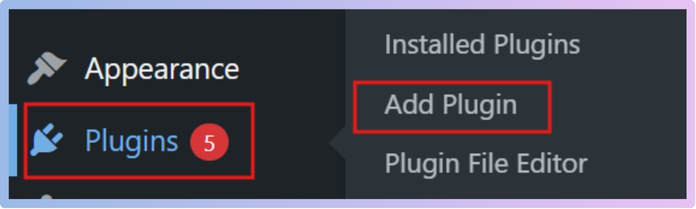
- In the search bar, type Dynamic AJAX Product Filters for WooCommerce.
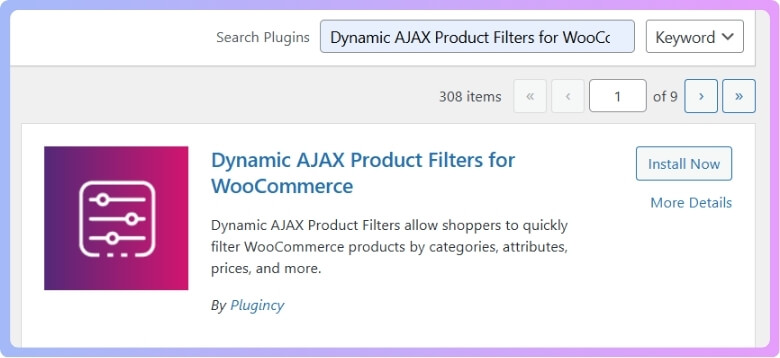
- Find it in the results and click Install Now.
- Once installed, click Activate.
Now the free version is active and ready for use. Try it out and see how it works.
Pro Version Installation
- After purchase, you will receive a ZIP file and a license key.
- Go to your WordPress Dashboard.
- Click on Plugins.
- Select Add New Plugin.
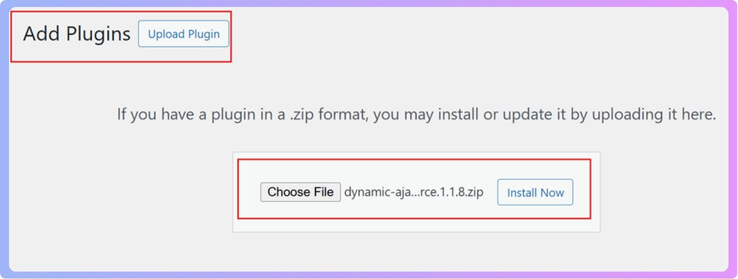
- Click on Upload Plugin.
- Choose the ZIP file you downloaded.
- Click Install Now.
- Once installed, click Activate.
- From the dashboard menu, go to Product Filters > Plugin License.
- Paste the license key you received.
- Activate your plugin.
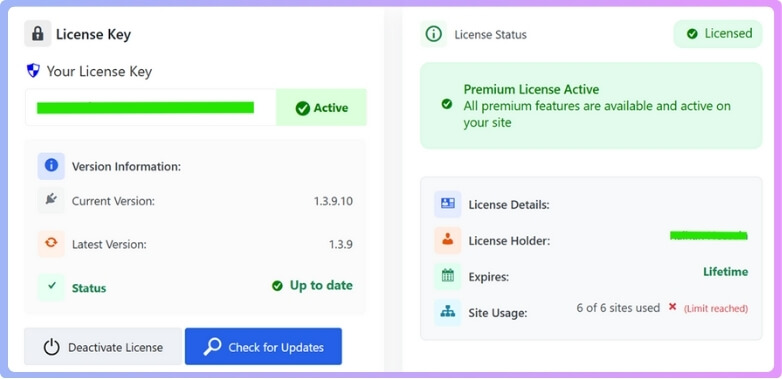
Now the Pro version is ready, and you can enjoy all the advanced features. Install it today to get more flexibility.
Step 1: Create a Category
Categories help you organize your products in a clear way. This makes it easy for customers to find what they want. Start by creating your categories.
How to Create a Category
- Go to Products > Categories in your WordPress dashboard.
- Fill in the required fields:
- Name: Enter the category name (e.g., Laptop).
- Slug: A URL-friendly version of the name (e.g., laptop).
- Parent Category: Choose one if needed (optional).
- Description: Add details about the category (optional).
- Click the Add New Category button.
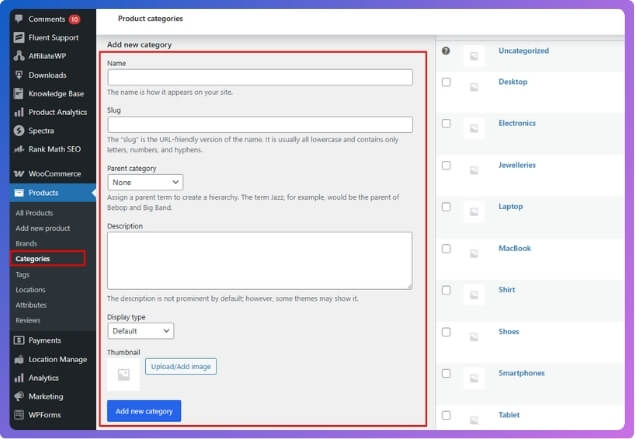
You will now see the new category in the list. Add yours today to keep products organized.
Step 2: Add the Category to a Product
Assigning categories to products makes your filters work correctly. Without this step, the filter will not show any product.
How to Assign a Category
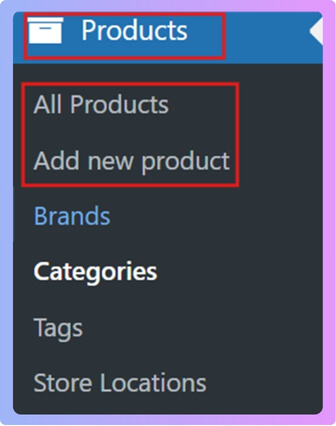
- Go to Products > All Products.
- Edit an existing product or click Add New to create one.
- On the product edit page, find the Categories section on the right.
- Check the box next to the category you want.
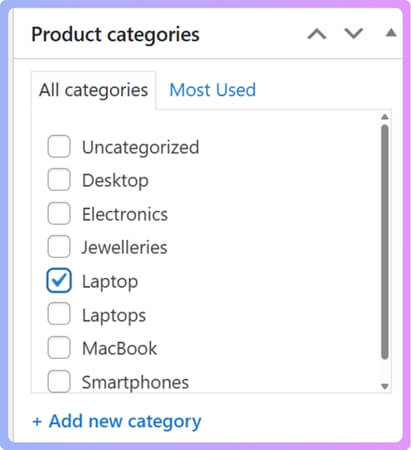
- Click Update or Publish.
Your product is now assigned to a category. Do this for all your products to make filtering work well.
Step 3: Remove or Add Categories in the Filter Widget Form
You can control whether categories show up in the filter widget. This helps you decide what customers will see.
How to Manage Categories in the Filter Widget
- Go to Product Filters > Form Manage in your dashboard.
- Look for the Show Categories option.
- Toggle it on or off depending on what you want.
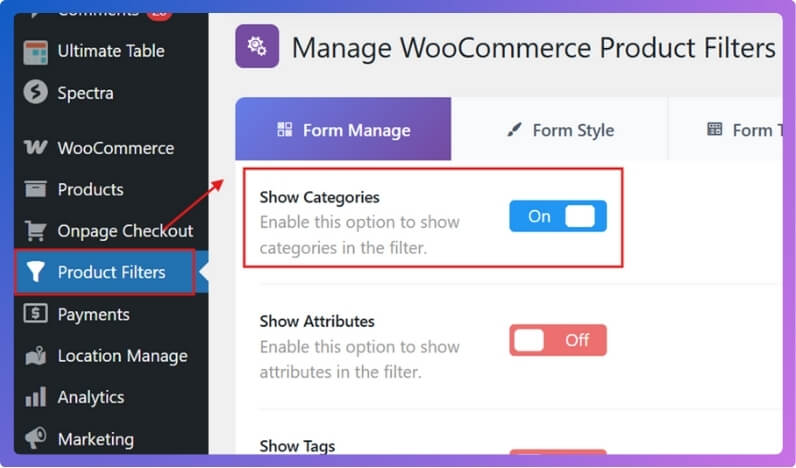
This step lets you fully control which categories are shown. Try changing it and see how your shop looks.
Step 4: Display the Product Filter on Your Webpage
After setting everything up, you need to display the filter for customers. This is the last and most important step.
How to Show Filters
- Visit the page where you want to display the product filter.
- Add the shortcode [[plugincy_filters]].
- (Optional) To also show products, add [[products]].
Now your filters are live on the page. Add the shortcode today to let customers filter products easily.
Step 5: Add the Filter to the Sidebar
You can display filters in the sidebar so they are always visible. This makes shopping easier for visitors.
How to Add Filters to the Sidebar
- Go to Appearance > Widgets.
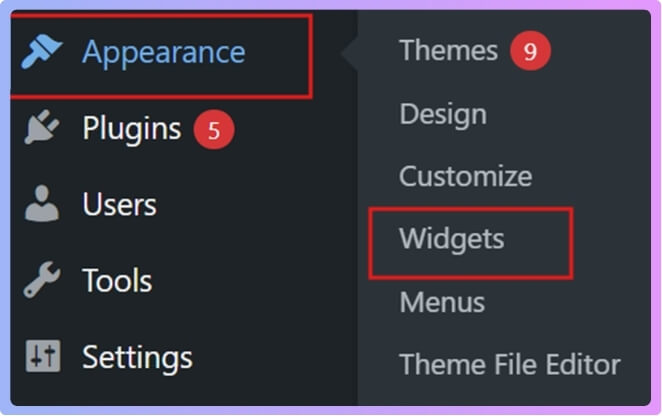
- Choose any sidebar you want. For example, use the WooCommerce sidebar.
- Click on the + button.
- Look for Dynamic Ajax Filters.
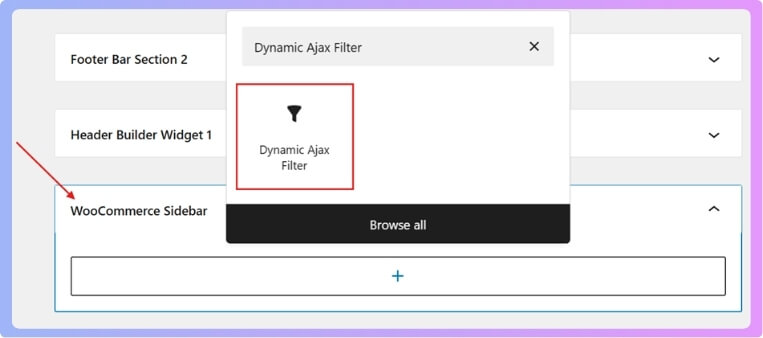
- Add it and click Update.
Now the filter will appear in the sidebar. Add it today and give your shop a professional look.
How Do You Customize Sidebar Category Filters in WooCommerce?
To customize sidebar category filters in WooCommerce, the first step is to make sure your theme supports this feature. Astra is one of the themes that allow sidebar customization, making it a good choice for store owners. Without theme support, you cannot apply sidebar changes properly, so always check this first.
Accessing Sidebar Settings in Astra
From your WordPress dashboard, go to Appearance > Customize. Next, move to WooCommerce > Product Catalog. In this section, you will find several options that let you shape how your store looks. This is the main area where you can control the sidebar and product display
Sidebar Layout Options
Within the Product Catalog settings, look for Sidebar Layout. Here you will see four layout options:
- Default
- No Sidebar
- Left Sidebar
- Right Sidebar
Many store owners prefer using the left sidebar because it makes product browsing easier, but the choice depends on your store’s needs. Selecting the right sidebar position helps in improving your store’s navigation and customer experience.
Saving the Customization
After choosing and adjusting your sidebar settings, you can save your work. At the bottom, you will see options such as Publish, Save Draft, or Schedule. Click the one that fits your needs so that your sidebar changes do not get lost. Saving ensures your customization is live or safely stored.
Using Elementor for More Control
Many store owners choose to add WooCommerce category filter with Elementor, since it allows complete control over colors, layout, and display style. This option is useful if you want more design flexibility than what the theme provides. Elementor gives you extra control over how your filters look and behave.
Why Choose Dynamic AJAX Product Filters for WooCommerce to Set Up Sidebar Category Filters?
Setting up sidebar filters in an online store makes it simple for visitors to find exactly what they are looking for. A good filter tool does more than just show categories; it also improves the whole shopping experience. Let’s look at why this plugin is a strong choice.
Easy Category Display
Dynamic AJAX Product Filters lets you display categories in different styles like checkboxes, dropdowns, or lists. This means you can pick a style that matches your store design. Customers can quickly choose categories without confusion, which makes their shopping easier and faster.

Works With Any Layout
The plugin is very flexible when it comes to adding filters. You can place them as a Gutenberg block, Elementor widget, or even a shortcode. This gives you the freedom to add sidebar filters no matter what type of store layout you use.
Instant Product Updates
One of the best parts is the instant updates. When a customer clicks on a category, products appear right away using AJAX, without refreshing the page. This keeps browsing smooth and saves time, making the whole shopping process more enjoyable.
Clean Sidebar Options
The plugin also keeps your sidebar tidy. You can hide empty categories, exclude products that are out of stock, and even show nested categories in a clear way. This helps customers only see what is relevant, avoiding clutter and confusion.
SEO-friendly Setup
It also takes care of search engine needs. The plugin supports SEO-friendly URLs and indexing controls. This means your store will not face duplicate content problems, and your category filters can still help your site rank well on search engines.
Dynamic AJAX Product Filters for WooCommerce is a complete solution for setting up sidebar category filters. It makes shopping smooth, keeps the design neat, and also supports better search engine results. A smart pick for improving any online store.
Where Is the Best Place to Display Category Filters in the Sidebar?
Visitors to a website usually want the quickest path to the information they need. A sidebar is one of the most common areas to guide them, and adding category filters there gives people instant options to narrow choices. Let’s explore the best spots to place these filters.
- Top placement: Putting category filters at the top of the sidebar makes them instantly visible, which helps people quickly refine their search before looking at other content.
- Middle placement: Keeping filters in the middle balances the design, as people scroll and naturally encounter them while browsing, but it may delay quick filtering actions.
- Bottom placement: Placing filters at the bottom works for simple sites, but for larger collections, many users may miss them unless they scroll fully down.
- User habits: Many people expect filters to be near the top or middle, so placing them elsewhere can confuse them and reduce efficiency.
- Design consistency: Consistent placement across all pages makes the browsing experience smooth, while inconsistent positions can create frustration and slow decision-making.
- Device consideration: On small screens, filters near the top are easier to use, while on larger desktop screens, middle placement feels natural and balanced.
- Content priority: If the main focus is encouraging exploration, middle placement works well, but if quick decisions are important, top placement is usually the better choice.
Placing filters wisely is about making browsing smoother and faster. A good design always thinks about what feels natural for the user. The sidebar can either guide people instantly or make them search harder. By choosing the right spot, you can make the overall experience both simple and satisfying.
Can Sidebar Category Filters Work Alongside Other WooCommerce Filters?
Filters help shoppers quickly find what they are looking for without scrolling through endless products in an online store. One question many store owners ask is whether sidebar category filters can work smoothly with other filters. Let’s take a closer look.
Works Together
Sidebar category filters can easily work along with other WooCommerce filters like price, rating, or brand. This gives shoppers more control over their search. They can choose a product category first, then fine-tune the results using other filters.
Better Shopping Flow
When different filters work together, they create a smooth shopping flow. Shoppers don’t have to restart their search each time. They can pick a category, adjust the price, or even sort by brand without losing their selections.
Faster Results
A big plus is the speed it adds to shopping. When used with price or brand filters, the benefits of category filter in WooCommerce Store become even clearer, as shoppers can narrow down products faster and get to what they want in fewer clicks.
Flexible Options
Combining filters gives flexibility. For example, someone can filter “Men’s Shoes” in the category section, then apply a price filter to see only items within their budget. This layered filtering makes shopping feel simple and flexible at the same time.
Better Store Experience
Using multiple filters together improves the whole store experience. Customers spend less time searching and more time buying. This not only keeps shoppers happy but also increases the chance they will return to the store for more purchases.
Sidebar category filters can absolutely work side by side with other WooCommerce filters. When used smartly, they make shopping faster, easier, and more enjoyable for your customers.
What Problems Can Occur With Sidebar Category Filters in WooCommerce?
Sidebar category filters in WooCommerce are designed to make shopping smoother by helping visitors narrow products quickly. Still, they don’t always function as expected. Issues like conflicts, slow loading, or missing products can occur. Here are some common problems you should watch for:
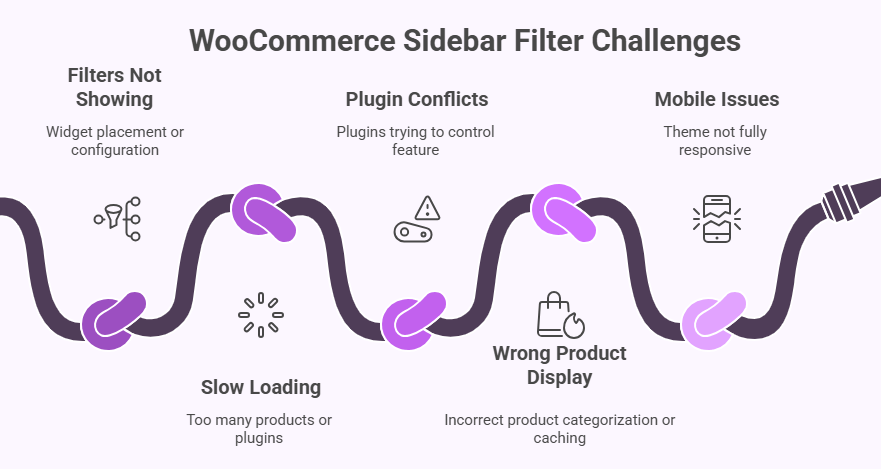
Filters Not Showing
A common issue is when filters don’t appear on the sidebar at all. This can happen if the widget is not placed correctly in the theme’s widget area or if the filter settings are not configured. Sometimes, outdated themes or missing WooCommerce updates can also cause this issue.
Slow Loading
Another problem is slow loading when someone clicks on a filter. This usually happens if the site has too many products or if the hosting server is slow. Heavy or poorly coded themes and plugins can also affect the speed of filters on the sidebar.
Plugin Conflicts
Since many WooCommerce stores use different plugins, conflicts are a big reason why filters don’t work right. If two plugins try to control the same feature, it can break the filters. Disabling plugins one by one can help find the faulty one.
Wrong Product Display
Sometimes, filters don’t show the right products. For example, a user may select a category, but unrelated items appear. This can be caused by incorrect product categorization, caching issues, or problems with how the theme interacts with WooCommerce filters.
Mobile Issues
On mobile devices, sidebar filters may not display properly. They can appear hidden, misplaced, or not work at all. Many times, this happens because the theme is not fully responsive, or there are styling issues that affect mobile layouts.
Sidebar filters in WooCommerce are very useful, but they can run into problems like missing widgets, slow speed, conflicts, or display errors. Fixing these usually involves checking themes, plugins, and settings carefully.
FAQs About How Do I Set Up Sidebar Category Filters in WooCommerce?
If you are new to WooCommerce and want to make your store easier to use, sidebar category filters are a big help. They give shoppers quick ways to find products and make the store look more professional. Below are some of the most important questions people often ask about setting up sidebar category filters in WooCommerce.
Can Sidebar Category Filters Improve Sales in WooCommerce?
Yes, sidebar category filters can improve sales because they make it easier for visitors to find products quickly. When people can filter products by categories, they spend less time searching and more time buying. A simple shopping experience often leads to more purchases. Happy customers are more likely to come back and shop again.
Do Sidebar Category Filters Work Well on Large WooCommerce Stores?
Yes, sidebar category filters are very useful for large stores with many products. They let customers narrow down big lists of items into smaller, clearer groups. This saves time and prevents shoppers from feeling overwhelmed by too many choices. With filters, large stores become easier to explore.
Can I Show Custom Text in Sidebar Category Filters in WooCommerce?
Yes, you can show custom text inside your sidebar category filters. This is often done to make filters look friendlier or to explain what the filter does. For example, instead of just saying “Category,” you can write “Choose Your Product Type.” Adding clear text makes filters easier to understand and improves user experience.
Do Sidebar Category Filters Work With Multilingual WooCommerce Stores?
Yes, sidebar category filters work with multilingual stores if you use a translation plugin. The filters will show in the language the customer selects on your website. This makes it easier for people from different countries to shop without confusion. It also helps your store reach more customers globally.
Can Sidebar Category Filters Be Displayed Only on Specific WooCommerce Pages?
Yes, you can choose to show sidebar filters only on certain pages of your store. For example, you may want them only on the shop page or category pages but not on the homepage. This keeps your site cleaner and shows filters only when customers really need them. Controlling where filters appear makes your site look more professional.
How Do Sidebar Category Filters Affect Website Speed in WooCommerce?
Sidebar category filters can sometimes slow down a website if they are not set up well. This usually happens when there are too many products or when the plugin used is heavy. Choosing a good plugin and using caching can help keep the site fast. A quick website keeps customers happy and reduces the chance of losing sales.
Can I Change the Colors and Fonts of Sidebar Category Filters in WooCommerce?
Yes, you can customize the colors and fonts of sidebar category filters to match your store design. This is usually done through your theme settings or the plugin styling options. A well-designed filter that matches your brand makes your store look neat and professional. Good design also encourages customers to use the filters more often.
Are Sidebar Category Filters in WooCommerce Mobile-Friendly?
Most sidebar category filters are mobile-friendly if your theme and plugin support responsive design. On small screens, filters may appear as dropdowns or collapsible menus. This makes it easier for mobile users to shop without scrolling through too much content. Always test your filters on phones and tablets to make sure they look good.
Can Sidebar Category Filters Be Used With WooCommerce Shortcodes?
Yes, sidebar category filters can be used alongside WooCommerce shortcodes. This allows you to place filters in different sections of your store, not just the sidebar. For example, you can use shortcodes to show products and filters together on a custom page. This flexibility gives you more control over your store layout.
Do Sidebar Category Filters Help With SEO in WooCommerce?
Yes, sidebar category filters can help with SEO if they are set up correctly. They create an organized navigation that search engines can understand better. Many plugins also support SEO-friendly URLs, which avoid duplicate content issues. This helps your products rank better and brings more visitors to your store.
Can I Add Sidebar Category Filters With Elementor in WooCommerce?
Yes, you can add sidebar category filters with Elementor if you want more control over design and layout. Many store owners choose this method because Elementor allows them to adjust colors, styles, and positions with ease. It gives more flexibility than standard theme options. Using Elementor makes your filters look unique and fully match your store design.
Conclusion
Adding sidebar category filters is one of the simplest ways to make your WooCommerce store easy to explore. They help visitors quickly find the products they need without endless scrolling. With the right plugin, your store becomes faster, cleaner, and more enjoyable.
If you’re wondering how do I set up sidebar category filters in WooCommerce? The process is simple: install Dynamic AJAX Product Filters, create categories, assign them to products, style your filters, and add them to your sidebar. That’s all you need.
To get the best results, keep your sidebar clean, avoid unnecessary clutter, and make sure filters work well on mobile devices too. Test your store often to check speed and usability. Wishing you great success with your WooCommerce store.
