

Are you looking to deliver digital files directly from your product pages? Learning how to add download button in WooCommerce can make things super easy for you. Just enable the downloadable option, upload your file, and set a few simple options. Customers will get the file link right after buying the product without any delay.
If you’ve never set this up before, don’t worry at all. In this quick guide, we’ll walk you through each step to help you create a smooth file download system. Follow along to make your store more helpful, fast, and user-friendly.
How to Add Download Button in WooCommerce?
Adding a download button in WooCommerce is simple and only takes a few steps. You just need to make the product downloadable and upload your file. Follow the steps below to set everything up the right way.
Step 1: Enable Downloadable Products
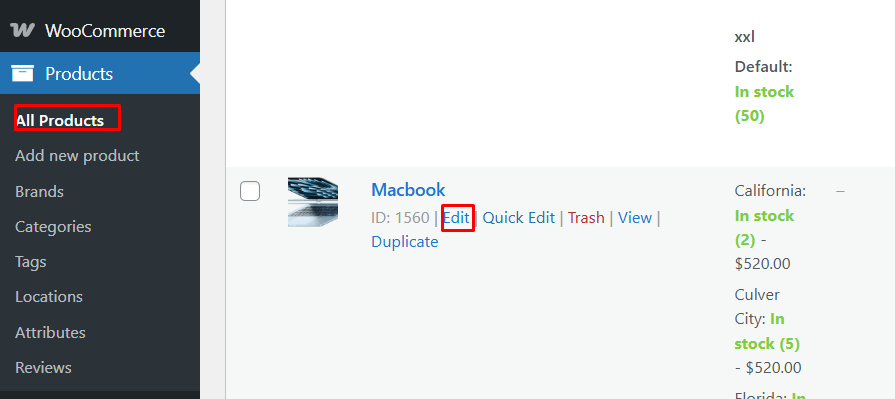
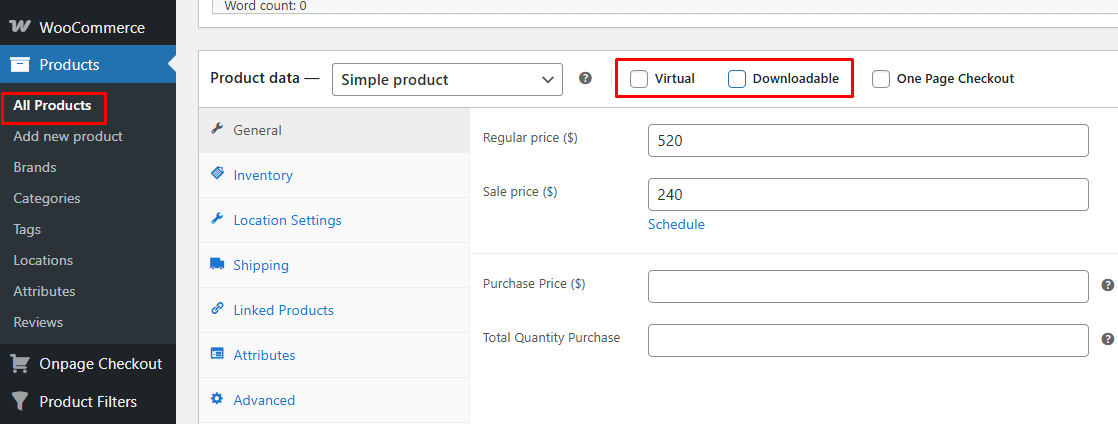
Go to WooCommerce > Products in your WordPress dashboard. You can add a new product or edit one you already have. In the Product data box, check Downloadable, and also check Virtual if the item does not need shipping.
Step 2: Add Downloadable Files
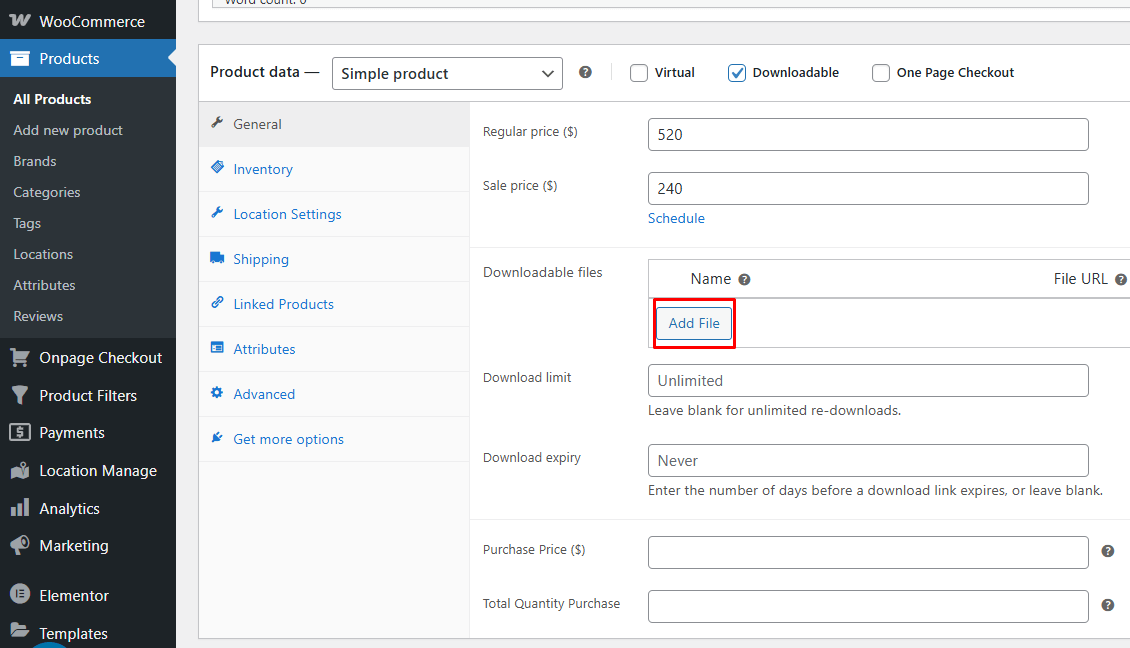
Once you check Downloadable, a new Downloadable files area will show. Click Add file, give it a simple file name, and add the file link. You can upload a file from your computer or paste a URL if the file is stored somewhere else.
Step 3: Set Download Options
You can set a Download limit if you want to control how many times a buyer downloads the file. You can also set a Download expiry so the link stops working after a number of days. If you want no limit or no expiry, leave both fields empty.
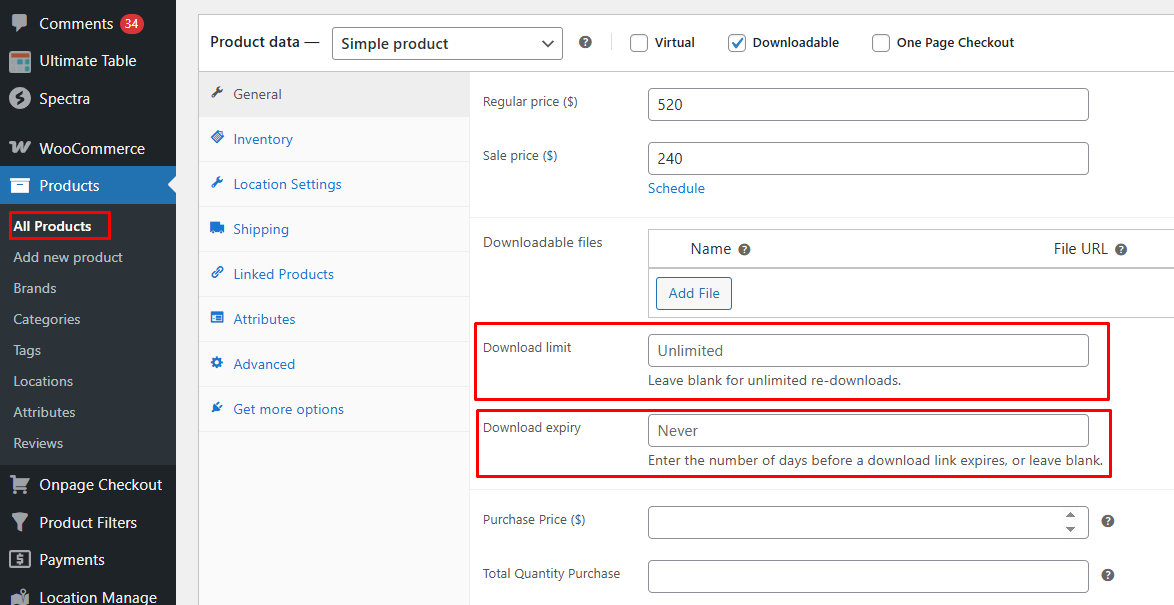
Step 4: Publish The Product
When everything is set, click Publish or Update. Your customers will now see a download button after they buy the product. They can get the file from their account page, the order page, or the email they received after buying.
Setting up a download button is quick and easy for any store. These steps help your buyers get their files without trouble. Use them to keep your shop clear and simple to use.
Why Would You Add a Download Button to WooCommerce?
Your store needs clear tools that help people get files fast. A download button gives a simple way to access files after buying. It also helps people feel sure about what they get. Read the guide below to learn more.
Easy File Access
Adding a download button helps people get digital files fast. They can reach items like PDFs, manuals, music, or eBooks in one click. This cuts long steps that may slow them down. Many shoppers like quick actions that feel simple and safe. A clear button makes things smooth for everyone.
Better User Comfort
People feel calmer when they can find files with ease. A button placed near the product or order page helps guide them. There is no need to search the site for links. This reduces stress and keeps things clear. Simple steps often help people trust your store more.
Helpful for Digital Goods
Stores that sell digital goods need fast ways to deliver them. A download button gives instant access for buyers. They can reach the file right after payment. This works well for items like eBooks, photos, or guides. A clear button helps set good expectations for file delivery.
Good for Product Manuals
Some items need manuals to show how they work. A button lets people get the manual whenever they want. This helps them fix small issues on their own. They can read the file on any device. A simple button makes the whole process feel more friendly.
Saves Time for Buyers
Shoppers like things that save time. A clear download button makes the file easy to find. They do not need to wait for emails or search pages. Clicking once gives them the item right away. This small change can help make their whole visit smoother.
Builds Trust in Your Store
People trust stores that keep things clear and simple. A well-placed download button shows you care about their needs. It tells them you want their process to be easy. When they feel safe, they may return for more. Clear tools often help build long-term trust.

How to Organize Downloadable Products for Easy Access?
Digital files should be easy to find after someone buys a product. If files are hard to find, people may feel lost or annoyed. A clean setup helps them get their files fast without stress. Keep reading to see how you can organize things the right way.
Keep File Names Clear
Use short names that show what the file is about. For example, say “Ebook-Tips.pdf” instead of “file123.pdf” to avoid confusion. Clear names help people find what they need fast. It also helps when someone downloads many files at once. A good name makes things simple from the start.
Add Files By Product Type
Group files based on the type of product you sell. For example, keep all eBooks in one place and manuals in another. This helps keep things neat and easy to manage. It also helps people find their files without delay. Grouping makes the shop look cleaner and tidier.
Use One File Format When You Can
Try to give files in the same format, like PDF or ZIP. This keeps things smooth for the buyer who may not know many file types. Avoid using formats that need special apps to open. Most people can open PDFs with no problem. One clear format helps avoid stress or issues later.
Place Files Near Order Info
Show download links on the order page or email receipt. This makes it easy for people to get their files fast. If they need to dig around to find them, it slows them down. Keep links in spots they check often. This little step helps make the whole process smooth.
Use Simple Categories
Break files into clear groups like “Guides,” “Ebooks,” or “Videos.” Tools like AJAX product filters for WooCommerce help sort these groups fast. These filters make it easy to find what someone wants. If all files are in one place, it can feel messy. Clean folders or labels give a nice, easy view. People like simple steps that help save time.
Show Downloads In User Account
Make sure people can find past downloads in their account. This helps them redownload if they lose the file later. It also shows that your store cares about being helpful. A “My Downloads” area is a great tool to add. This keeps things easy and builds trust too.
What Common Problems Can Occur with Download Buttons and How to Fix Them?
Many stores face issues with download buttons that confuse buyers. These problems can stop people from getting the files they paid for. Read the points below to understand these common issues and simple fixes.
- Slow File Links: Some download buttons fail because linked files load slowly and make users feel confused in many common store page setups. This problem often comes from large files or weak hosting, which sends data too slowly for smooth user access today.
- Broken Redirects: Many download buttons fail when redirects break and send people to wrong pages that never show the needed file links today. Fixing this issue usually means checking link paths and updating settings so every file opens correctly without confusing buyers again.
- Wrong File Paths: Some buttons point to old file paths that no longer work and leave buyers stuck without access after making purchases. You can solve this fast by uploading fresh files and linking them properly so the button leads to the correct content.
- Missing Permissions: Sometimes download buttons fail because buyers lack the correct permissions, which block file access and cause needless stress for confused customers. Store owners fix this by checking user roles and adding proper rights so all downloads work cleanly for buyers everywhere.
- Plugin Conflicts: Some download buttons stop working when plugins clash and break scripts that control file access inside many common shop setups. You can solve this by turning plugins off one by one until you find the conflict and fix it easily.
- Outdated Themes: Old themes may break download buttons because outdated code cannot support new features, which help files open without trouble today. Update your theme to keep things stable so each download button works correctly and gives users clear access without stress.
- Large File Sizes: Huge file sizes can slow downloads so much that users stop trying and feel tired waiting for the file. You can compress files to make them smaller, which helps downloads move faster and keeps users calm during the wait.
- Blocked Server Rules: Some servers block download rules, which stops buttons from giving files, and leaves buyers confused about missing content they purchased. Fixing this means checking server rules and making small updates so all files open smoothly without causing stress for buyers.
What Other Features Go Well with a Download Button?
A download button works best when other simple tools support it well. These tools help people find more value in each product. They also make the page feel clear and friendly to use. See which features are compatible with it by reading the information below.
Customer Reviews
Adding reviews helps people understand if the file meets their needs. Many stores use product reviews in WooCommerce to show real thoughts from past buyers. This helps reduce doubt and builds trust in the product. Reviews also make the page feel more real and helpful. People often decide faster when they see clear comments.
Star Ratings
Star ratings give a quick look at how good the product is. Many people check ratings before they even read reviews. A clean rating system helps them judge the file at a glance. It also guides them toward better choices. These small stars help make the page feel more complete.
Related Products
Showing related items helps people find files that match their needs. It also keeps them on the page longer while they explore. Some buyers may discover helpful guides or tools they did not expect. This boosts trust and improves the shopping experience. Simple suggestions can help people choose better.
Clear Preview Images
Preview images help buyers see what they are getting before buying. A quick look at the file style or layout builds comfort. Many people enjoy seeing a small part of the file first. It helps them feel safe with their choice. Visuals often make buying feel easier and calmer.
Short Product Notes
Short notes help explain what the file includes in simple words. They cut confusion and make the details easy to understand. Many people want fast facts before they click buy. A short list or line can make a big difference. Clear details help buyers feel more sure.
Easy File Info Box
A small info box shows the file size, format, and type. People like knowing these things before they download. It helps them check if their device can open the file. A clear info box keeps things smooth and simple. This small tool adds real value to the page.
Is It Safe to Add Download Links Directly on the Product Page?
Some store owners worry about placing download links on product pages because they want their files kept safe from misuse. It can be safe when the links are protected behind proper rules that block unwanted access from outside users. Good settings keep the files hidden from people who did not make a real purchase.
Many store setups use secure links that expire after some time, which helps stop sharing or copying without permission. These short-lived links add a layer of safety by making sure the file is only used by real buyers. When the link expires, no one else can open or save the file again.
Some stores add simple tools like user checks that make sure only logged-in buyers can open the file link. This helps keep private files safe and stops people from reaching paid content without buying anything. With simple steps like these, download links on product pages stay safe and work well for everyone.
Tips on Protecting Your Download Links From Unauthorized Access
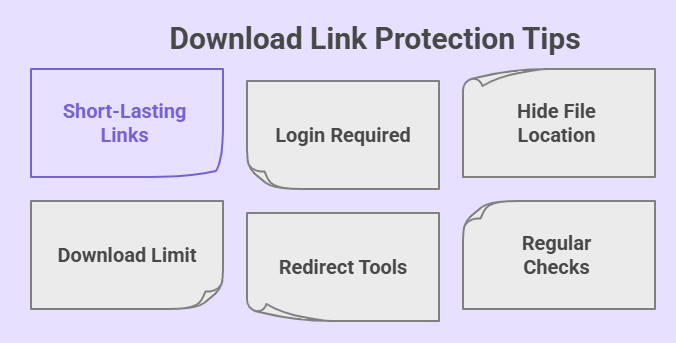
Keeping download links safe helps protect your digital files online. Many stores use simple steps that make links harder to misuse. These steps help keep paid files in the right hands. Here are some easy ways to keep your links protected.
Use Short-Lasting Links
Giving links a short active time helps stop unwanted sharing. People can download the file during that time only. This keeps the link useful but still limited. It also reduces the chance of others finding it later. A simple time limit makes file access more controlled.
Add Login Before Download
Making people log in before downloading stops random users from opening links. Only real buyers with accounts can reach the file. This keeps the file within the right group. Many stores use this step for digital items. It is a simple way to keep things in order.
Hide File Location
Keeping the real file path hidden helps stop direct access. People will see the link but never the true file spot. This prevents copying or pasting the file address elsewhere. It also helps keep your folder clean. A hidden path adds a clear layer of safety.
Limit How Many Times a File Downloads
Setting a small download limit helps control file use. People get enough tries to save the file. It also stops large groups from reusing the link. Many stores set limits that still feel fair. This keeps your file from being passed around too much.
Use Simple Redirect Tools
Redirect tools send users through a safe link instead of a raw file link. Many stores use a WooCommerce shortcode to place these links where they work best. This makes it hard for others to guess the real file spot. It also gives a cleaner user flow. Many shops use this setup for smooth access. Redirects keep things simple and safe.
Check Links Often
Looking at your links now and then helps catch issues early. You can see if anything feels off or out of place. This helps you fix small problems quickly. A simple check keeps everything running well. It also gives more control over your digital files.
Frequently Asked Questions
Here are some helpful answers to common questions people ask when setting up digital downloads in WooCommerce. These FAQs cover extra tips, options, and settings that were not included in the main guide. Use them to get a deeper understanding and make your store work smoothly.
What Happens If I Upload a New File Version Later?
When you update a file link, WooCommerce delivers the new version to anyone who downloads it again. Buyers who got the older file still keep it, but new downloads show the updated file. This makes it easy to fix errors or improve your product. You do not need to create a new listing.
Which File Types Usually Work Best for WooCommerce Downloads?
Most stores prefer using simple formats like PDF, ZIP, or MP3 because they open easily on almost all devices. These formats download fast and avoid extra steps for the buyer. Picking common file types also reduces support questions. It keeps your store smooth and easy to run.
Why Do Some Buyers Have Trouble Opening Their Downloaded File?
Sometimes devices block files that come from unknown sources or need special apps to open. Buyers may also try opening a file before it fully downloads. Guiding them to use simple formats helps avoid confusion. Clear notes on your product page also reduce mistakes.
How Do I Add Notes or Instructions With the Download File?
Write clear instructions in the product description or the order email. This helps buyers know how to use the file correctly. Many store owners also include a small text file inside ZIP folders. Simple tips make the download process easier for everyone.
What Should I Do If My File Size Is Too Large?
You can compress the file into a smaller ZIP folder before uploading it. Large files may take too long for buyers on slow internet. Smaller files download faster and reduce frustration. This helps keep your digital products more user-friendly.
Which Page Shows the Download Button First After Purchase?
The order received page shows the download button right after checkout. Buyers can click the button immediately without waiting. This helps people get their files fast and keeps your store simple to use. The same button also appears later in their account dashboard.
How Do I Test My Download Button Before Selling?
You can create a test order using any payment method set to “test mode.” After placing the order, check the download button just like a customer would. This helps you catch any broken links or issues early. Testing once saves many support requests later.
What If I Want to Offer a Bonus File After Purchase?
You can add an extra file link in the downloadable section at any time. This bonus shows up for all future buyers automatically. It also appears for older buyers when they check their downloads. Adding bonuses helps make your product feel more valuable.
Conclusion
Adding download buttons to your store may seem small, but it makes a big difference. It saves time, adds ease, and helps people get what they paid for without stress. A smooth setup builds trust and keeps your store simple to use.
When you know how to add download button in WooCommerce, your store becomes more useful for both you and your buyers. They don’t have to search or wait—they just click and get the file. That quick step makes them feel good about buying from you again.
Take a few minutes to follow the steps, and you’ll have a working system in no time. Keep things neat, files easy to reach, and your buyers happy with every click.
