

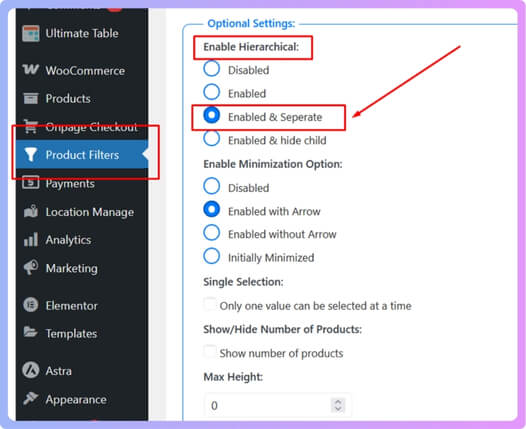
Looking to make your WooCommerce store more user-friendly? You can easily do that by learning how to add wooCommerce multiple categories filter that shows both parent and child categories separately. Simply go to Product Filters → Form Style → Optional Settings → Enable Hierarchical, then select “Enabled & Separate.” This setup lets shoppers explore multiple categories at once using AJAX-based loading for faster, smoother results.
If WooCommerce’s default filters feel limited, you’re in the right place. In this article, we’ll guide you step-by-step through setting up and optimizing a powerful multi-category filter to improve navigation and conversions.
About WooCommerce Category Filters
Before getting into setup, it’s important to understand what category filters do and why multiple-category filtering is so useful for modern WooCommerce stores.
What Category Filters Do
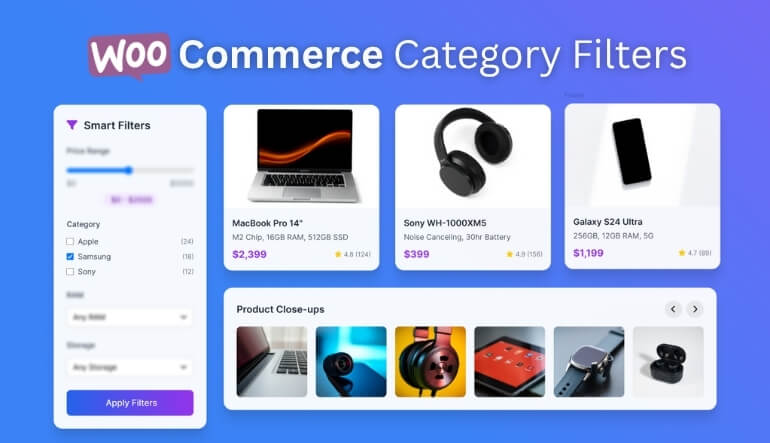
A category filter in WooCommerce helps customers narrow down a product list by selecting one or more product categories that match their interests. For example, if your store sells apparel, users might filter products under T-shirts, Jeans, or Accessories to see only what they want.
The Default WooCommerce Limitation
By default, WooCommerce filters often allow selection of just one category at a time. That means if a visitor wants to browse Shoes and Bags together, they’ll have to perform multiple filter actions or reload the page each time.
What Multiple-category Filtering Means
“Multiple categories” filtering allows visitors to tick several boxes at once. For instance, Shoes and Accessories, and view the combined results instantly. It can work with AND (show items in all selected categories) or OR logic (show items in any selected category).
Why It Matters for User Experience
Multi-category filtering saves time, reduces friction, and gives shoppers control over how they browse. Fewer clicks, faster loading, and dynamic results mean customers stay engaged longer, leading to better discoverability and smoother navigation throughout your store.
How to Add WooCommerce Multiple Categories Filter? (Step-by-Step)
Adding a multiple-categories filter is simple once you use a dedicated plugin. The following steps are based on the official setup guide of Dynamic AJAX Product Filters for WooCommerce, and let’s go through the step-by-step procedure now.
Part 1: Plugin Installation
Step 1 – Install the Free Version
- Go to your WordPress Admin Dashboard → Plugins → Add New.
- In the search bar, type “Dynamic AJAX Product Filters for WooCommerce.”
- Click Install Now, then Activate.
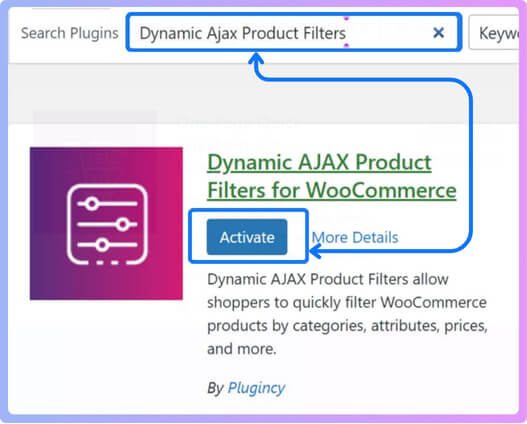
Once activated, the plugin will appear in your sidebar as Product Filters.
Step 2 – Install the PRO Version (Optional)
If you have the Pro license:
- In your WordPress dashboard, go to Plugins → Add New → Upload Plugin.
- Click Choose File, select the ZIP you downloaded, and hit Install Now.
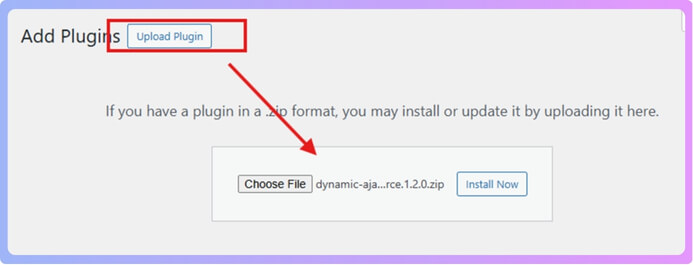
- After installation, click Activate.
- Go to Product Filters > Plugin License.
- Paste the license key you received.
- Click Activate License.
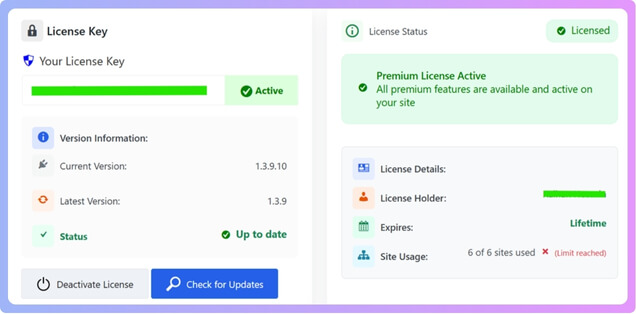
Your plugin is now installed and active, ready to create dynamic category filters.
Part 2: Filter Setup and Category Configuration
Step 1 – Create Product Categories
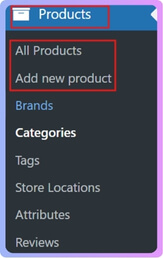
- In your dashboard, go to Products → Categories.
- Add a new category by filling in: Name, Slug, Parent Category (optional), and Description.
- Click Add New Category, and you’ll see it appear in the list.
Step 2 – Assign Categories to Products
- Go to Products → All Products.
- Edit an existing product or add a new one.
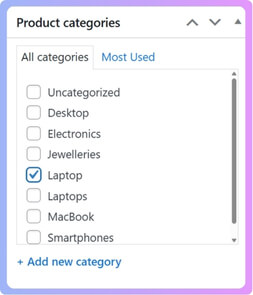
- On the right panel, find the Categories box.
- Check the category you want to assign or click Add New Category to create one.
- Click Update or Publish to save.
Step 3 – Enable Category Filter in the Widget Form
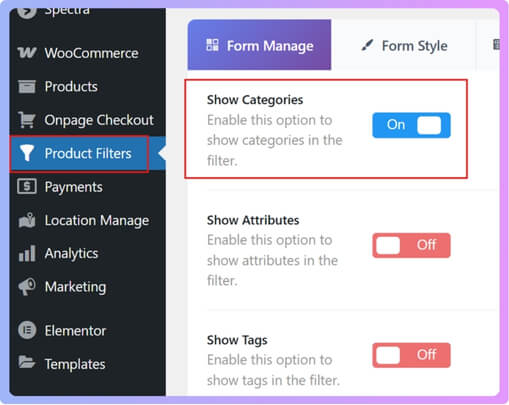
- Go to Product Filters → Form Manage.
- Locate the Show Categories option.
- Toggle it on to make categories appear in your filter widget.
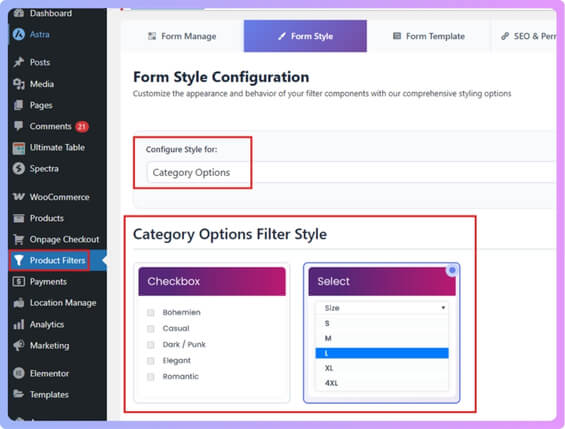
Step 4 – Customize the Category Widget Style
- Go to Product Filters → Form Style.
- From the Select Attribute dropdown, choose Category.
- Pick your display style: Checkbox or Select (dropdown).
- Checkbox lets users select multiple categories at once — perfect for multi-category filtering.
- Select offers a dropdown style for compact layouts.
- Adjust any sub-options to control appearance and behavior.
- Click Save to apply your design.
Step 5 – (Optional) Enable Hierarchical Category Display
- In the Form Style Settings, find Enable Hierarchical.
- Choose from four modes:
- Disabled – no hierarchy.
- Enabled – shows parent and child categories.
- Enabled & Separate – lists parent and child categories independently.
- Enabled & Hide Child – shows only parent categories.
Step 6 – Display the Category Filter on Your Shop Page
- Go to the page where you want the filter to appear.
- Insert the shortcode [[plugincy_filters]] into your page or widget area.
- To show products next to the filter, optionally add the shortcode [[products]].
- Save and preview the page.
- Now, visitors can filter products by one or multiple categories in real time using AJAX.
By following these steps, you’ll implement fully functional AJAX product filters for WooCommerce, allowing users to browse across several categories simultaneously without refreshing the page.
Part 3: Adding WooCommerce Multiple Categories Filter
Step 1 – Select “Enabled & Separate”
- After selecting the “Category Style Filter Options”, go to “Optional Settings”.
- Then, move to the “Enable Hierarchical” section.
- Select “Enabled & Separate” and that’s it.
Why Do You Need a Multiple Categories Filter in WooCommerce?
Implementing a multi-category filter is more than a convenience; it’s a strategic improvement to your store’s performance and usability.
- Improves navigation and product discovery: Visitors can browse across multiple categories at once, helping them find products faster and engage longer with your shop page.
- Reduces bounce rate and boosts conversions: When users reach relevant items in fewer clicks, they’re more likely to stay, explore, and complete purchases.
- Scales easily for large stores: If your WooCommerce site has dozens or hundreds of categories, single-category filters become limiting. Multi-category filters simplify the experience without slowing down performance.
- Enhances SEO and site search experience: Integrating dynamic filtering helps improve WooCommerce search visibility and ensures users always land on meaningful results.
- Meets modern shopper expectations: Customers are used to advanced filters from big retailers. Allowing them to mix options like “T-shirts” + “Sale” + “Blue”, gives your store a competitive, professional edge.
Best WooCommerce Multiple Category Filter Plugins (2025 Picks)
Below is a comparison table of top filter plugins (including our example) to help you choose the right one for your store.
| Plugin Name | Key Features | Multi-Category Support? | Ideal For |
| Dynamic AJAX Product Filters for WooCommerce (Plugincy) | AJAX filtering, SEO-friendly URLs, widgets + shortcode, supports categories, attributes, tags. | Yes – supports multi-category checkboxes. | Stores needing full flexibility + SEO. |
| WooCommerce Product Filters (Barn2) | Filter by anything, indexing for large catalogs, mobile slide-out panel. | Yes – customers can select multiple categories. | Large stores, custom fields, complex taxonomies. |
| YITH WooCommerce AJAX Product Filter | Free + pro version, filter by categories, tags, attributes; presets and styling. | Yes – multi-category via presets. | Small to mid stores, budget-conscious. |
How to Customize and Optimize the Filter for Better UX?
Once your multiple-category filter is live, the next step is fine-tuning its design and behavior for real users. A well-optimized filter can boost engagement, reduce drop-offs, and make shopping feel effortless. Follow these practical tweaks to turn your basic setup into a seamless browsing experience.
- Use clear labels (“Select categories”) and show the count of results so customers know how many products remain.
- Choose appropriate filter styles: For multi‐category selection, checkboxes often work best. Dropdowns that allow multi-select are okay, but less intuitive on mobile.
- Optimize for mobile: Ensure filters collapse or slide out so they don’t dominate screen space.
- Use shortcodes to place filters on custom pages or category-specific pages, helping you create WooCommerce shop page with multiple filters specific to that category.
- For SEO: choose permalink-based filter URLs (if supported) so filtered pages get indexed cleanly. Avoid long query strings like ?filter_cat=…&filter_size=… unless you know how to handle canonical URLs.
- Test performance: with large catalogs, AJAX filtering may still cause server load; consider caching or indexing.
- Provide a “Clear filters” button so users can easily reset their selections.
Common Issues and Fixes When Adding Multiple Category Filters
Even well-configured filters can face issues during setup. Below are common problems and practical fixes you can apply. Review these solutions before troubleshooting your WooCommerce category filters.
Filter Not Showing Categories
Make sure each product is correctly assigned to at least one category. Then, confirm the plugin’s Show Categories option is enabled under Product Filters → Form Manage in your WordPress dashboard.
Multiple Categories Selected, But No Results
This often occurs due to incorrect logic. If you’re using AND, only products in all selected categories appear. Switch to OR for broader results that include any matching category.
Filters Not Updating Dynamically
If AJAX isn’t refreshing results, check for JavaScript errors in your console, disable caching temporarily, and test theme or plugin conflicts to ensure scripts load without interruptions.
SEO Problems (duplicate or un-indexed results)
Filtered pages may create duplicate URLs. Add canonical tags, customize meta descriptions, or noindex unnecessary combinations using your SEO plugin or the filter’s built-in SEO settings.
Slow Performance With Large Catalogs
AJAX filters can slow down when handling thousands of products. Enable database indexing, reduce live filter calls, or increase hosting resources to maintain fast, reliable performance.

Real Example – Multi-Category Filtering in Action
Let’s walk through a brief real-life scenario:
- Your store sells “Men’s Clothes” with categories: T-shirts, Hoodies, and Accessories.
- You assign each product to one or more of those categories.
- You install the plugin, enable the “Categories” filter with checkboxes, and allow multi-selection.
- On the shop page, the visitor clicks both “T-Shirts” and “Accessories”. With OR logic, it shows products in either category. With AND logic, it shows products that are in both.
- Results update instantly (via AJAX) without page refresh. The product count updates. A “Clear filters” link appears. On mobile, the filter panel slides out.
- SEO side: the filtered URL becomes something like /shop/filters/categories/t-shirts+accessories/ (permalink style), which is crawlable.
This kind of experience makes your store feel much more dynamic and user-friendly.
WooCommerce Multi-Category Filters and SEO Impact
Because you’re now enabling multi-category filtering, it’s important to understand how this interacts with search engines.
- Filtered pages may generate many combinations (e.g., Category A + B + C). Without control, this can lead to duplicate or thin-content pages.
- Use canonical URLs or “noindex” for filter combinations you don’t want indexed.
- Choose plugins that support SEO-friendly URLs (rather than long query strings). For instance, the example plugin supports customizable permalinks for filtered results.
- Consider whether filtered pages should be in your sitemap or resource path. Too many combos can dilute the crawl budget.
- Use meta titles and descriptions that reflect the filtered combination: “T-Shirts + Accessories – Shop”.
- Ensure filtered pages link to each other (breadcrumb or filter tags) so user navigation remains strong.
By handling SEO proactively, you’ll avoid pitfalls and ensure your multi-category filter setup helps, not hurts, your site ranking.
FAQs About Adding Multiple Categories Filter in WooCommerce
Got questions about setting up or improving your category filters? Here are quick answers to help you troubleshoot and refine your setup. Read through before starting your customization.
Can Woocommerce Filter Products By Multiple Categories Out Of The Box?
Not really. The default filters are limited. For full multi-category checkboxes or AJAX support, you’ll usually need a plugin or custom code.
How Do I Choose Between And Vs Or Logic For Category Filtering?
OR logic shows products in any selected category (broader result). AND logic shows only products that are in all selected categories (narrower result). Choose depending on your catalog and user behavior.
Will The Multi-Category Filter Slow Down My Store?
It could, if you have a large catalog and many filter combinations. Use a plugin with indexing or caching, and test performance after implementing.
Is It Possible Without A Plugin?
Yes, but it requires custom code (e.g., using tax_query in pre_get_posts) and AJAX handling or filtering logic. For most store owners, a plugin is quicker and more maintainable.
Can I Filter By Categories Plus Other Criteria (Tags, Attributes) At Once?
Yes. Many filter plugins and custom setups allow combining categories with attributes, tags, price, etc. See the “Advanced Setup” section above.
Conclusion – Simplify Shopping with Smarter WooCommerce Category Filters
Adding a multi-category filter to your WooCommerce store isn’t just about checking boxes; it’s about improving navigation, boosting conversions, and helping users find what they need effortlessly. Learning how to add wooCommerce multiple categories filter ensures your customers enjoy a smoother, faster, and more intuitive shopping experience.
Whether you use a plugin or a custom-coded approach, the process remains simple—enable multiple selections, test your setup, and keep SEO in mind. Start with one key filter set, then expand strategically to include attributes and tags for a fully optimized store.
