

Filters make any online shop feel neat and easy to browse. They help people find products faster without scrolling endlessly. Many store owners often wonder how to set them up the right way and may want to learn more about how to apply filters to the products grid widget.
Apply filters to the Products Grid Widget in Elementor by using the Dynamic AJAX Product Filters plugin. Create a two-column layout, drag the filter widget into the left column, and place the Products Grid widget in the right. Filters update products instantly without reloading the page.
If you’re curious to make your product pages look clean and work smoothly, you’ll enjoy reading this article. It covers every step and detail you need to build dynamic filters. Stay here to learn how to set up and fix them with ease.
What Is the Products Grid Widget in WooCommerce?
The products grid widget is a simple tool in WooCommerce that helps you show items in a clean block layout. It is found in the Widgets area inside Appearance in your WordPress dashboard. You can choose this widget when you want your products to show in rows and columns. It makes your shop look neat and easy to browse.
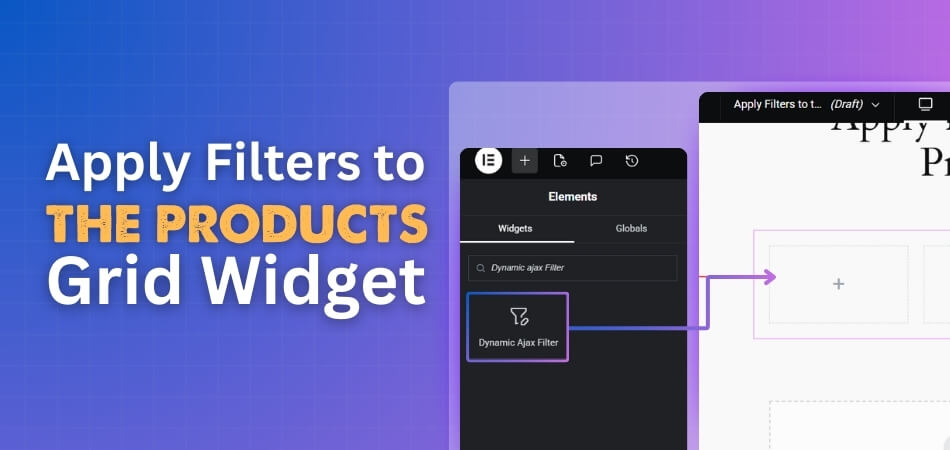
This widget is helpful because it lets you pick which products to show. You can show recent items, best-selling items, or selected items. You can also choose how many products to display at one time. This gives you control over how your shop looks on the front end.
Many shop owners use this widget to highlight key items on home pages or sidebars. It makes the layout simple for visitors to scan and click. It also works well with most themes, so you do not need extra tools. With just a few clicks, you can make your products look tidy and well-arranged.
How to Apply Filters to the Products Grid Widget?
You can easily apply filters to the Products Grid Widget using Elementor. While Elementor itself offers basic WooCommerce filter options, they are quite limited and don’t allow much customization. To make your filters more flexible and dynamic, it’s better to use a plugin.
For this setup, we’ll use the Dynamic Ajax Product Filters for WooCommerce plugin. It’s simple to use, doesn’t need any coding knowledge, and comes with both free and paid versions. Using AJAX product filters for WooCommerce helps you create fast, interactive filters that update products instantly without reloading the page, making shopping smoother and more enjoyable for customers.
Step 1: Install Elementor Pro
To begin, you’ll need Elementor Pro since it gives you more control over your page layout and widgets.
- Go to your WordPress dashboard → Plugins → Add New Plugin
- Search for Elementor
- Click Install Now, then Activate

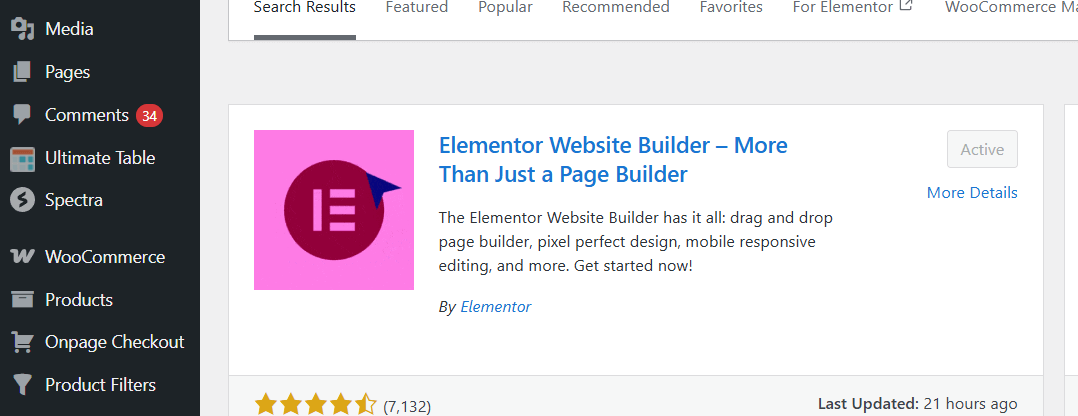
Once activated, Elementor will appear in your dashboard, ready for use.
Step 2: Install the Product Filters Plugin
The Dynamic Ajax Product Filters for WooCommerce plugin adds powerful filtering capabilities that can be combined with Elementor’s Product Grid.
Free Version
- Go to WordPress Admin Dashboard → Plugins → Add New Plugin
- Search for Dynamic AJAX Product Filters for WooCommerce
- Click Install Now, then Activate

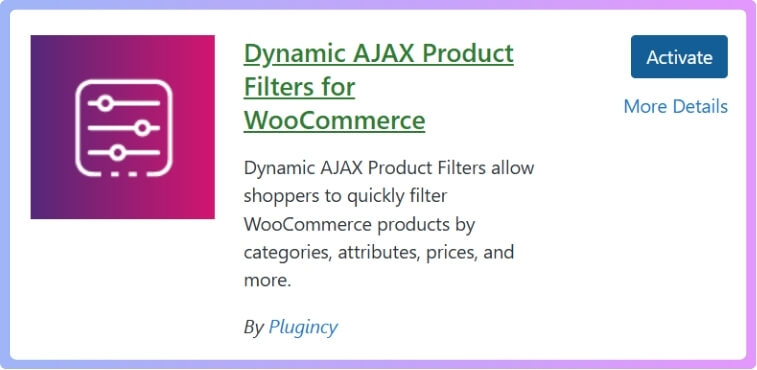
Pro Version
- Go to Plugins → Add New Plugin → Upload Plugin
- Click Choose File and select the plugin’s ZIP file
- Click Install Now and then Activate
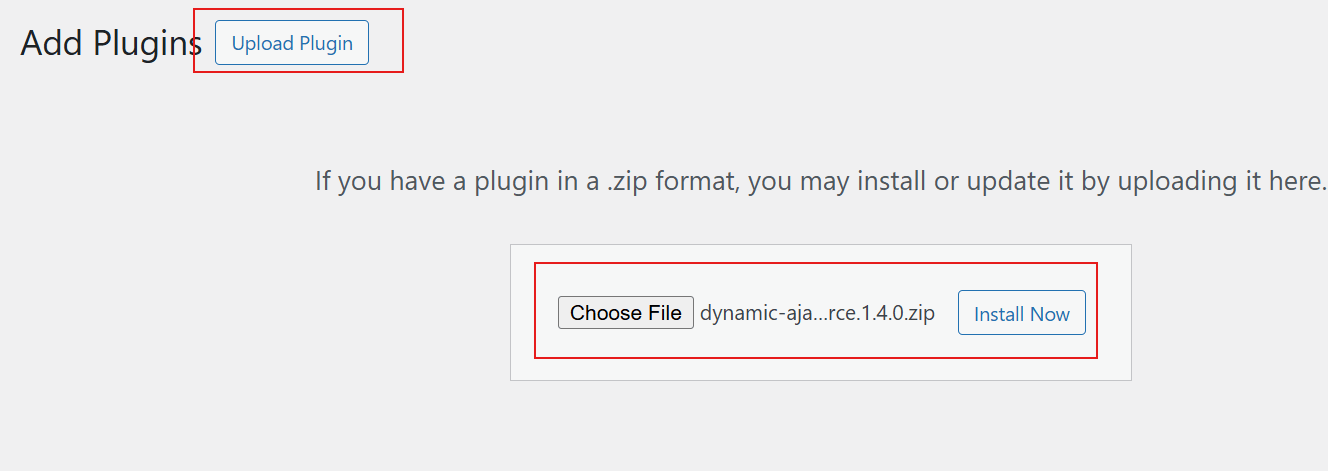
Once the plugin is active, it’s ready to be used with Elementor.
Step 3: Create or Edit a Page With Elementor
Now that all the plugins are installed, let’s apply the filters to the product grid.
- Go to Pages → Add New Page (or edit an existing one).
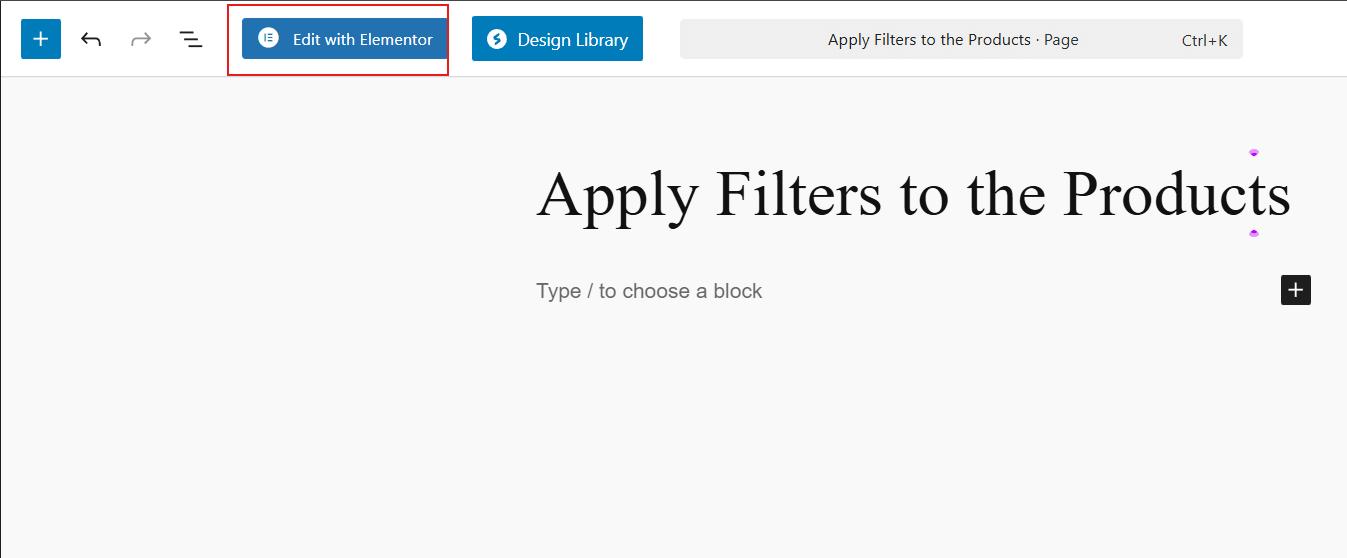
- Give your page a name and click Edit with Elementor.

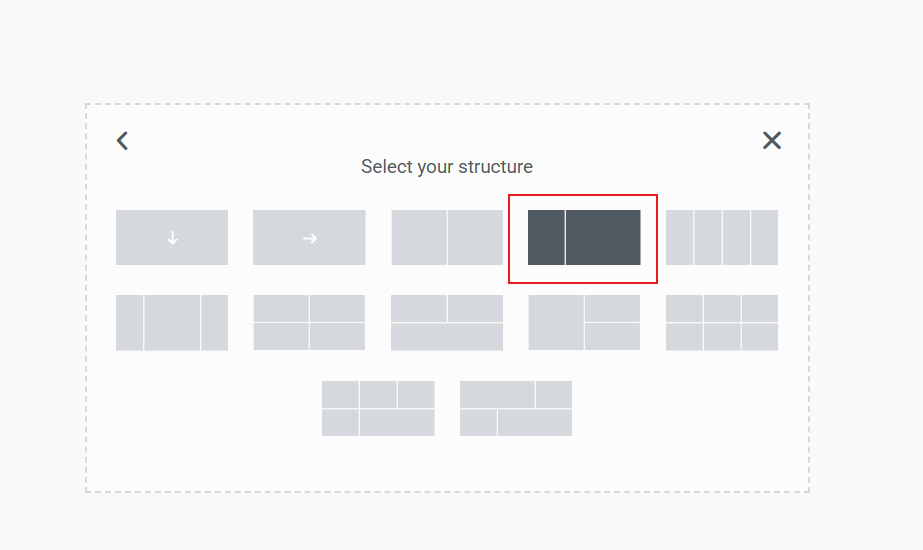
- Once Elementor opens, click the + icon to add a new section.
- Choose Flexbox and select the fourth layout option, which creates two columns.

Step 4: Add the Filter Section
On the left column, you’ll place your product filters.
- Click the + icon inside the left column.
- Search for Dynamic Ajax Filters in the Elementor search bar.
- Drag and drop it into the column.

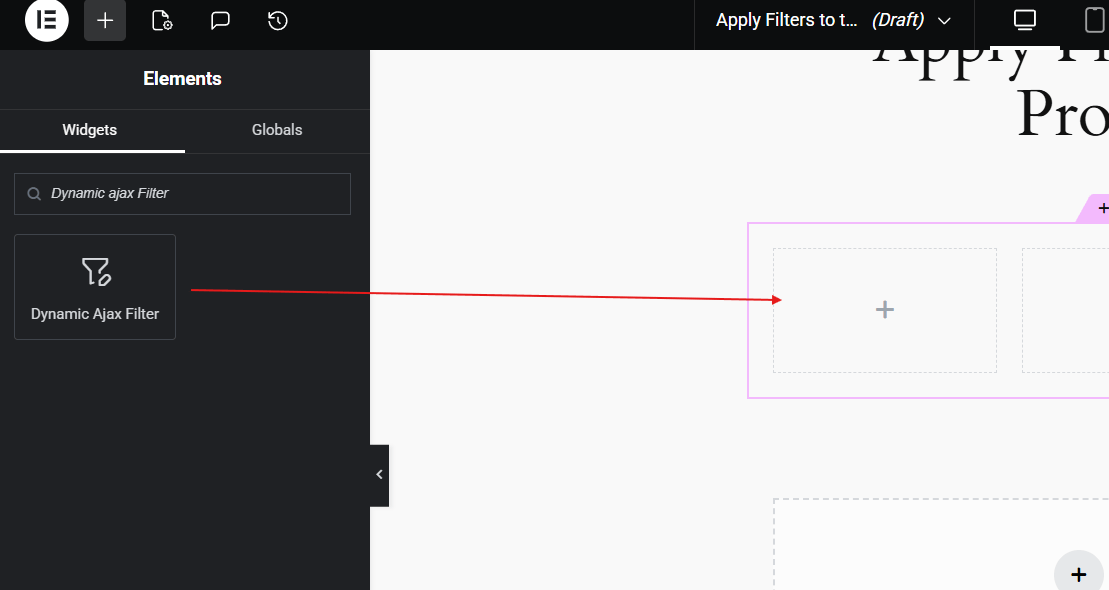
You’ll immediately see your WooCommerce filters appear. You can later adjust the filter style and layout through the plugin’s settings.
Step 5: Add the Products Grid
On the right column, you’ll display your product grid.
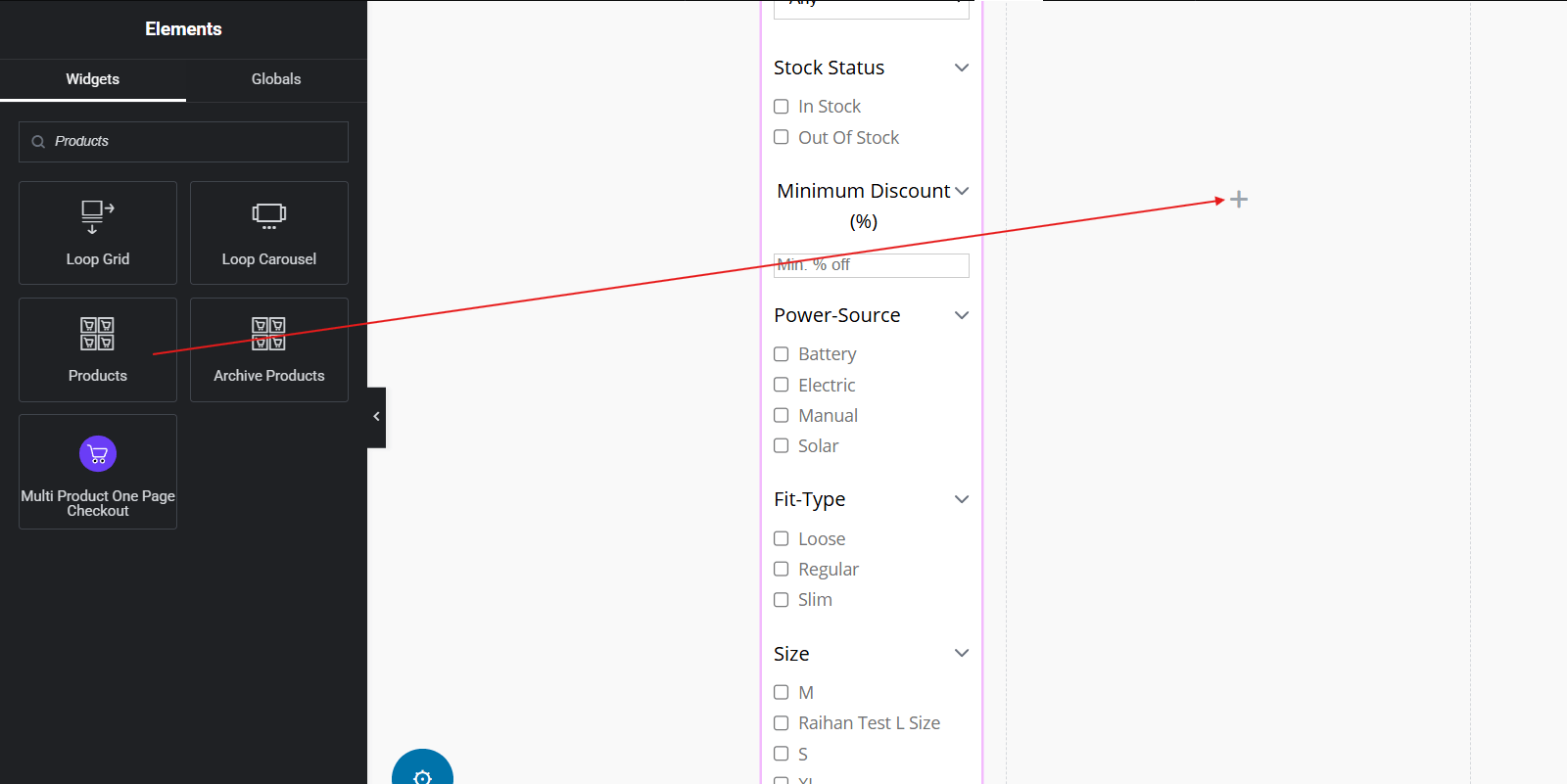
- Click the + icon inside the right column.
- Search for the Products widget in Elementor.

Step 6: Final Adjustments and Publish
Once everything looks good, make small layout or spacing adjustments if needed. You can customize padding, column width, or alignment in Elementor for a clean look.
Finally, click Publish to save your page.
Now, when you view the page, your filters will work instantly with the product grid, no page reloads needed. This makes browsing faster and more user-friendly for visitors.
Types of Filters You Can Apply to the Products Grid
The product grid in WooCommerce becomes more useful when you add filters. Filters help shoppers find what they want faster without scrolling too much. They can narrow down results based on price, color, or rating. Let’s look at the most common filter types and how they make browsing easier for visitors.
Category Filters
Category filters help group similar items together. Shoppers can click on a category, like shoes or bags, and see only those items. This saves time and keeps the shop page neat. It’s great for stores that sell many types of products. Category filters make browsing smooth and well-organized.

Price Filters
This filter lets shoppers choose a price range that fits their budget. It removes items that are too cheap or too costly. The slider or box setup is simple and easy to use. It helps users quickly find products in their comfort zone. Price filters make the buying process faster and smarter.
Rating Filters
Shoppers often trust other buyers’ feedback before purchasing. The rating filter allows them to see only items with higher ratings. It builds trust and improves the shopping experience. High-rated products are shown first, which helps with sales too. This simple filter adds real value to your product grid.
Attribute Filters
Attributes like size, color, and brand are very common in filters. These let users find products that match their exact needs. For example, they can pick “blue” or “large” and see only those. It’s helpful for clothing, shoes, or tech gadgets. Attribute filters make product discovery easier and faster.
Collapsible Filter Setup
For stores with a wide range of products, using a collapsible product filter setup in WooCommerce helps keep the sidebar clean while still giving shoppers quick access to filter options like price or category. It’s a smart way to save space and make your store layout look tidy. Customers can open only the sections they need.
Adding the right filters to your product grid makes a big difference. It helps customers find what they want faster and improves how your store feels. A clean and simple layout also encourages people to browse longer. When filters work well, both shoppers and store owners benefit in the end.
Troubleshooting Common Filter Issues in the Products Grid Widget
Sometimes filters in the WooCommerce products grid widget stop working as expected. They may not appear, fail to update results, or break after an update. These issues often come from theme conflicts, outdated plugins, or missing settings. Let’s look at simple ways to fix these common problems quickly and easily.
Filters Not Showing Up
When filters disappear, first check if the widget is placed in the right sidebar. Go to Appearance and then Widgets to confirm. Make sure the correct filter widget is added under the WooCommerce sidebar area. If it’s still missing, check if your theme supports filter widgets properly.
Filters Not Updating Results
If the filters are visible but not updating results, caching plugins might be the cause. Try clearing your site and browser cache to refresh everything. Also, check if your AJAX filter option is turned on in the settings. This feature allows products to update without reloading the page.
Filters Breaking After Updates
Sometimes, filters stop working after theme or plugin updates. In that case, make sure all your WooCommerce extensions are updated together. Disable newly added plugins to see if one is causing the conflict. If your filters are not showing or updating properly, try rebuilding your layout and add WooCommerce product filters with Elementor to ensure your product grid displays results dynamically and correctly.
Theme Compatibility Problems
Not all themes support filter widgets by default. Switch to a basic WooCommerce theme like Storefront to test if the filters work there. If they do, the problem is likely with your theme. You can then contact your theme developer or use a compatible plugin that supports product grid filtering.
Incorrect Filter Settings
Sometimes filters are not properly set up in the widget. Go through each filter’s settings and make sure they match your product attributes. If your product grid relies on category or price filters, double-check that those values are set correctly. A small mistake here can stop filters from working smoothly.
Fixing filter issues doesn’t have to be hard. Most of these problems can be solved by checking your settings or updating your plugins. Keeping your theme and WooCommerce up to date also helps a lot. When everything is set right, your filters will work smoothly and make shopping easy for visitors.
Tips to Keep Filters Responsive and Fast on Mobile Devices
Good mobile filters make shopping smooth and quick. If your product filters are slow or hard to use on phones, visitors may leave quickly. Keeping them light, simple, and clean helps your store run better and load faster.
- Use Lightweight Filter Plugins: Choose plugins that are simple and made for speed. Heavy ones can slow down your pages and make filters take longer to load.
- Limit the Number of Filters: Too many filter options can confuse users. Keep only the most useful filters, like price, size, or brand, for a faster experience.
- Enable Lazy Loading: This feature loads items only when users scroll. It saves data and makes filters feel smoother on slower mobile networks.
- Optimize Images and Thumbnails: Small image sizes help your shop load quickly. Large product photos can make your filter results sluggish and delay updates.
- Use Clear and Touch-Friendly Buttons: Make sure filter buttons are large enough for fingers. Tiny buttons or links are hard to tap on mobile screens.
- Test Filters on Real Devices: Always check how your filters behave on different phones. This helps you spot layout issues that slow browsing.
- Keep the Filter Section Collapsible: A collapsible layout saves screen space and looks tidy. Shoppers can expand only the filters they need while browsing comfortably.
Fast and clean filters make a big difference on mobile. When everything loads quickly and feels smooth, people enjoy shopping more and stay in your store longer.
Frequently Asked Questions
Filters can make your online store look more professional and easier to shop. Many people who use WooCommerce and Elementor have questions about how to make filters work better on their product grids. Below are some simple and helpful FAQs that cover the most common questions about how to apply filters to the products grid widget.
What Plugin Works Best For Adding Filters To The Products Grid Widget?
The best plugin for this setup is Dynamic Ajax Product Filters for WooCommerce. It lets you create quick and flexible filters without needing any code. You can use it to filter products by price, category, rating, or attributes. It also works smoothly with Elementor for building custom layouts.
Can I Use The Products Grid Widget Without Elementor Pro?
You can use a basic grid without Elementor Pro, but it has limits. The free version doesn’t support advanced filter layouts or full design control. To get flexible and dynamic filter features, Elementor Pro is needed. It helps you build product pages that look professional and respond instantly.
How Do Ajax Filters Improve The Products Grid Widget?
Ajax filters let your page update products instantly without reloading. This makes browsing fast and saves time for users. It also reduces loading stress on your website and improves the shopping experience. Customers can change filters and see new results right away.
Why Are My Filters Not Working Properly With The Products Grid Widget?
Filters may stop working due to outdated plugins or theme conflicts. Make sure WooCommerce, Elementor, and your filter plugin are all updated. Clear the cache and recheck the filter settings for any missing values. If issues remain, try switching to a default WooCommerce theme for testing.
How Can I Customize The Filter Design In Elementor?
You can easily adjust filter styles in Elementor’s design panel. Change padding, font, color, and spacing to match your theme. The Dynamic Ajax Product Filters plugin also has built-in design options. These settings help your filters look neat and fit your page layout well.
Do Filters Affect The Loading Speed Of The Product Grid?
Filters can slow things down if you use too many or heavy plugins. To keep speed high, use lightweight filter tools and enable caching. Avoid unnecessary filters that don’t help buyers. With the right setup, filters can actually make browsing faster and smoother.
Can I Add Filters To A Custom Shop Page Made In Elementor?
Yes, you can add filters to any custom shop page. Just drag and drop the Dynamic Ajax Filters widget next to your product grid. Adjust the layout using columns or flexbox for a balanced design. This way, your filters will work smoothly with any shop layout you create.
How Can I Make Filters Work With Product Variations?
Product variations like size or color need attribute filters. You can create these filters in WooCommerce and connect them through the filter plugin. Once done, your customers can choose exact product types. It’s very useful for clothing, shoes, and similar items.
What Should I Do If Filters Are Showing Wrong Results?
Check that your products are correctly tagged under categories and attributes. Filters rely on this data to show results. If the tags are wrong, the filter will not match products properly. Updating product details usually fixes this issue quickly.
Bottom Line
Filters make online shopping easy and smooth for your visitors. When you learn how to apply filters to the products grid widget, you can display items clearly, improve browsing, and let buyers find what they want fast without reloading or waiting for slow pages.
Keeping your filters clean, fast, and mobile-friendly helps customers stay longer on your store. Always test filters after updates, use lightweight plugins, and keep your layout simple for better results. Wishing you success as you build a smooth and user-friendly shop.
