

Hierarchical category filters work like a step-by-step map for online stores. They show products under clear levels, such as main and subcategories, helping people find what they need quickly. Many store owners often wonder how to enable hierarchical category filters in WooCommerce.
Enable hierarchical category filters in WooCommerce by using the Dynamic AJAX Product Filters plugin. Go to Product Filters → Form Manage, turn on Show Categories, then enable hierarchy under Form Style → Category Options. Choose your preferred display mode and save changes to show parent-child categories clearly.
Do you want to make your store easy to explore and well-organized? Keep reading this article to learn everything you need to know about using hierarchical filters in WooCommerce and how they can improve your store’s shopping experience.
Why Use Hierarchical Category Filters in Your Store?
Many stores use clear category levels to help people shop faster. This simple setup makes it easy to move through many product types. Shoppers can reach the items they want without feeling lost at any point. Keep reading to see why this system helps your store work better.

Better Store Flow
A clear category filter helps shoppers move through products without confusion. It gives a simple path that feels natural while browsing. People can check broad groups first and then move into smaller groups. This cuts down time spent searching and keeps interest high. A smooth flow often leads to happier buyers.
Cleaner Product Structure
A tidy product layout helps the whole store feel calm and simple. Shoppers can see how items belong to certain groups without guessing. This clear order also helps them compare things in a smart way. A neat structure keeps the store easy to understand. It also helps people stay focused while browsing.
Faster Item Discovery
Shoppers find what they need quickly when filters are set in steps. They can enter a wide group, then narrow it down in seconds. This saves time and reduces stress in large stores. Clear steps guide them without extra thinking. Quick discovery often leads to better buying choices.
Less Shopper Stress
A clear filter path removes worry about missing the right product. People trust the system when it shows each level in a simple way. This helps them relax and look around more. A calm mind often leads to better choices. A stress-free visit can bring people back again.
Stronger Search Support
Filters work with search tools to give better results faster. When a shopper types a word, filters help match it to the right group. This keeps the results neat and easy to use. A good match helps people solve needs faster. A smoother search makes the store feel friendly.
Good category layers make your store feel clear and simple. People enjoy shopping more when the layout feels easy to understand. A calm and helpful design leads to better choices and happy buyers. Try using these tips to make your store easier for everyone.
How to Enable Hierarchical Category Filters in WooCommerce?
By default, WooCommerce does not show parent and child categories in a connected or layered way. To display them together, you need to enable hierarchical category filters. The simplest way to do this is by using a reliable plugin that supports advanced product filters for WooCommerce.
For this setup, we’ll use the Dynamic Ajax Product Filters for WooCommerce plugin. It’s beginner-friendly, requires no coding, and is available in both free and paid versions. Let’s go through the steps to install and set up hierarchical category filters.
Installing the Plugin
You first need to install the plugin before enabling the hierarchical feature.
Installation (Free Version)
- Go to your WordPress Admin Dashboard → Plugins
- Click Add New Plugin
- In the search bar, type Dynamic AJAX Product Filters for WooCommerce
- Click Install Now and then Activate

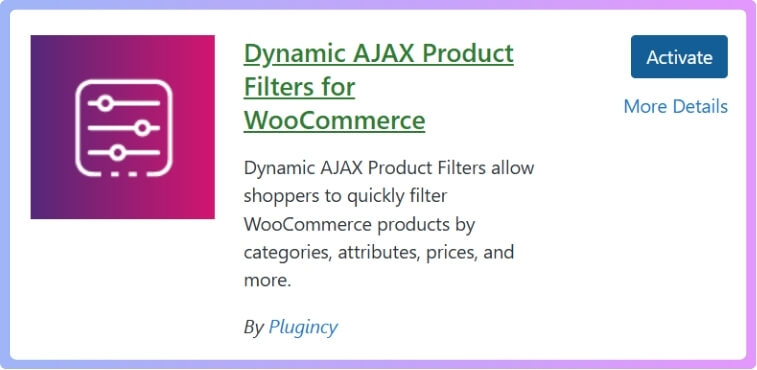
Once activated, the plugin will appear in your WordPress dashboard, ready for configuration.
Installation (PRO Version)
If you bought the Pro version, install it manually using the ZIP file you received.
- Go to Plugins → Add New Plugin
- Click Upload Plugin
- Choose the plugin ZIP file and click Install Now
- After installation, click Activate

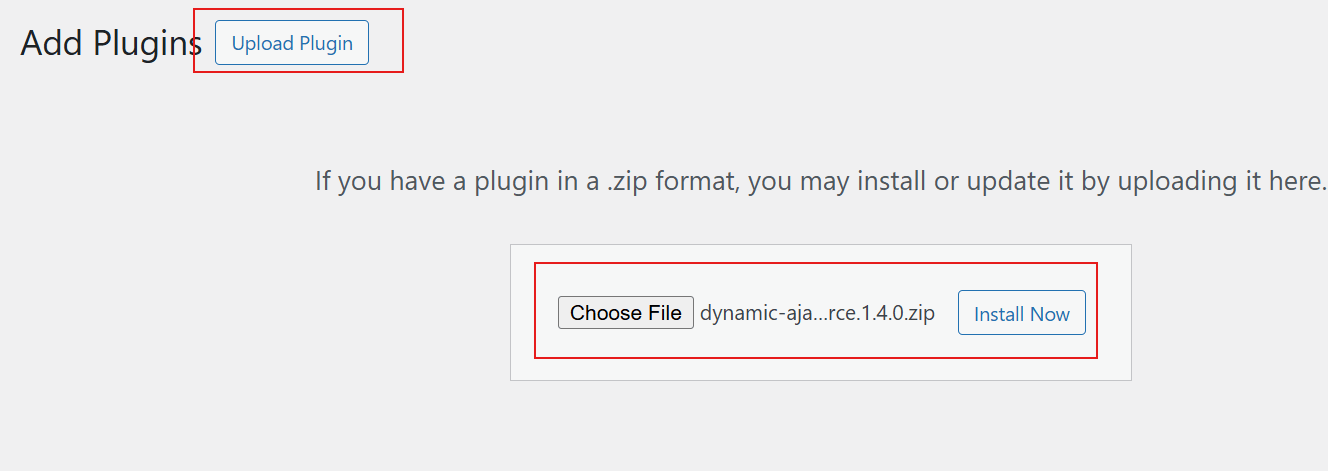
Now the plugin is installed, and you can begin setting up your categories.
Create Categories and Assign Products
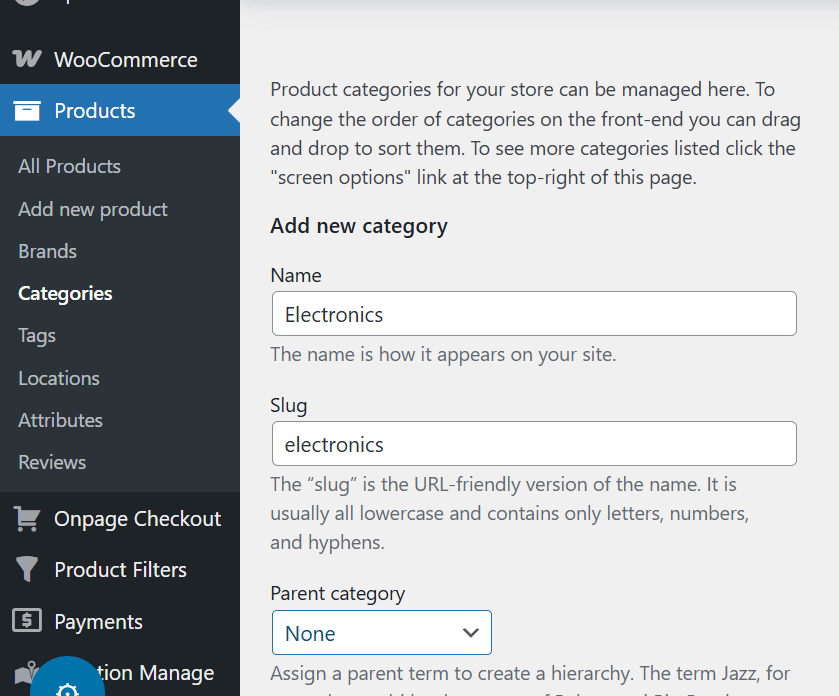
If you haven’t created any product categories yet, start by adding them:
Go to Products → Categories, and fill in the following details:
- Category Name
- Slug
After that, click Add New Category to save it.
Now assign these categories to your products:
- Go to Products → All Products or create a new one.
- On the right-hand side, you’ll find Product Categories.
- Select the category you want for that product and click Update.

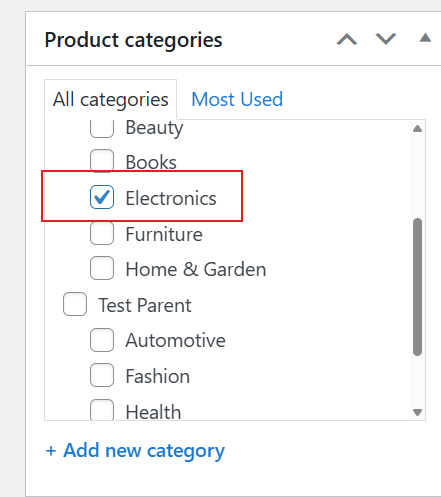
This organizes your products under the proper parent and child categories before enabling the filters.
Enable Hierarchical Category Filters
Once your categories are ready, you can enable the hierarchical filter view through the plugin’s settings.
- Go to Product Filters → Form Manage in your WordPress dashboard.
- Find the Show Categories option and turn it On.

- Then open Form Style → Category Options and select your preferred display style for categories.

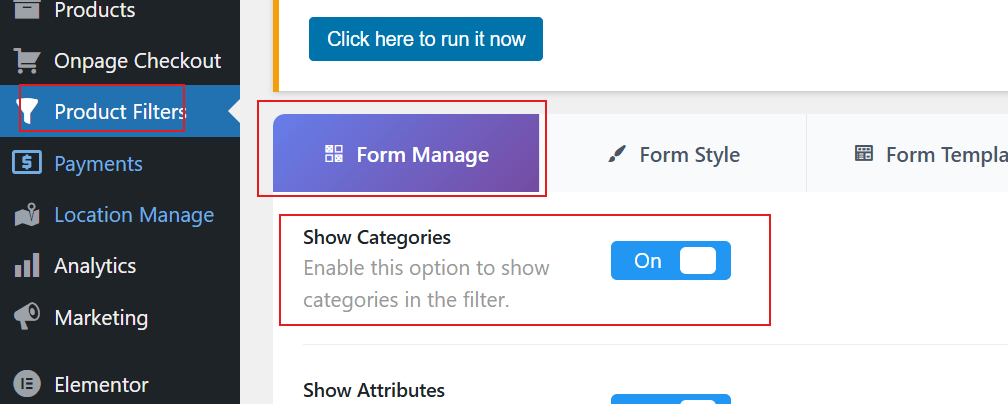
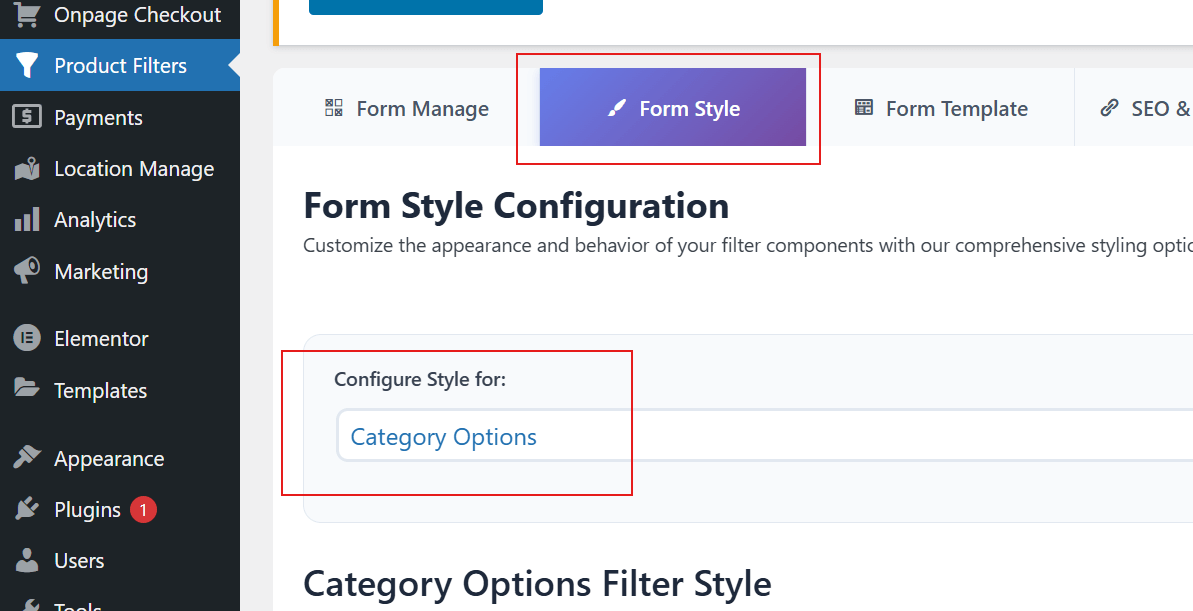
After setting this up, scroll down a bit to find Optional Settings.
Here, look for the Enable Hierarchical option, which includes four different modes.
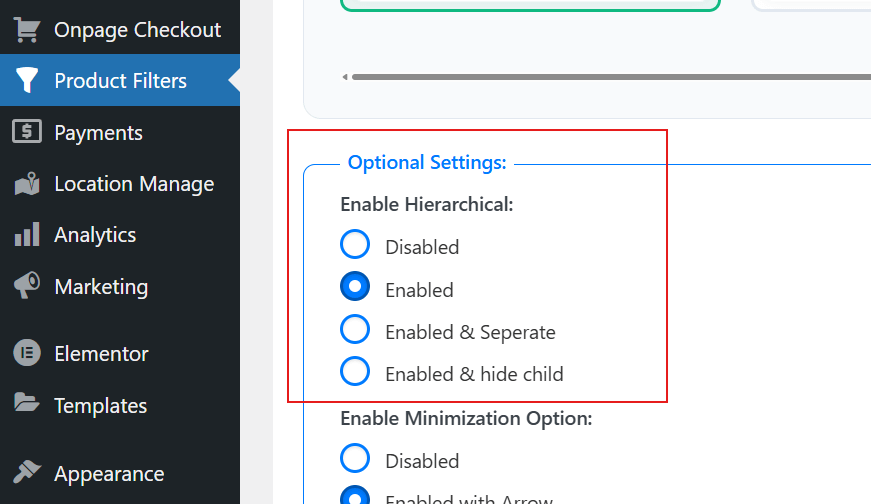
Choose How You Want to Display the Hierarchy
You can pick from the following options depending on how you want categories to appear:
- Disabled: Turns off the hierarchical filter view.
- Enabled: Shows parent and child categories together.
- Enabled & Separate: Displays parent and child categories in different sections.
- Enabled & Hide Child: Shows only the parent categories while hiding the child ones.
Once you’ve selected your preferred option, click Save Changes.
After saving, visit your shop page and check the category filter. You’ll now see parent and child categories organized in a clear hierarchy. This not only makes browsing easier for customers but also helps them quickly narrow down products based on specific category levels.
Difference Between Hierarchical and Non-hierarchical Filters
Before choosing any filter style for your store, it helps to know how each one works. The table below shows the key differences between hierarchical and non-hierarchical filters in a simple way.
| Point | Hierarchical Filters | Non-Hierarchical Filters |
| Structure | Shows categories in a parent and child layout | Shows all categories in one flat list |
| How it looks | People can expand and collapse sections | People see all options at the same level |
| Best for | Stores with many levels, like Main Category → Sub Category → Type | Stores with simple or fewer categories |
| User experience | Helps people move step by step through related groups | Let’s people pick any option without going through steps |
| When it works well | When categories depend on each other, like Electronics → Phones → Android | When categories are independent, like Color, Size, Brand |
| Main benefit | Makes large collections feel more organized | Faster and easier to scan when the list is short |
| Main drawback | Can feel slow if someone only wants a quick choice | Can look crowded if you have many categories |
Both filter types can improve a store when used in the right place. Pick the one that matches your category style and keeps things easy for people who shop on your site.
Troubleshooting Common Issues With Hierarchical Filters in WooCommerce
Many people face simple issues with layered filters in their store. These problems can make shoppers miss the items they want. It helps to understand why these filter errors show up at times. Keep reading to learn clear steps that help fix these common problems.
Filters Not Showing
Some stores face trouble when filters refuse to load or appear. This can happen when blocks are not set up the right way. You can try removing the filter block and adding it again. Many store owners fix display issues when they add WooCommerce filters with Gutenberg Editor because it loads all parts correctly.

Missing Category Levels
Sometimes only the top groups appear while the lower groups stay hidden. This often happens when store terms are not assigned to items well. You can update each item and set the right groups again. If your filters are not showing right, you can also adjust block settings or replace the block to refresh the view.
Filters Collapse Wrongly
A filter box may fold in a strange way and hide needed items. This often happens when theme scripts clash with filter blocks. You can test by switching the theme for a short time. If the issue clears, then the theme scripts need small fixes or a light update.
Slow Filter Loading
Slow loading may stop the filter panel from working at all. This often happens when a site uses many add-ons at once. Turning off extra add-ons one by one helps find the cause. After finding the one slowing things down, you can update it or replace it.
Wrong Filter Counts
Sometimes a filter shows the wrong item count for each group. This can confuse shoppers who expect correct numbers. You can fix this by clearing your shop cache and saving permalinks again. Many times, this simple refresh helps update the counts the right way.
Many filter issues look hard, but most are easy to fix. A few quick checks can help your shop work better again. Try these simple steps before changing bigger parts of your store. Use them to keep your filter tools working in a smooth and steady way.
Tips to Keep Hierarchical Filters Mobile-Friendly in WooCommerce
Keeping hierarchical filters easy to use on mobile is important because small screens can feel crowded. Clear design choices help shoppers move through parent and child categories without confusion. Here are simple tips to keep things smooth today.
- Clear labels: Use short and clear words for each level of filters so shoppers quickly understand which group they are in and avoid wrong clicks.
- Tap-friendly spacing: Add enough space between filter options so fingers can tap comfortably, which prevents mistakes and makes using filters more pleasant.
- Simple arrows: Show small arrows beside parent categories to let people know there are subcategories, helping them explore only when they really want.
- Collapsible lists: Keep subcategories hidden until clicked, so screens stay neat and users can expand only the sections they need at that moment.
- Sticky filter bar: Fix a small bar at the top that stays visible while scrolling, allowing users to adjust or reset filters anytime with less effort.
- Clear reset button: Place a reset button where it is easy to see so users can quickly return to the main view without confusion or delay.
- Smooth slide panels: Design filter panels to slide in from the side for a clean and space-saving layout that works well on small mobile screens.
Good mobile filters help people find what they want without stress. When designing for smaller screens, using a collapsible filters setup in WooCommerce can help save space and keep your category filters easy to use without overwhelming the layout.
FAQs About How to Enable Hierarchical Category Filters in WooCommerce?
If you’re new to setting up category filters in WooCommerce, you might have some questions. These FAQs will help you understand more about enabling hierarchical filters, how they work, and how to manage them in your store easily.
How Do Hierarchical Filters Improve Product Navigation?
These filters make browsing smoother by letting users start broad and go specific. For example, they can first choose “Clothing,” then “Men,” and finally “Shirts.” This simple path helps customers reach what they want without extra clicks. It also reduces the chance of skipping or missing items.
Can I Customize the Display of My Hierarchical Filters?
Yes, you can choose how filters appear in your store. Some plugins let you show categories as lists, dropdowns, or even collapsible menus. You can also pick if subcategories stay hidden until clicked. Custom display styles make your filters match your store design.
Do Hierarchical Filters Work With All Themes?
Most WooCommerce themes support hierarchical filters, but some may need small tweaks. If the filter layout looks strange, you can test it with a default theme like Storefront. If it works there, your theme might need CSS adjustments. Always check theme compatibility before final setup.
How Can I Test If My Hierarchical Filters Are Working Properly?
You can test them by visiting your store page and clicking through the categories. Try expanding parent and child levels to see if all products show correctly. Also, test different filter combinations to check that the results are accurate. A few quick checks can save you from future display issues.
What Happens If I Add or Remove Categories After Setting Up Filters?
When you change your categories, the filter updates automatically in most cases. However, if it doesn’t, you can refresh permalinks or clear your cache. It’s also good to double-check the plugin settings after big category changes. This helps your filters stay accurate and up to date.
Are Hierarchical Filters Useful for Small Stores Too?
Yes, even small stores can benefit if they have grouped products. For example, if you sell home decor, you can use “Furniture” as a parent and “Chairs” as a child. This makes your catalog look tidy and easier to browse. It also prepares your store for growth later.
Do Hierarchical Filters Affect Website Speed?
Filters can slow down a site if too many plugins or heavy scripts run together. You can fix this by using a light, well-coded filter plugin. Caching tools also help reduce loading time. Keeping your plugin list short ensures your filters work smoothly.
Can I Use Hierarchical Filters Alongside Other Filter Types?
Yes, you can use them with price, color, brand, or tag filters. Combining filters gives users more control while shopping. Just keep the layout clean so it doesn’t look crowded. A balanced setup helps customers filter products quickly without confusion.
End Note
Using layered category filters makes your store clean, simple, and easy to browse. Customers can move through parent and child categories without getting lost. It improves both their comfort and your store’s organization. You can set this up easily by following the simple steps on how to enable hierarchical category filters in WooCommerce.
To keep things running smoothly, update your plugins and test your filters often. Always check your site speed and layout after adding new tools. These small habits keep your store stable and simple for visitors. Keep your filters neat, and good luck with building a smooth shopping experience.
