

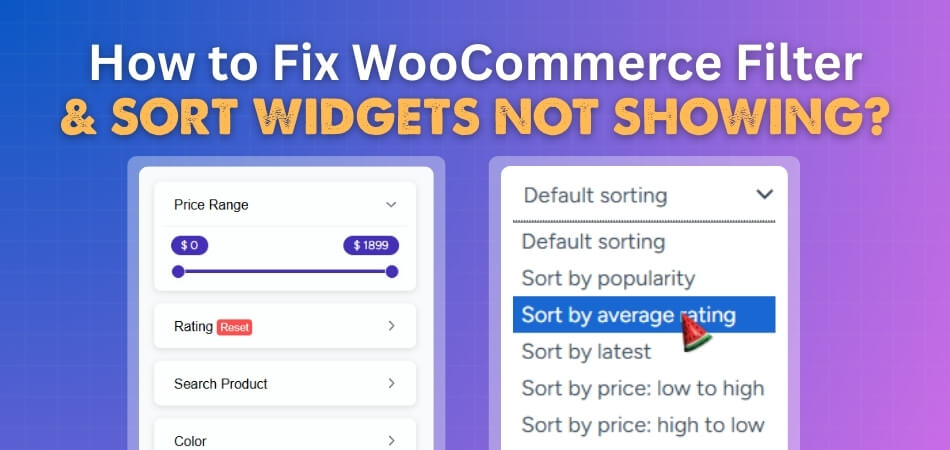
WooCommerce filters help shoppers find what they need faster by sorting products based on price, size, or category. But sometimes these helpful tools stop appearing on shop pages, leaving store owners confused about what went wrong. You might be wondering how to fix WooCommerce filter and sort widgets not showing.
Fix missing WooCommerce filter and sort widgets by checking widget placement in the correct sidebar, updating all plugins and themes, verifying product attributes, and clearing your cache. If the issue continues, test for plugin conflicts or switch to a default theme. Use a reliable filter plugin like Dynamic AJAX Filters.
If your store’s widgets have disappeared or stopped working, you’ll find all the answers here. This article covers every possible reason and the exact steps to restore them. Keep reading to make your WooCommerce filters and sorting tools work perfectly again.
How to Fix WooCommerce Filter and Sort Widgets Not Showing?
WooCommerce filters and sorting options sometimes stop appearing, but there’s no need to stress. This issue is quite common and usually simple to solve. It often happens because of wrong placement, plugin conflicts, or outdated settings. Follow these steps to make your widgets show properly again.
Check Widget Placement
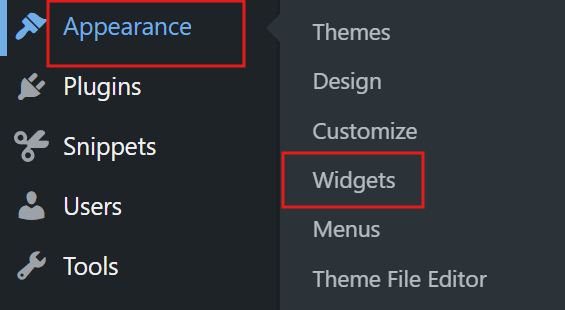
Go to Appearance > Widgets in your WordPress dashboard and look at your sidebar areas. Make sure your widgets, like Filter Products by Price, Filter Products by Attribute, or Product Categories, are placed inside the correct WooCommerce sidebar. Some themes use special widget areas, so confirm they’re added to the right one.
Verify Filter Settings
If you’re using a filter plugin, check its settings carefully. Make sure filters are enabled on your shop and category pages. For built-in WooCommerce filters, go to WooCommerce > Settings > Products > Filters and confirm everything is active. Double-check that your chosen filter options match your product setup.
Test Theme Compatibility
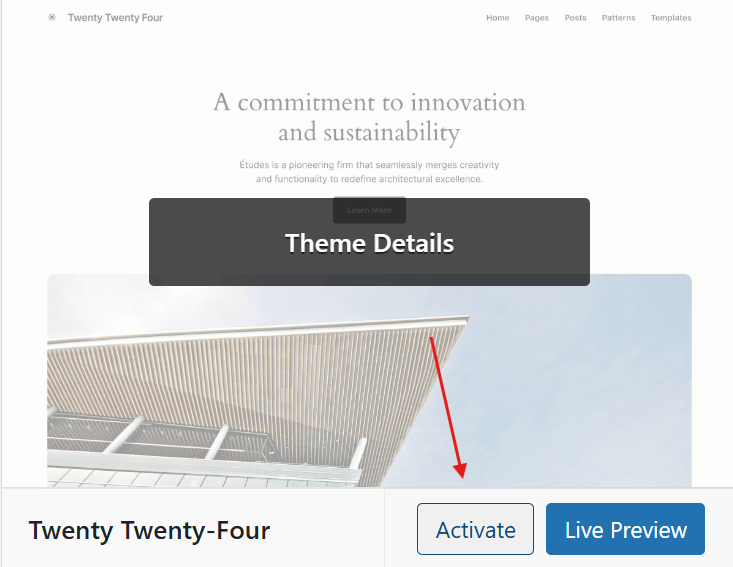
Your current theme might not support certain widget areas. To check this, switch to a default theme like Storefront or Twenty Twenty-Four. If your widgets appear there, the issue is with your theme. You can then contact the theme developer or use a theme that works better with WooCommerce.
Identify Plugin Conflicts
Deactivate all plugins except WooCommerce and your filter or sorting plugin. If your widgets show up after doing this, one of your other plugins is causing the problem. Reactivate them one by one to find the faulty one. Once identified, remove or replace it with a safer option.
Clear Cache and Refresh
Caching plugins sometimes keep showing an old version of your shop page. Clear all caches, including your site, browser, and CDN if you use one. After that, perform a hard refresh by pressing Ctrl + F5 for Windows or Cmd + Shift + R for Mac. This helps reload the latest version of your site with the correct widgets.
Check Product Data and Attributes
If your filters are based on product attributes, make sure all products are correctly tagged. For example, color or size filters won’t show if products have no matching data. For price filters, make sure product prices vary. A single price range can make the filter hide automatically.
Keep Everything Updated
Outdated themes, plugins, or WooCommerce versions can easily cause display errors. Always update WordPress, WooCommerce, and all related plugins to their latest versions. These updates usually fix bugs, add support for new features, and prevent layout problems.
Use a Reliable Filtering Plugin
If built-in filters are not enough, try using a trusted plugin. A great option is Dynamic Ajax Product Filters for WooCommerce, which helps improve WooCommerce product filters and sorting options. It’s lightweight, easy to use, and includes sorting tools by default. It can also fix most filter display issues without extra setup.
Missing filter and sort widgets can make your shop look incomplete, but the fixes are simple. Check placements, update your setup, and test for plugin or theme issues. Once fixed, your filters will show properly and help customers find products faster.
Common Reasons Why Filter and Sort Widgets Disappear in WooCommerce
Many store owners face the issue of missing filter or sort widgets. It can happen suddenly, making your shop page look incomplete. These errors often have simple causes that are easy to fix. Let’s explore what might be going wrong and how you can solve it quickly.
JavaScript or CSS Errors
Broken scripts or styling issues can stop widgets from loading. If a plugin or theme adds faulty JavaScript or CSS, the widget area might not display. You can check the browser console for any red error messages. Fixing or removing the faulty code usually brings the widgets back.
Wrong Widget Placement
Widgets may disappear if they are placed in the wrong area. Many themes have different widget zones for pages and products. Make sure the filter or sort widget is placed inside the product archive sidebar. Moving it to the correct section often solves this issue in seconds.
Custom Template Overrides
Some themes use custom WooCommerce templates that override default ones. These templates may remove or hide widget areas by mistake. Try switching to a default theme to confirm if this is the case. If the widgets reappear, update or edit the custom template files accordingly.
Advanced Filter Layouts
When using advanced layouts, widgets might not show as expected. Sometimes, after switching to advanced filter layouts such as collapsible filters in WooCommerce, certain widgets might not display properly due to theme or plugin compatibility issues. Testing different layouts or turning off custom scripts can help fix this issue.
Page Cache or CDN Issues
Caching plugins or CDN services can store old page versions without widgets. Even after fixing the real problem, you might still see the old layout. Clear all caches, including your browser, site, and CDN cache. This refresh helps display the current, working version of your widgets.
Widget problems are common but not too hard to fix. Most issues come from small setup errors, cache problems, or outdated files. A quick check of scripts, templates, and widget areas often solves them. Keep your site updated and clean to make sure your filters always show correctly.
How Plugin Conflicts Can Hide WooCommerce Filter and Sort Widgets?
Sometimes your WooCommerce filters and sort widgets just stop showing up. It usually happens when some plugins don’t work well together. These clashes can hide your widgets or break how they look. Let’s talk about how plugin conflicts cause this and what you can do to fix it.
Multiple Filtering Tools Installed
Using more than one filtering plugin can easily cause trouble. Both try to control the same widget area, which makes one override the other. When that happens, your filters may vanish from the shop page. Keeping only one filter plugin active helps stop these display issues.

Caching Plugins Blocking Updates
Some caching tools save old page versions and delay new changes. Even if your widgets are fine, the stored version might not show them. Try clearing your cache or turning off the caching plugin for a test. Once cleared, your missing widgets often show up right away.
Script Errors From Other Plugins
When plugins use similar JavaScript files, they can block each other. This can stop widgets from loading or make them act strangely. You can check for script errors in your browser’s console. If you find one, disable that plugin and reload your shop page to confirm.
Theme and Plugin Compatibility
Sometimes a plugin works with WooCommerce but not with your current theme. Custom themes can use scripts that interfere with widget display. Try switching to the default WooCommerce theme and see if widgets come back. If they do, contact the theme developer for a fix.
Easy Way to Test for Conflicts
Turn off all plugins except WooCommerce, then check your widgets. If they show up, turn on other plugins one at a time while testing. This method helps you find the one causing the problem. Once found, replace or remove it to keep your site stable and smooth.
Plugin clashes can make simple things like filters disappear fast. But you can find the cause easily with quick testing and updates. Always keep your site clean with only the plugins you truly need. Doing this helps your WooCommerce filters and sort options work without any breaks.
When to Reset WooCommerce Widgets to Fix WooCommerce Filter and Sort Widgets Not Showing?
Sometimes, WooCommerce filter or sort widgets stop working or vanish completely. This can happen after theme updates, plugin changes, or layout edits. Resetting your widgets often helps bring everything back in order. Let’s see when and how you should reset them to fix this problem.
After Theme Updates or Changes
Switching themes can reset or remove widget areas by mistake. When your new theme loads, it might not use the same sidebar setup. Go to Appearance > Widgets and check if any sections are empty. If so, add the missing ones or restore the default widget layout.
When Widgets Fail to Load Properly
If your filters or sorting tools appear blank or half-loaded, a reset might help. Removing and re-adding the widgets refreshes their connection with WooCommerce. This often fixes display bugs and restores normal behavior. It’s a simple way to solve errors caused by outdated settings.
After Removing or Replacing Plugins
Deleting or changing a plugin can also affect how widgets behave. Some widgets rely on specific plugin scripts to function correctly. When those scripts are removed, widgets stop appearing. Resetting them helps reconnect the right widget areas with active plugins again.
Using the Customizer to Restore Sidebars
You can also reset your widget layout through the WordPress Customizer. Open Appearance > Customize > Widgets and rebuild your sidebars there. This method gives you a live preview before saving changes. After resetting your widgets, make sure to apply filters to the products grid widget again to ensure your shop page displays products correctly according to user preferences.
When Default WooCommerce Widgets Are Missing
Sometimes default widgets disappear completely after updates or theme changes. In that case, reinstalling or resetting default WooCommerce widgets is best. This brings back essential tools like product filters, price sliders, and sorting options. Doing this often solves missing sidebar issues fast without any coding.
Resetting widgets is one of the easiest ways to fix display issues. It helps rebuild broken connections caused by plugins, themes, or updates. Always check your sidebar layout after changes to keep filters working fine. A quick reset can often make your WooCommerce store look and work perfectly again.
Tips to Prevent WooCommerce Widgets From Disappearing Again
If your WooCommerce widgets keep disappearing, it can be really frustrating. The good news is that you can prevent it from happening again. With these smart steps, you can keep your widgets stable and working perfectly every time.
- Keep Regular Backups: Always save a full backup of your website before any changes. This helps you quickly restore your widgets if something breaks during updates or plugin installs.
- Test Updates First: Use a test or staging site before updating plugins or themes. This lets you check if the update affects your widgets without risking your live store.
- Update Everything Often: Make sure WooCommerce, themes, and plugins stay updated. Old versions can cause widget errors and layout breaks that newer updates usually fix.
- Avoid Too Many Plugins: Using too many plugins can cause conflicts and slow down your site. Keep only the ones that are really needed for your store.
- Check Widget Areas After Updates: After each major update, open Appearance > Widgets to make sure all sections are still active and showing correctly.
- Clear Cache Regularly: Cached pages may show old layouts without widgets. Clear both your website and browser cache after big changes to see updates properly.
- Monitor Site Changes: Always note what you change in your site settings. Keeping track helps you undo small mistakes before they grow into bigger issues.
Keeping your WooCommerce widgets safe is not hard with regular care. Test, update, and back up often to stay protected. These simple habits help your store look neat and work smoothly all the time.
FAQs About How to Fix WooCommerce Filter and Sort Widgets Not Showing?
If your WooCommerce filter and sort widgets are not showing, you may still have some questions. Here are the most common questions people ask about this issue and how to solve it. These answers will help you understand what else can affect your WooCommerce widgets and how to keep them working properly.
How Can I Show WooCommerce Filters Above the Product Grid?
By default, WooCommerce filters appear in the sidebar, but you can move them above the product grid. You can use a shortcode or widget area provided by your theme to do this. Some filter plugins also allow drag-and-drop filter placement. Adjusting the widget area ensures your filters appear exactly where you want.
Why Do My WooCommerce Sort Options Disappear After a Page Reload?
This often happens because of caching or Ajax issues. When filters use Ajax, some settings may not save during page reloads. Make sure your caching plugin excludes WooCommerce pages from caching. Also, check your filter plugin’s Ajax settings to ensure they update sorting correctly after each reload.
How Can I Add a Custom Sort Option to WooCommerce Products?
You can add a custom sorting option by using a small code snippet in your theme’s functions.php file. For example, you can create a sort option based on popularity or a custom field. Once added, it will appear in your sort dropdown. Always back up your site before adding custom code to avoid errors.
Why Are My WooCommerce Filters Not Working With Ajax?
If Ajax filters are not updating the product grid, it’s likely due to a JavaScript conflict. Another plugin or your theme may be blocking the Ajax request. You can open the browser console to look for error messages. Disabling conflicting plugins or updating scripts usually restores proper Ajax function.
How Can I Add Filter and Sort Widgets to a Custom WooCommerce Page?
When using custom pages, you must manually assign the correct widget areas. Some page builders may not automatically include sidebar sections. Add the WooCommerce filter and sorting widgets through your builder’s sidebar options or shortcode block. This connects the widgets to your product loop properly.
Why Are WooCommerce Filters Showing Wrong Products?
Incorrect filter results usually happen because of wrong product attributes or taxonomy settings. Make sure each product has the correct tags, categories, and attributes assigned. Refresh your permalinks under Settings > Permalinks to rebuild URLs. These steps usually fix mismatched or missing filter results.
How Do I Enable Multiple Filters to Work Together in WooCommerce?
To make multiple filters work at once, use a plugin that supports layered filtering. This allows users to combine options like color, size, and price. Make sure “AND” logic is enabled in your plugin’s settings for accurate filtering. Testing combinations helps ensure filters display the right product results.
Why Is My WooCommerce Filter Widget Showing Empty Categories?
Empty categories appear when there are no products inside them. You can hide these by enabling the “Hide empty categories” option in the widget settings. This keeps your filters neat and avoids confusing users. If products exist but still don’t show, update your product visibility settings in WooCommerce.
How Can I Improve the Speed of WooCommerce Filters?
Slow filters often come from heavy database queries or too many active plugins. Use a caching plugin designed for WooCommerce and optimize your product database. Avoid using multiple large filter plugins at once. Keeping your site lightweight helps filters run faster and gives users a smoother shopping experience.
End Note
Keeping your WooCommerce filters and sort widgets working properly is important for a smooth shopping experience. When these tools stop showing, it often points to simple setup mistakes or outdated plugins. With small fixes and regular checks, your store can stay organized and user-friendly.
To solve the problem of missing widgets, focus on the basics first. The best answer to how to fix WooCommerce filter and sort widgets not showing is by checking widget placement, updating themes or plugins, and clearing cache. Once you follow these steps, your filters and sorting options will appear correctly on all product pages.
Always back up your site before making any updates or changes. Test new plugins on a staging site and keep your theme up to date. These small habits prevent future errors and keep your filters stable. Wishing you a smooth and fully working WooCommerce store every day.
