

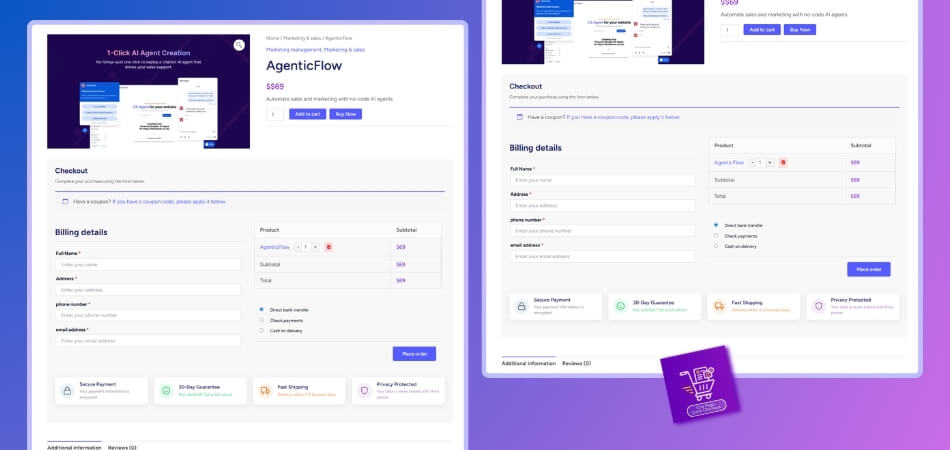
A smooth and efficient checkout experience is essential for reducing cart abandonment and increasing conversions in any WooCommerce store. One Page Checkout simplifies the buying process by placing product selection, billing details, and payment options on a single screen.
This efficient flow helps customers complete purchases faster with fewer steps. If you’re wondering how to integrate payment gateways with One Page Checkout in WooCommerce, the process is quite simple.
To integrate payment gateways with One Page Checkout in WooCommerce, install a one-page checkout plugin, enable your preferred gateways (like Stripe or PayPal), connect API keys, and ensure the gateway fields load smoothly on the single-page layout. Test the full checkout flow for compatibility and seamless user experience.
Follow this guide to set up a smooth, secure checkout and boost conversions effortlessly. Dive in to get started now.
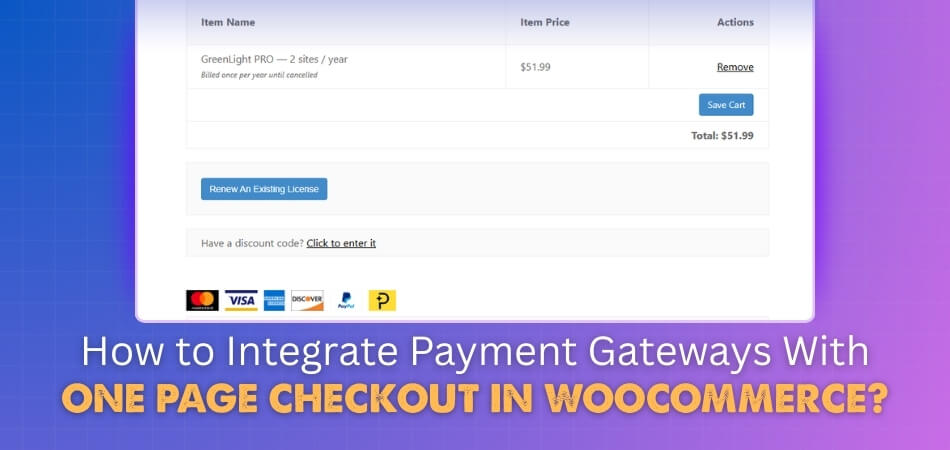
What You Need to Integrate Payment Gateways With One Page Checkout in WooCommerce?
Before you integrate payment gateways with One Page Checkout in WooCommerce, make sure you have the right tools ready. These essentials ensure a smooth setup, secure payments, and a checkout flow that works without errors. Follow the list below to prepare everything properly.
- Updated WooCommerce: Keep WooCommerce fully updated to avoid payment errors and plugin conflicts during checkout. This ensures your store runs smoothly and supports the latest gateway features.
- SSL Certificate: Enable SSL to protect customer payment data and build trust during the entire checkout process. Most secure gateways require SSL before allowing live transactions to work properly.
- One-Page Plugin: Install a trusted one-page checkout plugin to combine products, billing, and payments into one screen. This reduces steps and ensures gateway elements load correctly for faster customer checkout.
- Active Payment Gateways: Activate your preferred gateways, like Stripe or PayPal, inside WooCommerce settings before starting integration. Proper activation ensures payment buttons, fields, and scripts appear without issues.
- API Credentials: Generate your gateway API keys and enter them into their WooCommerce settings panel. These keys allow secure communication between your store and the chosen payment provider.
- Updated Theme: Use a modern WooCommerce-compatible theme to avoid layout breaks or missing payment elements on checkout. A good theme improves usability and helps gateways work smoothly on one page.
- Reliable Hosting: Choose stable hosting that supports fast loading and smooth AJAX operations during one-page checkout. Speed and uptime directly affect payment success rates and customer satisfaction.
- Test Mode Enabled: Enable sandbox mode in your gateway settings to test transactions safely before going live. This helps you detect issues early and confirm your one-page checkout works perfectly.
These requirements give you everything needed to set up secure, smooth payment gateway integration with a single-page checkout flow. When paired with the WooCommerce One Page Checkout plugin, you can simplify the entire process, ensure proper gateway compatibility, and deliver a faster, more reliable checkout experience that boosts user trust and overall conversions.
How to Integrate Payment Gateways With One Page Checkout in WooCommerce: Step-by-Step Process
Strong checkout flow helps shoppers move fast and finish their orders without confusion or heavy delays. One-page layouts bring every important step together and cut out extra hurdles during busy purchase moments. This guide shows clear actions that explain simple ways to connect trusted payment services inside your WooCommerce store setup.
Step 1: Install Your One Page Checkout Plugin
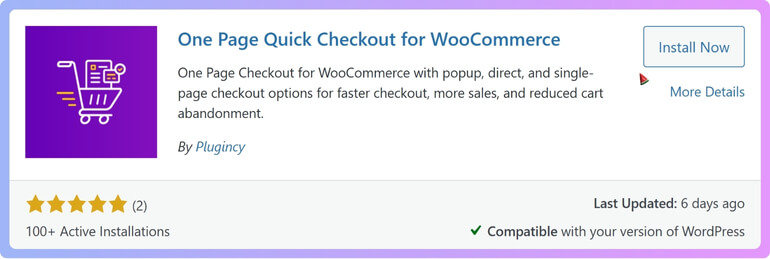
Begin by installing a trusted one page checkout tool that supports simple layouts and smoother customer actions. Open your plugin area, search for your chosen option, and activate it after completion. This step builds the base for your checkout page and keeps every future payment action clear.
Step 2: Enable Your Preferred Payment Gateways
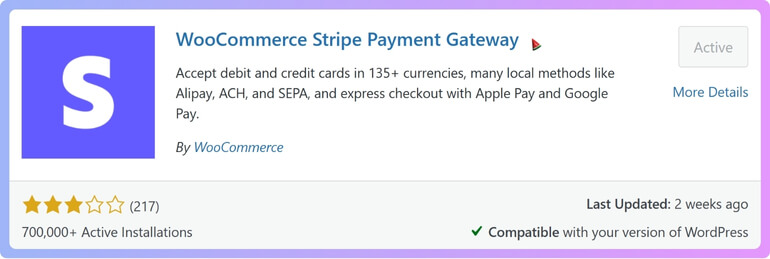
Move into WooCommerce settings and pick the payment services you want active inside your store flow. Turn on options like Stripe or PayPal and confirm their availability on your checkout page. These choices help shoppers select fast methods and move through the ordering journey confidently.
Step 3: Connect Every Gateway Using API Credentials
Open each gateway tab and place the matching API details from your provider account dashboard. These inputs confirm secure communication and allow transactions to run smoothly for buyers across different devices. Check your entries twice to avoid errors that interrupt basic checkout steps during peak moments.
Step 4: Create or Edit Your One Page Checkout Layout
Open your checkout builder and arrange sections for products, billing details, and payment choices in one place. Keep the layout simple so shoppers avoid confusion and stay focused on finishing quicker orders. Clean fields help maintain speed and encourage buyers to trust your store instantly.
Step 5: Test All Payment Methods in Sandbox Mode
Switch every payment option into sandbox mode and run several test orders through your one page layout. Try different payment choices to confirm reliable results and consistent processing speed within your store. These tests reveal issues early, so you fix problems before customers experience unpleasant disruptions.
Benefits of Integrating Payment Gateways With One Page Checkout in WooCommerce
A smooth checkout can make online shopping feel much easier for every customer, especially when they are in a hurry. Many shoppers leave a store when the checkout feels slow or confusing, so a simpler page helps a lot. One page checkout brings everything together and keeps the customer focused. This section explains the main benefits in a clear and friendly way.
Faster Checkout
A one page checkout makes the whole buying process feel quicker because shoppers can do everything in one place. They can see their items, fill in their details, and pay without jumping to different pages. This saves time and feels less confusing, especially for people who shop on mobile devices. A fast checkout also makes customers happier because they can finish their order without long waits or extra steps. When the whole process feels smooth, more people complete their purchase instead of leaving halfway.
Lower Dropouts
Many customers close the tab when the checkout takes too long or feels complicated. A single-page checkout fixes that problem by showing products, details, and payment options together. When shoppers don’t get stuck waiting for new pages to load, they feel more comfortable finishing their order. Quick access to payment choices also reduces the chances of buyers changing their minds. This simple layout helps stores keep more sales instead of losing them right before payment.
Better Experience
A clean checkout page improves the way customers feel while buying something online. They don’t need to switch between pages or deal with confusing steps. Everything they need appears right in front of them, making the process easy to follow. Clear fields, simple buttons, and direct payment choices help shoppers stay relaxed. When buying becomes easier, people trust the store more and often return for future orders.
More Payment Choices
Offering several payment methods in one place gives customers the freedom to choose what they like best. People can pick from cards, PayPal, Stripe, BNPL options, or even local payment services based on their location. This improves comfort because every shopper prefers paying in a different way. Adding many gateways also boosts store conversions because no one gets stuck with limited choices. You can even pair this with the best one page checkout plugin for a layout that supports these options smoothly.
Mobile Friendly
A one page checkout works well on phones because it loads quickly and needs fewer taps to finish the purchase. Shoppers on smaller screens can enter details and pay without waiting for multiple pages to open. This reduces frustration for people using slow internet or older devices. A simple mobile layout also makes checkout more enjoyable and clear. As more customers shop from phones, this feature becomes even more important for sales.
Higher Conversions
When the checkout feels simple, fast, and stress-free, more shoppers complete their orders. Extra payment choices and fewer steps help reduce the number of people who leave without buying. Stores often see more sales because customers feel confident and safe paying on one page. Better design and quicker actions support smoother buying for everyone. This improvement leads to stronger results and better earnings for most online shops.
Reach More Customers
Supporting different payment methods opens the door to shoppers from many countries. People can pay using their own currency or local services that they trust. This helps stores attract a wider audience and grow beyond their home region. Customers feel more comfortable buying when they see familiar payment options. With the right setup, your store becomes friendly to both local and global buyers.
Best Payment Gateways Plugins for One Page Checkout (Comparison Table)
| Plugin Name | Key Features | One Page Checkout Support | Ease of Setup | Best For |
| Stripe Payment Gateway for WooCommerce | Fast payments, card support, Apple Pay, Google Pay, and strong security | Fully compatible with most one page checkout plugins | Very easy | Stores needing fast global card payments |
| PayPal Checkout | PayPal Wallet, credit cards, Smart Buttons, trusted worldwide | Works smoothly with one page layouts | Easy | Stores with international customers |
| Razorpay WooCommerce | UPI, cards, wallets, EMI, strong Indian market support | Works well with single-page checkout plugins | Easy | Indian stores need multiple local methods |
| Authorize.Net Gateway | Secure card processing, reliable support, strong fraud tools | Works with one page checkout plugins | Moderate | Businesses needing advanced security |
| Square for WooCommerce | Syncs with POS, accepts cards, secure payment flow | Generally compatible with one page templates | Easy | Stores with both online and physical shops |
| Mollie Payments for WooCommerce | Supports many European payment methods (iDEAL, SEPA, Bancontact) | Compatible with one page checkout tools | Very easy | Stores selling in Europe |
| SSLCOMMERZ WooCommerce Gateway | Cards, mobile banking, bKash, Nagad, and other Bangladesh payment options | Works well with one page layouts | Easy | Bangladeshi stores needing full local payment support |
Compatibility Checklist for Gateways & One Page Checkout Plugins
Before connecting your payment gateways with a one page checkout plugin, it’s important to confirm everything works well together. A simple compatibility checklist helps you avoid unexpected issues during customer payments. Use the points below to keep your checkout smooth, stable, and ready for real orders.
- Plugin Updates: Make sure all plugins stay updated to avoid sudden errors during checkout steps. Updated tools improve speed and reduce issues that might affect simple payment actions.
- Theme Support: Check that your theme supports WooCommerce elements and displays payment fields correctly. A compatible theme helps customers finish their orders easily without layout problems.
- Gateway Settings: Review each gateway’s settings to confirm all features work on your one page layout. Correct settings help your store avoid failed transactions and unhappy customers.
- SSL Enabled: Ensure your site uses SSL so payment details stay safe during checkout. Secure pages build customer trust and keep payment tools working properly.
- AJAX Functions: Test all AJAX functions on your checkout to confirm fields load without delays. Smooth loading keeps shoppers focused and reduces frustration during payments.
- Mobile Layout: Check your checkout on different mobile screens to ensure every field fits well. A clean layout helps mobile shoppers finish their purchases quickly.
- Sandbox Tests: Run payment tests in sandbox mode to confirm everything works before going live. Test orders help you catch small issues before real customers notice them.
Security Tips for One Page Checkout & Payment Gateways
Here are key security tips for one page checkout and payment gateways in WooCommerce, including explanations of PCI compliance, fraud protection, 3D Secure, and securing API keys:
PCI Compliance
PCI DSS (Payment Card Industry Data Security Standard) compliance is essential for any online store handling credit card payments. It is a set of security standards designed to ensure that all companies accept, process, store, or transmit credit card information securely.
- Using reputable payment gateways like WooPayments ensures that payment processing happens in a PCI DSS–validated environment.
- However, your WooCommerce site must also implement security measures such as SSL certificates, strong access controls, and regular vulnerability management to meet PCI requirements and protect customer data during checkout.
Fraud Protection
Fraud protection features help identify and prevent risky or fraudulent transactions. WooCommerce Payments provides automated fraud screening including:
- Address Verification Service (AVS) checks to verify billing addresses.
- Card Verification Value (CVV) checks to ensure valid card details.
- Risk scoring based on transaction behavior and patterns.
These features help reduce chargebacks and maintain a secure shopping experience.
3D Secure
3D Secure (3DS) is an additional security layer where customers authenticate transactions with their bank during checkout, typically via a password or biometric confirmation.
- It reduces fraud by requiring the cardholder to verify their identity.
- WooPayments supports 3D Secure on checkout, adding protection for both merchants and customers by blocking unauthorized transactions.
Securing API Keys
WooCommerce and payment gateways use API keys for authenticating requests and processing payments securely.
- Never expose API keys in client-side code to avoid theft.
- Store API keys securely in server environments or use secret management tools.
- Use HTTPS for all API communications to encrypt data in transit.
- Implement strong authentication methods like OAuth or JWT tokens for API access.
- Use nonces and other security measures to protect against CSRF and other attacks.
Additional Security Measures
- Use SSL certificates to encrypt data between customers and your site.
- Regularly update WooCommerce, plugins, and themes to patch security vulnerabilities.
- Consider adding firewalls and security plugins that prevent brute force attacks and malware.
- Display trust badges and security seals on checkout pages to boost customer confidence.
Best Practices to Improve Conversions on One Page Checkout
A strong one page checkout helps shoppers finish orders quickly without dealing with slow pages or confusing steps. Simple layouts, fast actions, and clear choices make buying feel easier for everyone. Good changes improve trust, comfort, and overall sales growth. Here are friendly tips that help your checkout work even better.
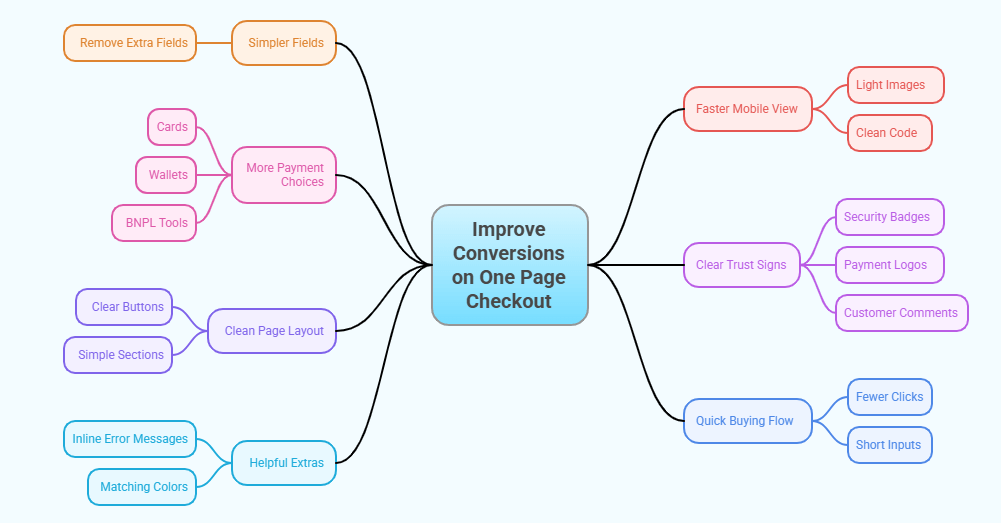
Simpler Fields
Removing extra fields helps shoppers move through checkout faster and stay focused while entering only the needed details. Short forms reduce mistakes and make the process feel clear for people using smaller screens. You can guide buyers smoothly by keeping everything short and clean inside your checkout page.
Faster Mobile View
A quick-loading page helps shoppers on phones finish their orders without delays caused by heavy elements. Light images and clean code make the checkout feel smooth and friendly on every device. Simple design choices keep customers focused while reducing slow moments during purchase actions.
More Payment Choices
Offering different payment options helps people pick the one they already trust and enjoy using today. Cards, wallets, BNPL tools, and online banking choices give shoppers more comfort while paying online. These extra options keep customers from leaving when they cannot find their preferred payment method.
Clear Trust Signs
Adding trust icons helps shoppers feel safe because they see clear security signs before entering payment details. Small badges, payment logos, and short customer comments support confidence during checkout. These elements help reduce fear and guide shoppers toward completing their order without hesitation.
Clean Page Layout
A tidy page keeps shoppers focused on finishing the order instead of wandering around the screen and losing track. Clear buttons and simple sections guide people forward while keeping distractions away. Even adding coupon fields to checkout becomes smoother when the page stays clean and easy to follow.
Quick Buying Flow
A smooth checkout helps shoppers complete impulse purchases without stopping to deal with confusing actions. Fewer clicks and short inputs keep the energy high and encourage people to finish buying. One steady page gives customers a direct path and removes the extra steps that often slow them down.
Helpful Extras
Inline error messages guide customers fast by showing mistakes right after they happen during checkout. A small login suggestion helps returning buyers enter their details without leaving the page. Matching colors and simple branding also make the checkout feel friendly, warm, and easy to understand.
Frequently Asked Questions About Payment Gateway Integration in One Page Checkout
Have questions about connecting payment gateways with one page checkout in WooCommerce? You’re not alone; many store owners feel unsure at first. These FAQs clear up common doubts so you can set things up confidently and avoid checkout problems.
Can I Use Multiple Payment Gateways On One Page Checkout?
Yes, you can use several gateways on a one page checkout if your plugin supports them together reliably. Enable each gateway in WooCommerce settings, then check the checkout page to confirm buttons, fields, and price updates still appear correctly there.
Do I Need Coding Skills To Integrate Payment Gateways With One Page Checkout?
You usually do not need coding skills because most payment gateways and one page checkout plugins provide simple settings. Install the plugins, add your API keys, and follow their docs. Complex customizations or unique gateways might require developer help later.
How Do I Fix Payment Fields Not Showing On My One Page Checkout?
Start by disabling other plugins one by one to check for conflicts affecting your gateway fields. Then switch temporarily to a default WooCommerce theme and fully clear caches. If fields reappear, adjust settings or contact your gateway or plugin support.
Can I Use Express Payment Buttons Like Apple Pay On One Page Checkout?
Yes, many gateways support Apple Pay, Google Pay, and other express buttons on one page checkout layouts. Enable payment request buttons inside your gateway settings, confirm HTTPS works, then test on supported browsers and devices to ensure icons appear correctly.
How Often Should I Test My One Page Checkout And Payment Gateways?
Run test orders after every major update to WooCommerce, themes, gateways, or your one page checkout plugin. Schedule regular monthly checks using sandbox modes to confirm payments, emails, taxes, and totals still calculate correctly before any real customers notice problems.
Final Thoughts
A simple checkout helps more customers finish their orders without getting confused or stopping halfway. When everything loads fast and payment options work smoothly, shoppers feel safer and more confident while paying. This also lowers cart drop-offs and increases successful orders for your store.
Many store owners who learn how to integrate payment gateways with One Page Checkout in WooCommerce, notice quicker payments and happier customers because the whole process feels clear and easy. Keep testing your checkout, fix small issues early, and update your tools when needed. With these steady improvements, your store will offer a smooth, friendly checkout that helps turn more visitors into real buyers.
