

Selling by weight in WooCommerce is essential for businesses offering products like bulk groceries, meats, or raw materials. Since WooCommerce doesn’t support weight-based pricing by default, store owners need to use alternative methods to implement this feature. Thankfully, you can achieve weight-based pricing by using product variations, custom fields, or third-party plugins when learning how to sell by weight in WooCommerce.
This guide will walk you through the different methods of selling by weight in WooCommerce, ensuring you can accurately price and sell weight-based products. We’ll cover step-by-step instructions for each approach, from simple variations to advanced plugin setups, along with key considerations for managing shipping and inventory.
Why Sell by Weight in WooCommerce?
Selling by weight is essential for businesses offering products such as fresh produce, bulk items, and raw materials, where pricing depends on the exact weight. This approach helps store owners charge accurately and gives customers the flexibility to choose the amount they want. It is especially useful when the product size or weight varies from one purchase to another.
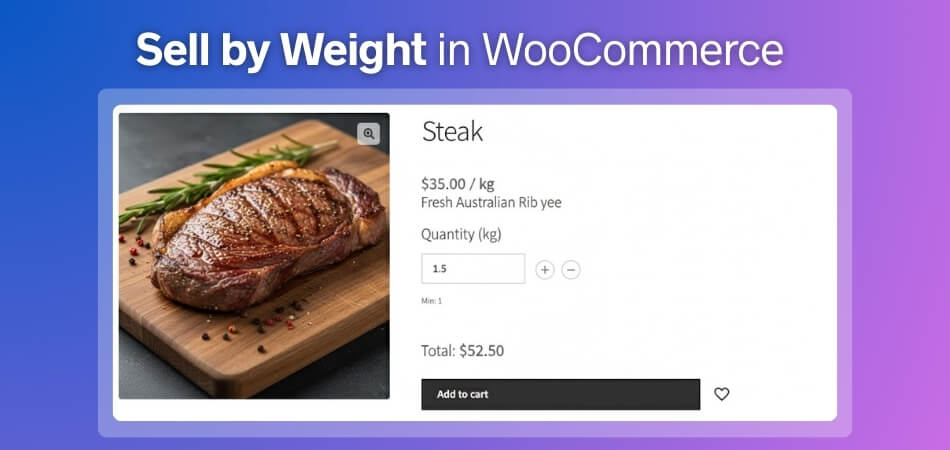
However, WooCommerce doesn’t support true weight-based pricing by default, which creates challenges for stores relying on precise measurements. To overcome this limitation, you need alternative methods that allow you to calculate prices based on weight and improve the overall shopping experience.
Key Reasons to Use Weight-Based Pricing
- Flexible Customer Choices: Customers can purchase the exact amount they need, rather than being limited to preset quantities. This increases convenience and leads to better customer satisfaction.
- Accurate Pricing for Variable Products: Products like fruits, vegetables, metals, grains, and fabrics often vary in weight. Pricing by weight ensures customers are charged only for what they take.
- Better Control Over Inventory: When products are tracked in weight units rather than fixed quantities, stock management becomes more precise. This is crucial for stores selling bulk goods or perishable items.
- Improved Transparency and Trust: Displaying weight-based pricing helps customers clearly understand how the final cost is calculated, creating a more trustworthy buying experience.
How to Sell by Weight in WooCommerce? [Different Methods]
Selling by weight in WooCommerce may sound complex, but there are simple and effective ways to do it. Whether you use variations, custom fields, or advanced plugins, each method helps you price products accurately based on weight. Follow these simple methods to sell by weight in WooCommerce.
Method 1: Selling by Weight Using WooCommerce Variations (Fixed Weight Options)
One of the easiest ways to sell products by weight in WooCommerce is by using product variations. This method works well when your items come in fixed weight sizes such as 500g, 1kg, or 2kg. Instead of entering custom weights, customers simply choose from the predefined options you provide.
When This Method Works Best
This approach is ideal for stores selling products in standard weight increments—like packaged foods, bundled goods, soaps, candles, or hardware packs. If your products do not require exact measurements or fractional weights, variations offer a clean and practical setup.
Set Up Weight-Based Variations in WooCommerce
Follow these simple steps to create weight-based variations:
- Create or Edit a Product: Navigate to Products → Add New and enter your product name, description, and images.
- Choose “Variable Product”: In the Product Data panel, select Variable Product from the dropdown to enable variation support.
- Add Weight Attributes: Go to the Attributes tab, create an attribute called “Weight,” and add your weight options (e.g., 500g, 1kg, 2kg). Mark it as Used for Variations.
- Generate Variations: Under the Variations tab, create individual variations for each weight option. Set unique prices, SKUs, and stock levels for each variation.
- Publish the Product: Save and publish the product. Customers will now be able to select their desired weight from the dropdown menu.
Pros:
- Simple to set up
- No plugin or coding required
- Works well for predefined weight ranges
Cons:
- Not suitable for flexible or fractional weights
- Too many variations can become hard to manage
To enhance navigation, stores using many weight-based items can also benefit from wooCommerce product filters, helping shoppers find the right products more easily.
Method 2: Allowing Customers to Select Exact Weight with Custom Input Fields
If your products require precise measurements like bulk grains, spices, meats, or fabrics, using custom input fields is one of the most flexible ways to sell by weight in WooCommerce. This method lets customers enter the exact weight they want, and the product price updates automatically based on their input.
When This Method Works Best
This approach is ideal when fixed-weight options aren’t enough. Stores selling variable-weight or fractional-weight items benefit most, especially when customers need exact quantities like 1.25kg of rice or 0.65kg of meat. It improves accuracy and gives buyers greater control over their purchase.
Implement Custom Weight Input Fields
- Install a Custom Fields Plugin: Use a plugin such as WooCommerce Custom Product Addons or Product Add-Ons to enable custom input fields for weight selection.
- Add a Weight Input Field: Inside the Product Data section, create a number or text field labeled “Enter weight (kg)” or similar. Ensure that it supports decimals for precise amounts.
- Configure Dynamic Pricing: Set up the plugin so the product price multiplies automatically based on the weight entered. Many plugins also let you define minimum and maximum weight limits.
- Test the Setup: Check that the price updates correctly, the weight input works smoothly, and the final total reflects the correct calculation.
Pros:
- Highly flexible for custom or fractional weights
- Enables real-time pricing updates
- Ideal for bulk and variable-weight items
Cons:
- Requires a plugin or basic custom coding
- Slightly more complex to configure than variations
This method is best for stores where customers need full control over the amount they purchase while ensuring your pricing remains accurate and consistent.

Method 3: Using Weight-Based Pricing Plugins for Advanced Features
If your store needs more automation and flexibility, using weight-based pricing plugins is the most efficient solution. These plugins calculate prices dynamically by weight, apply tiered pricing, and connect weight rules with shipping and tax settings. They also work well alongside tools you may already use to show product variations in WooCommerce, making them a solid choice for stores with complex product ranges or high-volume inventory.
When This Method Works Best
Plugins work best when your store requires features that simple variations or custom fields can’t handle. If your pricing changes across multiple weight ranges, if you charge shipping strictly by weight, or if you manage large inventories of bulk products, a plugin can automate the process and reduce errors.
Useful Weight-Based Pricing Plugins
- WooCommerce Weight-Based Shipping: This plugin helps you set shipping costs according to the cart’s total weight. You can create flexible rules such as minimum or maximum weight limits, tiered shipping fees, and weight brackets.
- WooCommerce Advanced Product Labels: This tool lets you apply dynamic pricing rules, highlight weight information on product labels, and automate price adjustments based on specific weight conditions.
Set Up a Weight-Based Pricing Plugin
- Install the Plugin: Go to Plugins → Add New, search for your chosen plugin, and install it.
- Configure Pricing Rules: Inside the settings, define pricing formulas like price per kg or per 500g. Many plugins support multiple weight brackets and conditional rules.
- Connect to Shipping and Tax Settings: Link your weight-based pricing with WooCommerce shipping zones and tax settings to ensure accurate calculations at checkout.
Pros:
- Highly flexible
- Automates pricing, shipping, and taxes
- Great for large or complex product catalogs
Cons:
- Some plugins are paid
- Requires basic configuration knowledge
If you operate a store with many similar weight-based items, combining a plugin with clear product organization ensures smoother browsing and better customer understanding.
Managing Stock and Inventory for Weight-Based Products
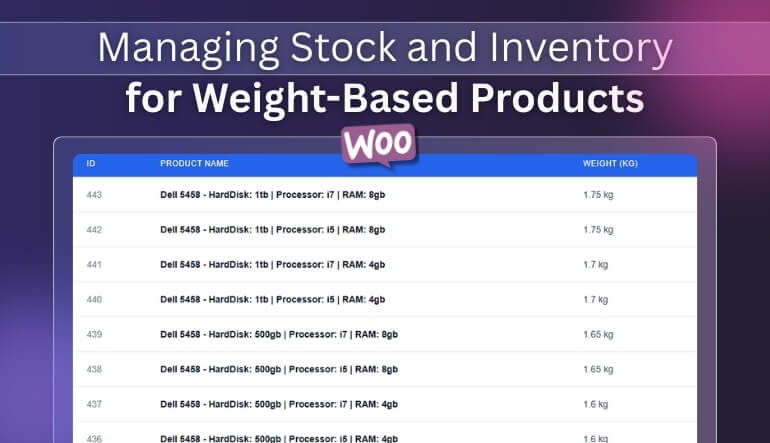
When selling by weight, managing inventory accurately becomes essential. Instead of tracking items as single units, your stock must reflect the exact weight sold. For example, if a customer buys 1kg of meat, your inventory should decrease by 1kg, not by one product. WooCommerce doesn’t offer this functionality by default, but you can achieve it through specialized plugins and careful configuration, even if you also sell electronics online with WooCommerce as part of a mixed catalog.
How to Track Weight-Based Inventory
Track Stock in Weight Units
Most weight-based inventory plugins allow you to set stock in kilograms, grams, or pounds. When a customer enters or selects a weight, the system automatically deducts that amount from available stock. This ensures precise tracking for products with variable weights.
Handle Fractional Weights
If you sell items in fractional amounts, such as 0.25kg, 0.5kg, or 1.75kg, you’ll need a system that supports decimal values. Good plugins can manage partial quantities and perform accurate rounding to prevent stock inconsistencies.
Best Practices for Weight-Based Inventory
- Use reliable plugins that support real-time stock deduction based on weight sold.
- Monitor inventory regularly to ensure that weight-based adjustments are reflected accurately.
- Set minimum and maximum purchase limits to avoid mistakes or unrealistic order sizes.
- Test your configuration thoroughly, especially when dealing with decimals, to avoid discrepancies.
The Common Problems When Selling by Weight in WooCommerce and How to Fix Them?
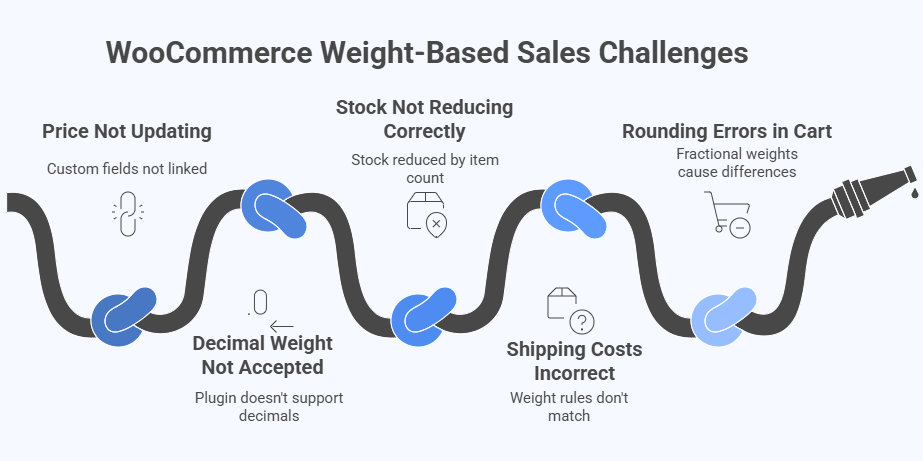
Selling by weight adds flexibility for customers, but it can also introduce a few challenges during setup and checkout. Most of these issues occur due to incorrect configurations, plugin limitations, or decimal-handling problems. Below are the most common problems store owners face and how you can fix them quickly.
Price Not Updating When Weight Changes
This usually happens when custom fields or pricing formulas are not linked properly. Ensure your weight input field triggers dynamic price recalculation inside the plugin settings. Also, test the product page with different weights to confirm the price updates in real time.
Decimal or Fractional Weight Not Accepted
Some setups don’t allow decimals like 0.25kg or 1.75kg. To fix this, enable decimal quantity support within your plugin or product add-on tool. If your theme overrides product input fields, adjust the input type to “number” and allow decimal values.
Stock Not Reducing Correctly
WooCommerce reduces stock by item count, not weight. If stock isn’t updating properly, use a weight-based inventory plugin and set your stock unit in grams or kilograms. Make sure the pricing logic and stock logic reference the same unit to avoid mismatches.
Shipping Costs Calculating Incorrectly
Shipping issues occur when the weight rules don’t match the weight your customer enters. Double-check shipping zones and ensure you’re using weight-based shipping methods. Confirm that the product’s weight, the customer’s input weight, and the shipping class are aligned.
Rounding Errors in Cart Total
Small rounding differences happen when fractional weights or complex formulas are used. To fix this, use consistent weight units (e.g., only grams or only kilograms) and enable rounding settings inside your pricing plugin to standardize final totals.
Most weight-based issues can be prevented with proper plugin configuration and consistent units of measurement. Once everything is aligned, pricing, inventory, decimals, and shipping, your WooCommerce store will handle weight-based sales smoothly and accurately.
Frequently Asked Questions
Understanding weight-based selling becomes easier once you know how the system behaves in real situations. These questions cover the things store owners often wonder about after setting everything up. Each answer is simple, practical, and based on real store needs.
How Can I Display Weight Information Clearly To Customers?
Clear weight details help customers trust the pricing. You can show weight labels near the price or inside the product description so buyers know how their cost is calculated. Simple wording and visible placement work best for this.
Can I Offer Discounts Based On Weight Purchased?
Yes, you can create discounts based on weight ranges. Many pricing tools let you set lower prices for higher-weight purchases to encourage larger orders. Make sure the discount rules match your stock and pricing setup.
What If Customers Enter A Weight That Is Too Small Or Too Large?
You can set limits to control the smallest and largest weights a customer can buy. This prevents unusual or unrealistic orders and keeps your stock accurate. Most weight input tools have easy settings for minimum and maximum values.
Is It Possible To Allow Both Per-Item And Per-Weight Products In One Store?
Yes, you can run both types of products together. WooCommerce can handle fixed price items while plugins manage weight-based items on the same site. Just keep product pages organized so customers understand how pricing works for each type.
How Do I Test My Weight-Based Setup Before Going Live?
Testing your setup helps you find mistakes early. Create a few sample products, place test orders, and check price calculations, stock updates, and shipping values. This gives you confidence before real customers start ordering.
Concluding Words
Selling products by weight becomes much easier when you understand the right methods and tools. Whether you use variations, custom fields, or plugins, each option helps you manage pricing in a simple and accurate way. Learning how to sell by weight in WooCommerce gives you more control over your store and helps customers get exactly what they need.
Before going live, it is always a good idea to test your setup and check how pricing, stock, and shipping behave with different weights. With a little care, your store can handle weight-based products smoothly and offer a better experience to every customer.
