

When your WooCommerce store starts showing the wrong shipping cost at checkout, it can confuse customers and damage trust. Many store owners experience this issue, especially after updates or new plugin installations. A small misconfiguration can make a big difference in how your shipping rates appear during checkout.
The main reason WooCommerce Checkout Doesn’t Show Correct Shipping Cost is usually related to caching errors, zone overlaps, or tax misalignments. Sometimes, even browser data or outdated plugin settings can cause the total to appear differently from what you expect. Fixing these issues early helps ensure smooth and accurate customer transactions.
Understanding how shipping rules work within WooCommerce is the first step to solving the problem. From checking tax settings to clearing cache, simple adjustments can restore accurate cost displays. Keep reading to discover practical ways to troubleshoot and fix incorrect shipping calculations on your WooCommerce store.
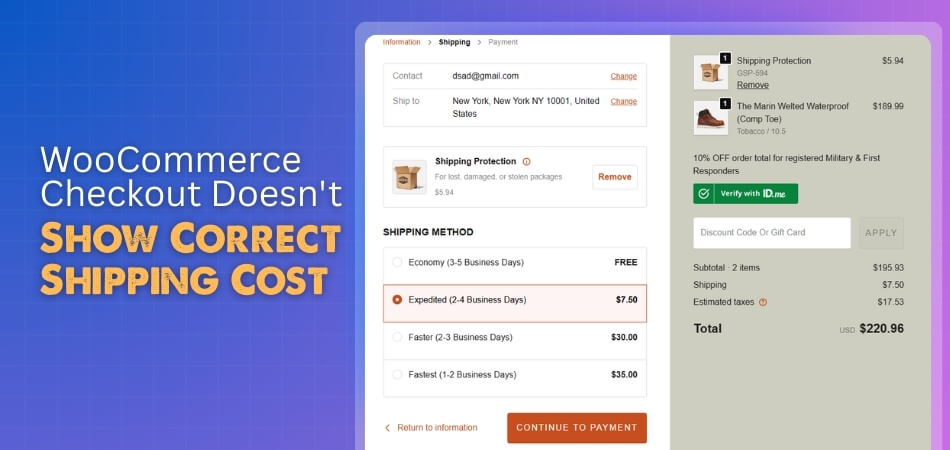
WooCommerce Checkout Doesn’t Show Correct Shipping Cost
Sometimes the checkout page in WooCommerce shows the wrong shipping cost, which can confuse both you and your customers. This issue usually happens due to configuration errors or small technical glitches. Let’s look at some common reasons that lead to incorrect shipping costs and how they affect checkout totals.
Incorrect Shipping Zone Setup
When shipping zones aren’t set up correctly, WooCommerce may assign the wrong rate to a customer’s location. For instance, if two regions overlap or one is missing, the system will apply the first available match. If your store sells to both the US and Canada but the Canadian zone isn’t properly configured, WooCommerce might charge domestic rates instead of international ones. Double-check each zone to ensure customers always receive accurate shipping costs at checkout.
Outdated Cache or Plugins
Old cached data or outdated plugins can interfere with how WooCommerce calculates shipping. If your website uses caching tools, they might store old rates or settings that show up incorrectly during checkout. Regularly clearing cache and updating plugins can prevent mismatched calculations and improve the accuracy of your checkout totals.
Tax Misalignment
Sometimes, incorrect tax configurations can cause unexpected changes to the shipping cost. If taxes are set to include or exclude certain regions, they might alter the final shipping total displayed to the customer. Reviewing your tax rules ensures consistent and transparent pricing across all orders and prevents location-based confusion.
Conditional Logic Conflicts
Advanced shipping plugins often use conditional logic to apply different rates. However, if multiple conditions overlap or contradict each other, the checkout might display the wrong cost. For instance, free shipping rules set alongside flat-rate conditions can lead to calculation conflicts. Carefully reviewing these rules helps maintain accurate results and avoid confusion during checkout.
Disabled Shipping Methods or Weight Mismatches
If specific shipping methods are disabled or product weights don’t match the set criteria, WooCommerce may skip valid options. This can lead to missing or incorrect rates during checkout. Keeping your shipping methods active and your product data accurate ensures smoother checkout performance and reliable cost display for customers.
In many cases, these issues are easy to fix once you identify where they start. Testing your checkout with different products, addresses, and browsers helps confirm which factor is responsible for the incorrect calculation.
Accurate shipping calculation not only prevents order delays but also builds customer trust. For better clarity and a seamless checkout flow, integrating tools like WooCommerce One Page Checkout can simplify the process and reduce cart abandonment. Understanding these reasons helps you move forward with practical fixes in the next sections.
How Caching and Browser Issues Affect Checkout Calculations?
Caching and browser issues can quietly disrupt your WooCommerce checkout accuracy. When your site or browser stores outdated data, customers might see old shipping rates even after you’ve updated them. This creates confusion and leads to checkout errors that can affect both user experience and store credibility. Let’s go over how caching and browser storage can cause incorrect shipping costs and what you can do to prevent it.
Cached Data Showing Old Shipping Rates
If caching plugins aren’t cleared regularly, WooCommerce may display outdated costs during checkout. For instance, if you change shipping rates but your cache plugin isn’t cleared, customers may still see previous rates. Ensuring that the cache is refreshed after every pricing update helps maintain accurate and real-time shipping calculations.

Browser Auto-Fill and Stored Data
Browsers often store auto-fill data for convenience, but this can interfere with checkout forms. When outdated addresses or shipping details are stored, the system might calculate rates using old information. Testing the checkout in incognito mode or disabling auto-fill can help ensure customers see the most recent shipping costs.
Conflicts Between Multiple Caching Layers
Sometimes, multiple caching systems like CDN caching and plugin caching can overlap, creating conflicting stored data. This duplication may delay updates or prevent real-time rate changes. To avoid this, coordinate your cache settings carefully and clear them all when making updates to shipping or tax configurations.
Using Real-time Testing to Identify Cache Problems
One simple way to confirm caching issues is by testing your checkout from different browsers and devices. If rates vary or take time to update, caching is likely the cause. Running such tests regularly helps keep your checkout results consistent and dependable for customers.
Keeping your cache and browser data in sync ensures that customers always view the correct totals. Regular maintenance, along with timely testing, guarantees a smoother checkout process and prevents confusion caused by stale data.
How Currency and Tax Settings Influence Final Shipping Fees?
Currency and tax settings in WooCommerce can have a significant impact on how shipping costs appear during checkout. Even a small difference in currency conversion or tax display preferences can cause confusion for customers. Let’s explore how these settings influence shipping fees and what to watch out for when managing them.
Currency Mismatch Between Store and Payment Gateway
If your store operates in one currency but your payment gateway processes another, conversion differences may appear. For example, your checkout might display USD, while the payment gateway converts it to EUR at a fluctuating rate. Ensuring currency consistency between both platforms helps prevent visible cost discrepancies for customers.
Tax-Inclusive Rates Varying by Region
Some countries require prices to include taxes, while others calculate taxes separately. When WooCommerce switches between these formats, the shipping total may look higher or lower than expected. Setting clear tax display rules for each region ensures that your customers always understand the total amount they are paying at checkout.
Exchange Rate Auto-Updates Affecting Totals
WooCommerce can automatically update exchange rates through certain extensions. However, if those rates refresh at unpredictable times, they can slightly change the displayed shipping costs. Monitoring your currency update schedule and testing checkout values after major rate changes helps maintain accurate and stable pricing across currencies.
Even small inconsistencies in currency or tax display can affect how customers perceive fairness and trust during checkout. Sometimes, the problem isn’t technical but comes from how shipping zones are configured.
What Happens When Shipping Zones Overlap?
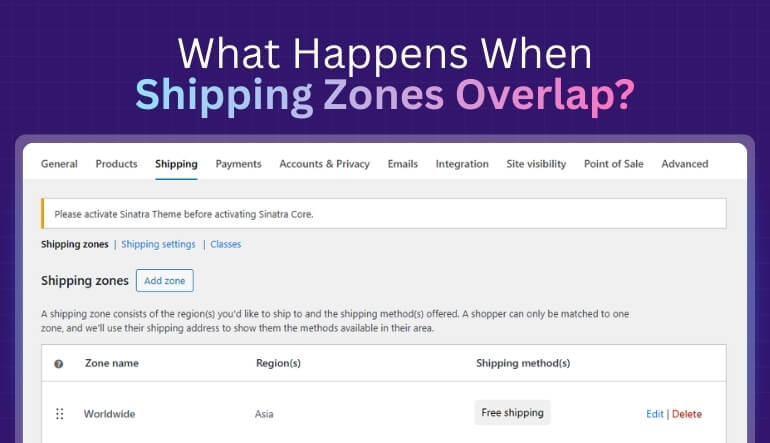
Overlapping or missing shipping zones can cause WooCommerce to assign the wrong rate during checkout. This issue usually happens when two zones include the same regions or when a location isn’t properly listed. The result can be inaccurate shipping costs or no available shipping method at all, frustrating customers at the checkout stage. Let’s explore what happens when shipping zones overlap.
Confusion Between Similar Regional Zones
When multiple zones cover similar areas, WooCommerce applies the first matching one in the list. For instance, if you have “United States” and “North America” as separate zones, the system might prioritize the broader region. Reviewing and organizing your zones helps ensure that each customer gets the correct rate consistently.
Missing Regions in Zone Configuration
If certain states, provinces, or postal codes are missing, WooCommerce may not know which zone to use. This often causes incorrect or missing shipping options. By revisiting your zone lists and making sure every region is properly covered, you’ll avoid unnecessary checkout errors and maintain customer trust.
Overlapping Methods Across Zones
Having the same shipping method (like flat rate) in more than one overlapping zone can confuse WooCommerce about which rule to apply. Assigning unique methods for each zone or keeping a clear order in your settings will ensure predictable and stable shipping results for customers.
Priority Order of Shipping Zones
WooCommerce processes shipping zones from top to bottom, applying the first match it finds. If a broader region appears above a specific one, it can override the correct rate. Adjusting the order of your zones by priority helps the system recognize the most accurate rule for each customer’s address.
Organizing your zones with clear boundaries and priorities allows WooCommerce to calculate shipping accurately and consistently. With well-defined configurations, customers always see the right shipping cost, leading to smoother transactions and fewer checkout complaints.
Tips to Prevent Future Shipping Cost Errors in WooCommerce
Preventing shipping cost errors in WooCommerce requires consistent monitoring and good store management habits. Small updates, if ignored, can lead to big inconsistencies in checkout totals. By following these proactive tips, you can maintain accuracy, reduce confusion, and provide a smoother checkout experience for your customers.
- Test Your Checkout Regularly: Try completing test orders using different devices, browsers, and addresses. This helps identify any pricing inconsistencies or display issues before customers encounter them during real transactions.
- Keep Plugins and Extensions Updated: Outdated plugins can disrupt how shipping costs are calculated. Updating your WooCommerce and shipping-related extensions ensures compatibility and prevents unexpected checkout problems caused by older code or missing patches.
- Double-Check Product Data: Verify that every product has the correct weight, dimensions, and tax settings. Even small data errors can change how shipping is calculated, especially when using carrier-based or weight-dependent rates.
- Use a Staging Site for Testing Changes: Before updating settings or plugins on your live store, test changes in a staging environment. It helps catch potential issues early without affecting active customer orders or checkout performance.
- Simplify the Checkout Page: To improve accuracy and speed, consider removing unnecessary elements that can slow checkout performance. For instance, you can remove related products from WooCommerce to keep the focus on order completion and prevent unnecessary page reloads.
Consistent testing and careful updates ensure that your WooCommerce store maintains accurate and transparent shipping costs. Staying proactive today saves time, prevents future errors, and keeps customers confident during checkout.
When to Contact WooCommerce Support for Shipping Problems?
Sometimes, even after trying every possible fix, your WooCommerce shipping costs may still appear incorrect. When that happens, it’s best to seek professional help. Certain errors go beyond basic troubleshooting and require deeper technical review from WooCommerce experts or your hosting provider. Let’s identify when it’s time to stop testing and reach out for assistance.

Persistent Rate Mismatches After Testing
If you have already reviewed zones, taxes, cache, and product data, yet the shipping rates remain inconsistent, the issue may lie in WooCommerce’s core or database configuration. Submitting a detailed support ticket can help developers identify the underlying cause and apply a lasting fix.
Plugin or Gateway Conflicts
When shipping extensions or payment gateways don’t communicate properly, they can override or block rate calculations. If disabling plugins one by one doesn’t solve the issue, it’s best to contact WooCommerce support. Their team can pinpoint conflicts that are difficult to detect manually.
Checkout Page Display or Confirmation Errors
Sometimes the issue goes beyond the rate itself. If the final confirmation page, including the Thank You message in WooCommerce, fails to appear correctly or displays incomplete order details, it may indicate a backend problem. Support can help restore the checkout flow to ensure smooth and accurate confirmations.
Server or Hosting-Level Problems
Shipping calculations rely on APIs and live data connections that can break due to server misconfigurations. In such cases, your hosting provider or WooCommerce support can check server logs and fix problems that you can’t access from the dashboard.
Accurate shipping costs build trust and ensure smooth customer experiences. By spotting these issues early and knowing when to seek help, your WooCommerce checkout can stay reliable and frustration-free.
Frequently Asked Questions
Here are some of the most common questions users ask after facing shipping-related issues in WooCommerce. These answers will help you understand how to manage, test, and optimize your store for accurate and smooth checkout results.
How Do I Know If My Shipping Plugin Is Causing Errors?
You can identify plugin conflicts by deactivating one plugin at a time and testing your checkout after each step. If the shipping cost displays correctly once a plugin is disabled, that plugin likely caused the issue. Reinstall or replace it to avoid further errors.
Can Custom Code Snippets Affect Shipping Calculations?
Yes, custom snippets added to your theme’s functions file can interfere with shipping logic. Even a small code error may override default settings. Always test custom codes in a staging environment first to avoid checkout miscalculations or hidden rate conflicts.
Why Do Shipping Rates Vary Between Cart and Checkout Pages?
This usually happens due to caching or dynamic rule differences between pages. The cart might display cached data, while checkout fetches live calculations. Regular cache clearing and unified rule settings can ensure both pages show the same, accurate rate.
What Should I Do If Shipping Methods Disappear Suddenly?
If shipping options vanish during checkout, check whether the customer’s region or product weight matches your shipping rules. Missing configurations or inactive methods often cause this issue. Recheck your zone setup and re-enable any disabled methods in your WooCommerce settings.
Can Updating WooCommerce Fix My Shipping Issues?
Absolutely. Many shipping-related problems occur because of outdated versions. Updating WooCommerce ensures compatibility with your extensions and fixes hidden bugs. Always back up your store before updating and test your checkout afterward to confirm the issue is resolved.
How Can I Test Shipping Without Affecting Real Customers?
Use WooCommerce’s sandbox or staging mode to safely test your checkout process. This environment allows you to simulate orders, rates, and payment gateways. Testing here ensures that any change you make doesn’t impact live customer transactions.
Why Is My Shipping Cost Different From My Carrier’s Rate?
This difference can occur if your WooCommerce settings don’t match the carrier’s weight, dimension, or tax policies. Double-check your product data and regional taxes. Aligning these factors ensures your displayed rates accurately reflect your carrier’s actual pricing.
Concluding Lines
When WooCommerce Checkout doesn’t show correct shipping cost, it can affect both store performance and customer confidence. These errors are often small in origin but big in impact, especially when they disrupt smooth order completion during checkout.
The key to solving this problem lies in understanding how shipping zones, caching, taxes, and plugin settings interact. Regular testing, timely updates, and accurate configuration can prevent most errors before they appear. A well-managed store always delivers consistent and reliable results.
Shipping accuracy builds trust and enhances your store’s credibility. By identifying causes early and applying simple fixes, you can ensure a smooth checkout experience for every buyer. Keep your WooCommerce setup organized, and your customers will always see the correct shipping cost without confusion.
