

Every online sale depends on a smooth and effortless checkout process. Even if your store has great products and competitive prices, a complicated checkout can make customers abandon their carts in seconds. In WooCommerce, the checkout page is where small delays, unclear forms, or too many clicks can cost you conversions.
By improving page speed, reducing unnecessary fields, and adding trusted payment options, you can turn more visitors into paying customers. Small design and usability tweaks can drastically boost conversions while making your store feel faster and more reliable.
If you want to learn details about WooCommerce checkout optimization, continue reading this complete guide covering every step.
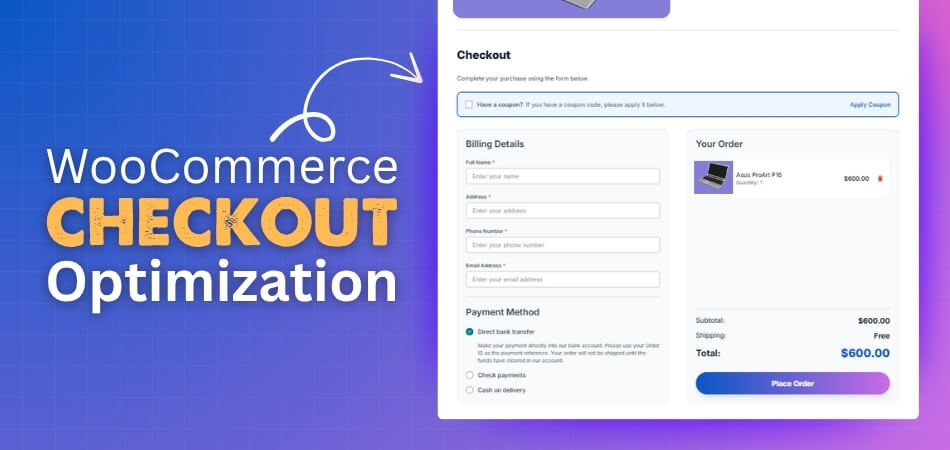
How Does the WooCommerce Checkout Process Work?
Before optimizing, it’s essential to understand how WooCommerce checkout works. Knowing its default flow helps you identify where friction occurs and where plugins or design changes can make a real difference.
Checkout Flow Overview
The standard WooCommerce checkout flow looks like this:
- Customer adds products to the cart.
- Reviews the cart and clicks “Proceed to Checkout.”
- Fills in billing, shipping, and payment details.
- Confirms the order and receives an email.
While this default process works, it often feels long and outdated—especially on mobile. Customers today expect fewer steps, faster loading, and flexible payment choices.
How Plugins Improve the Checkout Experience?
Plugins simplify and modernize checkout without requiring code changes. For instance:
- Reliable layout plugins merge the cart and checkout into one simplified page.
- Field editors remove or rearrange unnecessary input fields.
- Payment gateways expand options like Apple Pay, Google Pay, and PayPal Express.
- Ajax features improve load times, responsiveness, and live total updates.
Preparing Your WooCommerce Store for Optimization
Before diving into advanced improvements, make sure your WooCommerce store is properly configured. Optimization only works well when your foundation is stable. Here is how you can prepare your store before optimization.
Check Overall Store Health
Start by confirming that your store’s basic features function correctly. Add a few test products to the cart, proceed through checkout, and simulate an entire order. Watch for:
- Incorrect totals or tax calculations
- Shipping methods are not appearing or showing the wrong rates
- Missing confirmation emails or payment errors
Fix any issues before you move forward. A healthy baseline helps you focus on improving user experience instead of debugging later.
Review Store Settings and Core Pages
Your WooCommerce setup wizard might have created essential pages like Shop, Cart, Checkout, and My Account, but make sure they’re properly linked under WooCommerce → Settings → Advanced. Broken or duplicate pages can cause checkout loops or redirection errors.
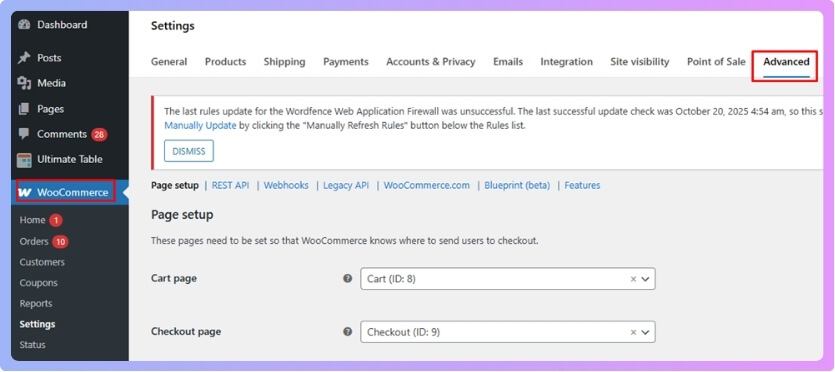
Also, verify that:
- Your currency, country, and store address match your intended market.
- Default shipping zones and tax rates reflect correct customer locations.
- Your timezone and order email templates display accurate timestamps.
These settings keep your checkout experience consistent and trustworthy.
Choose a Lightweight, Checkout-Friendly Theme
Your chosen theme directly affects checkout performance. A heavy theme with animations or unnecessary scripts can delay form loading and hurt conversion rates.
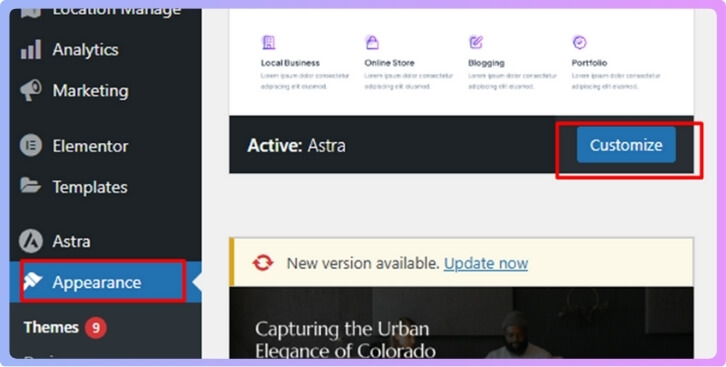
Use a WooCommerce-optimized theme such as Astra, Storefront, or Blocksy, which prioritize speed and clean layouts. Test your theme on mobile and desktop to ensure form fields, buttons, and totals align properly across devices.
Check Installed Plugins
One of the most effective techniques to speed up WooCommerce Checkout is keeping your site lean and plugin list minimal.
Go to Plugins → Installed Plugins and deactivate anything unrelated to your store’s core functions.
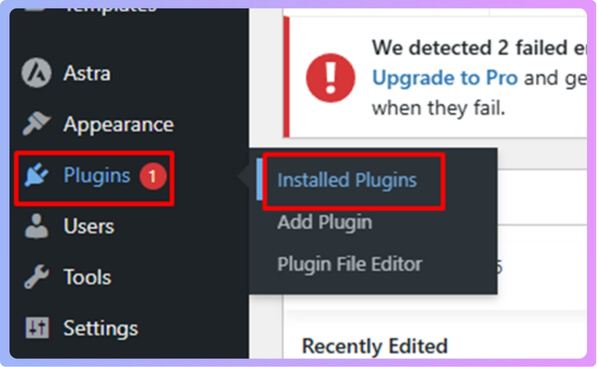
Keep only the essentials:
- Checkout or payment-related plugins
- Security and caching tools
- SEO and analytics tracking
Avoid stacking multiple checkout plugins unless they are specifically designed to work together.
Ensure Secure and Reliable Payments
Payment gateways are the backbone of checkout flow. A small glitch can destroy buyer confidence. Enable trusted options such as Stripe, PayPal, or WooPayments. Run test transactions in sandbox mode to verify:
- Payments complete without timeout errors
- Order confirmations appear in the dashboard
- Emails go to both the store admin and the customer
Customers must feel safe from the first click to the final payment.
Optimize Product Pages and Cart Flow
Before reaching checkout, users interact with your product pages and cart; these should be just as efficient.
- Keep “Add to Cart” buttons visible and fast.
- Use AJAX add-to-cart for quick updates.
- Make sure coupon and quantity adjustments work without refreshing.
Testing these steps ensures the journey to checkout is smooth.
Backup and Test Responsiveness
Always back up your site before major changes. Use tools like UpdraftPlus or your hosting provider’s built-in backup system.
Then, test your entire store across devices—desktop, tablet, and mobile. Fields should resize neatly, buttons should remain tappable, and no layout should break mid-purchase.
WooCommerce Checkout Optimization: From Basics to Advanced
Smooth and fast checkout can make the difference between a completed sale and an abandoned cart. Whether you’re setting up your store or refining an existing one, optimizing the WooCommerce checkout is essential for keeping customers engaged and confident during purchase. These steps will help you create a smooth, secure, and conversion-focused checkout experience.
Step 1: Install a Checkout Customization Plugin
The first step to optimizing checkout is simplifying the process for your customers. Instead of forcing buyers through multiple pages, a plugin can help bring everything, including cart, billing, and payment, into a single, clean flow that encourages quick decisions.
One of the most effective tools is WooCommerce One Page Checkout plugin, which combines direct checkout, billing, and payment on one page to reduce clicks and improve focus.
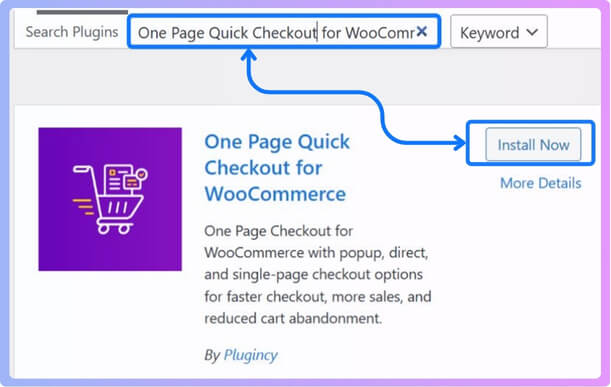
- Install the plugin from your WordPress dashboard.
- Enable Direct Checkout first, then one-page checkout for all products.
- Configure the features, forms, and button style from the dashboard.
- Preview on mobile and desktop to ensure smooth performance and responsiveness.
Step 2: Simplify and Personalize the Checkout Form
A well-designed form improves UX by reducing cognitive load. Every unnecessary field forces users to think longer, which leads to hesitation or drop-offs. Simplifying the checkout form makes the process faster and more intuitive.
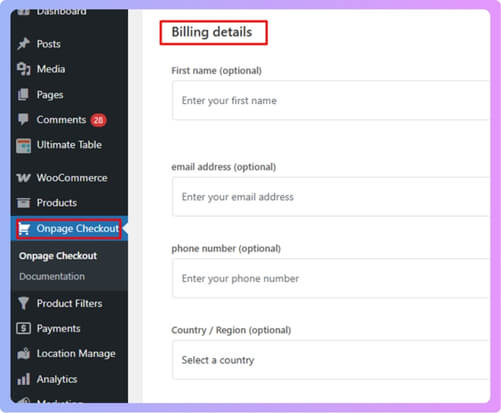
- Keep only essential fields: name, email, address, and payment info.
- Remove extra inputs like “Company Name” or “Address Line 2.”
- Enable auto-fill to help customers complete details instantly.
- Maintain consistent spacing, clear labels, and logical grouping for easy scanning.
Step 3: Improve Checkout Speed
Speed is a major factor in conversion. A checkout page that loads instantly gives customers confidence to finish their purchase. If your checkout lags or freezes, even for a second, users are likely to abandon it.
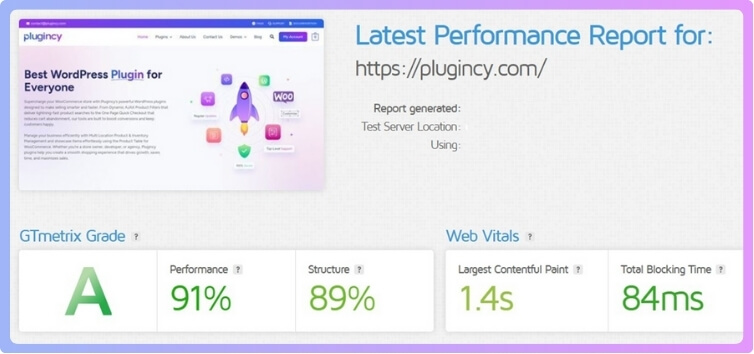
- Use caching tools like WP Rocket or LiteSpeed Cache, but exclude cart and checkout pages.
- Compress images, minify CSS and JavaScript files, and disable unused scripts.
- Test regularly with GTmetrix or PageSpeed Insights and aim for under three seconds.
Step 4: Strengthen Trust and Security
Customers only complete checkout when they feel their payment details are safe. Building visible trust through design, copy, and SSL indicators helps reduce hesitation and reinforces your store’s credibility.
- Display SSL padlock icons or “Secure Checkout” text near payment areas.
- Show trusted payment logos (Visa, MasterCard, PayPal) below the form.
- Include short lines like “Your transaction is protected with 256-bit encryption.”
- Add privacy and refund policy links for transparency.
Step 5: Optimize for Mobile Shoppers
With over half of online purchases happening on mobile, a slow or poorly formatted checkout can cost you valuable conversions. Your layout should be responsive, intuitive, and designed for quick tapping and scrolling.
- Use a single-column layout with large buttons and readable fonts.
- Keep the order summary visible while scrolling.
- Test the checkout flow on multiple devices and browsers.
- Avoid long forms or pop-ups that break user focus.
Step 6: Keep the Design Clean and Focused
A visually cluttered checkout distracts buyers from the goal—completing their purchase. A clean, minimal layout helps guide attention toward essential fields and action buttons, improving usability and focus.
- Remove banners, sidebars, or unrelated menu items.
- Keep totals and the “Place Order” button clear and prominent.
- Use simple color schemes with strong contrast for readability.
- Avoid animations or unnecessary widgets on checkout.
Step 7: Analyze, Refine, and Repeat
Once your checkout runs smoothly, analysis helps you find areas to improve further. Real-time data shows where users hesitate or abandon carts, guiding smarter updates that boost conversions.
- Track behavior using Google Analytics 4 or MonsterInsights.
- Identify where users drop off or spend too long on a field.
- Run A/B tests to experiment with layout changes or button colors.
- Adjust based on data, not guesswork.
Step 8: Keep Everything Updated
Frequent updates keep your checkout system secure and compatible with new WooCommerce versions. Outdated software often causes broken forms or payment issues that frustrate customers.
- Update WooCommerce, your active theme, and checkout-related plugins regularly.
- After each update, perform a test checkout to verify stability.
- Enable automatic backups to prevent data loss if something breaks.
Best Practices for WooCommerce Checkout Optimization
Optimizing your WooCommerce checkout means going beyond design changes; it’s about creating a faster, simpler, and more trustworthy experience. These best practices combine usability, performance, and strategy to help you improve conversions and customer satisfaction.
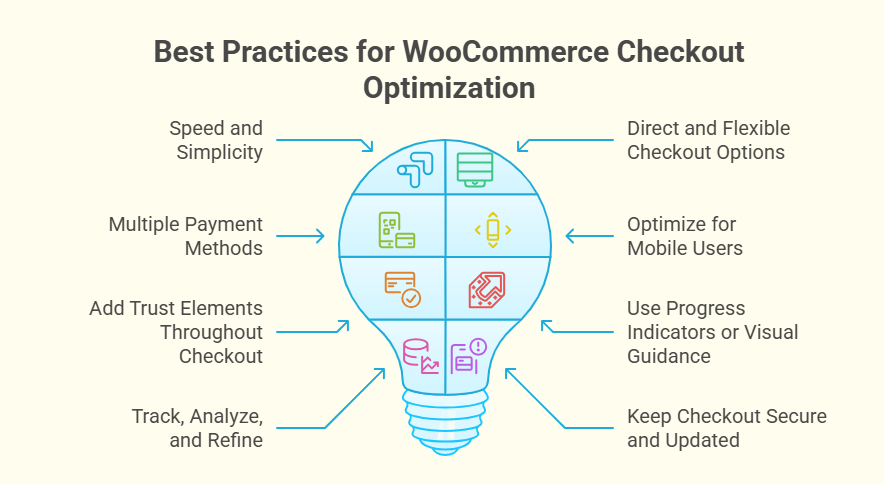
Focus on Speed and Simplicity
Keep your checkout page light and focused. Use optimized images, minimize scripts, and choose a fast theme. A page that loads in under three seconds reduces abandonment rates. Simplify navigation, shorten forms, and remove distractions so shoppers can complete their purchase with minimal effort.
Offer Direct and Flexible Checkout Options
Shoppers appreciate having flexible buying paths. Exploring different ways to enable direct checkout in WooCommerce store, such as skipping the cart page or using a one-page layout, helps streamline the purchase process. Direct checkout options create fewer steps, making it easier for customers to buy quickly.
Provide Multiple Payment Methods
Offer diverse and trusted payment gateways like Stripe, PayPal, and digital wallets such as Apple Pay or Google Pay. Adding local payment methods builds accessibility, while displaying secure payment logos reassures customers during the final step.
Optimize for Mobile Users
With most online purchases happening on mobile, responsive design is essential. Use large, easy-to-tap buttons, simple input fields, and clear fonts. Test checkout on multiple devices to ensure smooth scrolling and consistent layout across all screen sizes.
Add Trust Elements Throughout Checkout
Trust signals increase buyer confidence. Use SSL certificates, display secure payment badges, and include links to your refund or privacy policy. Even a small reassurance line like “Your payment is secure” can reduce hesitation and increase conversions.
Use Progress Indicators or Visual Guidance
Progress indicators help users see where they are in the checkout process. Even on single-page layouts, clear microcopy like “Almost done!” or a visual bar reduces uncertainty and keeps customers focused until completion.
Track, Analyze, and Refine
Monitor analytics to understand where users drop off or hesitate. Use tools like Google Analytics 4 or MonsterInsights to test small improvements—such as adjusting button colors or moving form fields—to see what drives better performance over time.
Keep Checkout Secure and Updated
Regular updates are crucial for performance and reliability. Keep WooCommerce, your theme, and all checkout-related plugins up to date. Updated software prevents security risks and ensures your checkout remains smooth and compatible with new payment technologies.
Frequently Asked Questions about WooCommerce Checkout Optimization
Even after applying the best practices, many store owners still have questions about improving their WooCommerce checkout experience. To help clear up confusion, here are answers to some of the most common questions related to speed, usability, and direct checkout methods. These FAQs will help you understand what really makes a checkout page fast, simple, and effective.
What Causes Most Customers to Abandon Checkout in WooCommerce?
Slow-loading pages, forced account creation, unclear shipping costs, and too many form fields are among the top reasons for checkout abandonment. Simplifying the process, improving speed, and offering guest checkout options help keep customers from leaving.
How Many Fields Should a WooCommerce Checkout Form Have?
Keeping your checkout form between six and eight essential fields is ideal. Fewer fields reduce friction and make the process faster, helping customers complete their orders without frustration or hesitation.
Should I Enable Guest Checkout on My WooCommerce Store?
Yes, guest checkout eliminates barriers for first-time buyers. It allows users to purchase without creating an account, improving user experience and conversion rates while still giving them the option to register later.
What Are the Best Ways to Enable Direct Checkout in a WooCommerce Store?
You can enable direct checkout by using one-page checkout plugins, adding “Buy Now” buttons, skipping the cart page, or activating AJAX add-to-cart functionality. These methods make the checkout faster and reduce unnecessary steps.
Can I Customize the WooCommerce Checkout Page Without Coding?
Yes, you can easily customize the checkout page using plugins like the WooCommerce One Page Checkout plugin or checkout field editors. These tools let you rearrange sections, remove unnecessary fields, and adjust layout styles—no coding needed.
Does Checkout Speed Affect SEO or Conversion Rates?
Absolutely. A slow checkout page increases cart abandonment and lowers conversions. Search engines also factor user experience into rankings, so optimizing checkout speed improves both SEO and revenue performance.
How Often Should I Test My WooCommerce Checkout Flow?
You should test your checkout process every time you update WooCommerce, change themes, or install a new plugin. Regular testing ensures your forms, payment gateways, and page loading remain fast and functional.
How Can I Measure the Success of My Checkout Optimization?
Use tools like Google Analytics 4 or MonsterInsights to track key metrics such as checkout completion rates, drop-off points, and load times. Comparing before-and-after data helps determine which improvements deliver the best results.
Final Thought
WooCommerce Checkout Optimization goes beyond layout tweaks or speed fixes; it’s about removing barriers and helping customers complete purchases without hesitation. A smooth, fast, and secure checkout builds confidence, turning visitors into paying customers.
When setup, design, and performance align, your store delivers a checkout experience that feels effortless from start to finish. Keep testing and improving based on real user behavior, and your WooCommerce store will continue to grow with higher conversions and stronger customer trust.
