

Order quantity matters a lot for any WooCommerce store because it shapes profit, order flow, and daily work. Many store owners look for simple ways to control the number of items buyers can order at once. If you are thinking about this, you may also want to know how to set minimum order quantity in WooCommerce?
You can set a minimum order amount in WooCommerce by installing a plugin, since the feature is not built in. After choosing a plugin, install it through your dashboard or upload it by file. Then open the settings and enter the quantity limit you want.
Do you want to understand this setup in a clear and simple way? You can read this article to learn each step without stress. So stay with us.
Why Does Your WooCommerce Store Need a Minimum Order Quantity?
Your store needs clear limits to run smoothly and stay stable. Many shop owners use minimum order rules to keep costs under control. These rules also help you plan stock and save time on small orders. Read below to learn why your WooCommerce store may need a minimum order quantity.
Helps Control Very Small Orders
Small orders can take time and money to process each day. Many shop owners find that tiny orders lower their profit over time. A minimum order rule stops this from happening in a simple way. It makes sure each order brings enough value to your shop. This helps keep your work fair and steady.
Saves Time on Packing Work
Packing takes steady time, no matter how small the order is. Some tiny orders take the same time as large ones. A minimum limit helps you use your time in a smart way. It keeps your team focused on orders that matter more. This makes your daily workflow smooth and calm.
Reduces Shipping Losses Fast
Shipping small orders often costs more than people expect. Many shop owners lose money when items are too few items. A minimum order rule helps balance this cost in a fair way. It keeps each order worth the shipping effort. This can protect your shop from slow money loss.
Encourages Bigger Cart Sizes
Most buyers add more items when they see a set limit. This simple rule helps them reach the needed order size with ease. Bigger carts bring better profit and smoother sales flow. It can also help you plan stock in a clear way. This makes selling feel more stable over time.
Keeps Stock Moving Better
Setting a minimum order amount helps products move at a steady pace. Many stores want items to sell in good amounts, not tiny bits. This rule helps you avoid slow stock buildup. It also makes your sales pattern easier to track. Over time, this brings better control of your goods.
Gives Your Store a Clear System
A clear rule helps buyers understand how your shop works. It sets a fair limit that guides their shopping steps. Many stores use this rule to keep things simple and clean. It helps avoid confusion for both buyers and owners. This builds a smooth and easy shopping setup.
How to Set Minimum Order Quantity in WooCommerce?
Setting a minimum order amount in WooCommerce is simple to do. You only need a plugin because this tool is not built in. Many plugins make the setup easy and quick for anyone. Read the steps below to learn how to set this rule in your store.
Pick a Good Plugin
There are many plugins that help you set a minimum order amount with simple tools, and one option many people like is One Page Quick Checkout for WooCommerce because it works well and is easy to use. Most plugins like this come with clear settings that guide you with simple steps. You can choose the one that fits your store’s needs in a smooth way. Once you make your choice, you can move to the installation steps.
Install the Plugin in WooCommerce
There are three clear ways to install the plugin. You can use the free version for simple needs, or choose the PRO version for more features, or use manual install if you like full control. Each method is easy to follow and works well for most sites. Below are all three steps in simple words.
Step 1: Free Version Installation
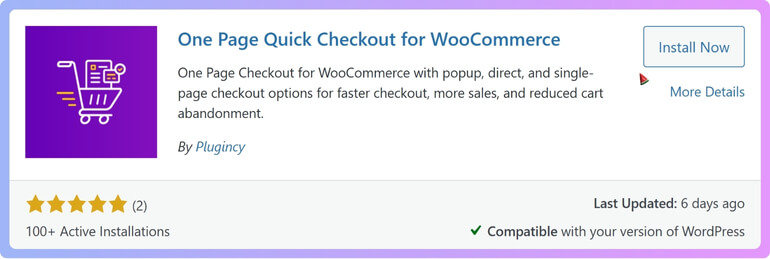
You can install the free version from your WordPress dashboard with no stress. Log in to your dashboard and go to Plugins, then Add New. Type One Page Quick Checkout for WooCommerce in the search bar. Find the plugin, click Install Now, then click Activate. After that, the free tools are ready to use.
Step 2: PRO Version Installation
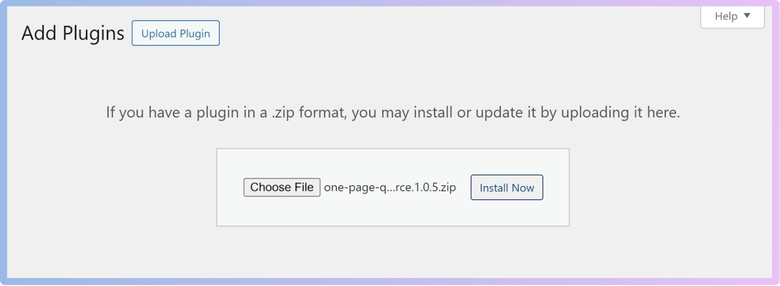
If you want extra tools, the PRO version is a good choice. Go to the plugin site and finish your purchase. A download link will come to your email after the payment. Download the ZIP file and go to Plugins, then Add New in your dashboard. Click Upload Plugin, pick the ZIP file, then click Install Now. After the install, click Activate, then go to Onpage Checkout and open Plugin License. Type your license key to unlock all PRO tools.
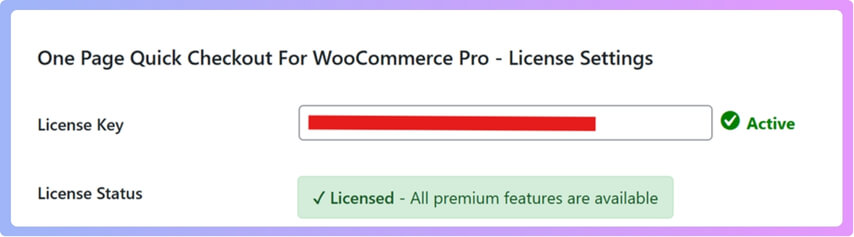
Step 3: Manual Installation Using FTP
You can use FTP if you want full control or have limits on your hosting. Download the plugin ZIP file in free or PRO form. Extract the ZIP file on your computer. Open your FTP tool (e.g., FileZilla) and connect to your site. Go to the WP content plugins folder. Upload the full plugin folder to that place, and you are done.

Open the Plugin Settings
After installation, you can find the Woocommerce One Page Checkout plugin settings inside the menu. You will see tabs that help you set rules in simple steps. These settings allow you to control order size based on your needs. You only need to fill a few fields to make it work. It is simple to explore and easy to learn.
Set the Minimum Order Quantity
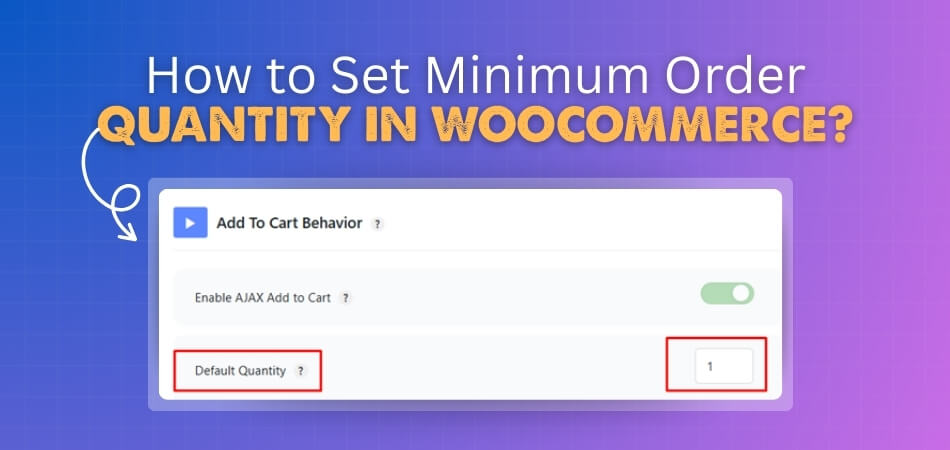
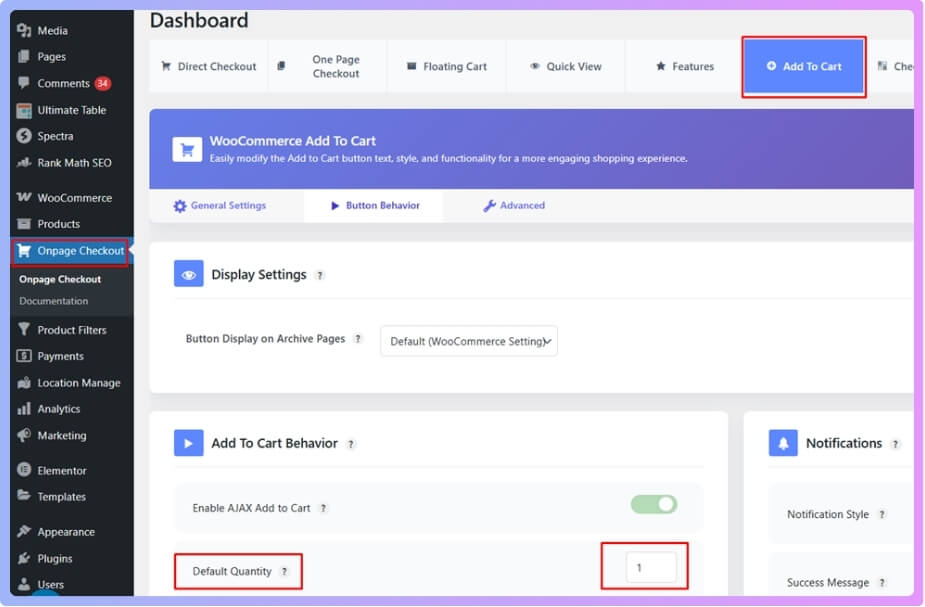
When you go to the Onpage Checkout, you will see many tabs. Just click on Add To Cart from the list. After that, you will see tabs like General Settings, Button Behavior, and Advanced Options. Click on Button Behavior to move ahead. Now you can find Default Quantity, then type your minimum order amount there.
Test the Rule on Your Cart
After saving the setup, open your shop page and add items to your cart. Check if the cart warns you when the amount is too low. Many plugins show short notes to guide buyers with ease. This helps you see if everything works the way you want. Make sure the limit feels right for your store.
Tips to Choose the Right Minimum Order Quantity for Your WooCommerce Store
Choosing the right minimum order amount helps your shop stay steady. You want a number that feels fair for both you and the buyers. It should match your costs and keep your profit safe. To learn how to choose the best amount, follow the simple tips below.
Know Your Product Costs
When you set your minimum order amount, think about how much each product costs you. This helps you choose a number that keeps each sale worth your time. Many store owners check the item cost before choosing a limit. You can use this step to protect your shop from loss. A clear view of cost makes this task easy to handle.
Think About Shipping Prices
Shipping can take a large part of your profit if orders are small. You want each order to cover the shipping fee in a fair way. A simple limit can help you balance this cost with ease. You can test different numbers to see what works best. A smart amount keeps your orders safe from slow losses.
Check Your Buyer Patterns
You can look at how people shop in your store to guide your limit. Some buyers add only one item, while others add many. A minimum amount can help guide buyers toward better cart sizes. You can check old orders to see common habits. These patterns help you pick a number that feels fair and simple.
Match Stock Levels With Your Rule
Some products move fast, while others stay on your shelf longer. A smart rule helps keep stock moving at a steady pace. You can use a minimum amount that encourages buyers to add more when needed. This helps reduce slow stock buildup over time. A steady flow makes your store easier to manage.
Set a Number That Feels Reasonable
You want a number that buyers can reach without stress or trouble. A limit that feels too high may push people away from your shop. You can test small increases to see what works well. A fair amount helps you keep profit safe and buyers happy. A simple and calm balance is the key to good rule.
How Product Data Helps in Managing Minimum Order Quantity?
Product data helps you understand what each item needs in your shop. It shows you how often items sell and how much stock you must keep. This makes it easier to set a fair order limit for buyers. Read the points below to see how this data helps you set a good rule.
Shows How Fast Items Sell
Product data tells you which items move fast and which stay slow. When you know this, you can set a limit that fits each item. Fast items may need a small limit, while slow ones may need a bit more. This helps keep your stock moving in a steady way. Clear data makes your choices simple and safe.
Helps You Plan Stock Better
Stock levels are easy to manage when you use real product data. You can even export individual product in WooCommerce to review stock one by one. This helps you set a rule that avoids stock running out too soon. A good order limit keeps your store balanced at all times. It also helps you avoid large waste or extra stock.

Guides You on Profit and Cost
Product data shows the cost of each item and the profit you earn. With this, you can set a limit that keeps each order worth your time. You can avoid orders that bring very little profit. Data helps you stay safe from tiny orders that waste time. A clear view of profit makes rule-setting easy.
Helps You Understand Buyer Habits
You can see how buyers shop when you check your product data. Some items are often bought alone, while others are bought in groups. This helps you set rules that match real buyer habits. A limit based on real data feels fair to your buyers. It also keeps your shop running in a calm way.
Makes Your Store More Organized
Using real product data helps you create clear and simple rules. You can set limits that feel right for your store and your buyers. This makes your whole shop easier to manage each day. It also helps you plan ahead for sales or stock. A clean system keeps your shop working smoothly.
Can Shipping Setup Affect Your Minimum Order Quantity?
Yes, shipping setup can affect your minimum order quantity in a big way. When shipping costs are high, small orders often bring losses. Many store owners fix this by setting a limit that covers basic shipping and handling needs.
Not all items cost the same to ship across different places and zones. If you sell heavy or bulky items, shipping setup matters even more. That’s why some stores configure quantity-based shipping in WooCommerce to control costs and make each order worth it.
It’s also smart to link your shipping setup with your order rules. This helps your store avoid sending out very small or money-losing orders. A fair shipping plan keeps things smooth for both you and your buyers.
Common Problems When Setting MOQ and How to Fix Them
It may seem simple to set a minimum order quantity (MOQ), but if done incorrectly, it can lead to issues. Here are common issues you may face and simple ways to fix them.
- Error messages not showing: Buyers don’t know why their order fails when no error message appears. Check your plugin settings and enable clear messages for all users.
- Conflict with other plugins: Other active plugins may stop your MOQ rule from working correctly. Try turning plugins off one by one to find the issue.
- Variation minimum not working: Setting a rule for product variations sometimes fails or gets ignored. Use plugins that support variation-level controls for better results.
- Code-breaking checkout: Custom code or faulty settings can freeze or crash the checkout page. Always test changes before going live on your store.
- Plugin updates break settings: After updates, old settings may stop working or get removed. Check plugin change logs and reset your rules if needed.
- Rules apply to wrong products: Some rules may affect all products instead of selected ones. Double-check product-level settings to keep things clean and simple.
- Checkout allows low orders: Sometimes, checkout still accepts orders below your set limit. Make sure your plugin is active and the rules are saved properly.
Fixing these issues helps your store run smoothly and keeps buyers happy. Always test your changes and review settings after updates.
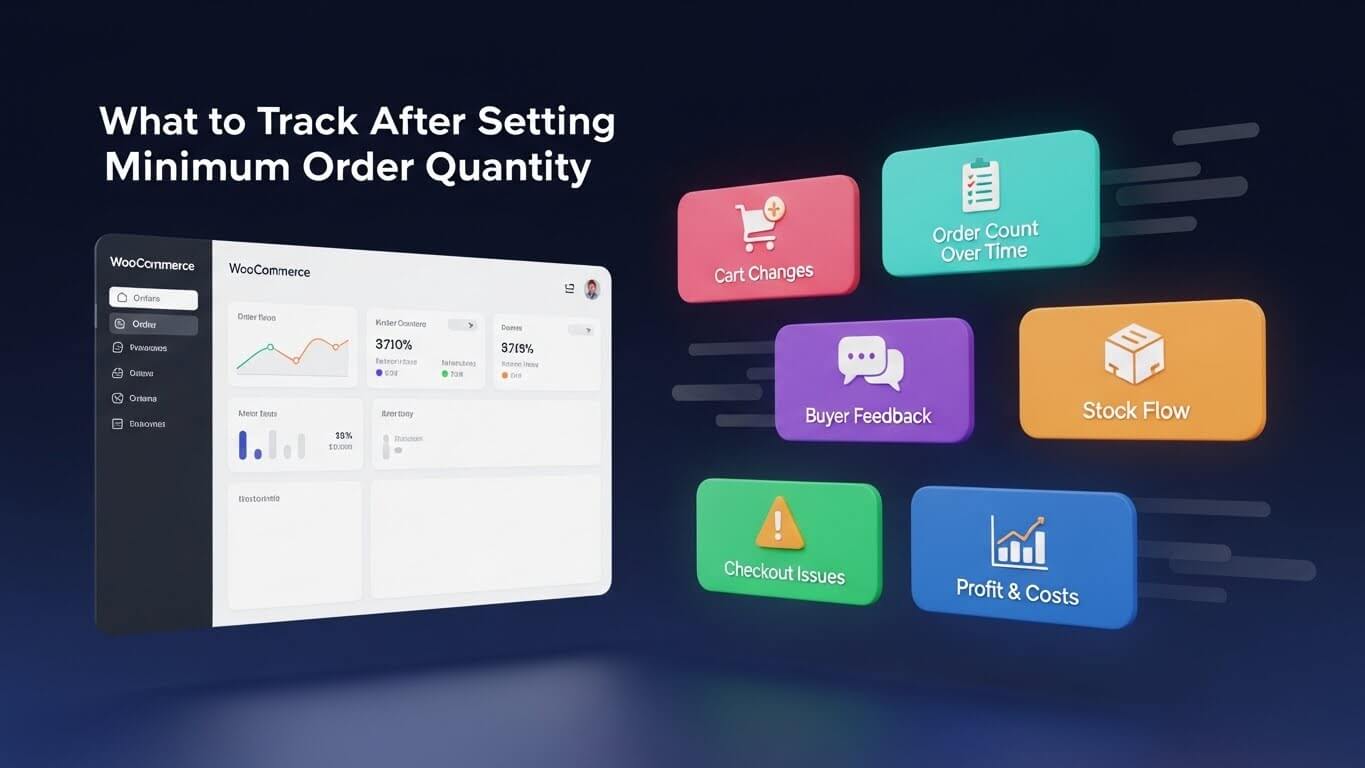
What to Track After Setting Minimum Order Quantity?
You can keep your store tidy and stable by establishing a minimum order amount. After setting it, there are still a few important things to keep an eye on. This helps you see if the rule works well for your buyers. Here are simple points below to know what to track next.
Cart Changes After the Rule
You can watch how buyers change their carts after the rule starts. Many people may add more items to reach the limit. This helps you see if the rule is working for your store. You can also check if some buyers leave too fast. Small changes tell you if the limit feels fair.
Order Count Over Time
You can track how many orders you get each day or week. A clear pattern shows if the rule helps or hurts sales. If orders drop too much, you may need to adjust the amount. If orders stay steady, the limit is working well. This helps keep your store healthy.
Buyer Feedback and Questions
You can check messages or reviews to see how buyers feel. Some may ask why the limit is needed or how it works. Clear feedback shows if your rule is easy to understand. You can fix small issues before they grow. Simple notes from buyers help you improve the rule.
Stock Levels and Flow
You can watch how your stock moves after the new rule begins. Some items may sell faster, while others move slowly. This helps you decide if the limit is right for all items. You can raise or lower the amount when needed. A steady stock flow keeps your shop calm.
Checkout Errors or Issues
You can check if any checkout errors appear after setting the rule. Some buyers may face trouble if the settings are not correct. Fixing these issues early makes shopping easy for them. You can test your checkout often to avoid problems. A smooth checkout helps keep your rule strong.
Profit and Cost Balance
You can track how much profit each order brings with the new limit. A good rule will help reduce losses from small orders. You can also check if the shipping cost stays covered. This helps you keep your store safe from slow money loss. A clear view of profit makes your rule stable.
Frequently Asked Questions
Running a WooCommerce store often brings many small questions about limits, cart rules, and order control. These simple FAQs help clear common doubts about setting a minimum order amount.
How Does a Minimum Order Rule Affect Buyer Checkout Flow?
A minimum order rule affects checkout by checking the cart amount before buyers move ahead. If they fall short, the rule guides them with a note that explains what to add. This helps buyers understand the limit without confusion and keeps the checkout clean.
What Happens When a Buyer Tries to Checkout Below the Limit?
When the cart is below the limit, the buyer gets stopped before final checkout. A message will appear to explain the rule in simple words. This avoids failed orders and helps the buyer add more items without feeling lost or stuck in the cart.
Which Products Benefit Most From Minimum Order Limits?
Products that cost more to pack, ship, or restock gain the most from order limits. These items often bring low profit when bought alone. A clear rule keeps these products from being sold in tiny amounts that could harm your shop over time.
What Type of Stores Gain the Most From Minimum Order Control?
Stores with physical items, higher shipping costs, or bulk goods gain the most. These shops often face losses from small orders. Setting a fair rule helps protect the shop, save work time, and keep packing from becoming too heavy each day.
How Does a Minimum Order Rule Help With Stock Forecasting?
This rule helps your stock forecasting by raising the average cart size. Bigger carts make stock flow steadier and easier to predict. When tiny orders stop, you can plan your next restock with more control and fewer sudden shortages in your store.
What Should a Store Owner Review Before Raising the Limit?
Before raising the limit, the owner should check buyer habits, old orders, and profit patterns. A sudden high limit may push buyers away. A slow and small change is safer and gives you time to watch how the change affects your store.
What Happens If a Store Sets the Limit Too High?
If the limit is too high, buyers may leave quickly because they feel pushed. This can lower daily orders and harm trust. A balanced limit helps keep buyers happy while still protecting your store’s costs and daily workflow.
Conclusion
Order limits may seem like a small setting, but they can make a big difference. A smart rule keeps your store safe from tiny orders and wasted effort. Once you learn the setup, it becomes simple to manage and use every day.
If you’ve been wondering how to set minimum order quantity in WooCommerce, the answer is clear. Just install a good plugin, adjust the settings, and choose the amount that fits your store. You’ll get better control, less stress, and smoother sales.
Curious about each step or not sure where to begin? Keep reading to explore every part of this setup in an easy way. This guide shares everything you need to build a solid system for your shop.
