

WooCommerce email notifications keep customers informed and store owners updated throughout the order process. These emails trigger automatically based on specific order actions like purchases, refunds, or account changes. When managed well, they build trust and improve the overall shopping experience on your site.
This complete guide to WooCommerce email notifications helps you understand, customize, and optimize every automatic message your store sends. It covers default email types, design changes, deliverability fixes, and advanced settings so you can create clearer, more reliable communication that improves customer experience and keeps your store running smoothly.
Stay with us to learn how to set up and personalize each email your store sends automatically. We’ll help you prevent issues that affect deliverability and missed notifications. Let’s make every email your customer receives timely, helpful, and on-brand.
What Are WooCommerce Email Notifications and Why Do They Matter?
WooCommerce email notifications are automatic messages your store sends to customers after key actions like orders, refunds, or account updates. These emails help shoppers understand what happens next and keep them confident throughout their purchase journey. They also support store owners by sharing clear updates that help manage orders smoothly and reduce confusion. When used well, they strengthen trust and improve every customer interaction. Here are the reasons why it matters:
Improve Customer Communication
Clear email notifications help customers understand every step of their order without confusion or frustration. They share details that guide buyers through payment, shipping, and delivery updates. This reduces uncertainty because each message confirms what has happened and what comes next. Strong communication builds loyalty by showing customers you care about their experience.
Strengthen Store Reliability
Accurate emails show customers that your store handles orders with care and consistency. Each notification confirms important progress and gives customers confidence during their entire shopping journey. These messages reduce doubts because shoppers instantly see updates without checking their accounts. When your store feels reliable, customers naturally trust future purchases more.
Reduce Support Requests
Helpful emails deliver the information customers usually ask your support team to repeat. This saves time because buyers instantly receive answers without waiting for replies. Your team manages fewer manual requests and can focus on more important issues. Reliable notifications make your store feel organized and easy for customers to navigate daily.
Keep Store Owners Updated
Email alerts help store owners track essential activities like new orders or canceled ones. These updates reduce mistakes because they highlight actions that need quick attention. Consistent notifications also help teams coordinate tasks more easily across different roles. As everything becomes clearer, the entire workflow operates more smoothly for everyone.
Support Checkout and Order Accuracy
A smooth checkout boosts accurate email triggers because fewer errors occur during payment or form submission. This works especially well when tools like One Page Checkout for WooCommerce simplify the process for customers. Fewer steps reduce missed notifications and failed messages caused by incomplete orders. A clearer checkout ensures each email reaches customers at the right time.
Improve Customer Experience
Timely emails ease customer worries by delivering important details exactly when they need them most. These messages remind buyers that your store values clarity and helpful updates. Clear communication creates a stress-free experience during and after each purchase. Improved consistency leads to stronger customer satisfaction and better long-term relationships.
Complete Guide to WooCommerce Email Notifications
WooCommerce email notifications are essential for communicating with customers and admins about orders, accounts, and store updates. They help build trust, reduce cart abandonment, and improve customer experience in your online store. Read this guide to learn everything from setup to advanced customization and troubleshooting, based on official WooCommerce documentation and best practices.
Understanding WooCommerce Email Notifications
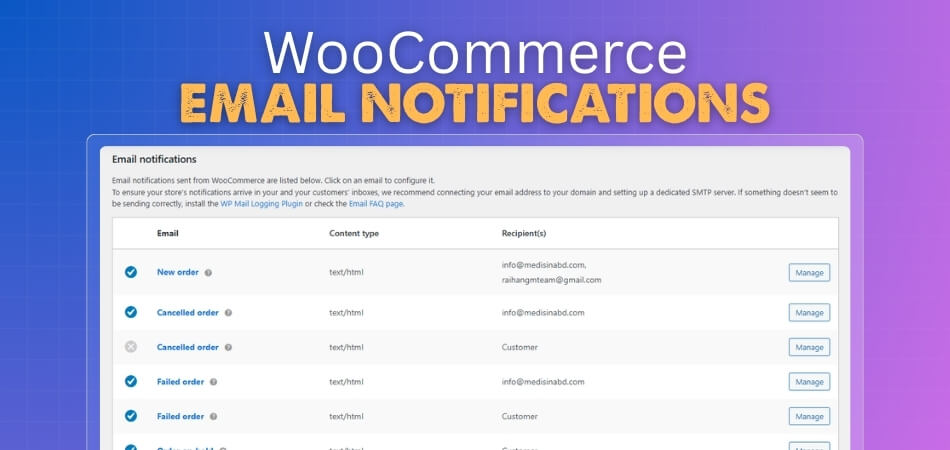
Your store sends automatic emails whenever certain actions happen, such as a new order or a password reset. These messages are important because they confirm actions, share updates, and support customers when they need help. Most platforms come with built-in email types, and you can add more through plugins if you want extra marketing features or automation. The key advantages include:
- Automation: Emails are sent without manual intervention.
- Customization: Tailor content, design, and recipients.
- Deliverability: Proper setup ensures emails reach inboxes, not spam.
WooCommerce uses WordPress’s wp_mail() function for sending, but for reliability, it integrates with SMTP services.
Types of Email Notifications
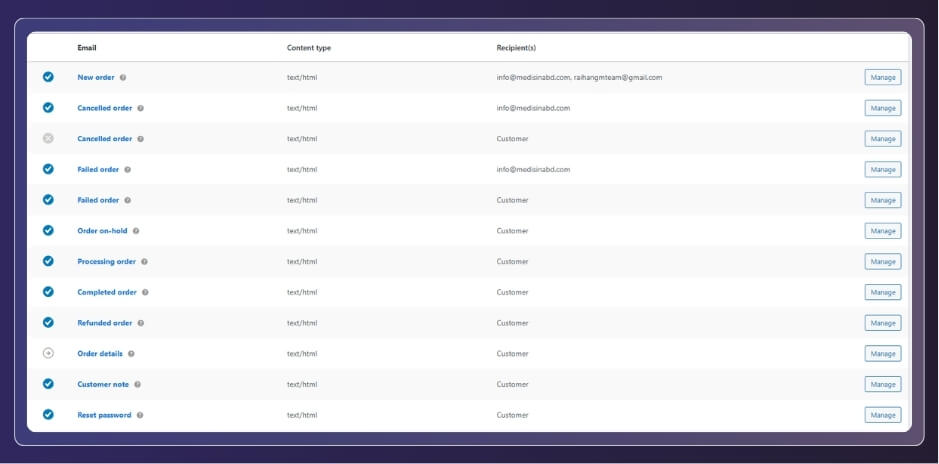
WooCommerce provides core emails categorized by recipient (admin or customer). Here’s a breakdown:
| Email Type | Description | Trigger | Recipient |
| New Order | Notifies admin of a new purchase. | Order creation. | Admin (store email). |
| Cancelled Order | Alerts the admin when an order is cancelled. | Order cancellation. | Admin. |
| Failed Order | Informs admin of payment failures. | Payment failure. | Admin. |
| Order On-Hold | Confirms order receipt (e.g., for check payments). | Order placed on hold. | Customer. |
| Processing Order | Confirms payment and processing start. | Order moves to processing. | Customer. |
| Completed Order | Notifies order fulfillment. | Order completion. | Customer. |
| Refunded Order | Details refunds (full/partial). | Refund processed. | Customer. |
| Customer Invoice / Order Details | Manual invoice or details reminder. | Manual trigger or payment instructions. | Customer. |
| Customer Note | Sends notes added to orders. | Note added via admin. | Customer. |
| Reset Password | Password reset link. | Reset request. | Customer. |
| New Account | Welcome email with login details. | Account creation. | Customer. |
Extensions like subscriptions or bookings add more types (e.g., subscription renewal).
Setting Up Email Notifications
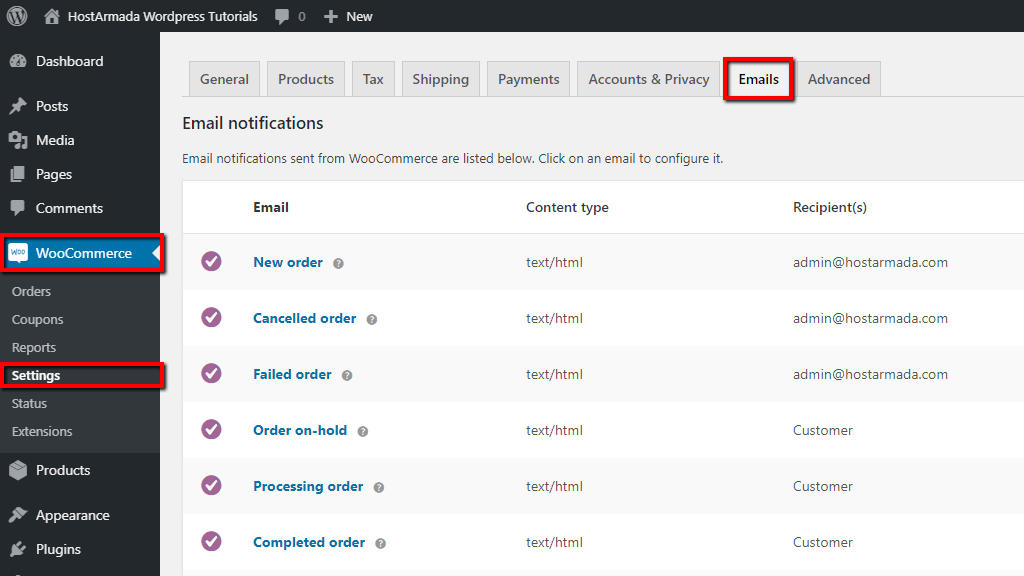
Access settings via WordPress dashboard: WooCommerce > Settings > Emails.
- Navigate to Email Settings: Go to WooCommerce > Settings > Emails. You’ll see a list of notifications.
- Configure Individual Emails: Click “Manage” next to each (e.g., New Order).
- Enable/disable the email (most are enabled by default; Order Details can’t be disabled).
- Set recipient(s) (comma-separated for multiple; defaults to admin email for admin notifications).
- Customize subject, heading, and additional content using placeholders like {order_number}, {site_title}.
- Choose email type: HTML (recommended for styled emails), Plain Text, or Multipart (both for compatibility).
- Add Cc or Bcc for copies.
- Set Sender Options: Below the list, configure “From” name (e.g., your store name) and address (use a domain-matching email like [email protected] for better deliverability).
- Save Changes: Test after setup (see section 7).
For multiple recipients (e.g., notifying suppliers for electronics dropshipping), use plugins like WooCommerce Multiple Email Recipients.
Configuring Email Settings in WooCommerce
Customizing Email Templates
Basic customization is in settings, but for advanced designs:
- Global Template Settings: At the bottom of the Emails tab, customize:
- Header image (URL).
- Footer text.
- Colors (base, background, body, text).
- Font family (from WooCommerce 9.8+).
- Logo and alignment (enable via WooCommerce > Settings > Advanced > Features).
- Override Templates: For developers, copy email PHP files from wp-content/plugins/woocommerce/templates/emails/ to your child theme’s woocommerce/emails/ folder. Edit for custom HTML/CSS.
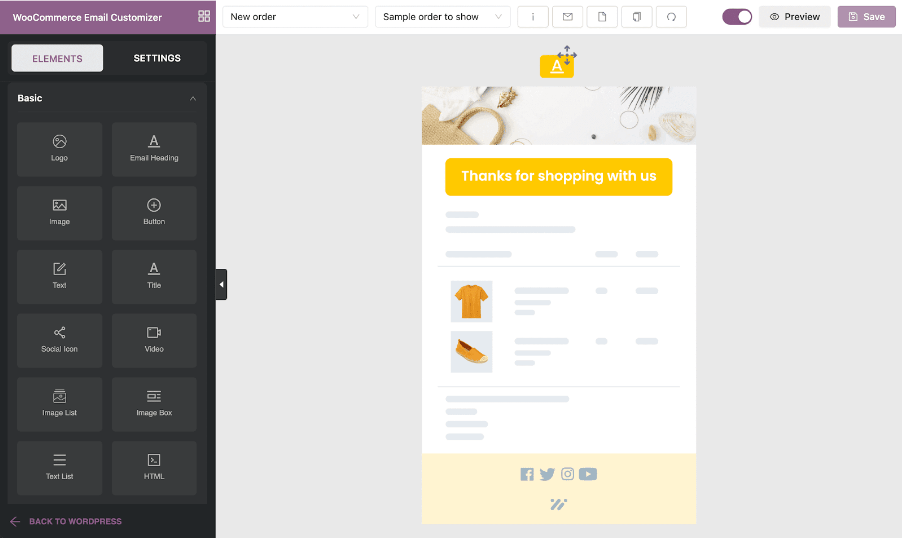
- Use Plugins: For no-code customization, install YayMail or Email Customizer for WooCommerce. These offer drag-and-drop builders for adding images, buttons, or dynamic content like product recommendations.
How to Set WooCommerce Order Confirmation Email
Setting up the WooCommerce order confirmation email helps customers feel confident after placing an order and keeps store owners updated in real time. A proper setup also reduces mistakes and supports smooth store operations. The steps below guide you through setup, improvements, testing, and fixes.
Step 1: Enhancing with Plugins and Automations
For advanced features:
- SMTP for Deliverability: Use WP Mail SMTP or Post SMTP to route emails via providers like Gmail, Sendinblue, or Amazon SES. Configure in the plugin settings with API keys.
- Automations: Plugins like AutomateWoo or Omnisend enable workflows for abandoned carts, win-back emails, or post-purchase upsells.
- Multiple Recipients: Send copies to team members or suppliers based on products (e.g., electronics vendors).
- Insights: Enable email insights for analytics on opens and clicks (WooCommerce 9.8+).
Step 2: Best Practices for Effective Emails
- Personalization: Use placeholders for names and order details.
- Mobile Optimization: Test previews on desktop/mobile (built-in from WooCommerce 9.8).
- Compliance: Include unsubscribe links, privacy notices; follow GDPR/CAN-SPAM.
- Branding: Match emails to your store’s theme for consistency.
- Timing: Avoid overloading inboxes; use automations for timely follow-ups.
- A/B Testing: Plugins like Omnisend allow testing subjects and content for higher engagement.
Step 3: Testing Email Notifications
- Preview Templates: In each email’s Manage screen, use the preview tool to view on devices.
- Send Test Emails: Click “Send test email” and enter a recipient.
- Place Test Orders: Use WooCommerce’s test mode or a plugin like WooCommerce Order Test to simulate purchases.
- Check Logs: Go to WooCommerce > Status > Logs for errors.
- Monitor Delivery: Use tools like Mail-Tester.com to score emails for spam risk.
Step 4: Troubleshooting Common Issues
If emails aren’t sending:
- Not Enabled: Check “Enable this email notification” in settings.
- Deliverability Problems: Use SMTP; ensure “From” address matches the domain. Test IP reputation with Sender Score.
- Conflicts: Deactivate plugins/themes; test with defaults like Storefront.
- Spam/Blacklisting: Check spam folders; use authentication like SPF/DKIM.
- Server Issues: Contact host; logs may show PHP mail failures.
- Payment Gateway Errors: For failed orders, check the gateway docs.
- Custom Code/Themes: Override issues—use child themes.
If issues persist, consult WooCommerce support or forums.
With this guide, you can set up robust email notifications to enhance your WooCommerce store’s operations. For electronics sales, focus on order updates and product recommendations to encourage repeat business.
How to Access and Configure WooCommerce Email Settings?
Here’s how to access and configure your WooCommerce email settings with simple steps that help you work faster. These settings give you clear control over notifications that guide customers through important store moments. You can adjust each option easily and keep communication smooth across every order stage.
New Order Notifications
Store owners check new order emails to track fresh purchases quickly and act without stress. These messages show buyer details and payment notes that help teams manage tasks clearly. You can add extra recipients when the first order discount setup runs during promotional events.
Cancelled and Failed Orders
Cancelled order messages help teams understand changed plans and update stock without confusion. Failed order alerts guide customers toward safer payment choices that keep orders moving. These emails reduce errors and give shoppers friendly reminders during checkout problems.
Processing Order Updates
Processing emails tells customers their payments worked, and their items will move toward packing soon. These updates build comfort because shoppers know everything looks correct. Clear details help customers trust your store and wait calmly for delivery.
Completed Order Notices
Completed order emails confirm shipment and give customers the final details they expect after waiting patiently. These messages reduce questions since everything appears clearly organized. Customers feel relaxed because they instantly understand the next steps.
Account and Password Emails
Account emails guide new shoppers through login steps after creating their profiles successfully. Password reset messages help customers stay calm when recovering access. Easy instructions keep users confident while exploring your store.
How to Customize WooCommerce Email Content and Design?
Customizing WooCommerce email content and design helps your store share clear updates that feel friendly and consistent. These changes improve communication and help customers understand every step without confusion. With these simple adjustments, you can create emails that match your brand and guide buyers confidently through each order stage.
- Brand Colors: Use colors that match your store to make each email feel more familiar and comfortable. This simple step helps customers recognize your brand quickly and trust every message they receive during their shopping journey.
- Clear Headings: Add short headings that guide readers through each email without forcing them to search for details. This improves clarity because customers understand important updates faster and move through the information with confidence.
- Simple Language: Choose short sentences and easy words that help customers understand updates without extra effort or confusion. Clear writing keeps readers relaxed because each message feels helpful and quick to read.
- Helpful Extras: Add notes or helpful links that answer common customer questions before they appear in support chats. This reduces pressure on your team and gives shoppers helpful tools that make each step easier.
- Mobile Layout: Adjust your emails so they look clean and readable on phones, where most customers check messages. This creates a smoother experience and keeps each update clear even on smaller screens.
How to Improve WooCommerce Email Deliverability?
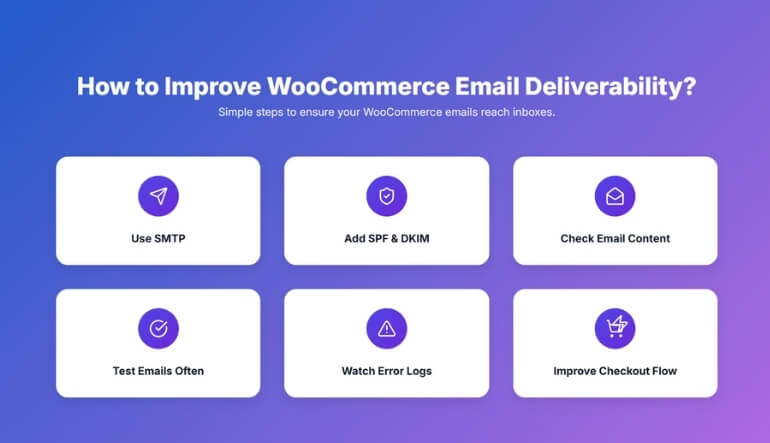
Improving WooCommerce email deliverability sounds technical, but it’s actually simple once you understand the basics clearly. Many store owners miss important steps that help emails reach inboxes safely every time. With the right setup, your messages avoid spam and reach customers faster. Let’s look at easy tips that help your store send emails without problems.
Use SMTP
Using SMTP makes your emails safer and more reliable. It replaces the default method that often causes messages to land in spam folders. You can install an SMTP plugin and connect it with services like Gmail, SendGrid, or Mailgun. This upgrade helps your emails look more trusted, and customers receive important updates without waiting.
Choose a Good Email
Picking a proper email address for sending messages makes a huge difference. Always use an address with your store’s domain name instead of a free one like Gmail. This helps email providers see your messages as more trusted. When your address looks official, your store updates reach customers more smoothly and with fewer issues.
Add SPF and DKIM
Adding SPF and DKIM records helps email services confirm your messages are real and safe. These records act like signatures that protect your store from fake senders. Most hosting websites provide simple tools to add them in a few minutes. Once added, your emails move through filters easily and land in inboxes more often.
Check Email Content
Email providers scan your message content before delivering it to the customer. Writing clear subject lines, simple sentences, and useful information helps your emails look safe. Avoid using too many symbols or words that feel confusing. When your emails look clean and honest, delivery becomes much easier for your store.
Test Emails Often
Testing your emails helps you spot issues before they affect customers. WooCommerce has built-in options to preview or send test messages, which makes checking simple. You can also place a few test orders to see how real emails behave. These small checks help keep everything working the right way.
Watch Error Logs
WooCommerce gives you logs that show problems with email sending. These logs help you find issues like blocked messages, wrong email settings, or failed connections. Checking them once in a while keeps you aware of small problems before they grow bigger. It’s a simple habit that protects your store’s communication.
Improve Checkout Flow
A smoother checkout means fewer email issues, because clean order data helps messages trigger correctly. Many stores use tools that reduce extra steps and send updates faster during purchases. This is where topics like WooCommerce future insights often appear in discussions about better shopping experiences. Improving the flow leads to more accurate emails and fewer missing updates for customers.
Common WooCommerce Email Issues and How to Fix Them
WooCommerce relies on [[WordPress’s wp_mail]] function for sending emails, which can lead to various issues due to hosting limitations, configuration errors, or delivery problems. Below is a comprehensive list of the most frequent problems, their causes, and step-by-step fixes, compiled from official documentation and expert guides.
Emails Not Sending at All
This is one of the most common issues, where no emails (e.g., order confirmations, new order notifications) are triggered or sent, often affecting both customer and admin emails.
- Common Causes: Disabled notifications in settings, orders stuck in “Pending Payment” status (e.g., due to failed payments, abandoned carts, or manual methods like bank transfers), plugin/theme conflicts, or server restrictions on the PHP mail() function.
- Fixes:
- Check WooCommerce Settings: Go to WooCommerce > Settings > Emails. Ensure the relevant email (e.g., “New Order” for admins or “Processing Order” for customers) is enabled by checking the box. Verify recipient addresses are correct (comma-separated for multiples).
- Verify Order Status: In WooCommerce > Orders, check if the order is in “Processing” or “Completed” status—emails won’t send for “Pending Payment.” Manually update the status if needed, or review your payment gateway (e.g., PayPal) for integration issues; update plugins if outdated.
- Install an SMTP Plugin: WordPress’s default mailer is unreliable. Use WP Mail SMTP (free/Pro): Install via Plugins > Add New, then run the setup wizard to connect to a provider like SendLayer, Brevo, or Gmail. Enter API keys, set a domain-matched “From” email, and test sending.
- Test for Conflicts: Deactivate all plugins except WooCommerce and switch to a default theme (e.g., Storefront). Place a test order to isolate issues. Re-enable one by one to identify conflicts.
- Enable Logging: Install WP Mail Logging or WP Mail SMTP Pro to log emails. Create a test order and check if emails are generated/sent.
Emails Sent but Not Received (e.g., Going to Spam or Junk)
Emails are generated but don’t reach inboxes, often flagged by email providers.
- Common Causes: Lack of authentication (no SPF/DKIM/DMARC), mismatched “From” email domain (e.g., using @gmail.com instead of @yourdomain.com), server blacklisting, or hosting blocks on unauthenticated emails.
- Fixes:
- Use Domain-Matched Sender: In WooCommerce > Settings > Emails, set “From” address to match your site’s domain (e.g., [email protected]).
- Set Up SMTP with Authentication: Via WP Mail SMTP, connect to a provider and add DNS records (SPF, DKIM, DMARC) in your hosting panel. Wait up to 48 hours for propagation.
- Check Spam Folders and Blacklists: Test emails to various providers (Gmail, Outlook); use tools like MX Toolbox to check your server’s IP reputation.
- Force Consistent “From” Email: In WP Mail SMTP settings, enable this to override any mismatches.
Configuration Errors (e.g., Wrong Subjects, Recipients, or Templates)
Emails are sent, but with incorrect content, or specific types (e.g., password resets) fail.
- Common Causes: Misconfigured templates, outdated plugins, or overrides from themes/extensions.
- Fixes:
- Review Individual Settings: In WooCommerce > Settings > Emails > Manage (for each type), check subject, heading, and additional content. Use placeholders like {order_number} correctly.
- Update Plugins and Themes: Go to Dashboard > Updates; ensure WooCommerce and related plugins (e.g., payment gateways) are current.
- Preview and Test: Use the built-in preview tool (WooCommerce 9.8+) or send test emails from settings.
Issues with Specific Gateways or Emails (e.g., No New Order Email After Payment)
- Common Causes: Gateway-specific bugs (e.g., PayPal not updating status), or emails not triggered for certain statuses.
- Fixes:
- Check Gateway Docs: For PayPal, ensure the plugin is updated; test IPN (Instant Payment Notification) setup.
- Manual Triggers: In Orders > Edit Order, add a note or change status to force an email.
How to Test WooCommerce Email Notifications Properly?
Testing WooCommerce email notifications may sound complicated at first, but it becomes simple once you understand what to check. Many store owners ignore testing, which often leads to confused customers and missed updates. A few quick steps can help you avoid small mistakes. Let’s explore easy ways to check if your emails work correctly.
Place Test Orders
Placing a few test orders is one of the easiest ways to check if your emails work. You can use low-cost products or create simple items just for testing. After placing the order, check if you receive the right emails for each order stage. This helps you see if customers will get the same updates without any trouble.
Use Test Emails
WooCommerce lets you send test emails from many email settings pages. You can enter any email address and see how the message appears. This helps you quickly spot missing text, broken designs, or wrong content. Testing like this saves time because you do not need to place new orders for every check.
Check Email Logs
Your WooCommerce logs can show if emails are being sent correctly or failing silently. These logs help you understand what went wrong when an email does not arrive. You can find them in the Status area of WooCommerce. Once you know the issue, you can adjust settings and test again without guessing.
Try Different Order Statuses
Email triggers depend on order status changes, so testing each one is important. Change an order from “Pending” to “Processing” and then to “Completed” while watching your inbox. This tells you which messages work and which ones need fixing. It also helps you understand how WooCommerce updates customers at each step.
Check the Spam Folder
Sometimes emails are sent correctly but land in the spam folder. This often happens when the sender’s address looks untrusted or unclear. Checking spam during your tests helps you understand if you need better settings or an SMTP tool. It ensures your customers actually see the emails you send.
Preview Templates
WooCommerce has a preview feature that lets you see emails without sending them. This helps you check the layout, colors, and design quickly. You can make small changes and preview them again until everything looks clean. It saves time and keeps your email style consistent across all messages.
Use SMTP Tools
SMTP tools help check if your emails move correctly from your store to inboxes. They also show if something blocks emails on the server side. When you test with SMTP enabled, you get more reliable results and fewer problems. It makes your testing more accurate and your store emails more trusted.
FAQs About WooCommerce Email Notifications
Here are some useful FAQs to help readers understand more details related to a complete guide to WooCommerce email notifications. These questions focus on areas not already covered and give clear, simple explanations. Each answer is written to be easy to read and helpful for beginners.
How Do I Change the Sender Name and Email Address?
You can change these details in WooCommerce under Settings → Emails → Sender Options. Use a name that matches your store and an email using your domain. This helps customers trust your messages and improves inbox delivery.
Can I Add Extra Information Inside My Email Templates?
Yes, WooCommerce allows adding custom text inside most email templates. You can use the “Additional Content” box or edit templates with a customizer plugin. This helps share important notes, support details, or reminders that customers may need after ordering.
How Do I Disable an Email Notification I Don’t Need?
You can disable any email by clicking Manage beside it and unchecking the “Enable” option. This keeps your store from sending unnecessary messages. It also reduces confusion for customers who only need essential updates about their orders.
Can I Use Custom Email Designs Without Coding?
Yes, several plugins let you build email designs visually without touching code. Tools like Kadence Email Designer and YITH Email Templates provide drag-and-drop styling. These options help you create beautiful emails that match your brand with very little effort.
How Do I Add New Email Types for Special Store Actions?
WooCommerce supports extra email types through extensions or simple code snippets. You can create emails for custom order statuses, special notifications, or membership updates. This helps your store send clearer, more helpful messages based on unique customer actions.
Last Words
Emails may look simple, but they quietly hold your entire WooCommerce store together. You’ve seen how setup, design, testing, and troubleshooting all work side by side to keep messages clear and reliable. In this complete guide to WooCommerce email notifications, you learned how small tweaks improve trust and reduce confusion.
Keep refining subjects, layouts, and deliverability so every update reaches the right person at the right time. When your emails work smoothly, customers feel informed, orders feel safer, and your store feels far more professional every single day. Use this knowledge to keep improving and support steady, long-term growth online.
