

Are your products not showing on shop page in WooCommerce even after adding them correctly? This is a common issue many store owners face, and it can quietly affect your sales, SEO visibility, and overall user trust. When customers land on an empty shop page, they often leave quickly, which increases bounce rate and reduces conversions.
In most cases, this issue comes from a few specific settings or system conflicts that are easy to fix once you identify them correctly. In this guide, you will learn the exact reasons behind the problem, along with practical fixes that align with modern SEO, AI search systems, and user experience expectations.
Quick Answer
If your WooCommerce products are not showing on the shop page, it is usually due to a few common configuration or system issues. Identifying these quickly can save time and prevent unnecessary troubleshooting. Below are the most frequent causes you should check first:
- Product visibility is set to hidden or search only
- Product status is draft or private instead of published
- Stock settings are hiding out-of-stock products
- Shop page is not properly assigned in WooCommerce settings
- Products are not assigned to any category
- Cache or CDN is showing outdated data
- Theme or plugin conflicts affecting product queries
Fixing these areas typically restores product visibility immediately and ensures your store displays correctly for both users and search engines.
What This WooCommerce Issue Actually Means
Before jumping into fixes, it is important to clearly understand what is happening behind the scenes. This issue is not always about missing products, but often about how WooCommerce controls visibility through different layers. The patterns below will help you identify the exact situation in your store.
Product Exists but Not Visible
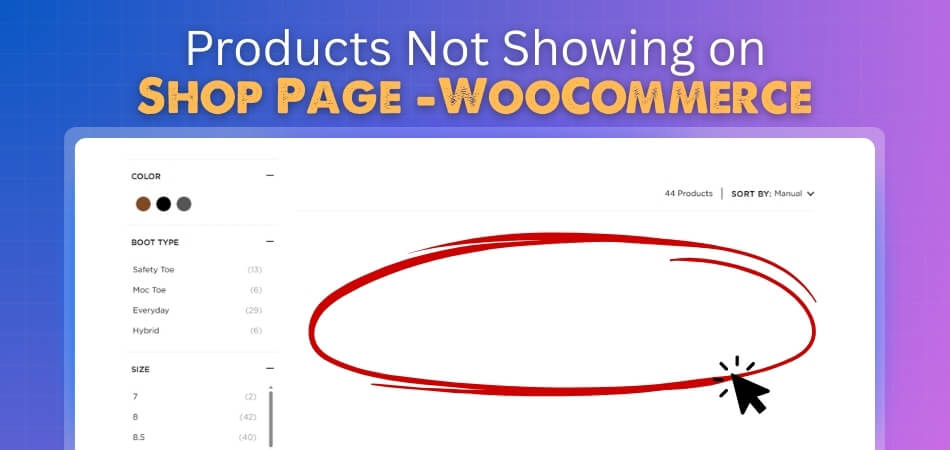
In many cases, the product is fully created and published in the backend, but it does not appear on the frontend shop page. This usually happens when visibility settings are restricted or when filters and queries are limiting what users can see.
Shop Page Loads but Shows No Products
Sometimes the shop page itself loads correctly, but it appears completely empty. This often points to a configuration issue, such as the wrong page being assigned as the shop page or a query conflict caused by a theme or plugin.
Products Show in Admin but Not in Categories
You may see products inside the WooCommerce dashboard, but they do not appear in category pages or listings. This typically happens when products are not properly assigned to categories or when category visibility settings are restricted.
Products Hidden by System Rules
WooCommerce may automatically hide products based on stock status, catalog visibility, or filter conditions. This means the system is working as configured, but the setup does not match your expectation.
Understanding the exact behavior helps you apply the right fix instead of guessing and wasting time.
Common Reasons Products Do Not Show on the Shop Page
Now that you understand how this issue appears, the next step is identifying the real causes behind it. In most WooCommerce stores, product visibility problems come from a small set of technical and configuration-related issues. Let’s break them down clearly so you can pinpoint the exact problem.
Product Visibility Misconfiguration
WooCommerce allows you to control where products appear. If catalog visibility is set to hidden or search-only, the product will not show on the shop page. This setting is often changed accidentally during product editing.
Stock Settings Restrictions
There is a global option to hide out-of-stock products. If this is enabled, any product marked as out of stock will completely disappear from the shop page, even though it still exists in your dashboard.
Incorrect Shop Page Setup
If the shop page is not properly assigned in WooCommerce settings, your store will not know where to display products. This can make the shop page appear empty even when products are available.
Category or Taxonomy Issues
Products must be assigned to categories to appear correctly. If categories are missing, hidden, or misconfigured, products may not show in listings or archives.
Cache or CDN Problems
Caching systems can serve outdated versions of your shop page. Even after fixing issues, products may still not appear until the cache is cleared.
Theme or Plugin Conflicts
Some themes and plugins modify how WooCommerce queries products. A conflict can break the default display logic, causing products to disappear from the shop page.
Filtering or Query Restrictions
Advanced filters, especially AJAX-based ones, can unintentionally exclude products based on attributes, price ranges, or stock conditions.
Most visibility issues come from these core areas, so checking them systematically can solve the problem quickly.
Check Product Visibility Settings First
Start with product visibility because this is one of the fastest ways to find why products are not showing on the WooCommerce shop page. Even if a product is published, WooCommerce can still hide it from the frontend when the catalog settings are not correct.
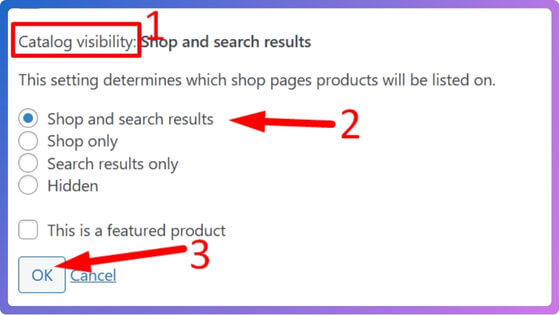
Check Catalog Visibility
Open the product edit page and look for the catalog visibility option. Make sure it is set to “Shop and search results.” If it is set to hidden or search results only, the product may not appear on the main shop page.
Confirm Product Status
A product must be published to appear publicly. If it is saved as draft, pending review, or private, customers will not see it on the shop page even though you can view it inside the admin dashboard.
Review Product Type Settings
Simple, variable, grouped, and external products can behave differently if their data is incomplete. For example, a variable product may not display properly if variations are missing, disabled, or not priced correctly.
Check Featured or Custom Visibility Rules
Some themes, builders, or plugins add extra visibility controls. Review any custom product display settings, especially if your store uses product badges, filters, catalog mode, or role-based visibility tools.
Product visibility settings should be checked first because one small option can hide products from the entire shop page.
Confirm Product Stock Status and Catalog Visibility
After checking visibility settings, the next important layer is stock configuration. WooCommerce uses inventory rules to control whether products appear on the shop page, and many store owners miss this connection. Let’s go through the key checks you should perform.
Check Stock Status
Open the product and verify that it is marked as “In stock.” If a product is set to “Out of stock,” WooCommerce may hide it depending on your global settings. Even a single incorrect stock value can prevent it from appearing.
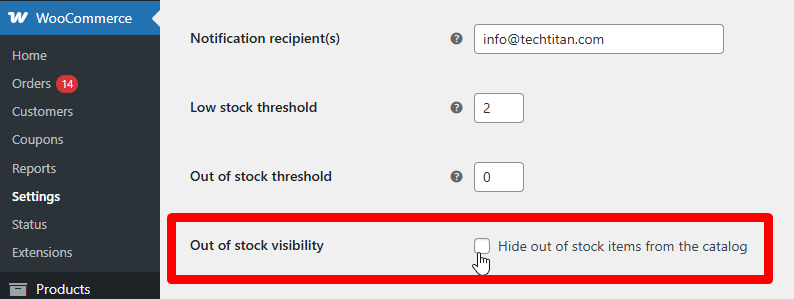
Review Global Inventory Settings
Go to WooCommerce settings and find the inventory section. If the option “Hide out of stock items from the catalog” is enabled, all out-of-stock products will be removed from the shop page automatically. Disable this if you want them visible.
Verify Stock Quantity and Management
If stock management is enabled but the quantity is set to zero, WooCommerce treats the product as unavailable. Make sure stock quantity is correctly set or disable stock management if not needed.
Check Backorder Configuration
If you allow backorders but do not configure them correctly, products may still behave like out-of-stock items. Ensure backorders are enabled and visible if you want customers to see and purchase them.
Stock settings silently control product visibility, so always verify inventory rules when products disappear from the shop page.
Review WooCommerce Shop Page Settings
If your products and stock settings look correct, the next step is to verify the shop page configuration itself. WooCommerce needs a properly assigned page to display products, and even a small misconfiguration here can result in an empty shop page.
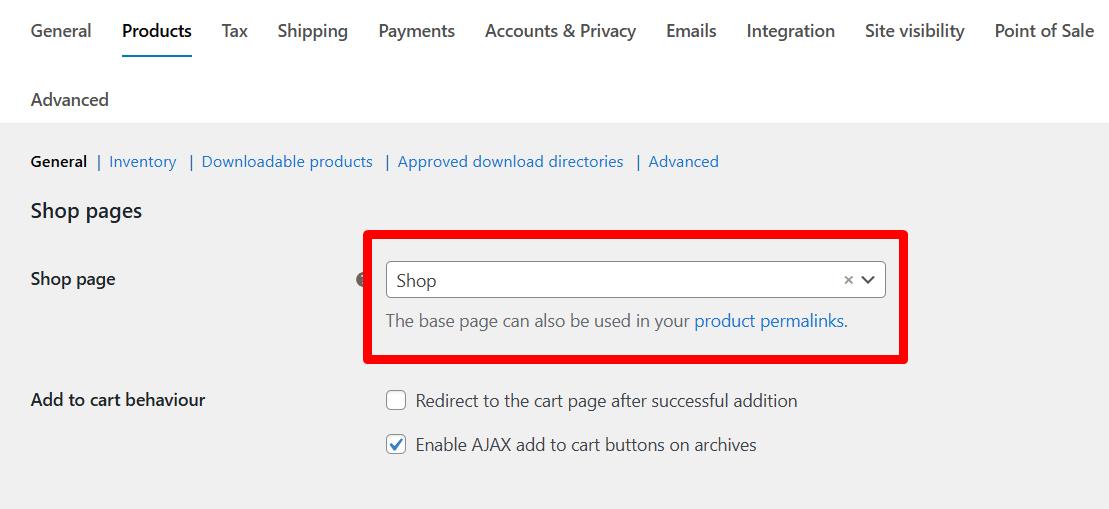
Assign the Correct Shop Page
Go to WooCommerce settings and check the products section. Make sure a valid page is selected as your shop page. If no page is assigned or the wrong page is selected, products will not display.
Check Page Content and Structure
The shop page should remain clean and use WooCommerce’s default product loop. Avoid adding custom shortcodes or page builder elements that override the default product display unless you know exactly how they work.
Verify Permalink Settings
Sometimes broken permalinks can prevent products from loading correctly. Go to WordPress permalink settings and re-save them to refresh your URL structure without making changes.
Ensure Page Is Published and Visible
The shop page itself must be published and publicly accessible. If it is set to private or restricted, products will not be visible to users.
Even with correct products and settings, a misconfigured shop page can block everything from displaying properly.
Fix Category, Tag, and Product Assignment Issues
Once the shop page is correctly set, the next step is to ensure your products are properly organized. WooCommerce relies on categories, tags, and taxonomy structure to decide where products appear. If these are misconfigured, products may exist but still not show on the shop page or category pages.
Assign Products to Categories:
Every product should be linked to at least one category. If a product is not assigned, it may not appear in listings depending on your theme or setup. Always double-check category selection while editing products.
Check Category Visibility
Sometimes categories are hidden or excluded from display settings. If a category is not visible, products inside it may also not appear on the shop page or archive pages.
Verify Default Product Category
WooCommerce uses a default category when none is selected. If this category is hidden or not displayed in your theme, products assigned to it may remain invisible on the frontend.
Review Tag and Attribute Usage
If your store uses tag-based or attribute-based filtering, missing or incorrect tags can prevent products from appearing in filtered views or search results.
Check Parent and Child Category Structure
Incorrect hierarchy setup can affect product visibility. For example, products assigned only to subcategories may not appear if your shop page is set to show only parent categories.
Proper product organization ensures that items appear in the right place and remain visible across your store.
Clear Cache and Regenerate Product Lookup Tables
After fixing visibility, stock, and category issues, the next step is to handle caching and database sync. Sometimes WooCommerce is already fixed, but the frontend still shows old data because of cached files or outdated lookup tables. This step ensures your changes actually appear on the live site.
Clear Website Cache
If you are using caching plugins, server cache, or hosting-level optimization, clear all caches immediately after making changes. Cached pages can still show an empty shop page even when products are correctly configured.
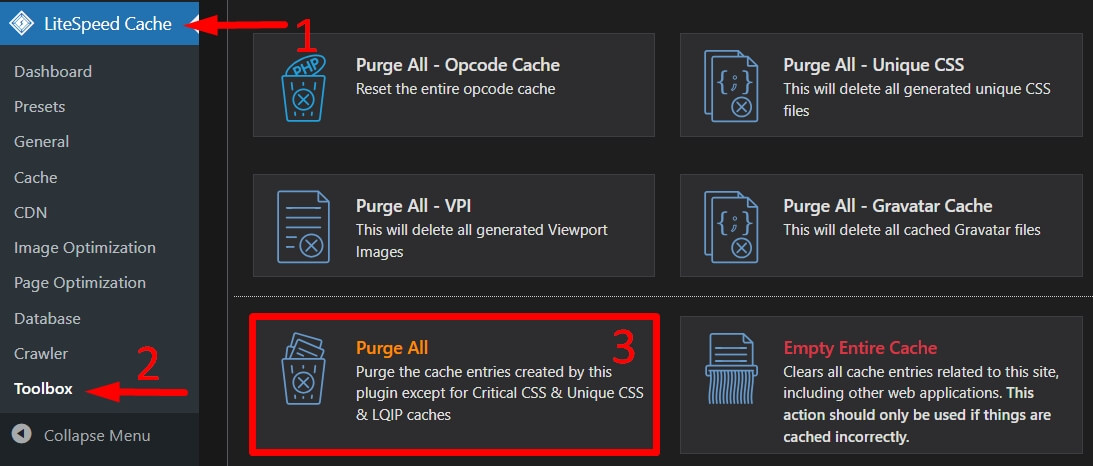
Purge CDN Cache
If your store uses a CDN like Cloudflare, it may serve an old version of your shop page globally. Purge the CDN cache to force fresh content to load.
Regenerate Product Lookup Tables
WooCommerce uses internal lookup tables to speed up product queries. If these tables are outdated or corrupted, products may not display correctly. Go to WooCommerce status tools and regenerate product lookup tables.

Reindex Products for Better Query Performance
In some cases, reindexing helps WooCommerce rebuild product data relationships. This is especially important for large stores with filters, attributes, and variations.
Cache and lookup tables often hide the real fix, so always refresh and rebuild data after making changes.
Check Theme or Plugin Conflicts
If everything looks correct but products are still not showing, the issue may come from theme or plugin conflicts. WooCommerce relies on proper product queries, and even a small conflict can break how products are displayed on the shop page.
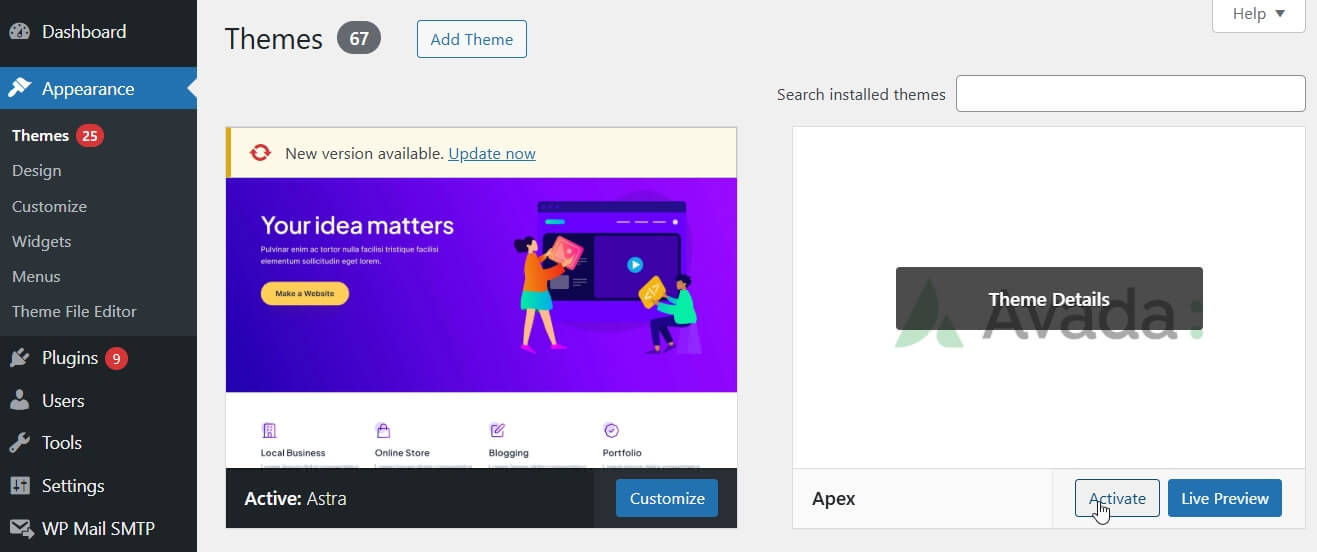
Test with a Default Theme
Temporarily switch to a default WordPress theme like Storefront. If products appear after switching, your current theme is likely overriding WooCommerce queries incorrectly.
Disable Plugins One by One
Deactivate all plugins except WooCommerce, then reactivate them one by one. This helps you identify which plugin is causing the issue. Pay close attention to plugins related to filters, SEO, caching, or custom product display.
Check Custom Code and Snippets
If you have added custom functions in your theme’s functions file or used code snippet plugins, review them carefully. Custom queries or hooks can unintentionally hide products from the shop page.
Look for Query Overrides
Some themes and plugins modify the default product loop using custom queries. If these are not configured properly, they may return empty results even when products exist.
Theme and plugin conflicts are common in advanced WooCommerce setups, so testing in isolation helps identify the exact cause quickly.
How Product Filters Can Hide WooCommerce Products
After checking themes and plugins, one often overlooked area is product filtering. Modern WooCommerce stores use advanced filters to improve user experience, but incorrect filter setup can completely hide products from the shop page. Understanding this layer is critical, especially if you are using AJAX-based filtering systems.
Incorrect Filter Configuration
Filters based on attributes like price, category, rating, or stock can exclude products if conditions are too strict. For example, a price filter range that does not match your products will return an empty shop page.
AJAX Filter Issues
Many stores use dynamic filtering plugins such as Dynamic AJAX Product Filters for WooCommerce. If filters are not properly configured, the product query may return no results even though products exist in the database.
URL-Based Filtering Problems
SEO-friendly filter URLs can sometimes apply hidden conditions. When users land on a filtered URL, they may see no products because the filter parameters are too restrictive or outdated.
Attribute and Variation Mismatch
If products do not have the correct attributes assigned, they will not appear when filters are applied. This is common with variable products where attributes are partially configured.
Conflict Between Filters and Stock Rules
Filters combined with stock conditions can hide products unintentionally. For example, filtering by “in stock” while global settings hide out-of-stock items can reduce visible products to zero.
Filters improve navigation, but if not configured correctly, they can silently remove all products from the shop page.
Step-by-Step Fix Checklist
Now that you understand all possible causes, here is a practical checklist you can follow to fix the issue quickly. Instead of guessing, go through each step one by one and you will identify the exact problem.
Set Product Visibility Correctly
Edit your product and ensure catalog visibility is set to “Shop and search results.” This alone fixes many cases where products are hidden unintentionally.
Publish the Product
Check that the product status is “Published.” Draft or private products will never appear on the shop page.
Confirm Stock Availability
Make sure the product is marked “In stock” or that out-of-stock items are not hidden in global settings. Stock rules often control visibility silently.
Assign Proper Categories
Ensure every product is assigned to at least one visible category. Without category assignment, products may not appear in listings.
Verify Shop Page Setup
Go to WooCommerce settings and confirm the correct page is assigned as the shop page and is publicly visible.
Clear Cache and Refresh Data
Clear all caching layers including plugins, server cache, and CDN. Then regenerate WooCommerce product lookup tables.
Disable Conflicting Plugins
Temporarily deactivate plugins and test your shop page. Reactivate them one by one to find the conflict.
Test Without Filters
Disable product filters or reset filter conditions to check if they are hiding your products.
Following this checklist step by step helps you fix most WooCommerce visibility issues without unnecessary trial and error.
Best Plugin Support for Better Product Display and Filtering
Once your issue is fixed, the next step is making sure it does not happen again. As your store grows, managing product visibility, filtering, and display manually becomes difficult. Using the right tools can help you maintain control, improve SEO, and deliver a better shopping experience.
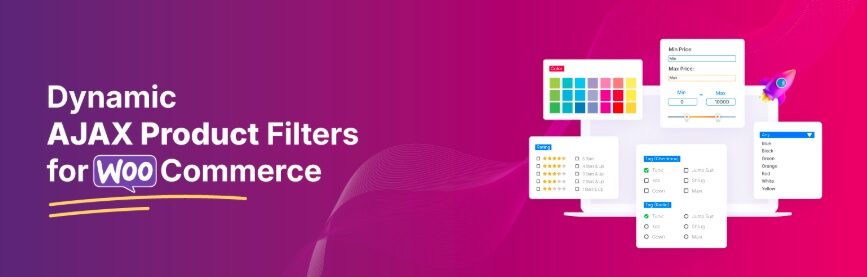
Improve Product Discovery with Smart Filters
Advanced filtering systems allow users to quickly find products based on price, category, attributes, and stock. This improves user experience and reduces bounce rate, especially for stores with large catalogs.
Control Visibility Without Errors
A well-built filtering plugin helps you manage which products appear under different conditions without breaking WooCommerce queries. This prevents accidental hiding of products due to misconfiguration.
SEO-Friendly Filter URLs
Modern filtering tools generate clean and controlled URLs that help search engines index important pages while avoiding duplicate content issues. This supports both GEO targeting and AI-driven search systems.
Faster Loading and Better UX
AJAX-based filtering loads products without refreshing the page, making browsing smoother. Faster interaction improves engagement and increases the chances of conversion.
Recommended Solution for Advanced Stores
If you need full control over filtering and visibility, tools like Dynamic AJAX Product Filters for WooCommerce help manage filters, improve product discovery, and ensure your shop page always displays correctly.
The right plugin not only prevents visibility issues but also improves SEO, speed, and overall shopping experience.
FAQ
Why are my WooCommerce products not showing on the shop page?
This usually happens due to incorrect product visibility settings, unpublished products, stock status restrictions, wrong shop page configuration, or conflicts from themes and plugins. In most cases, checking these core areas resolves the issue quickly.
How do I make products visible in WooCommerce?
Edit the product and set catalog visibility to “Shop and search results,” ensure the product is published, assign it to a category, and confirm stock status is correct. These steps make the product visible on the shop page.
Does stock status affect product visibility in WooCommerce?
Yes, stock status directly impacts visibility. If “hide out of stock items” is enabled, WooCommerce will automatically remove those products from the shop page even if they are active in the backend.
Can WooCommerce filters hide my products?
Yes, filters can hide products if conditions are too strict or misconfigured. Price ranges, attributes, stock filters, or URL parameters can all limit product visibility unintentionally.
Why is my WooCommerce shop page empty but products exist?
This often happens due to incorrect shop page assignment, caching issues, or query conflicts caused by themes or plugins. Verifying these settings usually fixes the problem.
Final Thoughts
Products not showing on the WooCommerce shop page is a common but fully fixable issue when you follow a structured approach. Instead of guessing, focus on the core areas like visibility settings, stock status, shop page configuration, categories, and filtering behavior. Each layer controls how products appear, so checking them step by step gives you a clear path to resolution.
From an SEO and AI perspective, fixing this issue does more than just restore visibility. It improves crawlability, ensures your products are indexed correctly, and helps search engines and AI systems understand your store structure. This directly impacts rankings, traffic quality, and conversions.
As your store grows, consider using reliable tools and maintaining clean configurations to avoid similar issues in the future. A well-optimized shop page not only displays products correctly but also builds trust and improves the overall shopping experience.
Consistent monitoring and proper setup keep your WooCommerce store visible, searchable, and conversion-ready.
