

WooCommerce can show a product as in stock and still stop the order at checkout when visible availability does not match final purchase validation. Product pages often reflect stock status early, while checkout applies stricter checks around quantity, variation eligibility, reserved inventory, fulfillment rules, or other order conditions.
In practical terms, in stock does not always mean ready to purchase. Shoppers may add the item without any warning, then run into a block only when WooCommerce rechecks whether that exact product can still be sold under the current checkout conditions.
This guide explains why WooCommerce shows in stock but blocks checkout, where that mismatch usually begins, and how to bring stock display and checkout behavior back into alignment.
In Stock And Checkout-Ready Are Not the Same Thing
WooCommerce can show a product as in stock before checkout confirms whether that product can actually be purchased. Stock visibility helps the shopper see what appears available, but checkout still has to validate whether the same item, quantity, variation, and order conditions can go through successfully.
That gap is where this problem usually begins.
- In stock usually reflects visible availability, not final purchase approval.
- Checkout rechecks whether the product still qualifies under the current order conditions.
- Product pages and checkout do not always rely on the same validation logic.
- A product can look available earlier and still fail later in the buying flow.
- Quantity, variation, shipping, or fulfillment checks can change the result.
- Late-stage validation is often what turns visible stock into a blocked checkout.
Why WooCommerce Shows In Stock but Blocks Checkout?
WooCommerce can show a product as in stock and still block checkout when visible stock status does not match the final purchase eligibility. In most cases, the product looks available on the storefront first, but checkout applies stricter validation around variation selection, quantity, fulfillment, required checkout data, or real-time inventory conditions before the order can go through.
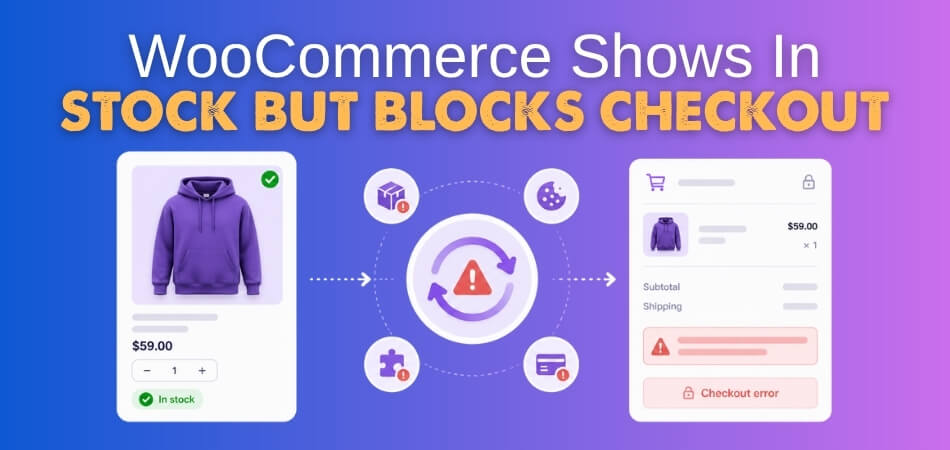
That mismatch usually comes from a few deeper gaps.
Stock Display And Order Validation Fall Out Of Sync
Product pages often show whether an item appears available, while checkout decides whether that same item can still be sold under the full order conditions. When those checks are not aligned, the product can look ready to buy until the final step says otherwise.
Cached Storefront Data Makes Availability Look Safer Than It Is
Older cached stock data can make the storefront show a product as available even when checkout is working from newer information. That leaves customers seeing one stock state on the product page and a different result when WooCommerce revalidates the order.
Parent Product Availability Hides Variation-Level Problems
Variable products can look in stock at the parent level even when the exact size, color, or option chosen by the customer does not fully qualify. That mismatch often stays hidden until checkout rechecks the selected variation more closely.
Checkout Inputs Break The Purchase Before Stock Is The Real Problem
Some orders fail because checkout data is incomplete or broken, not because the product is truly unavailable. Missing address details, hidden required fields, or validation issues can stop the order and make the problem look like a stock conflict.
Fulfillment Rules Change Whether The Product Can Actually Be Bought
Shipping choices, delivery zones, pickup logic, or location-based fulfillment rules can all affect whether a product remains purchasable. An item may still appear in stock, but fail once WooCommerce checks how that order would actually be fulfilled.

Extra Checkout Layers Interrupt The Final Decision
Side carts, payment tools, inventory plugins, and theme customizations can add extra logic to the order flow. When one of those layers interferes with checkout behavior, WooCommerce may block the purchase even though the product page still looks normal.
Checkout Setup Breaks Before Product Logic Does
Sometimes the real issue starts in the checkout page itself. If the active checkout setup is incomplete, outdated, or not working properly with the store, the product can look purchasable until the order reaches that broken step.
Inventory Rules Look Fine Up Front But Tighten At Order Time
Some stock settings appear correct on the surface, then fail under deeper order checks. Held stock, backorder setup, sellable quantity limits, or incomplete inventory configuration can all create a late-stage mismatch between visible stock and actual checkout approval.
How to Bring Stock Display and Checkout Back Into Alignment
Fixing this issue works best when each change follows the same order as the mismatch behind it. In most WooCommerce stores, the product is not failing for one single reason. Checkout is usually blocking the order because visible availability, live validation, and store setup are no longer working under the same conditions.
That usually means working through the fixes in this order.
Fix 1: Make Stock Display and Checkout Validation Use the Same Logic
WooCommerce can show a product as available earlier in the journey, then reject it later when checkout applies stricter purchase rules. Start by reviewing whether the product page, cart, and checkout are all using the same availability conditions for the same item, quantity, and purchase path.
Review the validation path first:
- Test the exact product, quantity, and checkout path that originally failed.
- Compare what the product page shows with what checkout allows.
- Recheck whether late-stage purchasability rules are stricter than storefront stock display.
- Make sure the item is not being shown as available before final order conditions are met.
Fix 2: Clear Cached or Stale Availability Data
Caching is one of the most common reasons customers see a product as in stock while checkout is already working from newer inventory or validation data. If the storefront shows older stock output, the product can look purchasable until checkout refreshes the real state.
Review stale data next:
- Clear plugin, server, CDN, and browser cache before testing again.
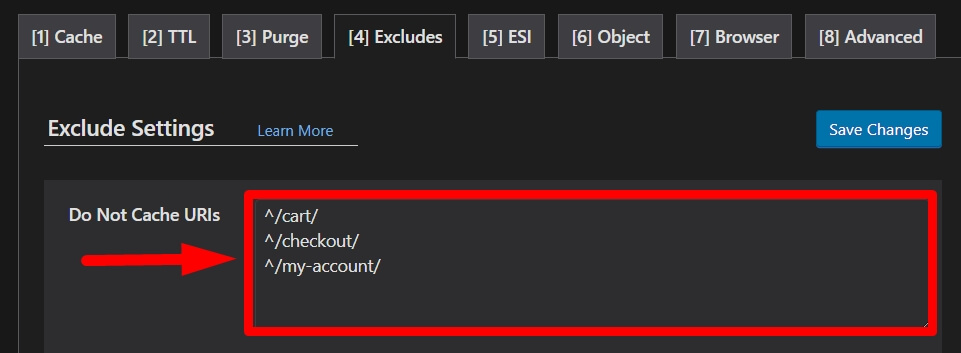
- Exclude cart, checkout, and account-related pages from caching.
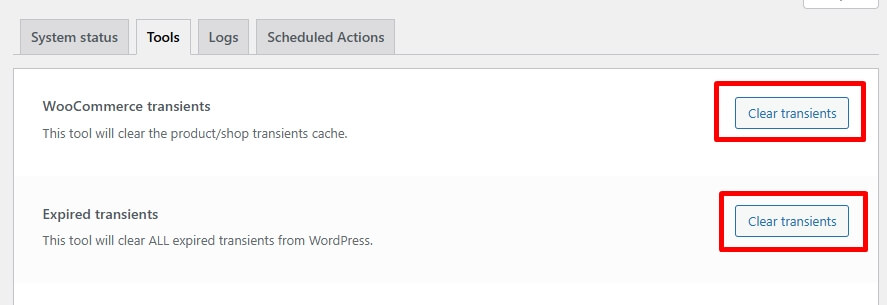
- Clear WooCommerce transients and expired transients.
- Test again in incognito mode to rule out stored session or cache behavior.
Fix 3: Check the Exact Variation Instead of the Parent Product Alone
Variable products often look available at the parent level even when the selected option is not. Size, color, or other variation-level inventory settings may be blocking the order while the main product still appears in stock on the storefront.
Review variation-level data carefully:
- Open the affected product and inspect the exact variation being selected.
- Check variation stock quantity, stock status, and availability rules.
- Confirm the chosen option is still sellable at checkout, not just visible on the product page.
- Retest each affected variation separately instead of relying on parent product status.
Fix 4: Repair Broken or Missing Checkout Inputs
Some checkout failures look like stock problems even when the real issue is incomplete or broken order input. If WooCommerce cannot process required shipping, billing, or address fields correctly, the product may look blocked even though stock is not the true cause.
Review checkout field behavior next:
- Confirm required address and shipping fields are still enabled and working.
- Check whether hidden or customized checkout fields are breaking validation.
- Test the same order with complete billing and shipping details.
- Make sure required country, region, and address inputs are not missing from checkout.
Fix 5: Recheck Shipping, Payment, and Fulfillment Conditions
A product may stay visible as in stock until WooCommerce evaluates how the order will actually be completed. Shipping zones, delivery methods, payment gateways, or fulfillment rules can all change whether that item still qualifies once checkout runs the final order checks.
Review order completion rules here:
- Test the same product with a different shipping address or shipping method.
- Try another payment gateway to see whether the order still fails.
- Check whether local pickup, delivery, or region-based rules are changing eligibility.
- Confirm the product remains purchasable under the exact fulfillment path being used.
Fix 6: Isolate Plugin, Side-Cart, and Theme Interference
Extra checkout layers can interrupt final validation even when WooCommerce itself is configured correctly. Inventory tools, side-cart plugins, payment integrations, and theme-level customizations can all change how the store handles stock checks and checkout approval.
Review store conflicts in a controlled way:
- Temporarily disable non-essential plugins and retest the same order flow.
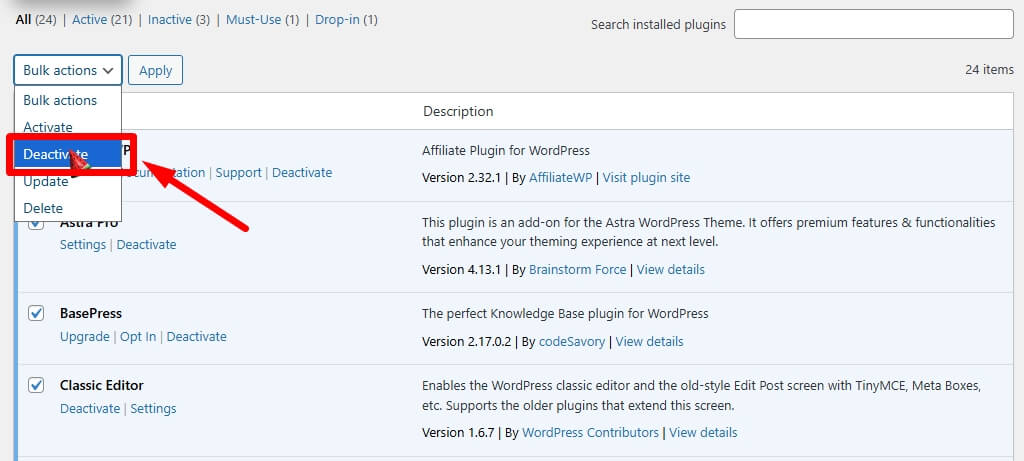
- Check inventory, side-cart, payment, and checkout-related plugins first.
- Switch briefly to a default WooCommerce-friendly theme like Storefront.
- Review custom snippets tied to stock, cart, checkout, or purchasability logic.
Fix 7: Rebuild or Recheck the Checkout Setup
Sometimes the product is not the real problem. The checkout page itself may be incomplete, outdated, or not configured properly, which makes the order fail only at the final step. This is especially worth checking if the store uses a custom checkout setup or an older page structure.
Review checkout configuration next:
- Confirm the Checkout page is assigned correctly in WooCommerce settings.
- Check whether the checkout page is missing the required checkout output.
- Recreate or regenerate the cart and checkout pages if the setup looks broken.
- Retest the same order path after confirming the checkout page works properly.
Fix 8: Review Deeper Inventory Rules That Tighten at Order Time
Some inventory setups look correct on the surface but fail under final order checks. Held stock, backorder rules, sellable quantity limits, or deeper product-level inventory settings can all make a product appear available before checkout decides it should not be sold.
Review inventory behavior last:
- Check whether held stock, pending orders, or temporary stock reservations are reducing real availability.
- Recheck backorder settings and the actual sellable quantity for the product.
- Confirm stock status matches what can truly be purchased right now.
- Review whether multi inventory management for WooCommerce is tightening availability only at checkout.
What Makes This Problem More Common in Complex Product Setups?
WooCommerce shows in stock but blocks checkout, becoming more common when product setup involves more variables than a simple in-stock or out-of-stock check. As inventory rules, purchase conditions, and fulfillment paths become more layered, the chance of visible stock falling out of sync with final checkout validation also increases.
That usually happens more often in setups like these.
- Variable Products: Parent products can look available while specific size, color, or style options fail under their own stock and checkout conditions.
- Low-Stock Items: Small inventory differences become more noticeable when even one held unit, pending order, or quantity change affects checkout approval.
- Multi-Location Inventory: Products tied to more than one stock source can become harder to validate consistently across storefront display and final order checks.
- Location-Based Fulfillment Rules: Delivery zones, pickup settings, or warehouse assignment logic can change whether the same product remains purchasable at checkout.
- Layered Purchase Limits: Minimums, maximums, step quantities, or product-specific buying rules can allow cart entry but stop the order later.
- Custom Checkout Logic: Extra fields, conditional checkout behavior, or store-specific validation can create late-stage conflicts that do not appear on the product page.
How Multi-Location Product & Inventory Management Solves This?
Multi Location product & inventory management for WooCommerce helps reduce stock and checkout mismatches by keeping product availability, location rules, and fulfillment decisions more closely aligned across the store. When inventory is handled with more clarity, products are less likely to appear available on the storefront and then fail during final checkout validation.
That is where this WooCommerce inventory management plugin setup can make a real difference.
- Keeps Stock More Accurate: Better location-level stock tracking helps reduce cases where storefront availability no longer matches what checkout can actually approve.
- Improves Product Availability Logic: Products are easier to validate when stock, location rules, and sellable quantity are managed from a clearer inventory structure.
- Supports Cleaner Fulfillment Decisions: Checkout becomes more reliable when warehouse, branch, or pickup logic is handled in a way that matches real product availability.
- Reduces False Availability Signals: Customers are less likely to see products as purchasable when deeper inventory conditions would block them later.
- Helps Complex Catalogs Stay Consistent: Variable products, low-stock items, and multi-location setups become easier to manage when inventory behavior stays more predictable.
- Creates A Smoother Checkout Path: Better coordination between stock visibility and order validation helps customers move from product page to checkout with fewer surprises.
Frequently Asked Questions
Even when the main cause is clear, store owners often still want to understand how this issue affects product behavior, order flow, and customer trust. These FAQs cover the questions that usually come up after the main troubleshooting is already done.
Can This Happen Even When The Product Is Not Actually Out Of Stock?
Yes. WooCommerce can still block checkout when the product fails a later purchase condition, even if the item is not fully out of stock in the usual sense.
Why Does The Product Stay Visible If Customers Still Cannot Buy It?
Product visibility and final purchase approval are not always handled at the same stage. An item can stay visible earlier in the journey and still fail when WooCommerce runs deeper order checks.
Is This More Likely To Hurt Conversions Than A Normal Stock Issue?
Yes. Shoppers usually react more negatively when a product looks available but fails late in the buying process, because the friction appears after they already intend to purchase.
Can This Problem Appear Only On Certain Variations Or Product Types?
Yes. Some stores notice it more often on variable products, bundled items, or products with more layered purchase conditions than a simple product setup.
Should Store Owners Recheck This After Inventory Or Checkout Changes?
Yes. Changes to stock rules, fulfillment setup, product configuration, or checkout behavior can all affect whether visible availability still matches final purchase eligibility.
Final Thoughts
People do not usually notice this problem until it costs them an order. Everything can seem fine at first, the product looks available, the cart accepts it, and then checkout suddenly says otherwise. That kind of mismatch creates doubt fast, because the customer feels like the store changed the rules at the last moment.
For that reason, solving why WooCommerce shows in stock but blocks checkout is really about making the buying experience feel consistent again. When the product page, stock logic, and checkout all point to the same answer, customers can move forward with much more confidence.
