

Products do not always disappear from the cart because a shopper clicked the wrong thing. In many WooCommerce stores, an item is removed because something changes after it was added, and the cart no longer treats that product as valid for the current session, stock state, or checkout conditions.
In this guide, we’ll explain why WooCommerce removes products from cart automatically, what usually changes right before an item disappears, and how store owners can keep cart behavior more stable from the product page to checkout.
When WooCommerce Decides A Product No Longer Belongs In The Cart
WooCommerce can remove a product when the cart checks that item again and finds that something important no longer matches. The product may have been valid when it was added, but later changes can make WooCommerce treat it differently before checkout continues.
That recheck usually happens when one of these conditions changes:
- Stock availability changes
- Variation data no longer match
- Session continuity breaks
- Cart cookies stop identifying the shopper
- Login changes cart ownership
- Shipping or location rules update
- Pricing or cart conditions recalculate
- Cached cart data overrides live state
- A plugin or custom rule rejects the item
What Changes Right Before The Product Gets Removed
Products usually do not disappear from the cart without a trigger. In most WooCommerce stores, something changes just before the removal happens, and that change causes the cart to recheck whether the item still qualifies to stay there.
Common trigger points include:
- Page Refresh Or Return Visit: The cart reloads and revalidates the product against the current session, stock, or cart conditions.
- Login Or Account Recognition: WooCommerce may merge, replace, or recalculate the active cart once the shopper is identified.
- Shipping Or Location Update: A new shipping region, pickup choice, or fulfillment rule can make the product no longer valid.
- Quantity Change: Updating quantity can trigger stock rechecks, pricing logic, or product-limit conditions that remove the item.
- Checkout Recalculation: Shipping, tax, payment, or cart rules may update during checkout and force WooCommerce to revalidate products again.
- Background Stock Change: Inventory can shift after the item was added, especially in stores using multi inventory management for WooCommerce, where stock updates may reflect changing location-level availability.
- Session Or Cookie Disruption: A broken session or cookie change can make WooCommerce treat the cart like a different shopping state.
Why WooCommerce Removes Products From Cart Automatically (Main Reasons)
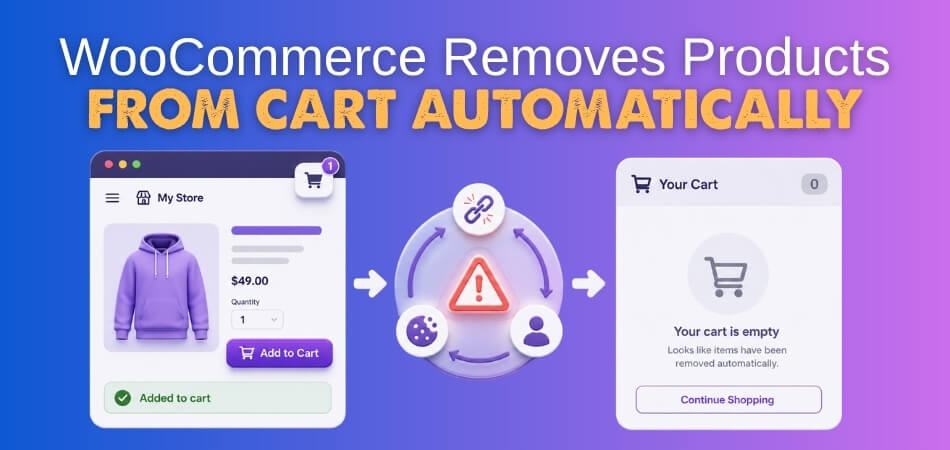
WooCommerce removes products from cart automatically when the store checks that item again and decides it no longer qualifies to stay there. In most cases, the trigger is not the shopper removing it manually. It is a change in stock validity, session continuity, cached cart state, login/cart ownership, or custom cart logic that makes WooCommerce revalidate the item differently. Several store-level issues usually sit behind that behavior.
Stock Or Availability Rules No Longer Match The Cart
A product can be added successfully at first, then fail a later cart check when stock, variation availability, backorder rules, or fulfillment conditions no longer match what WooCommerce now sees as valid. This is one of the most common reasons an item disappears after a later cart recheck rather than at the original add-to-cart moment.
Session Or Cookie Continuity Breaks Cart Ownership
WooCommerce depends on cart and session cookies to reconnect the shopper to the correct cart state. When that continuity breaks, the store can stop treating the active cart as the same one that originally held the product, which makes automatic removal much more likely during refresh, navigation, or checkout.
Cached Or Stale Cart Data Overrides The Live Cart State
Cart and checkout behavior should stay dynamic. When stale cached page output or cached cart-sensitive responses override the live session, WooCommerce can appear to remove products because the shopper is no longer seeing the actual current cart state.
Login Or Cart Merge Logic Replaces The Active Cart
Some removals happen right after login or account recognition. At that point, WooCommerce may need to reconnect, merge, or replace the guest cart with account-linked cart data, and products can disappear if the active cart state is no longer the one WooCommerce decides to keep.
Plugin Or Theme Logic Changes What The Cart Accepts
Custom product rules, checkout add-ons, performance plugins, security tools, and theme-level WooCommerce edits can all affect how cart items are validated. When those rules run during refresh, login, or checkout recalculation, WooCommerce may remove a product because the surrounding logic has changed what the cart will accept.
JavaScript, AJAX, Or Front-End Validation Breaks Cart Consistency
Visible cart behavior often depends on JavaScript and AJAX-driven updates staying aligned with the real cart state. When cart fragments, update requests, or front-end validation fail, an item can appear to be accepted briefly and then disappear once WooCommerce rechecks the cart against the actual backend state.
Store Setup Problems Weaken Cart Stability
Some automatic removals come from setup issues rather than live cart logic alone. Incorrect Cart or Checkout page configuration, missing shortcode or block setup, stale session data, or broken routing can all make WooCommerce handle cart restoration and validation less predictably than it should.
How To Stop WooCommerce From Removing Products Automatically
Automatic cart removal is usually fixed by tightening the exact checks WooCommerce relies on before it allows a product to stay in the cart. The most reliable approach is to work through stock validity, session continuity, cached cart state, login behavior, custom cart logic, front-end updates, and store setup in that order.
Fix 1: Make Stock Validation More Predictable
Products should not stay in the cart briefly and then fail a later stock check. The first priority is making sure WooCommerce sees the same availability rules at add-to-cart, cart review, and checkout. A reliable WooCommerce inventory management plugin can help keep stock checks, product availability, and cart validation more consistent across the full buying flow.
Start with product validity itself:
- Confirm the product is still in stock when the cart rechecks it.
- Review variation-level stock, backorder, and purchase rules.
- Check whether shipping region or fulfillment changes affect item eligibility.
- Recheck location-based inventory logic if stock depends on multiple sources.
Fix 2: Keep Session And Cookie Continuity Stable
WooCommerce cannot keep the same cart if it stops recognizing the same shopper. When session or cookie continuity breaks, products can disappear even though they were added correctly a moment earlier.
Then look at shopper continuity:
- Test whether the cart survives refresh, navigation, and short idle time.
- Review cookie or consent behavior that may interrupt cart ownership.
- Check whether guest carts behave differently from logged-in carts.
- Clear customer sessions and retest in a fresh browsing session.
Fix 3: Keep Cart And Checkout Data Fully Dynamic
Old cached cart data can make WooCommerce appear to remove products when the real problem is stale page output replacing the live cart state. Dynamic pages need to reflect the current session every time.
Next, review stale cart output:
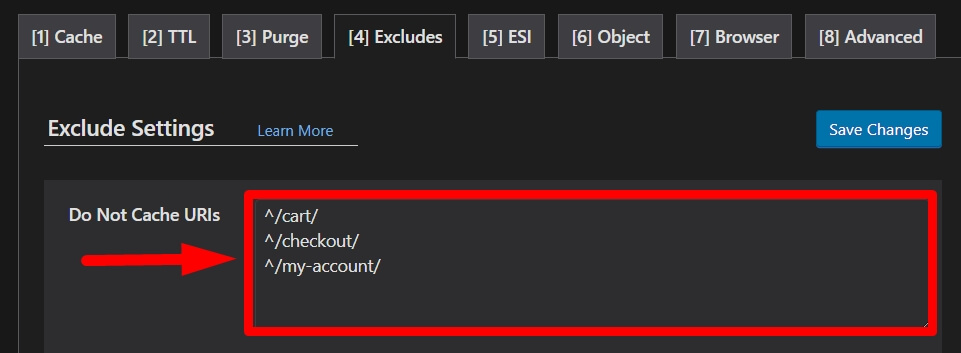
- Exclude /cart/, /checkout/, and /my-account/ from cache.
- Check plugin, server, and CDN rules for cached WooCommerce responses.
- Make sure cart-sensitive pages bypass cache when WooCommerce cookies are present.
- Clear all cache layers after meaningful changes.
Fix 4: Review Login And Cart Merge Behavior Carefully
Some products disappear only after the shopper signs in or is recognized. In those cases, the active guest cart may be getting replaced, merged badly, or recalculated against different account-linked conditions.
Now test ownership changes around login:
- Add products as a guest, then repeat the same flow through login.
- Check whether the guest cart is being replaced by older saved cart data.
- Review plugins that affect login, registration, or saved-cart behavior.
- Compare cart contents before and after account recognition.
Fix 5: Strip Back Plugin And Theme Interference
Some automatic removals come from added logic around products, checkout, pricing, security, or performance. A cleaner setup makes it easier to see whether WooCommerce is removing the item for a valid reason or because extra logic is interfering.
At this stage, isolate the conflict source:
- Switch temporarily to a default WooCommerce-friendly theme.
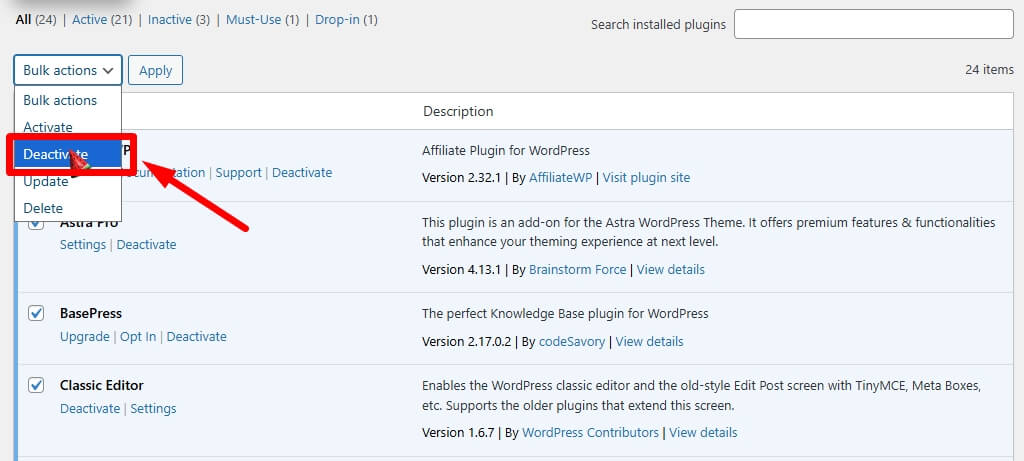
- Disable non-essential plugins one by one and retest the same cart flow.
- Review checkout tools, pricing rules, security plugins, and custom product logic.
- Check whether a cleaner plugin stack supports steadier cart behavior overall.
Fix 6: Check JavaScript, AJAX, And Cart Update Behavior
A product can appear to add correctly, then disappear once the cart updates again. That usually means front-end cart behavior is not staying aligned with the real backend cart state.
Then inspect the update layer more closely:
- Open the browser console and check for JavaScript errors.
- Review AJAX requests tied to add-to-cart and cart updates.
- Test whether the product still disappears after a manual reload.
- Compare mini cart, full cart, and checkout behavior after each update.
Fix 7: Recheck Core WooCommerce Setup
Some removal problems come from setup weaknesses rather than product rules alone. Cart behavior becomes less predictable when core WooCommerce pages, tools, or routing are not fully aligned.
Finish with the store setup itself:
- Confirm Cart, Checkout, and My Account pages are assigned correctly.
- Make sure the cart page uses the proper shortcode or official Cart Block.
- Use WooCommerce Status tools to clear transients or stale customer sessions.
- Flush permalinks and retest if routing or page behavior still looks inconsistent.

Before And After Fixing Automatic Cart Removal
Automatic cart removal becomes easier to understand when the cart is compared before and after the underlying issue is fixed. The difference is usually not just that products stop disappearing. The whole cart flow starts behaving in a way that feels more consistent, predictable, and easier for shoppers to trust.
| Before Fix | After Fix |
| Products disappear after refresh, login, or checkout updates | Products remain in the cart unless a real cart rule changes |
| Cart behavior changes between guest and logged-in sessions | Cart stays more consistent across customer states |
| Stock checks remove items unexpectedly | Stock validation follows clearer and more predictable rules |
| Cached pages show stale or empty cart data | Cart and checkout reflect the live cart session |
| Mini cart, full cart, and checkout stop matching | Cart details stay aligned across all cart views |
| Theme or plugin conflicts cause silent cart changes | Cart behavior remains steadier under the same store setup |
| Shoppers lose trust when items vanish without warning | Shoppers can move toward checkout with more confidence |
| Store owners struggle to trace the trigger | Cart behavior becomes easier to monitor and troubleshoot |
Why The Problem Can Return Even After A Partial Fix
Automatic cart removal can seem resolved at first, then come back under a different shopping condition. That usually happens when one visible trigger is fixed, but another part of the cart validation chain is still unstable behind the scenes. A partial fix often leaves problems behind in places like these:
- Stock Checks Improve First: Product availability may look more accurate, while session continuity or cart ownership still breaks later.
- Cache Problems Ease Up: Cart pages may stop loading stale data, but login or checkout behavior can still remove items.
- Guest Cart Flow Looks Better: Anonymous sessions may improve, while logged-in cart merging still replaces or drops products.
- Checkout Triggers New Validation: Products may stay in the cart until shipping, tax, or payment recalculation runs again.
- Cart Views Stop Matching Again: The mini cart, full cart, and checkout page may still fall out of sync after updates.
- One Conflict Gets Removed: A plugin or theme issue may be fixed, while another rule still changes what the cart accepts.
- One Shopping Path Looks Stable: The cart may behave normally in one flow, then fail under a different cart condition.
- Device Or Session Differences Remain: The issue can look resolved in one environment, but return in another browsing state.
How Better Inventory Structure Helps Keep Cart Validation Stable
Cart validation becomes more reliable when product availability, stock rules, and fulfillment logic are handled through a cleaner system instead of overlapping fixes. A stronger structure reduces the chances of WooCommerce rechecking the cart against conflicting inventory conditions and removing products unexpectedly later in the shopping flow.
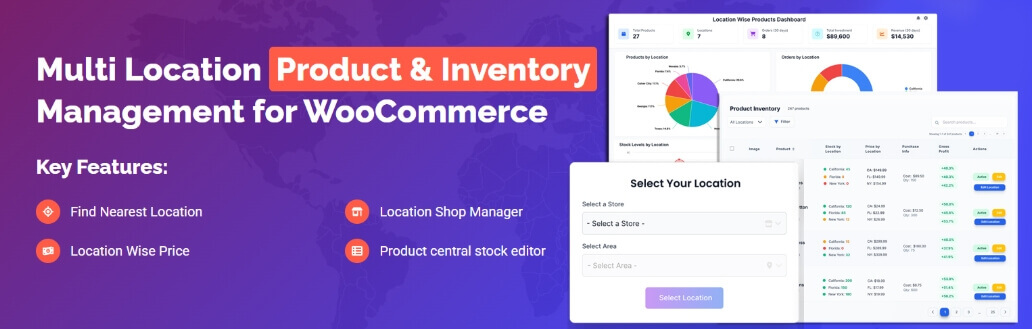
That is where multi inventory management for WooCommerce fits naturally into the picture. When stock is managed through a more organized setup across locations or availability rules, cart validation becomes easier to keep consistent from product page to checkout.
- Cleaner Stock Checks: Better inventory structure helps WooCommerce validate products against clearer and more dependable stock conditions.
- Fewer Availability Conflicts: Organized stock logic reduces the chance of one rule allowing a product while another later removes it.
- More Stable Cart Rechecks: Products are less likely to fail later validation when stock and fulfillment data stay aligned.
- Stronger Location-Based Accuracy: Stores with location-aware inventory can keep product eligibility more consistent across cart and checkout steps.
- Less Patchwork Logic: A cleaner setup reduces the need for overlapping inventory fixes that make cart behavior harder to trust.
- Easier Troubleshooting: Structured inventory control makes it easier to tell whether the issue comes from stock rules, cart validation, or something else.
- More Predictable Checkout Flow: When inventory and cart logic stay in sync, shoppers are less likely to lose items later in the buying journey.
Frequently Asked Questions
Automatic cart removal can leave store owners with a few practical questions even after the main causes and fixes are understood. These FAQs focus on the situations people usually still want clarified before they feel confident the cart is behaving reliably again.
Can WooCommerce Remove Only One Product And Leave The Rest Of The Cart Intact?
Yes. WooCommerce may recheck each product against its own stock, variation, pricing, or checkout conditions. That means one item can fail validation while the rest of the cart stays untouched.
Why Does The Same Product Stay In One Cart But Disappear In Another?
Cart behavior can change based on customer state, selected location, timing, stock updates, or the path taken through the store. That is why the same product may stay valid in one cart and fail later in another.
Can Automatic Cart Removal Happen Without A Visible Error Message?
Yes. In many stores, the item simply disappears or the cart updates quietly without showing a clear warning. That makes the issue easy to miss while still damaging trust.
Should This Be Tested On More Than One Shopping Path?
Yes. A product may stay in the cart during a simple add-to-cart test but fail after login, during checkout, after a shipping change, or when the cart recalculates later.
What Usually Matters Most For Long-Term Stability?
Consistency matters most. Products stay in the cart more reliably when stock logic, session behavior, cart validation, and checkout rules all stay aligned across the full shopping flow.
Final Thoughts
Understanding why WooCommerce removes products from cart automatically usually comes down to one core issue: something in the store is causing WooCommerce to recheck the item and decide it no longer fits the cart as expected. That can happen through stock changes, session breaks, stale cart data, or validation rules that stop lining up at the right moment.
Once those conditions are cleaned up, the cart becomes far more dependable from product page to checkout. That kind of consistency does not just prevent disappearing items. It helps shoppers keep moving with confidence.
