

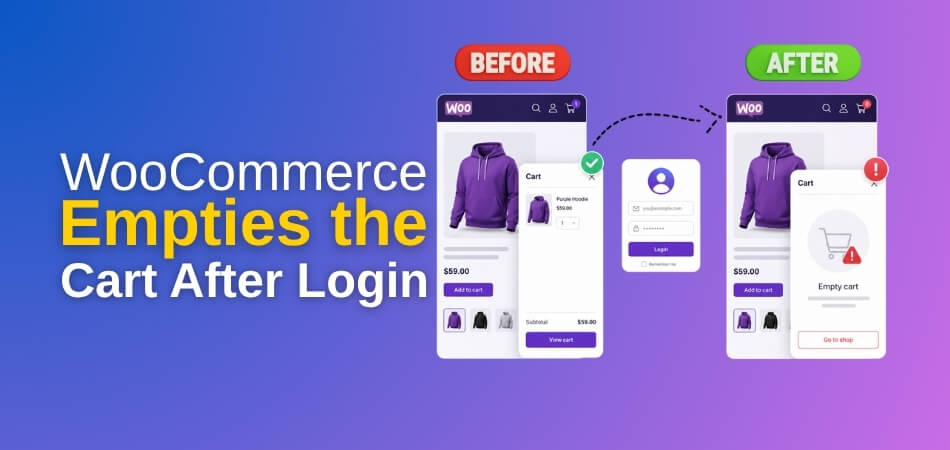
WooCommerce empties the cart after login mainly due to session conflicts, caching issues, or improper cart handling during user authentication. When a customer logs in, WooCommerce attempts to merge the guest cart with the user’s saved cart, but if sessions break or plugins interfere, the cart may reset unexpectedly.
This issue is quite common in stores using caching systems, custom login flows, or multiple third-party plugins. In most cases, it is not a core WooCommerce bug but a configuration or compatibility problem that can be fixed with the right adjustments and proper session handling.
Quick Answer: Why WooCommerce Empties the Cart After Login
If your goal is to understand the issue quickly, here are the most common reasons why WooCommerce cart is cleared after login:
- Session resets during login process: WooCommerce regenerates session data when a user logs in, and if the session is not preserved correctly, the existing cart gets removed.
- Guest cart fails to merge with user cart: WooCommerce tries to combine guest and logged-in cart data, but failures in this process can result in an empty cart.
- Caching overrides WooCommerce session data: Aggressive caching plugins or server-level caching may serve outdated cart data, causing the cart to reset.
- Plugin conflicts interrupt cart logic: Some plugins modify checkout or login behavior, which can break WooCommerce’s default cart handling.
- Cookies are not properly stored or synced: WooCommerce relies on cookies for session tracking, and if cookies fail, the cart cannot persist after login.
Common Reasons Why WooCommerce Cart is Cleared After Login
To solve this issue effectively, you first need to understand what’s happening behind the scenes. Below are the most common technical reasons why WooCommerce empties the cart after login, especially in stores using multiple plugins or caching systems.
1. Session Reset During Authentication
When a user logs in, WooCommerce regenerates the session ID for security reasons. If the session data is not properly transferred or preserved during this process, the existing cart session gets disconnected. As a result, the cart appears empty even though the items were previously added, leading to a broken shopping experience.
2. Guest Cart Not Merging Properly
WooCommerce is designed to merge the guest cart with the logged-in user’s cart. However, if this merging process fails due to misconfiguration or plugin interference, the system may overwrite the cart instead of combining it. This is one of the most common causes of the WooCommerce cart empty after login issue.
3. Caching System Conflicts
Caching plugins or server-level caching can interfere with dynamic WooCommerce sessions. If cart or account pages are cached, users may see outdated or incorrect cart data after login. This creates a situation where the cart looks empty, even though the session data may still exist in the backend.
4. Plugin or Theme Conflict
Some plugins modify WooCommerce behavior, especially checkout, login, or cart functionality. If these plugins are not fully compatible, they can interrupt the cart session lifecycle. Similarly, poorly coded themes can override WooCommerce hooks, which may result in the cart being cleared or not loaded properly after login.
5. Cookie Issues and Session Tracking Failure
WooCommerce relies heavily on browser cookies to track user sessions and cart data. If cookies are blocked, expired, or not configured correctly across domains, the session cannot persist. This leads to WooCommerce session lost after login, which directly causes the cart to reset or disappear.
Signs You’re Facing WooCommerce Session Lost After Login
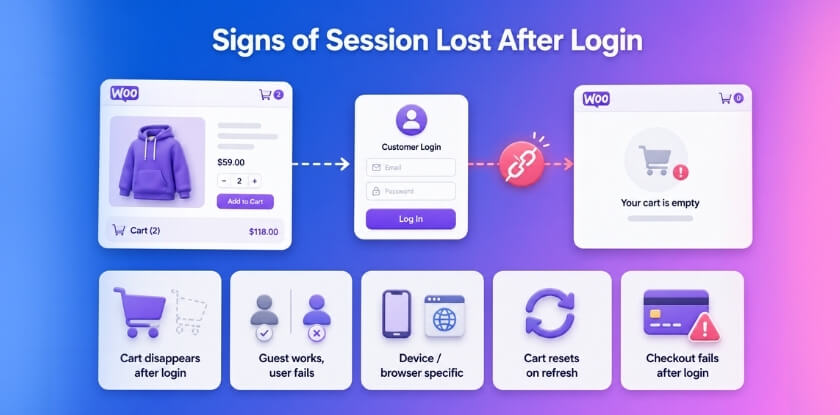
Before applying any fix, it’s important to confirm whether your issue is actually related to WooCommerce session handling. These signs will help you quickly identify if your cart problem is caused by session loss after login.
Cart Items Disappear Immediately After Login
If products vanish right after a user logs in, it usually means the session is being reset or not carried over properly. This is one of the clearest indicators of the WooCommerce cart empty after login issue, often caused by session conflicts or failed cart merging.
Works for Guest Users but Not Logged-In Users
If the cart works perfectly before login but breaks after authentication, the issue is likely tied to how WooCommerce handles user sessions. This often points to problems in session regeneration or conflicts during the login process.
Issue Appears Only on Specific Devices or Browsers
When the problem happens only on certain devices or browsers, it is usually related to cookies or browser settings. Some browsers block or restrict cookies, which prevents WooCommerce from maintaining session data properly after login.
Cart Resets After Page Refresh
If the cart appears briefly and then disappears after refreshing the page, caching is often the main issue. Cached pages can override live WooCommerce session data, making the cart look empty even though it was previously active.
Checkout Fails or Resets After Login
If users are redirected or lose their cart during checkout after logging in, it indicates a deeper session or plugin conflict. This can directly affect conversions and should be fixed quickly to avoid losing potential sales.
Quick Fixes to Resolve WooCommerce Cart Empty After Login
If you want fast results without diving deep into technical configurations, start with these quick fixes. In many cases, the WooCommerce cart empty after login issue is caused by simple conflicts that can be resolved within minutes.
Disable Cache for Cart, Checkout, and My Account Pages
Caching is one of the most common causes of cart issues in WooCommerce. When dynamic pages are cached, users may see outdated session data, which results in an empty cart after login.
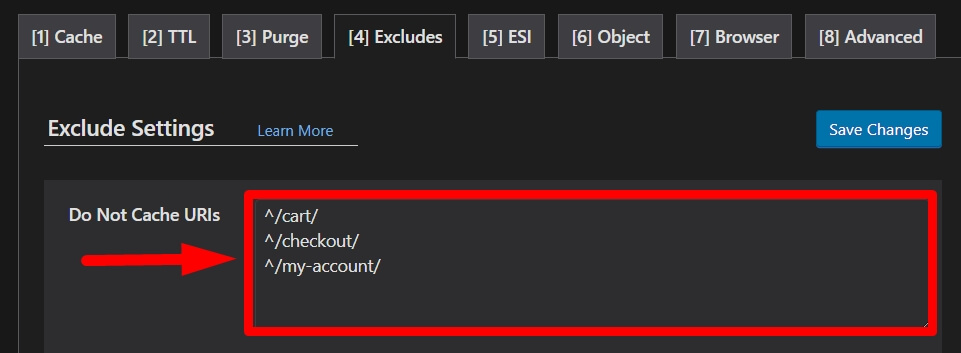
Make sure your caching plugin excludes the following pages:
- Cart page
- Checkout page
- My Account page
This ensures WooCommerce can handle real-time session data correctly.
Test With Default WooCommerce Theme
Sometimes the issue is not with WooCommerce itself but with your active theme. Custom or poorly coded themes may override core WooCommerce functions, including cart session handling.
Switch temporarily to the Storefront theme and test the login and cart behavior. If the issue disappears, your theme is likely causing the problem.
Disable Plugins One by One to Find Conflicts
Plugin conflicts are a major reason why WooCommerce cart is cleared after login. Some plugins modify checkout flow, authentication, or session handling, which can break cart persistence.
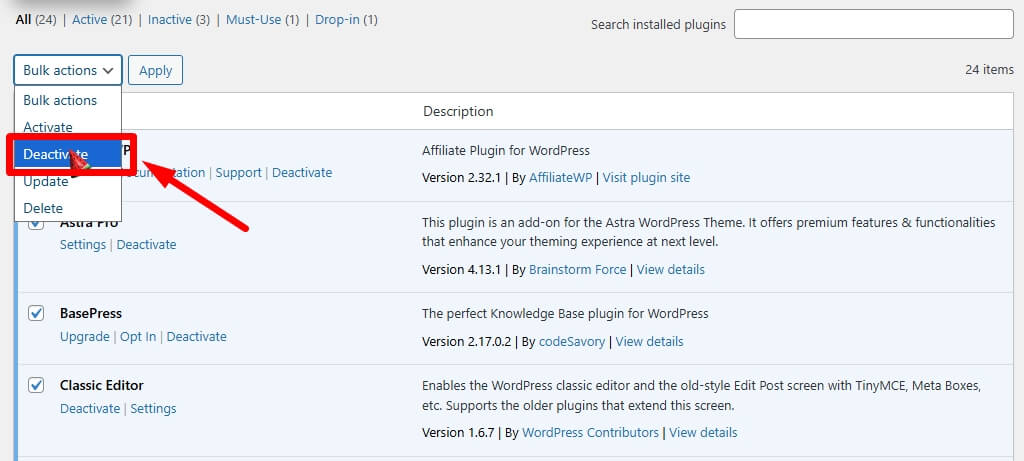
Start by disabling plugins one at a time, especially:
- Checkout plugins
- Security plugins
- Cache plugins
This helps you identify the exact plugin causing the issue.
Clear Browser and Server Cache Completely
In some cases, the issue is purely related to cached data stored in the browser or server. Even after fixing configurations, old cache files can continue to show incorrect cart behavior.
Clear:
- Browser cache
- Server cache
- CDN cache (if used)
Then test the login and cart flow again to confirm the fix.
Is It Normal for WooCommerce to Empty the Cart After Login?
Before applying any fix, it’s important to understand one key thing: WooCommerce cart empty after login can be either an intentional setup or an unintentional technical issue. Identifying the correct scenario will help you apply the right solution without breaking your store logic.
In many cases, store owners assume it is a bug, but sometimes this behavior is deliberately configured for better control over cart sessions and user experience.
Intentional: Forcing Cart to Empty After Login
In some WooCommerce stores, clearing the cart after login is done intentionally. This approach ensures that users always start with a fresh cart, which helps avoid conflicts with previously added or outdated items.
This setup is especially useful for stores that use:
- Dynamic pricing rules that change based on user roles
- User-specific or restricted products
- Membership or subscription-based access
In these scenarios, keeping old cart data can create incorrect pricing or product visibility issues.
How to Force WooCommerce Cart to Empty After Login
If you want to implement this behavior, you can use a simple code snippet that clears the cart as soon as the user logs in.
/**
* Empty the WooCommerce cart when a user logs in
*/
function clear_cart_after_login( $user_login, $user ) {
if ( function_exists(‘WC’) ) {
WC()->cart->empty_cart();
}
}
add_action( ‘wp_login’, ‘clear_cart_after_login’, 10, 2 );
This method ensures that every logged-in user starts with a clean cart, preventing session conflicts and unwanted product carryover.

Unintentional: WooCommerce Cart Empty After Login Issue (Fix Required)
If your cart is clearing automatically without your intention, then it is most likely a technical problem. This usually indicates a WooCommerce session lost after login issue, caused by conflicts in session handling, caching, or cookies.
To resolve this, you need to identify and fix the root cause instead of applying temporary solutions.
Exclude Important Pages from Cache
Caching dynamic WooCommerce pages can break cart functionality. When cached content is served, it overrides real-time session data, which results in an empty cart after login.
Make sure your caching system excludes:
- Cart page
- Checkout page
- My Account page
This allows WooCommerce to manage live session data correctly.
Fix Cookie Path and HTTPS Conflicts
Cart issues often occur when there is inconsistency in cookie handling, especially when switching between HTTP and HTTPS or using multiple subdomains.
To avoid this:
- Ensure your site runs fully on HTTPS
- Maintain consistent cookie paths across all pages
- Verify SSL configuration is properly set
This helps WooCommerce maintain session continuity after login.
Clear WooCommerce Customer Sessions
Sometimes session data becomes outdated or corrupted, which prevents the cart from loading correctly after login.
You can reset sessions by going to:
WooCommerce → Status → Tools → Clear Customer Sessions
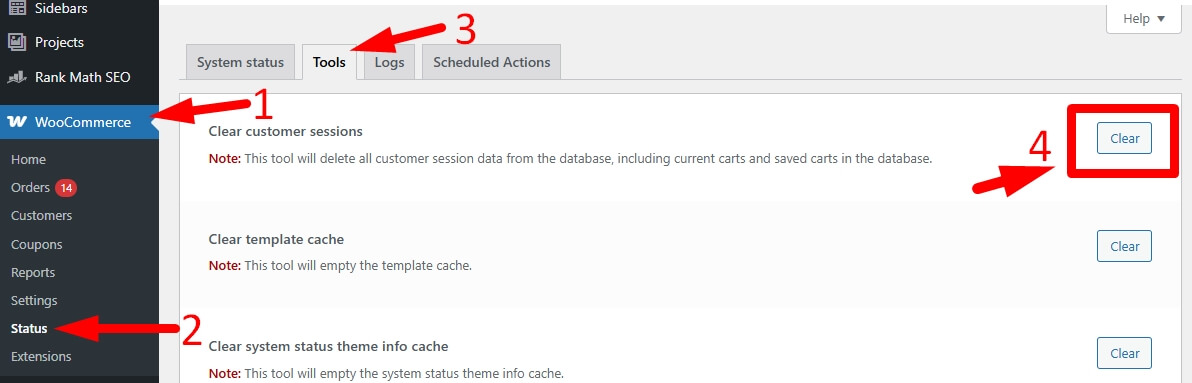
This clears stored session data and allows WooCommerce to rebuild sessions properly for all users.
Check Plugin Conflicts
Plugin conflicts are a common cause of cart issues. Some plugins interfere with WooCommerce session handling, especially those related to caching, security, or checkout customization.
Common problematic plugins include:
- Cache plugins
- Security plugins
- Jetpack (in certain configurations)
Disable plugins one by one to identify the source of the issue and restore normal cart behavior.
Recommended Tools to Fix WooCommerce Cart Empty After Login Issues
To prevent recurring issues and maintain stable cart sessions, using the right tools can make a significant difference. These tools help you manage WooCommerce sessions more effectively and identify problems before they impact your customers.
Clear Cart and Sessions for WooCommerce
This tool gives you full control over how and when carts are cleared in your store. Instead of relying on default WooCommerce behavior, you can define specific rules such as clearing carts after inactivity or login events.
It is especially useful for stores that need structured cart handling, helping prevent unexpected WooCommerce cart empty after login issues caused by session conflicts or outdated cart data.
WooCommerce Health Check & Troubleshooting Mode
This built-in WooCommerce feature allows you to test plugin and theme conflicts safely without affecting live users. You can disable plugins only for your session and identify which one is causing cart issues after login.
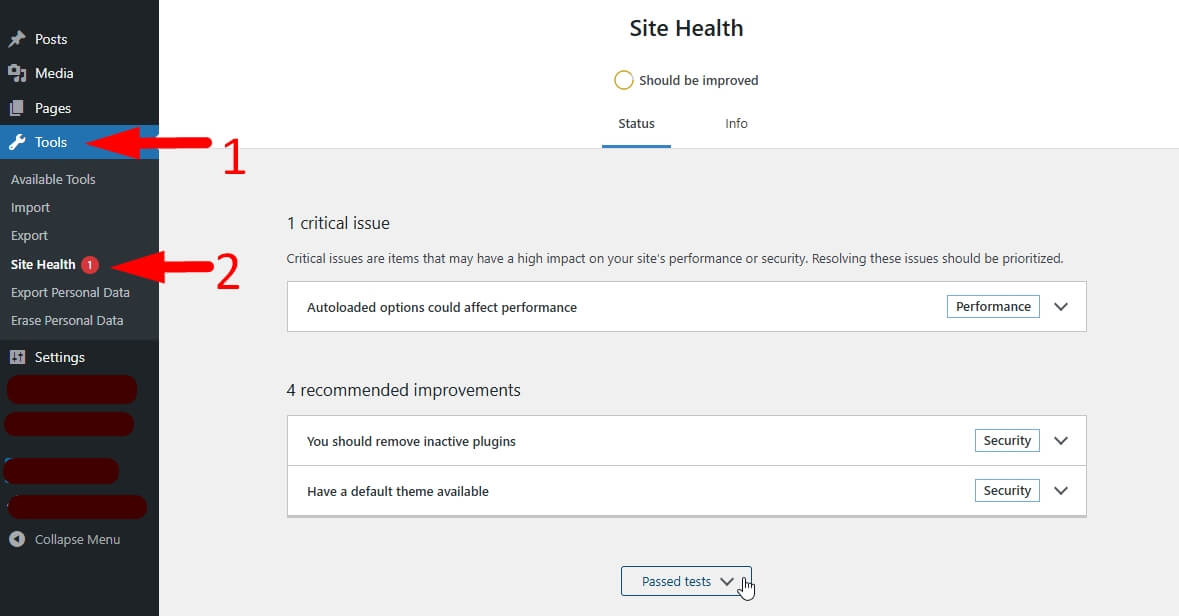
This is one of the most reliable ways to diagnose WooCommerce session lost after login problems without risking your store’s performance or customer experience.
Long-Term Fixes for Stable WooCommerce Cart Behavior
If you want a permanent solution instead of temporary fixes, you need to address the root causes of WooCommerce cart handling. These long-term improvements help ensure that your cart remains stable after login and prevents recurring WooCommerce cart empty after login issues.
Ensure Proper Session Handling
WooCommerce relies on sessions stored in the database and browser cookies to maintain cart data. If sessions are not stored or retrieved correctly, the cart will not persist after login.
Make sure:
- Sessions are saved correctly in the database
- Cookies are enabled and not blocked by the browser
- Server configurations support session persistence
Proper session handling is the foundation of fixing WooCommerce session lost after login problems.
Fix Cart Merge Logic
When a user logs in, WooCommerce attempts to merge the guest cart with the user’s existing cart. If this logic is broken or overridden, the system may replace the cart instead of merging it.
Check that core WooCommerce hooks like:
- woocommerce_load_cart_from_session
are not modified incorrectly by custom code or plugins. Ensuring correct merge behavior prevents cart data loss during login.
Configure Cache Plugins Properly
Improper caching setup can break dynamic WooCommerce functionality. Since cart and checkout pages rely on real-time data, they should never be fully cached.
To avoid issues:
- Use dynamic caching rules
- Exclude WooCommerce pages from static caching
- Ensure AJAX requests are not cached
This helps maintain accurate cart data across user sessions.
Use Reliable Hosting for Session Stability
Your hosting environment plays a major role in how WooCommerce sessions are handled. Low-quality hosting can interrupt session storage, causing carts to reset or disappear after login.
Choose hosting that supports:
- Stable PHP session handling
- Object caching compatibility
- WooCommerce-optimized environments
Reliable hosting reduces the chances of cart session failures significantly.
WooCommerce Cart Behavior: System vs Failure Points
To better understand why WooCommerce cart empty after login happens, it’s helpful to break down how the system works and where things can fail. The table below highlights each key layer involved in cart handling and the common issues that can lead to session loss.
System vs Failure Points
| System Layer | What Happens Normally | What Goes Wrong | Result |
| Session Handling | WooCommerce stores cart data in PHP sessions and links it to the user | Session resets or fails to persist during login | Cart becomes empty after login |
| Cookie Tracking | Browser cookies maintain session identity across pages | Cookies are blocked, expired, or mismatched | WooCommerce session is lost |
| Cart Merge Logic | Guest cart merges with logged-in user cart automatically | Merge process fails or is overridden | Cart does not load or gets replaced |
| Caching System | Dynamic pages load real-time cart data | Cached pages override live session data | Cart appears empty or outdated |
| Plugin/Theme Layer | Plugins extend WooCommerce functionality safely | Conflicting plugins break session/cart logic | Cart resets or behaves inconsistently |
| Server/Hosting | Server maintains stable session storage | Poor hosting or misconfiguration breaks sessions | Intermittent cart loss issues |
Best Practice Recommendation for Stable WooCommerce Cart Experience
If your store uses advanced checkout flows or handles a large number of products, relying on default WooCommerce behavior may not always be enough. In such cases, using a reliable and optimized solution can help maintain consistent cart behavior across all user interactions.
🏆 Plugincy – Best All-in-One WooCommerce Checkout and Cart Optimization Solution
This solution is built to handle complex WooCommerce environments where multiple plugins, AJAX updates, and custom checkout flows are involved. It ensures that cart data remains stable during login, page transitions, and checkout processes.
It helps reduce WooCommerce cart empty after login issues by maintaining session consistency, improving checkout flow reliability, and minimizing conflicts caused by caching or third-party integrations.
Frequently Asked Questions About WooCommerce Cart Empty After Login
To help you quickly resolve common concerns, here are answers to the most frequently asked questions related to WooCommerce cart empty after login issues.
Does WooCommerce clear the cart after login by default?
No, WooCommerce is designed to merge the guest cart with the logged-in user’s cart instead of clearing it. If your cart is empty after login, it is usually caused by session conflicts, caching issues, or plugin misconfiguration rather than default WooCommerce behavior.
How do I fix WooCommerce cart empty after login?
To fix this issue, start by disabling cache on cart and checkout pages, then check session handling and cookies. You should also test for plugin conflicts and ensure your WooCommerce setup is properly configured to maintain cart sessions after login.
Can caching plugins break WooCommerce cart functionality?
Yes, aggressive caching can override WooCommerce’s dynamic session data and cause cart reset problems. If important pages like cart or checkout are cached, users may experience WooCommerce session lost after login issues.
Why does my cart work for guests but not after login?
This usually happens when session data is not properly transferred during login. WooCommerce fails to merge the guest cart with the user cart, which results in an empty cart after authentication.
Is WooCommerce session lost after login a common issue?
Yes, this is a common issue in stores using multiple plugins, caching systems, or custom login flows. Proper session management and correct configuration can resolve this problem in most cases.
Final Thoughts on Fixing WooCommerce Cart Empty After Login
WooCommerce cart empty after login is not a core platform bug but a configuration and compatibility issue. Once you fix session handling, caching rules, and plugin conflicts, the cart behavior usually becomes stable and predictable.
Instead of relying only on quick fixes, focus on building a reliable setup where sessions, cookies, and caching systems work together smoothly. This ensures a consistent shopping experience, reduces cart abandonment, and helps protect your store from unnecessary revenue loss.
