

Cart loss on refresh usually means WooCommerce is not reconnecting the shopper to the same live cart state after the page reloads. Products may appear to add normally at first, but a simple refresh can bring back an empty cart, outdated totals, or missing item changes when session and cart persistence are not holding together properly.
In this guide, we’ll explain why WooCommerce loses cart on page refresh, what a reload actually reveals in the cart flow, and what store owners can do to keep cart behavior stable through refreshes, repeat visits, and checkout steps.
What Store Owners Usually Notice First
Cart refresh issues usually show up through behavior changes, not obvious errors. The store can look normal, product pages can still load, and add-to-cart can appear to work, yet the cart stops holding the same state after a reload.
Common early signs include:
- Products disappear after refresh
- Cart totals revert unexpectedly
- Quantity changes do not survive reload
- Mini cart and full cart stop matching
- Checkout shows missing or outdated items
- Guest carts break more often than logged-in carts
- Reloading one page changes the visible cart state
- Cart behavior feels unstable between repeated visits
Why WooCommerce Loses Cart On Page Refresh?
WooCommerce loses cart on page refresh when the store fails to reconnect the shopper to the same live cart session after the page reloads. In most cases, the break happens because session continuity is weak, cart cookies are not reconnecting properly, cached pages reload stale cart state, or cart refresh behavior stops matching the real session.
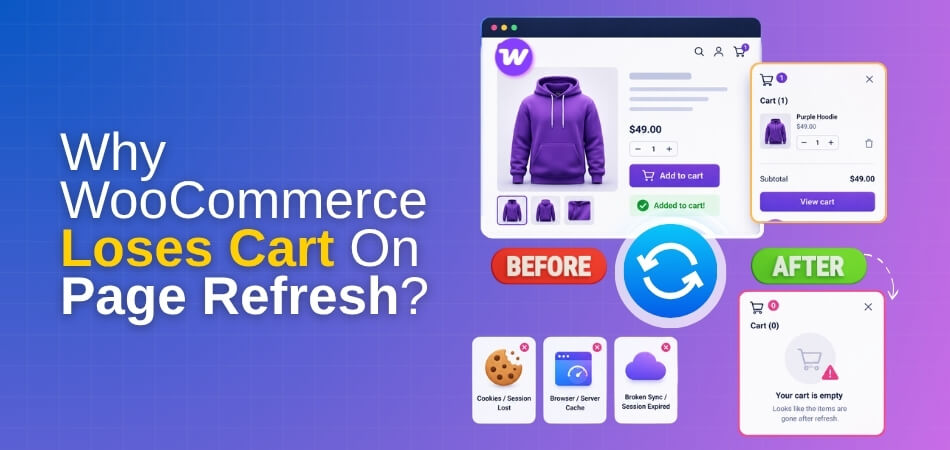
Several store-level issues usually sit behind that behavior.
Cause 1: WooCommerce Session Stops Carrying The Cart Forward
WooCommerce relies on session data to preserve the cart between requests. When that session expires too early, fails to restore correctly, or becomes unstable between page loads, a refresh can reconnect the shopper to a new empty cart instead of the existing one.
Cause 2: Cart Cookies No Longer Identify The Same Shopper
Cart cookies help WooCommerce reconnect the browser to the correct cart state after reload. When those cookies are blocked, delayed, reset, or misaligned across domain, protocol, or consent behavior, the refreshed page can behave like a new visit instead of continuing the same cart.
Cause 3: Cached Pages Reload Old Cart State Instead Of Live Data
Cart, checkout, and account pages need to stay dynamic. When a cache plugin, server cache, or CDN serves an older version of those pages, refresh can bring back an empty or outdated cart view rather than the live cart state linked to the shopper’s current session.
Cause 4: Cart Refresh Logic Falls Out Of Sync
Visible cart behavior often depends on front-end updates staying aligned with the actual session. When cart fragments, AJAX updates, or related refresh logic do not load cleanly, the mini cart, totals, or full cart can look empty or inconsistent right after reload.
Cause 5: Theme Or Plugin Logic Interrupts Cart Persistence
Custom cart behavior, performance tools, checkout add-ons, and theme-level WooCommerce changes can interfere with how the cart is restored on load. In these cases, the refresh itself is not the real problem. It is simply the moment when the cart persistence weakness becomes visible.
Cause 6: Server Or Session Storage Configuration Breaks Continuity
Some refresh-loss issues start deeper in the hosting stack. Session storage that is cleaned too aggressively, unstable server-side session handling, or cache layers that return the wrong cart data can all make WooCommerce lose continuity when the page reloads.
How To Fix WooCommerce Cart Loss On Page Refresh?
Cart loss after refresh is usually fixed by restoring the connection between the shopper, the live session, and the cart state WooCommerce is supposed to reload. The most reliable approach is to work through session continuity, cookie behavior, stale page output, cart refresh logic, plugin interference, and deeper server-side setup in that order.
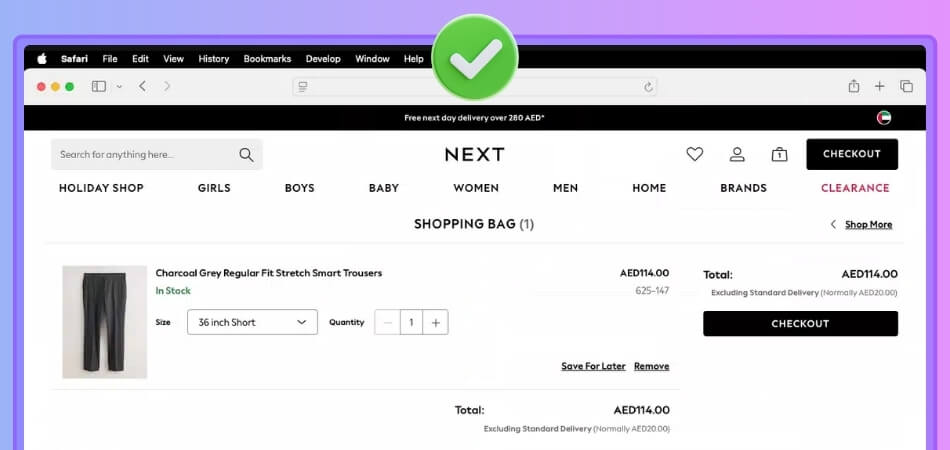
Fix 1: Stabilize WooCommerce Session Continuity
A cart cannot survive refresh if the underlying session is not carried forward cleanly. Before changing anything else, make sure WooCommerce is still reconnecting the shopper to the same active cart between requests.
Start with the session itself:
- Check whether the cart survives repeated refreshes in the same browser session.
- Compare guest cart persistence with logged-in cart persistence.
- Clear customer sessions and retest in a fresh session.
- Review whether sessions are expiring too early between normal cart actions.
Fix 2: Correct Cart Cookie Behavior
Cart cookies need to identify the same shopper after the page reloads. When they are blocked, delayed, reset, or split across different URL conditions, the refreshed page can load like a brand-new visit.
Focus on the cookie path next:
- Confirm the store uses one consistent HTTPS version across the full cart flow.
- Check whether domain or protocol differences are splitting cart behavior.
- Review cookie or consent logic that may delay essential cart cookies.
- Retest the cart after refreshing in a clean guest session.
Fix 3: Keep Cart Pages Fully Dynamic
A refresh should always load the live cart state, not an older cached version of the page. Dynamic WooCommerce pages need to stay outside cache rules so the cart can rebuild from the active session correctly.
Then review the page output layer:
- Exclude /cart/, /checkout/, and /my-account/ from cache.
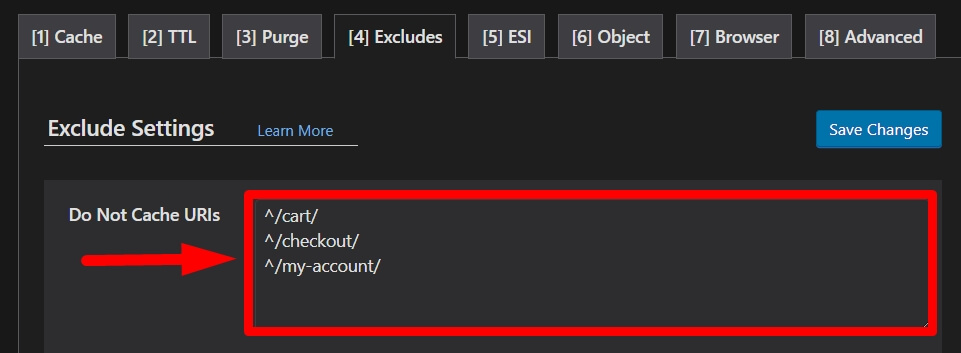
- Review plugin, server, and CDN cache rules around WooCommerce pages.
- Clear all cache layers after meaningful changes.
- Confirm the refreshed cart now reflects current items, totals, and quantities.
Fix 4: Tighten Cart Refresh And Fragment Behavior
The visible cart has to stay aligned with the real cart session after reload. When fragment updates, AJAX refresh behavior, or front-end cart logic fall out of sync, the cart can look empty even when the session is still partially active.
Look closely at the refresh behavior itself:
- Check whether the mini cart and full cart still match after reload.
- Review failed AJAX calls or front-end cart errors during refresh.
- Test add-to-cart behavior with and without AJAX where relevant.
- Confirm totals, counts, and cart contents stay aligned after repeated reloads.
Fix 5: Strip Back Theme And Plugin Interference
Some cart-loss problems do not come from WooCommerce itself. They come from custom cart logic, performance plugins, checkout add-ons, or theme-level changes that affect persistence during page load. Multi Inventory Management for WooCommerce can be part of a more structured store setup that supports steadier cart behavior through refreshes.
Narrow down the conflict source carefully:
- Disable non-essential plugins one by one and retest the refresh behavior.
- Switch temporarily to a WooCommerce-friendly default theme if needed.
- Check whether custom cart elements replace the default WooCommerce behavior.
- Reintroduce tools gradually instead of changing several layers at once.
Fix 6: Check Server And Session Storage More Closely
A cart can still fail on refresh even after front-end fixes if the hosting stack is not preserving session continuity properly. That usually points to unstable session storage, aggressive cleanup, or a deeper environment-level mismatch.
Finish by checking the environment underneath:
- Review whether the host is clearing sessions too aggressively.
- Check WooCommerce Status tools for stale data or environment warnings.
- Flush permalinks and retest if routing still feels inconsistent.
- Ask the host to confirm stable session handling across page reloads.
What Shoppers Actually Experience When The Cart Resets
Cart reset problems usually show up through lost items, mismatched cart details, or checkout changes that make the cart feel unreliable after a reload. The store may still look normal, but the shopper’s saved cart state no longer behaves consistently. Common shopper experiences include:
- Products Disappear After Refresh: Items seem to add correctly, then vanish as soon as the page reloads or the shopper revisits the cart.
- Mini Cart Stops Matching The Full Cart: The mini cart may still show items while the main cart page appears empty or incomplete.
- Quantity Changes Do Not Hold: Shoppers update quantities, but a reload brings back older values instead of the most recent selection.
- Cart Totals Change Unexpectedly: Subtotals, totals, or item counts may shift after refresh even when the shopper made no new changes.
- The Cart Suddenly Opens Empty: A shopper returns to the cart expecting saved items, but the page loads without any products.
- Checkout Shows Missing Or Outdated Items: Products, totals, or applied changes may look different once the shopper moves from cart to checkout.
- Coupon Behavior Feels Unstable: A discount may appear to apply, then disappear again after a refresh or navigation step.
- Extra Reloads Change The Cart Again: Each new reload can make the visible cart state feel less predictable and more disconnected.
- Trust Drops Before Checkout Starts: Once the cart stops feeling dependable, many shoppers leave before they ever reach the final purchase step.

Why The Problem Often Feels Hard To Pin Down
Cart loss on refresh can look random even when the root cause is consistent. The store may behave normally for a while, then lose cart state after one reload, one return step, or one small change in how the shopper moves through the session.
That usually happens because several cart problems can look almost identical on the surface.
- One refresh works while the next one does not
- Guest and logged-in behavior may not match
- The mini cart and full cart can fail differently
- Cached pages can look like session failures
- Cookie issues can look like cart script problems
- Theme or plugin conflicts may appear only after a reload
- The store may look normal until the exact wrong step happens
How Better Inventory Structure Supports More Stable Cart Behavior
Cart resets often point to more than a single technical fault. When product, stock, and fulfillment logic are handled through a cleaner structure, the cart has fewer disconnected conditions to work through during refreshes, updates, and checkout steps.
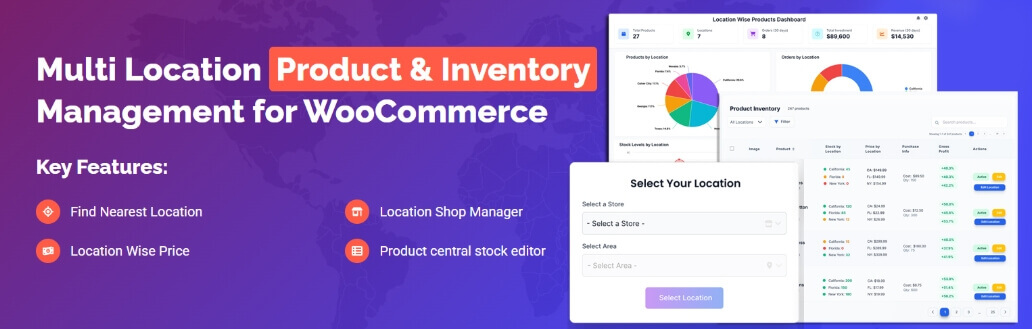
That is one reason multi location product management for WooCommerce can support more stable cart behavior across the storefront.
- Cleaner Stock Logic: Better inventory structure reduces patchwork rules that can make cart updates, stock checks, and product availability harder to keep consistent.
- Less Plugin Overlap: Fewer overlapping tools mean fewer chances for stock, cart, and checkout behavior to fall out of sync.
- More Predictable Cart Updates: Clearer inventory handling helps product availability and cart state stay aligned during refreshes, quantity changes, and checkout movement.
- Stronger Product Consistency: Better stock organization makes it easier for shoppers to see the same product state across product, cart, and checkout pages.
- Fewer Manual Fixes: Stores relying less on manual adjustments usually avoid the hidden cart instability that those quick fixes often create later.
- Easier Troubleshooting: A cleaner inventory structure makes it easier to isolate whether the cart issue comes from sessions, cache, plugins, or product logic.
- More Reliable Growth: Structured inventory management helps the store stay steadier as products, locations, and operational complexity continue to expand.
Frequently Asked Questions
Refresh-related cart issues often seem straightforward at first, then raise a few extra questions once store owners start checking how the problem behaves across real shopping sessions. These answers focus on the practical concerns that usually come up after the main troubleshooting work is already underway.
Can Refresh-Related Cart Loss Damage Trust Even Before Checkout?
Yes. Shoppers do not need to see a formal error for the damage to happen. Once the cart stops feeling dependable, many assume the store may fail again later and leave early.
Why Can The Cart Look Fine At First, Then Reset Later?
Some cart persistence issues stay hidden until the shopper reloads at a specific moment, moves between pages, or returns after a short delay. That makes the problem feel delayed instead of constant.
Can Reload-Related Cart Problems Affect Returning Visitors Differently?
Yes. Returning visitors may carry a different browsing state, session history, or cart path than first-time shoppers. That can make the same issue appear milder, stronger, or harder to reproduce.
Should Store Owners Recheck Cart Persistence After Infrastructure Changes?
Yes. Hosting adjustments, cache changes, CDN updates, and plugin replacements can all affect how WooCommerce restores cart state after a reload, even when the storefront still appears normal.
What Helps Keep Cart Persistence More Dependable Over Time?
A steadier store setup usually helps most. Fewer fragile cart layers, cleaner session behavior, and more predictable stock and checkout logic make reload-related cart problems less likely to return.
Final Thoughts
Sometimes the easiest way to judge a cart is to ask a simple question: Does it still feel dependable after something ordinary, like a page refresh? When the answer is no, shoppers notice it faster than store owners expect.
Understanding why WooCommerce loses cart on page refresh is really about restoring that sense of steadiness. Once the cart can hold its state without drifting, resetting, or second-guessing the shopper, the store starts feeling solid again in all the places that matter most.
