

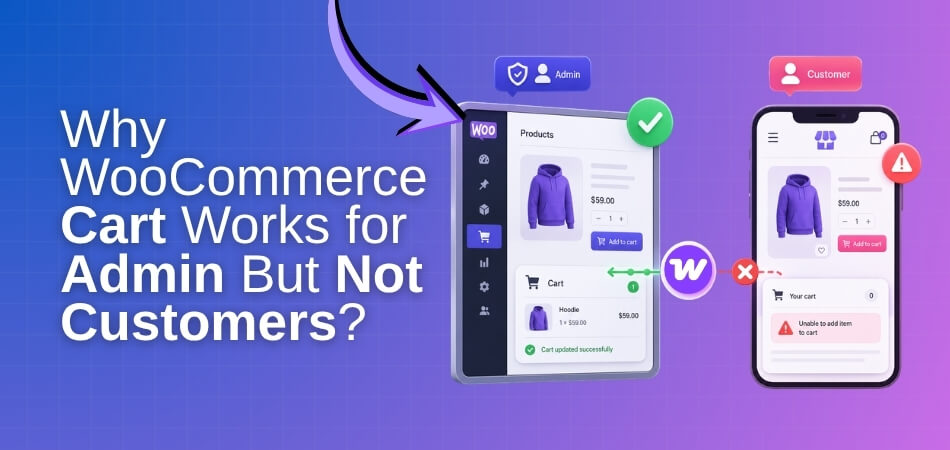
Why WooCommerce cart works for admin but not customers usually comes down to differences in caching, sessions, user-role rules, or frontend cart scripts. Admin users often see the store in a less restricted and less cached state, while customers rely on live cart sessions, cookies, and customer-facing validation that can fail silently.
This issue can be easy to miss during store-owner testing. From the admin side, add-to-cart, cart refresh, and checkout may appear to work normally, while real shoppers run into empty carts, failed updates, or broken cart behavior. This guide explains where the admin and customer experience starts to differ, what usually causes it, and how to fix it.
Why Admin Testing Can Be Misleading
Admin testing can make a WooCommerce cart look healthy even when the customer journey is not. Store owners usually browse the site under different conditions, while shoppers depend on live sessions, dynamic cart behavior, and customer-facing rules that can fail in ways admins never see.
That difference usually starts in a few key areas.
- Admin sessions often bypass the exact storefront conditions customers face.
- Logged-in admins are less likely to see cached cart problems.
- Customers depend on working sessions and cookies to keep the cart stable.
- Guest users can lose cart data more easily between page loads.
- Customer-only rules may affect add-to-cart and checkout behavior.
- Admin access can hide restrictions tied to pricing, stock, or purchase limits.
- Frontend script issues may break cart updates only for shoppers.
Where the Customer Experience Starts to Break
The customer experience usually starts to break before the cart appears fully broken. In many WooCommerce stores, the issue begins earlier in the buying journey, where sessions, cart updates, validation, or frontend behavior start working differently for shoppers than for admins.
That difference usually becomes visible at a few important stages.
- On the product page: A product may look available and purchasable, but customer-side conditions can stop the add-to-cart action from completing correctly.
- During add-to-cart behavior: The button may respond normally, yet scripts, validation, or storefront logic can prevent the cart from updating as expected.
- After the first cart update: A product can appear in the cart briefly, then disappear after refresh, navigation, or the next customer action.
- Inside the mini-cart: Shoppers may see missing items, stale totals, or delayed cart changes even though the product was just added.
- Across customer sessions: Guests and regular customers depend on stable sessions and cookies, so cart behavior can break as they move through the store.
- At the checkout transition: The cart may seem fine until the shopper moves forward, where stock rules, restrictions, or validation finally interrupt progress.
Common Reasons WooCommerce Cart Works for Admin But Not Customers
When WooCommerce cart works for admin but not customers, the issue usually comes from differences in how the store handles administrators and real shoppers. Admin users often bypass cache, role-based restrictions, and fragile frontend conditions, so the cart can look normal in testing while failing in the actual customer journey.
That difference usually comes from a small group of repeat causes.
Reason 1: Caching Is Disabled for Admins Only
Most caching tools exclude logged-in administrators by default, which lets store owners see live cart changes while customers may still receive stale cart pages or outdated fragments. That makes caching the most common reason a WooCommerce cart appears normal for admin users but broken for shoppers.
Reason 2: Plugins Skip Logic for the Administrator Role
Many plugins treat administrators differently on purpose so store management stays uninterrupted. Security plugins, validation tools, optimization layers, and custom rules may all skip checks for admins, which means customers can trigger cart failures the store owner never sees during admin-side testing.
Reason 3: Session Handling Is More Forgiving for Admins
Admin sessions are usually more stable and less likely to break under normal browsing. Customer carts depend much more heavily on cookies, guest session persistence, browser behavior, and server-side session handling. When that chain fails, shoppers can lose cart contents even though admin testing still looks fine.
Reason 4: Guest Session Data Is Not Saving Properly
WooCommerce stores guest cart data in session storage, and that process can break after migrations, database issues, or server misconfiguration. If new guest sessions are not being written properly, customers may see empty carts, failed cart persistence, or carts that never hold products beyond the first action.
Reason 5: Admins Can Bypass Purchasability and Validation Rules
A product can appear to work during admin testing even when customers are blocked by real purchase conditions. Stock checks, backorder rules, quantity limits, availability settings, and checkout validation can all affect shoppers more strictly, which means admin success does not always confirm a healthy customer buying path.
Reason 6: Customer-Specific Restrictions Still Apply
Many stores use rules that only apply to customers, not administrators. These can include role-based pricing, shipping restrictions, location-based product availability, minimum order thresholds, or access controls. When one of those rules interrupts the cart flow, the issue may appear customer-only even though the cart works for the admin.
Reason 7: JavaScript or AJAX Errors Affect Customers Only
Some cart problems come from frontend script failures that customers trigger more easily than administrators. Broken AJAX add-to-cart behavior, cart fragment refresh issues, JavaScript conflicts, or theme-level script problems can stop the cart from updating properly while admin testing still appears mostly normal.
Reason 8: Permalink or Cart Page Setup Is Incorrect
WooCommerce depends on the correct cart page, checkout page, and permalink structure to keep the customer flow working properly. If those settings are broken or mapped incorrectly, shoppers may reach empty cart states, broken redirects, or cart behavior that looks inconsistent even though the issue is really structural.
How to Fix the Issue Based on the Real Cause
Once the difference between admin and customer behavior becomes clear, the fixes should follow the same cause order. That makes it easier to test each issue properly and avoid changing too many things at once.
Fix the most likely causes in this order:
Fix 1: Remove Cache From the Customer Cart Flow
Caching is the most common reason admins see a working cart while customers do not. Logged-in administrators usually bypass cache, but shoppers may still receive stale cart pages, outdated fragments, or empty cart states.
Review the caching layer first:
- Clear plugin, server, CDN, and browser cache before testing again.
- Exclude /cart/, /checkout/, and /my-account/ from all caching rules.
- Make sure WooCommerce cart fragments and session-based requests stay dynamic.
- Pause minification, delay, or script optimization features and retest the cart.
Fix 2: Check Plugins That Skip Logic for Admins
This is especially worth checking in stores that rely on layered tools, including a WooCommerce inventory management plugin, because customer-side cart behavior can change when multiple plugins interact under live storefront conditions.
Review plugin behavior next:
- Temporarily disable non-essential plugins and retest as a guest user.
- Check security, checkout, inventory, and optimization plugins first.
- Compare the same cart action after each change instead of testing randomly.
- Retest the exact product or cart flow that originally failed for customers.

Fix 3: Stabilize Sessions and Cookie Handling for Customers
Customer carts depend on cookies and working WooCommerce sessions. If those sessions fail to start, save, or persist properly, shoppers may lose items, see empty carts, or experience broken cart behavior between page loads.
Review session handling carefully:
- Confirm WooCommerce cart cookies are being created correctly for guests.
- Make sure the site uses a valid SSL certificate and full HTTPS URLs.
- Check whether a cookie banner delays or blocks session-related cookies.
- Ask your host to confirm guest session handling works properly on the server.
Fix 4: Check Whether Guest Sessions Are Saving to the Database
If WooCommerce cannot write new guest sessions properly, the cart may fail for customers even though admin testing still looks normal. This can happen after site migration, database repair, or server-side misconfiguration.
Review session storage directly:
- Check whether the wp_woocommerce_sessions table exists and is working.
- Confirm new guest sessions are being written without errors.
- Review whether the session_id field is configured correctly after migration.
- Test the cart again in incognito mode after fixing any session table issue.
Fix 5: Recheck Purchasability and Validation Rules
Admins can sometimes move through products more easily than customers. Real shoppers still have to pass stock checks, quantity limits, backorder rules, and product availability conditions before the cart works properly.
Review purchasability rules next:
- Test the same product as a guest or normal customer account.
- Check stock status, quantity limits, and backorder settings carefully.
- Confirm the item is fully purchasable under real customer conditions.
- Retest checkout after changing any purchase-related restriction.
Fix 6: Review Customer-Only Restrictions and Store Rules
Some cart problems are caused by rules that apply only to customers. These can include role-based pricing, location-based availability, shipping restrictions, or minimum order thresholds that never affect admin testing.
Review customer-facing rules here:
- Check role-based pricing or access restrictions.
- Review location, shipping, and order minimum conditions.
- Test the cart using the same customer role where the problem appears.
- Compare restricted products with simple unrestricted products.
Fix 7: Remove JavaScript and AJAX Conflicts
Frontend script problems can stop add-to-cart actions, mini-cart refreshes, or cart updates from working correctly for shoppers. These issues may stay hidden during admin testing, especially when the failure happens only in the live customer view.
Review frontend behavior next:
- Open the browser console and test as a guest user.
- Look for JavaScript errors or failed AJAX cart requests.
- Temporarily switch to a default theme like Storefront and retest.
- Disable script combination, deferral, or delay features affecting WooCommerce files.
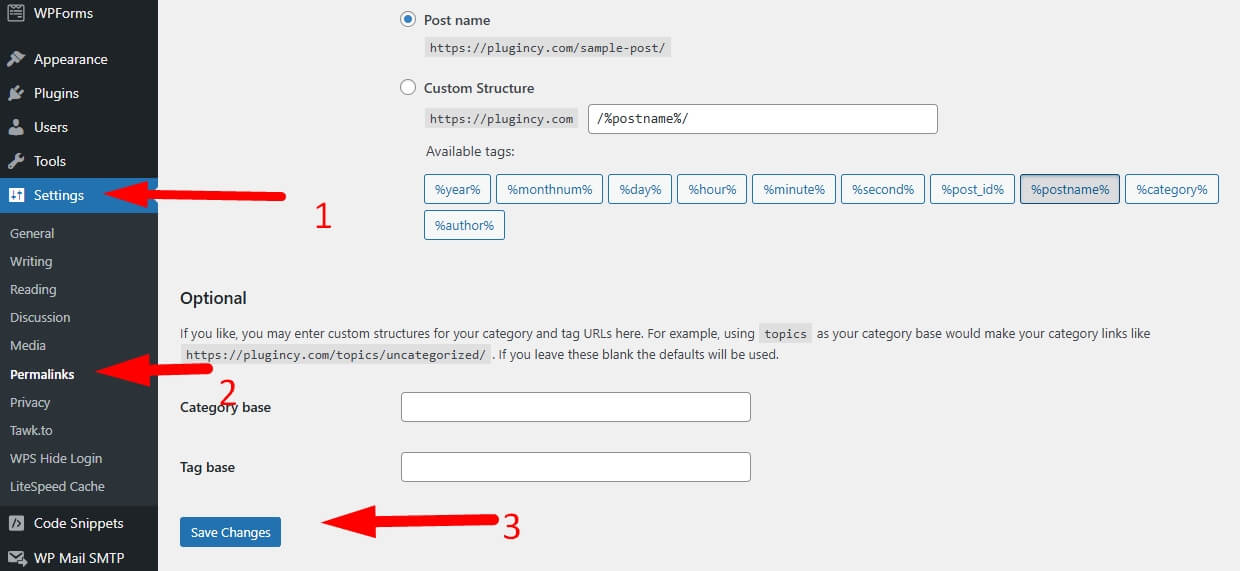
Fix 8: Refresh Permalinks and Confirm Cart Page Setup
If the issue still continues, the cart path itself may be misconfigured. Broken permalink structure or incorrect WooCommerce page mapping can make customer cart behavior look inconsistent, even when the store seems mostly functional.
Run these final checks:
- Go to WooCommerce > Settings > Advanced and confirm the Cart Page is assigned correctly.
- Go to Settings > Permalinks and click Save Changes without changing anything.
- Retest the cart path from product page to checkout as a guest.
- Confirm the correct cart and checkout pages are loading on the live storefront.
How to Confirm the Problem Is Really Customer-Specific?
The fastest way to confirm this issue is to test the store under real customer conditions, not admin conditions. When WooCommerce cart works for admin but not customers, the pattern usually becomes clear once the same product path is tested across different user states.
That difference usually shows up through a few simple checks.
- Use Private Browsing First: Test the cart in incognito mode without any saved admin session, so guest behavior appears without cached login state.
- Compare User Types Directly: Test the same product as an admin, a logged-in customer, and a guest to see where cart behavior starts changing.
- Repeat the Same Cart Path: Follow the exact same product, quantity, and checkout steps each time so the real difference stays easier to isolate.
- Check Where the Failure Begins: Confirm whether the problem starts on add to cart, cart refresh, mini-cart update, or checkout transition.
- Watch What Happens After Navigation: See whether products disappear after refresh, page changes, or moving deeper into the storefront as a normal shopper.
- Retest After Each Single Change: Make one fix at a time and test again, so the real trigger does not get hidden.
How Better Store Setup Reduces Customer Cart Problems?
A more reliable WooCommerce cart usually starts with a more reliable store setup. When the storefront is structured cleanly, dynamic pages stay uncached, customer rules stay predictable, and cart behavior becomes easier to keep consistent for guests, shoppers, and admins alike.
That stability usually comes from a few setup decisions that make problems less likely in the first place.
- Keep Cart-Critical Pages Dynamic: Cart, checkout, and account pages should stay outside aggressive caching so customers always interact with live cart data.
- Reduce Plugin Overlap: Too many layered tools can create conflicting cart behavior, especially when different plugins handle validation, performance, stock, or checkout logic.
- Review Customer Rules More Carefully: Role-based pricing, shipping conditions, and order limits should be checked regularly so they do not interrupt the cart unexpectedly.
- Keep Inventory Logic Easier to Follow: Stores using multi inventory management for WooCommerce benefit from clearer stock flow when product availability stays aligned with real customer purchase conditions.
- Test the Store Beyond Admin Sessions: Regular guest and customer testing helps catch cart issues earlier, before they stay hidden behind admin-only behavior.
- Retest After Store Changes: Plugin updates, theme edits, cache changes, and stock rule adjustments should always be followed by a full customer-side cart check.
Frequently Asked Questions
Even after the main causes and fixes are clear, store owners usually still have a few practical questions about how this issue behaves in real WooCommerce stores. These answers focus on the parts that often create confusion after troubleshooting begins.
Why Does The Cart Sometimes Fail Only For First-Time Visitors?
First-time visitors usually enter the store without saved sessions, remembered cookies, or prior cart activity. That makes them more likely to expose customer-side problems that returning users or admins may not trigger.
Can The Issue Affect Only Certain Products Instead Of The Whole Cart?
Yes, some cart problems appear only on specific products. This usually happens when those items have different purchase conditions, stock behavior, variation handling, or availability rules from the rest of the catalog.
Why Does The Cart Look Fine At First But Fail Later?
Some issues do not appear on the first cart action. The cart may seem normal at the start, then break after navigation, another product action, or the move from cart to checkout.
Should I Retest The Cart After Small Store Changes?
Yes, even minor updates can affect customer cart behavior. Theme edits, plugin updates, speed settings, and rule changes can all alter how the cart works for shoppers.
Can Customer Complaints Appear Before Store Reports Show A Clear Problem?
Yes, cart friction often shows up in customer behavior first. Abandoned sessions, confused support messages, or inconsistent buying attempts can appear before the issue becomes obvious in store-level reporting.
Final Thoughts
If you have been trying to understand why WooCommerce cart works for admin but not customers, the issue usually comes from the gap between admin testing and real shopper conditions. What looks fine in a logged-in admin session can still fail once caching, sessions, restrictions, or customer-side cart behavior come into play.
That is why this problem should always be tested from the customer side, not just the dashboard side. Once the store behaves consistently for guests, customers, and admins, the cart becomes far more reliable and easier to trust.
