

Your WooCommerce store says you have 50 units in stock, but you physically counted only 32 in your warehouse — where did that gap come from? That question sits at the center of one of the most frustrating problems store owners face, and the consequences go well beyond a spreadsheet headache. Overselling real inventory you don’t have, customers hitting the “Not Enough Units Available” error mid-checkout, and angry support tickets piling up in your inbox — a warehouse stock mismatch can quietly damage your reputation and your revenue at the same time.
The mismatch rarely has a single cause. WooCommerce stock management pulls data from the wp_postmeta table, but that number can drift from your physical count through failed orders that never properly restored stock, object cache or transient cache serving stale inventory figures, a WMS or multi-warehouse integration that lost a sync cycle, miscounted variable products and product variations, or a plugin conflict that fired at exactly the wrong moment during checkout. Sometimes it’s one culprit. Sometimes it’s three working together.
This guide covers the whole problem, start to finish. You’ll learn why WooCommerce database stock figures fall out of step with your actual warehouse count, how to run a proper stock audit and reconcile the numbers, how to fix specific errors like the “Not Enough Units Available” message, and how to set up automated safeguards — including WooCommerce cron jobs, REST API and webhook-based stock sync, inventory history logs, and low stock notifications — so the gap doesn’t open back up again.
Quick answer: A WooCommerce warehouse stock mismatch happens when the stock quantity stored in your WooCommerce database no longer reflects what you physically hold. Common causes include failed or pending orders that didn’t return stock correctly, a stale object cache or page cache serving outdated figures, a broken scheduled sync between WooCommerce and an external WMS, or misconfigured variable product stock settings. Fixing it requires a manual stock audit, a database-level reconciliation, clearing relevant caches, and putting automated checks in place to catch future drift early.
What Is a WooCommerce Warehouse Stock Mismatch — and Why Is It a Serious Problem?
A warehouse stock mismatch happens when the stock quantity recorded in WooCommerce disagrees with what’s physically sitting on your shelves. Your store says you have 12 units. Your warehouse has 3. Or the reverse — you’re showing zero stock and turning away customers while a full pallet collects dust in the back.
It sounds like a bookkeeping annoyance. It’s not.
The Real-World Damage
Overselling is the most immediate pain. A customer places an order, you accept payment, and then you can’t fulfill it. Now you’re issuing refunds, writing apology emails, and burning customer trust you spent money to build. Do it often enough and your store’s reputation takes a hit that no discount campaign fixes easily.
The opposite problem is just as costly, though quieter. Stock that exists but shows as zero means lost sales — customers see “Out of Stock” and leave. You never know how many of those convert somewhere else.
For stores running a WMS (Warehouse Management System) alongside WooCommerce, a mismatch often signals a deeper integration failure. If your WMS and WooCommerce database are out of sync, every order processed during that gap is potentially wrong. Multiply that across hundreds of SKUs and the reconciliation work alone can eat an entire day.
Variable products make this worse. WooCommerce tracks stock at the variation level — each size, color, or configuration has its own _stock value stored in wp_postmeta. A sync script that updates the parent product’s stock but misses individual product variations has solved nothing. You’ll still see the “Not Enough Units Available” error at checkout even when WooCommerce shows availability at the product level.
Why This Happens More Than It Should
WooCommerce stock management relies on several moving parts staying in sync at the exact right moment. When they don’t, the numbers drift.
A few common culprits:
Order status transitions. WooCommerce only reduces stock when an order moves to specific statuses — by default, processing and completed. Pending orders don’t reduce stock unless you’ve changed that behavior. Failed orders should restore stock, but only if the original order actually deducted it. If your WooCommerce order statuses are customized or you’re using a payment gateway that creates unusual status flows, stock deductions can fire twice, or not at all.
Object cache and transient cache. If you’re running a persistent object cache (Redis, Memcached), WooCommerce may serve a cached stock value that’s already out of date. The same applies to page cache — a product page cached 10 minutes ago might show stock that no longer exists. This is a common source of apparent mismatches that clear themselves after a cache flush, only to return.
Failed WooCommerce cron jobs. Stock recounts, scheduled sync tasks, and cleanup routines all depend on wp-cron. If your cron is broken or being blocked by the server, stock levels don’t get recalculated on schedule. You can check pending cron events with a plugin like WP Crontrol or by querying wp_options for cron.
Third-party sync gone wrong. REST API or webhook-based integrations between WooCommerce and a WMS or ERP can fail silently. A webhook fires, the receiving endpoint times out, no retry happens, and your WooCommerce database now has different numbers than your external system. Neither side throws an error. You only notice when a customer complains.
Plugin conflicts. An AJAX filter plugin that caches filtered product results, a caching plugin with aggressive full-page cache rules, or a custom checkout flow that bypasses standard WooCommerce stock hooks — any of these can cause numbers to fall out of step. The stock audit becomes harder because the mismatch isn’t in the data; it’s in what gets displayed or when deductions fire.
Multi-location inventory without proper tooling. If you’re managing stock across multiple warehouses or fulfillment locations and relying on a single global WooCommerce stock field to represent all of them combined, you’re already in trouble. One location ships an item, the total should drop, but if the update only hits one system — or hits the wrong one — the aggregate number is wrong before the day is out.
Why It Escalates Quickly
Stock mismatches compound. A small drift on Monday becomes a significant gap by Friday if no one catches it. Low stock notifications either fire too early (based on wrong counts) or not at all. Returns management creates additional complexity — when a WooCommerce return restores stock, does that restoration reflect in your WMS too, or just in WooCommerce?
The longer a mismatch goes undetected, the more orders touch the affected SKUs, and the harder the stock reconciliation becomes. You’re not just fixing one number — you’re trying to reconstruct which transactions caused the drift, and that requires a full inventory history log, which WooCommerce doesn’t keep natively.
That’s the real problem. WooCommerce is built for selling, not for warehouse-grade inventory auditing. It doesn’t maintain a detailed change log for stock adjustments by default, it doesn’t handle multi-warehouse scenarios out of the box, and its stock accuracy depends heavily on everything around it — caching layers, cron reliability, plugin behavior, and external integrations — working correctly all at once.
When any one of those fails, your stock numbers lie. And a store making decisions on bad numbers is flying blind.
Why Stock Mismatches Happen — The Root Causes
Stock mismatches rarely come from one single failure. Usually it’s a combination of small problems that compound over time until the numbers are visibly wrong. Here’s where the damage actually comes from.
Stock Held by Pending and Failed Orders
WooCommerce reduces stock at the moment an order is placed, not when payment clears. That’s intentional — it prevents two customers from buying the same last unit simultaneously. But it creates a problem: if an order sits in “pending payment” indefinitely, or fails partway through checkout, that stock stays deducted.
A failed order doesn’t automatically release its held quantity. Neither does a pending order that the customer simply abandoned. Over a busy week, you might have a dozen of these piling up. Your WooCommerce stock management screen shows 3 units available while your warehouse shelf holds 9 — because 6 are “held” by orders that will never be fulfilled.
Check this by filtering WooCommerce order statuses for “pending payment” and “failed” orders older than 24 hours. If you’re seeing dozens, that’s your first culprit. WooCommerce has a built-in setting under WooCommerce → Settings → Products → Inventory — the “Hold stock (minutes)” option. Set a reasonable limit (60 minutes is a sensible default for most stores) and WooCommerce will cancel unpaid orders automatically, releasing the stock.
Cache Problems — Object Cache, Transient Cache, and Page Cache
This one trips people up constantly. Your actual wp_postmeta stock value might be correct, but what WooCommerce — or your customer — sees is a cached version of it.
Three different cache layers can each cause this independently.
Object cache (Redis, Memcached) stores database query results in memory. If a stock update is written to the database but the object cache hasn’t expired yet, WooCommerce reads the old value. You’ll update stock to 20 units, but the product page still shows 12.
Transient cache is WordPress’s built-in key-value store. WooCommerce uses transients heavily for product data and stock counts. A stale transient can serve outdated availability data to the REST API, to product loops, even to the cart. You can clear these manually with a plugin like WP-CLI (wp transient delete --all) or by flushing from your hosting panel.
Page cache is the most visible layer — and the one most store owners forget about. If a caching plugin or your host’s server-side cache captures a product page, every visitor gets the exact same HTML snapshot. Product showing “In Stock” even though you’re sold out? That’s almost certainly page cache. Cart pages, checkout pages, and any page with dynamic stock data need to be excluded from full-page caching. Most caching plugins let you add exclusion rules by URL pattern.
The practical fix: after any bulk stock adjustment, clear all three layers. Some hosts (WP Engine, Kinsta) have a single “flush all caches” button. Use it.
Plugin Conflicts and Sync Errors
Any plugin that touches product data, order flow, or inventory has the potential to interfere with WooCommerce’s stock reduction hooks. The most common offenders are AJAX filter plugins, checkout customisation plugins, and anything that modifies the order-creation process.
Here’s the mechanism: WooCommerce reduces stock by firing woocommerce_reduce_order_stock. If a plugin removes that hook, delays it, or processes order creation in a non-standard way, stock never gets decremented — or gets decremented twice. An overselling problem where stock goes negative almost always points here.
The quickest way to isolate a plugin conflict is the standard deactivate-and-test method. Deactivate all non-essential plugins, place a test order, check if stock updates correctly, then reactivate plugins one by one. It’s tedious but it works.
WMS (Warehouse Management System) integrations via the WooCommerce REST API or webhooks add another layer of risk. If the integration plugin loses its authentication token, or if a webhook fails silently, your WMS and WooCommerce fall out of sync and keep diverging until someone notices. Always check your webhook delivery logs in WooCommerce → Settings → Advanced → Webhooks if you’re running an external stock sync.
Mistakes Caused by Manual Stock Edits
Manual edits are a bigger problem than most store owners admit. Someone adjusts stock directly in the product screen without recording why. Another person exports a CSV, edits it in Excel, and re-imports it — overwriting changes that happened between the export and the import. A developer updates wp_postmeta directly with a SQL query to “save time.”
None of these leave an inventory history log. WooCommerce’s native stock adjustment notes (the small text field when you change stock quantity in the product editor) are rarely used, and even more rarely reviewed.
For variable products specifically, this gets messy fast. Product variations store their own stock in separate wp_postmeta rows, and it’s easy to edit the parent product’s stock thinking you’re adjusting the variant — or vice versa. The parent and each variation are separate records.
The simplest safeguard here is process: never edit stock in the database directly, always use the WooCommerce interface or a dedicated stock audit tool, and document every manual adjustment with a reason.
Cron Job and Scheduled Sync Failures
WooCommerce relies on WooCommerce cron jobs (wp-cron) for a lot of background work — sending low stock notifications, running scheduled sync tasks, cancelling held orders, processing returns. If wp-cron is unreliable, all of those tasks fail silently.
The default WordPress cron fires only when someone visits the site. Low-traffic stores can go hours without a cron tick. A scheduled sync between WooCommerce and an external WMS might be configured to run every 30 minutes, but if the site has no traffic during the night, it never fires.
Check whether your cron is actually running by installing WP Crontrol (it’s on the WordPress.org plugin repository). It shows you every scheduled event, when it last ran, and whether it’s overdue. If you see a woocommerce_cancel_unpaid_orders event that hasn’t fired in 6 hours, that’s why you have a backlog of held stock.
The fix for unreliable WP-Cron is to disable the default cron (define('DISABLE_WP_CRON', true) in wp-config.php) and set up a real system cron via your hosting control panel to call wp-cron.php on a proper schedule — every 5 minutes is typical.
If you’re running multi-warehouse operations and depend on a scheduled sync to pull inventory from a WMS, this is critical. A missed sync cycle can mean your WooCommerce stock figures are hours behind reality.
Returns That Are Not Processed Correctly
A customer returns a product. The order gets refunded. Stock does not automatically go back up — not in WooCommerce by default.
WooCommerce gives you a checkbox during the refund process: “Return items to stock.” If whoever processes the refund doesn’t tick it, the inventory stays depleted even though the physical unit is back on the shelf. Do this 50 times over a quarter and you’ve got a significant hidden discrepancy.
This is especially common when WooCommerce returns management is handled by different staff members with different habits, or when refunds are processed programmatically without explicitly setting the restock flag.
There’s no automated enforcement in WooCommerce core — you have to build the habit, or add a plugin that mandates the restock decision. If you’re running a multi-location setup, the problem compounds: you need the stock restored to the specific warehouse the item was returned to, not just to a global total. A plugin like Multi-Location Product & Inventory Management for WooCommerce by Plugincy handles per-location stock quantities in its free version, so restocked returns can be assigned to the correct location rather than disappearing into an undifferentiated pool.
The other failure mode: partial returns. A customer orders 4 units, returns 2. If the refund is processed on the full order rather than on specific line items, WooCommerce can over-restock or under-restock depending on how the plugin or manual process handles it. Always process partial refunds line-item by line-item, and verify the stock count immediately after.
Stock Mismatches in Variable Products — How to Set and Fix Stock for Each Individual Variation
Variable products are where stock mismatches get messy fast. The parent product, the individual variations, and the attribute combinations all have their own stock fields — and if you’ve got them wired up wrong, WooCommerce will happily sell stock you don’t have, or block sales on stock you do.
How WooCommerce Actually Handles Variable Product Stock
Here’s the thing most people miss: WooCommerce lets you manage stock at two levels simultaneously, and mixing them up is the most common cause of variation-level mismatches.
Parent product level — you can set a total stock quantity on the parent. WooCommerce uses this as a shared pool across all variations.
Variation level — each variation (Size: M / Color: Blue, for example) has its own _stock and _stock_status stored separately in wp_postmeta, keyed to the variation’s own post ID.
When you enable stock management on a variation, WooCommerce is supposed to ignore the parent’s stock quantity and defer to each variation’s individual count. But if you’ve got stock management enabled on the parent and on variations — and the numbers disagree — you get a mess. WooCommerce’s behavior in that scenario isn’t always predictable, and it varies depending on which version you’re running.
The rule of thumb: pick one level and stick with it. Either manage stock at the parent level (simple shared pool) or at the variation level (individual counts per SKU). Doing both simultaneously is almost always a mistake.
Checking Your Current Setup
Go to the product edit screen → Variations tab. Expand any variation. You’ll see a checkbox: “Manage stock?”
If that box is checked on a variation, WooCommerce tracks stock per-variation. If it’s unchecked, that variation inherits the parent’s stock status (in-stock, out-of-stock, backorder — but not quantity).
Now go to the Inventory tab on the same product. If Manage stock is checked there too, and your variations also have individual stock management enabled, you’re running in dual-tracking mode. That’s your first thing to clean up.
The Right Way to Set Per-Variation Stock
- On the product’s Inventory tab — disable Manage stock at the parent level. Leave the stock status field as “In stock” (WooCommerce will derive overall availability from the variations automatically).
- Go to the Variations tab. For each variation, check Manage stock, then enter the actual quantity for that specific SKU.
- Save the product.
That’s it. WooCommerce now tracks each variation independently. When a customer orders Size L / Red × 2, only that variation’s count drops. Other combinations stay untouched.
If you have a lot of variations — say, 50+ across a clothing catalogue — editing them one at a time is brutal. Use the bulk edit dropdown in the Variations tab. Select all variations → choose Set regular stock quantity to apply a baseline number, then go back and adjust outliers individually.
When the “Not Enough Units Available” Error Points to a Variation Problem
That error almost always means the customer-requested quantity exceeds what WooCommerce thinks is available for that specific variation. The stock number on the variation’s edit screen is the number WooCommerce trusts — even if your physical warehouse shows different.
Check these in order:
- Is stock management actually enabled for that variation? If not, WooCommerce falls back to the parent’s stock status — and if the parent shows “Out of stock,” you’ll get this error regardless of what the variation’s quantity field says.
- Is there a held stock quantity? Pending orders hold stock. Go to WooCommerce → Orders, filter by “Pending payment,” and count how many units of that variation are tied up. WooCommerce deducts held stock from available stock in real time. If 8 units are pending and you only have 10 in stock, only 2 are available to sell.
- Is the stock number in the variation field actually current? If you’re syncing from a WMS or a spreadsheet import, check whether the import targeted the variation post ID or the parent product ID. This is a very common import error — stock gets written to
wp_postmetaagainst the parent’s ID, not the variation’s, so WooCommerce never sees the updated number.
Fixing Stale or Incorrect Variation Stock in the Database
If you suspect the variation’s stock quantity in wp_postmeta is wrong, you can verify it directly. Each variation is its own post with its own ID. The meta key you’re looking for is _stock.
In phpMyAdmin or a tool like Adminer:
SELECT post_id, meta_key, meta_value
FROM wp_postmeta
WHERE post_id = YOUR_VARIATION_ID
AND meta_key IN ('_stock', '_stock_status', '_manage_stock');
Replace YOUR_VARIATION_ID with the actual variation post ID (visible in the URL when you edit the variation, or in the Variations tab in some setups). If _manage_stock returns no when you expected yes, that’s your problem. If _stock is blank or zero when it shouldn’t be, that explains the mismatch.
To fix a single variation’s stock the safe way — do it through the WooCommerce UI or via WP-CLI:
wp post meta update YOUR_VARIATION_ID _stock 25 --allow-root
wp post meta update YOUR_VARIATION_ID _stock_status instock --allow-root
After any direct database or WP-CLI change, run WooCommerce’s term recount to make sure catalog visibility updates correctly. You can trigger this programmatically or use the Tools → WooCommerce section to recount stock terms if your version exposes that.
When Variable Product Stock Is Managed Across Multiple Warehouses
Single-warehouse setups are complicated enough. If you’re running multi-location inventory — where the same variation exists in three warehouses and needs separate counts per location — native WooCommerce doesn’t handle that at all. It has one stock field per variation, full stop.
The standard approach here is a dedicated plugin. If you need per-variation, per-location stock tracking without custom development, Multi-Location Product & Inventory Management for WooCommerce by Plugincy handles this in its free version — you assign each variation to one or more locations and set a separate stock quantity per location. The variation’s location-specific inventory lives independently, so a Size M / Navy selling out at your London warehouse doesn’t affect the count in Manchester.
The free version’s Basic Stock Central view also gives you a centralized inventory review across locations, which is useful when you’re tracking down which location’s variation count is off. The PRO version adds inter-location stock transfers — useful when you want to physically move variation stock between warehouses and keep the records straight.
Variable Product Stock After Returns
Returns make variation stock messy in a specific way. When a customer returns Size S / White, WooCommerce doesn’t automatically restock the variation. You need to manually trigger a stock increase — either by editing the variation’s stock quantity, or by using the Refund flow in the order screen and checking Restock refunded items.
If you skip that checkbox, the physical unit is back in the warehouse but WooCommerce still shows it as sold. That’s a mismatch that compounds over time, especially with slow-moving sizes or colorways.
Build the habit: every return, check that box. If your team processes refunds without looking at it, add it to your fulfilment SOP. Small process discipline prevents a lot of variation-level drift.
The ‘Not Enough Units Available’ Error — Causes and Solutions
You add something to the cart, hit checkout, and WooCommerce throws back “Not Enough Units Available.” Or worse — your customer sees it, not you. Either way, it’s blocking a sale, and the stock numbers might look perfectly fine on the product page. That disconnect is what makes this error genuinely frustrating to troubleshoot.
Let’s go through what’s actually causing it and how to fix each case.
What the Error Actually Means
WooCommerce runs a stock check at multiple points: when an item is added to the cart, when the cart is updated, and again at checkout validation. If any of those checks return a quantity lower than what the customer is trying to buy, you get this error.
The key word is which quantity it’s reading. It might not be what you see in the product admin screen.
Cause 1: Stock Is Held by Pending or On-Hold Orders
This is the most common cause, and it’s easy to overlook.
When an order is placed, WooCommerce reduces stock immediately — even if payment hasn’t cleared. If you have 5 units in stock and three orders for 2 units each are sitting in “Pending Payment” or “On Hold” status, your effective available stock is already negative. A new customer trying to buy 2 units will hit the error even though your admin shows 5.
The fix:
Go to WooCommerce → Orders and filter by “Pending Payment” and “On Hold.” Look for old, stalled orders that should have been cancelled or completed long ago. WooCommerce does have a built-in auto-cancel timer for pending orders — you’ll find it at WooCommerce → Settings → Products → Inventory → Hold Stock (minutes). The default is 60 minutes. If it’s blank or set to 0, pending orders hold stock indefinitely.
Set a realistic timeout. 60 minutes is fine for most stores. For high-demand products, even shorter.
For cancelled or failed orders that didn’t properly restore stock, go to each order, check whether stock was actually returned, and if not — click Restore Stock from the order action dropdown.
Cause 2: The Stock Quantity in the Database Doesn’t Match the UI
What you see in the product editor and what’s stored in wp_postmeta (as _stock) can drift out of sync. This happens after failed database writes, plugin crashes, or import jobs that partially completed.
The quick check:
Run this in a tool like phpMyAdmin or WP-CLI:
SELECT meta_value FROM wp_postmeta
WHERE post_id = YOUR_PRODUCT_ID
AND meta_key = '_stock';
Replace YOUR_PRODUCT_ID with the actual product ID. If the value doesn’t match what you see in the backend, the database is the source of truth — and the UI was lying to you.
To force WooCommerce to recount and resync stock, you can run:
wc_recount_termsums();Or use WooCommerce → Status → Tools → Update product lookup tables and Recount product terms. Do both. These don’t fix wrong raw stock values, but they clear inconsistencies in WooCommerce’s cached term data that can affect stock checks.
For the raw _stock value itself — if it’s wrong — you’ll need to manually correct it via the product editor or a direct database update, then save the product.
Cause 3: Object Cache or Transient Cache Serving Stale Stock
This one is invisible unless you know to look for it.
If your server runs a persistent object cache (Redis, Memcached) or if a caching plugin is aggressively caching WooCommerce data, stock values can be cached at the moment of the first read and not updated when the actual quantity changes. A customer sees “5 in stock.” WooCommerce checks its cache: 5 in stock. Order placed, stock reduced to 3. Cache still says 5. Second customer tries to buy 4 — error. Or worse, no error and you oversell.
The fix:
First, check whether you actually have a persistent object cache enabled. In WooCommerce → Status → System Status, look for the “WP Object Cache” line. If it shows a third-party object cache (like Redis), that’s your suspect.
WooCommerce does clear its own transient and object cache on stock updates — but some caching configurations bypass this. Make sure your caching plugin excludes WooCommerce cart, checkout, and account pages. The standard exclusions are /cart/, /checkout/, /my-account/, and any page that calls wc_get_cart_url().
For transient-specific issues, go to WooCommerce → Status → Tools → Delete all WooCommerce transients. Then test the purchase flow again.
If you’re using a page cache (like WP Rocket, LiteSpeed Cache, W3 Total Cache), also check whether your cache plugin has a “WooCommerce” or “eCommerce” integration tab — most modern caching plugins have this built-in. Enable it. It handles fragment caching for cart totals and stock correctly.
Cause 4: Variable Products — Wrong Variation Checked
For variable products, WooCommerce checks stock at the variation level — not the parent product level — if the variation has stock management enabled. If you have stock management on at both the parent and variation level, things get complicated fast.
The rule is simple: enable stock management at the variation level and disable it at the parent level. If the parent shows a stock number, WooCommerce may check that instead of — or in addition to — the variation’s actual quantity.
Go to the product → Variations tab → expand the variation → confirm “Manage Stock?” is checked there, and that a correct quantity is set. Then go to the Inventory tab (parent level) and make sure “Manage stock?” is unchecked.
This was covered in more depth in the variation-specific section earlier, but it’s worth flagging here because it’s an extremely common reason for “Not Enough Units Available” on products that look like they should be purchasable.
Cause 5: A Plugin Is Interfering with the Stock Check
WooCommerce’s stock validation runs through filters and hooks — specifically woocommerce_quantity_in_cart_validation and the WC_Product::get_stock_quantity() method. A plugin that modifies either of these can return incorrect available quantities, triggering the error even when real stock exists.
Common culprits: inventory management plugins that shadow WooCommerce’s native stock with their own fields, backorder plugins that misconfigure the backorder threshold, or an AJAX filter plugin that caches stock-status responses and feeds them to the cart validator.
How to diagnose this:
Deactivate plugins in batches — start with any inventory, stock management, or filtering plugins. After each batch, test the purchase. When the error disappears, you’ve found the conflict.
Once you identify the plugin, check its settings for a “sync with WooCommerce stock” option. Most well-maintained plugins have this. If it’s managing its own stock field, make sure it’s writing back to _stock in wp_postmeta — not just to its own tables — so WooCommerce’s native stock check reads the right number.
Cause 6: WooCommerce Cron Jobs Not Running
WooCommerce uses scheduled cron jobs for things like cancelling pending orders, restoring stock from expired holds, and syncing stock statuses. If WP-Cron is broken — or if your server uses a non-standard cron setup — these jobs don’t run. Held stock never gets released.
Check by going to WooCommerce → Status → Scheduled Actions (if you have Action Scheduler visible, which ships with WooCommerce). Look for failed or pending actions related to woocommerce_cancel_unpaid_orders.
If WP-Cron isn’t firing reliably, move to a real server-side cron. Disable WP-Cron in wp-config.php:
define('DISABLE_WP_CRON', true);Then add a real cron job on your server that hits:
wget -q -O - https://yoursite.com/wp-cron.php?doing_wp_cron > /dev/null 2>&1Set it to run every 5 minutes. This alone fixes a surprising number of persistent stock-
Stock Mismatch Audit and Reconciliation — Comparing Your Physical Warehouse Against the WooCommerce Database
A stock audit isn’t glamorous work. But if your WooCommerce database says you have 47 units of a product and your warehouse team counts 31, something went wrong somewhere — and until you find it, you’ll keep overselling or locking out sales you could actually fulfil. Here’s how to do a proper reconciliation from start to finish.
Step 1 — Export Your Current Stock Data from WooCommerce
Before you touch anything, get a clean snapshot of what WooCommerce thinks you have.
Go to WooCommerce → Products, then use the Export button (top right). On the export screen, make sure you include:
- SKU
- Stock quantity
- Stock status
- Backorders allowed
- Parent product ID (critical for variable products)
For variable products, each variation exports as its own row — which is what you want. A parent product row with manage_stock = no just means stock is tracked at the variation level, so don’t confuse that with a zero-stock problem.
If you need more granular data — including stock timestamps or meta history — you can pull directly from wp_postmeta. Run this query in phpMyAdmin or WP-CLI:
SELECT p.ID, p.post_title, pm.meta_key, pm.meta_value
FROM wp_posts p
JOIN wp_postmeta pm ON p.ID = pm.post_ID
WHERE pm.meta_key IN ('_stock', '_stock_status', '_manage_stock', '_sku')
AND p.post_type IN ('product', 'product_variation')
AND p.post_status != 'trash'
ORDER BY p.ID;
Save that export. It’s your baseline. Do not skip this — making changes before you have a snapshot means you can’t tell what you actually fixed versus what you accidentally broke.
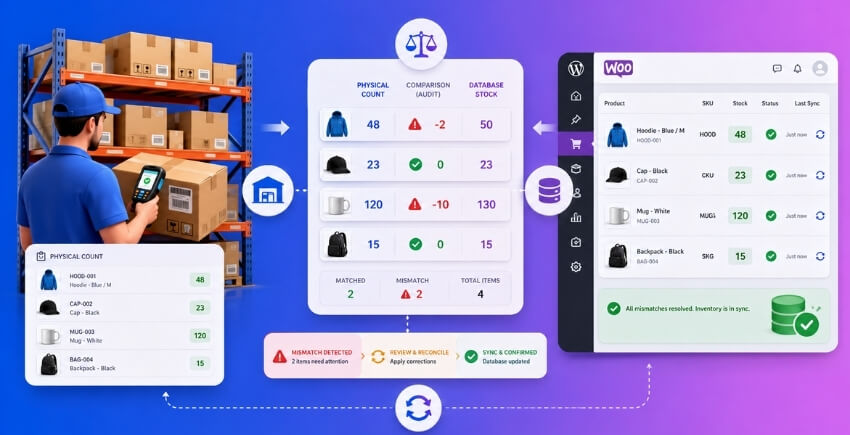
Step 2 — Compare the Export Against Your Physical Count
Now you need a physical count. Do a full warehouse count on the same day as the export, ideally when no orders are being processed — early morning before the store opens, or during a brief maintenance window.
Export your WooCommerce data to a spreadsheet. Your warehouse team’s count goes in an adjacent column. Add a simple formula:
=WooCommerce_Qty - Physical_CountAny non-zero result is a discrepancy. Positive means WooCommerce thinks you have more than you do (the dangerous kind — leads to overselling). Negative means WooCommerce is underselling stock you actually have (lost revenue, but not customer-facing chaos).
A few things to check before assuming the database is wrong:
- Items booked against pending orders — stock held for
pendingoron-holdorders is already deducted in WooCommerce but may still be sitting in your warehouse. - Returns not yet restocked — a completed WooCommerce return doesn’t automatically restock unless you tick the box or your WooCommerce returns management process explicitly does it.
- Damaged or quarantined stock — your warehouse team may exclude it from the count while WooCommerce still tracks it.
- In-transit stock — if you run multiple locations, stock moving between warehouses exists in physical reality but may not be reflected in either location’s WooCommerce figure yet.
Document every discrepancy with a reason column. “Reason unknown” is valid — it just becomes a priority to investigate further.
Step 3 — Recalculate Stock Directly in the Database
WooCommerce has a built-in function to recount product stock, but most people don’t know it exists. The wc_recount_termsums function recalculates product term counts — useful, but not the same as recalculating the actual stock meta itself.
For a proper recount, use WP-CLI. This is the safest method because it uses WooCommerce’s own internal logic rather than raw SQL writes:
wp wc tool run recount_terms --user=1For individual products where you know the correct quantity, update via WP-CLI:
wp post meta update <product_id> _stock <correct_quantity>
wp post meta update <product_id> _stock_status instock
If you’re doing bulk corrections, write a CSV with ID, _stock, and _stock_status columns, then use WooCommerce’s built-in Import tool (Products → Import → Update existing products). Map the columns correctly and tick “Update existing products” — this avoids creating duplicates.
One thing that trips people up: after updating stock in the database directly, cached values may still serve the old figures. Clear your object cache, transient cache, and any page cache layer you’re running. In WP-CLI:
wp cache flush
wp transient delete --all
If you’re on a managed host with a server-level cache (Redis, Memcached, or full-page cache), you’ll need to flush that separately through your host’s panel or the relevant cache plugin.
For multi-warehouse setups where each location holds its own inventory, per-location stock figures live in their own meta fields — not just _stock. If you’re using a dedicated multi-location inventory plugin, check its own stock meta keys (they’ll be documented in the plugin’s developer notes) and make sure your SQL queries or import process targets the right fields. Overwriting the global _stock value when the plugin is tracking per-location stock can create a new mismatch.
Step 4 — Check Order Statuses and Apply Stock Adjustments
This is where most reconciliations go wrong. People correct the stock figure without accounting for what orders are currently holding against it.
WooCommerce deducts stock at different points depending on your settings. By default, stock reduces when an order reaches processing status. But pending and on-hold orders may also hold stock if Hold stock (minutes) is configured under WooCommerce → Settings → Products → Inventory.
Run this query to see all orders that are currently holding stock:
SELECT ID, post_status, post_date
FROM wp_posts
WHERE post_type = 'shop_order'
AND post_status IN ('wc-pending', 'wc-on-hold')
ORDER BY post_date DESC;
Any order in wc-pending or wc-on-hold that hasn’t expired should be factored into your count. That stock is legitimately reserved — don’t add it back to available inventory unless the orders have genuinely lapsed.
For failed or cancelled orders, check whether WooCommerce actually restocked. Go to the order, check the Order notes metabox. You’ll see a note like “Item quantities restocked.” if WooCommerce handled it. If you don’t see that note and the order was cancelled, the stock may not have been returned. Manually adjust using the stock field in the product editor, or via WP-CLI as shown above.
After applying all your corrections:
- Cross-check your spreadsheet discrepancy column — every row should now be zero (or documented as intentional).
- Re-export from WooCommerce and compare against the corrected physical count.
- If you’re running a WMS, trigger a fresh scheduled sync or manual sync pull to make sure the external system matches WooCommerce’s updated figures. If the WMS pushes via REST API or webhooks, verify the last sync timestamp in its logs before assuming the data is current.
Going forward, a regular stock audit cadence — weekly for fast-moving SKUs, monthly for slower ones — catches drift before it becomes a serious mismatch. If you’re managing inventory across multiple warehouses, the free version of Multi-Location Product & Inventory Management for WooCommerce by Plugincy gives you a centralized Stock Central view where you can review per-location inventory without jumping between product screens — which makes periodic audits significantly faster. If you need inter-location stock transfers with a full transfer record (so your audit trail shows when stock moved between warehouses and why), that’s available in the pro version.
The audit process itself isn’t complicated. The discipline of doing it regularly is what separates stores that catch mismatches early from the ones that discover them via customer complaints.
How to Keep a Stock Mismatch Log and Track Inventory Change History
Most stock mismatch problems aren’t mysterious. They’re just undocumented. A quantity changes, nobody records why, and three weeks later you’re staring at a number that makes no sense. A proper inventory change log fixes that.
Why WooCommerce Doesn’t Log Stock Changes by Default
Out of the box, WooCommerce doesn’t give you a history of stock movements. It stores the current quantity in wp_postmeta under _stock, but it doesn’t record what changed it, when, or why. You can see the number — you just can’t see how it got there.
That gap is where mismatches hide.
What a Good Stock Log Should Capture
Before you pick a solution, know what you actually need to record:
- Timestamp — when the change happened
- Product and variation ID — exactly which SKU was affected
- Old quantity and new quantity — the before and after
- Change reason — order placed, order cancelled, manual adjustment, return processed, import run
- Reference — order number, user ID, or import batch tied to the change
If your log captures those six fields consistently, you can trace any discrepancy back to its source.
Option 1: Use a Plugin That Adds Stock History
Several plugins add stock logging to WooCommerce without requiring any custom development. When evaluating one, check that it logs changes from all sources — not just orders, but also manual edits, imports, refunds, and API calls.
Look for these capabilities specifically:
- Logs triggered by
woocommerce_product_set_stock(catches programmatic changes) - Separate records for each product variation, not just the parent
- Filterable by date range, product, or reason
- Exportable — you’ll want this for warehouse reconciliation
Most logging plugins are lightweight and don’t conflict with core WooCommerce behavior, but verify that yours logs changes made through the WooCommerce REST API as well, since a lot of WMS integrations push stock updates that way.
Option 2: Log Changes with Custom Code
If you’re comfortable with code and want a lightweight solution without another plugin, you can hook into WooCommerce’s stock update action and write changes to a custom database table or a log file.
add_action( 'woocommerce_product_set_stock', function( $product ) {
    $log_entry = array(
        'product_id'   => $product->get_id(),
        'sku'          => $product->get_sku(),
        'new_quantity' => $product->get_stock_quantity(),
        'timestamp'    => current_time( 'mysql' ),
        'user_id'      => get_current_user_id(),
    );
    // Write to a custom table or use WC's built-in logger
    $logger = wc_get_logger();
    $logger->info( json_encode( $log_entry ), array( 'source' => 'stock-change-log' ) );
} );
This writes to WooCommerce’s native logging system, which you can access under WooCommerce → Status → Logs. It’s a starting point — not a full audit system — but it gives you a searchable record immediately.
For variation-level tracking, also hook into woocommerce_variation_set_stock with identical logic.
Building a Manual Stock Mismatch Log
Even without a plugin, you need a manual log for adjustments you make during audits and reconciliation. A simple spreadsheet works fine. Keep columns for:
| Date | Product/SKU | Variation | Old Qty | New Qty | Reason | Adjusted By |
|---|---|---|---|---|---|---|
| 2024-03-15 | Blue Hoodie | Large | 12 | 10 | Found 2 damaged in warehouse | Sarah |
Update this every time you manually correct stock in WooCommerce. Every time. No exceptions. It sounds tedious until you’re six months in and you need to explain to your accountant why your books don’t match your system.
Tracking Changes Across Multiple Warehouses
Single-location stores have it relatively simple — one number, one place. Multi-warehouse operations are a different situation entirely. You’re tracking stock per location, and a change at one warehouse shouldn’t look like a global stock drop to the system.
If you’re managing inventory across multiple locations in WooCommerce, the free version of Multi-Location Product & Inventory Management for WooCommerce by Plugincy gives you separate stock quantities per product-location combination, including per-variation inventory at each location. The basic Stock Central view gives you a centralized place to review location inventory without jumping between product screens — useful during a stock audit when you need to spot discrepancies fast.
The PRO version extends this further with inter-location stock transfers (with transfer records), location-specific low-stock alerts, and the Advanced Stock Central where you can bulk-edit stock quantities across locations from one screen. For a multi-warehouse operation that’s trying to maintain a clean change history, having transfer records built into the system is significantly better than manually noting “moved 20 units from Warehouse A to Warehouse B” in a spreadsheet.
Connecting Your Log to WooCommerce Order Statuses
Stock changes don’t just come from shipped orders. They come from pending orders that hold stock, failed orders that should release it, returns that need to be restocked, and manual corrections. Your log needs to reflect all of these, not just fulfilled orders.
A few things worth tracking explicitly:
- Pending → Failed: Did the stock get released? Check whether your WooCommerce stock management settings have “Hold stock” configured and whether
woocommerce_cancel_unpaid_ordersran via cron. - Refunded orders: Was the item marked “Return to stock”? WooCommerce asks during refund processing — but only if someone clicks the checkbox.
- Manual admin edits: Who changed it and why?
If your log has gaps in any of these areas, that’s usually where mismatches come from.
Setting Up Low Stock Notifications as an Early Warning
A change log tells you what happened. A low stock notification can alert you before a mismatch causes a real problem — like overselling.
Set your WooCommerce low stock threshold conservatively. Go to WooCommerce → Settings → Products → Inventory and set a low stock threshold that gives you time to investigate before you hit zero. If you’re regularly seeing the Not Enough Units Available error before any alert fires, your threshold is probably set too low (or notifications are going to an email nobody checks).
For multi-location setups, location-aware low-stock alerts — available in the PRO version of the Multi-Location plugin — let you route notifications per warehouse, so the right person gets the alert, not just a generic admin email.
Making Your Log Actionable
A log nobody reads is just storage. Build a simple review habit into your operations:
- Weekly: Scan for any stock change with no associated order ID or reason code.
- After every import or bulk update: Check that quantities changed only for the products that were in the import file.
- After any WMS sync or REST API push: Verify the quantities landed correctly, especially for variable products where a sync might update the parent but not the variations.
The log is only useful if you act on anomalies when you spot them — not three months later when they’ve compounded into a reconciliation nightmare.
Setting Up Automated Stock Mismatch Alerts and Notifications
Catching a stock mismatch after a customer has already placed an order — or worse, after you’ve oversold fifty units — is too late. Alerts don’t prevent every mismatch, but they give you an early warning while you still have options. Here’s how to set them up properly.
WooCommerce Built-in Low Stock Notifications
WooCommerce ships with basic stock email alerts out of the box. Most store owners either don’t know they exist or haven’t configured them correctly.
Go to WooCommerce → Settings → Products → Inventory. You’ll find two relevant fields: Low stock threshold and Out of stock threshold. Set the low stock number to something meaningful — not zero, and not 1 if you regularly sell in batches. A threshold of 5 or 10 gives you a usable buffer window.
Below those fields, you’ll see Notification recipient email. By default this is your WordPress admin email. Change it to whoever actually manages stock — a warehouse manager, a fulfilment coordinator, whoever will act on it. Sending alerts to a generic admin inbox that nobody reads daily defeats the purpose.
Once configured, WooCommerce fires two email notifications automatically:
- Low stock email — triggers when a product’s stock count hits your threshold after an order is placed
- Out of stock email — triggers when stock drops to zero
These fire on the woocommerce_low_stock and woocommerce_no_stock action hooks respectively. If your emails aren’t arriving, check that those hooks aren’t being suppressed by a caching plugin or a custom theme, and verify your WordPress transactional email is working at all (use a plugin like WP Mail SMTP to test).
One important gap: WooCommerce’s built-in alerts fire based on post-order stock deduction. They don’t alert you when a manual stock adjustment is made in the admin, and they have no awareness of why stock changed — an order, a return, an admin edit, or a database correction all look the same to it. That’s fine for basic monitoring, but it means you’re flying blind on anything that doesn’t go through the checkout flow.
For variable products, the low stock threshold applies per variation, not per parent product. If you’ve got a parent product with ten variations and only one variation hits the threshold, you’ll get an alert for that specific variation. Make sure your thresholds are set at the variation level, not just on the parent — otherwise you’ll miss some alerts entirely.
If you want alerts to also fire on manual admin stock edits, you can hook into woocommerce_product_set_stock with a custom function. But that’s a developer task, and for most stores the built-in order-triggered alerts are sufficient if configured correctly.
Location-Aware Alerts for Multi-Warehouse Setups — Free and Pro Options
Standard WooCommerce notifications know nothing about warehouse locations. You get one alert for the whole store. If you’re running multiple warehouses, a stockroom and a retail floor, or any multi-location setup, that’s not enough — you need to know which location is running low, not just that stock is low somewhere.
Free options
The free version of Multi-Location Product & Inventory Management for WooCommerce by Plugincy includes low-stock thresholds that are location-aware. You can set a separate threshold per product-location combination, so a low-stock condition at your Manchester warehouse doesn’t get buried in a global alert meant for your London one.
This matters practically. If you have 30 units across three locations — 15 in one, 10 in another, 5 in a third — the global WooCommerce alert might never fire because total stock looks healthy. Location-aware thresholds catch the location that’s about to run out, even when aggregate stock looks fine.
Setup in the free version is straightforward: once you’ve assigned a product to locations and entered per-location stock quantities, each location assignment gets its own low-stock threshold field. Set it, save, and alerts will respect location boundaries.
Pro options
The pro version of Multi-Location Product & Inventory Management for WooCommerce adds configurable stock alert emails that route to the right people — not just the global admin. If your Brighton warehouse has a separate manager, that person can receive low-stock and out-of-stock notifications specifically for their location’s inventory. You can also set up operational event alerts for things like restocks and order cancellations, and route notifications to Slack, Discord, Microsoft Teams, or Telegram channels if your team works out of those.
That last part — social and team notifications — is genuinely useful for multi-warehouse operations where the person who needs to act isn’t checking their inbox every hour.
If you’re not using a dedicated multi-location plugin, your options narrow. You could build location-specific alerts with custom code using woocommerce_low_stock combined with post meta checks against your location data in wp_postmeta. Workable, but brittle if your location structure changes. A cleaner approach for complex setups is to push stock events through the WooCommerce REST API or webhooks into an external WMS that handles its own alerting — most WMS platforms have configurable notification rules per warehouse location built in.
For stores using a WMS integration, make sure your webhook events include the location identifier in the payload. A generic “stock updated” webhook without location context is only marginally better than no alert at all.
Start with WooCommerce’s native notifications and actually configure them — threshold values, recipient email, and per-variation settings. Then layer location-aware alerting on top if your setup spans more than one physical location. Reactive alerts won’t prevent mismatches, but they’ll dramatically cut the time between a mismatch developing and someone noticing it.
Keeping Stock in Sync with Third-Party WMS Integration
Connecting a Warehouse Management System to WooCommerce is where a lot of stock mismatch problems either get solved for good — or get a lot worse. The integration itself is straightforward in theory. In practice, there are enough failure points that it’s worth understanding exactly how the data moves before you build anything or install a plugin.
How WMS Integration Works
A WMS handles physical inventory — pick lists, putaway, receiving, shipment scanning. WooCommerce handles the order-facing side: product listings, checkout, order statuses. Neither system is designed to be a source of truth for the other, so you have to define which one wins.
This is the first decision you need to make. Pick one system as the master inventory record. Most operations that have a proper WMS let it own stock quantities, and push updates to WooCommerce. That means WooCommerce is the display layer, not the inventory brain.
The two common integration patterns are:
- Push from WMS to WooCommerce — the WMS sends a stock update whenever a quantity changes (shipment received, item picked, return processed). WooCommerce accepts it and updates
wp_postmetawith the new_stockvalue. - Pull from WooCommerce — the WMS periodically polls WooCommerce for new orders, then decrements its own stock. This is slower and creates a window where overselling can happen.
Most solid integrations use both directions. Orders flow out of WooCommerce into the WMS. Stock levels flow back from the WMS into WooCommerce. The sync frequency and error handling between those two flows is where things fall apart.
One thing that surprises people: WooCommerce doesn’t automatically reconcile an incoming stock update against pending orders. If you push stock = 50 from your WMS but there are 3 pending WooCommerce orders holding that stock in reserve, WooCommerce will display 50, not 47. You need your integration layer to account for that, or you’ll have a perpetual mismatch between what the WMS thinks is available and what WooCommerce is actually committing.
Syncing External Systems Using REST API and Webhooks
The WooCommerce REST API and webhooks are the two native tools for keeping an external system in sync. They serve different purposes.
REST API is request-driven. Your WMS or middleware calls a WooCommerce endpoint to read or write data. To update stock on a simple product:
PUT /wp-json/wc/v3/products/{id}
{
  "stock_quantity": 42
}
For variable products, you update the variation endpoint directly:
PUT /wp-json/wc/v3/products/{product_id}/variations/{variation_id}
{
  "stock_quantity": 15
}
This matters because a common mistake is pushing a stock update to the parent product and wondering why the variation’s stock hasn’t changed. Parent and child stock are stored separately in wp_postmeta and must be updated separately.
Authentication uses consumer key / consumer secret pairs, which you generate under WooCommerce → Settings → Advanced → REST API. Give your WMS integration a dedicated key with only the permissions it needs — read/write on products if it’s updating stock, read-only on orders if it’s just pulling order data.
Webhooks are event-driven. WooCommerce fires a payload to a URL you specify when something happens — an order is created, updated, or when a product is changed. For stock sync purposes, the most useful webhook topics are:
order.createdorder.updatedorder.deletedproduct.updated
Your WMS or middleware subscribes to these and reacts. When order.created fires with status processing, your WMS knows to start fulfillment and decrement its own inventory. When order.updated fires with a status change to cancelled or refunded, it knows to put that stock back.
A few practical points on webhook reliability:
- WooCommerce retries failed webhook deliveries, but only a few times. If your WMS endpoint is down for an extended period, you will miss events. Build a reconciliation job that runs nightly to catch gaps.
- Webhook payloads don’t always include the full product object — sometimes you’ll need to follow up with a REST API call to get current stock.
- WooCommerce cron jobs handle the scheduled delivery of some webhook queues. If
WC_ACTION_SCHEDULERis backed up or WP-Cron is unreliable on your host, webhooks can arrive late. Use a real cron job (/5 * wget -q -O- yoursite.com/wp-cron.php) instead of relying on visitor-triggered WP-Cron.
If you’re building this yourself rather than using off-the-shelf middleware, the woocommerce_reduce_order_stock action is useful:
add_action( 'woocommerce_reduce_order_stock', function( $order ) {
    foreach ( $order->get_items() as $item ) {
        $product = $item->get_product();
        $sku     = $product->get_sku();
        $qty     = $item->get_quantity();
        // Push $sku and $qty to your WMS via its API here
    }
});
This fires after WooCommerce has already reduced its own stock, so you’re sending confirmed deductions to the WMS rather than speculative ones.
For object cache environments (Redis, Memcached), remember that a REST API stock update doesn’t automatically flush cached product data. If your WMS pushes a new quantity, but a page cache or object cache is serving stale data to shoppers, the update won’t be visible until the cache expires or you clear it. Some integrations handle this explicitly by calling wc_delete_product_transients( $product_id ) after each stock update.
Using a Multi-Location Inventory Management Plugin for Warehouse Sync
Single-location WMS integration is already complex. Multi-warehouse setups add another layer — you need WooCommerce to know not just how much stock exists, but where it is and which location should fulfill each order.
Native WooCommerce doesn’t support per-location stock. The _stock value on a product is a single number. There’s no built-in concept of “30 units at Warehouse A, 20 units at Warehouse B.” You either handle this with custom database tables and a lot of custom code, or you use a plugin that extends WooCommerce’s inventory model.
Multi-Location Product & Inventory Management for WooCommerce by Plugincy is one option worth looking at here, particularly if you want a no-code solution that gives you genuine per-location stock tracking inside WooCommerce. The free version covers the core warehouse sync needs: you define unlimited locations (warehouses, fulfillment centers, retail stores), assign products and individual variations to each location with separate stock quantities, and each location gets its own low-stock thresholds and stock status behavior.
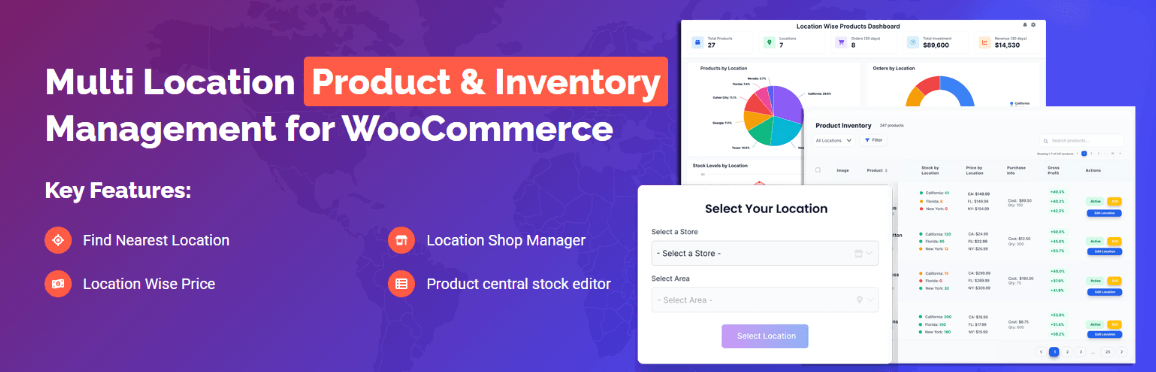
From a WMS integration standpoint, the free version’s per-location inventory structure means you have a clean data model to sync against — each product-location combination holds its own stock, so when your WMS reports “Warehouse B received 50 units of SKU-4471,” you’re updating a specific location record rather than a single global quantity that mashes all locations together.
The Pro version adds the REST inventory API and webhooks specifically for connecting external systems — authenticated REST endpoints for reading and writing per-location stock, and signed webhook events for inventory and location changes. That’s the tier you’d want if your WMS or ERP needs a live programmatic connection rather than periodic CSV imports. The Pro version also handles inter-location stock transfers with transfer records, which keeps your WMS sync audit-clean — you can see when stock moved between locations, not just that quantities changed.
For the plugin-neutral path: whatever multi-location plugin you’re evaluating, check three things before you commit to it.
- Does it store per-location stock in its own tables or in
wp_postmeta? Custom tables are generally faster and easier to query at scale.wp_postmeta-based approaches can get slow with large catalogs. - Does it expose an API for external systems? Some plugins offer multi-location UI but no programmatic access, which means you’re stuck doing CSV imports for WMS sync — workable for small operations, painful for anything with real order volume.
- **Is
How Weak Returns Management Causes Stock Mismatches — and How to Fix It
Returns are one of the most overlooked sources of stock discrepancy in WooCommerce stores. You ship a product, the customer sends it back, and somewhere between the carrier dropping it off and your team logging it, the stock count either gets updated twice, doesn’t get updated at all, or gets updated for the wrong item. Any one of those scenarios creates a mismatch between what WooCommerce shows and what’s actually sitting on your warehouse shelf.
This isn’t a rare edge case. For stores processing even moderate return volumes, it’s a consistent leak.
Why Returns Break Your Stock Count
WooCommerce doesn’t have a built-in returns management system. What it has is a refund mechanism — and restocking stock on a refund is optional, manual, and easily missed.
When a store manager processes a refund in WooCommerce, they see a checkbox labeled Restock refunded items. If that checkbox is ticked, WooCommerce adds the quantity back to stock_quantity in wp_postmeta. If it isn’t ticked — or if the refund is processed programmatically without that flag — the stock stays depleted. The product physically comes back to the warehouse. WooCommerce doesn’t know.
That gap between “box arrived back” and “stock updated” is where mismatches are born.
A few specific scenarios that make this worse:
- Partial refunds. A customer orders three units of a product, returns two. If the person processing the refund manually types the refund amount but doesn’t adjust the quantity field correctly, the restock either doesn’t happen or restocks the wrong number.
- Refunds on variable products. With product variations, the restock has to hit the correct variation’s stock, not the parent product. If your process is sloppy here — or if whoever’s handling refunds doesn’t understand how WooCommerce variable products work — you end up restocking the wrong SKU.
- Exchanges. WooCommerce has no native exchange workflow. A customer sends back a size M and wants a size L. Your team has to manually process a refund on the M, then create a new order (or manually adjust stock) for the L. Both sides of that transaction can go wrong independently.
- Returns that fail quality checks. A returned item arrives damaged. It shouldn’t go back into sellable stock — but if restocking happens automatically on refund processing, it will. Now WooCommerce shows one more unit available than you actually have to sell.
- Order status edge cases. If a return is triggered from an order that’s still sitting in a
pendingorfailedstatus, the stock might never have been decremented in the first place (WooCommerce only reserves and reduces stock on certain order status transitions). Restocking something that was never deducted means your count is now inflated by one.
The Manual Restock Problem
The core issue is that WooCommerce treats restocking as a yes/no checkbox at refund time. There’s no staged returns workflow — no “received at warehouse,” no “quality check passed,” no “approved for restock.” It’s one decision made at one moment, usually by whoever happens to be processing the refund in the admin.
That’s not how physical returns actually work. The financial refund and the inventory restock should be two separate events, because they happen at different times and involve different people.
In practice, most stores end up with one of two broken habits:
- Always tick “Restock refunded items” — so damaged or unsellable returns inflate stock counts.
- Never tick it, planning to “do it manually later” — which either never happens or happens inconsistently, leaving stock perpetually understated.
Neither is correct. You need a process, not a habit.
Building a Returns Process That Doesn’t Break Stock
The fix here is mostly operational, not technical. The technology is only as reliable as the process feeding it.
Step 1: Separate financial refunds from inventory restocks.
Process the WooCommerce refund with Restock refunded items unchecked. Do not touch inventory at refund time. Only update stock after the item has physically arrived at the warehouse and passed your inspection.
Step 2: Create a returns log.
This doesn’t have to be complicated. A shared spreadsheet with columns for order number, SKU, quantity returned, return reason, condition on arrival, and restock decision works fine for small stores. For higher volumes, a proper return merchandise authorization (RMA) workflow inside a WooCommerce returns plugin makes this more reliable — but the log is the critical part, not the tool.
Step 3: Restock manually after inspection.
Once an item is confirmed sellable, update the stock quantity in WooCommerce directly. Go to the product (or the correct variation), enter the new stock figure, and save. If you’re handling this in bulk after a returns batch, do it in one session with the log open so nothing gets missed.
Step 4: Write off unsellable returns immediately.
If something fails inspection, record it as a write-off in your stock audit log and don’t touch the WooCommerce count. Don’t let damaged returns sit in a “to be decided” pile — that pile becomes invisible inventory that distorts every count you do afterward.
Plugin-Based Returns Workflows
If your return volume is high enough that manual logging isn’t realistic, you need a dedicated returns plugin that adds a proper RMA flow on top of WooCommerce. These typically let customers submit return requests, give you an approval step, and — crucially — separate the restock action from the refund action with its own confirmation.
Look for a plugin that explicitly lets you control the restock trigger independently from the refund. Some plugins auto-restock on RMA approval; others wait for you to mark the item as received. The second behavior is what you want, because it matches how a warehouse actually operates.
Whatever plugin you use, verify that it correctly handles variable products — restocking to the right variation, not the parent. Test this with a real return before you rely on it in production.
The Multi-Warehouse Complication
If you’re running stock across multiple warehouse locations, returns introduce another layer of complexity: which location gets the stock back?
A customer might have received an order fulfilled from your east warehouse, but they’re returning it to your main distribution center. If you restock it at the wrong location, your per-location counts are wrong even if your total count is right. That causes the wrong availability to show for customers selecting a specific location, and it makes your warehouse-level reconciliation unreliable.
For stores managing multi-location inventory, the restock decision has to include where the stock is going, not just how much. The Multi-Location Product & Inventory Management for WooCommerce by Plugincy free version supports per-location stock quantities and separate stock per variation per location — so if you’re already using it, you can adjust the correct location’s stock directly from the product’s location panel after a return is cleared. It won’t automate the returns workflow itself, but it ensures your restock hits the right location rather than a global total that then gets distributed incorrectly.
Catching Restock Errors After the Fact
Even with a solid process, mistakes happen. Here’s how to catch them during your regular stock audit:
- Compare refund records to stock movements. In WooCommerce, refunds appear in the order record. Cross-reference the number of refunded units for a SKU in a given period against the stock increases recorded in your inventory history log for that same SKU. If refunds exceed restocks, you have units that came back but didn’t get logged. If restocks exceed refunds, someone doubled up.
- Look at your
wp_postmetastock history. WooCommerce writes stock changes to the_stockmeta key inwp_postmeta. If you’re logging stock changes viawoocommerce_product_set_stockor similar hooks, you can pull a history for a product ID and see every adjustment with a timestamp — useful for pinpointing when a bad restock happened.
- Flag high-return SKUs for manual counts. Products that get returned frequently should be physically counted more often. Don’t wait for a quarterly audit to discover that a product with a 20% return rate has been miscounted for three months.
One Process Change That Prevents Most Problems
Make it a rule: no one processes a refund with “Restock refunded items” checked unless the item is already physically back in the warehouse and confirmed sellable.
That single change eliminates the most common cause of return-related stock mismatches. Everything else — the log, the inspection step, the location assignment — is additional rigor built on top of that baseline.
Stock mismatches from returns aren’t usually a WooCommerce bug. They’re a process gap. Close the gap
Best Practices to Prevent Stock Mismatches in the Future
Fixing a mismatch after it happens is damage control. The real goal is building a setup where mismatches rarely occur — and when they do, you catch them fast before a customer notices.
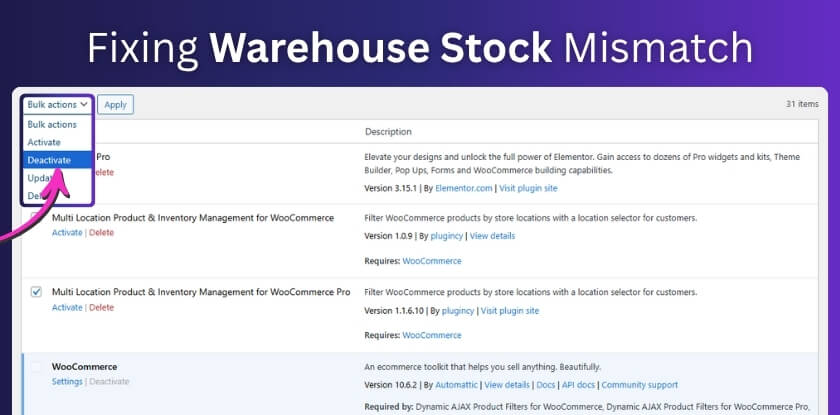
Here’s what that looks like in practice.
Keep Your Stock Settings Consistent and Explicit
WooCommerce’s default stock behavior has a few loose ends that cause trouble at scale. Tighten them up deliberately.
Turn on Manage stock at the product level, not just globally. Global settings set defaults, but if individual products don’t have stock management enabled, WooCommerce won’t track them at the line-item level. Check every product — especially older ones imported from another platform.
Set a realistic Low stock threshold. The default is 2, which is fine for low-volume stores but useless for products that sell in dozens. If an item typically moves 20 units a week, a threshold of 2 is noise. Set it to something that actually gives you time to reorder.
Use backorders intentionally. Either allow them site-wide and manage customer expectations, or disable them and let WooCommerce block the purchase. The worst outcome is leaving the setting on “Allow, but notify customer” and then never actually fulfilling those orders — that’s how backorder queues silently pile up and distort your real available stock.
Standardize How Orders Affect Stock
WooCommerce reduces stock when an order moves to Processing or Completed — not on Pending. That’s the correct default behavior, and you should leave it alone unless you have a specific reason to change it.
What you do need to manage: orders that get stuck in Pending. A customer who abandons a cart after a failed payment leaves a Pending order in your database, but WooCommerce may have already reduced stock depending on your version and settings. Run a scheduled review (weekly is fine for most stores) of Pending and Failed orders older than 24 hours. Manually cancel them, which triggers stock restoration.
If you’re on a high-volume store, consider a plugin that automates this — but test it in staging first. Poorly configured auto-cancel rules can cancel legitimate orders from slow payment gateways.
Run Scheduled Stock Reconciliation, Not Just Emergency Audits
Ad-hoc audits after a problem aren’t a system. Build a real schedule.
For most stores, a monthly physical count against WooCommerce figures is enough. For high-velocity SKUs, do it weekly. The comparison process itself doesn’t need to be complicated — export your WooCommerce stock report, count the physical warehouse shelf, spot the gaps.
Keep a running adjustment log. Every time you correct a stock number manually, write down: the SKU, the old figure, the new figure, and why it changed. Over three months, you’ll see patterns — the same SKU going wrong repeatedly usually points to a process failure, not bad luck.
Lock Down Who Can Edit Stock
Stock edits made directly in wp_postmeta without going through WooCommerce’s proper order flow bypass all the hooks and logging that keep counts accurate. This usually happens when someone with database access “fixes” a number by editing it directly in phpMyAdmin or a similar tool.
Restrict who can edit products in WordPress. Not everyone who handles physical stock needs WooCommerce product-edit access. Use capability-based roles — the built-in Shop Manager role is a reasonable baseline, and you can restrict it further with a user-role plugin if needed.
If you’re running multi-location operations with warehouse staff, give each person visibility into only their assigned location. This isn’t just a permissions-hygiene point — it directly reduces accidental stock edits on the wrong location. The free version of Multi-Location Product & Inventory Management for WooCommerce by Plugincy lets you assign products and variations to specific locations with separate stock quantities per location. The pro version adds location manager roles with restricted product and order access, so warehouse staff only see what’s assigned to them — which eliminates a whole category of accidental cross-location edits.
Keep Your Cron Jobs Healthy
WooCommerce relies on WP-Cron for scheduled tasks — low stock notifications, cleanup jobs, and any scheduled sync you’ve configured. WP-Cron only fires when someone visits your site. On low-traffic stores, this means cron jobs can be delayed by hours.
Replace WP-Cron with a real server cron. Add define('DISABLE_WP_CRON', true); to your wp-config.php and set up a server-side cron job that hits wp-cron.php every five minutes. Your host’s control panel usually has a cron scheduler; if not, ask support.
Check your scheduled jobs periodically. Use a plugin like WP Crontrol (on WordPress.org) to see which jobs are queued, when they last ran, and if any are stuck. A stuck cron job can mean stock sync events stop firing entirely — which you won’t notice until the mismatch is already significant.
Manage Your Cache Carefully Around Stock
Object cache, transient cache, and page cache all serve legitimate performance purposes. But they can each serve stale stock counts if not configured correctly.
The critical rule: your cart, checkout, and stock-check endpoints must never be page-cached. This is normally handled by your caching plugin automatically for WooCommerce pages, but verify it. If you’re using a CDN or a reverse proxy like Nginx FastCGI cache, the exclusion has to be configured at that layer too — it won’t happen automatically.
Transient cache can show stale figures in admin stock views. If you’ve updated stock and the product page still shows the old number, run wc_recount_termsums() or use WooCommerce’s built-in Tools → Update database and Recount terms actions. Clear your object cache (Redis or Memcached) after any bulk stock update.
When you push stock updates through the WooCommerce REST API or via webhooks from an external WMS, make sure the system on the other end is handling cache invalidation. Updating stock via API writes directly to wp_postmeta, which won’t automatically clear cached values everywhere. Build a cache-clear step into your sync workflow.
Test Your WMS Sync Regularly
If you’re running an integrated WMS, don’t assume the sync is working just because it worked at setup. Stock sync connections break silently — API credentials expire, webhooks stop delivering, a PHP update changes timeout behavior.
Build a simple monthly test into your workflow: pick five random SKUs, compare the figure in your WMS against WooCommerce, and verify they match. If they don’t, investigate before it becomes a larger drift. Check your WMS’s sync log and your WooCommerce error log together — the mismatch will usually show up as a failed API call or a webhook delivery failure on one side.
For REST API integrations specifically, log both outgoing requests and the responses. A 200 OK response doesn’t always mean WooCommerce actually updated the stock value — check the response body.
Audit Your Plugins After Every Major Update
Plugin conflicts are a consistent source of stock miscounts — not just at initial install, but after updates. A plugin that worked fine for six months can introduce a stock-handling bug in a point release.
After any significant WooCommerce core update or third-party plugin update, run a quick sanity check: place a test order, verify the stock reduced correctly, check that the order moved to the right status, and confirm the stock figure in WooCommerce matches what you’d expect.
Keep a staging environment that mirrors your live setup. Testing on staging before applying updates to production isn’t optional if stock accuracy matters to your business.
Set Meaningful Low Stock Thresholds — Per Location
A single global low stock notification is easy to miss and easy to dismiss. Meaningful alerts are specific.
Set low stock notifications per product based on actual reorder lead times. If a supplier takes two weeks to deliver and you sell 30 units a week, your low stock threshold should be at least 60, not the default 2.
If you’re operating across multiple warehouse locations, a global low-stock figure is misleading — a product might be overstocked at one location and out of stock at another. Per-location low stock monitoring (available in the free tier of Multi-Location Product & Inventory Management for WooCommerce by Plugincy) ensures the alert fires against the right location’s inventory, not an aggregate that masks a local shortage.
Build the Habit of Reading Your Logs
WooCommerce writes errors and warnings to its log under WooCommerce → Status → Logs. Most store owners never
Frequently Asked Questions (FAQ)
Does WooCommerce automatically fix stock mismatches on its own?
No. WooCommerce will adjust stock when orders are placed, completed, or refunded — but it doesn’t actively compare your database numbers against physical warehouse counts. If a mismatch crept in through a failed order, a manual import error, or a plugin conflict, it just sits there. You have to find it and fix it yourself.
Why does my stock show as available online but we’ve got nothing in the warehouse?
A few common culprits. A failed or cancelled order may not have restocked correctly (check your WooCommerce order statuses settings — “Restock inventory when order status changes to cancelled” needs to be enabled). A manual CSV import could have overwritten real counts. Or a cron job that handles a scheduled sync with your WMS stopped running. Start by checking WooCommerce → Settings → Products → Inventory and confirm that stock management is actually on, then pull the raw value from wp_postmeta using the _stock key for that product.
How do I check the actual stock number stored in the database?
Run this in phpMyAdmin or a query tool:
SELECT meta_value
FROM wp_postmeta
WHERE post_id = YOUR_PRODUCT_ID
AND meta_key = '_stock';
Replace YOUR_PRODUCT_ID with the product or variation ID. Whatever number comes back is what WooCommerce is actually working from — regardless of what the admin screen shows.
My variable product stock looks wrong. Where does each variation store its stock?
Each variation is its own post in the database. The stock for a specific variation lives in wp_postmeta against that variation’s post ID — not the parent product’s ID. When you check stock for a variable product, you need the variation IDs, not just the parent. In the admin, open the product, go to the Variations tab, expand each variation, and the stock field is there individually. Getting the parent wrong is one of the most common sources of confusion with variable products.
What causes the “Not Enough Units Available” error even when stock shows as in-stock?
Usually one of three things: the stock quantity in the database is lower than what the product page is displaying (a caching issue — object cache, transient cache, or page cache serving stale data), a pending order is holding reserved stock, or the variation’s stock is managed separately and that specific variation has run out even though the parent still shows units. Flush your object cache and transient cache first. If the error persists, check whether the pending orders are locking stock.
Can plugin conflicts actually cause stock mismatches?
Yes, and it happens more often than people expect. An AJAX filter plugin that caches product query results, a custom checkout plugin that hooks into order processing incorrectly, or a poorly coded import plugin that writes directly to wp_postmeta without triggering WooCommerce’s own stock functions — all of these can corrupt stock data. The quickest test: disable plugins one by one in a staging environment and see if the mismatch reappears. Always test with a staging copy, not live.
How often should I run a stock audit?
For most stores, a full reconciliation once a month is a reasonable baseline. If you’re running high volume, doing frequent promotions, or managing multi-warehouse inventory, weekly is smarter. After any major import, WMS sync job, or WooCommerce update — run an audit. Don’t wait for a customer complaint to tell you something’s off.
Does WooCommerce support multiple warehouse locations natively?
No. Core WooCommerce has a single global stock count per product or variation. There’s no built-in concept of “50 units in Warehouse A, 30 in Warehouse B.” For that, you need a dedicated plugin. Multi-Location Product & Inventory Management for WooCommerce by Plugincy handles this — the free version lets you set separate stock quantities per product-location combination, including per variation, which is the actual feature you need for multi-warehouse tracking. Per-location low-stock thresholds are also in the free version, so you get notified at the location level rather than just globally.
My WMS sync keeps getting out of date. What should I check first?
Check whether your WooCommerce cron jobs are actually running. A broken wp-cron is responsible for a huge number of silent sync failures. Install a cron monitoring plugin or use a real server-side cron to call wp-cron.php on a schedule. After that, verify the WooCommerce REST API credentials your WMS is using are still valid — token expiry and permission changes are common after WooCommerce updates. If you’re using webhooks, check the webhook delivery log in WooCommerce → Settings → Advanced → Webhooks for failed deliveries.
Will running wc_recount_termsums fix a stock mismatch?
Not directly. wc_recount_termsums recalculates product counts for taxonomy terms — it’s useful if your category/tag counts are wrong, but it doesn’t touch the actual stock quantity stored in _stock. For stock specifically, the fix is correcting the value in wp_postmeta directly or through the WooCommerce admin, and then optionally triggering wc_update_product_stock() to make sure all hooks fire correctly.
Can overselling happen even with stock management turned on?
Yes. High-concurrency situations — multiple customers checking out the same last unit simultaneously — can bypass the stock check before WooCommerce gets a chance to decrement. The standard fix is enabling “Hold stock (minutes)” in WooCommerce inventory settings, which reserves stock for pending orders. For serious volume, a proper queue mechanism at the server level is the more reliable answer, but the hold stock setting handles most small-to-medium store scenarios without any code changes.
How do I stop stock mismatches from coming back after I fix them?
A few habits that make a real difference: lock down who can edit stock quantities directly (limit it to one or two people), use WooCommerce’s built-in low stock notification so you catch problems early, keep a manual inventory history log after any adjustment, and audit after every major change to your setup. If you’re syncing with an external WMS, set up webhook delivery monitoring so you know immediately when a sync event fails rather than finding out days later. Prevention is almost entirely about process — the tools only help if the process around them is solid.
Conclusion — Accurate Stock Is the Foundation of a Trustworthy Store
Stock mismatches don’t announce themselves. One day a customer checks out on something you don’t actually have. Another day you’re sitting on 40 units WooCommerce thinks are gone. Both cost you — money, reputation, or both.
The good news is that most of what causes these problems is fixable. Not glamorously, not with a single plugin install, but through a combination of understanding where WooCommerce actually stores stock data, keeping your processes tight, and putting the right checks in place before things go wrong.
Here’s the honest summary of what works.
Fix the data layer first. The wp_postmeta table is where stock quantities live, and it’s the first place to look when numbers don’t add up. Pending orders, failed orders that never released stock, caching layers serving stale figures — these are the quiet culprits behind a lot of “unexplained” mismatches. Clearing your object cache and transient cache after any bulk stock change isn’t optional; it’s maintenance.
Variable products need extra attention. Stock set at the parent level when it should be at the variation level — or the reverse — is one of the most common sources of confusion. Each variation is its own product record. Treat it that way.
Automation is only as good as its configuration. Whether you’re using WooCommerce cron jobs, the REST API, webhooks, or a direct WMS integration, a sync that runs every four hours is a sync that can be four hours wrong. Know your sync frequency. Know what happens when it fails.
Multi-warehouse operations multiply the risk. If you’re managing stock across more than one physical location, per-location inventory tracking isn’t a nice-to-have — it’s the only way to keep numbers honest. Without it, you’re consolidating stock that shouldn’t be consolidated, and fulfillment becomes guesswork. The free version of [Multi-Location Product & Inventory Management for WooCommerce](https://wordpress.org/plugins/multi-location-product-and-inventory-management/) by Plugincy handles separate stock quantities per product-location combination, including individual variations, with low-stock thresholds that are location-aware. If you need inter-location stock transfers or a full inventory import/export workflow, that’s in the pro version — but for most stores starting out with multi-location tracking, the free tier covers the core need.
Returns are part of the stock equation. A return processed without a stock restock leaves a permanent gap between what’s in the warehouse and what WooCommerce thinks is there. WooCommerce returns management needs a defined process — not just a refund click.
Audit regularly, not reactively. A quarterly stock reconciliation that compares your physical warehouse count against the WooCommerce database catches drift before it becomes a crisis. Use your inventory history log to trace when a discrepancy started. That timestamp tells you where to look.
Alerts are early warning, not a fix. Low stock notifications and the Not Enough Units Available error are signals. They’re telling you something already went wrong upstream. The goal is to get far enough ahead of stock data that those alerts are rare — not to build a workflow that depends on catching problems after they surface.
None of this requires a massive technical overhaul. Most stores that get stock mismatch under control do it through three things: cleaner order status handling, a proper sync schedule with their external systems, and a habit of running a physical count against database records at least once a quarter.
Accurate stock is what lets a customer trust that “In Stock” actually means something. That trust is worth more than any conversion tactic.
