

Finding products by SKU is a very different behavior from normal store browsing. Instead of exploring categories, colors, or styles, shoppers or staff use SKU filtering when they already have a specific product code and want the fastest path to the right item.
This guide breaks down how to add filter by SKU in WooCommerce, which setup makes the most sense for your store, and where SKU filtering is actually useful without overcomplicating the shopping experience.
Quick Answer
WooCommerce does not come with a built-in SKU filter, so filtering by SKU usually requires a plugin or a custom setup that can read SKU values and return matching products. In most cases, the most practical approach is to use a filtering method that supports exact SKU lookup without forcing shoppers to browse through the catalog.
Here’s the basic setup flow:
- Make sure products already have SKU values
- Choose a method that supports SKU-based filtering
- Place the filter where users can access it easily
- Test it with known SKU codes
What An SKU Filter Does In WooCommerce?
SKU filtering is built for precision. Rather than helping visitors explore the catalog, it helps them reach a specific product by using its stock keeping unit as the lookup value.
That makes it especially useful in stores where product codes matter more than product names, such as wholesale catalogs, internal ordering workflows, repeat purchasing, or supplier-based buying. Instead of browsing multiple pages, users can go straight to the exact item they already have in mind.

When Are SKU Filters the Right Choice?
Exact product lookup is where SKU filters bring the most value. They work well in stores where users are not browsing casually but trying to reach a known item with as little friction as possible.
SKU filters are a strong fit when:
- Customers already have the product code
- Wholesale or B2B ordering happens often
- Large catalogs slow down manual product lookup
- Similar product names make selection harder
- Repeat orders are part of the buying process
How to Add Filter by SKU in WooCommerce: Practical Ways to Set It Up
Filtering by SKU is not part of WooCommerce’s default storefront tools, so getting it to work usually means choosing between a workaround, a custom build, or a dedicated filtering setup. The options below break down which approaches are usable, which ones are limited, and which method is more suitable when fast product lookup matters.
Method 1: Use SKU Search Instead of Filtering (Limited)
Sometimes a full SKU filter is not necessary. When users already know the product code, a search-based approach can still help them reach the right item quickly, even though it behaves more like lookup than true filtering.
Step 1: Make Sure Products Have SKU Values
- Open a product in WooCommerce
- Go to Product Data → Inventory
- Enter a unique SKU
- Save the product
Step 2: Check Whether SKU Search Is Working
- Open your store’s search bar
- Enter a known SKU value
- Confirm that the matching product appears in the search results
Step 3: Improve Search Access If Needed
- Place the search bar where users can find it easily
- Keep it visible on pages where SKU lookup matters most
- Make the search experience simple for repeat buyers or internal users
Step 4: Test With Real Product Codes
- Search using full SKU values
- Try similar codes to see how accurate the results are
- Check whether the search behaves well on desktop and mobile
Limitations Of This Method
- Not a true filter
- Cannot be combined cleanly with other filter types
- Depends on how search is configured
- Less useful for structured storefront filtering
- Better for quick lookup than layered filtering
Method 2: Use Custom Query-Based SKU Filtering (Advanced)
Custom query logic gives you more control over how SKU lookup works, but it is a better fit for technical setups than for a standard WooCommerce store. This method is usually used when SKU filtering needs to behave in a very specific way inside a custom ordering flow, internal tool, or tailored storefront.
Step 1: Decide How SKU Matching Should Work
- Choose whether the lookup should use exact SKU matching or partial matching
- Define where the SKU filter should work, such as the shop page, a custom page, or an internal ordering screen
- Keep the matching rule clear before building the query
Step 2: Query The SKU Meta Value
- Use the product _sku meta field as the lookup source
- Build the query with WP_Query or pre_get_posts
- Return only products that match the SKU value entered by the user
Step 3: Create The Filter Input
- Add a text input, search field, or small lookup form
- Let users enter the SKU directly
- Keep the input simple so the lookup stays quick and precise
Step 4: Connect The Input To The Query
- Pass the entered SKU value into the query logic
- Make sure the result updates the correct product area
- Keep the filtering behavior limited to the pages where it is needed
Step 5: Test With Known SKU Values
- Try exact product codes that already exist
- Check how the setup handles invalid or incomplete SKU entries
- Confirm the results stay accurate across different products
Method 3: Treat SKU as a Product Meta Field
WooCommerce stores SKU values as product meta, which means SKU-based filtering can also be handled through meta logic instead of a dedicated search-only setup. This approach is useful when SKU needs to be part of a more controlled filtering system alongside other internal product conditions.
Step 1: Confirm SKU Values Are Stored Correctly
- Open a few products in WooCommerce
- Check that each SKU is saved in the product inventory settings
- Keep SKU values consistent and unique
Step 2: Use SKU as the Meta Source
- Treat the SKU field as product meta
- Map the filter logic to the correct SKU meta value
- Make sure the filter reads the right field before testing
Step 3: Build the Meta-Based Filtering Logic
- Apply filtering rules based on SKU values
- Connect the logic to the product query
- Keep the lookup focused on exact or controlled matching
Step 4: Combine It With Other Internal Conditions
- Use it with stock checks, availability rules, or other product-level conditions if needed
- Keep the logic clean so the SKU behavior stays predictable
- Avoid adding unnecessary complexity if the goal is simple lookup
Step 5: Test the Results Carefully
- Try real SKU values from your catalog
- Check whether matching products appear correctly
- Review how the setup behaves when the SKU is missing or entered incorrectly
Method 4: Add SKU Filter Using AJAX Filtering (Recommended)
When someone is searching by SKU, they usually want the exact product fast. That is where AJAX-based product filters for WooCommerce make more sense than a basic search bar or a custom-heavy setup, because the results can update quickly and the lookup feels much smoother on the shop page.
Step 1: Install And Activate the Plugin
Free Version
- Go to Plugins → Add New Plugin
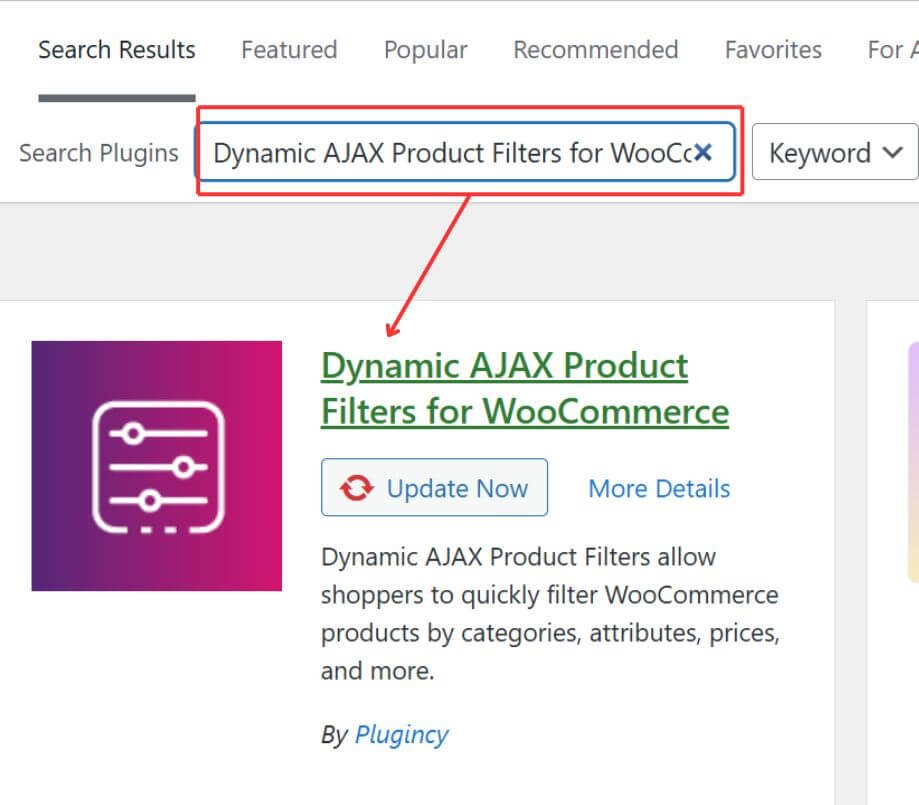
- Search for Dynamic AJAX Product Filters for WooCommerce
- Click Install Now
- Click Activate after installation finishes
Pro Version
- Go to Plugins → Add New Plugin → Upload Plugin
- Upload the Pro ZIP file
- Click Install Now
- Click Activate after installation finishes
- Enter the license key if activation is required

Step 2: Form Manage Settings
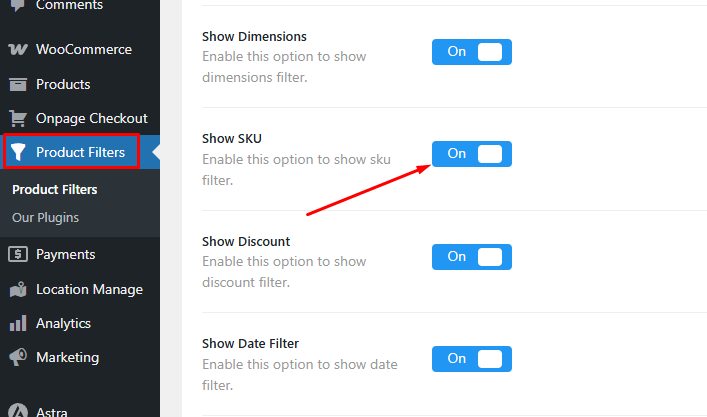
- Go to Product Filters > Form Manage from your dashboard
- Turn on the Show SKU option
- Save Changes
Step 3: Style The Filter If Needed
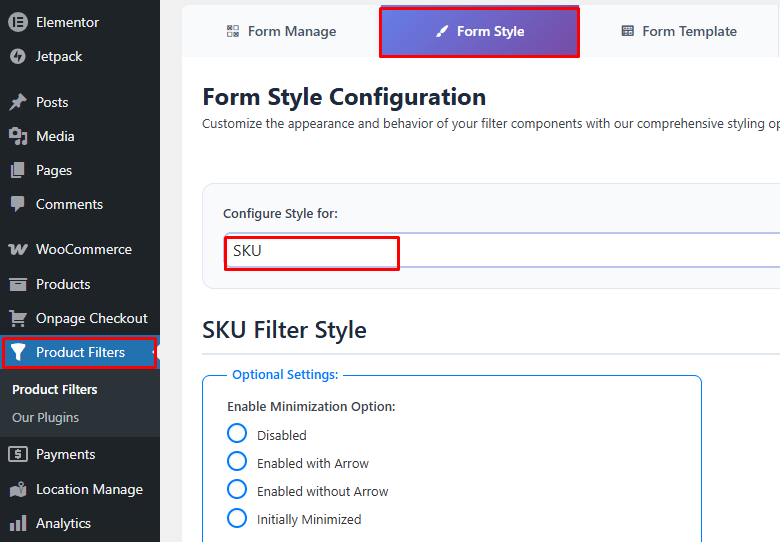
- Open the Form Style tab next to Form Manager
- Adjust the filter appearance and settings based on your store
- Save changes
Step 4: Show The Filter Where Users Will Use It
- Take the shortcode [plugincy_filters]
- Insert it into the shop page, category layout, sidebar, or another filter section
- Add it with a Shortcode block in the block editor
- Use an Elementor Shortcode widget if the page is built with Elementor
Step 5: Check That SKU Lookup Works Properly
- Visit the page where the filter has been added
- Try a SKU that already exists in your catalog
- Confirm that the matching product is returned
- Repeat the check with a few more SKU values to make sure the results stay consistent
Quick Comparison of SKU Filtering Methods
Each option handles SKU lookup a little differently. Some are enough for simple product searches, while others make more sense when SKU-based lookup needs to feel faster, cleaner, and easier to use on the front end.
| Method | Frontend Use | Combines With Other Filters | Recommended Use |
| SKU Search | ✔ | ❌ | Quick lookup |
| Custom Query | ✔ | ✔ | Developer tools |
| Meta Field Filtering | ✔ | ✔ | Advanced logic |
| AJAX SKU Filter | ✔ | ✔ | Best overall |
Which SKU Filtering Method Is Better for Different Store Types?
SKU filtering is not equally useful in every WooCommerce setup. The right choice depends on how people buy from your store, how often they use product codes, and whether SKU lookup needs to stay simple or work as part of a larger filter system.
| Store Type | Recommended Method | Why |
| Small retail stores | SKU Search | Simple lookup is usually enough when browsing matters more than exact code-based ordering |
| Wholesale or B2B stores | AJAX SKU Filter | Faster SKU-based lookup works better when buyers already know product codes |
| Large catalogs | AJAX SKU Filter | SKU lookup stays quicker and more manageable when product volume is high |
| Custom ordering systems | Custom Query | Developer control helps when SKU lookup needs to fit a specific workflow |
| Internal operations or advanced logic setups | Meta Field Filtering | SKU can be used as part of broader product-level conditions and internal rules |
Can Third-Party Plugins Improve the Way SKU Functions?
Yes, third-party plugins can definitely improve how SKU functions in a WooCommerce store by making product searches faster and easier. These plugins help customers find items quickly using SKU codes, even in stores with large inventories. Better filtering leads to better shopping experiences, which can boost customer satisfaction and increase sales. With simple tools and easy setup, even non-technical store owners can make SKU search work better.
Plugins offer features that WooCommerce doesn’t include by default, like advanced filtering options and keyword matching improvements for SKUs. Some plugins even support WooCommerce Filter by Custom Meta Fields, which helps filter products using specific data like SKUs. This makes the filtering more accurate and useful, especially for wholesale or B2B stores. As a result, customers can search by SKU just like they search by name or category.
What Makes SKU Filtering Useful in Real Store Workflows?
Fast product lookup matters most in stores where people are not browsing casually but trying to reach a known item with as little friction as possible. That is where this kind of setup starts to feel practical, especially in workflows built around product codes, repeat ordering, and precise item matching.
- Wholesale Ordering: Buyers can reach exact products faster without scrolling through large catalogs
- Repeat Purchases: Returning customers can reorder familiar items more easily by using known SKU values
- Internal Product Lookup: Store staff can find products quickly during support, inventory, or order-related tasks
- Supplier-Based Ordering: SKU filtering helps when product codes come from supplier sheets, purchase lists, or printed catalogs
- Large Catalog Management: Similar product names create less confusion when SKU lookup is available as a direct path
- Faster Decision Flow: Exact product matching removes extra browsing steps and keeps lookup focused on the intended item.
How to Keep SKU Filtering Search-Safe?
Search engines do not treat SKU lookup the way users do. Exact-code filtering is meant to help someone reach a known product quickly, not to create pages with broader search value.
| Scenario | Index | Noindex | Why |
| Main product page found through SKU lookup | ✔ | The actual product page is the page that should rank, not the filter result | |
| Category or shop page with normal navigation | ✔ | These pages support broader browsing and can carry real search intent | |
| URL generated after filtering by a specific SKU | ✔ | This is an internal lookup result, not a useful landing page for search | |
| AJAX-loaded SKU filter results | ✔ | These views help users find a product quickly, but are not meant for indexing | |
| Pages built only around internal or supplier SKU codes | ✔ | SKU strings usually have little to no standalone search value for general users |
Common Problems With SKU Filters in WooCommerce
Problems with SKU filtering usually come from data quality, lookup logic, or the way the filter is placed on the front end. When the setup is off in one of those areas, the filter may appear to work but still return the wrong products or no results at all.
- Missing SKU Values: Products without SKU data cannot be returned in a SKU-based lookup
- Inconsistent SKU Format: Mixed patterns, extra spaces, or irregular code structure can make matching less reliable
- Wrong Field Mapping: The filter may be reading the wrong product field instead of the actual SKU value
- Partial Matching Issues: Some setups return unexpected products when similar SKU codes overlap
- Variation SKU Confusion: Variable products can behave differently when parent and variation SKUs are not handled clearly
- Poor Front-End Placement: A hidden or awkwardly placed SKU filter makes exact lookup harder than it should be
- Search-Style Input Without Validation: Users can enter incorrect codes easily if the field gives no guidance or feedback
- Large Catalog Performance Issues: SKU lookup can feel slower when the store has a large product database, and the filtering method is not optimized
FAQs: WooCommerce SKU Filter
Questions around SKU filtering usually come up after the main setup is done. These quick answers focus on practical details that matter when SKU lookup becomes part of a real WooCommerce workflow.
Can An SKU Filter Be Useful On A Public Storefront?
Yes, but mostly in stores where shoppers already know the product code they need. In regular retail stores, SKU filtering is often less important than category or attribute-based browsing, but it can be very helpful in wholesale, repeat-order, or supplier-driven environments.
Should SKU Filtering Use Exact Match Or Partial Match?
Exact match is usually the safer option because SKU values are meant to identify one specific product. Partial matching can be useful in some cases, but it also increases the chance of returning similar codes that are not the intended product.
Can SKU Filtering Be Combined With Other WooCommerce Filters?
Yes, it can be combined with filters like stock status, price, or category when the setup supports it. That can be useful in stores where users need to find a known product code and still narrow the results by availability or other product conditions.
Is A Dropdown Or A Search-Style Input Better For SKU Lookup?
A search-style input is usually the better choice because SKU values are often too specific and too numerous for a dropdown to stay practical. It also feels faster for users who already know the code they want to enter.
Can SKU Filtering Help With Faster Reordering?
Yes, especially in stores where returning buyers often purchase the same items again. When customers already know the SKU from a previous order, catalog sheet, or internal list, SKU lookup can make the reorder process much quicker.
Conclusion
Exact product codes change the way people shop. When buyers already know what they need, adding the right SKU lookup method can make the path to purchase much shorter and much less frustrating.
For stores exploring how to add filter by SKU in WooCommerce, the best setup is usually the one that keeps product lookup quick, accurate, and easy to manage as the catalog grows.
