

Custom meta fields in WooCommerce let you store product data that does not belong in categories, tags, or attributes. This can include things like warranty length, delivery time, eligibility rules, or other plugin-generated values that affect how products should be filtered.
WooCommerce does not support custom meta field filtering by default, so you need the right filtering setup to make it work properly. In this guide, you will learn how to add WooCommerce filter by custom meta fields, when it makes sense to use it, and how to avoid common setup and SEO mistakes.
Quick Answer
WooCommerce does not support filtering by custom meta fields out of the box. To add this type of filter, you need an AJAX-based product filter plugin or custom code that can read and query product meta values.
In most cases, using an AJAX filter plugin is the easier and more scalable option. It lets you turn internal product data, such as warranty length, delivery time, or eligibility flags, into usable front-end filters without rebuilding WooCommerce queries manually.
What a Custom Meta Field Filter Does in WooCommerce
Custom meta field filtering helps stores narrow products using internal data saved in the database, not standard WooCommerce taxonomies like categories, tags, or attributes. This makes it useful for filtering product lists based on values that support store logic rather than regular catalog browsing.
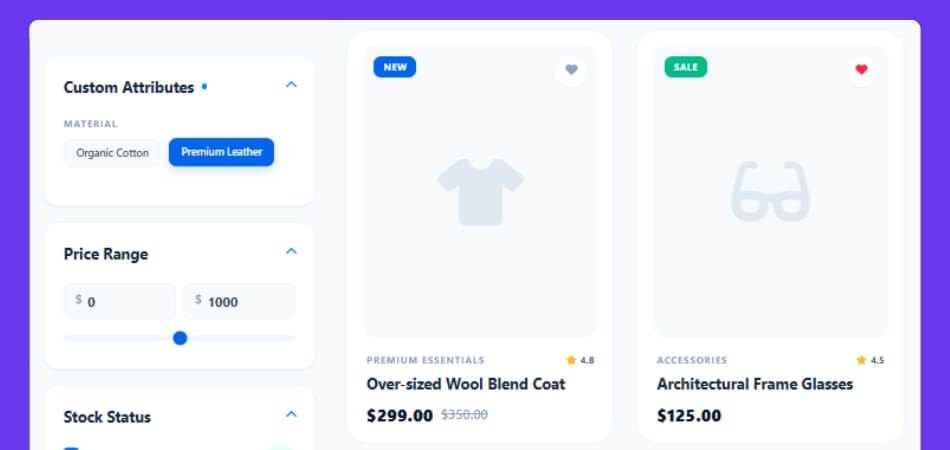
Meta fields are often:
- Added by plugins
- Stored automatically in the background
- Used for rules, conditions, or eligibility
- Unsuitable for direct browsing as public filter options
When Custom Meta Field Filters Are the Right Choice
Shoppers do not always need color, size, or brand filters in WooCommerce. Sometimes the real deciding factor is a value stored quietly in the background, such as delivery timing, warranty coverage, or whether a product meets a certain condition. That is where custom meta field filters become useful.
Meta field filters are usually the right choice when:
- Data is added by plugins
- Values are technical or internal
- Creating attributes would make the catalog messy
- Filtering depends on rules, conditions, or eligibility

Why WooCommerce Has No Native Meta Field Filter?
WooCommerce is built to filter products through taxonomies like categories, tags, and attributes. Those are structured for storefront browsing, so they work well for filters that customers are expected to see and use.
Custom meta fields work differently. They are mainly used to store background data, plugin logic, conditional values, or extra product information that is not meant to function as part of the main catalog structure.
Limitations of Default WooCommerce:
- Built-in filter widgets for custom meta
- A visual interface for selecting meta keys
- Default controls for numeric, text, or boolean meta values
- Front-end filtering tools based on internal product meta
Finding the Right Product Meta Key
Before setting up any custom meta field filter, you need to know the exact meta key attached to the product data. Without that, the filter has nothing reliable to read, so even a correct-looking setup can return empty or inconsistent results.
You can usually find the meta key by:
- Checking the plugin that created the data
- Using a product meta viewer plugin
- Inspecting the product data directly in the database
Common examples may look like:
- _warranty_period
- _delivery_time
- _custom_score
- _eligible_for_express
How to Add WooCommerce Filter by Custom Meta Fields (2 Practical Methods)
Filtering by custom meta fields in WooCommerce usually comes down to two options: custom code or an AJAX filter plugin. One gives you full control, while the other is easier to manage and far more practical for most stores.
Both methods can work, but they are not equal in terms of setup time, flexibility, or maintenance. The sections below break down each approach so it is easier to see which one fits your store better.
Method 1: Use an AJAX Filter Plugin for Meta Field Filtering
For most stores, this is the easier and more practical way to filter WooCommerce products by custom meta fields. Instead of building everything manually, you can use AJAX product filters for WooCommerce to turn stored product data into a usable front-end filter with far less setup work.
Step 1: Install and Activate the Plugin
Start by installing Dynamic AJAX Product Filters for WooCommerce on your site.
Free version
- Go to Plugins → Add New Plugin
- Search for Dynamic AJAX Product Filters for WooCommerce
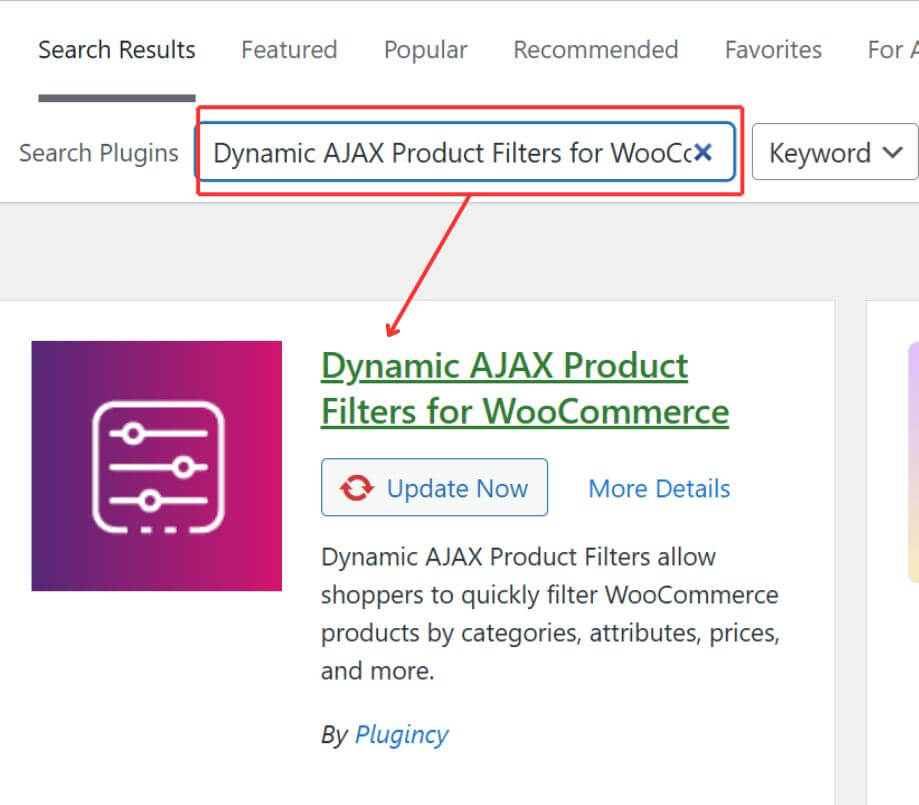
- Click Install Now
- Click Activate
Pro version
- Buy or download the Pro plugin from the official source
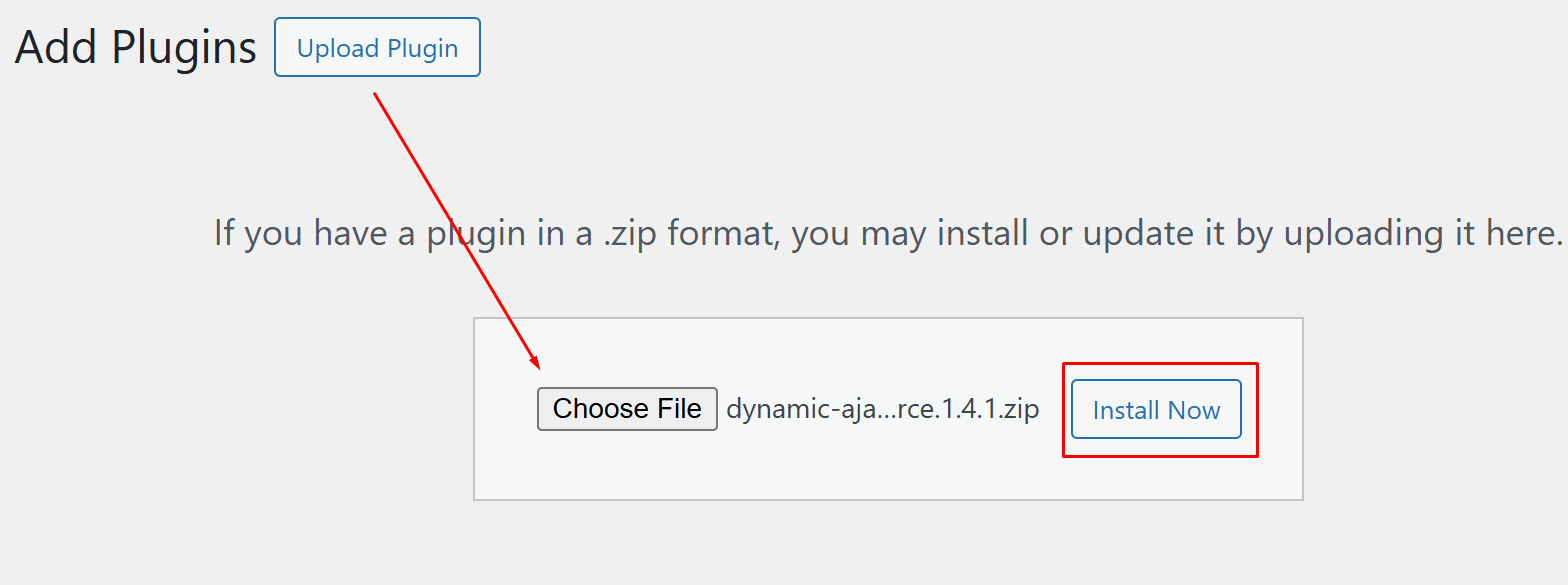
- Go to Plugins → Add New Plugin → Upload Plugin
- Upload the Pro ZIP file
- Click Install Now
- Click Activate
If the Pro version requires the free version to be installed first, make sure both are active before moving on.
Step 2: Enable Custom Fields Filter
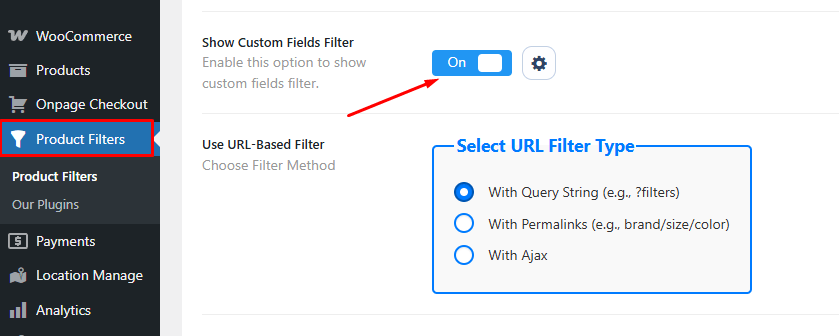
After activation, go to the Product Filters > Form Manage from your dashboard. Toggle on the Show Custom Fields Filter option.
Step 3: Add the Custom Meta Field Filter
Click on the settings menu, right to the custom fields filter toggle button. Include or exclude the field based on your preference. Save changes.
Step 4: Choose the Filter Display Type
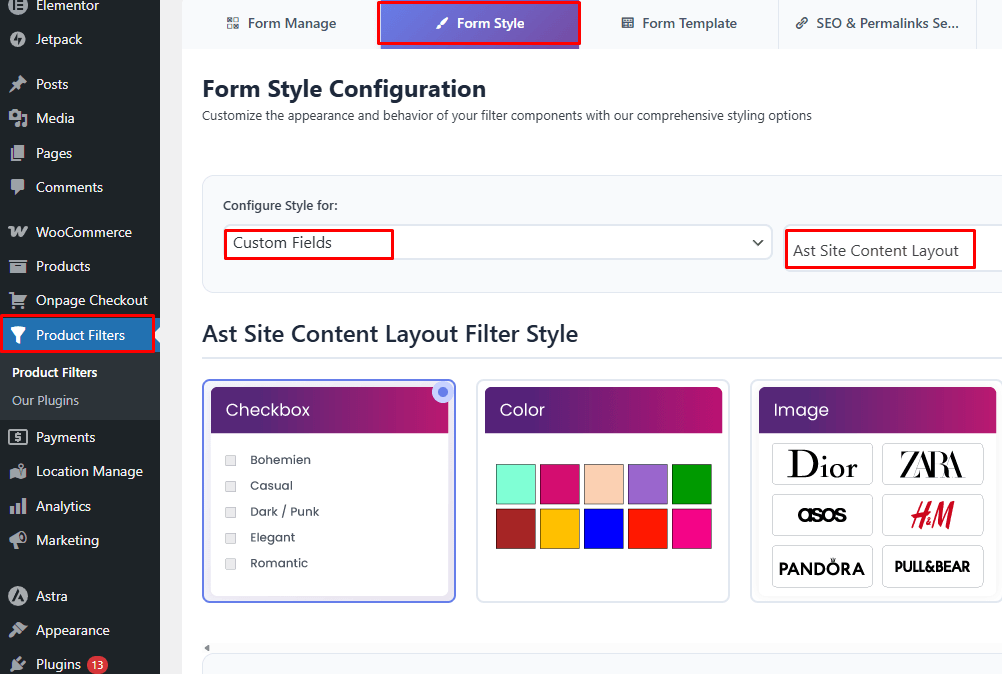
Go to Product Filters > Form Style. Pick the custom fields option for configuration style. And choose the custom field value next to it. Adjust the layout, display style, and important settings based on your preference.
Step 6: Display the Filter on the Front End
Place the filter on the shop page, category page, or another product archive area using the method supported by the plugin, such as a shortcode [[plugincy_filters]], widget, block, or plugin display setting.
Step 7: Test the Filter
Check the filter on the front end using real product data. If the results look wrong or the filter shows nothing, the problem is often tied to the meta key, missing values, or inconsistent data stored across products.
Method 2: Use Custom Code for Meta Field Filtering
Custom code gives you more control over how WooCommerce handles meta-based filtering, but it also asks for more work. This route makes more sense when the store already uses custom product queries, a custom theme setup, or developer-managed functionality that would be harder to handle through a plugin.
Step 1: Modify the Product Query
The main part of the setup is adding a meta_query to the WooCommerce product query so products can be filtered by the chosen custom meta field.
add_action( ‘woocommerce_product_query’, ‘custom_meta_filter_query’ );
function custom_meta_filter_query( $q ) {
if ( ! empty( $_GET[‘delivery_time’] ) ) {
$meta_query = $q->get( ‘meta_query’ );
$meta_query[] = array(
‘key’ => ‘_delivery_time’,
‘value’ => sanitize_text_field( $_GET[‘delivery_time’] ),
);
$q->set( ‘meta_query’, $meta_query );
}
}
This example filters products by the _delivery_time meta key using a value passed through the URL.
Step 2: Add a Filter Input on the Front End
You also need a way for users to choose the value they want to filter by. That can be done with a custom form field placed on the shop page or archive template.
<form method=”get”>
<select name=”delivery_time”>
<option value=””>Filter by delivery time</option>
<option value=”1_day”>1 Day</option>
<option value=”3_days”>3 Days</option>
<option value=”7_days”>7 Days</option>
</select>
<button type=”submit”>Apply</button>
</form>
Without a front-end input, the query logic will exist, but shoppers will have no simple way to use it.
Step 3: Add AJAX Only If Needed
If you want filtering without a full page reload, AJAX has to be built separately. WooCommerce does not add that part for you when using custom code, so this step can quickly make the setup more complex.
Step 4: Test and Maintain the Logic
Once the filter is working, test it across shop pages, category archives, and any custom product loops. Meta-based filtering can break when the wrong key is used, when values are stored inconsistently, or when other query customizations conflict with it.
Which Method Is Better for Your Store?
Choosing between these two methods mostly comes down to how your store is built and how hands-on you want the setup to be. One is easier to launch and manage, while the other gives more flexibility but also creates more responsibility on the development side.
- AJAX Filter Plugin Method: Better fit for stores that want a smoother setup, built-in filtering controls, and less technical overhead. It works well when the goal is to get custom meta filtering live without turning it into a custom project.
- Custom Code Method: Makes more sense in stores that already depend on tailored WooCommerce logic or have developer support in place. It gives you deeper control, but that control comes with extra work in setup, testing, and long-term maintenance.
Tips to Choose the Right Meta Values to Filter
The value itself matters more than the filter. A custom meta filter can be useful, but only when it helps someone find the right product faster. If the data is too technical, too inconsistent, or too minor to influence a buying decision, it usually adds more clutter than value.
- Focus On Decision-Making Data: Choose meta values that actually help shoppers rule products in or out, such as delivery time, warranty period, or eligibility conditions.
- Avoid Purely Backend Data: Some meta fields exist only for plugin logic, reporting, or internal workflows, so they do not need to appear in front-end filters.
- Use Shopper-Friendly Labels: Technical values can work in the background, but the visible filter label should still make sense to a real customer.
- Filter Values Used Across Enough Products: A filter becomes more useful when it applies to a meaningful portion of the catalog instead of just a few scattered products.
- Do Not Force Attribute-Like Data Into Meta: If the value is something shoppers naturally expect to browse, it may belong in attributes rather than custom meta.
- Prioritize Values That Reduce Wasted Clicks: Strong filters help people avoid irrelevant products early instead of making them sort through unsuitable options.
- Keep The Filter Set Tight: Too many weak filters can make the page feel crowded and harder to use.
- Match The Filter Type To The Data: Numeric values often work better as ranges, while fixed values usually fit checkboxes or dropdowns more naturally.
- Use Real Search Behavior As A Guide: If you want to add filter by SKU in WooCommerce, for example, that usually works best for exact product lookup, trade ordering, or fast catalog search rather than general product browsing.
- Check Data Consistency Before Going Live: Even a useful filter can fail if the stored meta values are incomplete, mismatched, or formatted inconsistently.
Common Problems With Meta Field Filtering and How to Fix Them
Meta field filters can work well, but they are less forgiving than standard attribute filters. Small issues in the stored data, meta key, or display setup can stop the filter from working properly or make the results feel unreliable.
| Problem | Likely Cause | How To Fix It |
| Filter Shows No Results | Wrong meta key | Double-check the exact meta key used in the product data |
| Filter Appears Empty | No usable values stored | Confirm that products actually have data saved for that meta field |
| Wrong Products Appear | Inconsistent meta values | Standardize how the values are stored across products |
| Numeric Filter Does Not Work Properly | Values saved as text or mixed formats | Clean the data and use a numeric-friendly filter type |
| Filter Works On One Page But Not Another | Theme or template conflict | Test the filter on the main shop and review archive template setup |
| Filter Does Not Update Smoothly | AJAX not enabled or misconfigured | Turn on AJAX filtering and check the plugin settings |
| Filter Looks Confusing On The Front End | Technical meta labels shown directly | Replace raw meta values with cleaner, shopper-friendly labels |
| Filter Breaks After Plugin Or Theme Changes | Compatibility issue | Recheck the filter settings and test for conflicts after updates |
SEO Considerations for Custom Meta Field Filters
Meta field filters are useful for narrowing products, but they are usually not something you want search engines to treat as standalone pages. In most cases, they work better as a browsing tool inside the store than as indexable URLs.
- Keep Meta Filters Focused On Usability: These filters are mainly there to help shoppers reach the right products faster, not to create extra pages for search traffic.
- Avoid Indexing Filtered Meta URLs: Most meta-based filtered pages do not represent clear search intent and can create thin or unnecessary URL variations.
- Leave Main SEO Value On Core Pages: Product pages, category pages, and other primary store pages should carry the main indexing weight.
- Do Not Treat Internal Logic As Landing Page Content: Filters based on hidden conditions, eligibility rules, or backend values usually do not make strong standalone SEO targets.
- Watch For URL Bloat: Too many crawlable filter combinations can create duplicate or low-value pages across the store.
- Keep Filtered States Out Of The Index Unless There Is A Real Search Case: A filtered view should only be considered for indexing when it clearly matches meaningful search demand and has enough unique value to stand on its own.
- Use Clean Handling For AJAX Views: If filtering happens through AJAX, those states should remain part of the user experience rather than becoming index-focused pages.
- Review Canonical And Indexing Behavior Carefully: Make sure filtered meta states are not competing with the main category or product URLs in search.
FAQs About WooCommerce Custom Meta Field Filtering
A few practical questions usually come up once the setup side is clear. These answers focus on the things store owners often want to understand before relying on custom meta filters more heavily across the catalog.
Can Custom Meta Field Filters Work With Plugin-Generated Product Data?
Yes, as long as the plugin stores that data as product meta in a way the filter can read. This is one of the main reasons stores use meta field filtering, especially when important product conditions come from shipping, pricing, warranty, or B2B plugins.
Is Custom Meta Filtering A Good Fit For Large WooCommerce Catalogs?
It can be, but that depends on how clean and consistent the stored data is. Large catalogs usually work better with meta filters when the values are structured properly and not scattered across too many inconsistent formats.
Should Every Custom Meta Field Be Turned Into A Front-End Filter?
No. Some meta fields are too technical, too narrow, or too minor to help shoppers in any meaningful way. Filters work better when they are tied to product choices people actually care about.
Can One Product Use Multiple Custom Meta Filters At The Same Time?
Yes. A product can match more than one custom meta filter if those values are stored properly. That can be useful in catalogs where buyers need to narrow products through several conditions instead of just one.
What Makes A Custom Meta Filter Feel Useful Instead Of Confusing?
Usually, it comes down to clarity and relevance. Filters feel more useful when shoppers can understand the label quickly, connect it to a real product need, and trust the results they get back.
Conclusion
Filtering by custom meta fields gives stores a way to use product data that does not fit cleanly into categories, tags, or attributes. When the setup is handled properly, it can improve product discovery, support more specific filtering logic, and keep the catalog structure cleaner for shoppers.
This guide on how to add WooCommerce filter by custom meta fields shows that the right setup depends on choosing useful meta values, keeping the filter easy to understand, and using a method that matches the store’s technical needs. Done well, custom meta filtering becomes a practical tool for usability without creating unnecessary complexity on the front end.
