

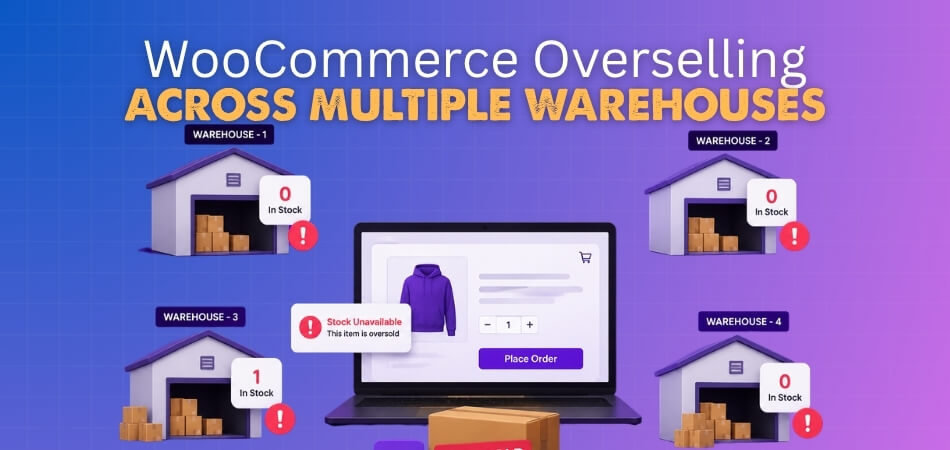
You just received an order in your WooCommerce store — but the product is out of stock at all three warehouses. How did this happen?
The root cause is almost never a simple counting mistake. Overselling in a multi-warehouse setup happens because WooCommerce, out of the box, operates from a single stock pool with no native concept of per-location stock. When real-time stock sync is absent, the availability check at checkout reads stale data — often served from a stale transient cache or object cache that hasn’t been invalidated since the last order. That creates the checkout gap: stock availability is verified before a fulfillment location is locked, so two concurrent orders can pass the same check simultaneously and both consume inventory that only exists once. The fix starts with three concrete steps — enable per-location stock tracking so each warehouse holds its own count, implement a stock reservation or checkout stock lock that claims units the moment a customer enters checkout, and aggressively clear stale transients and object cache so availability checks always read live database values.
What makes this problem particularly damaging in a multi-warehouse operation is how quietly it compounds. An AJAX-based availability check might return a cached “in stock” response while a fulfillment location has already hit zero. Order routing logic then tries to assign a location that can’t fulfill, split shipment logic kicks in with no stock to split, and you’re left manually reconciling inventory across locations you never intended to touch. Add backorder settings that weren’t meant to be enabled, a WMS or ERP that syncs on a delay rather than in real time, and the gap between what your store shows and what your warehouses actually hold can grow with every order.
This article covers every layer of that problem — the technical root causes, the warning signs that overselling is already happening, and the warehouse-level solutions that close the gap for good, from stock locking and cache fixes to location-level inventory control and returns management.
Why WooCommerce Multi-Warehouse Overselling Really Happens — Root Cause Analysis
Overselling in a single-warehouse WooCommerce store is annoying. Overselling across multiple warehouses is a completely different problem — and it rarely has a single cause. Most stores running multi-location inventory hit this because several small architectural gaps compound each other. Let’s break each one down.
What Happens When Real-Time Stock Sync Is Missing
WooCommerce was built around a single stock pool. One number, one product, one decrement on order. When you add multiple fulfillment locations — whether through a plugin, a WMS, or an ERP — that assumption breaks immediately.
Here’s the typical failure pattern: Warehouse A has 3 units. Warehouse B has 2 units. Your store shows 5 available because someone added both figures into a combined display. Order comes in for 4 units. Your store routes 4 to Warehouse A, which physically has 3. Oversell. Done.
The gap is the sync interval. If your multi-location plugin pulls stock from each location every 5 or 10 minutes — or only on a cron job — a burst of orders in that window will read stale numbers every single time. Real-time stock sync means the fulfillment location’s actual quantity is queried and decremented atomically at the moment of purchase, not batched later.
WooCommerce’s native woocommerce_reduce_order_stock hook fires after payment is confirmed. If your integration doesn’t hook into that moment for each location separately, the per-location stock figure won’t update until the next sync cycle. By then, more orders may have already gone through.
The fix starts with choosing an approach that decrement stock at the location level at order time — not as a background job. If you’re using a dedicated multi-location plugin, check whether it has per-location stock deduction tied to order placement, not just to fulfillment dispatch.
Availability Check Before Fulfillment Location Is Locked at Checkout
This one is subtle and it causes a lot of confusion. The availability check happens when a customer adds a product to their cart. The fulfillment location doesn’t get assigned until checkout — sometimes not until after payment.
That gap is where overselling lives.
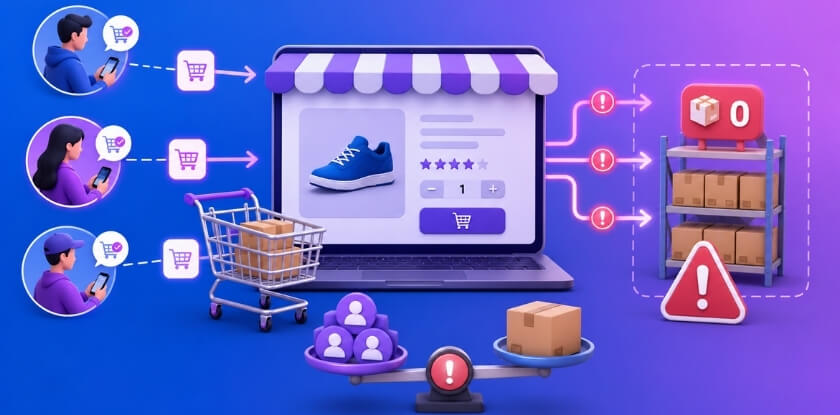
A customer in London selects your Manchester store. The product shows 2 units available at Manchester. They add it to cart. Three minutes later, two other customers do the same thing. All three carts show “in stock.” All three proceed to checkout. Manchester has 2 units. Three orders go through. You’re short by one.
The cart location validation needs to happen continuously, not just at add-to-cart. WooCommerce’s cart system doesn’t natively check per-location availability on each page load — it checks the global stock status. If your multi-location setup doesn’t override woocommerce_check_product_stock or validate at the cart item level before order creation, you’re exposed.
A solid implementation will re-validate stock at the assigned fulfillment location during the checkout process itself — before payment is taken. That means checking not just “is this product in stock globally” but “does this specific location have enough units for this cart.” Without that second check, the fulfillment location assignment is cosmetic.
The Multi-Location Product & Inventory Management for WooCommerce plugin by Plugincy includes cart location validation in its free version — it checks whether each cart item is valid for the customer’s selected location before checkout proceeds. That catches mismatches before the order is placed rather than after.
Overselling Caused by Cached Cart and Stale Stock Data
Caching is essential for performance. It’s also one of the most common reasons multi-warehouse stores oversell. The two facts aren’t contradictory — they just require careful configuration.
WooCommerce stores transient data in the database (or in an object cache like Redis or Memcached if you’ve added one). Product availability, cart totals, and sometimes stock status get cached at various layers. The problem is that cached cart data can hold a stock value that was accurate 10 minutes ago but is now wrong.
Stale transient cache is particularly nasty in high-traffic scenarios. If 50 people are browsing the same product and your object cache is serving a cached stock count of “available” — even after the last physical unit sold — every one of those browsers sees a green “add to cart” button. The database hasn’t been consulted. The real per-location stock hasn’t been read.
A few specific places this happens:
- Product availability fragments cached by full-page caching plugins (WP Rocket, W3 Total Cache, LiteSpeed Cache) that don’t exclude WooCommerce cart or product pages correctly
- AJAX-based availability checks that read from a cached response rather than a fresh database query
- WooCommerce session data holding cart contents that reference stock figures from several minutes ago
The solution has two parts. First, exclude dynamic WooCommerce pages — cart, checkout, account, and any page with location-specific stock display — from full-page caching. Every major caching plugin has a WooCommerce exclusion setting; use it. Second, make sure any AJAX call checking stock availability hits a fresh database read. If your multi-location plugin caches location-specific stock in a transient, verify that transient is cleared whenever stock changes — on woocommerce_reduce_order_stock, on manual admin edits, and on any REST API or Webhook update from an external WMS or ERP.
If you’re on Redis or Memcached, a stock update in the database won’t automatically invalidate the object cache entry. You either need to flush the relevant key explicitly on stock change, or set a very short TTL (30–60 seconds) on stock-related cache entries.
The Absence of a Stock Reservation or Locking Mechanism
This is the root of roots. Everything else is a contributing factor. But the single biggest architectural reason WooCommerce multi-warehouse stores oversell is that there is no native stock reservation system.
WooCommerce doesn’t hold stock when something enters a cart. It only reduces stock when an order moves to a paid or processing status. Between “add to cart” and “order confirmed” — which can be several minutes for a payment that requires 3D Secure, PayPal redirect, or a slow connection — the inventory number in your database hasn’t moved. Anyone else can buy those same units.
Now multiply that across locations. Without a checkout stock lock, two customers at different warehouses can both be checking out simultaneously with the last unit from the same fulfillment location. Both payments go through. One order will oversell.
A stock locking mechanism solves this by placing a temporary hold on units the moment a customer reaches checkout — not when they add to cart (that’s too early and leads to abandoned-cart stock lockup), but at payment initiation or order creation. That hold reduces the available quantity visible to other sessions, then either converts to a real deduction on payment success or releases back to available stock on failure or expiry.
WooCommerce doesn’t ship with this natively. You have to implement it deliberately.
If you’re comfortable with code, you can hook into woocommerce_checkout_order_created to write a temporary stock reservation record per location, then clear it on woocommerce_payment_complete or woocommerce_order_status_cancelled. Something like:
add_action( 'woocommerce_checkout_order_created', function( $order ) {
    foreach ( $order->get_items() as $item ) {
        $product_id  = $item->get_product_id();
        $location_id = $item->get_meta( '_fulfillment_location_id' );
        $qty         = $item->get_quantity();

        // Write a temporary reservation for this location
        $reservation_key = "stock_reservation_{$product_id}_{$location_id}";
        set_transient( $reservation_key, $qty, 15 * MINUTE_IN_SECONDS );
    }
} );
This is a simplified pattern — a real implementation needs to account for concurrent writes, race conditions, and cleanup on order failure. For most stores, a dedicated plugin with built-in stock reservation is more reliable than hand-rolled code.
The no-code path: if your multi-location plugin doesn’t have a built-in locking mechanism, check whether it supports backorder settings at the location level. Enabling backorder tracking with immediate notification — rather than allowing unlimited backorders silently — won’t prevent the double-sale, but it will at least surface the problem in real time. That’s a stopgap, not a fix. The actual fix is a checkout stock lock that ties a specific unit count at a specific fulfillment location to a
How to Recognize Overselling — Common Signs and Symptoms
Overselling doesn’t always announce itself with a site-wide error. Most of the time it shows up quietly — a support ticket here, an angry email there — and by the time you notice the pattern, you’ve already shipped one order short and upset two customers.
Here’s what to actually look for.
Orders That Exceed Your Available Stock
The most obvious sign: your WooCommerce order count for a product is higher than the stock you had available. Pull a report on any SKU where you’ve seen fulfillment issues. If total orders placed in a window exceed the opening stock quantity for that period, overselling happened. It’s that simple.
With a single stock pool this is usually caught quickly. Across multiple warehouses it gets messy fast, because each fulfillment location might show its own numbers and the totals only reveal the problem in aggregate.
Check your wp_wc_order_product_lookup table or run the WooCommerce stock report under WooCommerce → Reports → Stock. If the numbers don’t add up against what your per-location records show, you have a multi-warehouse stock accounting problem — not just a rounding error.
The Same Item Gets Picked Twice
This one shows up during packing. Two warehouse staff members, picking from two locations, both pull the last unit of the same product — because both their systems told them stock was available. You end up with one fulfilled order and one that needs an awkward conversation with the customer.
This symptom almost always traces back to a missing stock locking mechanism. When no checkout stock lock exists at the moment of order creation (or earlier, during checkout), two simultaneous sessions can each read the same available quantity and both proceed.
Customers Complete Checkout on Out-of-Stock Items
If a customer gets an order confirmation email for something you’re already out of, your checkout validation isn’t running against live inventory. The stock check either happened earlier (on the product page or in the cart) and the result was cached, or it didn’t happen at all.
Look at the order timestamps. If two orders for the same product came in within seconds of each other and you only had stock for one, that’s a race condition. If orders are coming in minutes apart and stock shows zero, that’s stale cached cart data or a broken real-time stock sync between locations.
Stock Figures That Don’t Match Across Locations
Log into your fulfillment location dashboards — whether that’s your WMS, your ERP, or a multi-location WooCommerce plugin — and compare what each one reports for the same product. If Location A says 4 units and Location B says 7 but your WooCommerce admin shows a combined 14 (instead of 11), you’ve got a sync discrepancy.
This kind of mismatch is a leading indicator. The oversell often hasn’t happened yet, but it will. The moment an order hits and stock deduction fires against the wrong location’s figure, a customer gets a unit you don’t actually have.
Negative Stock Quantities
WooCommerce can be configured to allow backorders, but if you haven’t intentionally enabled that — and you’re seeing products drop below zero in your stock field — something’s deducting stock incorrectly. This could be double-deductions from an order routing rule that fired twice, a failed inter-location stock transfer that didn’t update both sides, or a webhook that triggered stock reduction in your external system without WooCommerce catching up.
Negative stock is never just cosmetic. It means real orders went out against inventory that wasn’t there.
AJAX Availability Checks Returning Wrong Results
If you’re using AJAX-based availability checks on product pages or in the cart, test them manually under load. Add an item to two browser sessions simultaneously and watch what both sessions report. If both sessions get a green “In Stock” response and you only have one unit, your AJAX endpoint is reading from object cache rather than hitting the database directly.
This is especially common when a full-page caching layer or a Redis/Memcached object cache is in place. The stale transient cache serves the old stock figure to the second request before the first session’s reservation has been written back to _stock.
Fulfilled Orders With No Assigned Location
Open your WooCommerce orders list and look for orders where no fulfillment location is recorded. In a multi-warehouse setup, every order should have a location assigned — either automatically through order routing or manually. An order with no location assignment is a red flag: it means the stock was deducted from somewhere (or nowhere coherent) and the physical pick might come from whichever warehouse responds first.
If you’re using Multi-Location Product & Inventory Management for WooCommerce by Plugincy, each order gets a location assignment that you can review directly in the order admin. In the free version, the order location metadata is stored and visible, so you can quickly audit which location was expected to fulfill a given order. If that field is blank or inconsistent across your order history, your routing logic has gaps.
Cart Validation Errors That Appear at the Wrong Time
Ideally, if an item goes out of stock between “Add to Cart” and checkout, the customer gets a clear message before they pay — not after. If you’re seeing stock-related error messages appearing on the thank-you page or in post-payment emails rather than at checkout, your cart location validation is firing too late or not at all.
The correct behavior is for stock to be validated — and ideally locked — during checkout, not as an afterthought once payment has processed.
Returns That Don’t Reconcile With Stock Levels
Returns management is a common blind spot. A return comes in, gets marked “completed” in WooCommerce, but the restocked item doesn’t reflect in the right location’s inventory. Or it gets restocked centrally rather than at the fulfillment location that originally shipped it. Over time, these discrepancies compound — your stock reconciliation runs and the numbers don’t add up, but no individual transaction looks obviously wrong.
If this sounds familiar, check your restock logic on refund. WooCommerce’s woocommerce_order_refunded hook and its built-in restock checkbox don’t automatically know which location to credit the stock back to. That location-aware restock behavior typically needs explicit configuration in whatever multi-location system you’re running.
In short: overselling leaves traces everywhere — in your order data, your stock fields, your fulfillment records, and your customer inbox. The goal of recognizing these symptoms early is to catch the problem at the data level before it becomes a shipping and customer service problem.
Where WooCommerce’s Default Inventory System Falls Short
WooCommerce was built for simplicity. One store, one stock number per product, one checkout flow. That works fine when you’re running a single shop out of a single location. The moment you add a second warehouse — or a second store — that simplicity becomes a liability.
Single Stock Pool vs. Per-Location Stock
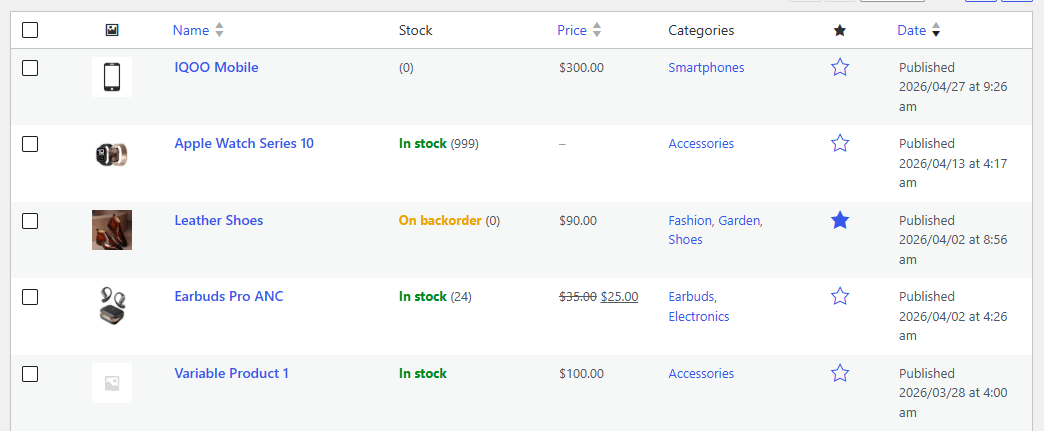
By default, WooCommerce maintains what’s called a single stock pool: one number per SKU, shared across everything. If you have 20 units of a jacket split between a Chicago warehouse and a Dallas fulfillment center, WooCommerce sees 20. It has no idea where those units physically are.
That’s the root of most multi-warehouse overselling. A customer in Chicago buys 15 units. A customer in Dallas buys 10. WooCommerce deducts from the same global counter. It doesn’t check whether Dallas actually has 10 units available — because it can’t. There’s no structure for that data to even exist natively.
The consequences compound quickly:
- Backorders happen on “in-stock” items — the global number says 5, but those 5 are all in Chicago, not Dallas.
- Fulfillment teams pull from the wrong location, discover the shortage, and scramble.
- Refunds get issued not because inventory was unavailable globally, but because the right location was out.
Per-location stock is the fix. Each product-location combination gets its own stock number. When an order routes to Dallas, it deducts from Dallas’s count — not from a shared pool that a Chicago order might also be hitting simultaneously.
Multi-Location Product & Inventory Management for WooCommerce by Plugincy handles this in its free version — you assign products to locations and set separate stock quantities per product-location pair, including variation-level inventory. Each location operates independently, so a stock deduction in one fulfillment location doesn’t silently drain another location’s count.
If you’re running a custom setup and want to query per-location stock programmatically, the data typically lives in post_meta or a custom table depending on your plugin. You can retrieve it with something like:
$location_stock = get_post_meta( $product_id, '_stock_location_' . $location_id, true );But honestly — unless you’re building a custom integration, the no-code path (setting stock per location through a dedicated plugin’s UI) is far less error-prone than managing this manually in code.
The Dangers of Spreadsheet-Based Inventory Tracking
A lot of growing stores fall into this trap: they know WooCommerce’s default system isn’t enough, so they track real inventory in a spreadsheet and manually update WooCommerce when stock changes. This feels controlled. It isn’t.
Spreadsheets don’t sync. They reflect inventory at the moment someone last updated them — not right now. If an order comes in at 2 PM and the spreadsheet was last updated at 10 AM, you’re flying blind for four hours. At low volume that’s manageable. At any real scale, you’re going to oversell.
The other problem is human error. Transposing numbers, forgetting to update after a return, updating the wrong row — these aren’t edge cases. They’re daily occurrences in any warehouse operation that relies on manual data entry. A WMS or ERP connected to WooCommerce via REST API or Webhook handles this automatically. The moment a unit moves in the warehouse, the stock count updates. No spreadsheet, no lag, no typo.
Spreadsheets also have zero connection to your checkout flow. There’s no mechanism for a spreadsheet to trigger a checkout stock lock when a cart is active, or to flag that two customers are looking at the same last unit. A proper inventory system — whether that’s a connected WMS, an ERP, or a purpose-built plugin — integrates with WooCommerce’s order lifecycle. A spreadsheet just sits there.
If you’re still on spreadsheets, that’s the first thing to fix. Not a plugin setting. Not a cache configuration. The spreadsheet itself is the problem.
Database Scalability Problems in Multi-Store and Multi-Warehouse Setups
WooCommerce stores stock in the wp_postmeta table as _stock on each product post. That’s fine with 200 products and one location. It gets messy fast.
With multiple warehouses, you need multiple stock values per product. If you’re storing those as additional post_meta rows, the wp_postmeta table balloons. Queries that scan that table for stock checks slow down proportionally. On a busy checkout with concurrent orders, those slow queries mean two requests can read the same stock number before either has written a deduction back — classic race condition, classic oversell.
WooCommerce multisite adds another layer. Each site in the network has its own database tables. A shared stock pool across sites requires a custom sync mechanism, because there’s no native cross-site stock locking. Without it, the same SKU can be oversold across two separate subsites simultaneously, with neither aware of what the other just committed.
Object cache compounds this. If your server uses Redis or Memcached, stock values get cached for performance. That’s a good thing in isolation — but if the cache isn’t invalidated immediately after a stock update, a subsequent request reads a stale value. You deduct stock. The cache still shows the old number. Another order goes through against that cached count. You’ve now oversold without a race condition in the database — the cache itself caused it.
A few concrete things that actually help at the database level:
- Use
SELECT ... FOR UPDATEin any custom stock deduction query. This locks the row until the transaction commits, preventing concurrent reads of the same value. - Flush the relevant transient cache immediately after any stock update. Don’t rely on the cache TTL to expire stale stock data on its own.
- Consider a dedicated stock table rather than
post_metafor multi-location inventory. A flat table with columns forproduct_id,location_id, andquantityis far faster to query and lock than apost_metakey-value structure, especially as your product catalog grows.
Database scalability isn’t just a developer concern. If your store is running slowly at checkout, or if you’re seeing intermittent overselling that isn’t explained by obvious logic errors, the database layer is worth investigating — not just your plugin settings.
Setting Up Inventory Management to Prevent Overselling — Starting for Free
Getting per-location inventory right isn’t just a configuration task — it’s a structural decision about how your store tracks, validates, and deducts stock. WooCommerce’s default system gives you one global stock number per product. That’s fine for a single warehouse. The moment you add a second fulfillment location, that single number becomes a liability.
Here’s how to build it properly, starting with what you can do at no cost.
Keeping Per-Location Stock Quantities Separate
The core problem with a single stock pool is that every location draws from the same number. Warehouse A ships 3 units, warehouse B ships 3 units — WooCommerce sees 6 deductions against one counter. If that counter started at 5, you’ve already oversold.
The fix is per-location stock quantities: a separate inventory number for each product-location combination, so warehouse A’s stock can only be reduced by warehouse A’s fulfillments.
Without a plugin, you can approximate this using product variations — one variation per location — but it breaks the customer experience fast and becomes unmanageable at scale.
With a dedicated multi-location plugin, each product gets its own stock field per location. When a customer selects a location and buys, only that location’s count moves.
Multi-Location Product & Inventory Management for WooCommerce by Plugincy handles this in its free version. After installing the plugin and creating your locations, go to any product’s edit screen. You’ll see a location panel where you can assign the product to one or more locations and enter a separate stock quantity for each. Product variations get the same treatment — each variation can carry its own per-location count.
A centralized Stock Central view is also included, so you’re not opening individual product pages to check inventory across locations. It’s a read-and-review panel — quick to scan, practical for daily checks.
One thing to be clear about: per-location stock only prevents overselling if order fulfillment actually deducts from the right location’s quantity. Just separating the numbers isn’t enough on its own — the assignment logic has to match. That’s covered below in the order assignment section.
Stock Status by Location — Controlling In-Stock, Out-of-Stock, and Backorder Independently
WooCommerce’s stock status — in-stock, out-of-stock, on backorder — is global. If you run out at one warehouse but have inventory at another, WooCommerce still shows the product as out-of-stock to everyone. You lose sales you shouldn’t lose. Or worse, if you mark it in-stock globally and the local warehouse is empty, you oversell there.
Per-location stock status fixes this. Each location gets its own status setting, independent of the others.
In practice, this means:
- Location A: in-stock (12 units)
- Location B: out-of-stock (0 units, no backorder)
- Location C: on backorder (accepting orders, fulfillment delayed)
The free version of Multi-Location Product & Inventory Management for WooCommerce by Plugincy includes stock status by location. You set each location’s status directly from the product’s location panel — same screen where you enter stock quantities.
Backorder behavior is worth thinking through carefully here. If you allow backorders at location C, you need an order routing rule that knows C can fulfill eventually but might need longer lead time. That kind of logic — routing orders based on backorder status — gets into fulfillment automation, which is typically a pro-tier or WMS-level concern. But the status itself, that’s free to configure.
What this also prevents: a customer at location B seeing an “add to cart” button when there’s genuinely nothing there to ship. That’s a direct blocker for one common overselling path.
Cart Location Validation — Checking Whether a Cart Item Is Valid at the Selected Location
This is a step most setups skip, and it’s a real gap. A customer picks a location, adds items to cart, then switches location mid-session. Or they load a saved cart from a previous session when their default location was different. Without validation, those cart items sail through to checkout against a location that doesn’t stock them.
Cart location validation means the system checks, at cart time, whether each item is actually available at the currently selected location. If it isn’t, the plugin can flag it, disable it, or clear it — depending on how you configure the behavior.
The free version of Multi-Location Product & Inventory Management for WooCommerce by Plugincy includes cart location validation. When a customer switches location, the plugin checks cart items against that location’s availability. You configure what happens to items that fail: you can clear the cart, show a warning, or disable checkout until the issue is resolved.
The cart update behavior on location change is also configurable. If a customer switches from warehouse A to warehouse B, the cart can refresh automatically to reflect what’s valid at the new location. That’s the right behavior — stale cart data from a previous location selection is one of the cleaner paths to an oversell at checkout.
If you’re handling this in custom code rather than a plugin, the hook to know is woocommerce_check_cart_items. That’s where WooCommerce runs cart validation before checkout proceeds. You can add your own location-aware check there:
add_action( 'woocommerce_check_cart_items', function() {
    $selected_location = WC()->session->get( 'selected_location_id' );
    if ( ! $selected_location ) return;

    foreach ( WC()->cart->get_cart() as $cart_item ) {
        $product_id = $cart_item['product_id'];
        $available  = get_post_meta( $product_id, '_stock_location_' . $selected_location, true );

        if ( $available !== 'yes' ) {
            wc_add_notice(
                sprintf( __( '%s is not available at your selected location.', 'your-textdomain' ),
                    $cart_item['data']->get_name()
                ),
                'error'
            );
        }
    }
} );
The meta key format here will depend on how your plugin stores per-location availability — adjust accordingly. This is a developer path; if you’re using a plugin with built-in cart validation, you don’t need this.
Order Location Assignment and Location-Specific Stock Deduction
This is where per-location inventory either works or falls apart. You can have perfectly separated stock quantities, correct status per location, validated carts — and still oversell if the order doesn’t deduct from the right location.
WooCommerce’s default woocommerce_reduce_order_stock function reduces global stock. It has no concept of which warehouse fulfilled the order. So even with a multi-location setup, if your deduction logic still hits the global counter, you’re back to the same root problem.
The correct flow looks like this:
- Customer selects a location
- Cart items validate against that location
- At checkout, the order gets assigned to that fulfillment location
- Stock deduction hits only that location’s inventory number — not the global pool, not another location’s count
The free version of Multi-Location Product & Inventory Management for WooCommerce by Plugincy handles order location assignment and location-specific stock deduction. When an order is placed, the plugin records which location the order is assigned to and deducts stock from that location’s count. Order location metadata is stored with the order — visible in the admin order view — so you can filter orders by fulfillment location.
Admin staff can also manually assign or update a location on an existing order from within the order edit screen. That matters for edge cases: phone orders, orders that need rerouting, or corrections after the fact.
For operators with multiple staff handling different warehouses, location-based order filtering in the order list is a practical daily tool — warehouse A staff see warehouse A orders, not everything. That access control is a pro-tier feature, but the basic assignment and deduction logic is free.
One thing to confirm with any multi-location setup: check whether your plugin’s stock deduction fires inside WooCommerce’s standard order processing hooks or runs a separate routine. If it’s separate, verify it runs before the global stock deduction to avoid double-counting — or that it replaces the global deduction entirely for assigned products. Most well-built plugins handle this correctly, but it’s worth testing with a real order before going live.
Advanced Prevention — Stock Locking, Order Routing, and Split Shipment
How Stock Reservation and Locking Logic Works
WooCommerce reduces stock at the moment an order is paid. That’s it. There’s no native concept of “this item is in someone’s cart, don’t sell it to anyone else.” In a single-warehouse store, that gap is annoying. Across multiple warehouses, it’s where most overselling actually happens.
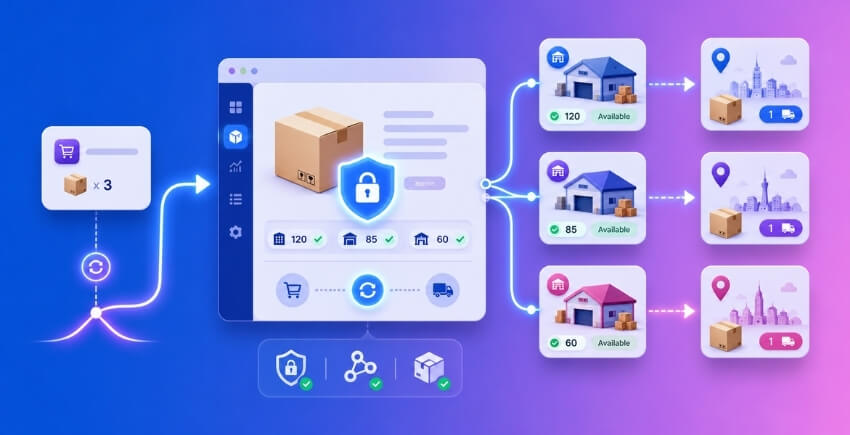
Stock reservation means holding inventory the moment a customer adds a product to their cart — or at the very latest, when they hit the checkout page. A stock locking mechanism goes one step further: it temporarily decrements the available quantity in your database (or marks it as reserved) so concurrent sessions can’t claim the same unit.
WooCommerce has a partial answer here. The woocommerce_hold_stock_minutes option (set under WooCommerce → Settings → Products → Inventory) holds pending orders and reduces stock for orders in a “pending payment” status. But this only works if your payment gateway creates an order before redirecting the customer — PayPal Standard does, Stripe’s newer flows sometimes don’t. And critically, it operates against WooCommerce’s global stock count, not per-location stock.
If you’re managing per-location inventory, your multi-location plugin needs its own stock reservation layer. The lock has to happen at the fulfillment location level, not against a single stock pool. Otherwise, warehouse A’s stock of 3 units gets reserved while warehouse B’s 3 units are still shown as fully available to another customer placing an order at the same time.
What a proper checkout stock lock looks like in practice:
- Customer reaches checkout — a lock is placed against the specific location’s available quantity
- The lock has a TTL (usually 10–15 minutes) so abandoned carts don’t permanently drain stock
- When the order is confirmed, the lock converts to an actual stock deduction at that location
- If payment fails, the lock expires and stock becomes available again automatically
If you’re comfortable with code, the woocommerce_checkout_order_created hook is a reasonable place to trigger a location-specific reservation. You’d store a transient like stock_lock_{location_id}_{product_id} with the reserved quantity and expiry, then factor it into your AJAX-based availability check:
add_action( 'woocommerce_checkout_order_created', function( $order ) {
    foreach ( $order->get_items() as $item ) {
        $product_id  = $item->get_product_id();
        $location_id = get_post_meta( $order->get_id(), '_fulfillment_location_id', true );
        $lock_key    = "stock_lock_{$location_id}_{$product_id}";
        $reserved    = (int) get_transient( $lock_key );
        set_transient( $lock_key, $reserved + $item->get_quantity(), 15 * MINUTE_IN_SECONDS );
    }
} );
That’s a simplified version — production code needs race condition handling and proper atomicity, ideally using database row locking (SELECT ... FOR UPDATE) rather than transients alone. Transients can collide under high concurrency because two requests can read the same value before either writes back.
One thing to watch: stale transient cache. If your site uses an object cache like Redis or Memcached, and your cache invalidation isn’t tied to stock changes, a lock can sit in cache long after it should have expired. Always test reservation behaviour with object caching enabled, not just in a local dev environment where it’s off.
Order Routing Logic and Auto-Assigning Fulfillment Locations
Once an order comes in, something has to decide which warehouse ships it. Left to chance — or to manual staff review — you’ll get inconsistency, delays, and yes, more overselling when two people assign the same order to the same location that’s already low on stock.
Order routing is the logic that auto-assigns a fulfillment location based on rules you define. Common rules include:
- Stock availability — route to any location that actually has the item in stock
- Customer proximity — route to the nearest warehouse to reduce shipping cost and time
- Shipping zone — route to the location whose zone covers the customer’s postcode
- Location priority — always try warehouse A first, fall back to B, then C
- Shipping carrier compatibility — if the customer chose UPS shipping, only route to locations that have a UPS account configured
The important thing here is that routing logic must read live, per-location stock — not cached figures, not a single stock pool total. A routing engine that pulls from an object cache that’s 5 minutes stale can confidently assign an order to a warehouse that ran out 3 minutes ago.
With Multi-Location Product & Inventory Management for WooCommerce by Plugincy, the Pro version handles flexible order assignment — routing by customer context, stock availability, and nearest location — and writes the fulfillment location to order metadata so your warehouse team (or WMS) knows exactly where to pull from. The free version already assigns a location per order and lets you review and override it from the order admin screen, which is enough for stores that are happy to spot-check routing manually.
For stores connected to an external WMS or ERP, you’ll typically push the assigned location via REST API or Webhook at the point the order is created. The woocommerce_new_order or woocommerce_order_status_processing action hooks are both sensible trigger points. Make sure whatever system receives the webhook can also write stock updates back to WooCommerce — one-way sync is how discrepancies build up.
One common mistake: routing rules that don’t account for partial stock. If a customer orders 5 units and warehouse A only has 3, your router shouldn’t blindly assign to A. Either split the order (covered below) or route entirely to B if B has all 5. Build that minimum-quantity check into your rules.
Split Shipment and Mixed-Location Cart Handling
A customer adds a jacket from your London warehouse and a pair of boots that only your Manchester warehouse carries. They’re in the same cart. Now what?
This is the mixed-location cart problem, and it’s genuinely one of the harder cases in multi-warehouse WooCommerce setups. Without a deliberate strategy, you either restrict the customer to one location’s products (bad for conversion) or you accept a cart that physically can’t ship from a single location without extra logic to handle it.
There are two real approaches:
1. Cart location validation at item level. Each item in the cart is validated against a primary fulfillment location. If products come from different locations, the cart is flagged and the customer is informed before checkout. Some stores offer the customer a choice: split into multiple shipments, or remove the item from the out-of-scope location.
2. Order splitting. The checkout process detects that cart items span multiple locations and automatically creates separate child orders — one per fulfillment location — from a single parent order. Each child order triggers its own stock deduction at its own location. This is the cleanest approach from an inventory accuracy standpoint because each location only deducts stock it’s actually shipping.
The key stock accuracy requirement for split shipment is this: location-specific stock deduction must happen per child order, not against a total. If you deduct from the parent order’s global stock count, you’re back to a single stock pool problem with extra steps.
Multi-Location Product & Inventory Management for WooCommerce (Pro) handles this directly — mixed-location carts, cart grouping by location, order splitting into parent/child relationships, and independent child-order status processing. Each child order triggers stock deduction only at its assigned fulfillment location, which is exactly what you need to prevent cross-location overselling.
A few implementation details worth knowing if you’re building this yourself:
- Parent/child order relationships in WooCommerce are typically stored via
_parent_order_idpost meta on the child - Each child order should have its own order status lifecycle — avoid duplicating confirmation emails by checking whether a child order email should suppress the parent’s, or vice versa
- If a child order fails (payment issue, stock gone between checkout and confirmation), you need logic to handle the other child orders — cancel all, or fulfil the successful ones and notify the customer about the rest
For stores using a WMS or ERP, split orders mean each child order needs its own webhook or REST API push. Don’t just push the parent — the warehouse system needs to
Caching, Sync, and Database — Technical Causes of Overselling and How to Fix Them
Even after you’ve set up per-location stock and wired up order routing correctly, you can still end up overselling. The culprit is often invisible: a cached stock count that hasn’t caught up with reality, an AJAX check that fires against stale data, or an external system pushing stock updates through a broken sync. These are fixable — but you need to know exactly where to look.
Overselling from Stale Transients and Object Cache — How to Clear Them
WooCommerce stores a lot of data in transients and, if you’ve got a persistent object cache running (Redis, Memcached), in memory. Stock quantities are not exempt. When a customer adds the last unit to their cart, the database reflects the reservation — but a cached product page or a cached cart fragment might still show that unit as available to someone else loading the page a few seconds later.
The stale transient cache problem tends to get worse under three conditions: high traffic, a full-page caching plugin active, or a CDN caching your shop pages aggressively. All three are common on live stores.
Where the stale data lives:
_transient_wc_*entries inwp_options— WooCommerce’s own transient layer- Object cache keys like
wc_product_*populated by Redis or Memcached - Full-page cache from plugins serving an entirely static HTML snapshot of your shop
How to clear transients without wiping everything:
In wp-admin, go to WooCommerce → Status → Tools. Run “Delete all expired transients” and “Clear transients”. For persistent object caches, you’ll need to either flush the full cache (crude but effective in an emergency) or use a plugin like WP-CLI:
wp transient delete --all
wp cache flush
That’s fine for a one-off fix, but the real answer is prevention. Tell your full-page caching plugin to exclude pages that contain ?add-to-cart=, the cart page, the checkout page, and any page with a location selector or AJAX stock component. In most caching plugins, that’s an “exclude URLs” or “never cache these pages” field.
If you’re running a multi-location setup, there’s an additional wrinkle: the same product URL might show different stock depending on the customer’s selected fulfillment location. Full-page caching doesn’t understand that distinction — it’ll serve one customer’s cached “3 in stock at Warehouse A” page to a customer who’s actually pulling from Warehouse B. The fix is to either exclude product pages from full-page cache entirely, or use fragment caching that’s location-context-aware.
Multi-Location Product & Inventory Management for WooCommerce by Plugincy includes built-in cache maintenance tools specifically for this — when stock, product assignments, or location configuration changes, it handles clearing the relevant location-specific transients automatically. That saves you from having to flush everything manually after every inventory update.
One thing worth knowing: if your object cache doesn’t have an expiry strategy configured, transients written by WooCommerce may persist far longer than intended. Check your Redis or Memcached config for a maxmemory-policy. allkeys-lru is generally safe for WooCommerce; without it, old stock values can sit in memory indefinitely.
Real-Time Stock Display and AJAX-Based Availability Checks
The standard WooCommerce product page doesn’t check stock in real time. It loads whatever was in the database at page render time and that’s it. No live update. No re-check at the moment someone clicks “Add to cart.”
For low-traffic single-location stores, that’s usually fine. For multi-warehouse stores moving volume, it’s a genuine overselling vector — especially during sales events when dozens of people might be viewing the same product simultaneously.
The AJAX stock check gap:
WooCommerce does perform a stock check during the add-to-cart action (server-side), and again at checkout. But there’s nothing between page load and that final checkout validation that tells the customer “this is actually gone now.” If ten people load the product page when there are two units left, all ten see “In stock.” The first two to complete checkout get the items; the other eight trigger an oversell or, at best, get rejected at checkout with a confusing error.
The native fix for the checkout end is the checkout stock lock — WooCommerce reduces stock on order payment, and woocommerce_checkout_order_processed triggers wc_reduce_stock_levels(). That’s real. But the problem is everything before that point.
For per-location stock specifically, the AJAX availability check needs to be location-aware. A generic “is this product in stock?” query against get_stock_quantity() won’t tell you whether the stock exists at the customer’s selected fulfillment location — it’ll pull from a single stock pool or from whichever quantity WooCommerce considers the main stock.
If you’re comfortable with code, you can add a location-aware AJAX endpoint:
add_action( 'wp_ajax_check_location_stock', 'my_location_stock_check' );
add_action( 'wp_ajax_nopriv_check_location_stock', 'my_location_stock_check' );

function my_location_stock_check() {
    $product_id  = intval( $_POST['product_id'] );
    $location_id = intval( $_POST['location_id'] );
    $qty         = get_post_meta( $product_id, '_stock_location_' . $location_id, true );
    wp_send_json( [ 'available' => (int) $qty ] );
}
That’s a barebones example — your actual meta key will depend on how your multi-location plugin stores per-location stock. The point is: the AJAX check must hit the right data source for the right location, not a global total.
On the no-code side, some multi-location plugins expose real-time stock display modes that do this without custom development. The Pro version of Multi-Location Product & Inventory Management for WooCommerce by Plugincy includes real-time stock display modes — showing exact quantities, availability labels, or simplified stock levels per location — so customers see current stock at their selected location without you having to write a custom AJAX handler.
For cart-level protection, cart location validation (checking that each cart item is actually available at the selected location before checkout proceeds) is something the free version of the Multi-Location plugin handles. That’s your last reliable safety net before an order gets placed.
A note on AJAX filter plugins and cached responses:
If you’re using an AJAX-based filter plugin on your shop, check whether it caches filtered results. Some do — for performance reasons — which means a filtered results page might show a product as available even after it sold out. The fix is usually a cache TTL setting inside that plugin’s configuration, or disabling result caching for stock-sensitive queries. Check your specific filter plugin’s settings rather than assuming it bypasses WooCommerce’s stock checks correctly.
Syncing External Systems with REST API and Webhooks
If your warehouse runs a WMS, or your inventory lives in an ERP, or you’re using a PIM for product data and pushing stock counts into WooCommerce from outside — sync latency is a direct path to overselling. An order comes in, WooCommerce decrements stock, but the ERP still shows the old count for 30 seconds while the next API call is pending. In that window, another order can go through.
REST API sync basics:
WooCommerce’s REST API lets external systems read and write stock via PUT /wp-json/wc/v3/products/{id} with a stock_quantity field. That works for a single stock pool. For per-location stock, you need a plugin that exposes location-specific stock through either extended REST endpoints or its own API layer.
The Pro version of Multi-Location Product & Inventory Management for WooCommerce by Plugincy provides a dedicated REST inventory API with API key management — so your WMS or ERP can authenticate and push stock updates per location directly, rather than forcing you to map everything through WooCommerce’s flat product API.
Without something like that, you’re either writing a custom REST extension or doing a workaround with product meta updates — both of which require careful locking logic to avoid race conditions.
Webhooks for outbound events:
WooCommerce’s built-in Webhooks (under WooCommerce → Settings → Advanced → Webhooks) can fire on order.created, order.updated, and `product
Returns Management and Stock Reconciliation
Returns are one of the messiest parts of multi-warehouse inventory. The sale reduces stock at a specific fulfillment location. The return? That often ends up anywhere — or nowhere in your records at all.
Which Warehouse Receives Stock When a Return Is Processed
WooCommerce’s default refund flow restocks inventory back to the global stock count. It doesn’t ask which warehouse the item is going back to. That’s fine if you have one location. With multiple warehouses, it’s a real problem.
Say a customer in Seattle returns an item. Your default fulfillment location was your Chicago warehouse. Does the stock go back to Chicago? Does it go to your Seattle pickup point because that’s where the customer dropped it off? WooCommerce has no concept of this out of the box.
What happens in practice is that the returned stock either:
- Gets added back to a single stock pool with no location assigned
- Goes into whichever location your fulfillment plugin defaults to on refunds
- Gets lost entirely because the refund was processed without restocking ticked
The first thing to check is whether your multi-location plugin even tracks returns at the location level. Many only handle outbound stock deduction — not inbound restocking per location.
If you’re using Multi-Location Product & Inventory Management for WooCommerce by Plugincy, the pro version includes inter-location stock transfers, which gives you a structured way to record when stock moves back into a specific warehouse after a return. You process the refund in WooCommerce, then log the incoming stock at the actual receiving location via a transfer record — keeping your per-location counts accurate rather than just bumping a global number.
For stores not using a dedicated multi-location plugin, the practical workaround is a manual process: train your team to record which location physically receives the returned unit, then manually adjust that location’s stock quantity in WooCommerce immediately. Not elegant, but it’s accurate if you’re consistent.
One more thing: damaged returns. These should never go back into available stock at any location. You need a clear internal rule — quarantine bin, separate SKU, write-off process — before restocking is recorded. Overselling from returned-but-damaged inventory is surprisingly common.
If you need code-level control over where restocking happens on refund, you can hook into woocommerce_restock_refunded_item to intercept the restock event and route it to a specific location’s meta field:
add_action( 'woocommerce_restock_refunded_item', function( $order_id, $item, $restock_amount, $line_item ) {
    $location_id = get_post_meta( $order_id, '_fulfillment_location_id', true );
    if ( $location_id ) {
        // Update per-location stock meta for this product/location combination
        $product_id = $line_item->get_product_id();
        $current = (int) get_post_meta( $product_id, '_stock_location_' . $location_id, true );
        update_post_meta( $product_id, '_stock_location_' . $location_id, $current + $restock_amount );
    }
}, 10, 4 );
This is developer territory. If you’re not on a custom integration, rely on your plugin’s UI for this.
How to Detect Stock Discrepancies and Run a Reconciliation Process
Stock reconciliation is a comparison between what your system says you have and what’s physically on the shelf. In a multi-warehouse setup, you’re running that comparison separately for each location — and discrepancies appear faster than most store owners expect.
Spotting discrepancies
Start with the obvious: orders fulfilled versus inventory deducted. Pull a report for a specific date range and compare units sold per fulfillment location against the stock reduction recorded at that location. If those numbers don’t match, you have a problem somewhere in the deduction flow — possibly a missed stock lock, a failed AJAX-based availability check during checkout, or a stale transient cache that served outdated quantities.
Other red flags:
- Negative stock values at a location (WooCommerce allows this if backorders are enabled — doesn’t mean it’s intentional)
- Stock totals that increased without a recorded inter-location stock transfer or manual adjustment
- Mismatch between your WMS or ERP data and WooCommerce’s per-location stock numbers
Running a reconciliation
There’s no built-in WooCommerce reconciliation tool. You’re building this from exports.
- Export your current per-location stock from WooCommerce (via your multi-location plugin’s export function, or a CSV export from the product list filtered by location)
- Export your physical counts — from your WMS, ERP, or a manual count sheet
- Match SKU + location against both datasets
- Any row where the numbers differ is a discrepancy — flag it, trace the cause, then correct it
If you’re using Multi-Location Product & Inventory Management for WooCommerce by Plugincy, the pro version’s inventory import/export handles this specifically — you can pull a spreadsheet of stock quantities per product per location, compare against your physical count, correct the figures, and re-import. The large-job processing feature handles this without timing out on big catalogs.
For WMS or ERP-connected setups, the same process applies but the comparison happens between two data feeds. If your external system supports Webhooks, you can push corrected stock values back to WooCommerce automatically once the reconciliation is done. Make sure the REST API permissions on your WooCommerce install allow stock updates from external systems, or you’ll find corrections silently failing.
How often should you reconcile?
For most multi-warehouse stores: monthly at minimum, weekly if you’re high-volume or running frequent promotions. After any major technical change — a plugin update, a cache flush, a server migration — run a reconciliation before the next sales cycle, not after.
The goal isn’t perfection between every order. It’s catching drift before it compounds into overselling patterns you can’t explain.
PIM, DAM, WMS, ERP, and Shipping Carrier Integration
The further you scale a multi-warehouse WooCommerce operation, the more you bump into a hard truth: WooCommerce was never designed to be your system of record for product data, warehouse operations, or logistics. It’s a storefront. Once you’re managing dozens of SKUs across multiple fulfillment locations, you need external systems talking to it — and you need those conversations to be reliable enough that stock numbers stay accurate.
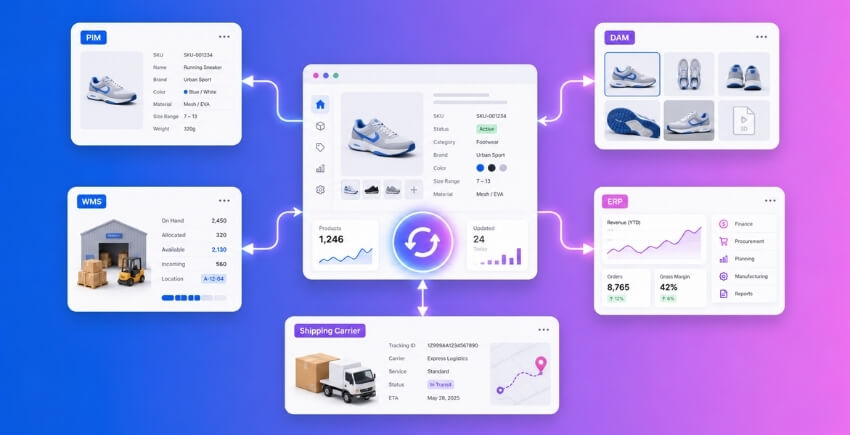
Managing Multi-Warehouse Product Data with PIM and DAM Software
PIM (Product Information Management) software handles the canonical version of your product data — descriptions, attributes, dimensions, categories, images, variants. DAM (Digital Asset Management) handles the media side: raw image files, videos, spec sheets. Neither is a stock management tool. Don’t confuse the two.
Where PIM matters for overselling prevention is indirect but real. When product data is inconsistent — different SKUs in WooCommerce versus your PIM, variant attributes that don’t match, category hierarchies that differ between systems — stock lookups fail silently. Your WooCommerce order routing logic tries to match an order line item to a fulfillment location using product data, and if the product identifiers don’t align, it can default to pulling from the wrong location or from a single stock pool that doesn’t reflect per-location reality.
The fix isn’t exciting: make SKU the canonical key everywhere. Your PIM, your WooCommerce product records, your WMS, and your ERP all need to use the same SKU as the primary identifier. If they don’t, every import and sync is a potential mismatch.
For DAM, the connection to overselling is even more indirect — but product category hierarchy set in a DAM or PIM often gets imported into WooCommerce and can affect which products appear as available in a given location’s catalog. If a product gets miscategorized during a PIM sync, it may bypass location filtering entirely and show as available everywhere, even when stock only exists at one warehouse.
Practically: if you’re using a PIM, configure your WooCommerce import to treat SKU as the unique identifier (not the WooCommerce post ID), and audit your product-location assignments after every bulk import. A PIM sync that creates duplicate WooCommerce products is a known path to ghost inventory.
WMS and ERP Integration for Warehouse Fulfillment Automation
This is where the real complexity lives.
A WMS (Warehouse Management System) manages what’s physically happening inside a warehouse — receiving, putaway, pick, pack, ship. An ERP (Enterprise Resource Planning) system sits above that, handling purchasing, accounting, and often master inventory records across the whole business. WooCommerce sits outside both, as the customer-facing order intake channel.
The integration problem is timing. An order comes into WooCommerce. WooCommerce tries to deduct stock. But if the ERP is the system of record for inventory quantities, and WooCommerce is only receiving periodic syncs, the number in WooCommerce can already be wrong before the order even lands. That’s a direct overselling path.
There are a few ways people wire this up:
Webhook-based sync is the most common approach for tighter integrations. Your WMS or ERP fires a webhook whenever a stock movement happens — a shipment is received, a pick is completed, a return is restocked — and WooCommerce updates inventory in near real-time. The problem with this approach is that WooCommerce’s receiving end needs to handle duplicate or out-of-order webhook payloads gracefully. If the same stock update fires twice, you don’t want it applied twice.
REST API polling is the older pattern. WooCommerce pulls current stock quantities from the WMS/ERP on a schedule. Even with five-minute polling, that window is enough to oversell a low-stock item during a flash sale. For most multi-warehouse setups, polling is acceptable for routine sync but not a substitute for event-driven updates at checkout.
Checkout stock lock is the piece most WMS integrations miss. Even if your sync is fast, you need WooCommerce to lock stock at checkout — not just at purchase. When a customer reaches payment, that per-location stock quantity needs to be reserved in WooCommerce so concurrent sessions can’t claim the same unit. If your WMS is the stock authority, that lock either needs to happen in WooCommerce immediately (before the WMS confirms) or the WMS needs to support a reservation call that WooCommerce triggers synchronously during checkout. Both require deliberate integration work. Neither happens automatically.
For WooCommerce stores using Multi-Location Product & Inventory Management for WooCommerce by Plugincy, the PRO version includes a REST inventory API and webhook support specifically designed for this kind of external system integration — authenticated API access so your WMS or ERP can push per-location stock updates directly, and signed webhooks that fire on inventory and location events your external systems can consume. That covers the “WooCommerce as a node in a larger system” pattern without requiring custom middleware for every stock movement.
For custom integrations using WooCommerce’s native REST API, the relevant endpoint for updating stock by product is PUT /wp-json/wc/v3/products/{id} with the stock_quantity field, or for variations, PUT /wp-json/wc/v3/products/{product_id}/variations/{id}. Per-location stock isn’t part of WooCommerce core’s REST schema — you’d need to store that in custom meta and expose it via a custom endpoint or through a plugin that extends the REST API with location-aware fields.
One practical note on ERP integrations: most mid-market ERPs (NetSuite, SAP Business One, Odoo) treat WooCommerce as a sales channel, not a stock authority. That’s the right mental model. The ERP owns the numbers. WooCommerce is told what to display and what to deduct. Any integration that lets WooCommerce write stock back to the ERP autonomously needs careful conflict resolution logic — otherwise a return processed in WooCommerce and a stock adjustment in the ERP for the same item will create a double-count.
Inter-location stock transfer is another area where the WMS/ERP boundary matters. If you move inventory from Warehouse A to Warehouse B inside your WMS, WooCommerce’s per-location stock needs to reflect that. Without a sync event for transfer movements specifically, WooCommerce will show stale quantities at both locations until the next full reconciliation — which may not run until overnight.
The Limits and Opportunities of Using UPS and Other Shipping Carriers for Warehouse Management
Shipping carriers get pulled into warehouse management conversations more often than they should be. Let’s be clear about what they actually offer.
UPS, FedEx, and similar carriers provide shipment execution and tracking. UPS Warehouse Management (via UPS Supply Chain Solutions) does exist as a managed fulfillment service, where UPS physically operates fulfillment centers on your behalf. If you’re using that service, UPS controls the inventory, and your WooCommerce integration is essentially just sending orders to UPS and receiving tracking numbers back. Stock management happens on UPS’s side, not yours.
For most WooCommerce merchants, though, “using UPS for warehouse management” means using the UPS shipping plugin for rate calculation and label generation — which has nothing to do with inventory. That’s fine, but don’t mistake shipping carrier connectivity for stock control.
Where carriers can indirectly help with overselling is through order routing logic. Some 3PL (third-party logistics) providers use carrier networks to determine which warehouse ships a given order based on destination, stock availability, and service level. If your WooCommerce setup sends orders to a 3PL that makes those routing decisions, the 3PL’s system — not WooCommerce — is handling per-location stock allocation. WooCommerce just needs to receive fulfillment confirmations and update order status accordingly. The overselling risk in that model shifts: it’s no longer about WooCommerce showing wrong stock, it’s about your 3PL’s availability data being current when WooCommerce checks it before accepting an order.
If you’re using a carrier-integrated 3PL and you want WooCommerce’s product pages to show real-time availability, you’ll need an AJAX-based availability check that queries the 3PL’s API at page load or add-to-cart — not just at checkout. That’s custom work, and it has latency implications. Caching that response for even 60 seconds reintroduces overselling risk for fast-moving SKUs.
WooCommerce Multisite and Multi-Warehouse — The Relationship and the Challenges
These two concepts get tangled together constantly, and it’s easy to see why. Both involve multiple “locations” in some sense. But they solve fundamentally different problems, and treating them as the same thing will cause real inventory headaches.
Is Stock Shared Across a Multisite Network
WooCommerce Multisite is a WordPress network where each site is its own separate WordPress installation — its own database tables, its own product catalog, its own orders. They share a codebase and a user table (with some nuance), but that’s essentially it.
Stock is not shared across a multisite network by default. Not even close.
Site A’s wp_postmeta table has no connection to Site B’s wp_2_postmeta table. If you have a warehouse supplying both sites, and someone buys the last unit on Site A, Site B has no idea that happened. There’s no built-in sync mechanism, no shared stock pool, nothing. That’s the root cause of overselling in multisite warehouse setups — two completely separate inventory counters pointing at the same physical shelf.
A few approaches people use to work around this:
Shared stock via a single site. The cleanest architectural solution is to not use multisite for inventory at all. Run one WooCommerce store as the source of truth, and build out location-specific behavior (storefronts, pricing, availability) within that single site using a dedicated multi-location plugin. You avoid the cross-site sync problem entirely because there’s only one database.
REST API sync between sites. Some stores push stock updates between sites using WooCommerce’s REST API — when an order completes on Site A, a webhook fires, hits Site B’s REST endpoint, and decrements stock. This works, but it’s not atomic. There’s always a window — even if it’s a few hundred milliseconds — where both sites think the stock is still available. Under high concurrent traffic, that window is enough to oversell.
Shared external inventory source. A WMS or ERP acts as the single stock pool master. Both sites query it (or receive pushes from it) rather than trusting their own database counts. This is more reliable, but adds infrastructure complexity and depends entirely on how fast those sync cycles run.
The honest answer is that WooCommerce Multisite wasn’t designed with shared warehouse inventory in mind. If your overselling problem is happening across a network of sites pulling from the same physical stock, the architecture itself is working against you. Evaluate whether you actually need separate sites, or whether location-specific behavior inside a single WooCommerce installation would serve the same business need without the sync nightmare.
Product Category Hierarchy and Inventory Organization in a Multi-Warehouse Setup
Category structure and inventory management feel like separate concerns until they’re not.
In a single-warehouse store, product category hierarchy is mostly a front-end navigation and SEO problem. In a multi-warehouse setup, it becomes operationally significant — especially when you’re trying to do things like assign specific categories to specific fulfillment locations, apply location-based availability rules, or run reports on stock performance by product type across locations.
Here’s where it tends to break down.
Assigning categories to locations. Some multi-location setups involve warehouses that specialize — one location stocks perishables, another handles heavy goods, another does electronics. If your category structure doesn’t reflect those divisions cleanly, you’ll end up with messy location assignments. Products that live in ambiguous parent categories get assigned to the wrong fulfillment location, and order routing sends them to a warehouse that doesn’t actually stock them.
The fix is usually a combination of tightening your category hierarchy first, then using your multi-location plugin’s product assignment tools to tie products (and product variations) to specific locations. With a plugin like Multi-Location Product & Inventory Management for WooCommerce by Plugincy, you can assign individual products and variations to one or more locations directly from the product screen — the free version covers this. That’s a product-level assignment, which is more precise than category-level rules, but having clean categories makes bulk assignment significantly faster.
Bulk assignment and category filters. When you have hundreds of products, you need bulk tools. A clear category hierarchy lets you filter the product admin list by category and batch-assign those products to the right locations in one pass. Flat, poorly structured categories force you to do this product by product.
Per-location stock display filtered by category. If you’re showing customers location-specific availability in your shop, your category filtering logic needs to account for location. A product that’s in-stock at Location A but not Location B should only show as available in Location B if there’s actually stock there — regardless of what category it belongs to. Some stores make the mistake of setting category-level availability rules and then wondering why out-of-stock products are appearing as available. The per-location stock quantity, not the category assignment, needs to be the final gating check.
Reporting by category across locations. If you want to answer questions like “which product categories are performing best at our Manchester warehouse versus our Glasgow warehouse,” your category taxonomy needs to be consistent and meaningful. Sloppy category structure — products dumped into parent categories, inconsistent tagging, duplicate categories with slightly different names — makes that reporting nearly useless. Clean it up before you build location-specific reports, not after.
Deeply nested category hierarchies combined with per-location inventory queries can get expensive at scale. If you’re running thousands of products across dozens of locations with a complex category tree, watch your query performance. WordPress’s term relationship tables weren’t built for this kind of multi-dimensional filtering at volume. Caching those category-location queries (carefully, with proper invalidation on stock changes) becomes important past a certain threshold.
Category hierarchy is infrastructure for your inventory organization. Get it right early, and location-level stock management becomes much more manageable. Leave it messy, and every multi-warehouse inventory operation — assignment, routing, reporting, filtering — gets harder than it needs to be.
Choosing the Right Plugin to Prevent Overselling — What to Look For
Not every WooCommerce inventory plugin is built for multi-warehouse scenarios. A lot of them manage a single stock pool just fine, but the moment you introduce multiple fulfillment locations, they either lack per-location stock entirely or bolt it on as an afterthought. Here’s what actually matters, and which plugins are worth your time.
Before looking at specific tools, know what features are non-negotiable for multi-warehouse overselling prevention:
- Per-location stock quantities — not just one number shared across everywhere
- Cart location validation — the cart must check stock against the selected fulfillment location, not a global figure
- Checkout stock lock — inventory must be reserved at the moment of checkout, not after payment
- Real-time stock sync or at minimum, reliable cache invalidation after stock changes
- Order routing — orders need to be assigned to the correct location so the right stock gets decremented
If a plugin can’t do all five, you’re patching gaps manually. That gets expensive fast.
Multi-Location Product & Inventory Management for WooCommerce (by Plugincy)
This is one of the few purpose-built solutions that handles the full per-location inventory workflow inside WooCommerce — without requiring a separate WMS or a custom REST API integration just to get started.
What the free version covers
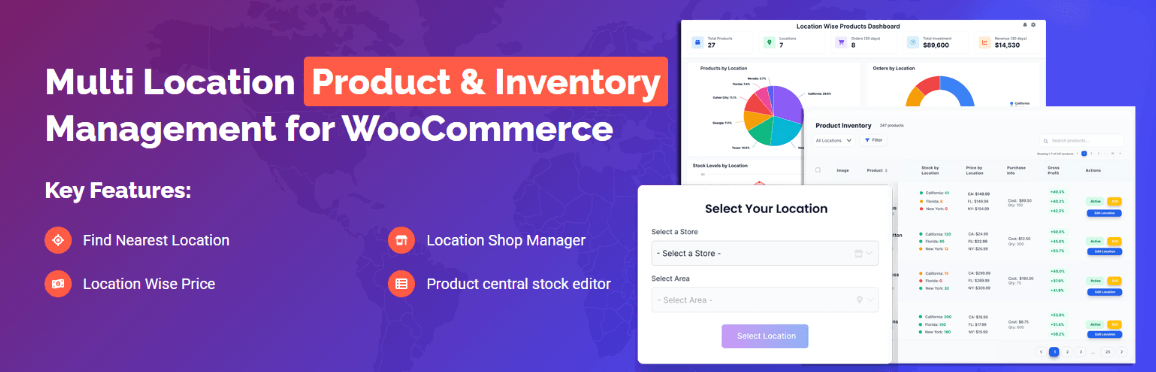
The free version at wordpress.org is genuinely capable. You get unlimited locations — warehouses, pickup points, retail stores, service regions — each with its own stock quantity per product and per variation. That’s separate stock, not a shared single stock pool split by percentage.
You can assign products and variations to one or multiple locations, set location-specific stock status (in-stock, out-of-stock, backorder behavior), and configure low-stock thresholds per location. The customer-facing location selector — available in dropdown, list, button, or popup style — lets shoppers pick their preferred location before they browse. Critically, cart location validation is included in the free tier: when a customer adds an item to cart, the plugin checks whether that product is actually available at their selected location. That single check eliminates a huge class of overselling errors.
Orders get location metadata attached — so when you look at orders in WooCommerce admin, you know which fulfillment location each one belongs to. You can also filter orders by location. For a store running two or three warehouses with staff managing each one, this is the core workflow sorted.
What the Pro version adds
If you’re managing higher complexity, the pro version adds inter-location stock transfers with transfer records, automatic location detection by customer IP, order splitting across multiple locations when a single cart contains items from different warehouses, and location-specific shipping methods and rates.
For overselling specifically, the most relevant pro features are location-specific stock deduction (only the fulfilling location loses inventory, not a global count) and cart-level location switching with stock and availability updates in real time. If a customer switches location mid-cart, the pro version recalculates availability against the new location’s stock before they reach checkout.
The REST inventory API and Webhooks in pro make it practical to sync with an external WMS or ERP — so if your warehouse management system updates stock counts, those changes can push into WooCommerce per-location rather than overwriting a single global number.
Who it’s for
Store owners running physical locations, regional warehouses, or click-and-collect operations who want the multi-location logic handled by the plugin rather than custom code. The free tier covers the fundamentals. The pro tier is worth it if you need split shipments, inter-location transfers, or external system integration.
Other Notable WooCommerce Inventory Management Plugins
ATUM Inventory Management for WooCommerce
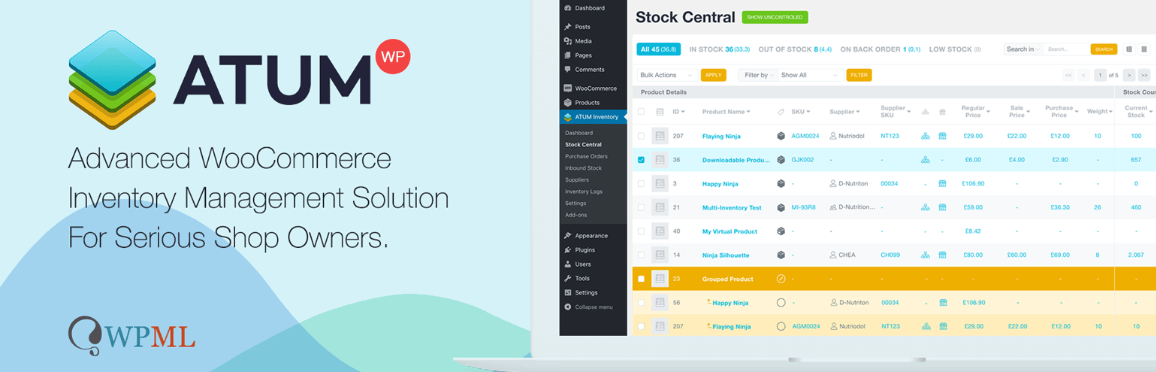
ATUM has a solid single-location inventory dashboard and is widely used. Its Stock Central view gives you a spreadsheet-style interface for bulk editing stock across your product catalog. However, its multi-location capability — what it calls “Multi-Inventory” — is a paid premium add-on, not part of the free plugin. If you’re evaluating it for multi-warehouse overselling prevention specifically, factor that cost in upfront. The free version does not give you separate per-location stock quantities.
WooCommerce itself (with Shipping Zones)
Worth saying plainly: WooCommerce’s native inventory system has no concept of per-location stock. It’s a single number. You can create multiple shipping zones and assign different rates, but stock is shared across all of them. If two customers in different regions order the last unit simultaneously, WooCommerce has no mechanism to prevent both orders from going through based on location. This is the root of the problem this article is about. Native WooCommerce alone is not a solution.
What to check before installing any plugin
A few practical checkboxes before you commit:
- Does it support HPOS (WooCommerce High-Performance Order Storage)? Without this, you’ll hit compatibility issues as WooCommerce moves away from post meta for orders.
- Does it hook into
woocommerce_reduce_order_stockor intercept checkout correctly — or does it rely on post-order stock adjustment, which is too late to prevent overselling? - How does it handle backorder behavior per location? You want that configured per location, not globally.
- Does it integrate with your order routing workflow, or does it dump everything into a single queue regardless of which warehouse should fulfill it?
- What happens with returns? If a returned item goes back to one location’s stock, does the plugin track that at the location level?
No plugin is perfect across all these dimensions. The right choice depends on how many locations you’re running, whether you need external system integration, and how much custom development you’re willing to do. But any plugin you pick should at minimum give you per-location stock and cart validation — without those two, you’re still overselling.
FAQ — WooCommerce Multi-Warehouse Overselling
Can WooCommerce handle multi-warehouse inventory natively?
Not really. Out of the box, WooCommerce operates on a single stock pool per product. There’s no concept of location-level stock, no per-warehouse deduction, and no order routing based on fulfillment location. You can set a stock quantity and enable backorders — that’s about it. For a single warehouse, that’s fine. The moment you add a second location, you’re already beyond what core WooCommerce was designed to handle.
What actually causes overselling in a multi-warehouse setup?
Usually it’s one of three things (sometimes all three at once):
- No checkout stock lock. WooCommerce doesn’t reserve stock when a customer adds to cart. Two customers can buy the same last unit simultaneously.
- Stale cached data. Object cache or transient cache holds an old stock number. The availability check passes, but the real quantity is already zero.
- A single stock pool shared across locations. Without per-location stock, there’s no way to know which warehouse is overselling, or prevent one location’s orders from draining another’s inventory.
Does enabling backorders solve the problem?
No — it sidesteps it. Backorders let customers keep buying after stock hits zero, which is sometimes intentional. But if you don’t want to accept orders you can’t fulfill from a specific location, backorders make things worse, not better. You need per-location stock control and a proper stock locking mechanism, not a softer version of the same gap.
What’s a stock locking mechanism, and do I need one?
A stock locking mechanism reserves inventory the moment a customer reaches checkout — or sometimes when they add to cart — so that unit can’t be purchased by someone else simultaneously. WooCommerce doesn’t do this natively. Some multi-location plugins implement a checkout stock lock that holds inventory for a set window (commonly 10–15 minutes) while the customer completes payment.
Do you need one? If you’re running low-stock, high-demand products across multiple fulfillment locations, yes. Without it, race conditions happen — especially during flash sales or peak traffic.
How does AJAX-based availability checking help?
A standard WooCommerce product page loads stock status once, at page load. If someone else buys the last unit while you’re on that page, you don’t know until you try to check out. AJAX-based availability checks poll stock in real time as the customer interacts — adding to cart, changing quantity, reaching checkout. It’s not a silver bullet (network latency and cache can still interfere), but it dramatically reduces the window for overselling.
Does Redis or Memcached cause overselling?
Object cache layers like Redis and Memcached can absolutely contribute. If your WooCommerce stock quantities are cached and a sale reduces inventory, the cached value doesn’t update immediately. The next buyer’s availability check reads the stale number and the purchase goes through. The fix is short TTLs on stock-related cache keys, or flushing stock transients on woocommerce_reduce_order_stock. If you can’t control cache TTL at the server level, some multi-location plugins include cache maintenance tools that clear location-specific transients after stock changes.
What’s the difference between a single stock pool and per-location stock?
A single stock pool means all your warehouses share one number. Sell 5 units across 3 locations — the global count drops by 5, but WooCommerce has no idea which warehouse shipped what. Per-location stock assigns a separate quantity to each fulfillment location. When an order routes to Warehouse A, only Warehouse A’s inventory decreases. That’s the fundamental requirement for accurate multi-warehouse tracking.
The free version of Multi-Location Product & Inventory Management for WooCommerce by Plugincy covers this — you can set separate stock quantities per product-location combination, including individual variation-level inventory.
Can I use WooCommerce Multisite for multi-warehouse inventory?
You can, but it’s the wrong tool for inventory management. WooCommerce Multisite gives each site its own database, its own orders, its own products. Sharing stock across sites requires custom REST API calls, external sync logic, or a middleware layer — and you still have no real-time stock sync without building it yourself. Most operations that feel like they should be simple (inter-location stock transfer, unified order routing) become genuinely complex engineering problems. A purpose-built multi-location plugin running on a single WooCommerce install is almost always the more maintainable path.
What’s cart location validation, and why does it matter?
Cart location validation checks, at cart or checkout time, that the items in a customer’s cart are actually available at their selected fulfillment location. Without it, a customer can add a product to cart when it’s in stock at Location A, switch their preferred location to Location B mid-session, and still check out — even if Location B has zero units. The cart data doesn’t update to reflect the new location’s stock. Proper cart location validation catches this and either blocks the checkout or prompts the customer to resolve the conflict.
How do Webhooks and the REST API fit into overselling prevention?
If you’re syncing inventory with an external WMS or ERP, the speed of that sync matters. A batch sync that runs every hour leaves a large window where WooCommerce shows inventory that’s already been committed elsewhere. Webhooks let your external system push stock updates to WooCommerce the moment a change happens, rather than waiting for the next scheduled pull. REST API integration lets WooCommerce push order data out immediately after checkout. Together, they shrink the sync gap that causes overselling in connected systems. Some multi-location plugins include REST inventory API endpoints and signed Webhook support specifically to support this kind of external integration.
Does order routing help with overselling?
Yes — indirectly. When an order routes automatically to the right fulfillment location based on stock availability, you avoid situations where a warehouse tries to fulfill an order it doesn’t have stock to cover. Good order routing combined with location-specific stock deduction means only the shipping location’s inventory is consumed. Without routing logic, you can end up with correct global numbers but incorrect per-location numbers, which causes fulfillment failures even when the aggregate stock looks fine.
What about split shipments — do they create double-deduction risks?
They can, if the plugin handling split shipment doesn’t correctly attribute which unit came from which location. In a proper split shipment setup, each child order deducts stock only from its assigned fulfillment location, and the deductions are isolated. The risk is when a plugin splits the order at the order level but deducts from a shared stock pool — then you get either double-deduction (both locations lose stock for one unit) or no deduction at all.
Check your plugin’s documentation for how it handles location-specific stock deduction on split orders specifically. Don’t assume it works correctly just because order splitting is listed as a feature.
How do I know if stock reconciliation is actually working?
Run a deliberate test. Place a test order, cancel it, and check whether the stock returns to the correct location — not just to the global total. If your multi-location plugin doesn’t track which location fulfilled the order, a return will credit the global pool rather than the specific warehouse. Over time, that drift adds up. Real stock reconciliation works at the location level, and you should verify it manually before relying on it at scale.
Is there a way to prevent overselling without buying a paid plugin?
Yes, for the basics. The free version of Multi-Location Product & Inventory Management for WooCommerce handles per-location stock quantities, cart location validation, and location-based product availability — which covers the most common causes of multi-warehouse overselling without spending anything. For more advanced scenarios like inter-location stock transfers, automated order routing, split shipment with parent-child order tracking, or real-time stock display modes, you’re looking at a pro tier. But a significant portion of overselling problems come down to missing per-location inventory — and that’s solvable for free.
At what order volume should I worry about database scalability?
There’s no universal threshold, but once you’re running thousands of orders per month across multiple locations, the stock queries — especially if you’re doing frequent AJAX-based availability checks — start showing up in slow query logs. Index your wp_postmeta table, consider HPOS (WooCommerce’s High-Performance Order Storage) which moves orders off postmeta entirely, and make sure your multi-location plugin is HPOS-compatible. A plugin that still reads from
Conclusion — Stop Overselling and Stabilize Your Multi-Warehouse Store
Overselling in a multi-warehouse WooCommerce setup isn’t one problem. It’s a cluster of problems that happen to produce the same symptom: stock that gets promised to more customers than actually exists. You’ve now seen the full chain — from stale transient cache and object cache serving outdated availability data, to the absence of a checkout stock lock, to per-location stock quantities not being tracked at all, to order routing logic that pulls from the wrong fulfillment location.
None of these are inevitable.
The fixes are real and implementable, whether you’re a store owner who never touches code or a developer willing to write a custom action on woocommerce_checkout_order_processed.
What Actually Matters Most
If you only take three things from this guide:
1. Separate your stock pools by location. A single stock pool shared across warehouses is the fastest path to overselling. The moment two customers in different regions can both see “8 in stock” pulling from the same number, you’re exposed. Per-location stock — maintained either natively through a multi-location plugin or via a WMS/ERP integration over REST API — is non-negotiable at any real scale.
2. Lock stock at checkout, not after payment. WooCommerce’s default behavior deducts stock only after an order is placed. That gap — between a customer entering their card details and the order record being written — is where duplicate orders happen. A proper checkout stock lock, even a simple one using woocommerce_checkout_order_processed with a database-level reservation, closes that window.
3. Fix your cache or it will undo everything else. You can have perfect per-location stock logic and it will still fail if a caching layer is serving stale product data. Clear transients on stock updates. Configure your object cache to exclude stock-related keys. If you’re running a full-page cache, exclude cart and checkout pages without exception.
The Realistic Path Forward
Start with what’s free. WooCommerce’s built-in stock management, combined with a plugin that handles per-location inventory, gets most small-to-mid stores out of trouble without spending a dollar. Multi-Location Product & Inventory Management for WooCommerce by Plugincy, for example, supports unlimited warehouse locations, separate stock quantities per product-location combination, and cart location validation in its free version — that alone closes the most common overselling gap for stores running two or three fulfillment points.
As you grow, the complexity scales too. Mixed-location carts, split shipment, inter-location stock transfers, order splitting into parent-child orders, location-specific shipping methods — these aren’t features you need on day one, but you should know your plugin supports them before you need them urgently. The pro version of the Multi-Location plugin adds all of that, plus location-aware order routing and real-time dashboard visibility across every warehouse.
For stores that have already integrated a WMS or ERP: your source of truth for stock should live in that system, and WooCommerce should be the downstream consumer — updated via Webhook or REST API on every stock movement. If your integration is batching updates every 15 minutes, you’re still exposed. Push-based sync, not polling, is what actually prevents overselling at volume.
Don’t Skip Reconciliation
Stock reconciliation isn’t glamorous. Running a weekly comparison between what WooCommerce thinks is in each warehouse and what the warehouse actually reports feels like housekeeping. It is housekeeping. But it’s also the only reliable way to catch drift before it turns into a customer service problem. Returns management feeds directly into this — a returned item that gets physically restocked but never updated in WooCommerce is just future overselling waiting to happen.
Build the reconciliation step into your operations, not as a one-time audit but as a recurring process. Export location stock reports, compare against your WMS or ERP records, and treat discrepancies as bugs to fix — not rounding errors to ignore.
One More Thing
If you’re on WooCommerce multisite with warehouses mapped across network sites, the stakes are higher. There’s no shared stock pool by default across sites. Each site manages its own inventory. That architectural reality means overselling can happen across sites even if each individual site is configured correctly. You need either a centralized inventory layer — a PIM or ERP pushing stock to each site — or a multi-location plugin that’s explicitly built to handle cross-site scenarios.
The problem is solvable. It just requires treating inventory as a distributed system, not a single number in a database row.
That’s the shift. Once you make it, overselling stops being a recurring crisis and becomes what it should always have been: an edge case you’ve already planned for.
