

You have 20 units sitting on a shelf in your Chicago warehouse, but your WooCommerce store is showing that variation as Out of Stock. Meanwhile, customers in another city can’t add it to their cart either — because the stock count never synced to their location at all. If that sounds familiar, you’re not alone. Multi-location stock on WooCommerce variable products is one of the most quietly maddening issues store owners run into, and it rarely throws an obvious error to help you debug it.
The three most common reasons this happens: variation-level Manage Stock is not actually enabled on the specific variation (the parent product’s stock setting masks the problem), the per-location plugin — whether that’s Multi-Location Product & Inventory Management for WooCommerce by Plugincy, ATUM Inventory Management, or another WooCommerce Multi-Location Inventory solution — hasn’t been configured to track stock at the variation level, or wc_recount_termsale() has never been triggered after a stock change, leaving WooCommerce’s internal counts stale and out of sync with what’s actually stored in wp_postmeta.
What makes this harder to spot is that WooCommerce variable products have two separate layers of stock control — the parent product and each individual variation — and per-location plugins add a third layer on top of that. A misconfiguration at any one of those layers can break the whole chain. Throw in an object cache like Redis or Memcached, a stale WooCommerce transient cache, or a POS system pushing stock updates through the REST API without triggering the right hooks, and you can end up chasing a ghost.
The good news? Every single cause has a straightforward fix you can apply yourself. No PHP expertise required, no developer invoice at the end. This guide walks through seven root causes — with step-by-step instructions for each — so you can find exactly where your setup is breaking down and get your variation stock updating correctly per location today.
Quick Answer: Why WooCommerce Variable Product Stock Is Not Updating Per Location — Root Causes and an Instant Checklist
Stock showing wrong numbers per location is one of those problems that looks different every time but almost always traces back to a small set of causes. Before you start disabling plugins or calling a developer, run through this. Nine times out of ten, the fix is already within reach.
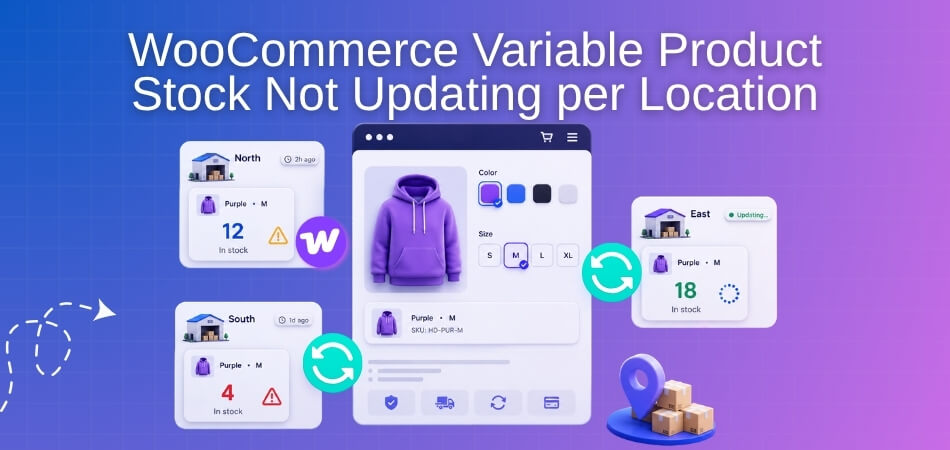
What’s Actually Happening Under the Hood
WooCommerce stores stock at the variation level, not the parent product level. Each variation has its own _stock and _stock_status entry in wp_postmeta. When you add per-location inventory on top of that — through a dedicated multi-location plugin or a custom setup — the plugin stores location-specific quantities separately, then pushes the relevant number into WooCommerce’s native stock field based on which location a customer is viewing.
If that sync breaks — or never fires in the first place — the variation keeps showing whatever WooCommerce last cached or stored. That’s your stale stock number.
The 7 Root Causes at a Glance
Here’s the short version. Each one gets a full fix later in this guide.
- Variation-level stock isn’t enabled — the “Manage Stock” checkbox at variation level is off, so WooCommerce is inheriting a global number instead of reading per-variation data
- Your multi-location plugin isn’t writing to the right variation — it’s updating the parent product’s stock meta instead of the specific variation’s
wp_postmetarow - Object cache or page cache is serving stale data — Redis, Memcached, or a page caching plugin is holding old stock numbers and not invalidating when stock changes
- The WooCommerce transient cache hasn’t cleared —
wc_recount_termsale()hasn’t run, stock status transients are stale, and the displayed status doesn’t match the real value - A POS system or external sync is overwriting stock — a POS integration, REST API connection, or Webhook is pushing stock updates that override location-level changes
- A translation or multilingual setup is duplicating products — WPML, Polylang, or WooCommerce Multilingual & Multicurrency has created translated product copies, and stock on one copy isn’t syncing to the other
- A database migration or import left orphaned meta — after moving hosts or importing products, location-to-variation assignments in your plugin’s tables no longer match the variation IDs in
wp_postmeta
Instant Diagnostic Checklist
Run through this before anything else. It takes under five minutes.
- [ ] Go to Products → [your product] → Variations. Open one variation. Is Manage Stock checked at the variation level — not just at the parent level?
- [ ] Check your multi-location plugin’s location panel for that variation. Does it show a stock quantity? Is the variation actually assigned to that location?
- [ ] Place a test order. Does the stock number drop on the correct location, or does it drop everywhere — or nowhere?
- [ ] Go to WooCommerce → Status → Tools and run Clear transients. Does the displayed stock change after that?
- [ ] Check if you’re running Redis or Memcached. If yes, flush the object cache and reload the product page.
- [ ] Is a POS system or external REST API connected? Check whether it pushed a stock update in the last hour that might have overwritten your location-specific value.
- [ ] If you’re on WPML or Polylang, check whether the product has translated copies. Are the variation IDs the same across translations, or different?
If one of those checks makes the problem obvious, jump straight to that root cause section below. If nothing’s clear yet, start at root cause #1 and work down.
A Note on How Per-Location Stock Actually Needs to Be Set Up
This is where most stores go wrong before they even hit a bug. Per-location stock only works reliably when three things line up:
- WooCommerce variation-level stock management is on (the Manage Stock checkbox at variation level)
- Your multi-location plugin has the variation assigned to a specific location with its own quantity — not just the parent product
- The plugin is correctly writing that location’s quantity back to WooCommerce when a customer’s selected location changes or an order is placed
If any of those three are missing, you don’t have a bug — you have an incomplete setup. The good news is that’s easier to fix than a genuine bug.
For stores that need a clean starting point, Multi-Location Product & Inventory Management for WooCommerce by Plugincy (free on WordPress.org) handles all three of those requirements out of the box — per-variation location assignment, separate stock quantities per location, and stock status tracking per location. It’s worth knowing that as a baseline option, especially if you’re currently cobbling this together manually. But if you’re already running a different multi-location plugin, the sections below cover how to troubleshoot the same issues regardless of which tool you’re using.
The rest of this guide goes through each root cause in detail, with exact steps to fix it — no code required for most of them.
Cause 1 — Variation-Level ‘Manage Stock’ Is Not Enabled
This is the most common reason stock doesn’t update per variation — and it’s the one that gets overlooked because the setting isn’t obvious the first time you see it.
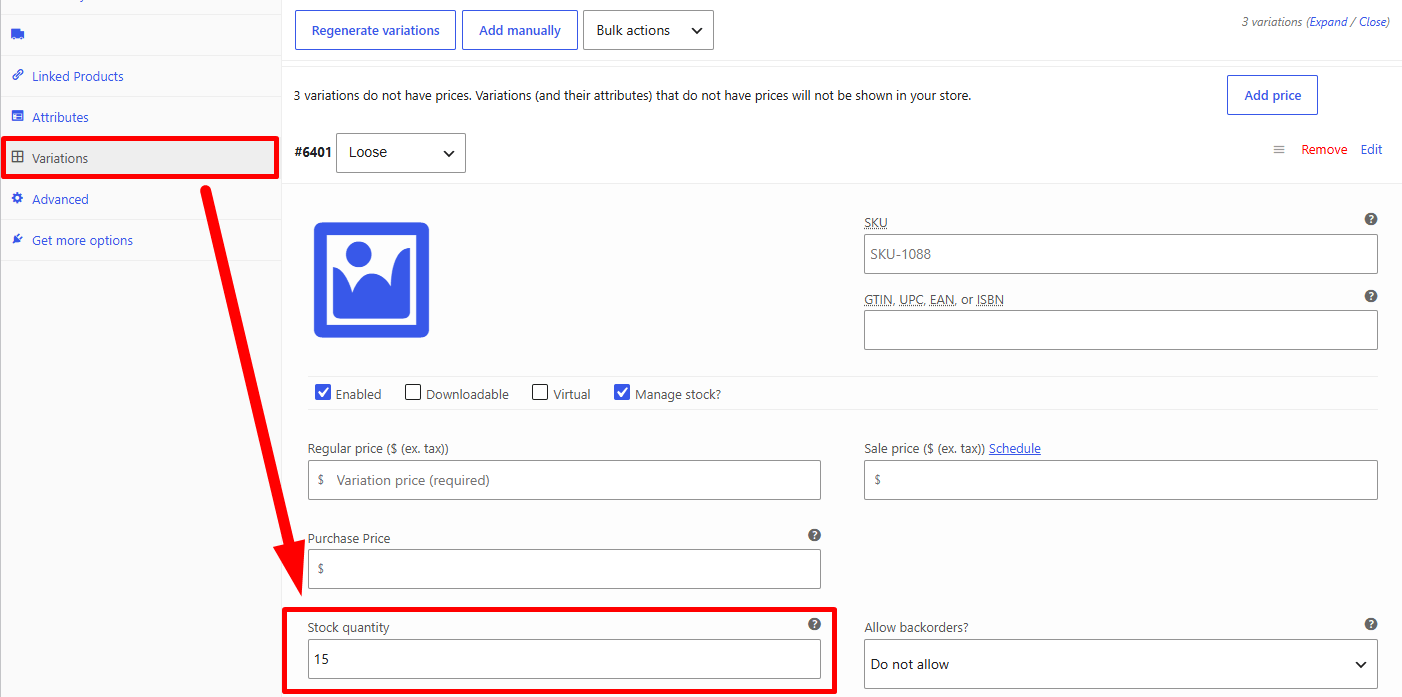
Parent Product vs. Variation-Level Stock Management — Understanding the Difference
WooCommerce gives you two separate places to manage stock on a variable product. Most people find the first one and stop there.
The parent product level has its own “Manage Stock” checkbox, found in the Inventory tab of the product editor. If you enable it here, WooCommerce tracks a single combined stock number for the entire product — not per-size, not per-color, not per-variation. One number for everything.
That’s not what you want.
For per-variation stock — where “Large / Red” has 5 units and “Small / Blue” has 12 — you need to enable “Manage Stock” individually on each variation. These are completely separate toggles. Enabling stock management at the parent level does nothing for variation-level inventory tracking, and vice versa.
The confusing part is that WooCommerce doesn’t make this obvious. The parent stock checkbox is prominent; the variation-level one is buried inside the variation panel, collapsed by default.
If you have the parent-level “Manage Stock” turned on, WooCommerce actually ignores individual variation stock entirely and falls back to the parent total. So if stock isn’t updating per variation, the parent setting being active can be the direct cause — not just a missing checkbox on the variation.
Parent stock = one pool for the whole product. Variation stock = separate tracking per option combination. You almost certainly want the second one.
Step-by-Step Method to Enable Manage Stock Separately on Each Variation
1. Open the product in the editor. Go to Products → All Products, find your variable product, and click to edit it.
2. Disable parent-level stock management (if active). In the Inventory tab of the product, uncheck “Manage Stock” if it’s ticked. Leave the stock fields blank. This clears the way for variation-level tracking to work properly.
3. Go to the Variations tab. Click the Variations tab in the product data panel. You’ll see a list of all your variations, each collapsed by default.
4. Expand a variation. Click the toggle arrow to the left of a variation row. The full variation settings panel drops open.
5. Enable “Manage Stock” on this variation. You’ll see a dropdown or checkbox labeled “Manage Stock?” — it defaults to “No” or unchecked. Change it to “Yes” (or tick the checkbox, depending on your WooCommerce version).
Once you do, a Stock Qty field and a Stock Status dropdown appear directly beneath it.
6. Enter the stock quantity. Type the actual on-hand count. Don’t leave it at 0 unless that variation genuinely has no stock.
7. Repeat for every variation. This step catches a lot of people. The setting is per-variation — enabling it on one doesn’t affect the others. If you have 10 variations, you need to open all 10 and repeat steps 4–6.
8. Save the product. Click Update (or Save draft if you’re not ready to publish). WooCommerce won’t apply changes until the product is saved.
Got a lot of variations? Doing this one by one gets tedious fast. A few options:
- Use the Variations bulk edit in WooCommerce. At the top of the Variations tab, select all variations from the dropdown, then choose “Toggle ‘Manage Stock'” from the bulk actions menu. This flips the setting across all selected variations at once.
- If you’re running a multi-location setup — tracking stock per variation and per warehouse or pickup point — the native Manage Stock checkbox won’t cut it on its own. You’d need a dedicated plugin for that layer. Multi-Location Product & Inventory Management for WooCommerce by Plugincy handles exactly this in its free version: it lets you assign variations to specific locations and set separate stock quantities per variation-location combination directly from the product editor. So “Large / Red” could show 5 units at your downtown store and 3 at the warehouse — tracked independently.
After saving, do a quick test: add that specific variation to the cart and place a test order. Check whether the variation’s stock count drops. If it does, the enable was all that was needed. If it doesn’t update, move on — there are other causes further down this guide.
Cause 2 — Misconfiguration of the Per-Location Stock Plugin
Why Per-Location Stock Does Not Work in WooCommerce Without a Plugin
WooCommerce core tracks one stock number per variation. That’s it. There’s no concept of “Warehouse A has 5 units, Store B has 12” built into the default system. The wp_postmeta table stores a single _stock value per product or variation ID — one row, one number.
So if you’re seeing stock not update “per location,” and you haven’t installed a dedicated multi-location inventory plugin, the answer is simple: nothing is broken. WooCommerce never had that feature to begin with.
This also means that if you did install a plugin for this but configured it incorrectly, your stock either won’t track per location at all, or it’ll partially work and confuse you further. That’s where most people get stuck.
Per-Location Stock Management Plugin Comparison — What Each One Offers
There are a handful of real, verified options for per-location stock management. They differ significantly in scope, pricing, and how they handle variation-level inventory.
Here’s a quick honest breakdown:
Multi-Location Product & Inventory Management for WooCommerce (Plugincy — Free)
This one handles variation-level per-location stock in its free version — which matters, because a lot of alternatives lock that behind a paid tier.
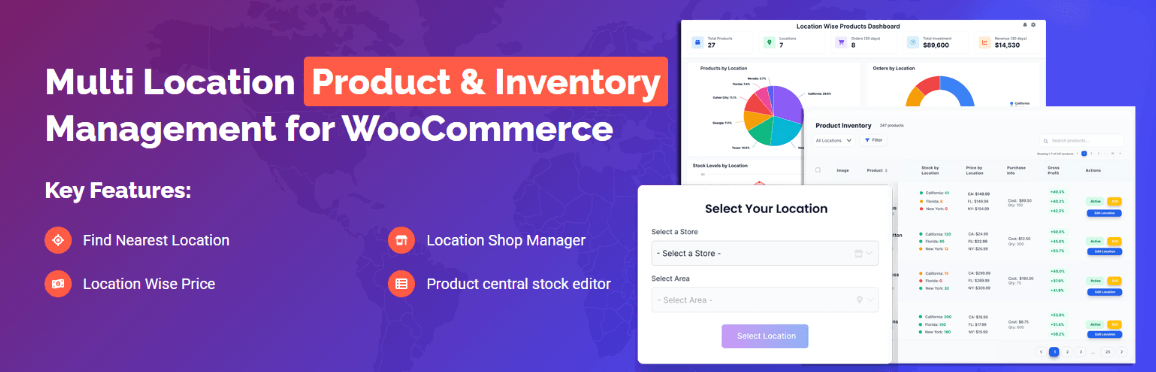
What the free version actually does:
- Lets you create unlimited locations (stores, warehouses, pickup points, service regions)
- Assigns individual products and specific variations to one or more locations
- Tracks a separate stock quantity per product-location and variation-location combination
- Handles stock status per location — in stock, out of stock, backorder behavior
- Lets customers select their preferred location from a frontend selector (dropdown, list, button, or popup)
- Shows only the products available at the selected location in shop loops, search, and archives
- Validates cart items against the selected location before checkout
That’s the core loop for per-location stock — and it works without paying anything.
The PRO version adds things like location-specific pricing, inter-location stock transfers, automatic nearest-location detection, order splitting across locations, and a REST inventory API for syncing with external systems like a POS or WMS. If you need those, they’re there. But for fixing “my stock isn’t tracking per location,” the free version covers the actual problem.
You can download it from the WordPress plugin repository: Multi-Location Product & Inventory Management for WooCommerce.
ATUM Inventory Management
ATUM is a well-known inventory management plugin with a polished interface. It gives you a Stock Central view, purchase orders, suppliers, and detailed inventory logs — genuinely useful for operations-heavy stores.
However: multi-location stock is not part of ATUM’s free plugin. It requires their paid “Multi-Inventory” add-on. If you installed ATUM hoping per-location stock would work automatically, that’s the gap. The core plugin improves how you manage WooCommerce’s single stock value — it doesn’t add location-level tracking by itself.
If you’re already an ATUM user and comfortable with their ecosystem, their Multi-Inventory add-on does handle location-level stock on variations. Just know the cost before planning around it.
WooCommerce Multi-Location Inventory / StoreStock
WooCommerce Multi-Location Inventory and StoreStock are both dedicated multi-location tools you’ll find referenced in community discussions. They focus on per-store stock quantities and are worth evaluating if they fit your workflow.
As with any plugin in this category: before installing, check that it explicitly supports variation-level stock per location. Some tools handle stock at the parent product level only, which won’t solve the problem if your variable products have size/color/type variations with different quantities.
Check the plugin’s documentation for a “variation inventory” or “per-variation location stock” feature before committing.
How to Correctly Configure Per-Location Stock on Variations After Choosing a Plugin
Installing the plugin is only half the job. The configuration step is where most misconfigured setups fall apart.
Here’s the general sequence that applies across multi-location plugins:
Step 1 — Create your locations first. Before touching products, set up your locations inside the plugin. Name them clearly (e.g. “Downtown Store,” “Main Warehouse”). Without at least one active location, per-location stock fields won’t appear on your products.
Step 2 — Assign the product to the relevant locations. Open the product edit screen. Your plugin should add a location assignment panel somewhere on the page — usually below the standard WooCommerce data tabs or inside a dedicated tab. Assign the product to the locations where it’s actually stocked.
Step 3 — Enable Manage Stock at the variation level. This is the overlap with Cause 1. Your multi-location plugin needs WooCommerce to know each variation is tracked independently. Go to the Product Data → Variations tab, expand each variation, and make sure “Manage Stock?” is checked. Without this, some plugins can’t attach separate stock values to each variation-location pair.
Step 4 — Enter stock quantities per location, per variation. Once variation-level stock is enabled and locations are assigned, you should see individual stock fields for each location inside each variation. Fill these in. Don’t leave them blank and expect the plugin to inherit the main product’s stock — it usually won’t.
Step 5 — Save and verify. Save the product. Then open a fresh browser tab in incognito, select a location from the frontend selector, navigate to the product, and check whether the displayed stock reflects the correct location’s inventory. If you have access to a staging environment, test a purchase through to order completion and confirm the right location’s stock decremented.
A few things that commonly go wrong here:
- Plugin is installed but the location selector isn’t placed anywhere. Customers never select a location, so the plugin defaults to global stock or shows nothing correctly. Place the selector shortcode or block on a visible page and configure a default fallback location.
- Variations were created before the plugin was installed. Existing variations sometimes don’t auto-populate with location fields. Open each variation, confirm the fields appear, and manually enter the stock values.
- Multiple plugins managing stock at once. If you have ATUM and another multi-location plugin active, they may conflict on which value is authoritative. Pick one system and disable stock-management features in the other.
If you’re using a POS system that syncs inventory via the REST API or Webhooks, also check whether your per-location plugin exposes location-aware REST endpoints. Standard WooCommerce REST API calls write to the global _stock field in wp_postmeta — they bypass per-location tables entirely unless the plugin explicitly intercepts and routes those requests. This is a common source of sync failures in hybrid online/physical retail setups.
Cause 3 — Stock Update Is Not Visible Due to Cache
This one trips up a lot of store owners because the stock has actually updated — it just isn’t showing. The database is correct. WooCommerce did its job. But some caching layer between the database and the browser is serving old data, making it look like the stock didn’t change at all.
This is especially common with variable products because each variation has its own stock record in wp_postmeta, and caches often don’t bust correctly when a child post meta changes.
Object Cache (Redis / Memcached) and WooCommerce Transient Cache
WordPress stores frequently-read data in two places beyond the database: object cache and transients.
Object cache (Redis or Memcached) keeps things like WC_Product_Variable object data in memory. If your host runs Redis or Memcached, a stock update might write to the database successfully, but the in-memory cache still holds the old object. The next page load reads from memory, not the database — so you see stale stock.
WooCommerce transient cache works differently. WooCommerce stores things like product availability, layered nav counts, and variation data as WordPress transients in the wp_options table. These have expiry times, but they don’t always bust automatically when variation stock changes via a third-party POS system, REST API, or Webhook-triggered update.
How to check: Install a plugin like Query Monitor, or just look at your wp_options table for rows where option_name starts with _transient_wc_. If you’re seeing entries like _transient_wc_var_prices_ with timestamps from hours ago, stale transients are almost certainly part of your problem.
Fix — transient cache:
Run this in WP-CLI:
wp transient delete --allOr if you want to target only WooCommerce transients specifically:
wp eval 'WC_Cache_Helper::get_transient_version("product", true);'That second command forces WooCommerce to increment its internal cache version key, which effectively invalidates all product-related transients without deleting them one by one.
Fix — object cache (Redis / Memcached):
If you’re on a managed host (WP Engine, Kinsta, Cloudways, etc.), there’s usually a “Flush Object Cache” button in the hosting dashboard. Use that first — it’s the fastest path.
If you have Redis access directly, redis-cli FLUSHDB clears the current database. For Memcached, restarting the service does the same. Ask your host if you’re unsure — this is a one-minute support ticket.
Automation: WooCommerce does call WC_Cache_Helper::invalidate_cache_group('product') on native stock updates. The gap happens when stock changes come from outside WooCommerce’s normal flow — REST API calls, direct database writes, or a POS system hitting wp_postmeta directly without going through WC_Product::set_stock_quantity(). In those cases, the cache invalidation hook never fires.
If you’re using Multi-Location Product & Inventory Management for WooCommerce by Plugincy, this is handled — the plugin includes cache maintenance tools that clear location-specific inventory transients and product cache after stock or configuration changes, so you’re not left chasing stale data after every update.
For everyone else: if you’re integrating a POS or external system, make sure it calls the WooCommerce REST API endpoint (PUT /wp-json/wc/v3/products/{id}/variations/{variation_id}) rather than writing to wp_postmeta directly. That way WooCommerce’s own cache-busting logic runs as it should.
Page Cache — Hosting-Level and Plugin-Level
Object cache and transients affect the data layer. Page cache affects the HTML layer. Even if the data is correct, a cached HTML page will still show the old stock number.
Two places page cache lives:
- Hosting-level cache — Nginx FastCGI cache, Varnish, LiteSpeed Cache at the server level. Kinsta, WP Engine, SiteGround, and most managed WordPress hosts do this automatically.
- Plugin-level cache — WP Rocket, W3 Total Cache, WP Super Cache, LiteSpeed Cache plugin, Breeze, etc.
Variable product pages are particularly tricky because WooCommerce loads variation stock via JavaScript after page load. Some page caches capture the initial HTML including an “In Stock” label, then serve that cached version even after stock drops to zero.
What to check first: Open your product page in a private/incognito window with no cookies. If you see outdated stock there but the WooCommerce admin shows the correct figure, it’s page cache. Confirmed.
Fix — hosting-level:
- Kinsta: Dashboard → Tools → Clear Cache
- WP Engine: WP Engine bar in wp-admin → Purge All Caches
- SiteGround: SG Optimizer plugin → Purge Cache
- LiteSpeed (server-level): LiteSpeed Cache plugin → Manage → Purge All
Most managed hosts also exclude WooCommerce pages (/cart/, /checkout/, /my-account/) from caching automatically. But product pages are often not excluded, and that’s where you get stale stock displays.
Fix — plugin-level:
- WP Rocket: Settings → Cache → Enable cache for WooCommerce pages → check that variation-related pages aren’t being cached. Also go to Dashboard → Clear and Preload Cache.
- W3 Total Cache: Performance → Dashboard → Empty All Caches.
- WP Super Cache: Settings → Delete Cache.
How to Clear Each Cache Layer and Automate the Process
Manually clearing cache every time stock changes isn’t sustainable. Here’s how to make it automatic.
WP-CLI cron approach: Schedule a WP-CLI command to flush transients nightly if your stock sync runs overnight.
wp cron event schedule woocommerce_delete_product_transients now dailyOr add a direct cron to your server (not WordPress cron) that runs:
wp --path=/var/www/html transient delete --all --allow-rootAdjust the path to match your install.
Programmatic cache busting after stock updates: If you’re triggering stock changes via code or a Webhook receiver, add this after the update:
add_action( 'woocommerce_variation_set_stock', function( $product ) {
    WC_Cache_Helper::invalidate_cache_group( 'product' );
    clean_post_cache( $product->get_id() );
    wc_delete_product_transients( $product->get_parent_id() );
} );
Paste this in functions.php or a site-specific plugin. It fires when a variation’s stock changes and immediately busts the relevant caches — both the product transients and the WordPress object cache for that post.
WP Rocket + WooCommerce: WP Rocket has a built-in WooCommerce add-on that automatically purges product pages when stock changes. Make sure it’s enabled: WP Rocket → Add-ons → WooCommerce → toggle on. This covers the most common hosting-plus-WP-Rocket setup without any code.
Quick summary of what to clear and where:
| Cache type | Tool | How to clear |
|---|---|---|
| WooCommerce transients | WP-CLI | wp transient delete --all |
| Object cache (Redis) | redis-cli / host dashboard | FLUSHDB or host button |
| Object cache (Memcached) | Service restart / host dashboard | Restart or host panel |
| Page cache (plugin) | WP Rocket / W3TC / etc. | Plugin dashboard → Purge All |
| Page cache (hosting) | Kinsta / WP Engine / SiteGround | Host dashboard → Clear Cache |
If you’re running WooCommerce Multilingual & Multicurrency with WPML or Polylang, those tools add their own translation-related transients and can hold stale stock data for translated product variants. Clear caches from the WPML or Polylang settings panel too — not just from WooCommerce or your caching plugin.
Cache is almost never the only cause of stock not updating per
Cause 4 — Database-Level Stock Sync Issues and the wc_recount_termsale() Fix
Stock discrepancies don’t always come from plugin settings or cache. Sometimes the data itself is broken — either stored incorrectly in the database or simply out of sync with what WooCommerce expects to read. This is especially common after bulk imports, database migrations, or when a multi-location plugin writes stock to custom meta keys that WooCommerce’s core functions don’t know about.
How Stock Is Stored in wp_postmeta and Where It Breaks
WooCommerce stores stock data in the wp_postmeta table. Each product variation has a post ID, and its stock quantity lives in a meta row with the key _stock. The stock status (in stock / out of stock) sits in _stock_status, and whether stock management is active at the variation level is tracked via _manage_stock.
For variable products, every variation is its own post. So if you have a t-shirt with 3 sizes and 2 colors, you have 6 variation post IDs — each with their own _stock row.
Here’s where it breaks down in practice:
After a CSV import or database migration, the _stock value might be written correctly but _stock_status never gets updated to match. WooCommerce reads both. If _stock says 10 but _stock_status says outofstock, the product still shows as unavailable.
With per-location plugins, it gets more layered. Plugins like Multi-Location Product & Inventory Management for WooCommerce by Plugincy write location-specific stock quantities to their own meta keys (separate from core _stock). The plugin manages its own sync between per-location stock and the master _stock value WooCommerce uses for orders. If that sync breaks — say, after a server timeout during a bulk update — the location stock and the WooCommerce-facing stock get out of step.
With ATUM Inventory Management, ATUM introduces its own inventory tables alongside wp_postmeta. A mismatch between ATUM’s tables and the native meta is a known source of confusion, especially when you’ve switched to ATUM after already having stock data in the default WooCommerce location.
You can check the raw data directly. In phpMyAdmin or your host’s database tool, run:
SELECT meta_key, meta_value
FROM wp_postmeta
WHERE post_id = YOUR_VARIATION_ID
AND meta_key IN ('_stock', '_stock_status', '_manage_stock');
Replace YOUR_VARIATION_ID with the actual post ID of the variation (visible in the URL when you edit it in WP admin). If _manage_stock is no or empty, stock tracking isn’t active at variation level — which is a different problem covered in Cause 1. If _stock is positive but _stock_status is outofstock, the recount process below will fix it.
How to Manually Trigger wc_recount_termsale() and Stock Sync
wc_recount_termsale() is a WooCommerce function that recalculates product term counts — mainly used for product category counts — but running a full stock sync involves a broader set of tools.
The function you actually want for stock status recalculation is wc_update_product_stock_status() per variation, or at a broader level, triggering WooCommerce’s built-in “recount” routine. Here’s the practical approach without touching code.
Option 1 — Use WooCommerce’s built-in status update tool
Go to WooCommerce → Status → Tools. Look for “Update database” or “Recount terms” (the exact label depends on your WooCommerce version). Running “Recount terms” calls wc_recount_termsale() internally and reconciles term counts. It won’t fix a raw _stock vs _stock_status mismatch on its own, but it cleans up reporting inconsistencies that can make stock appear wrong in filters and archives.
Option 2 — Re-save the affected variation
Sounds too simple, but it works. Open the product, go to the Variations tab, expand the broken variation, change nothing, and click Save changes. WooCommerce fires woocommerce_save_product_variation on save, which triggers a full recalculation of _stock_status based on the current _stock value. If the mismatch was just a stale write, this resolves it.
Option 3 — Developer path (skip if you’re not comfortable with PHP)
If you need to force a stock status sync across multiple variations at once, add this temporarily to your theme’s functions.php or a throwaway plugin, then remove it immediately after running once:
add_action( 'init', function() {
    if ( ! isset( $_GET['fix_stock'] ) || $_GET['fix_stock'] !== 'run' ) {
        return;
    }
    $variations = get_posts([
        'post_type'      => 'product_variation',
        'posts_per_page' => -1,
        'fields'         => 'ids',
    ]);
    foreach ( $variations as $id ) {
        $product = wc_get_product( $id );
        if ( $product && $product->managing_stock() ) {
            wc_update_product_stock_status( $id,
                $product->get_stock_quantity() > 0 ? 'instock' : 'outofstock'
            );
        }
    }
    wp_die( 'Stock status sync complete.' );
} );
Visit https://yoursite.com/?fix_stock=run once, then remove the code. Don’t leave it live — the URL has no authentication beyond that query string.
Running a Stock Recount Using WP-CLI
If you have SSH access, WP-CLI is faster and safer for large catalogs than any browser-based tool. No page timeout issues, no memory limits from PHP’s max execution time.
Check WooCommerce tool availability first:
wp wc tool list --user=1This lists available WooCommerce CLI tools. Look for recount_terms or clear_transients in the output. Run either with:
wp wc tool run recount_terms --user=1
wp wc tool run clear_transients --user=1
The --user=1 flag authenticates the request as your admin user (ID 1 by default — adjust if yours differs).
For a direct stock status fix across all variations:
wp eval '
$variations = get_posts(["post_type" => "product_variation", "posts_per_page" => -1, "fields" => "ids"]);
foreach ($variations as $id) {
    $p = wc_get_product($id);
    if ($p && $p->managing_stock()) {
        $qty = $p->get_stock_quantity();
        wc_update_product_stock_status($id, $qty > 0 ? "instock" : "outofstock");
        echo "Updated variation $id: qty=$qty\n";
    }
}'
This runs synchronously in your terminal and gives you per-variation output. On a store with a few hundred variations it takes seconds. On a store with thousands, still faster than any admin tool.
One thing to keep in mind: if you’re using a per-location plugin, the “real” stock the plugin manages is in its own meta fields — not necessarily in _stock directly. Running a generic WooCommerce stock recount recalculates _stock_status based on core _stock, which might reflect global (aggregated) stock rather than per-location numbers. Check your plugin’s documentation to see if it has its own CLI command or sync button — that’s the one to run first for location-specific discrepancies.
After running any of these fixes, clear your object cache (Redis or Memcached if you’re using either) and flush WooCommerce transients. The WooCommerce Status → Tools page has a “Delete transients” option for the latter. Otherwise you might run the sync correctly but still see stale numbers on the front end.
Cause 5 — Location-Based Stock Not Syncing with a Third-Party POS System
This one catches a lot of store owners off guard. The WooCommerce side looks fine — stock management is enabled, location plugins are configured — but numbers still don’t match. The culprit is often a POS terminal running in a physical store that’s either not pushing sales back to WooCommerce, or pushing them incorrectly.
How POS-to-WooCommerce Sync Works and Where It Breaks
Most POS systems connect to WooCommerce in one of two ways: they either poll the REST API on a schedule (every few minutes, hourly, whatever the POS vendor set), or they fire a webhook event the moment a sale happens.
When you’re managing per-location stock, both methods have specific failure points that don’t apply to single-location setups.
The polling delay problem. If your POS system syncs on a schedule, there’s a window where your WooCommerce stock count and the real physical stock are out of step. A customer buys the last unit in-store at 2:47 PM. Your WooCommerce store doesn’t find out until the 3:00 PM sync. Someone online orders that same unit at 2:52 PM. Now you’re oversold.
The variation mapping problem. This is probably the most common one. A POS sale comes through and updates the parent product stock instead of the specific variation. WooCommerce then can’t reconcile it against the per-variation, per-location stock figure. The wp_postmeta table ends up with the right number at the parent level and the wrong number at the variation level — and your location plugin reads from the variation.
The location identifier mismatch. Your WooCommerce location plugin (whatever it is) stores stock against a location ID — typically a term ID or a custom post ID depending on the plugin’s architecture. Your POS system knows locations by its own internal IDs. If the mapping between “Store A in the POS” and “term ID 47 in WooCommerce” isn’t set up correctly, the stock update lands at the wrong location or nowhere at all.
Authentication expiry. POS-to-WooCommerce connections use WooCommerce REST API keys. If someone regenerated those keys or the connection broke silently, the POS might be sending stock updates that return a 401 error — and nobody notices because the POS just logs it quietly.
Check your POS system’s logs first. Most will show failed API calls with HTTP status codes. A string of 401s means authentication broke. A string of 200s means the calls are succeeding — which means the problem is what data is being sent, not whether it’s connecting.
Using REST API and Webhooks to Ensure Location Stock Sync
The WooCommerce REST API exposes variation stock via PUT /wp-json/wc/v3/products/{product_id}/variations/{variation_id} with a stock_quantity body. That’s the correct endpoint for updating per-variation stock. If your POS is hitting /products/{product_id} instead, it’s touching parent-level stock only — which won’t update location-specific variation stock.
Verify what your POS is actually sending. You can do this with a free tool like Postman, or by temporarily enabling WooCommerce’s built-in logging (WooCommerce → Status → Logs) and watching for REST activity.
For the location layer specifically — if you’re running a plugin like Multi-Location Product & Inventory Management for WooCommerce by Plugincy, the PRO version includes a REST Inventory API with its own authenticated endpoints designed for exactly this kind of external system integration. That means instead of trying to shoehorn location stock into the standard WooCommerce variation endpoint (which doesn’t understand location context at all), your POS can hit a dedicated endpoint that maps the stock deduction to the correct location. It also supports Webhooks for pushing location and inventory events back to connected systems.
If you’re on a tighter budget or using a different plugin, the standard approach is:
- Confirm your POS is calling the variation endpoint, not the parent product endpoint.
- Make sure the
manage_stockfield istruein the API response for that variation — if it’sfalse, stock updates will be silently ignored. - After each sync, check the
wp_postmetatable for_stockon the variation post ID to confirm the value actually changed.
On the Webhook side — WooCommerce fires woocommerce_reduce_order_stock when an order reduces stock. If you need to push a notification from WooCommerce to your POS after an online sale (so the POS display reflects it), you can hook into that and call your POS’s API. That’s the reverse direction, and it’s just as important for keeping both systems honest.
If you want a developer-controlled approach:
add_action( 'woocommerce_reduce_order_stock', function( $order ) {
    foreach ( $order->get_items() as $item ) {
        $variation_id = $item->get_variation_id();
        $qty          = $item->get_quantity();
        $location_id  = get_post_meta( $order->get_id(), '_order_location_id', true );
        // Push $variation_id, $qty, $location_id to your POS via its API here
    }
}, 10, 1 );
Adjust _order_location_id to whatever meta key your location plugin actually uses for storing the assigned fulfillment location.
Plugin-Based Solutions for POS Sync — Free and PRO Paths
There’s no universal “plug this in and it just works” solution for POS sync — the right fix depends on which POS system you’re running and what your location plugin supports.
If your POS has a native WooCommerce integration: Start there. Most modern POS systems (Square, Lightspeed, Vend, etc.) have WooCommerce extensions in the WordPress plugin directory or their own apps. The native integration usually handles variation-level sync correctly, but location mapping still requires manual setup. You’ll need to match each POS location to the corresponding location in your WooCommerce plugin. Do that mapping inside the POS integration’s settings — look for a “location” or “outlet” mapping screen.
If your POS sync is custom or through a middleware: This is where things get messy. Middleware tools that sit between a POS and WooCommerce often only handle simple product stock, not per-location variation stock. You’ll need to verify the middleware supports location-aware endpoints or build a custom mapping layer.
If you want a no-code path for per-location inventory with POS/WMS readiness: The Multi-Location Product & Inventory Management for WooCommerce by Plugincy PRO version includes Webhook support and a dedicated REST Inventory API built for connecting external retail or warehouse platforms. The free version covers per-location variation stock management inside WooCommerce itself — useful for keeping the WooCommerce side clean and correctly structured so that whatever POS integration you build on top has accurate data to read and write against.
If the problem is just stale stock after a sync runs: That’s often a cache issue compounding the POS problem. After any POS-triggered stock update via the REST API, WooCommerce transient cache may still be serving old stock figures. Clear wc_product_* transients after each sync batch. Some POS integrations let you trigger a custom WP-CLI command at the end of a sync job — wp transient delete --all works in a pinch during testing, though it’s too aggressive for production.
The bottom line: POS sync failures with per-location stock almost always come down to either the wrong API endpoint, a broken location ID mapping, or stale cache masking an otherwise successful update. Check those three things in that order before assuming something more complex is wrong.
Cause 6 — Stock Sync Breaking Due to WPML or a Multilingual Plugin
Multilingual setups are one of the sneakier causes of per-location stock going out of sync. The problem isn’t immediately obvious — your stock might update correctly in English but show the old number in French, or a variation that sells out in one language keeps showing “In Stock” in another. Once you know what’s happening under the hood, the fix is straightforward.
How WPML, Polylang, and MultilingualPress Affect Variable Product Stock
All three of these plugins handle multilingual products differently, and those differences matter a lot for variable product stock.
WPML creates translated copies of your products as separate posts in the database. Each language version gets its own post_id in wp_postmeta. So when WooCommerce writes a stock quantity to _stock, it writes it to the original product’s post ID. If WPML isn’t configured to share stock data across translations, the French version of that variation never gets the update. The two posts drift apart.
Polylang works similarly — translated products are distinct posts. By default, Polylang doesn’t synchronize WooCommerce stock fields between language versions unless you explicitly enable synchronization for those meta keys.
MultilingualPress takes a different approach. It keeps each language in a separate WordPress site (multisite), which means stock lives in a completely separate database table per site. There’s no automatic cross-site stock sync at all. You’re essentially running independent WooCommerce stores that share a theme and some content — stock is not one of the shared things by default.
The result in all three cases: a sale in one language reduces stock on that language’s product record, but the other language version still shows the old number. For variable products this is worse, because you have variation-level stock on top of parent-level stock, doubling the number of records that need to stay in sync.
One more thing to watch for — if you’re using a per-location inventory plugin alongside a multilingual plugin, each translated product variation may also have its own set of location stock records. That’s a lot of post meta rows that all need to reflect the same real-world quantity.
Fixing Stock Sync Using WooCommerce Multilingual & Multicurrency
WooCommerce Multilingual & Multicurrency (WCML) is the official bridge plugin between WPML and WooCommerce. If you’re running WPML, this is the right tool to fix stock sync — and it handles variable product stock specifically.
Here’s what to check and fix:
1. Install or verify WooCommerce Multilingual & Multicurrency is active. Go to Plugins → Installed Plugins and confirm it’s there. If you have WPML but not this plugin, stock sync simply won’t work correctly for variable products. Install it from the WPML site.
2. Check the synchronization settings. In your WordPress admin, go to WooCommerce → WooCommerce Multilingual (the tab label may vary slightly by version). Look for the Products tab or a Synchronization section. You should see a list of product fields that WCML can keep in sync across translations.
Make sure these are checked:
- Stock quantity
- Stock status
- Manage stock
- Backorders
3. For variable products, check variation sync. WCML also has variation-level controls. Each variation in a translated product should be linked to its original language counterpart. If that link is broken (common after a database migration or a plugin conflict), stock updates on the original won’t propagate. In the WooCommerce Multilingual panel, look for a “Variations” section and run the variation synchronization if it’s available.
4. Resave the original product. After updating the sync settings, open the original-language product, scroll to the Inventory tab, and save it. This triggers WCML to push the current stock values to all translated versions.
5. If stock still doesn’t sync after a sale: WCML hooks into WooCommerce’s stock reduction process. If you have a custom order flow or a third-party checkout that bypasses standard WooCommerce stock hooks, WCML’s sync won’t fire. In that case, check whether woocommerce_reduce_order_stock is being called for your orders — you can confirm this with a simple add_action log in functions.php (developer path only).
Variation Stock Sync Methods in Polylang and MultilingualPress
Polylang
Polylang doesn’t have a dedicated WooCommerce bridge plugin with the same depth as WCML. The recommended approach is to synchronize post meta manually through Polylang’s built-in sync options.
Go to Languages → Settings → Custom fields synchronization. Add the following meta keys to the sync list:
_stock_stock_status_manage_stock_backorders
Save, then test a stock update. Polylang will copy these values to translated posts whenever the original is saved. Note that this is a save-triggered sync — it won’t update translations mid-order in real time the way WCML does. For most stores that’s fine, but if you’re running high-volume flash sales, be aware of that gap.
For variation-level stock in Polylang, the same logic applies — each translated variation is a separate post. Add the same meta keys to the sync list. If your translated variations aren’t showing up at all, check that Polylang has correctly linked the translated variations to their originals. A broken translation link means no sync, no matter what meta keys you’ve added.
MultilingualPress
Because MultilingualPress uses multisite, you don’t have a post meta sync option — the databases are separate. Your options here are more limited without custom code or a third-party integration.
The practical no-code approach: pick one site as the “source of truth” for stock, and accept that the other language sites need manual stock updates or a sync tool. Some stores using MultilingualPress handle this by disabling stock management on translated sites entirely and redirecting all purchases to the main site’s checkout.
If you need real-time stock sync across MultilingualPress sites and you’re also managing per-location inventory, that’s genuinely complex territory. A plugin like Multi-Location Product & Inventory Management for WooCommerce by Plugincy handles per-location stock within a single WooCommerce install — its free version supports variation-level location-specific stock and keeps everything in one database, which sidesteps the multisite sync problem entirely. It won’t bridge separate MultilingualPress sites, but restructuring to a single-site multilingual setup (using WPML or Polylang instead) and then managing locations within that one install is often the cleaner long-term architecture.
If you’re committed to MultilingualPress and need automated cross-site stock sync, you’re looking at a custom solution using the REST API — each site exposes WooCommerce endpoints, and you’d write a small script or use a Webhook to push stock updates from the main site to the others after each order. That’s a developer task, but the REST API approach is reliable once it’s set up.
Quick check that applies to all three multilingual setups: after any stock sync fix, clear both your WooCommerce transient cache and your object cache (Redis or Memcached if you’re using one). A fresh-looking stock number that’s still wrong after reconfiguring sync is almost always a cached value. See Cause 3 for the full cache-clearing steps.
Cause 7 — Stock Updates Stop Working After a WooCommerce Version Update
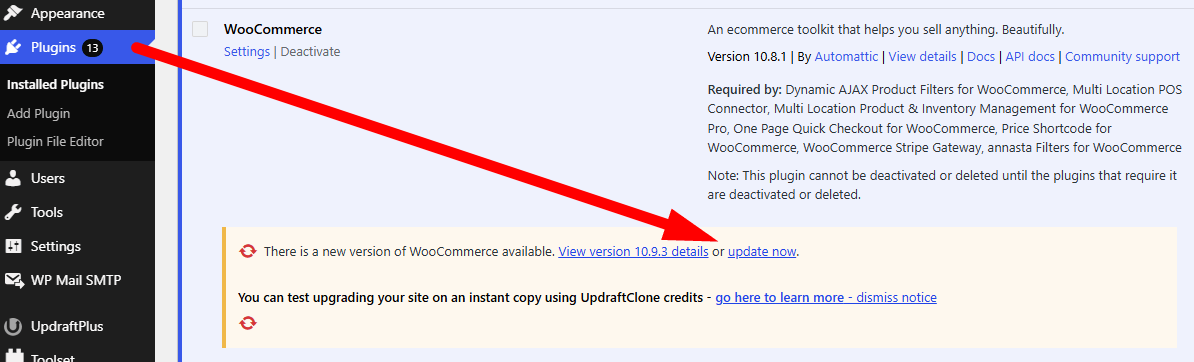
WooCommerce major releases — think 8.x to 9.x jumps — change a lot under the hood. Database schema, REST API endpoints, internal stock hooks, HPOS (High-Performance Order Storage) behavior. If your per-location stock was working fine last month and stopped after hitting the “Update” button, this is almost certainly why.
Don’t panic. Nine times out of ten, this is fixable without touching a single line of code.
Common Stock Issue Patterns That Appear After an Update
A few specific symptoms show up repeatedly after WooCommerce version bumps. Knowing which pattern you’re dealing with narrows the fix.
Stock quantities frozen at pre-update values. Orders go through, but the stock number on a specific variation — at a specific location — stays the same. This usually points to a broken stock deduction hook. WooCommerce occasionally changes how woocommerce_reduce_order_stock fires, and a multi-location plugin hooked to the old behavior simply stops responding.
“Out of Stock” not triggering per location. The global WooCommerce stock hits zero, but a location still shows as available — or the reverse, a location still has units but the product shows as globally out of stock. This often happens when an update changes how WC_Product_Variable reads stock across variations, or when the wp_postmeta keys the plugin uses for location stock get out of sync with WooCommerce’s own meta reads.
Variation stock showing as parent-level only. After an update, you notice individual variations no longer show separate stock counts. This usually means variation-level Manage Stock got silently reset — something WooCommerce has done in past migrations when moving data between storage engines, especially during HPOS adoption.
REST API stock responses returning stale data. If you’re pulling stock via the WooCommerce REST API (for a POS system, a Webhook receiver, or a headless front end), the API might now return a cached or incorrect value. HPOS changes the table WooCommerce reads order data from, and some REST stock endpoints were rewritten alongside it.
Plugin compatibility breakage. Your multi-location plugin — whether that’s ATUM Inventory Management, WooCommerce Multi-Location Inventory, StoreStock, or Multi-Location Product & Inventory Management for WooCommerce by Plugincy — may simply not have been tested against the new WooCommerce version yet. Check the plugin’s changelog and the “Tested up to” value in its readme.
To quickly confirm a compatibility break is the culprit:
- Go to WordPress Admin → Plugins
- Look at your multi-location plugin — if there’s no recent update and WooCommerce jumped a major version, that’s your red flag
- Check the plugin’s support forum or changelog for any mention of the current WooCommerce version
How to Run a Database Migration and Check Plugin Compatibility
Step 1 — Force WooCommerce’s own database update
WooCommerce sometimes queues a database migration after an update but doesn’t complete it automatically. Go to WooCommerce → Status → Tools and look for “Update Database.” If it’s there, run it. This updates internal schema, resets version flags, and sometimes directly fixes stock meta that broke mid-migration.
If you don’t see that button but suspect an incomplete migration, WP-CLI gives you a direct trigger:
wp wc update --user=1That runs WooCommerce’s own migration queue from the command line.
Step 2 — Check HPOS compatibility explicitly
If you updated to WooCommerce 8.2 or later and haven’t addressed HPOS, go to WooCommerce → Settings → Advanced → Features. You’ll see whether “High-Performance Order Storage” is enabled or disabled. Your multi-location plugin needs to declare HPOS compatibility — if it doesn’t, WooCommerce may silently fall back to legacy tables for some operations while writing stock updates to the new tables. That mismatch produces exactly the “stock won’t update” symptom.
Check your plugin’s plugin.php for this declaration:
add_action( 'before_woocommerce_init', function() {
    if ( class_exists( \Automattic\WooCommerce\Utilities\FeaturesUtil::class ) ) {
        \Automattic\WooCommerce\Utilities\FeaturesUtil::declare_compatibility( 'custom_order_tables', __FILE__, true );
    }
});
If the plugin you’re using doesn’t have this, it hasn’t been updated for HPOS. Contact the plugin author or switch HPOS off temporarily while you wait for a fix — WooCommerce → Settings → Advanced → Features → Turn off “High-Performance Order Storage”.
Multi-Location Product & Inventory Management for WooCommerce by Plugincy explicitly supports WooCommerce HPOS, so if you’re on that plugin, a version update on the plugin side is all you need once you confirm you’re running a compatible release.
Step 3 — Check the wp_postmeta table for location stock integrity
After a migration, location-specific stock values sometimes get orphaned in wp_postmeta. Run this quick SQL via phpMyAdmin or WordPress Admin → Tools → WP-CLI:
SELECT meta_key, meta_value
FROM wp_postmeta
WHERE meta_key LIKE '%_stock%'
AND post_id = YOUR_VARIATION_ID
LIMIT 50;
Replace YOUR_VARIATION_ID with the actual variation post ID. You’ll see all stock-related meta for that variation. If your per-location keys are missing entirely — not zero, just absent — the migration wiped them. You’ll need to re-enter the stock values manually or restore from a pre-update backup.
Step 4 — Flush object cache and transients
Database migrations and plugin updates leave stale WooCommerce transient cache entries. These can make the admin panel show old stock numbers even when the database is correct.
Go to WooCommerce → Status → Tools and run both:
- Clear transients
- Clear template cache
If you’re running Redis or Memcached as an object cache, flush it at the server level — a transient clear from WP admin won’t touch the object cache layer. Most hosts give you a one-click flush in their control panel, or you can use WP-CLI:
wp cache flushStep 5 — Test with plugins deactivated
Deactivate everything except WooCommerce and your multi-location plugin. Add a test order for a specific variation at a specific location. Check if the stock drops correctly. If it does, reactivate plugins one by one — you’re looking for whichever plugin’s reactivation breaks stock again.
Page cache plugins are common culprits here. After a WooCommerce update, their cached rules sometimes conflict with new WooCommerce routing behavior and serve cached stock data on product pages.
Step 6 — Verify plugin updates are available
Go to Dashboard → Updates and make sure your multi-location inventory plugin is on its latest version. Major WooCommerce updates tend to get quick patch releases from actively maintained plugins within days. If your plugin shows “No update available” but your WooCommerce version is brand new, check the plugin’s website directly — authors sometimes push updates to their own site before WordPress.org catches up.
If you’re on a plugin that hasn’t been updated in six months or longer and WooCommerce just had a major release, that’s a genuine compatibility risk. At that point you either need a different plugin or you file a support ticket and wait — there’s no workaround for a plugin that doesn’t support the version of WooCommerce you’re running.
Force-Updating Variable Product Stock with Custom Code
Sometimes the no-code paths don’t cut it — maybe you’re debugging a specific variation, running a migration script, or your location plugin’s UI just won’t cooperate. In those cases, going directly through WooCommerce’s PHP API is the cleanest option. These snippets are aimed at developers or store owners comfortable editing code.
Code Snippet to Programmatically Update Stock Using WC_Product_Variable
WC_Product_Variable itself doesn’t hold stock — each variation does. So you always update stock at the variation (child product) level using WC_Product_Variation, not the parent.
Here’s a straightforward snippet to update stock for all variations of a given variable product:
<?php
// Replace 123 with your variable product ID.
$product = wc_get_product( 123 );

if ( $product && $product->is_type( 'variable' ) ) {
    $variation_ids = $product->get_children();

    foreach ( $variation_ids as $variation_id ) {
        $variation = wc_get_product( $variation_id );

        if ( ! $variation ) {
            continue;
        }

        // Only touch variations that have stock management enabled.
        if ( $variation->managing_stock() ) {
            // Set your new stock quantity here.
            $new_stock = 10;

            wc_update_product_stock( $variation, $new_stock, 'set' );
        }
    }

    // Sync the parent product's stock status based on its variations.
    WC_Product_Variable::sync( $product );
}
The wc_update_product_stock() function handles both the wp_postmeta write and the stock status update. Don’t use update_post_meta() directly — if you bypass WooCommerce’s own function, the stock status (In Stock / Out of Stock) won’t stay in sync.
That WC_Product_Variable::sync() call at the end is important. It recalculates whether the parent product is purchasable based on its children. Skip it and your variable product might still show “Out of Stock” even after you’ve updated the variations.
Code to Force-Update a Specific Location Stock by Variation ID
If you’re running a per-location inventory plugin — like Multi-Location Product & Inventory Management for WooCommerce by Plugincy or another multi-location plugin — per-location stock is typically stored as custom meta on the variation, not in WooCommerce’s built-in _stock field. The exact meta key depends on which plugin you’re using, so check your database or plugin documentation first.
That said, the update pattern is the same across most implementations:
<?php
$variation_id = 456;   // Your variation ID.
$location_id  = 2;     // Your location's ID or slug.
$new_stock    = 5;

// Most per-location plugins store stock in a meta key like this.
// Confirm the exact key in your plugin's database or docs.
$meta_key = '_location_stock_' . $location_id;

update_post_meta( $variation_id, $meta_key, $new_stock );

// After writing meta, clear any transients so the storefront reflects the update.
wc_delete_product_transients( $variation_id );

// Also clear the variation's cached data.
$variation = wc_get_product( $variation_id );
if ( $variation ) {
    $variation->set_stock_quantity( $new_stock );
    // Only call save() if you're also updating the global WooCommerce stock.
    // $variation->save();
}
A few things to watch here. First, confirm the meta key — open wp_postmeta in your database and search for rows where post_id equals your variation ID. You’ll see exactly what keys your location plugin is writing. Second, wc_delete_product_transients() clears the WooCommerce transient cache for that product, which is often why an update looks correct in the database but the frontend still shows stale data.
If you’re using WP-CLI and want to do this at scale:
wp eval 'update_post_meta( 456, "_location_stock_2", 5 ); wc_delete_product_transients( 456 );'Faster than writing a throwaway script, especially during a migration.
Where and How to Place the Code in functions.php or a Custom Plugin
Two options, and honestly a custom plugin is the better one for anything beyond a quick one-time test.
Option 1 — functions.php
Open your child theme’s functions.php (never the parent theme’s file — it’ll be overwritten on theme updates). Paste the snippet there and save. If you’re running it as a one-time operation, wrap it in an action hook so it fires after WooCommerce loads:
add_action( 'init', function() {
    // Your stock update code here.
    // Add a check so this only runs once, or remove it after it fires.
} );
Don’t leave a one-time script in functions.php permanently. It’ll run on every page load. Add a flag — something like get_option( 'my_stock_fix_done' ) — and set it after the script runs so it never fires again.
Option 2 — a custom plugin (recommended)
Create a folder in wp-content/plugins/, add a PHP file with a plugin header, and drop your code in. This keeps it completely separate from your theme.
<?php
/**
 * Plugin Name: Stock Fix – One-Time Run
 * Description: Force-updates variation stock. Delete after use.
 * Version: 1.0
 */

add_action( 'woocommerce_init', function() {
    if ( get_option( 'stock_fix_applied' ) ) {
        return;
    }

    // Your stock update logic here.

    update_option( 'stock_fix_applied', true );
} );
Activate it from the Plugins screen, let it run once, then deactivate and delete it. Clean.
One thing that catches people out: if your site uses an object cache like Redis or Memcached, updating wp_postmeta directly won’t immediately flush the in-memory cache. After running your script, either flush the object cache manually (WP-CLI: wp cache flush) or use WooCommerce’s own functions which handle cache invalidation internally. If you’re on a host with page cache as well — WP Engine, Kinsta, SiteGround — purge the page cache too, otherwise your customers will keep seeing the old stock count even after everything else is correct.
Diagnosis Workflow — How to Quickly Identify Which Cause Matches Your Problem
Before you start changing settings or reinstalling plugins, take five minutes to run through this workflow. The goal is to isolate which of the seven causes actually matches your situation — so you fix the right thing on the first attempt.
Step 1: Confirm the Problem Is Real, Not a Display Glitch
This sounds obvious, but skip it and you’ll waste an hour.
Go to WooCommerce → Products, open the variable product, click into a specific variation, and look at the stock number directly in the database row — not the frontend. The fastest way: WooCommerce → Products → [product] → Variations → [variation] → Manage Stock → Stock Quantity.
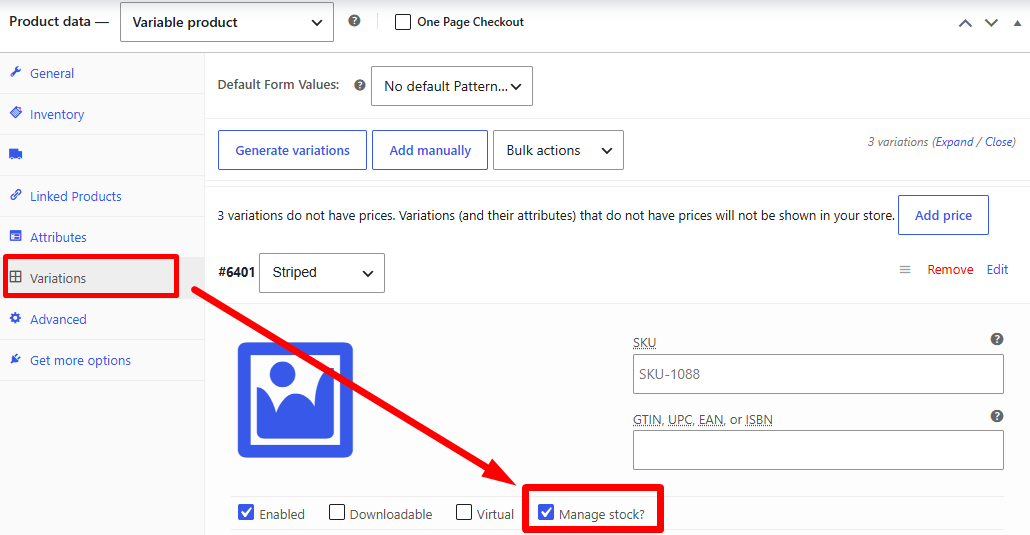
If that number is correct but the storefront shows something different, your problem is Cause 3 (cache). Go straight to that fix. No need to read anything else.
If the number in the variation panel itself is wrong, the issue is upstream — keep going.
Step 2: Check Whether Manage Stock Is Enabled at the Variation Level
Open any affected variation and look for the Manage Stock checkbox inside that variation’s panel — not the parent product’s checkbox, the one specifically inside the variation.
Is it unchecked? That’s Cause 1. WooCommerce inherits the parent’s stock status if variation-level stock management is off, which means per-location stock can never work correctly regardless of which plugin you’re using.
If it’s checked and you still see wrong stock: move on.
Step 3: Identify Whether You’re Running a Multi-Location Plugin
Do you have a dedicated per-location inventory plugin installed and active? Check Plugins → Installed Plugins.
If no plugin is handling per-location stock, WooCommerce core doesn’t support it natively. The stock you see is global. What you’re describing as a “per-location” problem is actually a missing feature, not a bug. You’ll need a plugin like Multi-Location Product & Inventory Management for WooCommerce by Plugincy (free version handles per-variation, per-location stock quantities out of the box) or another multi-location tool to enable this properly.
If a plugin is active, answer these two questions:
- Has the variation been assigned to the relevant location inside that plugin’s settings?
- Has separate stock been configured for that location, or is it still pointing to the WooCommerce global stock field?
If either answer is no, that’s Cause 2 — plugin misconfiguration. The location assignment and the stock input are two separate steps in every multi-location tool, and both have to be completed.
Step 4: Check Whether a POS or External System Touches Your Stock
Go to WooCommerce → Settings → Advanced → Webhooks and WooCommerce → Settings → Advanced → REST API. Are there active credentials or webhooks listed?
If yes, ask: does your store run a POS system, a warehouse management tool, or any kind of third-party sync? If a POS system is writing stock back to WooCommerce via the REST API at the global product level (not variation-level, not location-level), it will overwrite whatever your per-location plugin sets. That’s Cause 5.
A quick test: disable the sync temporarily, manually set a variation stock quantity, and check if it reverts within a few minutes. If it does, the external system is the culprit.
Step 5: Run a Database Spot-Check
This one takes two minutes. Go to phpMyAdmin (or your host’s database tool), open the wp_postmeta table, and search for the variation’s post ID with the meta key _stock.
SELECT meta_key, meta_value
FROM wp_postmeta
WHERE post_id = [variation_post_id]
AND meta_key IN ('_stock', '_manage_stock', '_stock_status');
If _manage_stock is no, that confirms Cause 1 at the database level — the variation setting isn’t actually saving.
If _stock shows the right number but WooCommerce still displays wrong status (in-stock vs out-of-stock), the term counts are out of sync. That’s Cause 4 — run wc_recount_termsale() via WP-CLI or the WooCommerce tool under Status → Tools → Recount terms.
Step 6: Check for a Multilingual Setup
Is WooCommerce Multilingual & Multicurrency, WPML, Polylang, or MultilingualPress active? If yes, check whether the affected product has translations. Multilingual plugins sometimes create separate product copies per language, and stock updates on one copy don’t automatically propagate to the others.
Go to the translated version of the product and check its variation stock independently. If the original is correct but the translation shows wrong stock, that’s Cause 6.
Step 7: When Did This Start?
Ask yourself one question: did the problem start after a specific event?
| What happened before the problem | Most likely cause |
|---|---|
| Updated WooCommerce core | Cause 7 |
| Installed or updated a caching plugin | Cause 3 |
| Migrated servers or database | Cause 4 |
| Connected a new POS or ERP | Cause 5 |
| Installed WPML or a translation plugin | Cause 6 |
| Changed variation settings in bulk | Cause 1 or 2 |
| Nothing obvious changed | Start with Cause 3, then Cause 4 |
Quick Reference: Symptoms to Causes
- Stock shows correctly in wp-admin but wrong on the frontend → Cause 3 (cache — clear WooCommerce transient cache, page cache, and object cache like Redis or Memcached)
- Stock never updates at all for any location → Cause 1 (Manage Stock not enabled per variation) or Cause 2 (plugin not configured)
- Stock updates for one location but not another → Cause 2 (location not assigned or stock not entered separately)
- Stock reverts to a previous value every few hours → Cause 5 (POS or external system overwriting via REST API)
- Problem only affects translated product pages → Cause 6 (multilingual plugin handling separate product copies)
- Stock status (In Stock / Out of Stock) is wrong even though quantity is correct → Cause 4 (term counts out of sync, needs
wc_recount_termsale()) - Everything broke after a WooCommerce update → Cause 7 (hook or database schema change, check your multi-location plugin’s changelog for a compatibility update)
Run through these steps in order and you’ll have a clear answer within ten minutes — usually faster. Once you’ve matched your symptom to a cause, go directly to that section’s fix and skip the rest.
FAQ
Does enabling “Manage Stock” at the product level break per-variation stock tracking?
Yes, it can. If you enable stock management on the parent variable product, WooCommerce treats the whole product as a single stock pool and ignores variation-level quantities. Always enable “Manage Stock” on each individual variation, not the parent. Go to the variation panel, expand each variation, and tick “Manage stock?” there. Leave the parent-level stock field alone.
My stock updated in WooCommerce but the storefront still shows the old quantity. Why?
Cache. Almost always cache. Clear your page cache, object cache (Redis or Memcached if you’re using one), and WooCommerce transients. In WooCommerce → Status → Tools, run “Delete all transients”. If you’re on a managed host, flush the cache from your hosting dashboard too. Give it 60 seconds, then reload the product page in an incognito window.
Can I manage stock per location without writing any code?
Yes. A plugin handles this entirely through the admin UI. Multi-Location Product & Inventory Management for WooCommerce by Plugincy, for example, lets you assign variations to specific locations and set separate stock quantities for each — all from the product editor, no code needed. That’s all available in the free version.
Why does my POS system keep overwriting WooCommerce stock figures?
Your POS is pushing stock updates via the REST API or a webhook, and those updates are overwriting what WooCommerce calculated from web orders. The fix is usually in the POS sync settings — look for a “stock sync direction” or “inventory authority” option and set your POS as the source of truth (or WooCommerce, depending on your workflow). If both systems write simultaneously, you’ll get a race condition every time an order comes in from both channels.
After a WooCommerce update, variation stock stopped saving. What happened?
WooCommerce updates occasionally change how variation meta is saved — especially with the move toward HPOS. Check that your multi-location plugin is compatible with your current WooCommerce version. Also confirm that _manage_stock and _stock meta keys still exist in wp_postmeta for the affected variation IDs. If they’re missing, re-save the variation manually and the meta will regenerate.
wc_recount_termsale() — what does it actually do and do I need to run it?
It recounts the product_visibility term relationships and updates the Out of Stock status across your catalog. It doesn’t directly fix per-location stock numbers, but if your product is stuck showing Out of Stock despite having quantity, running it can clear that flag. Run it from WooCommerce → Status → Tools → “Recount terms”, or via WP-CLI: wp wc tool run recount_terms --user=1. You don’t need to run it regularly — only when stock statuses look wrong after a bulk import or database migration.
Do multilingual plugins like WPML or Polylang cause per-location stock problems?
They can. WPML creates duplicate product records for each language, and if stock updates write to the original product ID but not the translated copies, the front end (serving the translated version) shows stale stock. The fix is to use WooCommerce Multilingual & Multicurrency’s “Share stock” option, which links inventory across translations. Polylang and MultilingualPress have similar settings — look for a stock or inventory synchronization option in their WooCommerce integration panels.
My location-specific stock is correct in the admin but wrong on the product page. Is this a display bug?
Probably a caching or query issue, not a data bug. First, check the raw value: go to the variation in the admin and confirm the stock quantity matches what you expect. If it does, the display issue is downstream — WooCommerce transient cache, object cache, or a theme/plugin that’s pulling WC_Product_Variable data and caching the result. Clear everything and test in incognito. If the admin value is also wrong, that’s a deeper sync or plugin configuration problem — go back to the per-location plugin settings and check whether the variation is actually assigned to the correct location.
Can I use the REST API to update per-location stock without a plugin?
The native WooCommerce REST API doesn’t have a per-location stock concept — it only reads and writes a single stock quantity per variation. To push location-specific stock via API, you need a plugin that extends the REST API with location-aware endpoints. Multi-Location Product & Inventory Management for WooCommerce by Plugincy (pro version) includes a REST inventory API for exactly this — you authenticate with an API key and push stock per location and variation. Without that kind of extension, a standard REST call will just overwrite the global stock figure.
Conclusion — Which Fix Is Right for You
Stock not updating per location is almost never a single problem. It’s usually a combination — a variation with Manage Stock accidentally disabled, a plugin that hasn’t been told which location to write to, and a transient cache that’s still serving yesterday’s numbers. That layering is exactly why a blanket “reinstall WooCommerce” answer doesn’t work.
Here’s a practical way to match your situation to the right fix.
If you’re just starting to set up per-location stock
Make sure variation-level stock management is on before anything else. No plugin can track per-variation, per-location inventory if WooCommerce itself isn’t managing stock at the variation level. That’s the foundation everything else sits on.
From there, pick your multi-location plugin carefully. The free version of Multi-Location Product & Inventory Management for WooCommerce by Plugincy covers the core use case — separate stock quantities per location, variation-level location inventory, and a customer-facing location selector — without paying anything. If you later need location-specific pricing, inter-location transfers, or order splitting across warehouses, those live in the Pro version. But start free, get the basics confirmed, then expand.
If stock was working and suddenly stopped
Nine times out of ten it’s either a plugin update that reset a setting, or a WooCommerce version bump that deprecated how a third-party plugin writes to wp_postmeta. Check your update log first. Roll back one update at a time in a staging environment if you can.
Also clear everything — page cache, object cache (Redis or Memcached if you’re using them), and WooCommerce transient cache. Do it in that order. Stale cache after an update is one of the most common reasons stock looks wrong on the frontend when the database is actually fine.
If your POS or external system is the source of truth
The fix here is almost always on the integration side, not in WooCommerce itself. Confirm your POS is writing to the correct variation ID (not the parent product ID), that the REST API endpoint it’s calling maps to the right location, and that any Webhook payload includes the variation’s exact SKU or ID. If the POS vendor can’t confirm this, check their logs — not WooCommerce’s.
If you’re running a multilingual store
WPML, Polylang, and MultilingualPress all handle translated product IDs differently. Stock should be managed on the original language product only. If your per-location plugin is updating a translated copy’s stock instead of the source, that’s your mismatch. Set the canonical product as the stock source and let the multilingual plugin handle display — not inventory writes.
If nothing above matches
Run the diagnosis workflow from the earlier section: check the database directly, use WP-CLI to query stock meta, confirm whether wc_recount_termsale() corrects the displayed numbers, and then isolate the problem to one of the seven root causes. Guessing at random fixes just creates more variables to untangle.
The short version: most of these issues have a no-code fix. You don’t need a developer to clear cache, re-enable Manage Stock on a variation, or reconfigure a plugin’s location assignment. The cases that genuinely need custom code — usually REST API integration edge cases or a broken WC_Product_Variable sync — are the minority.
Get the foundation right, clear cache after every config change, and verify in the database rather than just the admin UI. That combination resolves the vast majority of per-location stock problems without writing a single line of code.
