

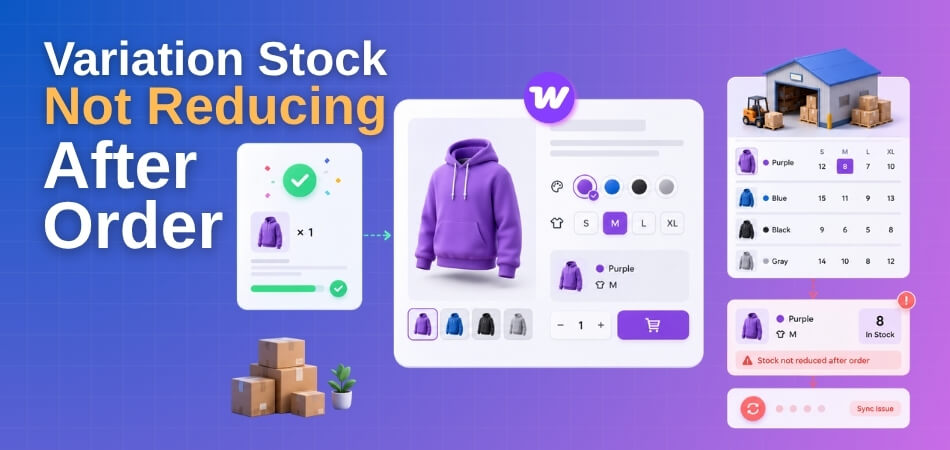
Order placed, payment received — but your variation stock didn’t drop by a single unit. Sound familiar? You check the product, the order status says Processing, money is in your account, and yet the inventory number is sitting exactly where it was before. It’s one of those WooCommerce bugs that looks simple on the surface but can have half a dozen different causes stacked underneath it.
The most common reason is a mismatch between parent product stock and variation-level stock management. When stock tracking is only enabled at the parent level — or only at the variation level — WooCommerce can get confused about where to pull the deduction from, and the result is an inventory that never moves. Beyond that, caching layers, a broken WP-Cron job, a plugin conflict interfering with the woocommerce_reduce_order_stock hook, or even a stale Object Cache holding outdated _stock values in wp_postmeta can all produce the exact same symptom.
Quick Answer: If your WooCommerce variation stock is not reducing after an order, the most likely cause is that Manage Stock is not enabled at the individual variation level — only at the parent product level. WooCommerce tracks and deducts variation stock independently from the parent, so if _manage_stock is not set to yes on the specific variation, no deduction will occur. The fix: open the product → go to the Variations tab → expand the affected variation → check “Manage stock?” → save.
This guide walks through every layer of the problem in a logical order — from WooCommerce Inventory Settings and variation configuration, to database-level checks in phpMyAdmin, server-side issues on Nginx or LiteSpeed, Cloudflare caching, WP-CLI stock audits, and plugin conflicts that silently break Order Processing. By the end, you will know exactly where the deduction is failing and how to fix it without guessing.
Quick Answer — Why Variation Stock Is Not Decreasing and How to Fix It
The short version: WooCommerce reduces variation stock through the woocommerce_reduce_order_stock hook during order processing. If that hook never fires — or fires but writes to the wrong product ID — your variation stock number stays frozen even after a paid order comes through.
There are five common reasons this breaks.
1. Stock management is on the parent, not the variation. Go to the product, open a variation, and check whether “Manage stock?” is ticked at the variation level. If it’s unchecked, WooCommerce either ignores stock entirely or tracks it on the parent product. Those are two completely different inventory pools in the database — _stock and _manage_stock live in wp_postmeta, and the row’s post_id has to match the variation’s own post ID, not the parent’s. Fix: enable per-variation stock management and set the quantity directly on each variation.
2. Order never reached “Processing” or “Completed.” Stock deduction only happens when an order moves into a stock-reducing status. If the order is stuck at Pending Payment — common with bank transfer, cheque, or a payment gateway that silently fails — no stock gets touched. Check WooCommerce → Orders and look at the status column.
3. A caching layer is serving stale data. This is the one people overlook longest. Object Cache (Redis, Memcached), WooCommerce Transients, or a server-side page cache from LiteSpeed or Nginx can make the admin screen look like stock hasn’t moved even when the database value already changed. Purge WooCommerce Transients from WooCommerce → Status → Tools, flush your object cache, then reload. Also check Cloudflare — if HTML responses are cached at the CDN level, you may be reading an old stock number from a cached admin page render.
4. WP-Cron is broken. Some stock-related hooks queue via WP-Cron. If your host disabled PHP-based cron (common on managed WordPress hosts), those jobs never run. Go to WooCommerce → Status → Health Check and look for cron warnings. Switch to Server-Side Cron and verify it’s actually firing.
5. A plugin conflict is hooking into woocommerce_reduce_order_stock and short-circuiting it. An AJAX filter plugin, a custom checkout plugin, or an inventory manager can add a return false equivalent early in the stock reduction chain. To test this, activate Safe Mode — use the Health Check & Troubleshooting plugin from WordPress.org, which lets you disable all other plugins for your session only without affecting live customers. If stock starts deducting in Safe Mode, you have a Plugin Conflict. Reactivate plugins one at a time to isolate it.
The Fix Checklist (Run in Order)
- Variation level — Edit product → Variations → expand each variation → tick “Manage stock?” → enter quantity → Save.
- Order status — Manually move a test order to Processing and watch the variation stock number.
- Inventory Settings — WooCommerce → Settings → Products → Inventory. Confirm “Manage stock” is globally enabled. Check “Out of Stock Visibility” and stock threshold settings aren’t interfering.
- Cache purge — Clear WooCommerce Transients, object cache, and CDN cache. Check if the number changes.
- Cron — Run
wp cron event run --due-nowvia WP-CLI if you have access, or check Server-Side Cron is configured. - Database check — In phpMyAdmin, query
wp_postmetawherepost_id= your variation ID andmeta_key=_stock. If the value there already decreased but the screen shows the old number, it’s definitely a caching problem, not a stock deduction problem. - Plugin conflict — Safe Mode test as described above.
One thing worth saying plainly: Parent Product Stock and Variation Stock are not the same thing. If you manage stock at the parent level and sell variations, WooCommerce deducts from the parent total — not from a per-variation quantity. That’s by design. Overselling and Inventory Mismatch problems almost always trace back to this parent-vs-variation confusion, not a bug.
If you’re running multiple warehouses or locations and need stock deducted from a specific location’s inventory per order — that’s a different layer entirely. The free version of [Multi-Location Product & Inventory Management for WooCommerce by Plugincy](https://wordpress.org/plugins/multi-location-product-and-inventory-management/) handles per-variation, per-location stock quantities and ties Stock Deduction to whichever location fulfilled the order, which keeps your Variation Stock Management accurate across locations without custom code.
How Stock Deduction Actually Works in WooCommerce
Before you can fix anything, you need to understand what’s supposed to happen — and exactly where it happens. Most “stock not reducing” bugs come down to one of two things: the deduction step never fires, or it fires but writes to the wrong place.
At Which Step During Order Processing Does Stock Get Reduced
Stock doesn’t drop the moment a customer clicks “Add to Cart.” It happens later — specifically when an order transitions to a paid status.
Here’s the sequence:
- Customer completes checkout and payment is confirmed.
- WooCommerce changes the order status to
processing(orcompletedfor virtual/downloadable products). - That status change triggers the
woocommerce_reduce_order_stockfunction internally. - WooCommerce loops through each order item, finds the associated product or variation, and decrements the stock quantity stored in
wp_postmeta.
The key thing to understand: stock deduction is tied to order status, not payment capture alone. If an order gets stuck in pending or on-hold — which happens with bank transfers, manual payment gateways, or failed webhook callbacks from payment processors — WooCommerce never fires the stock reduction.
This is why you can have a completed payment with full inventory still showing. The order never hit processing.
There’s also a hook involved: woocommerce_payment_complete calls payment_complete() on the order object, which triggers the status change, which triggers stock reduction. If something intercepts or short-circuits that chain — a custom plugin, a misconfigured gateway, or a failed WP-Cron job — the whole thing stalls silently.
WP-Cron matters here too. Some async order processing flows schedule stock reduction as a background task. If WP-Cron is broken on your server (common on high-traffic sites or hosts that block it), those scheduled tasks pile up and never run. You can verify this by switching to Server-Side Cron via your server’s crontab, or by running wp cron event list with WP-CLI to see what’s queued and stuck.
WooCommerce wraps the stock update in a check — it only reduces stock if _manage_stock is enabled for that specific item. If stock management is turned off at either the variation or the parent product level, the function skips it entirely. No error. No log entry. It just doesn’t run.
Where Stock Quantity Is Stored in wp_postmeta
Every product and every variation in WooCommerce is a WordPress post. Simple products are post_type = product. Variations are post_type = product_variation — they’re child posts of the parent.
Stock data lives in wp_postmeta, tied to the post ID of whichever entity manages the stock. Two meta keys matter most:
_manage_stock— value isyesorno. If this isno, WooCommerce ignores the quantity entirely._stock— the actual numeric quantity. This is what gets decremented on order.
The parent vs. variation distinction is where most stock bugs hide. If you open phpMyAdmin and query wp_postmeta for a variable product, you’ll often see two separate rows for _stock: one for the parent product’s post ID, and one (or several) for each variation’s post ID.
SELECT post_id, meta_key, meta_value
FROM wp_postmeta
WHERE meta_key IN ('_manage_stock', '_stock')
AND post_id IN (parent_id, variation_id);
WooCommerce should reduce the variation’s _stock, not the parent’s. If _manage_stock is set to yes at the variation level, that’s the record that changes. If _manage_stock is no on the variation but yes on the parent, WooCommerce falls back to the parent’s stock — and that’s the row that gets updated instead.
This matters enormously when you’re debugging. If you check stock on the parent product edit screen and the number looks wrong, but the variation’s number looks fine (or vice versa), you’re looking at a mismatch between where WooCommerce is reading stock and where it’s writing it.
Object Cache adds another layer of complexity here. If you’re running a persistent object cache (Redis, Memcached, or a plugin using it), WooCommerce may read a cached version of _stock even after the database row has been updated. The deduction happens in the DB, but the cached value doesn’t reflect it until the cache expires or gets invalidated. This is a common source of “stock shows wrong number in the admin” after orders come in. Clearing WooCommerce Transients from WooCommerce → Status → Tools is often the fastest first test.
Parent vs. Variation Level Stock — The Core Conflict and Fix
This is probably the most common reason variation stock stays frozen after an order. The fix is straightforward once you understand exactly where WooCommerce looks for stock data.
Why Variation Stock Does Not Decrease Separately When Parent-Level Stock Is Enabled
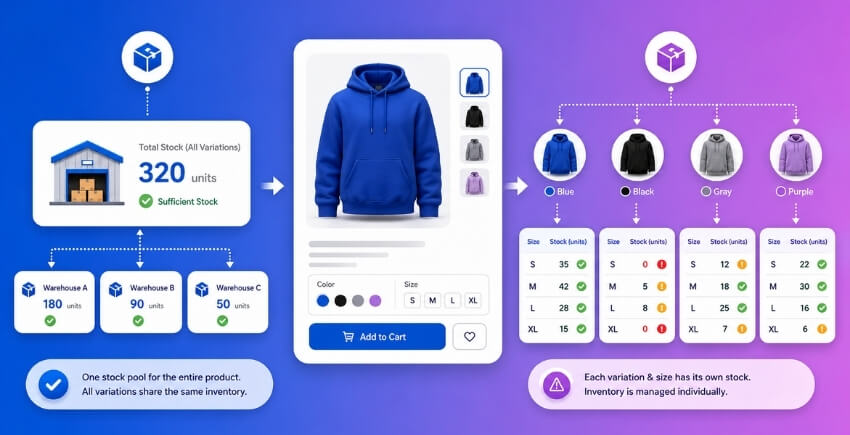
WooCommerce tracks stock at whichever level has _manage_stock set to yes in wp_postmeta. When you enable stock management on the parent product and set a quantity there, WooCommerce deducts from the parent’s _stock value — full stop. It doesn’t touch individual variation stock at all.
So if your parent product shows “Manage stock? ✓ Yes” with a quantity of 50, and you have three variations (Small, Medium, Large) that don’t have their own stock management turned on, every order reduces that shared parent count. The variation’s own stock field either doesn’t exist or is being ignored entirely.
This creates an obvious inventory mismatch. You think you’re tracking 20 units of Size Small separately, but WooCommerce is just drawing down from the parent pool. After ten Small orders, the parent says 40 — and the Small variation still shows nothing meaningful.
The woocommerce_reduce_order_stock function calls decrease_stock() on each order item. That function checks the variation first. If the variation has _manage_stock = no (or the meta row doesn’t exist), it falls back to the parent. That fallback behavior is by design, but it surprises a lot of store owners who assume variations track themselves automatically.
Steps to Enable ‘Manage Stock?’ Individually on Each Variation
This is a per-variation setting, and you have to do it variation by variation. There’s no bulk checkbox in the standard WooCommerce UI — though you can use WP-CLI or phpMyAdmin if you have dozens of variations to update at once.
In the WooCommerce product editor:
- Open the product and go to Product data → Variations.
- Expand a variation by clicking its toggle arrow.
- Find the “Manage stock?” checkbox inside that variation panel. It’s separate from the one at the top-level Inventory tab.
- Check it.
- Enter a stock quantity in the field that appears.
- Save. Repeat for every variation.
Once you do this, WooCommerce writes _manage_stock = yes and the initial _stock value directly to that variation’s post ID in wp_postmeta. From that point, Order Processing deducts from the variation’s own stock, not the parent’s.
One important decision before you start: if you’ve been managing stock at the parent level, decide whether to disable parent-level stock management now. Leaving both enabled at the same time means orders will reduce the variation stock (because WooCommerce checks the variation first) but the parent stock just sits there — it won’t decrease, which can confuse your inventory reporting. Either track everything at the variation level, or track at the parent level. Pick one.
If you want to disable parent-level stock management: go to the Inventory tab on the product, uncheck “Manage stock?”, and save. The parent _manage_stock meta will flip to no.
Using WP-CLI for bulk updates (developer path only — skip if you’re not comfortable with the command line):
// Update a single variation via WP-CLI + eval-file or use wp post meta update directly:
wp post meta update {VARIATION_ID} _manage_stock yes
wp post meta update {VARIATION_ID} _stock 20
wp post meta update {VARIATION_ID} _stock_status instock
Replace {VARIATION_ID} with the actual post ID of each variation. You can get all variation IDs for a product with wp post list --post_type=product_variation --post_parent={PARENT_ID} --fields=ID.
For a large catalog, phpMyAdmin works too — filter wp_postmeta by meta_key = _manage_stock and the post IDs of your variations, then update values directly. Just make sure to clear WooCommerce Transients and any Object Cache afterward, or you’ll still see stale stock values on the frontend.
What Happens When No Stock Quantity Is Set on a Variation
This catches people off guard. You check “Manage stock?” on a variation but forget to enter a quantity. WooCommerce treats a blank or null _stock value as zero.
Zero stock with Out of Stock Visibility set to “hide” means the variation quietly disappears from your product page. Customers can’t select it, and you might think it’s a display bug or a theme issue when it’s actually just WooCommerce doing exactly what you told it to do.
Worse — if Out of Stock Visibility is set to show out-of-stock items, the variation stays visible but shows as unavailable. Customers see it, try to select it, and hit a dead end. That’s a real friction point, especially if the variation actually has physical stock sitting in your warehouse.
A few things to check if a variation vanishes or goes unavailable unexpectedly:
- Open the variation in the product editor and confirm a stock number is actually entered. An empty field counts as zero.
- Check the variation’s Stock status dropdown — it should be “In stock” unless you’ve explicitly set it otherwise.
- Run a quick query in phpMyAdmin:
SELECT meta_value FROM wp_postmeta WHERE post_id = {VARIATION_ID} AND meta_key = '_stock'. If it returns nothing or0, that’s your problem. - Clear Object Cache and WooCommerce Transients after any update. LiteSpeed Cache, Nginx FastCGI cache, or Cloudflare caching can all serve a stale product page even after you’ve fixed the database values.
The WooCommerce Health Check tool under WooCommerce → Status won’t catch missing variation stock directly, but it will surface things like failed WP-Cron jobs or database errors that compound this problem. Worth a look while you’re in there.
Bottom line: every variation you want to track independently needs both _manage_stock = yes and a real number in the stock field. Miss either one and Stock Deduction either falls back to the parent or stops working altogether.
Check Whether Stock Management Is Configured Correctly in WooCommerce Settings
Before touching any code or database, check the obvious first. A surprising number of variation stock issues trace back to settings that were never configured correctly — or got toggled off during an update or plugin install. This is where you start.
WooCommerce → Settings → Products → Inventory — What Each Option Does
Go to WooCommerce → Settings → Products → Inventory. You’ll see a handful of options that directly control how stock behaves across your entire store.
Here’s what actually matters for stock deduction:
Enable stock management — This is the global switch. If it’s off, WooCommerce doesn’t track or reduce stock for anything. Not for simple products, not for variations. Nothing.
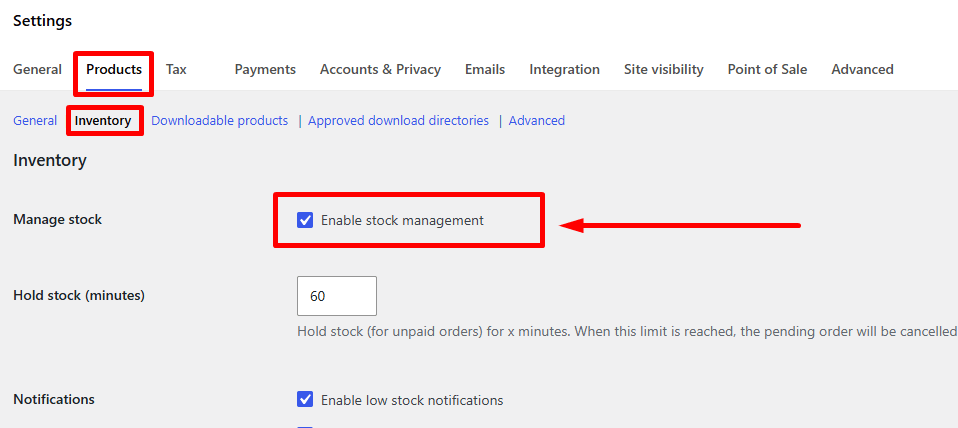
Hold stock (minutes) — Sets how long WooCommerce holds stock for unpaid orders before releasing it. If this is set too low and your payment gateway is slow, stock can get released before the payment confirms. That’s not a deduction failure — it’s intentional release, but it looks identical.
Out of stock threshold — This is separate from variation-level stock. It’s a store-wide number WooCommerce uses to trigger low-stock notifications, not to block purchases on its own.
Out of Stock Visibility — Controls whether out-of-stock products appear in your catalog. This doesn’t affect deduction, but it does affect what customers see after stock hits zero. We’ll cover the bug around this in a moment.
Low stock notifications / Out of stock notifications — Email alerts. Irrelevant to deduction logic, but worth having on so you actually know when stock changes.
None of these settings override variation-level _manage_stock or _stock values in wp_postmeta. They sit above those values and can prevent stock management from running at all.
Variation Stock Will Not Decrease If ‘Manage Stock’ Is Globally Disabled
This catches people constantly. If Enable stock management is unchecked in WooCommerce → Settings → Products → Inventory, WooCommerce will not reduce stock after any order — regardless of what you’ve set at the product or variation level.
The woocommerce_reduce_order_stock function simply won’t fire in a way that does anything meaningful. The order completes, the customer gets their confirmation email, and your stock numbers sit completely unchanged.
Check the global setting first. Enable it. Save.
Then go to your variable product. Open each variation that’s not deducting correctly and confirm Manage stock? is checked at the variation level — not just at the parent product level. This is a separate checkbox per variation.
The _manage_stock meta value for that variation in wp_postmeta needs to be yes. If it’s no or empty, WooCommerce skips stock deduction for that variation entirely, even when the global setting is on. You can verify this directly in phpMyAdmin — search wp_postmeta for the variation’s post ID and look for the _manage_stock row.
If stock management is enabled globally and at the variation level, but the stock quantity field is blank or zero, WooCommerce may still process the order without throwing an error. Set an actual quantity. Even if you just type 100 to test — do it.
Out of Stock Hide Setting and the Stock Visibility Bug
This one is subtle. WooCommerce has an option to hide out-of-stock items from the catalog (also in WooCommerce → Settings → Products → Inventory). When that’s enabled, something unexpected can happen with variations specifically.
If a variation’s stock hits zero and the “hide out-of-stock items” setting is on, WooCommerce may update the variation’s stock status to outofstock and hide it — but the parent product’s stock status doesn’t always update in sync. You end up with the parent product still showing as in stock while the variation is functionally gone.
The visible result: customers can still reach the product page, select that variation, and in some configurations actually add it to their cart. If stock deduction then runs and pushes the number below zero, you’ve got Overselling and an Inventory Mismatch you can’t easily trace.
The fix involves two things. First, make sure you’re managing stock at the variation level (not just the parent). When WooCommerce manages stock per-variation, it handles the outofstock status for each variation independently. The parent product’s stock status gets recalculated based on whether any in-stock variations remain.
Second, if you’ve enabled “hide out-of-stock items,” test that the recalculation is actually firing. Go to WooCommerce → Status → Tools and run Update product lookup tables and Clear transients. Stale WooCommerce Transients can cause the catalog to show outdated stock visibility states — the database might already show a variation as out of stock, but the front end hasn’t caught up because cached data is serving old results.
If you’re running Object Cache (Redis, Memcached) or a full-page cache like LiteSpeed or a Cloudflare caching rule, those layers can compound this. Purge them after making any settings change. Otherwise you’re testing against cached output, not live settings.
On multisite or stores using any Multi-Location Inventory setup, the parent vs. variation stock conflict can appear even when your settings look correct. That’s because some multi-location plugins maintain their own stock layer on top of WooCommerce’s native _stock values. If stock is being deducted from a location-specific record but not from the native _stock meta, the WooCommerce Health Check tool and the default inventory screen will both show no change — because they’re reading the wrong value. Check your multi-location plugin’s own stock reporting alongside WooCommerce’s native figures. They should match after an order completes.
Plugin Conflict — Which Plugin Is Blocking Stock Deduction
A misconfigured WooCommerce setting is one thing. A plugin quietly unhooking the stock deduction process is another — and it’s harder to spot because everything looks like it should work.
WooCommerce fires woocommerce_reduce_order_stock when an order moves to a processing or completed state. If a plugin removes or replaces that hook, or interrupts the order status transition that triggers it, stock simply won’t move. No error log entry. No obvious symptom. Just inventory that stays wrong.
Step-by-Step Method to Check for Plugin Conflicts (Health Check / Safe Mode)
The fastest way to confirm a conflict is to isolate WooCommerce from every other plugin without touching your live site.
Install the Health Check & Troubleshooting plugin from WordPress.org. It’s free, it’s in the official repo, and it’s the cleanest way to do this. Once installed, go to Tools → Site Health, click the Troubleshooting tab, and enable Troubleshooting Mode.
What this does: it disables all plugins except WooCommerce and Health Check for your admin session only. Your customers see the site running normally. You get a clean test environment.
Now place a test order. Use a free coupon or a £0.00 product so you’re not processing real payment. Move it to Processing in WP-Admin. Then check the variation’s stock count.
Two outcomes:
- Stock reduced — a plugin was blocking it. Start re-enabling plugins one at a time (still in Troubleshooting Mode), placing a test order after each activation, until the problem comes back. That last plugin you enabled is your culprit.
- Stock still didn’t reduce — the conflict isn’t plugin-based. Look at your caching layer, server-side cron, or stock configuration instead.
When re-enabling one by one, do inventory plugins first — they’re the most likely offenders. Then order management plugins. Caching plugins last.
If you’d rather skip the manual toggling, use WP-CLI:
wp plugin deactivate --all
wp plugin activate woocommerce
Place a test order via the WP-Admin Woo → Orders → Add Order flow, then reactivate plugins in batches of three or four. Less precise than one-at-a-time, but faster on stores with 40+ plugins.
One thing to watch: some plugins re-register hooks on init or woocommerce_init, which means Troubleshooting Mode may not fully neutralise them if they’re baked into a must-use plugin or an mu-plugins folder. Check /wp-content/mu-plugins/ for anything unusual. Those files load regardless of what Safe Mode does.
Which Types of Plugins Most Commonly Break Stock Hooks
Not every plugin category carries the same risk. These four are responsible for the vast majority of stock deduction conflicts:
Inventory and stock management plugins. Any plugin that extends WooCommerce’s stock system — purchase orders, demand forecasting, multi-warehouse — has to hook into the same stock reduction pipeline. Some do this cleanly, hooking after WooCommerce handles the deduction. Others replace the hook entirely or add conditions (like requiring a purchase order to be linked before stock moves). If the plugin is managing stock quantities through its own tables rather than wp_postmeta _stock fields, WooCommerce’s native deduction may fire against the wrong data — or not fire at all.
Order management and fulfilment plugins. Plugins that change order status flows — dropshipping tools, split-order systems, custom fulfilment workflows — sometimes prevent orders from reaching the processing status that triggers woocommerce_reduce_order_stock. If an order lands in a custom status like awaiting-fulfilment instead of processing, the hook never fires. Check your order statuses in WP-Admin → WooCommerce → Orders. If completed orders show a non-standard status, that’s worth investigating.
Caching plugins and object cache layers. LiteSpeed Cache, for example, has aggressive object caching that can return a stale stock value from cache even after WooCommerce has already written the updated number to the database. The deduction did happen — the display is just wrong. Clear WooCommerce Transients under WooCommerce → Tools → Clear Transients and flush your object cache. If the stock count corrects itself after a flush, you’re looking at a cache display problem, not a broken hook. Fix: configure your caching plugin to exclude WooCommerce pages and product data from object caching, or use its WooCommerce-specific compatibility settings.
AJAX-heavy plugins that intercept checkout. Certain one-page checkout replacements and custom cart/checkout plugins modify the order creation flow. If the plugin creates the WooCommerce order object differently — or fires wc_create_order outside the standard flow — the order may not pass through the stock reduction step. This is rare but it happens, especially with heavily customised checkout experiences.
One pattern worth recognising: if stock reduces correctly for simple products but not variations, the conflict is almost certainly something that touches variation-level data specifically. Variations store stock in their own wp_postmeta rows under the variation’s post ID — not the parent’s. A plugin that only reads or writes the parent product’s _stock field will silently ignore variation stock. If you’re checking this in phpMyAdmin, look for _stock and _manage_stock entries under the variation’s post ID (not the parent’s). If those values aren’t changing after an order, the write is being blocked — or misdirected to the parent.
Cache and Transients — The Silent Reason Stock Updates Are Not Showing
You fixed the stock settings. You checked the plugin conflicts. The order went through. But the product still shows the old stock number. Sound familiar?
Nine times out of ten, that’s a cache problem — not a WooCommerce bug.
Cache sits between your database and what visitors (and even you) actually see. When an order reduces stock, WooCommerce writes the new number to wp_postmeta. But if a cached version of that product page, stock query, or transient record is still floating around, nobody sees the change. The stock did reduce. It just isn’t showing yet.
Here’s how to clear every layer of it.
How to Clear Object Cache, Page Cache, and WooCommerce Transient Cache
There are three distinct cache layers that can mask a stock update. You need to handle all three.
1. WooCommerce Transients
WooCommerce stores a lot of computed data — product availability, stock status, catalog queries — in WordPress transients. These live in your wp_options table and have expiry times, but stale transients can absolutely cause stock mismatches between what the database holds and what the frontend shows.
Go to WooCommerce → Status → Tools and click Delete all WooCommerce transients. Do that after any stock change you can’t explain.
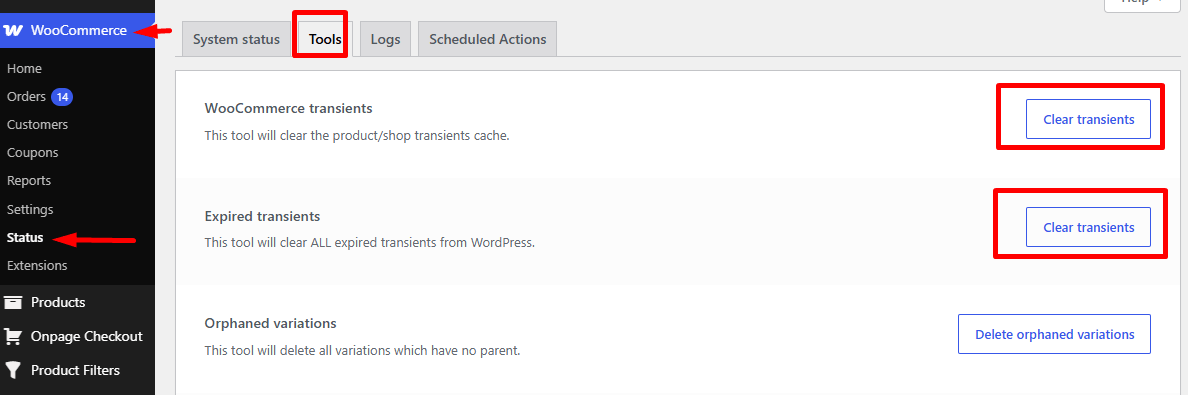
You can also do it via WP-CLI if you’re comfortable with the command line:
wp transient delete --allThat clears all WordPress transients, not just WooCommerce ones — useful when you suspect something broader is cached.
2. Object Cache
If your server runs an object cache — Redis, Memcached, or APCu — this is a separate problem from transients. Object cache stores PHP-level results in memory. When WooCommerce fetches stock via get_post_meta(), some setups cache that result for minutes or longer.
The quick test: disable your object cache plugin temporarily (W3 Total Cache has a toggle for this, for example), place a test order, and check if stock reduces correctly. If it does, you’ve found your culprit.
To flush Redis from the command line:
redis-cli FLUSHALLFor Memcached:
echo 'flush_all' | nc localhost 11211Alternatively, most object cache plugins have a “Flush Cache” button in the WordPress admin. Use that if you’re not comfortable with SSH.
The real fix isn’t just flushing — it’s making sure your object cache is configured to not persist stock-related meta indefinitely. Stock values need short TTLs (time-to-live). If your host set up Redis with a 24-hour TTL on all keys, that’s a problem worth raising with them.
3. Page Cache
Standard page cache stores full HTML snapshots of your product pages. The stock counter on the page is baked into that HTML. Even after WooCommerce reduces the number in the database, visitors see the cached version showing old stock.
Most page cache plugins let you exclude dynamic pages. You should exclude:
- Cart (
/cart/) - Checkout (
/checkout/) - Account pages (
/my-account/) - Individual product pages, especially variations
In WP Rocket, for example, there’s an “Never Cache URL(s)” field under Cache → Page Cache. Other plugins have similar settings — look for “excluded pages” or “cache exclusions.”
You can also force a full cache wipe from the WordPress admin bar. Every decent page cache plugin puts a flush button there.
Hosting-Level Cache (LiteSpeed, Nginx, Cloudflare) and Stock Sync Issues
This is where things get trickier, because hosting-level cache operates outside WordPress entirely. You can clear every WooCommerce transient and flush Redis, and still see stale stock — because your host’s web server cached the page before WordPress even ran.
LiteSpeed Cache
LiteSpeed is built into many cPanel-based hosts (Hostinger, Cloudways LiteSpeed plans, etc.) and runs at the server level. The LiteSpeed Cache WordPress plugin gives you control over it, but if the server itself is caching aggressively, product pages can show stale stock for the full cache TTL.
Go to LiteSpeed Cache → Purge and hit Purge All. For variation products specifically, go to the product in wp-admin and click Purge This Page from the top bar after updating stock.
More importantly: check your LiteSpeed Cache settings for WooCommerce compatibility. Under LiteSpeed Cache → WooCommerce, there’s a section specifically for caching product pages and cart fragments. Make sure “Cache Product HTML” isn’t caching pages that should update dynamically.
Nginx FastCGI Cache
If your server uses Nginx with FastCGI caching (common on managed hosts like GridPane, SpinupWP, or custom VPS setups), you need to configure cache bypass rules for WooCommerce pages. Nginx doesn’t know that /product/blue-t-shirt/ has dynamic stock data — it just serves the cached response.
A common Nginx cache bypass snippet looks like this in your server config:
set $skip_cache 0;

if ($request_uri ~* "/cart/|/checkout/|/my-account/|/shop/") {
    set $skip_cache 1;
}

if ($http_cookie ~* "woocommerce_items_in_cart|wordpress_logged_in") {
    set $skip_cache 1;
}
This tells Nginx to skip the cache for logged-in users and anyone with cart contents. It doesn’t solve every scenario, but it prevents the most common case where a cached product page serves stale stock to a customer mid-purchase.
If you’re on a managed host, ask their support to confirm WooCommerce-aware cache rules are in place. Most managed hosts have a WooCommerce-specific config available — you just have to ask.
Cloudflare
Cloudflare sits in front of everything. If you’re using Cloudflare with aggressive caching rules — especially if you’ve set a Cache Everything page rule — WooCommerce product pages can get cached at the CDN edge, nowhere near your server.
First: go to Cloudflare Caching → Configuration and hit Purge Everything as a quick test. If stock shows correctly after that, Cloudflare was the problem.
The proper fix is a Page Rule (or Cache Rule in the newer Cloudflare dashboard) that bypasses cache for WooCommerce URLs. A basic setup:
- URL pattern:
yourdomain.com/shop/,yourdomain.com/product/,yourdomain.com/cart/,yourdomain.com/checkout/ - Cache Level: Bypass
Or use a Cache Rule with the condition: cookie contains woocommerce_items_in_cart → Bypass Cache.
This ensures dynamic product and cart pages never get served from Cloudflare’s edge — only static assets like images and CSS get CDN treatment, which is what you actually want.
One thing to double-check: Cloudflare’s Always Online feature. If your site went down briefly and Cloudflare served a cached version during that time, it might still be serving that stale page to some users depending on your edge cache TTL. Purging manually clears this.
A pattern worth remembering: if stock reduces correctly when you check the database directly (via phpMyAdmin, looking at _stock in wp_postmeta) but the product page still shows old numbers, the math is good and the cache is the only explanation. Work through these layers one at a time and you’ll find it.
WooCommerce Cron and Scheduled Stock Sync Problems
WP-Cron is easy to overlook when you’re chasing a stock deduction bug. But if scheduled tasks aren’t firing, order processing hooks can stall — and woocommerce_reduce_order_stock may never run cleanly. This is especially common on low-traffic sites or servers where WP-Cron is misconfigured.
How to Check Whether WP-Cron Is Running Correctly
WP-Cron is not a real system cron. It fires when someone visits your site. On a quiet store, hours can pass between visits — meaning scheduled stock updates sit in a queue and never execute.
First, confirm WP-Cron isn’t disabled. Open wp-config.php and look for this line:
define('DISABLE_WP_CRON', true);If that’s there and there’s no server-side cron set up as a replacement, you’ve found your problem. Either remove the line or keep it disabled and set up a real cron job (covered below).
Next, check what’s actually scheduled. The fastest way is WP-CLI:
wp cron event listLook for woocommerce_process_order_payment_check, woocommerce_cancel_unpaid_orders, and any stock-related hooks in the output. If the list is empty or those events are missing entirely, something is preventing WooCommerce from registering its scheduled tasks.
You can also check this from the WordPress admin. Go to Tools → Scheduled Events (you’ll need a plugin like WP Crontrol to see this properly — it’s free on WordPress.org). Look for overdue events. Anything with a “next run” timestamp that’s hours or days in the past means WP-Cron isn’t firing.
One more thing to check: some server setups — particularly those using LiteSpeed or Nginx with aggressive request filtering — block the wp-cron.php endpoint entirely. If your server returns a 403 or 404 when hitting yoursite.com/wp-cron.php directly in a browser, WP-Cron is being blocked at the server level. That needs to be fixed in your server config or .htaccess, or you switch to server-side cron.
Cloudflare can also interfere here. If you have a page rule caching everything, cron requests may get served from cache instead of actually hitting PHP. Check your Cloudflare rules and make sure wp-cron.php is excluded from caching.
After any config change, place a test order and immediately run:
wp cron event run --due-nowThen check the order’s stock. If it deducts correctly after that manual trigger, the issue is confirmed — WP-Cron wasn’t firing on its own.
Ensuring Reliable Stock Sync Using Server-Side Cron
The fix is straightforward: disable WP-Cron’s default behavior and replace it with a real scheduled task on your server.
Step 1. Add this to wp-config.php if it isn’t already there:
define('DISABLE_WP_CRON', true);Step 2. Set up a real cron job. In cPanel, go to Cron Jobs. On a VPS or dedicated server, edit the crontab directly with crontab -e. Add this line:
*/5 * * * * php /path/to/your/wordpress/wp-cron.php > /dev/null 2>&1Replace /path/to/your/wordpress/ with your actual WordPress root path. Running it every 5 minutes is fine for most stores. Every minute is overkill unless you have very high order volume.
Alternatively, use WP-CLI instead of calling wp-cron.php directly — it’s more reliable and gives you better error logging:
*/5 * * * * cd /path/to/your/wordpress && wp cron event run --due-now --allow-root >> /var/log/wp-cron.log 2>&1Step 3. Verify it’s working. After setting up the server cron, wait 10 minutes and then run:
wp cron event listEvents should show sensible upcoming timestamps — nothing overdue. Place another test order and check whether stock reduces automatically without any manual trigger.
A couple of things to watch. If you’re using an Object Cache (Redis, Memcached), stale cached stock values can make it look like deduction isn’t happening even when it is. Clear your object cache after placing a test order before drawing conclusions. The WooCommerce Health Check tool under WooCommerce → Status → Tools has a “Clear transients” option — run that too, since stale WooCommerce Transients can mask fresh stock data.
Server-side cron is genuinely more dependable than WP-Cron for stock deduction at scale. If your store is processing real orders, this switch is worth making regardless of whether you’re hitting the bug right now.
Database Debug — Verify Stock Directly in wp_postmeta
When WooCommerce behaves strangely around stock, the database doesn’t lie. The admin UI can mislead you — cached values, plugin overrides, display bugs. Going straight to wp_postmeta tells you exactly what’s stored and whether WooCommerce is even seeing the right data.
Query to Check Variation Stock Values Using phpMyAdmin or WP-CLI
You need the variation’s post ID first. Get it from the product edit screen — hover over the variation in the Variations tab and look at the URL in the status bar. It’ll say something like post=12345. That number is the variation’s post ID.
Using phpMyAdmin:
Open phpMyAdmin, select your WordPress database, and run this in the SQL tab:
SELECT meta_key, meta_value
FROM wp_postmeta
WHERE post_id = 12345
AND meta_key IN ('_stock', '_manage_stock', '_stock_status', '_backorders')
ORDER BY meta_key;
Replace 12345 with your actual variation post ID. You should get a clean result set — four rows, one per meta key. If any row is missing, that’s already telling you something.
Using WP-CLI:
If you have SSH access, this is faster:
wp post meta get 12345 _stock
wp post meta get 12345 _manage_stock
wp post meta get 12345 _stock_status
Run all three. Takes ten seconds. No need to click around phpMyAdmin at all.
Want to check the parent product at the same time? Grab the parent’s post ID (the main variable product, not a variation) and run the same queries against it. You’re looking for whether stock is tracked at the parent level or the variation level — or accidentally both.
Checking all variations of a product at once:
If you want to audit every variation under a parent (say, parent ID 9000), this SQL pulls the whole picture:
SELECT p.ID, p.post_title, pm.meta_key, pm.meta_value
FROM wp_posts p
JOIN wp_postmeta pm ON p.ID = pm.post_id
WHERE p.post_parent = 9000
AND p.post_type = 'product_variation'
AND pm.meta_key IN ('_stock', '_manage_stock', '_stock_status')
ORDER BY p.ID, pm.meta_key;
This shows you every variation under that parent and what’s in the database for each one. If you see wildly inconsistent values — some variations with _manage_stock = yes, others with no or nothing — you’ve found your root issue right there.
What the _stock and _manage_stock Meta Keys Are Telling You
These two meta keys do separate jobs, and confusing them is where most debugging goes wrong.
_manage_stock is a flag. It’s either yes or no. When it’s yes on a variation, WooCommerce tracks that variation’s inventory independently. When it’s no — or missing entirely — WooCommerce falls back to the parent product’s stock settings. This is the parent vs. variation conflict in raw form.
_stock is the actual quantity. A number. But here’s what trips people up: _stock only matters if _manage_stock is yes on the same post ID. You can have _stock = 5 sitting in the database on a variation, and if _manage_stock = no, WooCommerce ignores that number completely during Order Processing and Stock Deduction.
So what are you looking for?
_manage_stock = yes+_stock = [number]on the variation → correct setup, stock should reduce here_manage_stock = noon the variation +_manage_stock = yeson the parent → stock reduces at parent level only_manage_stock = yeson both parent and variation → this can create an Inventory Mismatch; the variation-level value takes precedence, but the parent stock sitting there with a separate count causes confusion_manage_stockmissing entirely on the variation → WooCommerce treats it asnoand delegates up to the parent
_stock_status is a third key worth checking. It can be instock, outofstock, or onbackorder. This one is sometimes cached independently and doesn’t update even after _stock drops to zero — particularly when Object Cache is running or when WooCommerce Transients haven’t been cleared. If _stock = 0 but _stock_status = instock still, that’s a display bug caused by a stale transient, not a stock deduction failure.
After an order goes through, check the variation’s _stock value again directly in wp_postmeta. If it didn’t change, the woocommerce_reduce_order_stock function never fired — or it fired but updated the wrong post ID (the parent instead of the variation). That distinction tells you whether you’re dealing with a configuration issue, a plugin interference, or a cron/order processing failure.
If you’re running LiteSpeed or Nginx with object caching enabled, the value you see in WooCommerce’s admin may not reflect what’s actually in the database right now. Always confirm with a direct SQL query or WP-CLI — not the admin UI — when you’re in debug mode.
Fix Variation Stock Deduction with Custom Code and Hooks
Sometimes the problem isn’t a setting or a caching layer — it’s the hook itself. Either it never fires, or something else is intercepting it before WooCommerce gets a chance to reduce the stock. Understanding how woocommerce_reduce_order_stock works gives you the tools to diagnose that, and to force stock deduction manually if needed.
How the woocommerce_reduce_order_stock Hook Works
WooCommerce reduces stock through a function called wc_reduce_stock_levels(). This gets called when an order transitions to a paid or processing status. Internally, it loops through every line item in the order, checks whether each product or variation has stock management enabled, then deducts the purchased quantity.
The hook woocommerce_reduce_order_stock fires after that deduction happens. It passes the order object. So if you’re hooking into it to log or sync stock elsewhere, it only runs if WooCommerce has already processed the reduction. It’s a notification hook, not the trigger.
The actual trigger — the part that calls wc_reduce_stock_levels() — is tied to order status transitions. Specifically:
- Payment complete → fires
woocommerce_payment_complete - Order status changes to
processingorcompleted→ fireswoocommerce_order_status_changed
Both of those eventually call wc_reduce_stock_levels(). If either is blocked, stock never moves.
One important thing: WooCommerce checks $order->get_data_store()->get_stock_reduced( $order->get_id() ) before reducing. If that flag is already set to true in the database, it skips the reduction entirely. That’s a common reason why stock looks like it’s not deducting on repeat orders or after order edits — WooCommerce thinks it already did the job.
How to Force-Reduce Variation Stock Using a Custom Snippet
If you’ve confirmed that _manage_stock is set correctly in wp_postmeta for the variation, WP-Cron is running, there’s no plugin conflict — and stock still isn’t moving — you can force the reduction manually or programmatically.
Manually via WP-CLI (useful for testing a specific order):
wp eval 'wc_reduce_stock_levels(ORDER_ID);' --path=/var/www/htmlReplace ORDER_ID with the actual order number. If the stock drops after this, the problem is definitely in the trigger chain, not the reduction logic itself.
Reset the stock-reduced flag and re-trigger (developer path):
If you suspect the “already reduced” flag is stuck, you can clear it and force a re-run. Add this to your theme’s functions.php or a site-specific plugin — and remove it immediately after testing:
add_action( 'init', function() {
    $order_id = 12345; // Replace with your order ID
    $order = wc_get_order( $order_id );
    if ( ! $order ) return;

    // Clear the stock-reduced flag
    $order->get_data_store()->set_stock_reduced( $order_id, false );

    // Re-run stock reduction
    wc_reduce_stock_levels( $order );

    error_log( 'Stock reduction re-triggered for order ' . $order_id );
} );
Check your PHP error log to confirm it ran. Then verify the variation’s _stock value in wp_postmeta or in the product edit screen.
If you want to force variation stock deduction directly — bypassing the order flow entirely — you can do it like this:
$variation = wc_get_product( VARIATION_ID ); // Replace with actual variation ID
if ( $variation && $variation->managing_stock() ) {
    $new_stock = wc_update_product_stock( $variation, QUANTITY, 'decrease' );
    error_log( 'New stock for variation: ' . $new_stock );
}
This is a last resort for correcting a known mismatch. It doesn’t attach to an order, so use it only when you’re correcting a historical discrepancy — not as a permanent workaround.
How to Detect Whether a Third-Party Plugin or Custom Code Is Breaking a Hook
The tricky part about hook interference is that nothing throws an error. Stock just doesn’t move, and the order looks normal.
Step 1 — Check what’s hooked to the status transition.
Add this temporarily to functions.php:
add_action( 'woocommerce_order_status_processing', function( $order_id ) {
    global $wp_filter;
    $hooks = array(
        'woocommerce_order_status_processing',
        'woocommerce_payment_complete',
        'woocommerce_reduce_order_stock',
    );
    foreach ( $hooks as $hook ) {
        if ( isset( $wp_filter[ $hook ] ) ) {
            error_log( $hook . ' callbacks: ' . print_r( array_keys( $wp_filter[ $hook ]->callbacks ), true ) );
        }
    }
}, 1 );
This dumps every priority level registered on those three hooks to your PHP error log. Look for anything unusual — a priority of 1 or 999, a callback from a plugin you don’t recognize, or a function name that suggests it returns early.
Step 2 — Test in Safe Mode.
Disable all plugins except WooCommerce (use a staging site or a plugin conflict tester). Place a test order. If stock reduces correctly with everything else off, re-enable plugins one by one until it breaks. That’s your culprit.
Common offenders: custom order management plugins, ERP integrations that hook into woocommerce_payment_complete and return false, or poorly coded fulfillment plugins that call remove_action( 'woocommerce_payment_complete', 'wc_reduce_stock_levels' ) and forget to re-add it.
Step 3 — Search your codebase.
Run a search across all active plugin files for remove_action combined with stock-related function names:
grep -r "remove_action" /wp-content/plugins/ | grep -E "wc_reduce_stock|woocommerce_payment_complete|woocommerce_order_status"If anything shows up, that’s likely where the hook is being unregistered. A single remove_action( 'woocommerce_payment_complete', 'wc_reduce_stock_levels' ) in a plugin’s bootstrap file will silently kill stock deduction for every order on your entire store.
Once you find the plugin responsible, check its settings first — some fulfillment or multi-location inventory plugins have their own stock deduction logic and intentionally unhook WooCommerce’s default behavior. In that case, the fix isn’t to re-add the hook blindly; it’s to configure the plugin correctly so its deduction runs instead.
Impact on Orders and Inventory When Stock Is Not Being Reduced
When WooCommerce stops deducting stock after an order, the immediate problem isn’t just a number in a database being wrong. The downstream effects hit your customers, your fulfillment team, and your store’s reputation — sometimes before you even notice anything is broken.
The Risk of Overselling and Inventory Mismatch
Let’s say you have 3 units of a variation left — Size M, Color Blue. Stock management is enabled at the variation level, but due to a misconfigured _manage_stock flag or a broken woocommerce_reduce_order_stock hook, the _stock value in wp_postmeta never decreases after each purchase.
Five orders come through. You ship the first three, then scramble.
That’s Overselling. And it’s not just an inconvenience — it means refunds, angry emails, and potentially negative reviews from customers who ordered something you literally cannot fulfill. For products with thin margins or tight supply chains, one bad overselling event wipes out the profit from dozens of successful orders.
The inventory mismatch problem is subtler but equally damaging. Your WooCommerce dashboard shows 3 units. Your actual shelf has 0. If you’re using any kind of reporting or forecasting — even a basic spreadsheet — those numbers are now useless. Purchase decisions, reorder points, supplier negotiations — all of it is based on corrupted data.
This gets worse if you’re running a store with physical pickup locations or multiple warehouses. If your stock numbers are wrong at the variation level, and you’re trying to route orders by location, the mismatch cascades. You might assign a fulfillment location that’s actually out of stock, or suppress a location’s stock status incorrectly because the variation’s _stock count never dropped. The free version of Multi-Location Product & Inventory Management for WooCommerce by Plugincy tracks separate stock quantities per product-location combination down to the variation level — but if the core WooCommerce stock deduction mechanism is broken, even a dedicated inventory plugin is working with bad input data. Fix the deduction issue first. Then your per-location inventory reporting reflects reality.
Out of Stock Visibility settings compound this too. WooCommerce’s “Hide out-of-stock items” setting reads from the stock status field — which is separate from the raw _stock count. If stock never drops, the item never flips to outofstock, never gets hidden, and keeps appearing in your catalog. Customers keep adding it to cart. The cycle continues.
Problems That Occur When Order Status and Stock Status Are Out of Sync
Order Processing in WooCommerce triggers stock deduction at a specific point — when an order moves to processing or completed status, depending on your payment gateway. If that deduction never fires, you end up in a state where the order says “Processing” but the stock level hasn’t moved. That desync is the starting point for a pile of secondary problems.
First: your Stock Status at the variation level stays instock even though real inventory is gone. WooCommerce uses this status for catalog filtering, REST API responses, and block-based product displays. Any system reading from the REST API — a mobile app, a headless frontend, a third-party integration — gets stale data.
Second: if you’re using WP-Cron or a Server-Side Cron to run scheduled stock syncs, those jobs are reconciling against wrong baseline numbers. The sync doesn’t know stock was supposed to drop — it just sees the current _stock value and treats it as correct.
Third: refund and cancellation flows break. When a customer cancels an order, WooCommerce can restock the item. But if the stock never decreased when the order was placed, restocking adds phantom inventory on top of already-inflated numbers. You end up with more “stock” than you physically own.
Fourth — and this one catches people off guard — Parent Product Stock conflicts start appearing. If your parent product also has _manage_stock enabled, and a variation’s stock deduction fails, WooCommerce may attempt to deduct from the parent instead, or do nothing because it detects a conflict. The result: parent stock stays wrong, variation stock stays wrong, and neither accurately reflects what happened.
If you’re on a server running LiteSpeed, Nginx with Object Cache enabled, or behind Cloudflare, there’s an additional layer. The product page HTML or API response gets cached before the stock status updates. Customers see “In Stock” on a product that’s actually gone. Clearing WooCommerce Transients and running the WooCommerce Health Check fixes the display — but it doesn’t fix the root cause. The deduction has to work first.
Run a quick sanity check: place a test order, then immediately query wp_postmeta directly — either through phpMyAdmin or WP-CLI with wp post meta get {variation_id} _stock — and confirm the value dropped. If it didn’t, you have a deduction problem, not a display problem. That distinction matters, because chasing cache issues when the real bug is a broken stock hook wastes time and leaves Overselling wide open the whole time you’re debugging.
How Multi-Location Inventory Makes Variation Stock Even More Complex — and How to Solve It
Standard WooCommerce variation stock is already tricky. Add multiple warehouses or pickup locations into the mix, and the problem compounds fast. Now you’re not just asking “did the stock decrease?” — you’re asking “did the stock decrease at the right location?”
That distinction matters more than most store owners realise until they’ve oversold from an empty warehouse while the other location still had 40 units sitting on the shelf.
Here’s how multi-location inventory changes the picture for variation stock, and what you can actually do about it.
Keeping Separate Stock per Variation at Each Location (Possible with the Free Version)
The first problem to solve is just having separate stock counts. Without this, you’re pooling inventory across all your locations into one WooCommerce figure — which means your _stock value in wp_postmeta represents everything, everywhere, all at once. That’s fine for a single warehouse. It falls apart the moment you have two.
What you actually need: a stock quantity stored per variation and per location. So “Blue / Large” has 12 units at your London store and 5 units at your Birmingham warehouse — and those are tracked separately.
Multi-Location Product & Inventory Management for WooCommerce by Plugincy handles this in the free version. You assign individual product variations to one or more locations, and each variation gets its own location-specific stock quantity. You’re not working around WooCommerce’s native _stock field — you’re extending it at the location level.
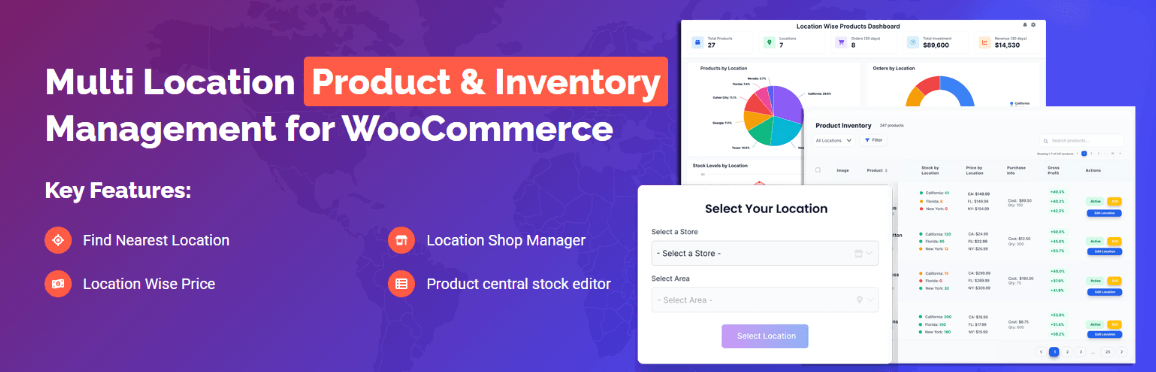
Setup is straightforward:
- Install and activate the plugin (free on WordPress.org: https://wordpress.org/plugins/multi-location-product-and-inventory-management/).
- Go to the plugin’s location settings and create your locations — stores, warehouses, pickup points, whatever applies to your setup.
- Open a variable product. On the variation screen, you’ll see location assignment fields and a stock quantity input per location for each variation.
- Enter the correct stock for each variation-location combination and save.
That’s it for the data layer. Each variation now has a known quantity at each location, visible from the plugin’s Stock Central-style view.
Other options that handle this at no cost include Stock Locations for WooCommerce (Fahad Mahmood), which is free on WordPress.org and takes a simpler approach to assigning stock per location. The trade-off is a narrower feature set — useful if you just need the data stored, not the customer-facing behaviour.
Location-Specific Stock Deduction — Reducing Only from the Fulfilling Location (Pro Feature)
This is where things get genuinely complex. Even if you’re storing stock per location correctly, an order has to deduct from somewhere specific. Which location fulfils the order? And is that the location where stock actually decreases?
With standard WooCommerce, the answer is: wherever the variation’s _stock is stored. WooCommerce fires woocommerce_reduce_order_stock after an order moves to Processing, and it reduces the variation’s stock — but it has no concept of “which warehouse this order came from.” That context simply doesn’t exist natively.
So if you’re running multi-location inventory on top of WooCommerce without location-aware order routing, one of a few things happens:
- Stock deducts from a global pool (not location-specific at all).
- Stock deducts from whichever location record was updated last, which is essentially arbitrary.
- Nothing deducts correctly because the plugin’s data structure isn’t wired into WooCommerce’s standard stock reduction flow.
Location-specific stock deduction — reducing inventory only from the location that’s actually fulfilling the order — is a Pro feature in Multi-Location Product & Inventory Management for WooCommerce by Plugincy. Here’s what that actually means in practice:
When a customer selects a location (or the system assigns one based on your rules), that location is attached to the order. When the order processes, stock deduction targets only the inventory at the fulfilling location for each variation. The Birmingham warehouse doesn’t lose stock because London fulfilled the order.
The Pro version also handles order splitting — so if one cart has items from two different locations, the deduction happens independently at each location, with separate child orders if needed. Each child order processes its own stock deduction independently, which also avoids the race conditions that cause overselling when two orders hit the same variation simultaneously.
If a manual override is needed — say, a staff member wants to assign fulfillment to a different location than the system chose — there’s an admin-level assignment control on the order screen.
For stores that don’t need customer-facing location selection but still need clean location-based stock deduction, the pro tier gives you that admin-side assignment and routing without requiring the full storefront location picker.
Other Options for Stock Sync in a Multi-Location Environment
If you’re not looking to add a dedicated multi-location plugin, or you’re evaluating your options before committing, here’s an honest picture of what’s available.
Dedicated multi-location plugins (single-store, location-aware selling):
- Multi-Location Product & Inventory Management for WooCommerce (Plugincy) — per-variation per-location stock in the free version; location-specific order deduction, order splitting, and routing in Pro.
- Multiloca (Techspawn) — paid.
- Multiloca Lite/Pro (Envato author Multiloca) — free version on WordPress.org with upgrade path.
- Multi Inventory Management (Addify) — paid.
- Stock Locations for WooCommerce (Fahad Mahmood) — free on WordPress.org; simpler, covers the data-storage side.
A note on ATUM: ATUM is a solid backend inventory operations tool — purchase orders, supplier tracking, the Stock Central view. But its multi-location (multi-warehouse) functionality is a paid add-on, and it’s built around backend management rather than customer-facing location selection. If your problem is “customers see and select a location, then stock deducts from that specific location,” ATUM isn’t the primary fit.
Multi-site sync tools like WooMultistore, MIPL Multistore Sync, and Stock Sync for WooCommerce are a different category entirely. They sync inventory across separate WordPress installations — useful if you’re running genuinely separate stores on separate sites. They don’t solve the single-store, multiple-physical-locations problem described here.
Custom code approach: If you have a developer available, you can hook into woocommerce_reduce_order_stock and write location-aware deduction logic yourself. You’d store location stock in custom wp_postmeta fields, read the location from order meta, and deduct programmatically. This works, but you’re building and maintaining what a dedicated plugin gives you out of the box — and edge cases like concurrent orders, backorders, and variation inheritance add up quickly.
REST API / WMS sync: If you’re running an external warehouse management system, most dedicated multi-location plugins expose REST API endpoints or webhooks for syncing stock back into WooCommerce after fulfillment happens externally. This is the right architecture when a third-party WMS is the source of truth for inventory — WooCommerce then reflects what the WMS says rather than managing the numbers itself.
For most WooCommerce stores dealing with variation stock across physical locations, a dedicated plugin with free per-location stock storage is the fastest path to accurate inventory. Whether you need location-specific deduction (Pro territory) depends on whether orders are assigned to specific locations at checkout, or whether you’re just trying to track stock across locations for visibility purposes.
Frequently Asked Questions
Does WooCommerce reduce stock for variation products the same way as simple products?
Not exactly. Simple products have one stock record. Variation products have two potential records — one at the parent level and one per variation. If _manage_stock is set to yes on the parent but not on the individual variation, WooCommerce deducts from the parent. If the variation has its own _manage_stock enabled, it deducts from the variation only. The two systems don’t talk to each other. That’s the core of most variation stock problems.
My variation stock shows correctly in the backend, but it’s not going down after orders. What’s wrong?
Nine times out of ten this is one of three things: _manage_stock isn’t actually enabled on the variation (only on the parent), a caching layer — Object Cache, WooCommerce Transients, LiteSpeed, Cloudflare — is serving stale data, or a plugin is hooking into woocommerce_reduce_order_stock and interrupting the deduction. Start by checking the variation’s own product data tab, then flush your cache, then check for plugin conflicts by running WooCommerce Safe Mode.
Should I manage stock at the parent level or the variation level?
Variation level is almost always the right answer. Managing stock at the parent means WooCommerce pools all variations together — buy any variation and the shared count drops, regardless of which size or color was purchased. That leads to Overselling and Inventory Mismatch fast. Enable _manage_stock per variation, set individual quantities, and leave parent stock management off unless you specifically need a shared pool.
Can a caching plugin cause variation stock to look wrong without actually breaking deduction?
Yes. Stock Deduction can happen correctly in the database — the _stock value in wp_postmeta is accurate — but the frontend or admin screen is still showing the old number because of a stale cache. Check wp_postmeta directly (via phpMyAdmin or WP-CLI: wp post meta get {variation_id} _stock) before assuming deduction failed. If the database value is correct, the problem is purely display-level caching.
WooCommerce is set to reduce stock, but orders are completing without any stock change. Where do I look first?
Check the order status flow. Stock deduction in WooCommerce fires on Order Processing, not on order completion or payment pending. If orders are jumping straight to “Completed” without passing through “Processing” — which some payment gateway plugins cause — the hook that triggers deduction may never fire. Also check whether woocommerce_reduce_order_stock is being unhooked somewhere in a custom function or plugin.
Does WP-Cron affect variation stock deduction?
Directly, no — the core deduction is synchronous during checkout, not a scheduled job. But if you have plugins that handle Stock Sync or inventory recalculation via scheduled tasks, and WP-Cron is broken or blocked (common on Nginx or LiteSpeed setups without Server-Side Cron), those sync jobs won’t run. The result is inventory that drifts over time even if the initial deduction worked fine. Set up a real server cron if you’re relying on any scheduled inventory operations.
My parent product shows “Out of Stock” but the variation still lets customers buy. How?
Parent Product Stock and variation stock are independent visibility records. Out of Stock Visibility settings in WooCommerce Inventory Settings control whether out-of-stock items appear, but this applies per-item. If the parent is marked out of stock but individual variations still have stock and their own _manage_stock enabled, they can remain purchasable. WooCommerce will use the variation’s own stock status. This is actually correct behavior — but it can look confusing in the admin.
I have a multi-location setup and stock isn’t reducing from the right warehouse after an order. What’s happening?
Standard WooCommerce has no concept of locations. It deducts from a single stock number per variation. If you’re running a multi-location setup — multiple warehouses or store branches — and stock isn’t being pulled from the correct location, the issue is that no location-aware deduction logic exists in core WooCommerce.
This is where a plugin like [Multi-Location Product & Inventory Management for WooCommerce by Plugincy](https://wordpress.org/plugins/multi-location-product-and-inventory-management/) handles it properly. The free version supports per-variation, per-location stock quantities and order location assignment — so deduction happens against the right location’s inventory. If you need automatic fulfillment routing (deducting from the nearest or best-stocked location based on order context), that’s available in the pro version.
Can I verify whether stock actually changed in the database after an order?
Yes. Use WP-CLI:
wp post meta get {variation_id} _stockOr query directly in phpMyAdmin:
SELECT meta_value FROM wp_postmeta
WHERE post_id = {variation_id}
AND meta_key = '_stock';
Run this immediately after placing a test order. If the value changed, deduction worked and you’re chasing a display or cache problem. If it didn’t change, the issue is in the order processing pipeline itself.
Are there any WooCommerce settings I should check first before going into the database?
Yes — before touching the database or code, go through these in WooCommerce:
- WooCommerce → Settings → Products → Inventory — confirm “Manage Stock” is globally enabled.
- Open the variable product → each variation → check “Manage stock?” is ticked with a real stock quantity.
- Run WooCommerce Health Check from WooCommerce → Status → Tools to catch obvious configuration errors.
- Clear WooCommerce Transients from the same Tools screen.
That covers most configuration-level mistakes without needing to go near code.
A plugin was causing the stock issue. I deactivated it, but stock still isn’t updating. Why?
Deactivating a plugin doesn’t undo damage already done to _manage_stock or _stock values in the database, and it doesn’t clear cached data that was set while the plugin was active. After deactivating a Problem Plugin: flush all caches, clear WooCommerce Transients, and manually verify the _manage_stock and _stock meta values for affected variations in wp_postmeta. Some plugins set _manage_stock to no on variations and don’t restore it on deactivation.
Conclusion — A Quick Checklist to Fix Variation Stock Issues
If you’ve worked through this guide, you already know the root cause is almost never one thing. It’s usually a combination — stock management turned off at the variation level, a caching layer hiding the real number, a plugin intercepting the order flow, or a database value that never got written correctly in the first place.
Here’s a practical checklist you can run through, in order, whenever variation stock stops deducting after an order.
Stock Configuration
- [ ] Variation-level stock is enabled. Go to the product → Variations tab → expand each variation → tick “Manage stock?” and save. If this is off, WooCommerce falls back to parent stock — or deducts nothing at all.
- [ ]
_manage_stockis set toyeson the variation row inwp_postmeta. Confirm it in phpMyAdmin or with WP-CLI:wp post meta get {variation_id} _manage_stock. - [ ]
_stockvalue on the variation is a real number, not null or empty. - [ ] WooCommerce Inventory Settings have “Manage stock” ticked globally (WooCommerce → Settings → Products → Inventory).
- [ ] Out of Stock Visibility is set correctly — hiding out-of-stock items can mask the problem but doesn’t fix the underlying deduction failure.
Order Processing Check
- [ ] Orders are reaching “Processing” or “Completed” status. Stock only deducts when an order hits one of these statuses. A stuck “Pending” order won’t trigger
woocommerce_reduce_order_stock. - [ ] Payment gateway is completing orders properly. Some gateways leave orders in Pending indefinitely, especially if there’s a failed IPN or webhook.
- [ ] No custom order status is bypassing the stock hook. If you’re using a plugin that adds custom statuses, check whether it’s wired into WooCommerce’s stock deduction flow.
Plugin Conflict
- [ ] Test in Safe Mode — disable all non-WooCommerce plugins temporarily and place a test order. Stock updates? Re-enable plugins one by one until the deduction breaks.
- [ ] No inventory plugin is running parallel stock management. Two plugins trying to manage the same stock field will fight each other. One wins, one loses, and you end up with an Inventory Mismatch.
- [ ] AJAX filter or cart plugins aren’t caching variation data. A caching plugin that intercepts variation stock queries can serve stale numbers even after WooCommerce has already updated
_stock.
Cache and Transients
- [ ] Flush Object Cache — in WooCommerce → Tools → WooCommerce Transients → Clear transients. Do this after any inventory fix.
- [ ] Purge server-level cache — LiteSpeed, Nginx FastCGI cache, or whatever sits in front of your site. Database writes are fine; the cached page is lying.
- [ ] Purge Cloudflare cache if you’re using it, especially if you’ve cached dynamic pages or WooCommerce endpoints.
- [ ] Check that WooCommerce is excluded from full-page caching for cart, checkout, account, and product pages.
WP-Cron and Scheduled Jobs
- [ ] WP-Cron is running. Open WooCommerce → Status → Scheduled Actions and look for stock-related tasks stuck in “Pending”. If they’re not firing, WP-Cron is broken.
- [ ] Switch to Server-Side Cron if WP-Cron is unreliable. Add
define('DISABLE_WP_CRON', true);towp-config.phpand set up a real cron job via your host.
Database Verification
- [ ] Run a direct check in phpMyAdmin — query
wp_postmetafor the variation ID, and confirm_stock,_manage_stock, and_stock_statusare all set correctly. - [ ] Use WP-CLI for a quick check:
wp wc product_variation get {variation_id} --field=stock_quantity - [ ] Check the parent product —
_manage_stockon the parent should usually benowhen variations manage their own stock. If the parent has_manage_stock = yes, WooCommerce may deduct from Parent Product Stock instead.
WooCommerce Health Check
- [ ] Run WooCommerce → Status → Tools → WooCommerce Health Check and look for anything flagged. Missing pages, REST API errors, and background task failures all affect stock processing.
- [ ] Check WooCommerce → Status → Logs and filter by “stock”. Any deduction errors or hook failures will show up here.
Multi-Location Inventory (If Applicable)
- [ ] Stock is being deducted from the right location. If you’re running a multi-location setup, location-specific stock deduction needs to be handled deliberately — not by WooCommerce’s default single-stock logic.
- [ ] Variation inventory per location is configured. If you’re using Multi-Location Product & Inventory Management for WooCommerce by Plugincy, each variation can carry separate stock per location in the free version. Check that the correct location is assigned to the variation and that stock quantities are entered at the location level, not just the global level.
- [ ] Order location assignment is correct. Stock should deduct from the fulfilling location, not from a global pool that doesn’t reflect reality.
Final Sanity Check — Place a Test Order
After any fix, do this before calling it done:
- Set a variation to a known stock quantity (say, 5).
- Place a real test order through the front end — go through checkout completely.
- Check the variation stock immediately in WooCommerce → Products → edit the product → Variations.
- Verify the
_stockvalue dropped inwp_postmeta. - If it didn’t drop: check the order status, check the logs, and flush cache — in that order.
One more thing. Overselling is the real cost of this bug. Every unfixed Stock Deduction failure is a potential duplicate order on a product you can’t fulfill. Fix it once, test it properly, and set up a WooCommerce stock alert so you know immediately if something breaks again.
