

Admin shows 0 stock, but the frontend still says In Stock — customers are placing orders for items you don’t have, and you have no idea it’s happening until the complaints roll in. If you’ve already checked WooCommerce or Magento and confirmed the admin panel is showing the correct stock level, the database isn’t the problem. The frontend is lying to you, and almost every time, cache is why.
Here’s the direct answer: when admin stock is correct but the frontend shows wrong data, it’s because Full-Page Cache (FPC), Object Cache (Redis/Memcached), or CDN cache is serving stale stock data — these layers do not automatically invalidate when stock changes. Fix: flush the relevant cache layer, add the product page to the cache exclusion list, or use AJAX to load stock dynamically so it bypasses the cached HTML entirely.
The frustrating part isn’t that this happens — it’s that flushing “all cache” and refreshing once doesn’t actually tell you which layer caused the mismatch. You could be dealing with Varnish, Nginx FastCGI Cache, LiteSpeed Cache, Browser Cache, a CDN serving Edge Cache from a node three countries away, or a Transient Cache that hasn’t expired because its TTL (Time to Live) is set to several hours. Treating all of these as one thing is why the problem keeps coming back.
What follows is a layer-by-layer diagnosis and fix guide — covering WooCommerce and Magento/Adobe Commerce setups — so you can pinpoint exactly where the Stock Mismatch is originating, apply the right Cache Invalidation strategy, and stop the frontend from showing stock data that has no relationship to reality.
What Is Actually Going Wrong — Why Admin Shows the Right Stock but Frontend Shows the Wrong One
The admin panel pulls data directly from the database every time you load it. No caching involved. So when you update stock to 3 units, the admin reflects 3 units instantly — always. The frontend is a completely different story. It goes through multiple layers between the database and the browser, and any one of those layers can be serving a snapshot of your stock from an hour ago, or longer.
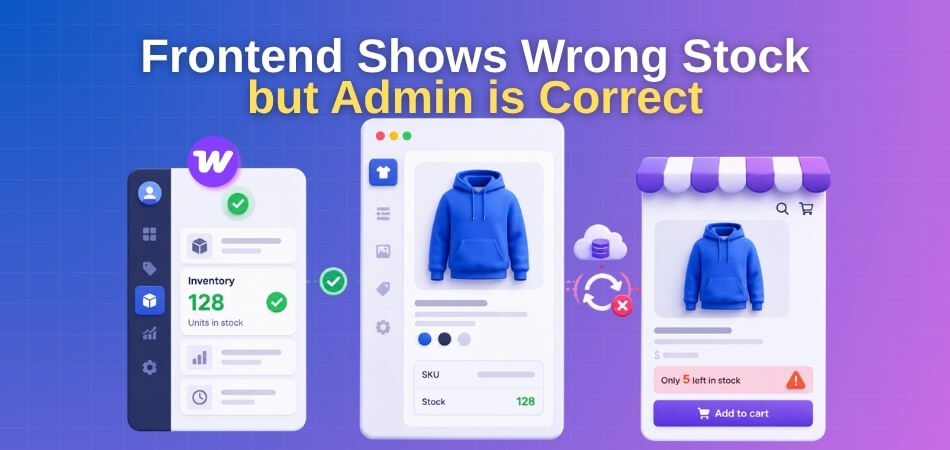
That gap is where the mismatch lives.
How Cache Creates Stock Mismatch (Full-Page Cache vs Object Cache vs CDN)
There are at least four distinct cache layers that can independently cause a stock mismatch. Most sites have two or three of them active simultaneously.
Full-Page Cache (FPC) is usually the biggest culprit. When a customer visits your product page, FPC (whether that’s Varnish, Nginx FastCGI Cache, LiteSpeed Cache, or a WordPress caching plugin) serves a pre-built HTML snapshot of that page. That snapshot was generated at some point in the past — sometimes minutes ago, sometimes hours — and it contains the stock number from that moment. Your actual database says 0. The cached HTML still says “In Stock — 14 available.” The TTL (Time to Live) on that cache entry determines how long the lie persists.
Object Cache (typically Redis or Memcached) operates at the PHP/application layer. WooCommerce stores computed product data — including stock status and quantity — in transients and object cache entries. If you update stock via the admin, WooCommerce should clear the relevant transients. Sometimes it doesn’t. A stale Object Cache entry can feed wrong stock data into the page-building process even before FPC gets involved. So your page cache might be fresh, but the stock number baked into it was already wrong.
CDN and Edge Cache sit furthest from your server. Services like Cloudflare, Fastly, or BunnyCDN cache product page responses at edge nodes distributed globally. A customer in Singapore might be reading a cached page from an edge node that last fetched your product page six hours ago. Even after you manually purge your server-side caches, the edge cache can hold stale responses for its own TTL window — and that window is often set to hours or days by default.
Database Query Cache (MySQL’s built-in query cache) is less common now since MySQL 8 removed it, but on older server setups it can serve stale query results to WooCommerce’s stock lookups. It’s rarely the primary culprit but worth knowing it exists.
The brutal part: these layers are independent. Purging your FPC does nothing to your CDN edge cache. Clearing Redis does nothing to your browser cache. A complete fix requires addressing every layer that’s active on your stack.
Smart Cache vs Regular Cache — Where the Difference Matters for Stock Data
“Regular” cache treats every page response the same way: cache it for X minutes, serve the cached version to everyone, then expire. That works fine for purely static content. For stock data, it’s a disaster because stock changes on every purchase.
“Smart” caching systems try to handle this by making specific pages or content types exempt from caching, or by triggering a cache purge when something changes. WooCommerce-aware caching setups (LiteSpeed Cache with its WooCommerce integration enabled, for example) know to exclude cart pages, account pages, and in some configurations, product pages when stock changes. But “smart” doesn’t mean perfect.
The specific place this matters for stock:
- Cache Exclusion Lists — well-configured caching plugins let you exclude individual URLs or page types. Product pages can be excluded, but stores usually avoid this because it kills performance. The more common approach is to exclude only the stock-display fragment via AJAX and cache the rest of the page.
- Cache Purge Triggers — WooCommerce fires hooks like
woocommerce_product_set_stockandwoocommerce_variation_set_stockwhen stock changes. A smart caching layer hooks into these to purge the relevant cached page. If your caching plugin doesn’t integrate with these hooks, it won’t know that a stock update happened, and the purge never fires. - AJAX-loaded stock — the cleanest architectural solution is to cache the full page but load the stock number dynamically via a separate AJAX request that bypasses cache entirely. WooCommerce’s own “Available quantity” display doesn’t do this out of the box — you get a static number baked into the HTML at page-generation time.
Magento / Adobe Commerce handles this more explicitly with its FPC implementation. Block-level caching lets you mark specific layout blocks (like the stock availability block) as uncacheable while caching the rest of the page. The ACSD-46767 patch specifically addressed a bug where category page caches weren’t being invalidated properly when stock status changed — which is exactly the kind of gap between “smart in theory” and “broken in practice” that shows up on high-traffic stores.
Regular cache doesn’t know any of this. It just serves what it stored. Smart cache is better, but only if it’s correctly configured for WooCommerce’s or Magento’s stock-change events.
How to Identify Which Cache Layer Is Causing the Problem
Work through this systematically. Don’t guess — each step rules out one layer.
Step 1 — Check the response headers first. Open your browser’s DevTools (F12), go to the Network tab, reload the product page, and click the main HTML document request. Look for headers like X-Cache, CF-Cache-Status, X-Varnish, X-LiteSpeed-Cache, or Age. An Age: 3600 header means the response is being served from cache and is 3600 seconds (one hour) old. CF-Cache-Status: HIT means Cloudflare is serving a cached copy. This single step often tells you immediately whether the CDN or server-level FPC is involved.
Step 2 — Test with cache bypass. Add a cache-busting query string to the URL: ?nocache=1 or ?v=123. Most FPC and CDN configurations skip caching for URLs with query strings. If the stock number changes to the correct value with the query string appended, the problem is in your FPC or Edge Cache layer.
Step 3 — Test from incognito and a different network. Browser Cache can persist stale data locally. An incognito window clears browser-side storage. A different network (your phone’s mobile data) bypasses any location-specific CDN edge node that might be caching a stale copy.
Step 4 — Check your Object Cache directly. If you’re running Redis or Memcached, connect to Redis CLI and run:
redis-cli KEYS "*wc_*product*"Look for WooCommerce product-related keys. You can also temporarily disable your Object Cache plugin (like Redis Object Cache or W3 Total Cache’s object cache module) and reload the product page. If the correct stock appears, Object Cache is your layer.
Step 5 — Check WooCommerce transients. In your database, query:
SELECT option_name, option_value FROM wp_options
WHERE option_name LIKE '_transient_wc_product_%'
ORDER BY option_name;
Look for transient entries related to your affected product ID. If the stock value stored there doesn’t match your admin panel, the Transient Cache is serving stale data and isn’t being cleared properly on stock updates.
Step 6 — Look at your Cron Jobs and stock sync timing. If you’re syncing stock from an external system — an ERP, a warehouse management tool, or a multi-location inventory setup — check whether the Cron Job or Webhook that pushes stock updates to WooCommerce is also triggering a cache purge. A lot of Stock Sync integrations update the database correctly but never fire the cache invalidation step, so you get accurate data in the DB but stale data on every cached page until it naturally expires.
Once you’ve isolated the layer, you know exactly where to intervene. The fix for an FPC problem is different from the fix for a stale Object Cache, which is different again from a CDN edge cache issue — and you can’t solve all three by only addressing one.
Diagnosing and Fixing by Cache Layer
Cache problems aren’t monolithic. The fix for a Varnish TTL issue is completely different from the fix for a stale Redis object. Before you start clearing things at random, identify which layer is actually holding the stale stock data — then target that layer specifically. Here’s how to work through each one.
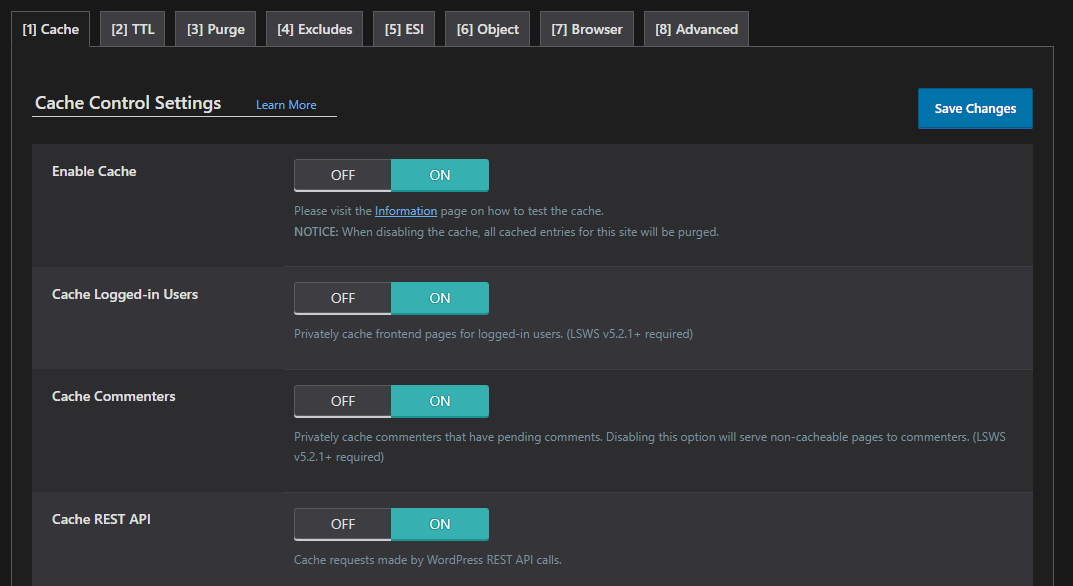
Full-Page Cache (FPC) — Not Invalidating on Stock Changes
FPC is the most common culprit. When a customer buys something, WooCommerce updates the stock in the database. But if your FPC doesn’t know a stock change happened, it keeps serving the old HTML — complete with the old stock number — to every visitor who hits that cached page.
This is a site-wide symptom. Multiple users see the same wrong number. The product page looks exactly as it did before the sale.
How to confirm it: Open the product page in an incognito window on a different device. If the wrong stock appears there too, FPC is almost certainly the problem. Then check your response headers — look for X-Cache: HIT or Age: [number]. A high Age value tells you the page hasn’t been refreshed in a while.
What causes the invalidation to fail:
- Your caching plugin doesn’t hook into
woocommerce_reduce_order_stockorwoocommerce_product_set_stock - The product page URL isn’t in the cache invalidation rules
- Stock updates triggered by a webhook or cron job happen outside the normal WooCommerce order flow, so the cache never gets the signal to purge
Fix — WooCommerce native: WooCommerce adds no-cache headers to cart and checkout pages automatically. But product pages are a different story. You need to make sure your caching plugin is set to purge product pages when stock changes.
In most caching plugins, look for a setting called something like “Cache Invalidation on WooCommerce Events” or “Purge on Product Update.” Enable it and make sure it covers stock changes, not just product edits.
Fix — developer path: If you’re managing cache programmatically, hook into the stock update action and fire your own purge:
add_action( 'woocommerce_product_set_stock', function( $product ) {
    $url = get_permalink( $product->get_id() );
    // call your cache purge function here, e.g. your CDN or FPC purge API
    wp_cache_delete( 'product_' . $product->get_id(), 'woocommerce' );
} );
The exact purge call depends on your stack, but the hook is the right place to trigger it.
If you’re running multi-location inventory — say you have separate stock per warehouse and each location shows a different quantity — your cache invalidation needs to account for that. A page cached before a customer selected Location A will show Location A’s pre-sale stock to someone on Location B. The [Multi-Location Product & Inventory Management for WooCommerce by Plugincy](https://wordpress.org/plugins/multi-location-product-and-inventory-management/) includes cache maintenance tools in its free version that clear location-specific transients and cached data after inventory changes — worth checking if you’re running per-location stock and seeing this mismatch across locations.
Object Cache (Redis / Memcached) — Stale Stock Query Results
Object cache sits between WooCommerce and the database. Redis or Memcached stores the results of expensive queries — including stock quantity lookups — so PHP doesn’t hit the database every time.
The problem: those cached query results don’t always expire when stock changes. WooCommerce transients are particularly prone to this. The _transient_wc_product_children_* and stock-related transients can sit in Redis long after the actual stock value has changed in the database.
Symptoms: The wrong stock appears consistently, across browsers and devices. Flushing the FPC doesn’t help. But manually deleting the object cache does fix it — temporarily.
Diagnosis: Run redis-cli KEYS "wc" or check your Redis management UI for WooCommerce-related keys. Look at their TTL values. If they’re sitting at 3600 seconds or more and you’ve had stock changes in that window, you’ve found your problem.
Fix:
- In your WooCommerce settings, go to WooCommerce → Status → Tools and run “Delete all WooCommerce transients.” This clears stale data from the database and from object cache if you have a drop-in installed.
- For Redis specifically, you can flush just the WooCommerce namespace:
redis-cli --scan --pattern "wc_" | xargs redis-cli del - Reduce the TTL on stock-related transients. WooCommerce uses
WC_CACHE_PREFIXinternally. If you’re storing custom stock data, don’t set TTLs above 5–10 minutes for anything stock-related.
The longer-term fix is making sure whatever triggers a stock change also purges the relevant object cache keys. If you’re using a webhook or cron job to sync stock from an external source, add a wp_cache_delete() call at the end of that sync routine.
Database Query Cache — Stock Data Freshness Problems
MySQL’s built-in query cache (deprecated in MySQL 8.0, still present in MariaDB) can return cached row data for a SELECT query even after the underlying row has been updated. In practice this is less common on modern hosting stacks, but it still bites people on older setups or shared hosts running MariaDB.
Quick check: Run SHOW VARIABLES LIKE 'query_cache_type'; in phpMyAdmin or your DB tool. If it returns ON or DEMAND, query cache is active. Then run SHOW STATUS LIKE 'Qcache_hits'; — a high hit count tells you it’s actually being used.
Fix: Most of the time you don’t want to disable query cache wholesale — it helps read-heavy queries. Instead, make sure WooCommerce’s stock update queries are using SQL_NO_CACHE or that the cache is being invalidated on write. WooCommerce’s native update functions through $wpdb->update() should invalidate the cache for that table automatically in InnoDB, but plugins that write stock directly with raw SQL sometimes bypass this.
If you’re on MySQL 8.0+, query cache is already gone and you can rule this out entirely.
CDN Cache — Outdated Stock Responses Served from the Edge
This one is easy to miss because most people think CDNs only cache images and static assets. Some CDN configurations — especially when using Cloudflare’s “Cache Everything” page rule or similar settings on Fastly, BunnyCDN, or KeyCDN — will cache full HTML responses. That means edge nodes in Frankfurt, Singapore, and São Paulo are all serving the same cached product page HTML regardless of what’s in your database.
How to confirm: Check response headers for CF-Cache-Status: HIT (Cloudflare) or X-Cache: HIT from CDN (generic). Also check the Age header — if it’s nonzero on a product page, your CDN is caching it.
Fix — Cloudflare: Either add a Page Rule to bypass cache for WooCommerce product pages (Cache Level: Bypass for /product/*), or set up a Cache Purge Trigger via Cloudflare’s API whenever stock changes. The API call is simple:
POST https://api.cloudflare.com/client/v4/zones/{zone_id}/purge_cache
Body: { "files": ["https://yourdomain.com/product/your-product-slug/"] }
You can trigger this from a woocommerce_product_set_stock action hook on your server.
Fix — general: Most CDNs let you set Cache-Control headers on specific URL patterns. For product pages, set Cache-Control: no-store or a very short max-age (30–60 seconds). Longer-term, keep product pages out of your CDN’s HTML cache entirely and only let the CDN cache your static assets.
The Stock Sync scenario is worth calling out here: if you’re syncing stock from an external system (ERP, WMS, point-of-sale), the sync might update your database correctly but never trigger a CDN purge. Your server-side code is fine; the edge is just serving yesterday’s response. Add the
Fixing Frontend Stock Mismatch in WooCommerce
WooCommerce stock problems almost always trace back to one of four places: exclusion rules missing a page, stale transients, a cached HTML response that ignores live stock, or a category page that never got the memo that stock changed. Each one has a different fix.
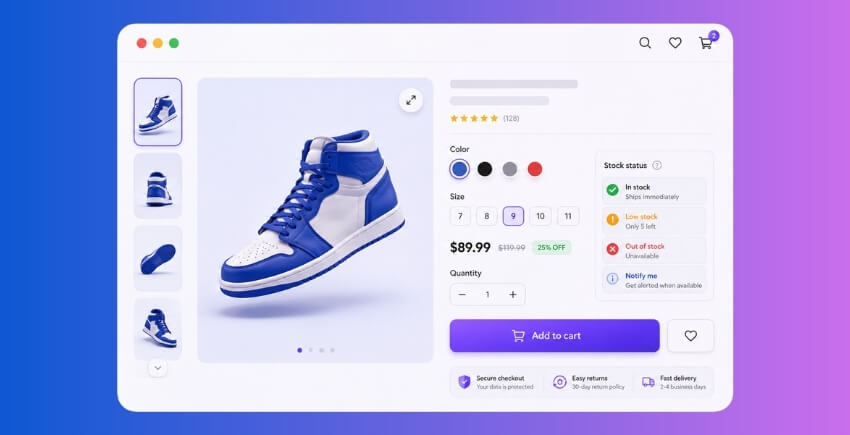
Add WooCommerce Stock Pages to the Cache Exclusion List
Your single product pages, cart, checkout, and account pages should never be served from a full-page cache. That much most store owners already know. What often gets missed are the product pages for items with frequently changing stock — especially when you’re running flash sales, managing low inventory, or have multiple warehouses feeding the same SKU.
Open your caching plugin’s exclusion settings and add URL patterns for these:
/product/— all single product pages/cart//checkout//my-account/
If you’re using LiteSpeed Cache, go to LiteSpeed Cache → Cache → Excludes and add those URI patterns under “Do Not Cache URIs.” For Nginx FastCGI Cache, add a set $skip_cache 1; condition in your server block that matches those paths. Varnish users need to add a vcl_recv rule that returns pass for those URLs.
The problem is that many setups cache /product/ pages aggressively — sometimes with a TTL of an hour or more. A customer who lands on a product page 45 minutes after the last cache purge sees whatever stock count existed at purge time. If 10 units sold in those 45 minutes, they have no idea.
One quick test: open the product page in a private browser window, check the stock shown, then check the same product in wp-admin. If they differ, that page is being cached and no purge trigger fired on the stock update. Add it to your cache exclusion list.
Transient Cache and WooCommerce Stock Sync
WooCommerce uses the WordPress transient API to store some computed data — related products, query results, and depending on your setup, stock-related data too. These transients have their own TTL, separate from your page cache, and they persist in the database (or in Redis/Memcached if you have object caching configured).
When a transient stores a stale stock value, clearing the page cache does nothing — the next page load just rebuilds from that same bad transient.
You can clear all WooCommerce transients manually from WooCommerce → Status → Tools → Clear transients. Do that and recheck your frontend. If the correct stock appears immediately after, transients were the culprit.
The real fix is automating that clear. WooCommerce fires woocommerce_product_set_stock when stock changes on a product. You can hook into that to clear specific transients:
add_action( 'woocommerce_product_set_stock', function( $product ) {
    delete_transient( 'wc_product_loop_' . $product->get_id() );
    WC_Cache_Helper::invalidate_cache_group( 'product_' . $product->get_id() );
} );
Add this to your child theme’s functions.php or a small site-specific plugin. It fires every time WooCommerce updates stock on a product — whether from an order, a manual admin edit, or an external stock sync.
If you use Redis or Memcached as your object cache backend, stale object cache entries can override even a fresh database value. The same hook above handles this because WC_Cache_Helper::invalidate_cache_group() flushes the object cache group for that product, not just the transients.
If you’re managing inventory across multiple store locations, transients become messier — each location’s stock may be stored separately and the global product transient may not update when a per-location quantity changes. The Multi-Location Product & Inventory Management for WooCommerce by Plugincy plugin includes cache maintenance tools (free version) that clear location-specific transients and product cache entries when location inventory changes, which saves you from writing custom logic for each stock update path.
Use AJAX to Display Stock Dynamically — Cache Bypass Method
Excluding product pages from cache works, but it increases server load. If you want the performance benefits of full-page caching AND accurate stock, AJAX is the cleaner path.
The idea is simple: cache the page HTML normally, but serve the stock display via a separate AJAX request that always hits the server fresh. The initial page loads fast from cache. A small JavaScript call then replaces the cached stock number with the live one.
Here’s a basic pattern:
Enqueue a script that fires on product pages:
add_action( 'wp_enqueue_scripts', function() {
    if ( is_product() ) {
        wp_enqueue_script( 'live-stock', get_stylesheet_directory_uri() . '/js/live-stock.js', array( 'jquery' ), null, true );
        wp_localize_script( 'live-stock', 'liveStock', array(
            'ajax_url'   => admin_url( 'admin-ajax.php' ),
            'product_id' => get_the_ID(),
        ) );
    }
} );
Register the AJAX handler:
add_action( 'wp_ajax_nopriv_get_live_stock', function() {
    $product_id = intval( $_POST['product_id'] );
    $product    = wc_get_product( $product_id );
    if ( ! $product ) wp_die();
    wp_send_json_success( array(
        'stock_quantity' => $product->get_stock_quantity(),
        'stock_status'   => $product->get_stock_status(),
    ) );
} );
add_action( 'wp_ajax_get_live_stock', 'wp_ajax_nopriv_get_live_stock' );
Your live-stock.js then calls this endpoint on page load and swaps in the real value. This works even with Varnish, CDN edge cache, or LiteSpeed Cache serving the page — the AJAX request bypasses all of them because it hits admin-ajax.php directly, which is excluded from caching in virtually every setup.
This is also the right pattern if you need to show real-time stock display modes — exact quantities, low-stock labels, or per-location availability — without sacrificing your cache hit rate.
Category Page Cache — Force Invalidation When Stock Quantity Changes
Category pages are the most overlooked cache problem in WooCommerce. A product showing “In Stock” on a shop archive page pulls that status from cached HTML, not from a live database query. Somebody buys the last unit. The product is now out of stock. But the category page cache hasn’t expired yet, so the archive page still shows it as available. Customers click through, hit the product page, and see it’s gone. Frustrating.
The fix is a cache purge trigger tied to stock changes.
Most caching plugins expose a hook or API to purge specific URLs. LiteSpeed Cache has do_action('litespeed_purge_post', $post_id). WP Rocket has rocket_clean_post(). If you’re running Varnish or a CDN with a purge API, you send an HTTP PURGE request to the cached URL.
The hook to watch is woocommerce_product_set_stock_status — it fires when a product’s stock status changes (e.g. from instock to outofstock). When that fires, grab the product’s categories and purge their archive URLs:
add_action( 'woocommerce_product_set_stock_status', function( $product_id, $status, $product ) {
    $terms = get_the_terms( $product_id, 'product_cat' );
    if ( $terms && ! is_wp_error( $terms ) ) {
        foreach ( $terms as $term ) {
            $url = get_term_link( $term );
            // Fire your cache purge API here for $url
        }
    }
}, 10, 3 );
What you trigger inside that loop depends on your stack. LiteSpeed Cache users can call the purge action. CDN users with a Webhook-based purge endpoint (Cloudflare, Fastly, BunnyCDN) fire an HTTP request to that endpoint.
Fixing Frontend Stock Mismatch in Magento / Adobe Commerce
Magento’s caching architecture is more layered than WooCommerce’s. You’ve got Full-Page Cache built into core, Varnish sitting in front of it on most production setups, and a separate block cache system on top of that. When stock updates don’t propagate correctly, it’s usually one of these three things: you flushed the wrong cache, an unpatched bug is triggering unnecessary invalidation, or your Varnish TTL is too long for pages where stock actually changes.
Here’s how to fix each one.
The Correct Way to Flush Full-Page Cache
A lot of people go to System → Cache Management and click “Flush Magento Cache.” That refreshes the internal cache storage — config, layout, block HTML — but it doesn’t always clear Full-Page Cache entries. These are stored separately, and if you’re using Varnish, they’re not even on the same server.
The right sequence depends on your setup:
Built-in FPC (no Varnish):
- Go to System → Cache Management
- Check Full Page Cache specifically
- Click Refresh — not “Flush Cache Storage,” which nukes everything including config cache and slows your next page load significantly
That’s usually enough for a basic Magento install. But if a product’s stock changed and the page still shows stale data 10 minutes later, your FPC TTL is too long (default is 86400 seconds — a full day).
With Varnish:
Magento sends a BAN request to Varnish to invalidate cached pages. This only works if:
- Your
default.vclhas the correct ban logic - The
MAGE_RUN_CODEand host header are configured right - Magento’s Varnish configuration export matches your actual Varnish version (4, 5, 6, or 7 — they differ)
To manually purge a specific URL from Varnish:
curl -X PURGE https://yourstore.com/product-slug.htmlOr ban all product pages:
varnishadm ban req.url ~ "^/catalog/product"If that still shows stale stock, check whether Magento’s Varnish Cache module is enabled under Cache Management. It should show as “Enabled” with a green dot. If it’s disabled, Magento isn’t sending ban requests at all — enable it, then re-export and reload your VCL from Stores → Configuration → Advanced → System → Full Page Cache.
One more thing: make sure your product pages aren’t accidentally excluded from ban logic. Magento tags cached pages with X-Magento-Tags headers containing entity IDs. The ban targets those tags. If your Varnish VCL strips those headers or your load balancer isn’t passing them through, bans silently fail.
ACSD-46767 Patch — Fixing Unnecessary Cache Invalidation
This one caused real headaches for a while. The ACSD-46767 patch addresses a bug where Magento invalidates the Full-Page Cache for a category page even when nothing on that category has actually changed — specifically when the stock quantity of an unrelated product is updated.
The result is counterintuitive: stock changes for Product A were blowing out the FPC for dozens of category pages that didn’t even list Product A. Those pages then got rebuilt from database on the next request, which is slow — but more importantly, during high-traffic periods, the pages could be rebuilt with slightly stale data depending on the database query cache state at that moment.
Check if you need it:
The patch applies to Adobe Commerce (Magento Enterprise) 2.4.4 and certain 2.4.3-p builds. Run:
bin/magento patch:statusIf ACSD-46767 shows as “Not applied,” you’re vulnerable. The fix is available through the [Adobe Commerce Quality Patches Tool (QPT)](https://experienceleague.adobe.com/docs/commerce-operations/tools/quality-patches-tool/release-notes.html).
Apply it:
composer require magento/quality-patches
bin/magento quality-patches:apply ACSD-46767
bin/magento setup:upgrade
bin/magento cache:flush
After applying, category page cache invalidation becomes scoped correctly — only categories that actually contain the updated product get invalidated. This reduces unnecessary cache churn and means your stock display stays accurate without the collateral damage of unrelated pages going stale.
If you’re on Magento Open Source rather than Adobe Commerce, this specific patch may not be available through QPT. Check the GitHub issues tracker for a community port, or manually apply the diff from the Adobe Security Advisory.
Reducing Varnish TTL for Stock Pages
The default Varnish TTL for Magento pages is often set high — 86400 seconds (24 hours) is common in stock VCL templates. That’s fine for truly static pages like CMS content. It’s a problem for product pages where stock can change multiple times a day.
You don’t need to set TTL to zero. That just turns Varnish into an expensive proxy. Instead, set a shorter TTL specifically for product and category pages.
In your default.vcl, inside the vcl_backend_response function:
sub vcl_backend_response {
    if (bereq.url ~ "^/catalog/(product|category)") {
        set beresp.ttl = 300s;
    }
}
300 seconds (5 minutes) is a reasonable middle ground for most stores. Products that sell fast might need 60–120 seconds. Products with stable stock can stay higher.
If you need per-product control, Magento can send a custom Cache-Control header from the backend and Varnish can respect it:
In your VCL: “vcl if (beresp.http.X-Stock-Sensitive) { set beresp.ttl = 60s; } “
And in Magento, you’d set that header programmatically in a custom module’s response, based on a product attribute or low-stock threshold. That’s a custom development task — not something you’d configure in the admin.
One more practical note: if you’re using Nginx FastCGI Cache instead of Varnish (common on smaller Magento setups), the equivalent setting is fastcgi_cache_valid in your server block. Set it per-location:
location ~* \.(php)$ {
    fastcgi_cache_valid 200 5m;
    fastcgi_cache_bypass $no_cache;
}
And make sure your $no_cache variable is set to 1 for requests with a session cookie — otherwise logged-in customers adding to cart will still see cached stock counts, which is a separate but related headache.
The bottom line with TTL: lower it for inventory-sensitive pages, use Magento’s ban/invalidation system for immediate updates on actual stock changes, and don’t rely on TTL expiry alone to keep stock displays honest.
Stock-Specific Cache Exclusion and TTL Strategy
Not every page on your store needs the same caching behavior. Product pages with live stock counts are fundamentally different from your About page or blog posts. Treating them the same is where most stock mismatch problems start.
Here’s how to actually fix that.
Which Pages Must Always Stay on the Cache Exclusion List
Some URLs should never serve a cached response. Full stop. The moment you cache these, you’re setting yourself up for stale stock showing to customers.
Pages that should always be on your Cache Exclusion List:
- Cart page (
/cart/) — obviously dynamic. Cache this and you’ll show wrong item counts and prices. - Checkout page (
/checkout/) — stock gets reserved here. A cached version here breaks orders. - My Account (
/my-account/) — user-specific, login-dependent. - Any URL with a query string you use for stock filtering — something like
?location=warehouse-2or?stock_check=1. These are dynamic by nature. - Stock-sensitive product pages when stock is critically low — if you’re down to 1–5 units, a cached page showing “In Stock” after the item sells is a real problem.
In WooCommerce, the standard cache exclusion rules for /cart/, /checkout/, and /my-account/ are baked into most caching plugins by default — but check. Always verify these paths are in your exclusion list, not just assumed.
In Magento and Adobe Commerce, the FPC (Full-Page Cache) handles exclusions via the Cacheable flag in layout XML. Any block with cacheable="false" in its layout handle forces the entire page out of FPC. If your stock block doesn’t have this set and stock is wrong, that’s your first fix.
For Varnish setups, exclusions go in your VCL. Minimum rule:
if (req.url ~ "^/(cart|checkout|my-account)") {
    return (pass);
}
Don’t get fancy here. If a page has stock information that changes frequently, put it in the pass list and be done with it.
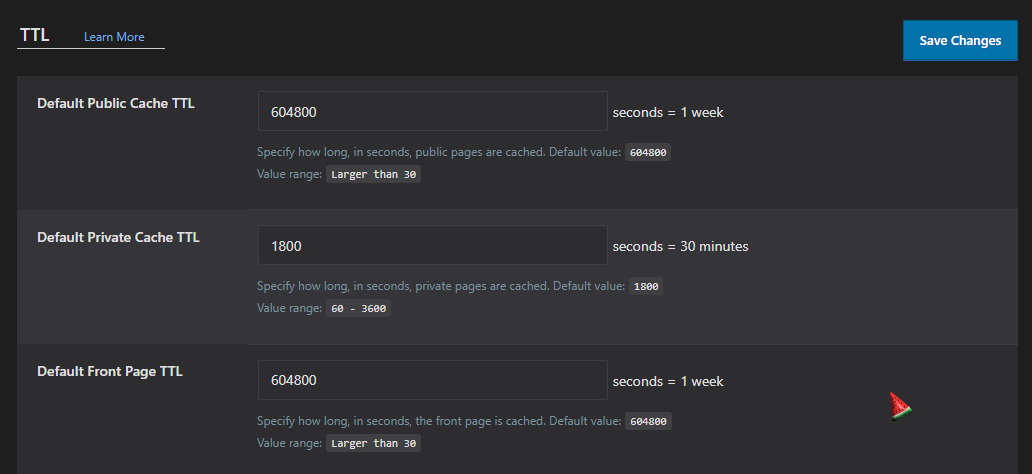
Reducing TTL for Stock Pages in Varnish and Nginx (with Config Examples)
Excluding a page entirely from cache isn’t always the right call. A product page with 500 units in stock doesn’t need real-time cache bypassing — but it probably shouldn’t sit in cache for 24 hours either. The fix is a shorter TTL (Time to Live) for stock-relevant pages.
Varnish VCL — per-URL TTL override:
sub vcl_backend_response {
    if (bereq.url ~ "^/product/") {
        set beresp.ttl = 120s;
    }
}
That sets a 2-minute TTL on all product pages. Adjust based on how frequently your stock moves. High-velocity products? Drop it to 30–60 seconds. Slow movers? 5 minutes is fine.
If you want more surgical control — say, a shorter TTL only when stock is below a threshold — you’d need your application to send a custom response header and have Varnish respect it:
In WooCommerce (in a theme’s functions.php or a custom plugin):
add_action( 'template_redirect', function() {
    if ( is_product() ) {
        global $product;
        if ( $product && $product->get_stock_quantity() < 10 ) {
            header( 'Cache-Control: max-age=30, must-revalidate' );
        }
    }
});
Then in Varnish VCL, read that header:
sub vcl_backend_response {
    if (beresp.http.Cache-Control ~ "max-age=30") {
        set beresp.ttl = 30s;
    }
}
Nginx FastCGI Cache — TTL by location block:
location ~* ^/product/ {
    fastcgi_cache_valid 200 2m;
    fastcgi_cache_use_stale error timeout updating;
    include fastcgi_params;
    fastcgi_pass php-fpm;
}
The 2m there is your TTL. Two minutes. Change it to 30s for faster-moving stock.
One thing people miss with Nginx FastCGI Cache: the fastcgi_cache_bypass directive. You can use a cookie or request header to skip the cache entirely for specific conditions. Combined with a Cache Purge Trigger on stock update (via WooCommerce’s woocommerce_product_set_stock action hook), you get close to real-time accuracy without disabling caching altogether.
Creating a Bypass Rule for Stock URLs in CDN
CDN edge caches — Cloudflare, Fastly, Akamai, and similar — are where a lot of people get caught out. They configure server-side cache correctly, then forget the CDN layer is sitting in front of everything, serving stale responses from its Edge Cache for hours.
CDN bypass rules follow the same logic as server-side exclusions, but you’re configuring them at the CDN level — usually via page rules, cache rules, or transform rules depending on the platform.
Cloudflare — Cache Rules (new ruleset interface):
Create a rule matching your stock URLs and set the cache status to “Bypass”:
- Expression:
http.request.uri.path contains "/product/"andhttp.request.uri.path contains "/cart/" - Cache setting: Bypass cache
For stock-specific paths only, you can get more precise:
- Match
http.request.uri.query contains "stock_check"→ Bypass
This is especially useful if you’re using AJAX endpoints for stock verification. Any request to /?wc-ajax=get_refreshed_fragments or a custom stock check URL should never be cached at the CDN level. Set those to bypass unconditionally.
Fastly — using surrogate keys / Purge API:
Fastly works better with a Cache Purge Trigger approach. Tag your product pages with a surrogate key (e.g., product-{product_id}) in the response headers, then fire a purge request to the Fastly API whenever stock updates. WooCommerce’s woocommerce_product_set_stock hook is the right place to trigger that purge via a Webhook or a direct API call.
This is more work to set up, but it means your CDN serves cached content right up until a stock change happens — then invalidates immediately. That’s proper Cache Invalidation rather than just reducing TTL and hoping for the best.
One thing to watch with multi-location inventory:
If you’re running stock across multiple warehouses or store locations, the complexity goes up a notch. A customer in one region might see cached stock data from another location’s cache layer. The Multi-Location Product & Inventory Management for WooCommerce by Plugincy includes cache maintenance tools specifically for this — clearing location-specific transients and product cache when inventory or location config changes. That’s genuinely useful when a CDN bypass rule alone won’t cut it, because the stale data is coming from Object Cache or Transient Cache deeper in the stack rather than the edge.
For single-location WooCommerce stores, CDN bypass rules plus a short TTL on product pages gets you 90% of the way there without any extra tooling.
Best Practices for Ensuring Real-Time Stock Display
Getting cache configuration right solves the immediate mismatch. But if you stop there, you’re one flash sale or a busy weekend away from the same problem again. The real goal is a setup where stock accuracy is maintained automatically — not something you fix reactively after a customer complaint.
AJAX and Dynamic Stock Display — Implementation Approach
AJAX is the most reliable way to show live stock on the frontend without serving a cached number. The idea: your page loads from cache normally (fast), but stock quantity or availability is fetched separately via a JavaScript request that bypasses the cache entirely.
In WooCommerce, you can hook into wc_ajax to build a lightweight stock-check endpoint. A simple approach:
add_action( 'wc_ajax_get_stock_status', 'my_get_stock_status' );
add_action( 'wc_ajax_nopriv_get_stock_status', 'my_get_stock_status' );

function my_get_stock_status() {
    $product_id = intval( $_POST['product_id'] );
    $product    = wc_get_product( $product_id );
    if ( ! $product ) wp_send_json_error();
    wp_send_json_success( [
        'stock_quantity' => $product->get_stock_quantity(),
        'stock_status'   => $product->get_stock_status(),
    ] );
}
Your JS fires on page load, POSTs to /?wc-ajax=get_stock_status, and updates the displayed quantity in the DOM. The key thing: this request must not be cached. Add Cache-Control: no-store to the response header, or mark the AJAX endpoint URL in your CDN’s Cache Exclusion List.
For Magento / Adobe Commerce, section invalidation handles this — sections.xml defines customer-specific data blocks that are always loaded fresh via AJAX, separate from Full-Page Cache content. If stock display isn’t in a cacheable block, it’ll already load dynamically. If it is inside FPC, move it to a private content section.
One practical tip: don’t AJAX-load stock on every product in a category loop. That’s 30–50 separate requests per page. Use it on single product pages and cart interactions where accuracy matters most.
If you’re running multi-location inventory — different stock counts per warehouse or store — this matters even more. The free version of [Multi-Location Product & Inventory Management for WooCommerce](https://wordpress.org/plugins/multi-location-product-and-inventory-management/) by Plugincy shows per-location stock on the single product page, and it includes dynamic location filters using cached AJAX filtering that updates availability by the customer’s selected location — so the right location’s stock shows without loading the full page again.
Cache Purge Trigger — Automatically Clear Cache When Stock Updates
A cache purge trigger is exactly what it sounds like: an automated signal that tells the cache layer “this content has changed, throw out the old version.” Without it, you’re relying on TTL expiry, and depending on your TTL settings that could mean stale stock sitting on the frontend for minutes or hours.
In WooCommerce, the hook you want is woocommerce_product_set_stock. This fires every time stock quantity changes — whether from an order, a manual admin update, or an import.
add_action( 'woocommerce_product_set_stock', 'my_purge_product_cache' );

function my_purge_product_cache( $product ) {
    $product_id  = $product->get_id();
    $product_url = get_permalink( $product_id );

    // Example: purge via LiteSpeed Cache
    if ( class_exists( 'LiteSpeed_Cache_API' ) ) {
        LiteSpeed_Cache_API::purge( 'tag=post.' . $product_id );
    }

    // Example: send a purge request to Varnish
    wp_remote_request( $product_url, [ 'method' => 'PURGE' ] );
}
Adjust the purge call to match your stack. Varnish accepts a PURGE HTTP method. Nginx FastCGI Cache uses fastcgi_cache_purge (requires the nginx cache purge module). LiteSpeed Cache has its own API class. For CDN-level edge cache, most providers (Cloudflare, Fastly, Bunny.net) offer a REST API endpoint for URL-based purges — fire a wp_remote_request() to that endpoint from the same hook.
For woocommerce_variation_set_stock, do the same for variable products. And if you’re using Object Cache (Redis or Memcached), call wp_cache_delete() on the product’s transient keys after a stock update — stale transients sitting in Redis are a common cause of mismatch even when the page cache is clear.
In Magento, cache invalidation is built into the product save process — stock changes trigger a cache invalidation event automatically for the affected product URLs. The gap usually comes from custom stock integrations that write directly to the database and skip the product save flow. In those cases, you need to dispatch a Magento\Framework\Event\ManagerInterface event manually, or call the cache invalidation service explicitly.
Keep TTL (Time to Live) short on product pages — 5 to 10 minutes is reasonable for most stores. High-volume flash sale environments may need it down to 60–90 seconds, or AJAX stock loading combined with a short TTL.
Ensuring Stock Sync with Webhooks or Cron Jobs
If your stock source of truth is external — an ERP, a POS system, a warehouse management system — the frontend mismatch often isn’t a cache problem at all. The stock in WooCommerce or Magento is simply out of date. Cache just makes it worse by serving that outdated number longer.
Two patterns handle this:
Webhooks push stock changes to your store the moment they happen in the external system. Your WMS or ERP sends an HTTP POST to a custom endpoint on your site; your endpoint receives it, updates the WooCommerce product stock, and optionally triggers a cache purge. This is near real-time. The downside: your store needs to be reachable from the external system, and you need to validate the incoming payload (signature check, not just blind trust).
WooCommerce has its own outbound webhook system — useful for notifying external systems when orders reduce stock. Go to WooCommerce → Settings → Advanced → Webhooks, create a webhook on the product.updated topic, and point it at your external system’s endpoint. For inbound syncs (external → WooCommerce), you’ll need a custom REST API endpoint or a dedicated sync plugin.
Cron Jobs poll for changes on a schedule. Less immediate than webhooks, but simpler to implement and more resilient to network failures. In WordPress, wp-cron runs on page load — not ideal for reliable sync timing. Use a real server cron instead:
*/5 * * * * php /var/www/html/wp-cron.phpThat fires every 5 minutes. Your custom cron callback fetches stock from the external API, compares against current WooCommerce stock, and updates where there’s a difference. Register it with:
add_action( 'my_stock_sync_cron', 'my_run_stock_sync' );

if ( ! wp_next_scheduled( 'my_stock_sync_cron' ) ) {
    wp_schedule_event( time(), 'every_five_minutes', 'my_stock_sync_cron' );
}
For multi-location setups specifically — where each warehouse or store location has its own stock level — the sync complexity multiplies. You’re not updating one number per product; you’re updating one number per product per location. The pro version of Multi-Location Product & Inventory Management for WooCommerce by Plugincy covers this with a REST inventory API and signed webhook support for connected external systems, so stock changes at a specific location can be pushed in from a WMS or ERP and reflected accurately per location. The free version handles per-location inventory within WooCommerce itself; the external sync layer is the pro feature set.
In Magento, the ACSD-46767 patch addresses a known bug where stock status caches don’t invalidate correctly when quantity changes come through the REST API — worth confirming this
Cache Mismatch in WooCommerce Multi-Location Inventory Is a Different Problem
Standard cache mismatch is annoying. Multi-location cache mismatch is genuinely confusing — because you’re not dealing with one stale stock number. You’re dealing with potentially a dozen of them, one per location, each cached independently, each with its own TTL, and each visible to different customers depending on which location they’ve selected.
The root mechanics are the same: Full-Page Cache, Object Cache, Transients. But the scope of what “correct” means has multiplied. A customer in Location A seeing stale stock is a different bug than a customer in Location B seeing the same thing, even if they’re on the same product page URL.
Each Location Has Separate Stock — How to Tell Which Location’s Cache Is Stale
The first thing to understand is that most caching systems key cached responses by URL. If your multi-location setup uses a query parameter — say ?location=3 or a cookie to segment stock — your cache layer may or may not respect that. Many don’t, by default.
Here’s what stale location stock actually looks like in practice:
- A customer has Location B selected. The product page loads and shows 12 units. Actual stock at Location B is 0.
- Admin confirms Location B = 0, Location A = 12. The cache served Location A’s stock to a Location B customer — or served an old Location B value from before the last sale.
To figure out which location’s data is stale, test systematically. Clear your browser cookies, select each location one at a time, and record the stock shown. Then compare against the admin panel for that specific location. The location with the mismatch is the one with a stale cache entry.
If your caching layer is Varnish or Nginx FastCGI Cache, check whether it’s varying the cache by cookie or by query string. If it’s not, every customer gets the same cached page regardless of their selected location — which means you’re always serving whichever location happened to be active when the cache was first primed.
The fix at the cache layer: add a Vary header for your location cookie, or exclude location-switching URLs from the full-page cache entirely. In Nginx:
fastcgi_cache_bypass $cookie_selected_location;
fastcgi_no_cache $cookie_selected_location;
That tells Nginx not to serve or store a cached response when a location cookie is present. It’s blunt but it works. A more surgical approach is creating separate cache keys per location value — some setups support this natively, others need custom Varnish VCL.
On the WordPress/WooCommerce side, also check your Transient Cache. Multi-location stock figures are often stored as transients keyed to a product-location combination. If the transient’s TTL is set to something like 12 hours and a sale happens, that transient stays wrong until it expires. Find them in the wp_options table with _transient_ prefix and look for anything stock-related. A targeted delete_transient() call after a stock update is the right fix — not just waiting it out.
Plugincy Multi-Location Inventory Plugin — Built-In Cache Maintenance Tools (Free)
If you’re running Multi-Location Product & Inventory Management for WooCommerce by Plugincy, you don’t need to hunt through the database manually for stale transients.
The free version includes cache maintenance tools specifically for inventory — designed to clear location-aware caches and transients after stock, product, or configuration changes. This covers the exact scenario where you update a location’s stock in admin and the frontend doesn’t reflect it yet.
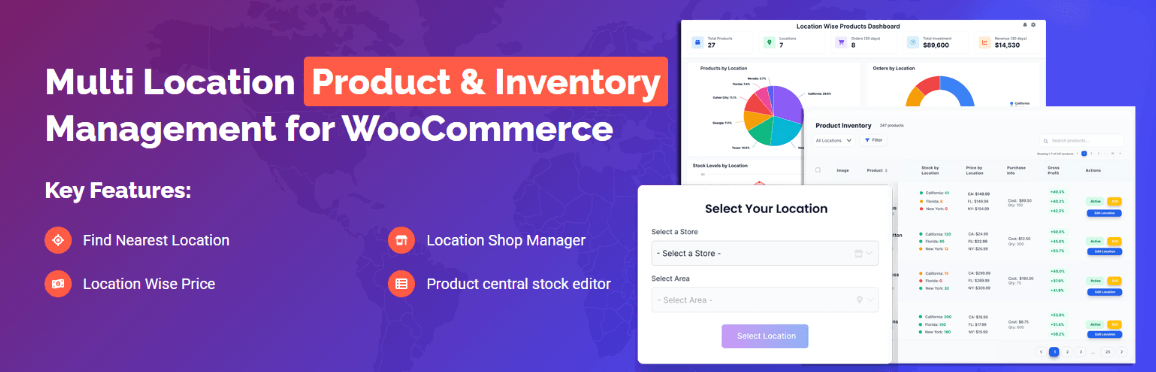
To use it: go to the plugin’s admin area, find the cache/maintenance section, and trigger a clear after any batch stock update or location config change. This is particularly useful after bulk product assignment or after editing per-location quantities across multiple products — the kind of operations that generate several stale transient entries at once.
It’s not a replacement for configuring your server-level cache correctly. Think of it as the last mile — after you’ve fixed Varnish or LiteSpeed Cache to vary by location, you still need to flush the application-layer transients that the PHP code cached. That’s what this handles.
No coding required. No third-party cache plugin needed. Free.
Real-Time Stock Display Modes and Location-Aware Cache Handling (Pro)
Even with cache properly invalidated, there’s a timing gap. A sale happens, the cache gets stale for seconds or minutes, and a second customer sees the wrong number. For high-traffic stores or products with limited stock across locations, that gap matters.
The Pro version of Multi-Location Product & Inventory Management for WooCommerce adds real-time stock display modes — exact quantity, availability label, or simplified stock level — delivered in a way that’s designed to work alongside your cache setup rather than fight it.
The practical way this works: instead of relying on the full-page cached HTML to show the stock number, stock display is handled via AJAX on page load. The cached page shell loads fast (good for performance), but the actual stock figure for the customer’s selected location is fetched fresh from the server. No stale number. No cache bypass needed for the whole page.
This is the correct architectural answer for multi-location stock display. You keep your FPC for everything static — images, descriptions, prices that don’t vary — and you pull only the location-specific stock value dynamically. It keeps your cache hit rate high while eliminating the mismatch.
The Pro version also handles location-aware cache handling across location switches. When a customer changes their selected location, the plugin refreshes stock display for the new location without requiring a full page reload or cache purge. The stock figure updates in place.
If you’re running a single-warehouse store, this level of granularity isn’t necessary. But if you’re managing five locations with genuinely different stock levels — and customers actively switching between them — the combination of server-level cache exclusion and AJAX-driven stock display is the only reliable solution. Static cached HTML simply can’t serve the right number to every customer in every location state. That’s not a plugin problem. That’s just how caches work.
Quick Reference — Find the Fix Based on the Symptom
Use this as your first stop. Match the symptom to the likely cause, then jump to the fix.
Stock Shows Correctly in Admin but Frontend Is Stale After a Purchase
Most likely cause: Full-Page Cache (FPC) — Varnish, Nginx FastCGI Cache, or LiteSpeed Cache — served a cached copy of the product page before the cache invalidated.
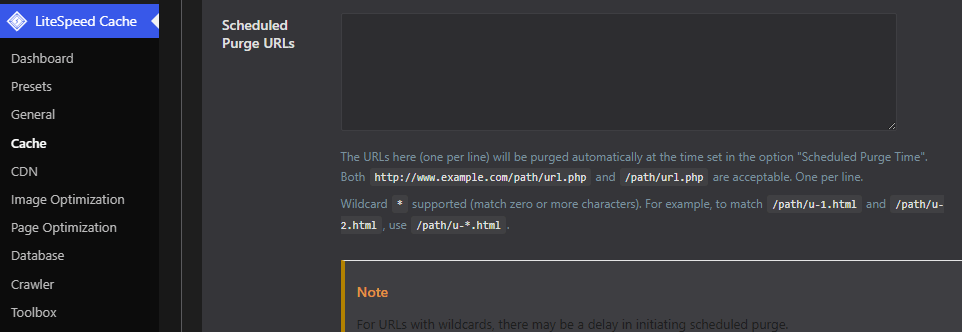
Fix: Add the product page to your Cache Purge Trigger list so it clears whenever WooCommerce fires woocommerce_reduce_order_stock. If you’re on LiteSpeed Cache, go to LiteSpeed Cache → Purge → Purge by URL and confirm your WooCommerce integration is on. On Varnish, check that your BAN or PURGE requests are reaching the correct host header.
Stock Looks Wrong but Refreshes After Hard Reload (Ctrl+Shift+R)
Most likely cause: Browser Cache. The user’s browser is serving a locally cached page — nothing to do with your server.
Fix: Set proper Cache-Control headers on stock-related pages. Specifically, stock display elements should carry no-store or a short max-age. This is usually a header configuration at the Nginx or Apache level, not inside WooCommerce itself. A hard reload forces the browser to bypass its local cache — if that fixes it, browser cache is your culprit.
Stock Is Wrong for Some Visitors but Correct for Others
Most likely cause: CDN Edge Cache or a geographically distributed cache layer (Cloudflare, Fastly, etc.) is serving different cached responses to different regions or PoPs (Points of Presence).
Fix: Exclude your product URLs from edge caching, or set the TTL (Time to Live) on product pages to something very short — under 60 seconds if your stock moves fast. On Cloudflare, use a Page Rule or Cache Rule to set Cache Level: Bypass for /product/* URLs. Better yet, use AJAX to load stock quantities dynamically so the HTML itself doesn’t carry the stock number.
Stock Resets to an Old Number Every Few Hours
Most likely cause: WooCommerce Transient Cache or Object Cache (Redis, Memcached) holding an old stock value. The TTL on the transient is longer than your restock frequency.
Fix: Check your Object Cache configuration. If you’re on Redis, use redis-cli KEYS "product" to see what’s cached and confirm the TTL values. In WooCommerce, stock transients are usually keyed by product ID — you can force clear them with wc_delete_product_transients( $product_id ). If you’re using a persistent Object Cache and stock changes frequently, either reduce the TTL or exclude stock-related transients from caching entirely.
Magento / Adobe Commerce Frontend Shows Old Stock After You Updated It in Admin
Most likely cause: Magento’s Full-Page Cache hasn’t invalidated for that product. This is extremely common — Magento doesn’t always flush FPC immediately on stock edits, especially on Adobe Commerce with Varnish.
Fix: Go to System → Cache Management and flush the FPC manually to confirm. If that corrects it, the real fix is ensuring your Varnish BAN configuration is working correctly on stock saves. If you’re seeing this frequently after code deployments, check whether ACSD-46767 applies to your version — that patch addresses a specific FPC invalidation bug tied to category page caching when stock status changes.
Stock Is Wrong Only on Category / Collection Pages, Not on the Product Page Itself
Most likely cause: Category pages are cached at a different TTL than product pages, or the stock badge on category pages is rendered server-side during the cache build — not pulled dynamically.
Fix: Either reduce the TTL on category/archive pages specifically, or switch the stock badge to an AJAX-loaded component. The HTML of the category page should not contain a hardcoded stock number — that value will go stale the moment your cache is warmer than your stock movements. On WooCommerce, hooking into woocommerce_after_shop_loop_item with an AJAX call is the right approach. On Magento, private content blocks handle this — make sure your stock widget is using the private content mechanism, not being baked into the full-page cache.
Stock Is Wrong Only for Logged-Out Users
Most likely cause: Your FPC is only active for guests (most setups exclude logged-in users from full-page caching, which is correct). The cached page was built with old stock data.
Fix: This confirms FPC is the culprit. Your logged-in users bypass FPC and hit live data — guests don’t. The fix is either a shorter TTL on product pages, a proper cache purge on stock change, or loading stock values via AJAX so the cached HTML shell doesn’t carry the number at all.
Multi-Location Setup — Customer Sees Wrong Stock for Their Selected Location
This one’s different from standard cache problems. The page might be correctly cached for one location’s stock but served to a customer who selected a different location. Standard cache layers have no concept of “which location did this customer pick.”
You need either per-location cache variations (complex and fragile) or — more practically — dynamic stock display via AJAX that fires after the customer’s location selection is read from their session. The Multi-Location Product & Inventory Management for WooCommerce by Plugincy plugin handles this in its free version: location selection is saved per customer, and the stock display updates based on that saved selection rather than being baked into a single cached page. Its Cache Maintenance Tools feature also helps clear location-specific transients when stock or location config changes.
If you’re building this yourself, the key is: never render the per-location stock count in the cached HTML. Always fetch it client-side after reading the customer’s saved location from their session or a cookie.
Quick Symptom → Fix Map
| Symptom | Likely Layer | First Action |
|---|---|---|
| Stale after purchase, clears after cache flush | FPC (Varnish/LiteSpeed/Nginx) | Add purge trigger on stock change |
| Fixed by hard reload only | Browser Cache | Set Cache-Control: no-store on product pages |
| Different stock for different visitors | CDN Edge Cache | Bypass edge cache for /product/* or use AJAX |
| Resets to old number every few hours | Transient / Object Cache (Redis/Memcached) | Reduce TTL or clear on stock update |
| Magento admin correct, frontend wrong | Magento FPC | Flush cache, check Varnish BAN, review ACSD-46767 |
| Wrong on category pages, right on product page | Archive page cache TTL | Lower TTL or move stock display to AJAX |
| Wrong for guests, right for logged-in users | FPC (guest-only caching) | Shorter TTL + purge triggers, or AJAX stock display |
| Wrong per location in multi-location store | No location-aware cache layer | AJAX stock fetch post-location-selection |
Warnings — These Mistakes Will Bring the Problem Back
Fixing a stock cache mismatch is one thing. Keeping it fixed is another. These are the mistakes that cause the problem to quietly return, usually at the worst possible time — during a flash sale or a product launch.
Setting a Single TTL for Everything
This is probably the most common one. You fix the immediate issue, then configure a blanket TTL — say, 24 hours — across all cached pages. Stock pages are now cached for 24 hours just like your About page.
Short TTLs solve stale stock. Long TTLs help performance. You can’t have both with one setting. The fix is to use different TTLs by URL pattern or content type. Product pages need a TTL measured in minutes (or zero TTL with AJAX stock fetch). Static pages can stay cached for hours or days. If your caching layer doesn’t support per-path TTL rules, that’s the upgrade you actually need — not just a cache purge.
Excluding Stock from Cache Purge Triggers
A cache purge trigger fires when something changes and tells the cache to drop the stored version. Most setups configure these triggers for things like new posts or theme changes. Stock updates rarely make it onto that list by default.
If your Varnish, Nginx FastCGI Cache, or CDN isn’t wired to purge on stock changes, the old page stays cached no matter what happens in the database. Check that woocommerce_product_set_stock or your WMS webhook actually invalidates the right cached URLs. If it doesn’t, you’re purging manually every time — which means you will forget, and the mismatch will come back.
Forgetting Browser Cache and Edge Cache After Fixing Server-Side Cache
You flush Redis. You purge Varnish. The server is clean. But a customer opened the product page an hour ago and their browser still holds the old HTML, or your CDN’s edge node hasn’t picked up the new version yet.
Server-side cache invalidation is not the whole job. Browser cache is controlled by Cache-Control and Expires headers. Edge cache on your CDN has its own TTL that may not honor your origin’s purge. After a fix, verify with an incognito window on a network you haven’t visited from before — or use a VPN to hit a different CDN edge node. If the stale stock still appears, the problem has moved downstream, not disappeared.
Re-Enabling a Cache Layer You Disabled During Testing
During diagnosis, disabling LiteSpeed Cache or bypassing Varnish helps you confirm where the stale data lives. That’s correct. What breaks things is forgetting to re-apply your exclusion rules when you re-enable it.
You turn caching back on, traffic returns to normal, and the exclusions you carefully configured are now gone — or never applied to the re-enabled plugin because you toggled it off and back on without checking. Always verify your Cache Exclusion List is intact after any caching plugin update or toggle. Some plugins reset custom rules on version updates.
Using Object Cache Without Expiring WooCommerce Transients on Stock Changes
Redis and Memcached are fast. They’re also persistent across page loads, which is exactly why stale Transient Cache data from WooCommerce can sit there long after stock has changed. The Transient Cache for stock status, available quantities, or shipping estimates doesn’t always expire when it should — especially if you’re using a persistent object cache backend that doesn’t respect WordPress’s built-in transient cleanup.
The correct fix is to ensure that stock-related transients (_transient_wc_* patterns, product object cache groups) are invalidated when stock changes. Check whether your object cache has a dedicated WooCommerce group configured, and whether that group is excluded or has a short TTL. Some stores need to add an explicit wp_cache_delete() call tied to woocommerce_product_set_stock to handle this reliably.
Assuming the Fix Works for Multi-Location Stock Too
This is a genuinely different problem, and conflating the two is what causes repeated failures. Standard cache fixes work when your stock lives in a single WooCommerce product record. When customers see location-specific stock — warehouse A has 3 units, warehouse B has 0 — the data source is different, and so is the invalidation requirement.
A cache exclusion rule that works for global stock won’t automatically cover per-location stock displays. If you’re running a multi-location setup (whether through a dedicated plugin or custom tables), each location’s stock data needs its own invalidation path. The Multi-Location Product & Inventory Management for WooCommerce plugin by Plugincy includes cache maintenance tools specifically for this scenario — clearing location-specific transients and product cache after inventory changes — which matters because the standard WooCommerce purge hooks don’t reach custom location data. But even if you’re using a different tool, the principle holds: trace the data source and make sure your purge trigger reaches it.
Not Monitoring After the Fix
A cache mismatch can look solved and then silently return after a plugin update, a hosting change, or a CDN configuration refresh. Set up at least a basic check: a cron job or an uptime monitor that compares the stock quantity visible on a product page against the admin value for a few tracked products. If those diverge by more than a few minutes, something has broken again.
Letting it go unmonitored means a customer reports it — and by then, the wrong stock has already been live for hours.
Frequently Asked Questions (FAQ)
Why does clearing the cache fix the stock display, but the problem keeps coming back?
Because you fixed the symptom, not the cause. Clearing cache manually works once — but if your TTL is set too high, or you have no cache purge trigger tied to stock changes, the stale data just accumulates again. You need either a short TTL on product pages (60–300 seconds is reasonable for high-turnover stock) or an automatic purge that fires whenever WooCommerce updates stock. The fix that sticks is a proper Cache Invalidation rule, not a recurring manual clear.
My CDN is showing the wrong stock. Does that mean my server cache is fine?
Not necessarily — it means the bad response made it out to the edge. CDNs like Cloudflare cache what your origin server sends them. If Varnish or Nginx FastCGI Cache served a stale HTML page, that stale page is what gets stored at the edge. You may need to fix both layers: exclude product pages from Edge Cache, or set up a Cache Purge Trigger at the CDN level so it pulls a fresh copy when stock changes.
How do I know which cache layer is causing the mismatch?
Load the product page in a browser you’ve never used before (or a private window with DevTools open). Check the response headers — look for X-Cache: HIT, CF-Cache-Status: HIT, Age: 3842, or similar. A high Age value means a CDN or reverse proxy is serving a cached copy. If headers look clean but stock is still wrong, open the page while logged into WordPress — if the logged-in view shows correct stock, the issue is Full-Page Cache or Varnish, not the database. If both views are wrong, suspect Object Cache (Redis or Memcached) or a WooCommerce Transient Cache issue.
Can I just exclude all product pages from cache to solve this permanently?
You can, but you probably shouldn’t. Excluding every product page from FPC kills a lot of your site performance for no good reason. A smarter approach: exclude only the stock quantity element using AJAX, keep the rest of the page cached, and let WooCommerce fetch live stock via a separate lightweight request. That’s what the wc_get_stock_html() approach with AJAX endpoints is designed for. Full page exclusion is a last resort, not a strategy.
In Magento, I patched ACSD-46767 but the stock is still wrong. What now?
ACSD-46767 fixes one specific category-page caching bug. If your mismatch is on a product detail page, or it’s coming from a different cache layer entirely, that patch won’t help. Check whether your Full-Page Cache is set to exclude out-of-stock products correctly, verify your Varnish VCL isn’t overriding Magento’s cache headers, and confirm your Cron Job for index revalidation is actually running on schedule. The patch is a narrow fix — it doesn’t solve every stock cache problem in Adobe Commerce.
WooCommerce shows the right stock in admin but wrong stock in a REST API response. Is that also cache?
Yes, frequently. WooCommerce REST responses can be served through Object Cache or even an Nginx FastCGI Cache layer if your server isn’t configured to exclude API routes. Check that /wp-json/wc/v3/products/* is in your Cache Exclusion List. Also verify that your Redis or Memcached instance isn’t holding a stale product object — flush it and test the API response again. If the API returns correct stock after a flush, you’ve found your layer.
How do multi-location setups make this worse?
Significantly. In a standard single-location store, stock is one value per product. With Multi-Location Inventory, each location holds its own stock count — and the cached page might reflect the stock of the wrong location entirely, not just an outdated number for the right one. If a customer selects a different store or warehouse, the cached page may not re-render at all. This is why per-location stock display almost always requires AJAX-based Dynamic Stock Display rather than relying on cached HTML. The [Multi-Location Product & Inventory Management for WooCommerce by Plugincy](https://wordpress.org/plugins/multi-location-product-and-inventory-management/) plugin handles this — the free version includes dynamic filtering by location so customers see availability for their chosen store, and the pro version adds real-time stock display modes (exact quantity, availability label, or simplified level) specifically to avoid the stale-cache problem.
LiteSpeed Cache is installed. What settings do I check for stock issues?
Go to LiteSpeed Cache → Cache → Excludes and add your product page URLs or URL patterns to the Do Not Cache URIs list if needed. More practically: enable ESI (Edge Side Includes) for dynamic blocks, which lets LiteSpeed cache the page shell while rendering stock quantities fresh. Also check Object Cache settings — LiteSpeed has its own object cache implementation that can hold stale WooCommerce transients. Purging the object cache separately from the page cache is sometimes necessary.
My developer says the stock is correct in the database. Why is it still wrong on the frontend?
The database is the source of truth, but it’s not always what the frontend reads. Between the database and the browser, you have Database Query Cache, WooCommerce Transient Cache, Object Cache (Redis/Memcached), PHP OPcache, Full-Page Cache, and potentially a CDN or Browser Cache layer on top. Correct data in the database means nothing if an intermediate layer is serving a cached response before the query even runs. Work outward from the database — flush each layer in sequence and test after each one until the correct value appears.
Is there a way to get real-time stock display without disabling cache entirely?
Yes. The standard approach is Cache Bypass for the stock quantity only. You keep the product page cached, then use a small AJAX call to fetch current stock separately — that request bypasses the page cache because it hits a non-cached endpoint. WooCommerce does some of this natively (add-to-cart AJAX validation, for instance), but the displayed stock number itself often isn’t updated unless you add a small script or use a plugin that implements Dynamic Stock Display. That way your Time to First Byte stays fast, cache hit rates stay high, and customers still see accurate stock.
Does Browser Cache cause this problem too?
Occasionally. Browser Cache is usually short-lived (minutes, not hours), so it’s less often the culprit than server-side layers. But if a customer loaded a product page, left, and came back within the browser cache window, they might see stale stock. Setting Cache-Control: no-store or a short max-age on product pages in your server config addresses this — though it’s rarely the primary cause of the mismatch reported in admin vs frontend situations. Focus on server-side and CDN layers first.
How do I test whether a Webhook or Cron Job is actually triggering a cache purge on stock change?
For Cron Jobs: install WP Crontrol (free on WordPress.org) and manually run the relevant WooCommerce cron event, then check whether cached stock updates. For Webhooks: use a tool like RequestBin or Webhook.site to log the outgoing payload and confirm it’s firing with the correct stock value. On the cache side, check your caching plugin’s log (LiteSpeed Cache and similar plugins keep purge logs) to verify a purge event was recorded at the right time. If the webhook fires but the cache doesn’t purge, the issue is in how your cache plugin responds to that event — not in the webhook itself.
Conclusion — Identify the Right Layer and Fix It Once for Good
Cache mismatches aren’t random. Every single case has a traceable cause — a specific layer holding stale stock data longer than it should. The fix is almost always straightforward once you know which layer you’re actually dealing with.
That’s the whole game here: stop guessing, start looking.
If your admin shows the correct stock and your frontend doesn’t, you’re not looking at a WooCommerce bug or a database problem. You’re looking at a cached response somewhere between your database and the browser. It’s either Full-Page Cache (FPC), Object Cache, a CDN edge node, Varnish, Nginx FastCGI Cache, LiteSpeed Cache, a transient that’s still within its TTL, or — less often but it happens — the browser’s own cache. Work through them in that order and you’ll find it.
Fix it at the right layer, not just the nearest one.
A lot of stores “fix” this by adding a blanket purge-all rule on every page load, or by disabling caching entirely on product pages. That works, but you’ve just traded one problem for another — slower pages, higher server load, and a CDN that’s now basically decorative. The right approach is a targeted Cache Exclusion List for stock-sensitive pages, a tight TTL on anything inventory-related, and a Cache Purge Trigger that fires when stock actually changes. That means hooking into woocommerce_product_set_stock or using your platform’s stock update event to invalidate only what changed.
For Magento and Adobe Commerce stores, the same logic applies. The ACSD-46767 patch exists for a reason — uncached category pages were causing performance problems, which pushed teams toward aggressive FPC rules that then swallowed stock changes. If you applied that patch, double-check your category and product page cache configuration afterward.
The CDN layer catches a lot of people off guard. You can purge everything at the server level and still serve stale stock to users hitting an edge node that hasn’t been told to revalidate. Build your Cache Purge Trigger to reach the CDN too — most major providers expose an API for this, and it’s a one-time setup that saves a lot of confusion later.
On the AJAX side: if your add-to-cart and stock display are already handled via AJAX calls, the FPC layer won’t affect those responses — but your Object Cache (Redis or Memcached) and Database Query Cache still can. Make sure those calls either bypass the object cache for stock quantities or that the relevant keys are flushed on stock update.
Multi-location setups add a layer of complexity. When a customer selects a location and sees stock from Warehouse B, but your FPC cached the page when Warehouse A was selected, you get a mismatch that looks identical to a standard cache problem but has a different root. The fix there isn’t just purging — it’s making sure location-specific stock is either served dynamically via AJAX (bypassing FPC entirely) or that cached pages are keyed by the customer’s selected location. If you’re running WooCommerce with per-location inventory, the Multi-Location Product & Inventory Management for WooCommerce by Plugincy includes cache maintenance tools and dynamic location filters built specifically for this — the free version handles location-aware stock display and cart validation, so you’re not stuck writing custom cache-bypass logic from scratch for multi-location scenarios.
Stock Sync between systems — whether via Webhook, Cron Job, or a REST API — only solves half the problem if the cache layer doesn’t know a sync just happened. Make sure your sync process ends with a cache purge step, not just a database write.
Three things to lock in before you close this out:
- Confirm the layer — use an incognito tab, a curl request with cache-bypass headers, and your caching plugin’s or server’s debug tools. Don’t assume.
- Set the right TTL — stock pages should have a short TTL (under 5 minutes is reasonable for most stores; real-time display needs AJAX or a full Cache Bypass).
- Automate the purge — manual cache clears are a temporary patch. A proper Cache Purge Trigger tied to stock change events is the permanent fix.
Do those three things and the mismatch doesn’t come back. That’s the whole fix — identify the layer, configure it correctly, and automate the invalidation. Everything else in this article is detail in service of those three steps.
