
The Multi Location Product & Inventory Management for WooCommerce plugin allows products to be shown or hidden based on assigned store locations. Sometimes, products may not appear correctly for customers after selecting a location. This mismatch usually happens due to filtering or assignment problems. Below is a deep guide to diagnosing and fixing these issues.
Common Causes of Visibility Mismatch
1. Product Not Assigned to Any Location
Cause:
If a product has not been linked to a store location, it will not appear when customers filter by location.
Fix:
- Go to Dashboard → Products → Edit Product.
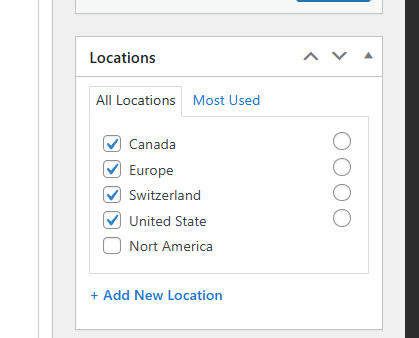
- Scroll to the Locations section.
- Assign the product to one or more locations.
- Save changes and re-test.
2. Cache Problems
Cause:
Cached pages may show outdated product lists, leading to mismatches.
Fix:
- Clear WordPress cache (from caching plugin or hosting panel).
- Purge CDN cache if using services like Cloudflare.
- Clear browser cache and cookies.
- Exclude shop and product pages from caching rules.
3. JavaScript Conflicts
Cause:
Other plugins or themes may load JavaScript that interferes with location filtering logic.
Fix:
- Open browser developer console (F12 → Console tab) and check for errors.
- Disable other plugins one by one to identify conflicts.
- Switch to a default WordPress theme to test.
- Contact the conflicting plugin/theme developer if needed.
4. Cookie Issues
Cause:
The plugin uses cookies to remember the selected location. If cookies are blocked or misconfigured, product visibility may not update.
Fix:
- Ensure cookies are enabled in the browser.
- Check if a cookie consent plugin is blocking location cookies.
- Verify SSL/HTTPS settings (insecure cookies may be rejected).
- Clear cookies and test again.
5. Theme Conflicts
Cause:
Some themes override WooCommerce templates, breaking location-based product filtering.
Fix:
- Switch temporarily to a default WordPress theme (e.g., Twenty Twenty-Four).
- Review your theme’s WooCommerce template overrides.
- Update your theme to the latest version.
- Contact the theme developer for compatibility fixes.
Step-by-Step Diagnosis Flow
- Check product assignment — confirm each product is linked to a location.
- Clear cache — WordPress, CDN, and browser.
- Check JavaScript console — look for errors.
- Test cookies — enable, clear, and verify HTTPS.
- Switch theme — rule out theme conflicts.
- Disable plugins — identify conflicts.
- Update everything — WordPress, WooCommerce, plugin, and theme.
- Re-test product visibility on shop and product pages.
Best Practices
- Always assign products to at least one location.
- Keep plugin, WooCommerce, and WordPress updated.
- Use staging environments to test changes before applying them live.
- Document troubleshooting steps for future reference.
- If issues persist, contact plugin support with details (errors, screenshots, steps taken).
This guide ensures users can systematically diagnose and fix Product Visibility Mismatch by Location, covering assignment, filtering, cache, JS conflicts, cookie handling, and theme compatibility.